Email and Digital Marketing
How can we help you?
Search our help articles, video tutorials, and quickstart guides

You've got this. You've got us. Search our Knowledge Base to quickly find answers to your questions.

Import a list of SMS-only contacts without email addresses from a file or spreadsheet

Article: 000046419
Updated: February 26, 2026

Import a file of SMS contacts who have provided you with an SMS phone number and their consent to receive SMS messages from you, but didn't provide an email address


Exclamation Point IconImportant: SMS-only contacts don't count as active contacts for your email marketing plan. If you later obtain email addresses from your SMS-only contacts and update them, they become billable email marketing contacts and count towards your contact tier. Importing SMS contacts does not automatically match them to an existing email address or phone number in your account.


If you've been capturing SMS contacts through another SMS provider, you can import them into Constant Contact to use with our SMS tools as long as you have a valid SMS phone number and consent date. SMS contacts don't need an email address, but you can add them later if you want to start sending email marketing messages.


Light Bulb IconDid you know? If you need to create a single contact or copy and paste in a handful of contacts, you can include the SMS phone number and consent date, too!


Prepare your file with SMS information

Clock IconSave time: Are you importing both email and SMS contacts? Make sure your file is formatted correctly to include either email-only or email-and-SMS contacts.


To prevent import errors, take some time to format your file or spreadsheet before uploading it to your Constant Contact account. Formatting helps us make sure that your data is translated into the right place in your contact record:
  • Use a compatible file type and organize the content so there aren't multiple tabs.
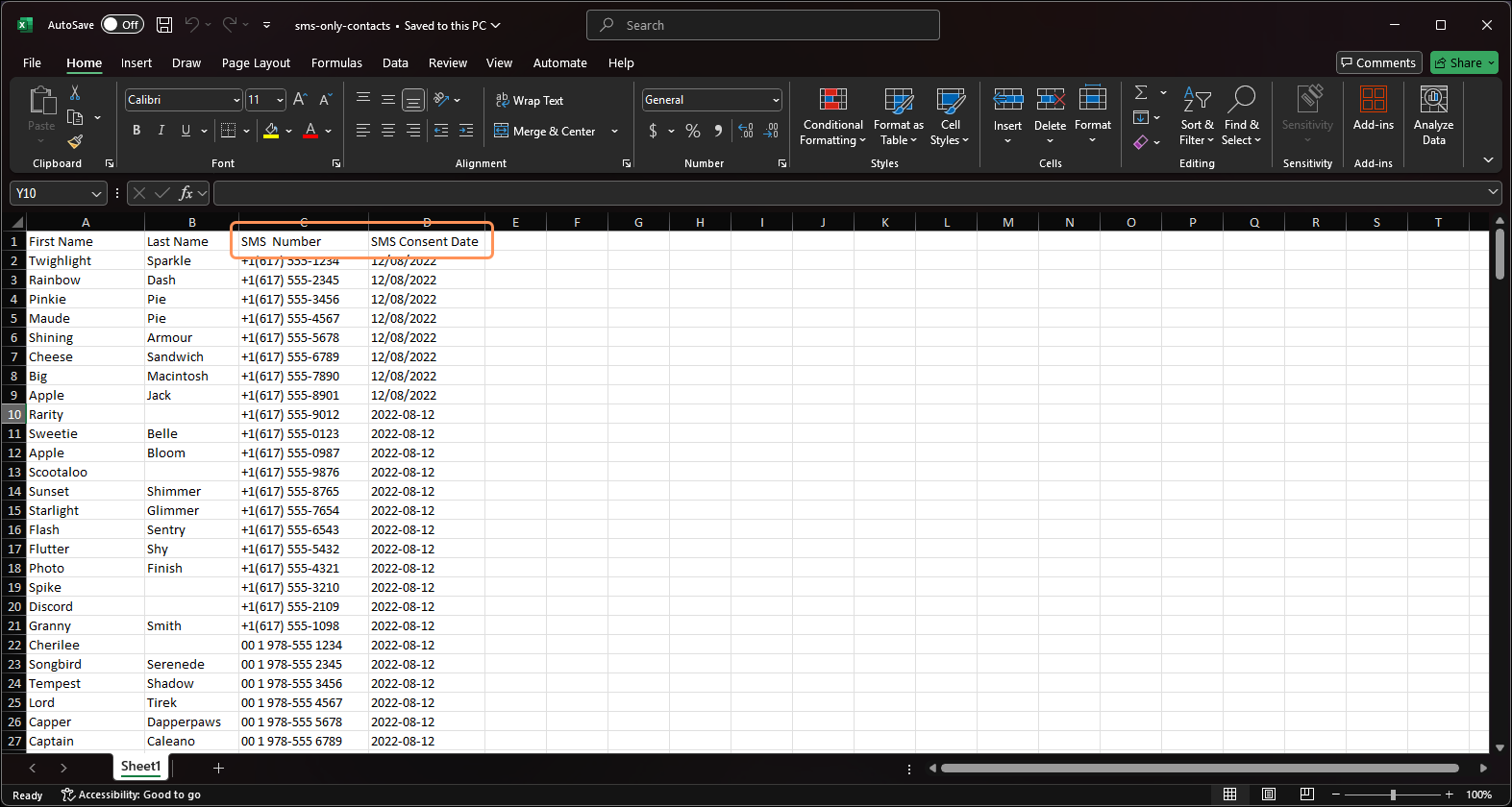
  • Make sure your file includes columns labeled "SMS phone number" and "SMS consent date" (see image below). If you upload SMS contacts without a consent date, they're set to the "SMS no permission set" status and can't be sent SMS campaigns until they opt in.
  • Label the rest of your column headings so that Constant Contact can recognize them. SMS-only contacts don't require an email address, but all the other contact details and custom fields you create are up to you.
    Note: Your file can include tags, too!
  • Format your SMS phone numbers and consent dates so they can be recognized during the import process. If the formatting isn't compatible, it results in import errors.
    Note: If using Excel, the SMS phone number field should be formatted as "Phone Number," or as "Text" if the phone number is in an international format. The SMS consent date field should be formatted as "Date" or "Custom - General." (You can see examples of both phone number and date formats in the image below.)
  • Make sure there aren't any accented characters in your file name.

    Example Excel spreadsheet with First Name, Last Name, SMS Number, and SMS Consent Date columns


Light Bulb IconDid you know? Both email and SMS marketing through Constant Contact are permission-based, meaning your contacts must opt in. If you need help growing your SMS list or have email contacts you'd like to invite to opt into SMS marketing, we can help you grow your list with consent! Email consent does not equate to SMS consent, and they require separate consent. For more information, please see our email permission policy and SMS permission policy.


Upload a file of SMS contacts

Exclamation Point IconImportant: Though you can import SMS contacts at any time, before you can send SMS marketing messages, you must first add the SMS marketing add-on to your email plan and complete the SMS registration process. Some plans include SMS marketing by default.


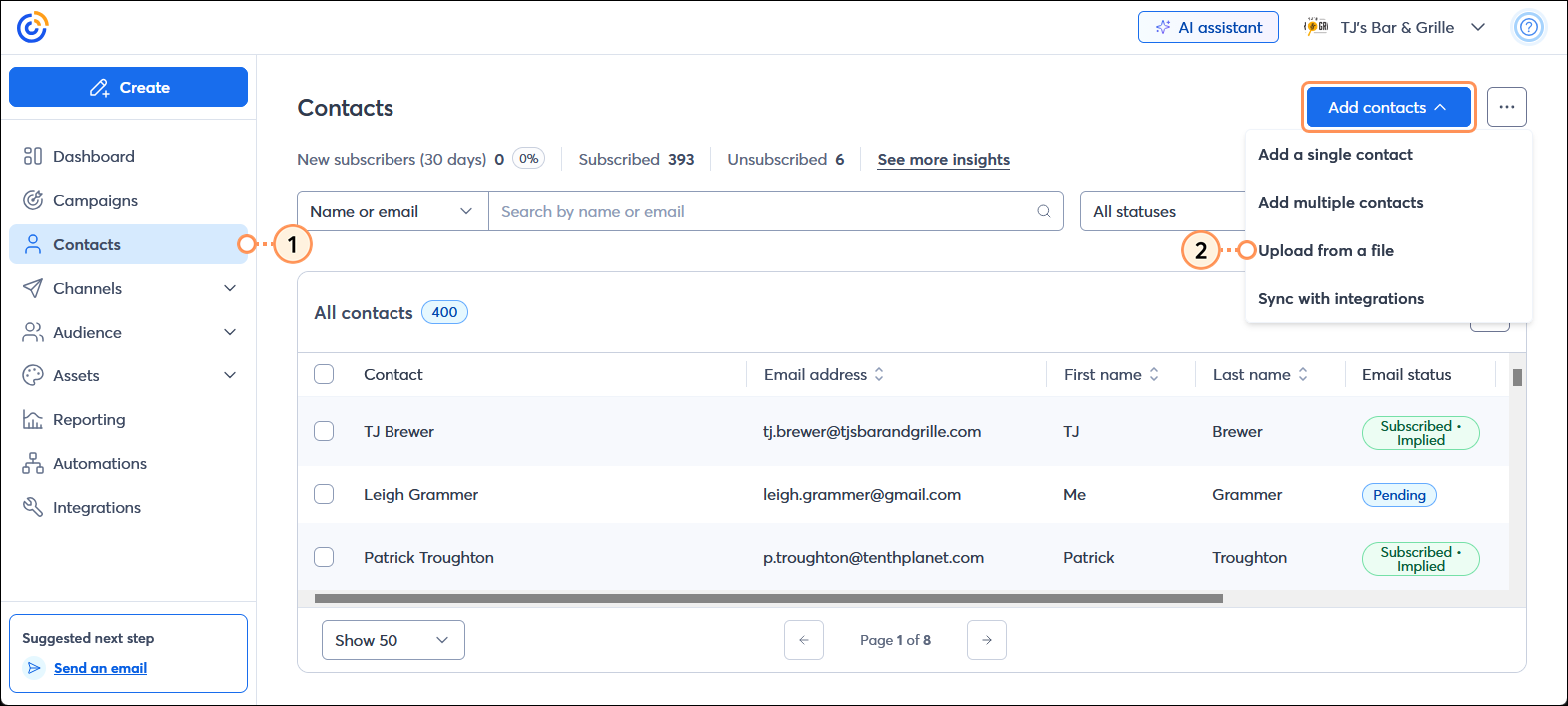
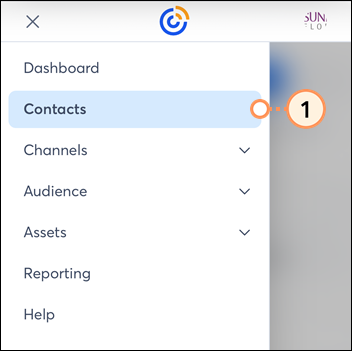
  1. In the menu on the left-hand side of the page, click the Contacts option.
    Note: You can also click the Create button in the left-hand menu to add new contacts from any page in your account.
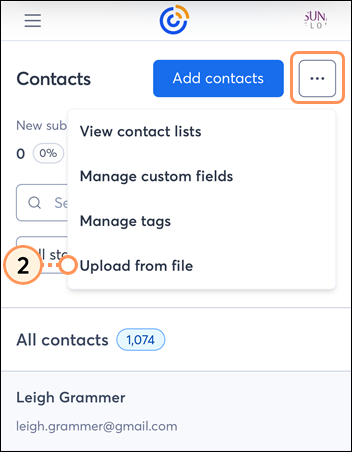
  2. In the upper right-hand corner of the Contacts page, click Add Contacts > Upload from a file.

    Left-hand menu with Contacts option selected, Contacts page with Add contacts button

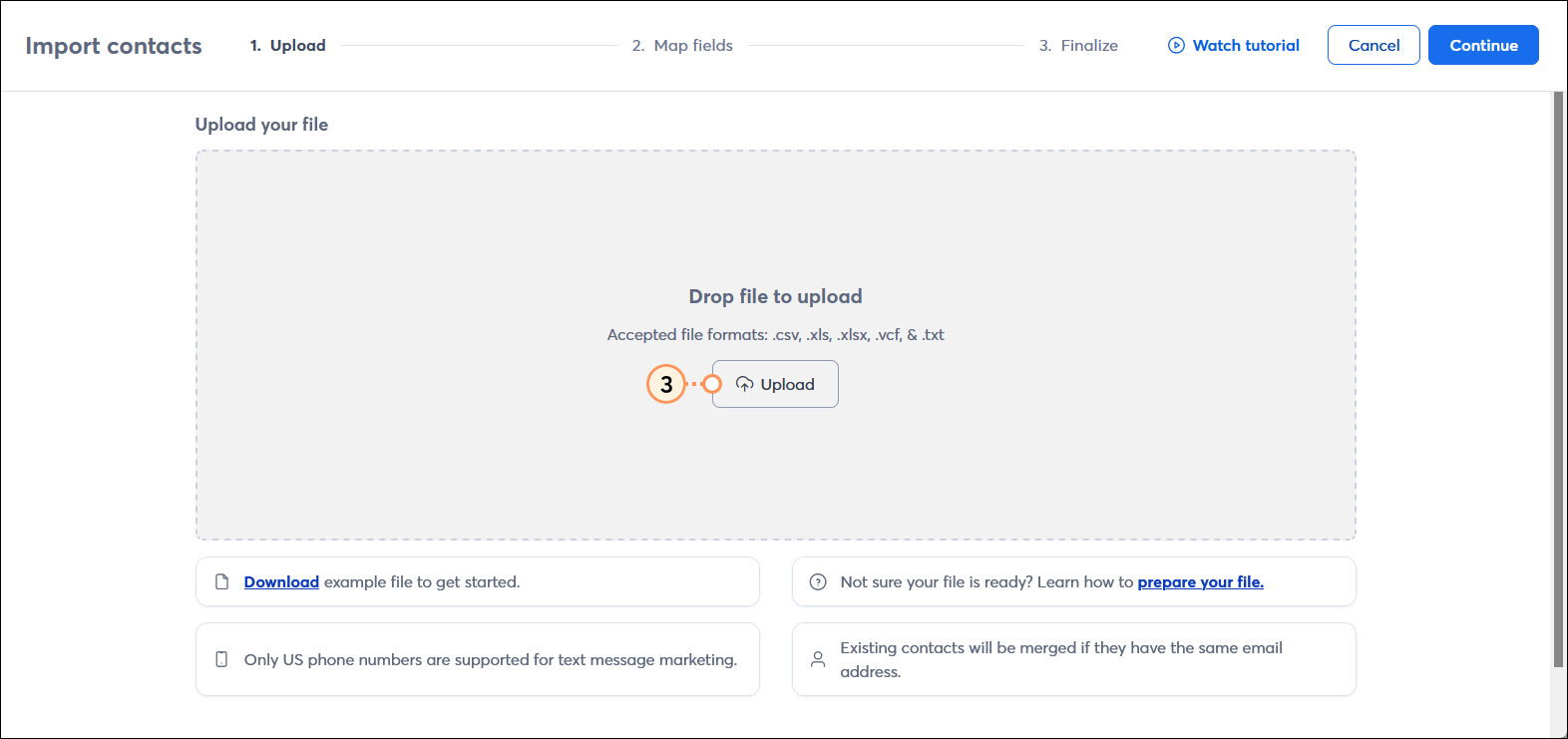
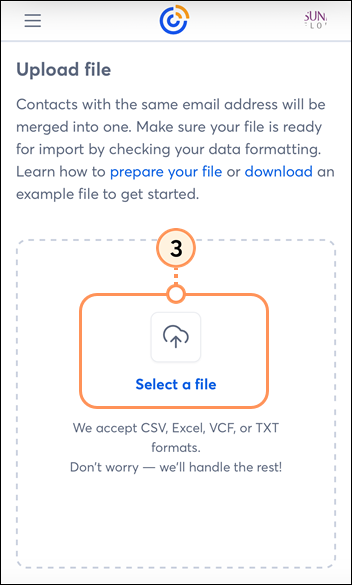
  3. Click the Upload button.

    Import contacts page on Upload step, Upload your file section and Upload button

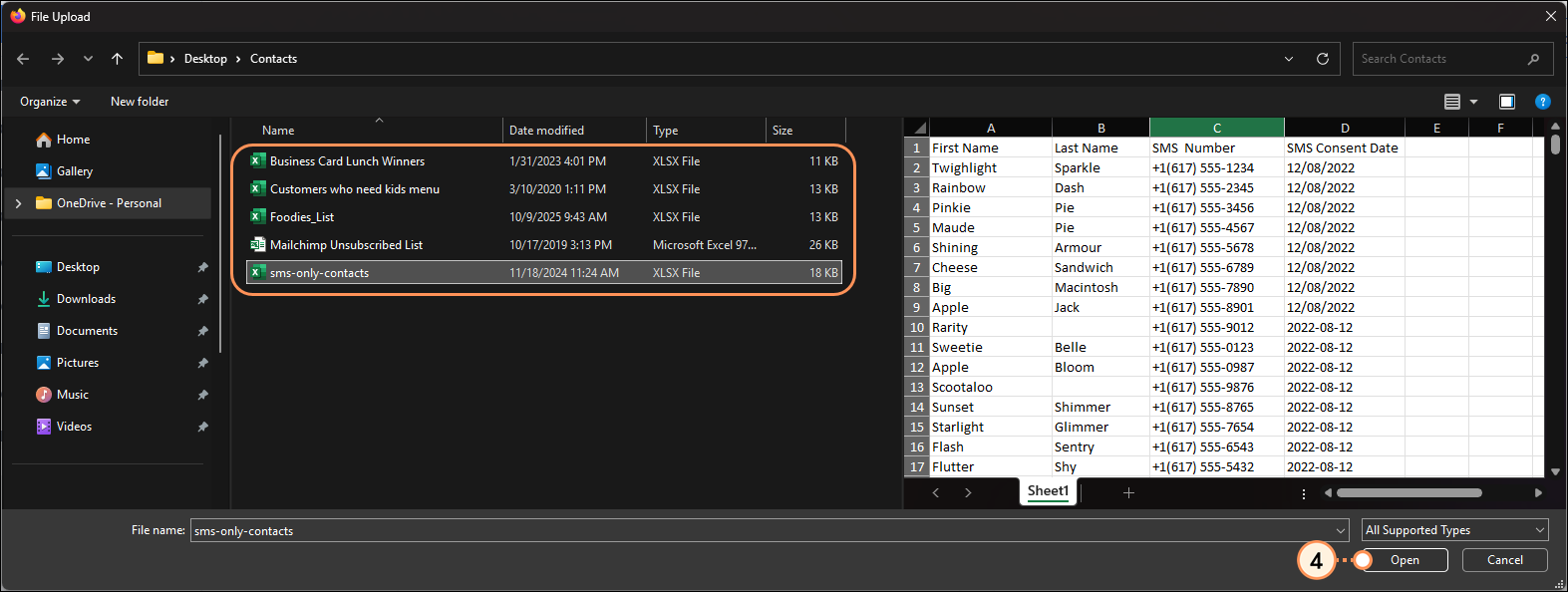
  4. Depending on your computer, use File Explorer or Finder to select the file or spreadsheet you want to import.

    Example of File Explorer and contacts files with file selected and Open button

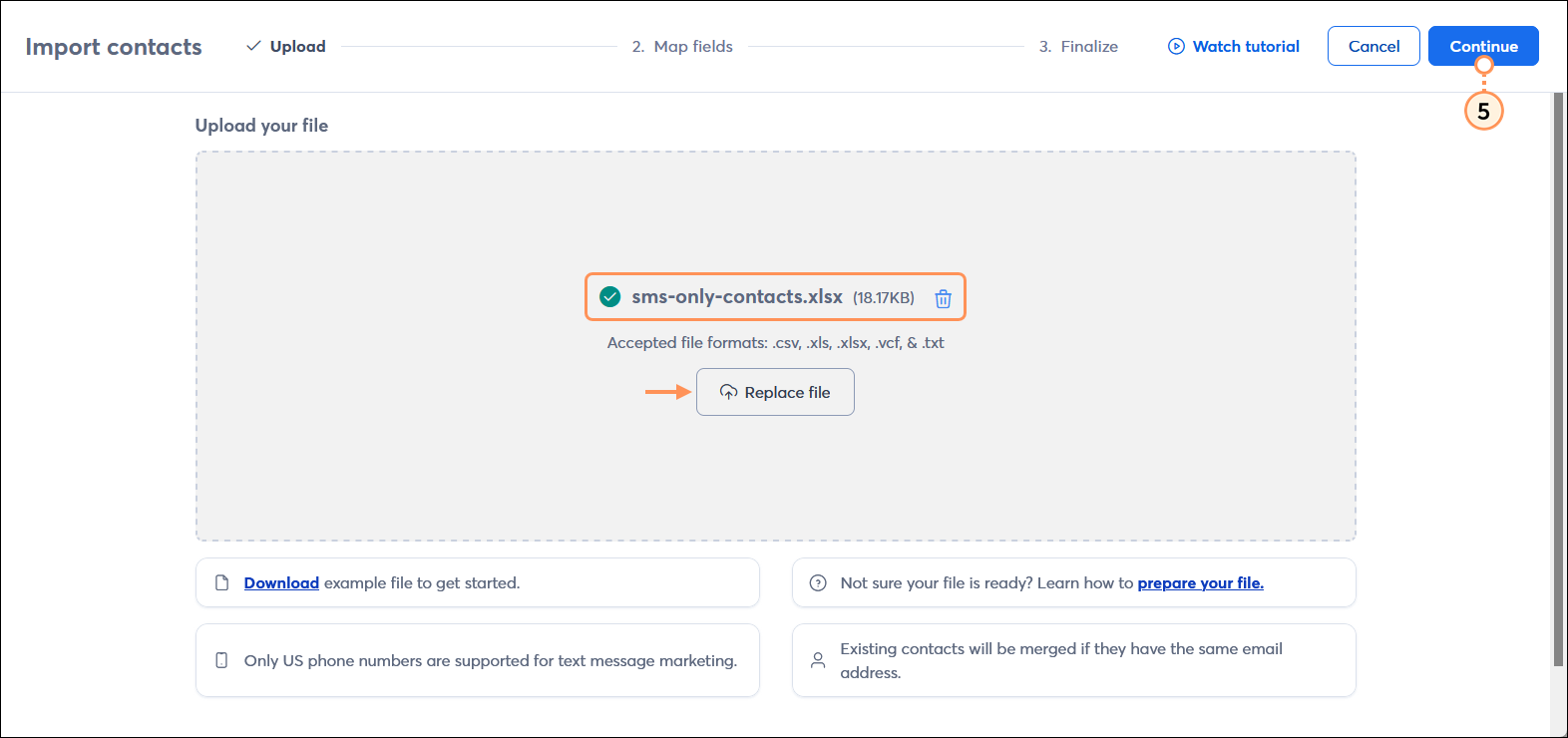
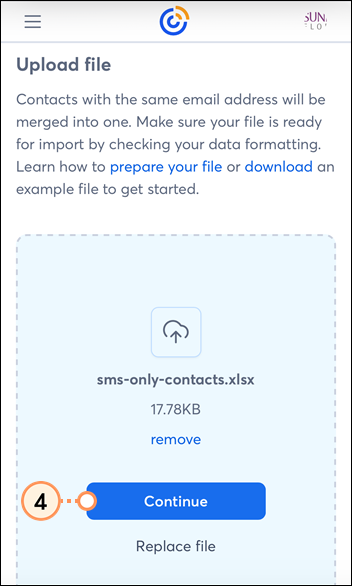
  5. Review your file selection, then click the Continue button in the upper-right corner of the page. If you want to choose a different file, click the Replace file button and repeat step 4.

    Import contacts page on Upload step, sms-only file selected and Replace button, and Continue button

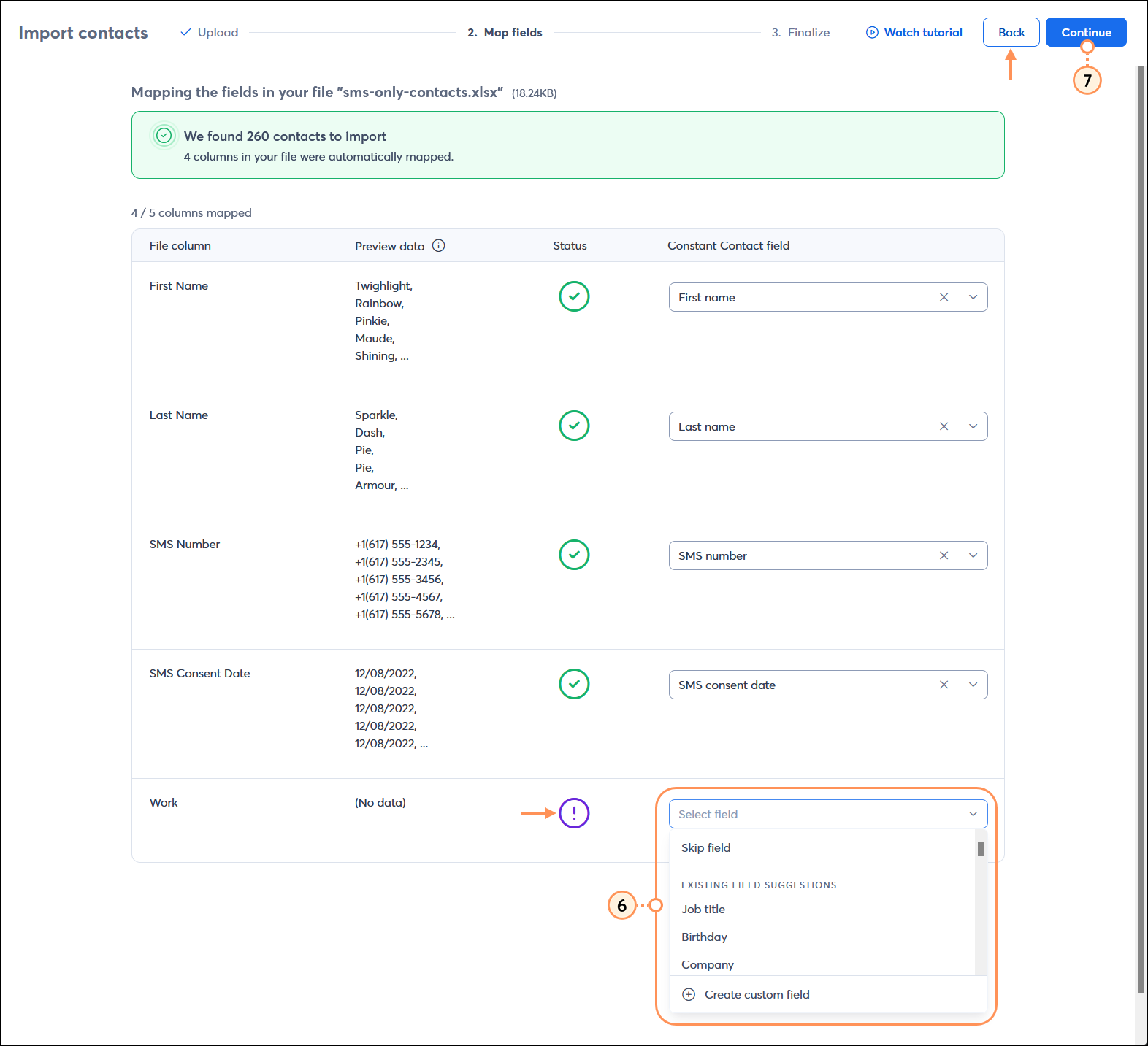
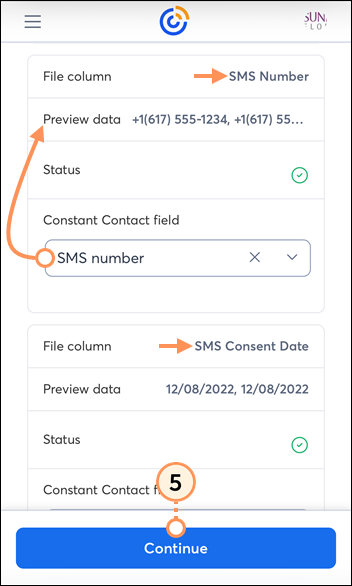
  6. We have a set of standard contact headings that are automatically matched to your spreadsheet using AI. Review your file's column headings to ensure they are correct. Only the first two contacts from your spreadsheet are displayed to show you what kind of data is in each column.
  • If your file column heading is missing a name or if the heading doesn't match the column contents, choose the correct file heading from the drop-down menu.
  • If your file has headings that don't match the standard fields recognized by Constant Contact, we suggest them for you using AI. If you want to change the suggested field name, click +Create custom field from the drop-down menu.
    Note: Please don't recreate an existing column heading using a custom field. Doing so can cause issues when you try to use it later.
    Important: It's a violation of our Terms of Service to store Sensitive Information in a custom field. For more information on Sensitive Information, please see our Terms of Service.
  • Select Skip field from the drop-down menu if you don't want to import a column of data from your spreadsheet.
  • Formatting errors need to be corrected before you can import your file. Just hit the Back button at the top of the page to re-import your corrected spreadsheet.
    Note: If there are formatting errors in an SMS phone number or SMS consent date for a specific contact, they can be corrected after the file is imported.
  1. Click Continue.

    Import contacts Match fields step with SMS number and Consent date fields, and mis-matched column with drop-down menu expanded, and Continue button

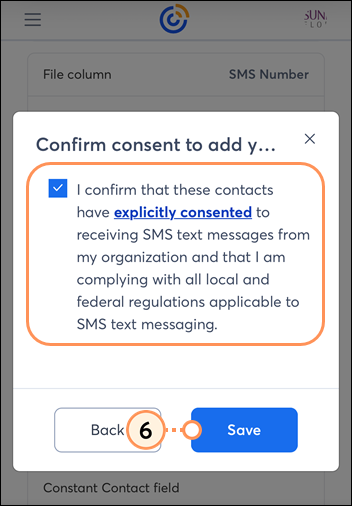
  2. Confirm that you have consent to send SMS marketing messages to your imported contacts.
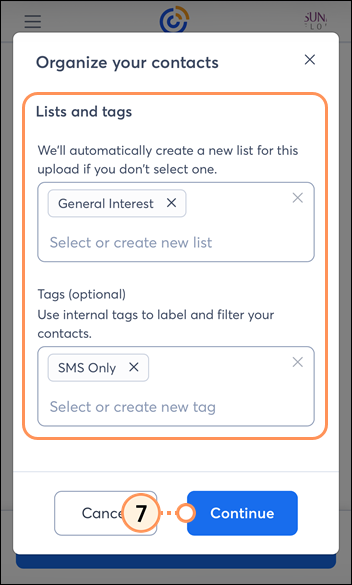
  3. Choose the list you want to add your contacts to, or create a new list. You can create and select multiple lists to suit your needs. If you don't select a list, it's totally fine! We'll automatically generate a list for you, which you can rename later.
  4. (Optional) Select a tag or create a new tag to apply to your contacts.
  5. Click the Import button.

    Import contacts Finalize step with email and SMS permission options, list and tag options, and Import button

If the file you uploaded contains a large number of contacts, you're taken directly to your Contacts Activity page to check the import progress. If your contacts have any errors that need to be corrected, you can resolve them from the Contacts Activity page. Otherwise, you'll see a message at the top of the screen indicating that your import was successful. Once your contacts are imported, you're ready to start segmenting them into meaningful audiences or send them an SMS message.


View all of your SMS-only contacts after importing

Once your SMS contacts are imported, you can find them by viewing the list you added them to or searching by their status:


Light Bulb IconDid you know? Contacts that are missing a consent date are imported but placed in the "no permission set" status. You can't send SMS messages to these contacts until a consent date is provided.


Any links we provide from non-Constant Contact sites or information about non-Constant Contact products or services are provided as a courtesy and should not be construed as an endorsement by Constant Contact.


Questions?

Ask the Community

Did this article answer your question?


Constant Contact Logo

Copyright © 2026 · All Rights Reserved · Constant Contact · Privacy Center