We're making it easier to get around Constant Contact with a brand new left navigation. Not all accounts have that change yet, so if your navigation looks different from our articles, that's why–but everything from the top can now be found on the left!

Email and Digital Marketing
How can we help you?
Search our help articles, video tutorials, and quickstart guides

You've got this. You've got us. Search our Knowledge Base to quickly find answers to your questions.

Create a new email or SMS contact

Article: 000033115
Updated: October 9, 2025

Add a single contact, or a small number of contacts, by filling in their information one contact at a time

Clock IconSave time: If you have over 20 contacts to create, or if you collect lots of different contact information besides names and email addresses, we recommend uploading a spreadsheet instead.


Need to add just a handful of email contacts to a contact list? It only takes a few moments to enter their contact information to create a new contact record.

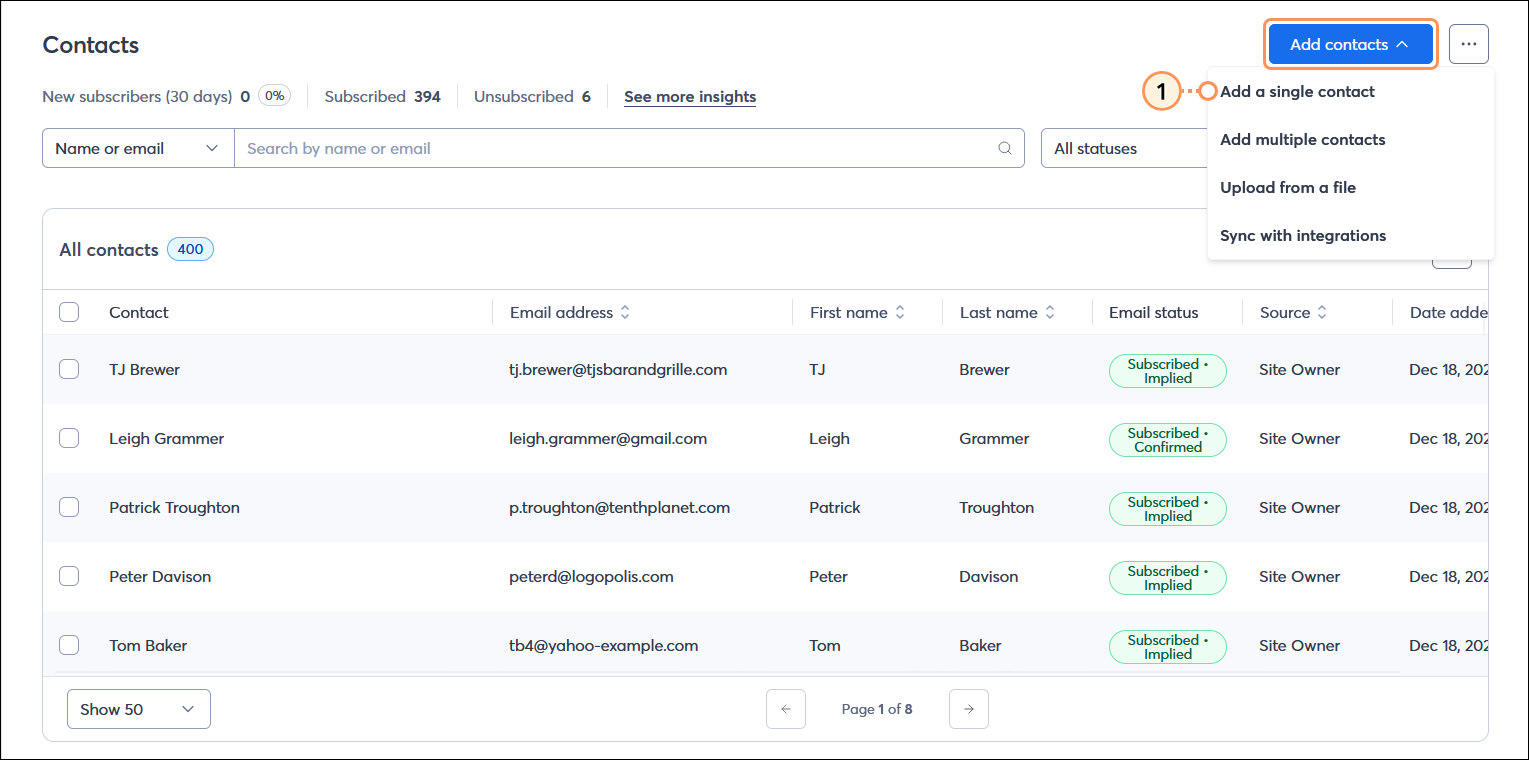
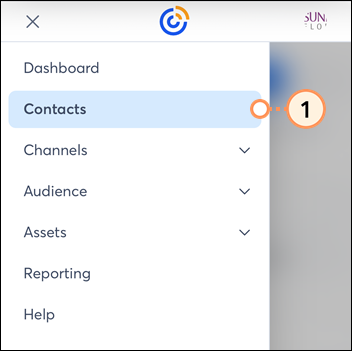
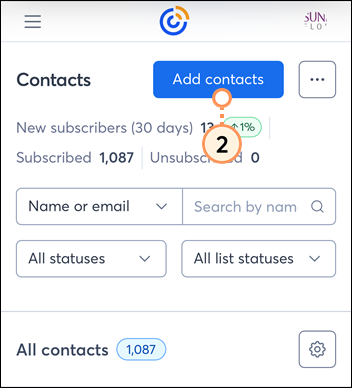
  1. From the Contacts page, click the Add contacts button in the upper right-hand corner.

    Contacts page with All contacts table and Add contacts button

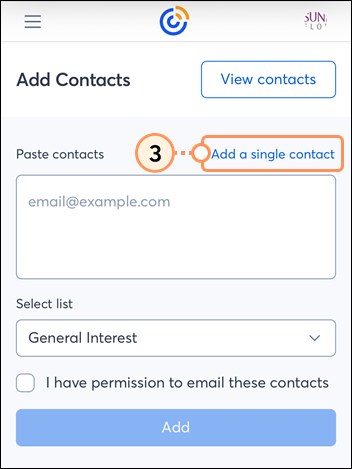
  2. From the Add contacts page, click the Add single contact button within the Manually add contacts section.

    Add contacts page with Manually add contacts section and Add single contact button

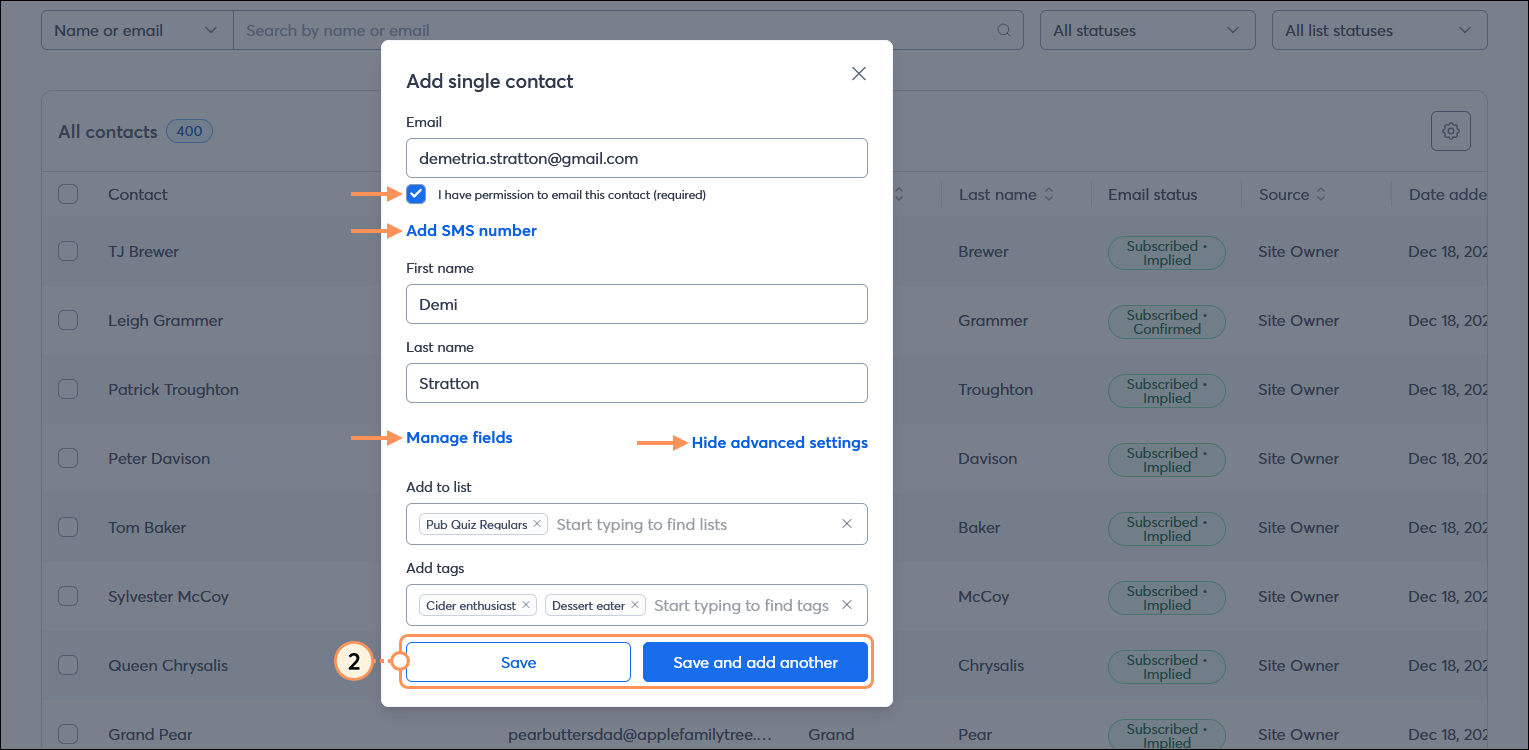
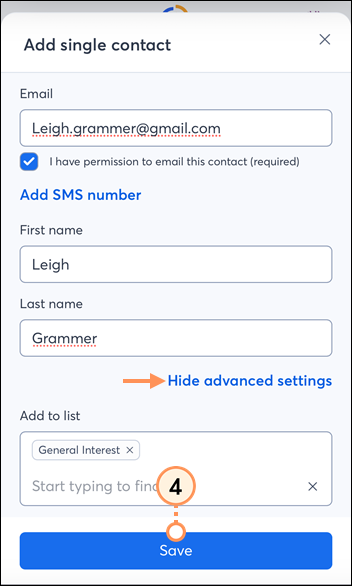
  3. Enter your contact information and click the Save button. If you have other contacts to add, click the Save and create another button to repeat the process.
  • Your new contact must have either an email address or an SMS number, but can also have both.
  • Your contacts must provide you with permission to contact them and you must attest that you have permission to send emails or SMS messages to your new contact. Please see our email permission and SMS permission policies for additional information.
  • Additional contact fields, including custom fields, can be added by clicking "Add or remove fields."
  • You can select from existing lists and tags or create new ones. You can also add multiple lists or tags to your contact.

    Add contacts page with Add new contact panel expanded, Email field with consent option, SS number field with consent option, contact information fields and Add or remove fields option, List option, Tags option, and Save button

Once your contacts are uploaded, you're ready to start using contact segmentation to create meaningful audiences or send them an email or an SMS message.
 

Light Bulb IconDid you know? When you ask for an email address and someone hands you their business card, you can use our mobile app to scan the card to add them to your contact list! It's just one more reason to give our app a try!


Questions?

Ask the Community

Did this article answer your question?


Constant Contact Logo

Copyright © 2025 · All Rights Reserved · Constant Contact · Privacy Center