 | Review your plan: This legacy feature is not available in all Constant Contact plans. Upgrading to a Lite, Standard, or Premium plan gives you access to our most current email and SMS automation tools. |
 | Note: This article is for our legacy automated email series feature. This article is for our legacy automated email series feature. If you're in our Lite, Standard, or Premium plan using our Automation Path Builder, please reference this article instead. |
If you've already created a legacy automated email series and want to quickly set up another one, or want to send one of your Step emails as a standalone email, copying makes it easy!
 | Did you know? Your Trigger Type, Trigger Email or selected list, Step emails, Time Delays, and custom Delivery Settings are all copied over when you copy a legacy automated email series. |
Whether you want to resend an Ended legacy email series to a new mailing list or use the same legacy series flow with some small tweaks, you can easily copy any existing Draft, Active, or Ended series.

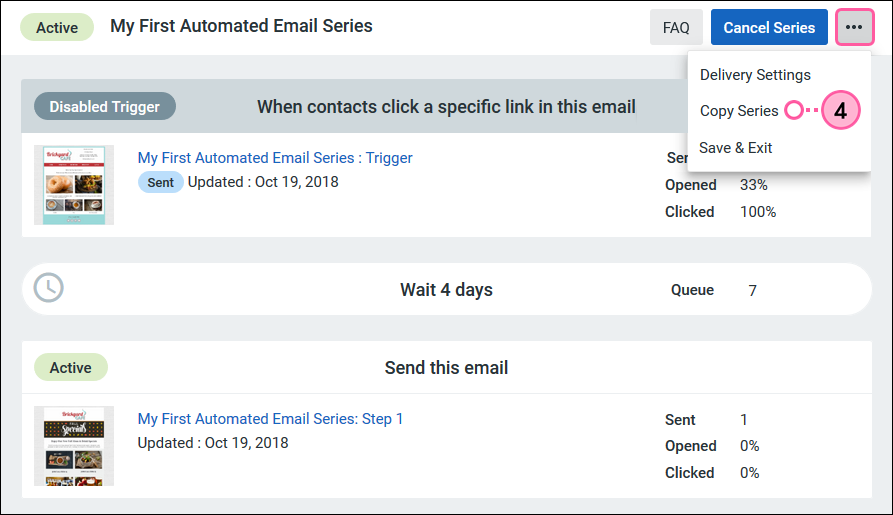
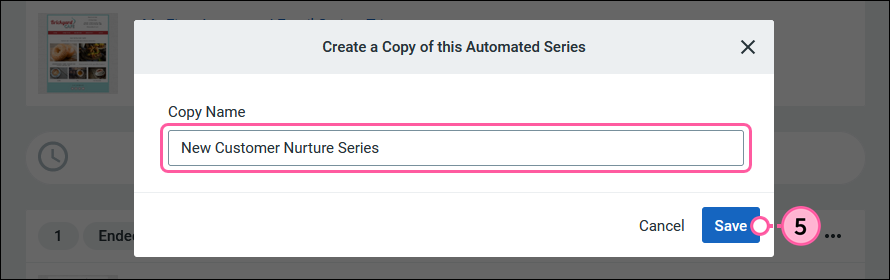
You're automatically taken to your copied series in Draft status to make any edits needed before activating.
After spending the time to create the perfect content for your legacy automated email series, it's easy to save time and reuse the individual emails outside of the series. You can make a copy of your Trigger Email or any of the Step emails within a Draft, Active, or Ended series.
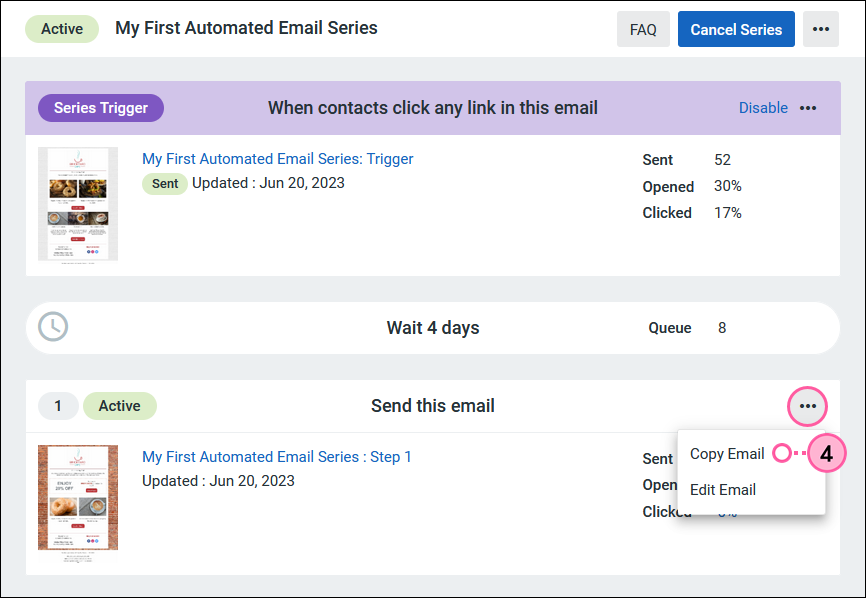
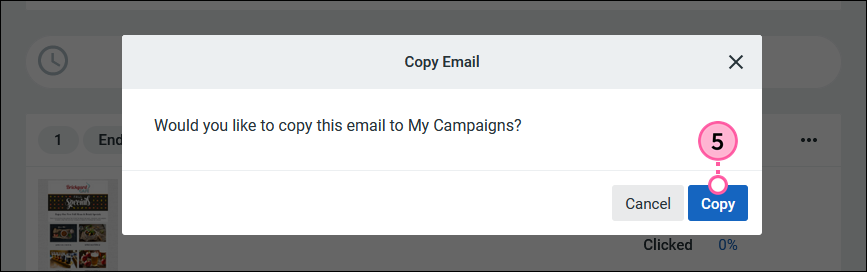
The copied email will appear on the Campaigns page, where you can open it to make changes and send it as a standalone newsletter, or add it to another legacy automated email series.
Copyright © 2026 · All Rights Reserved · Constant Contact · Privacy Center