When you create a new email in the Constant Contact mobile app or copy an existing email that was created in the mobile app, it's automatically created using the Email Editor. This means you can edit the campaign on both your mobile device and on your desktop, switching back and forth as needed.
Create an email
Create emails on Android
On Android, complete the following steps to create an email:
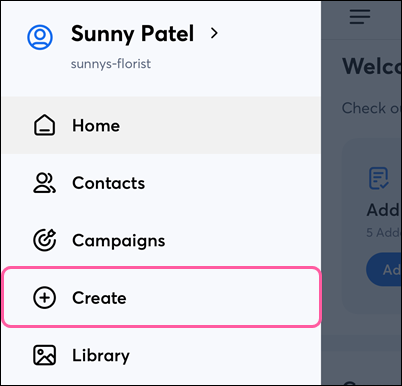
- Tap the Menu icon
 , then tap Create.
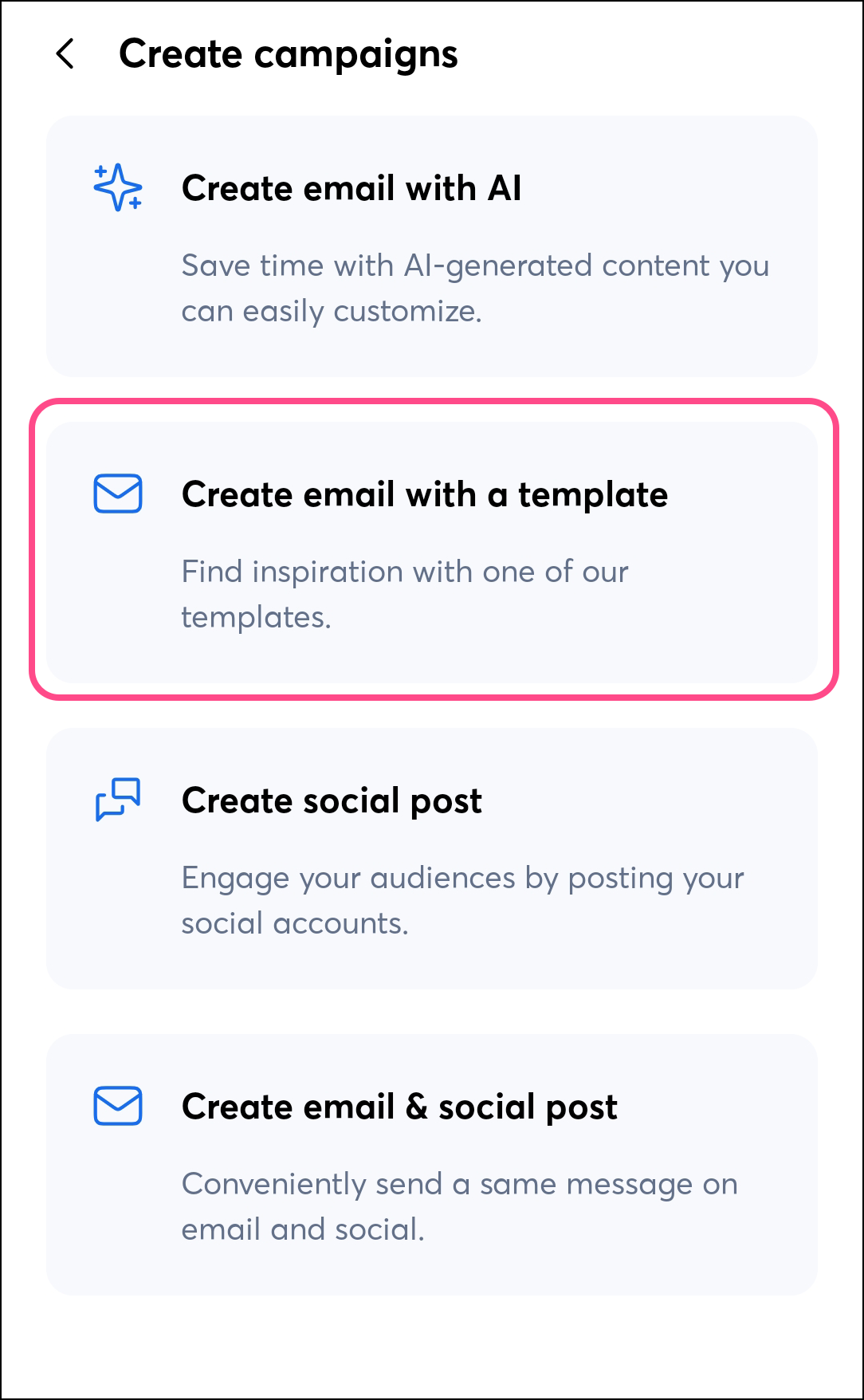
- Tap Create email with a template.
Note: If you plan to create both an email and a social post at once, tap Create email and social post. Read this to learn more about creating both an email and a social post at the same time.
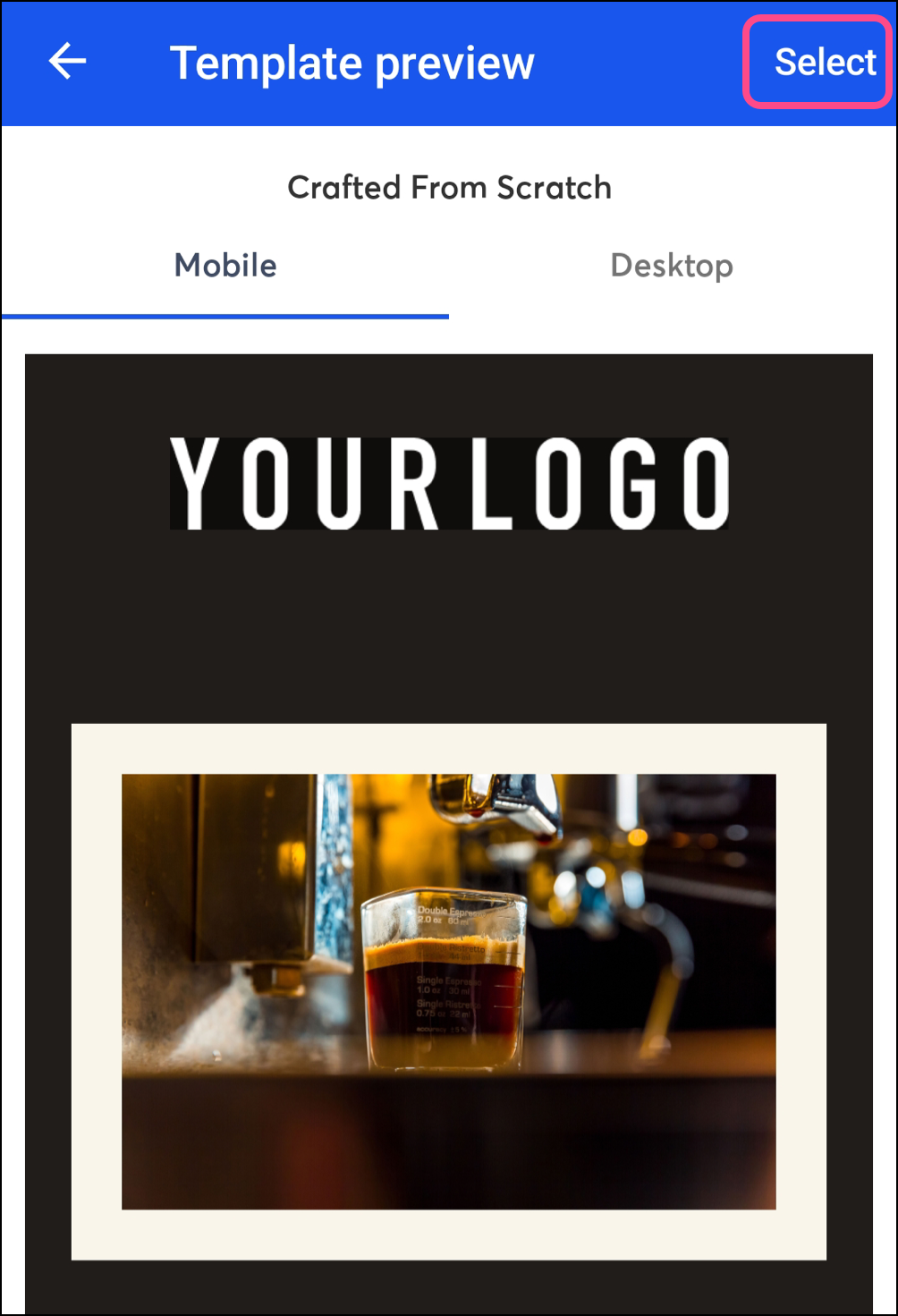
- Choose an email template.
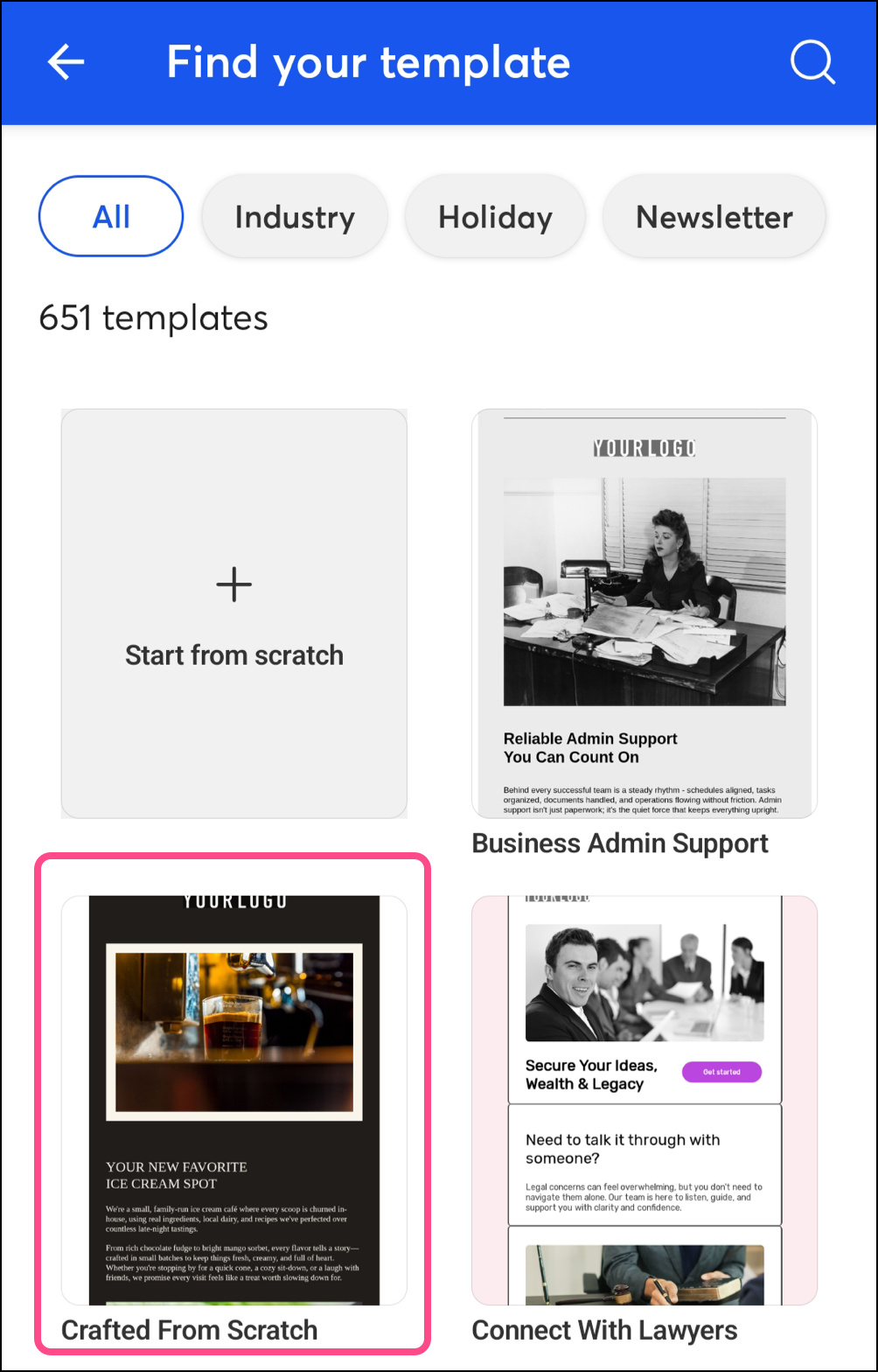
- Tap Select in the top right corner of the app.
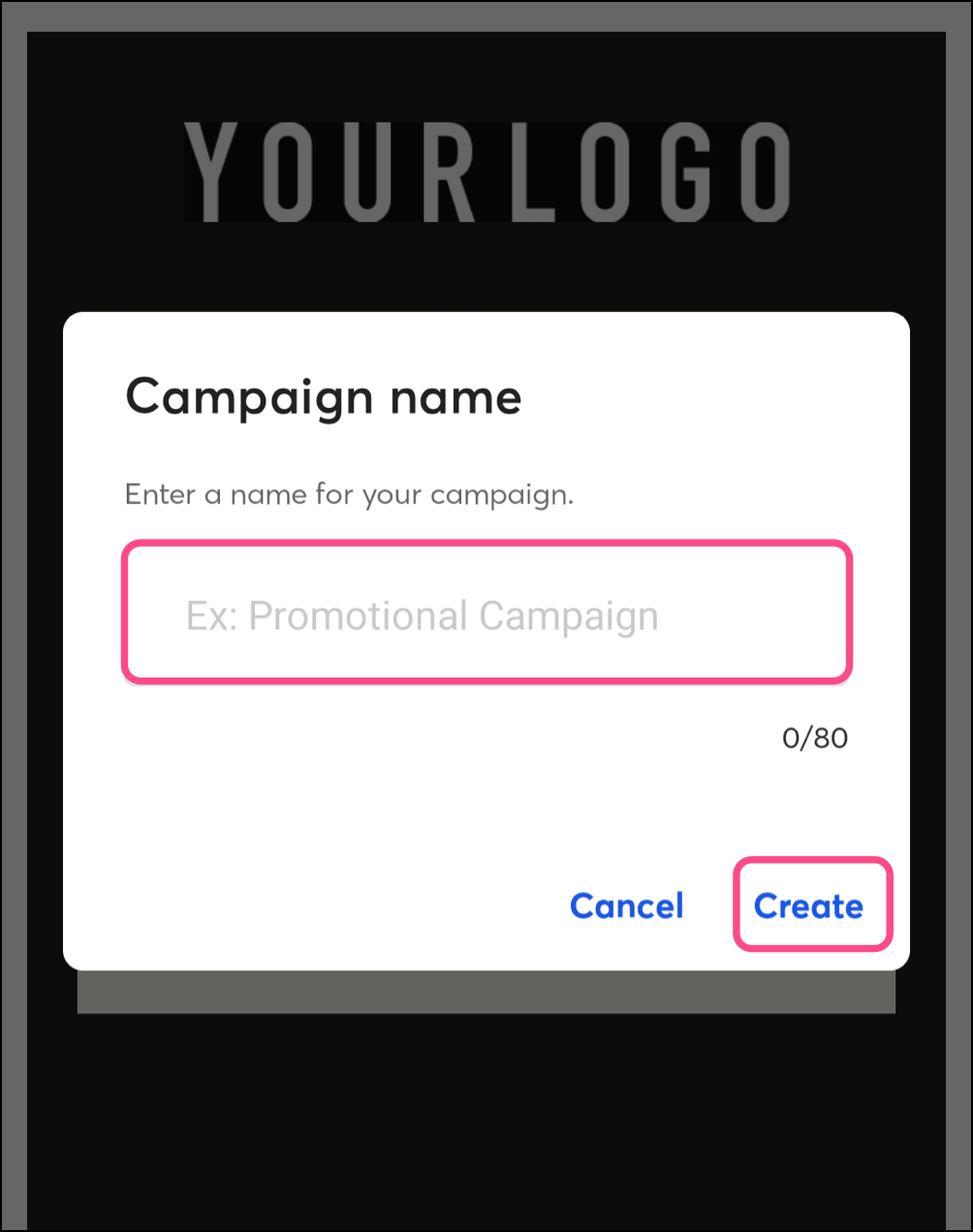
- Name your email and tap Create.
Create emails on iOS
On iOS, complete the following steps to create an email:
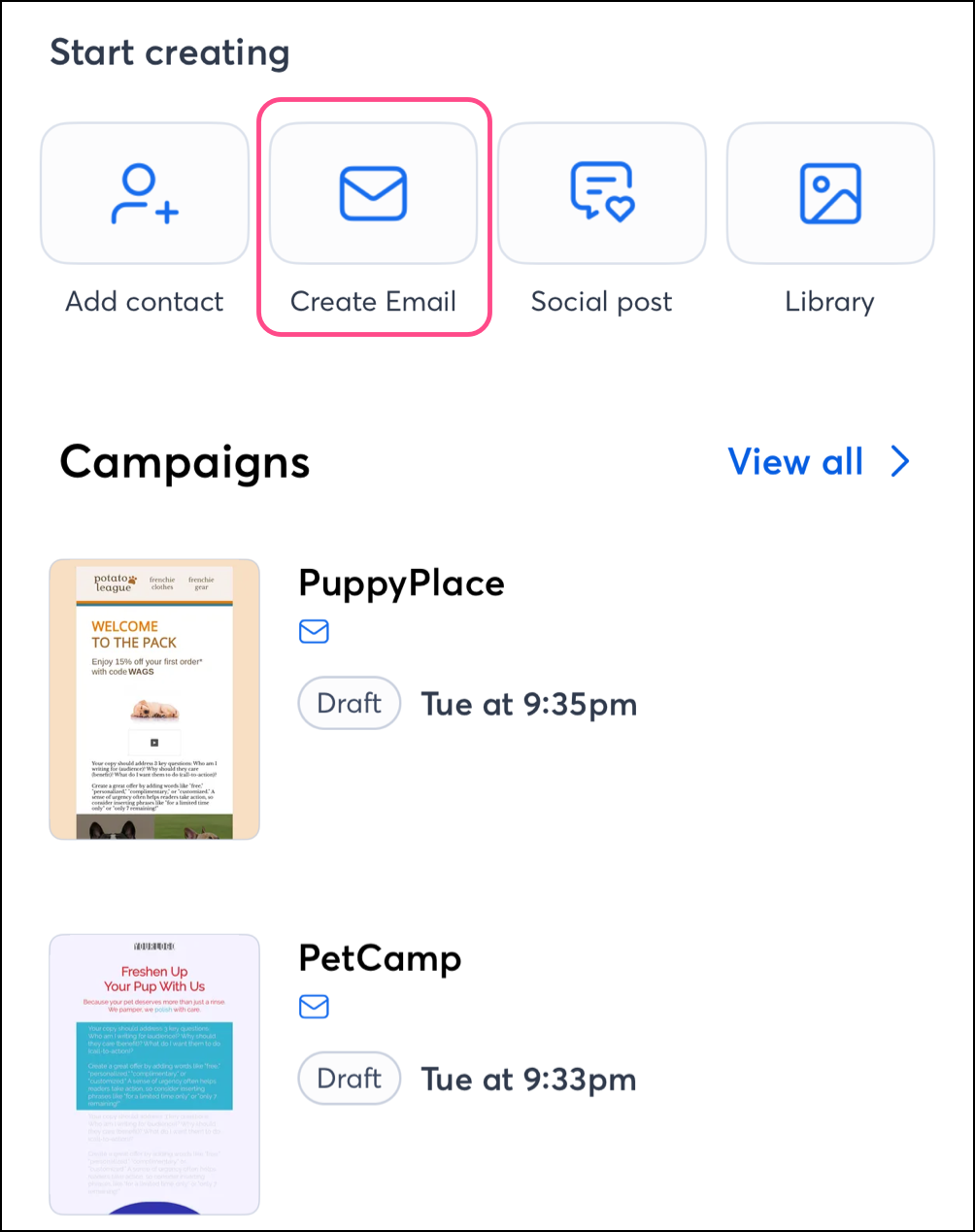
- Tap the Create Email button on the app's homepage.
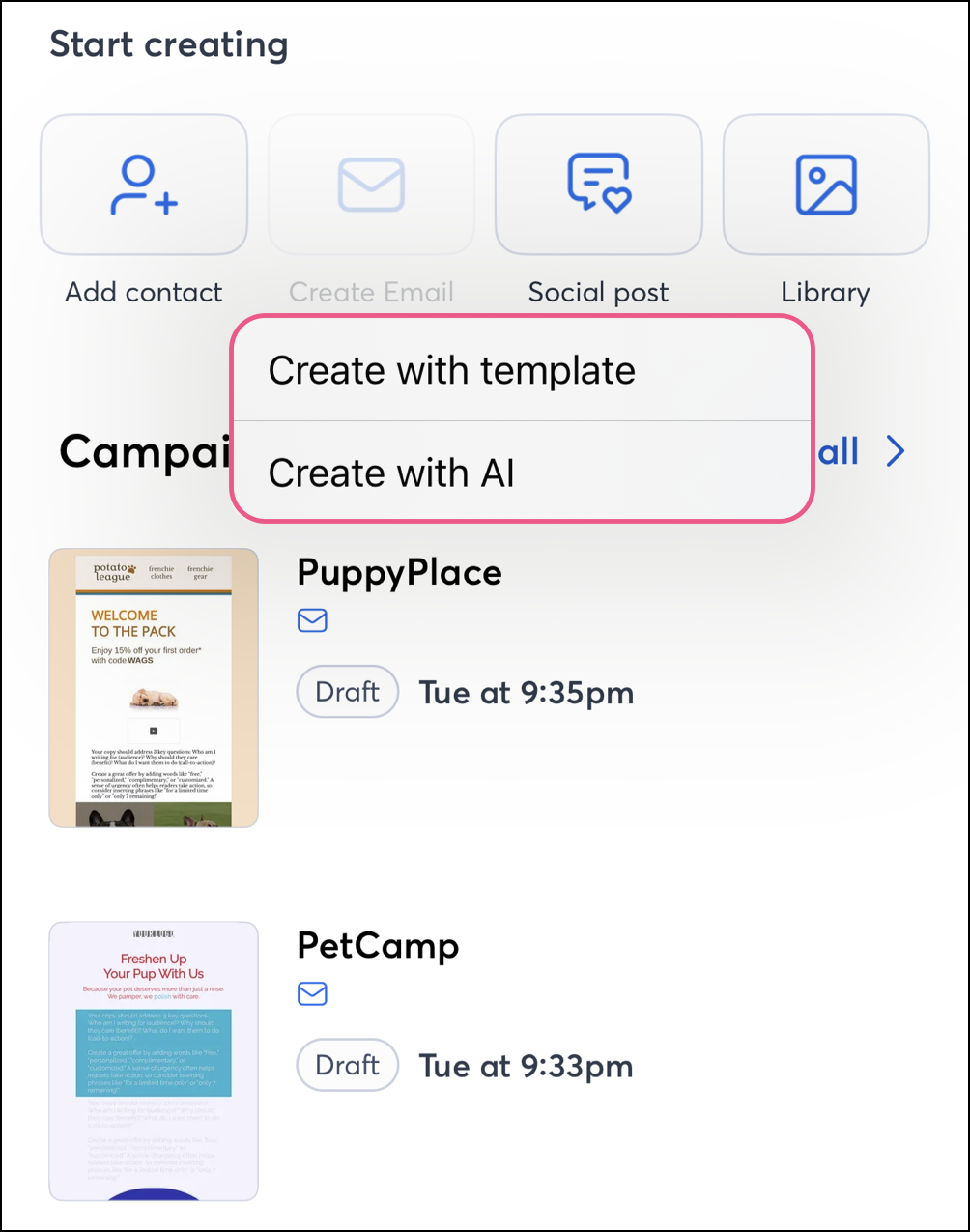
- Choose a method for creating emails:
- Choose Create with template to start from one of our pre-made email templates.
- Choose Create with AI to start from a prompt and generate an email.
When selecting, Create with template:
- Scroll through the options and tap on a template to preview it.
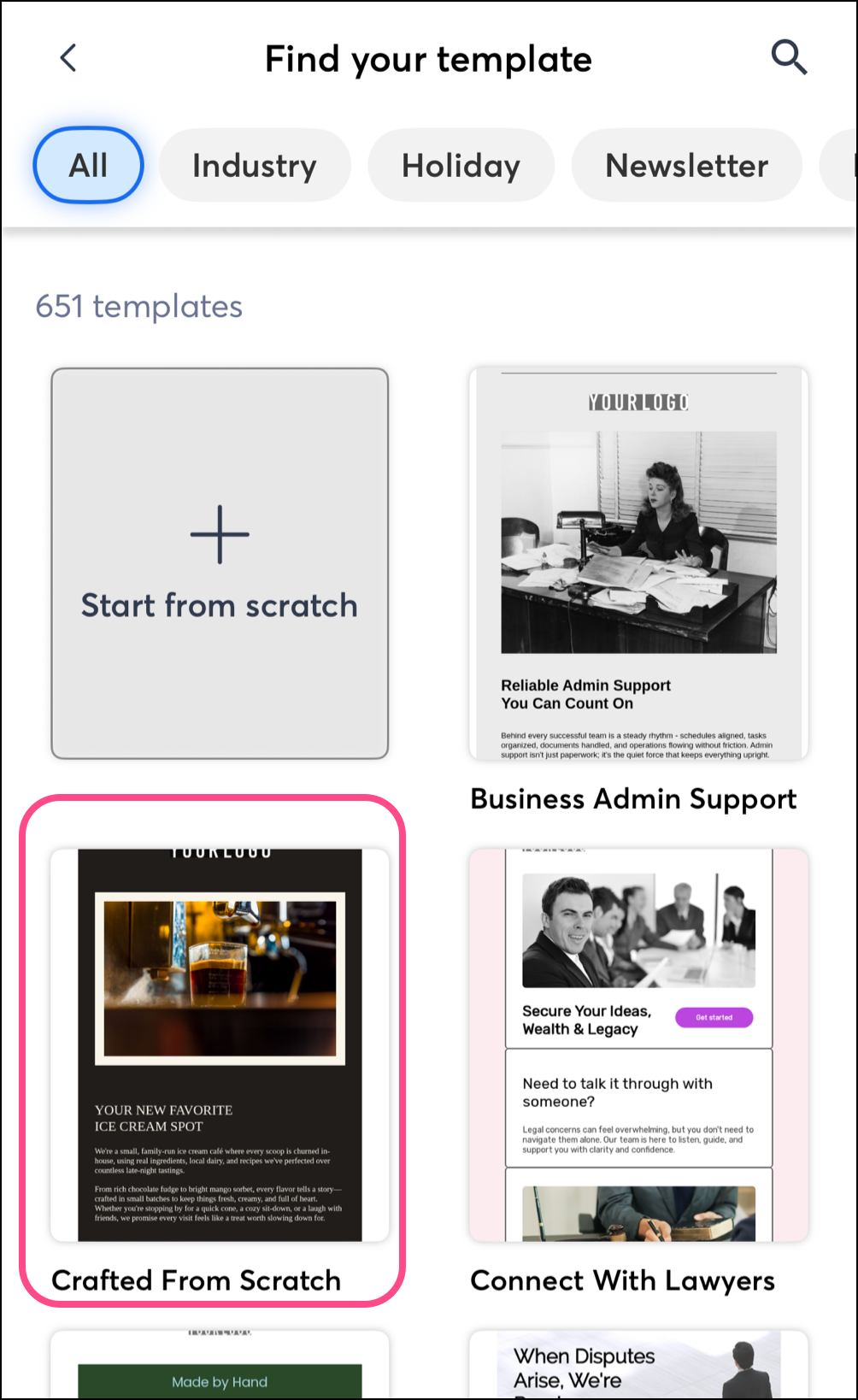
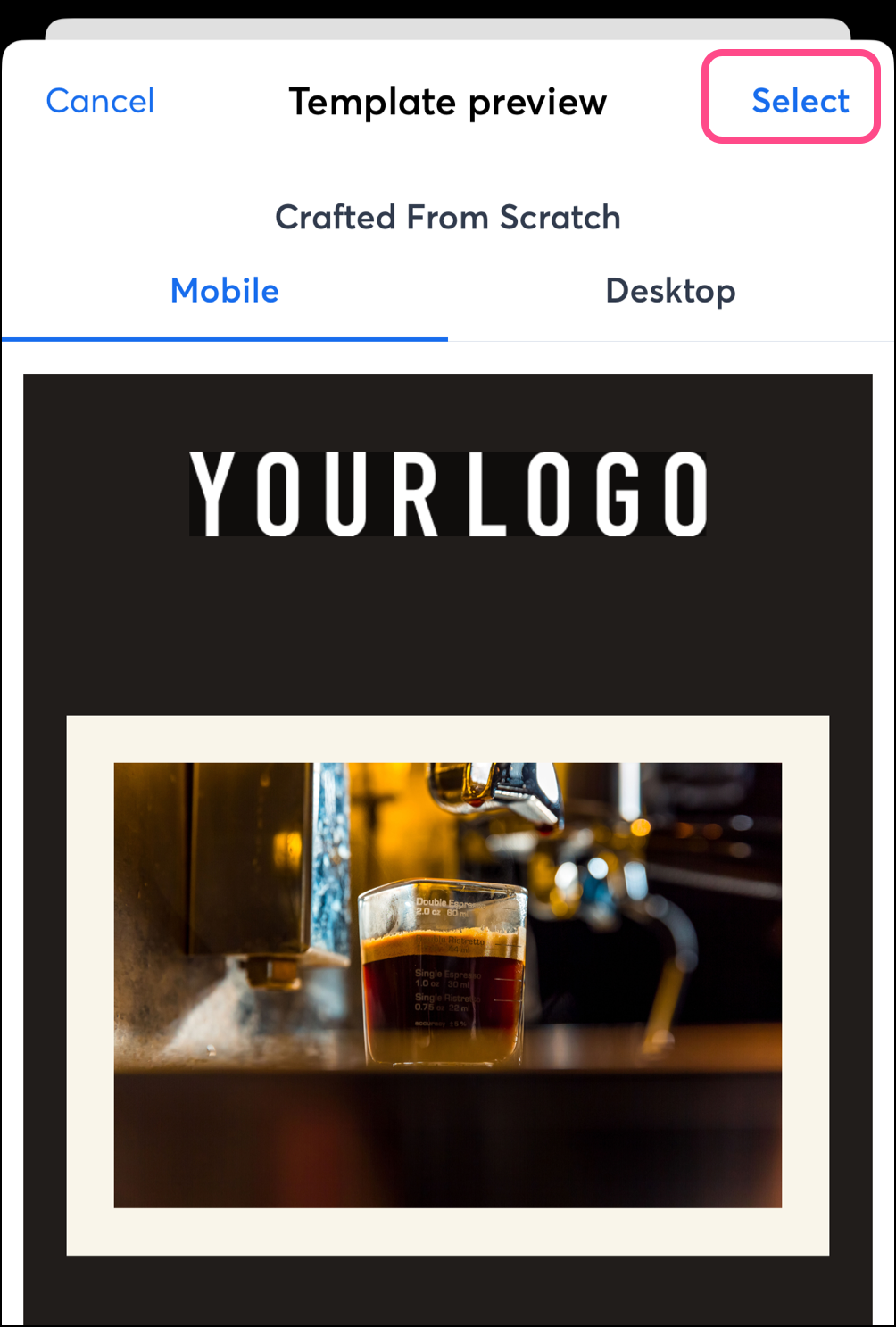
- Tap Select to customize the template.
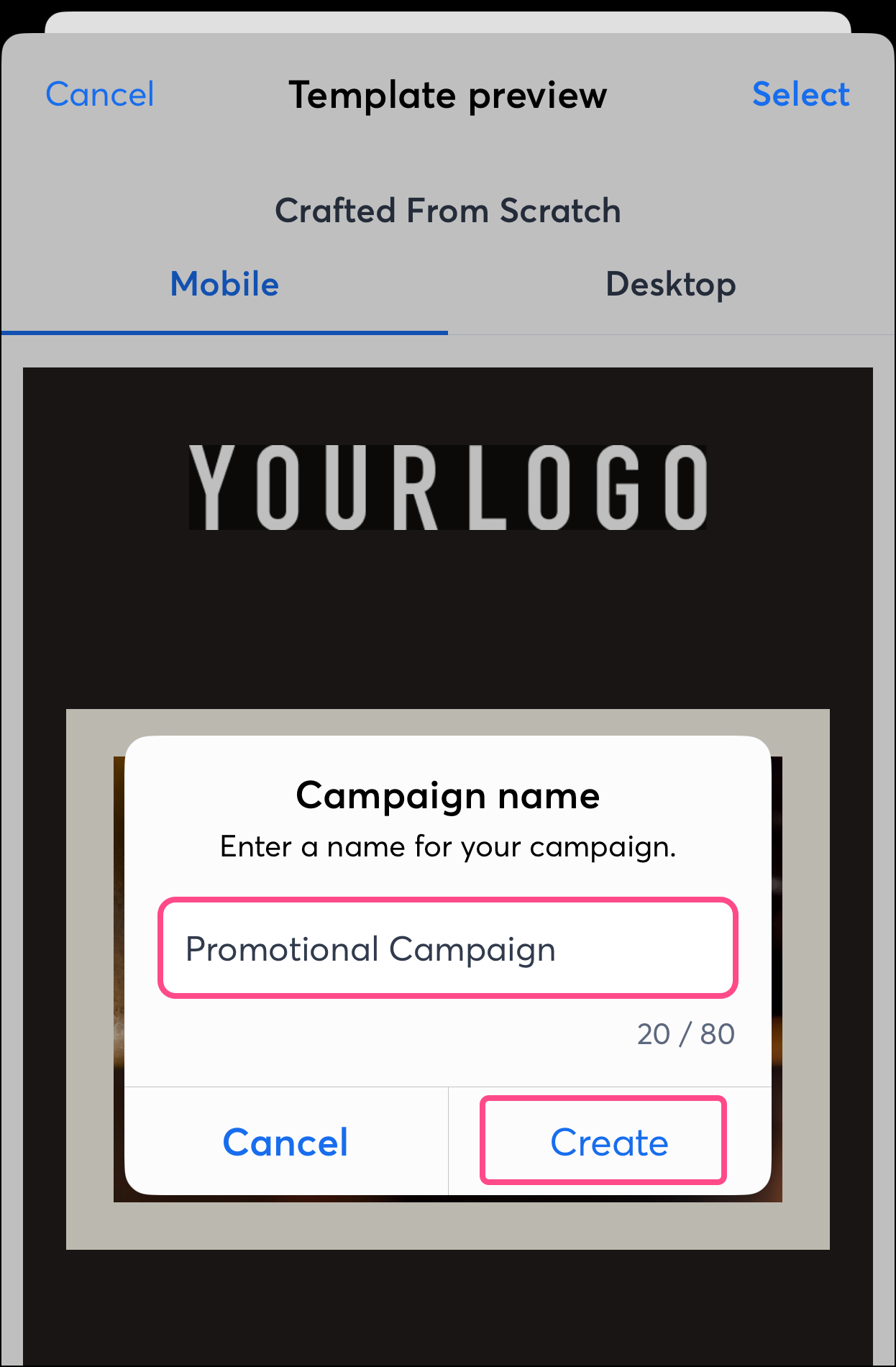
- Enter a campaign name and then tap Create.
When selecting Create with AI
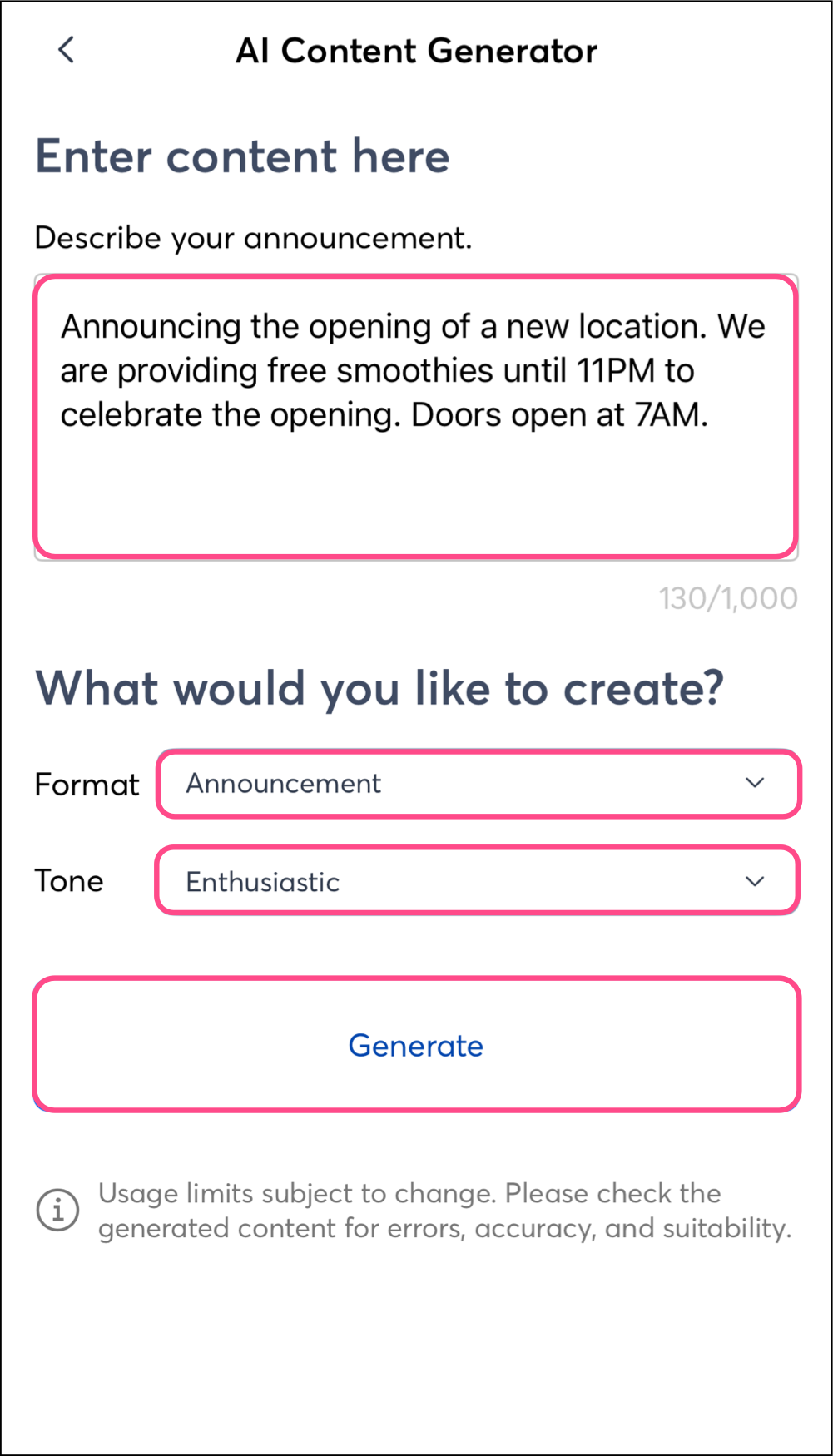
- Describe the email content needed.
- Select the type of email you want to create using the Format field. Choose one of the following:
- Announcement
- Product promotion
- Newsletter
- Select the Tone of the email you want to create. Choose one of the following:
- Default
- Professional
- Enthusiastic
- Informative
- Approachable
- Persuasive
- Tap Generate.
You can now customize your email right from the mobile app before scheduling it to send to your contacts!
Copy a sent email
Complete these steps on Android or on iOS.
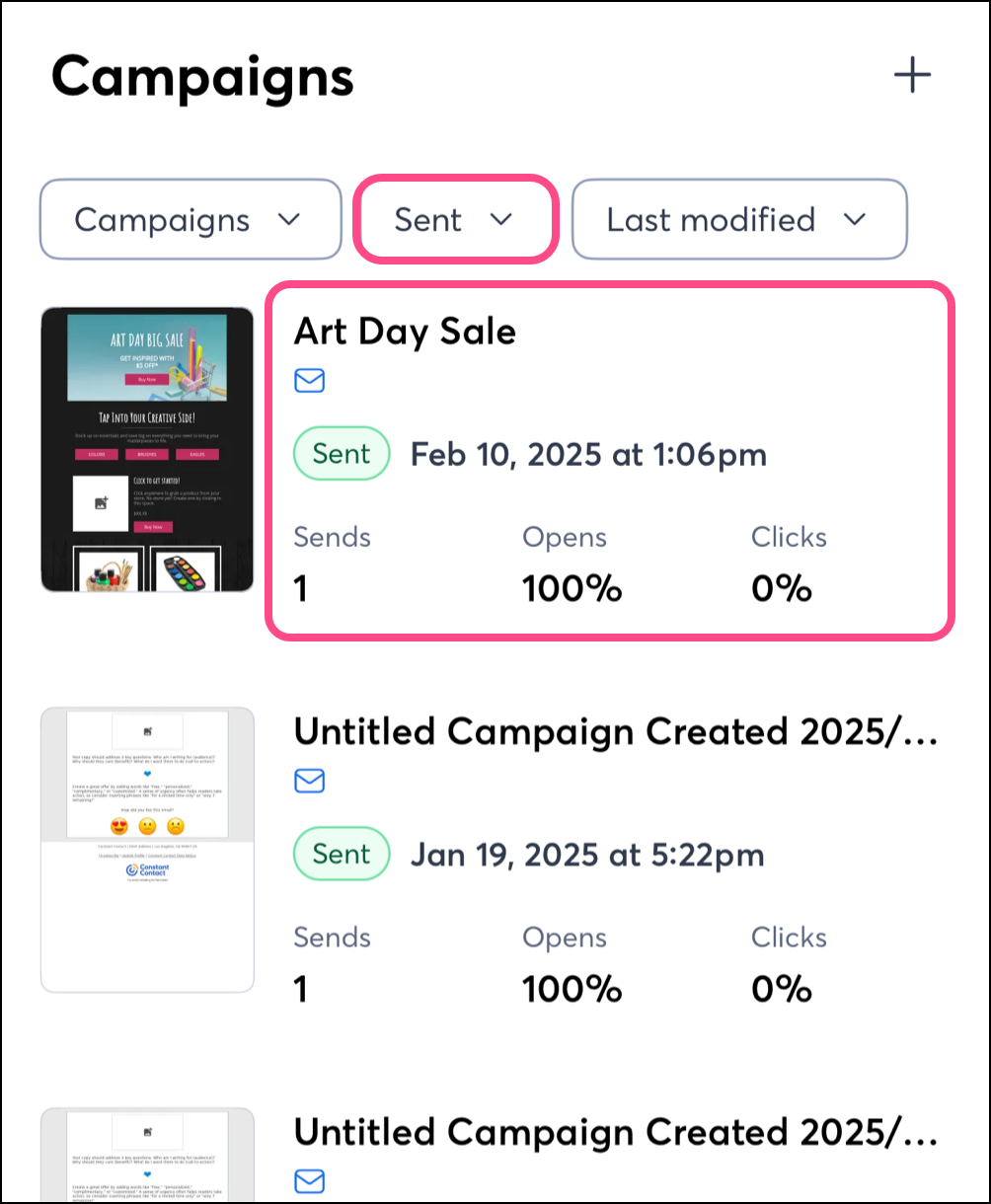
- (Optional) In Campaigns, tap the Status filter and select Sent.
- Tap on the campaign you want to copy.
Note: If you tap on the image of your sent campaign instead of the campaign title, the preview will appear. Tap Done or the Back arrow to leave the preview.
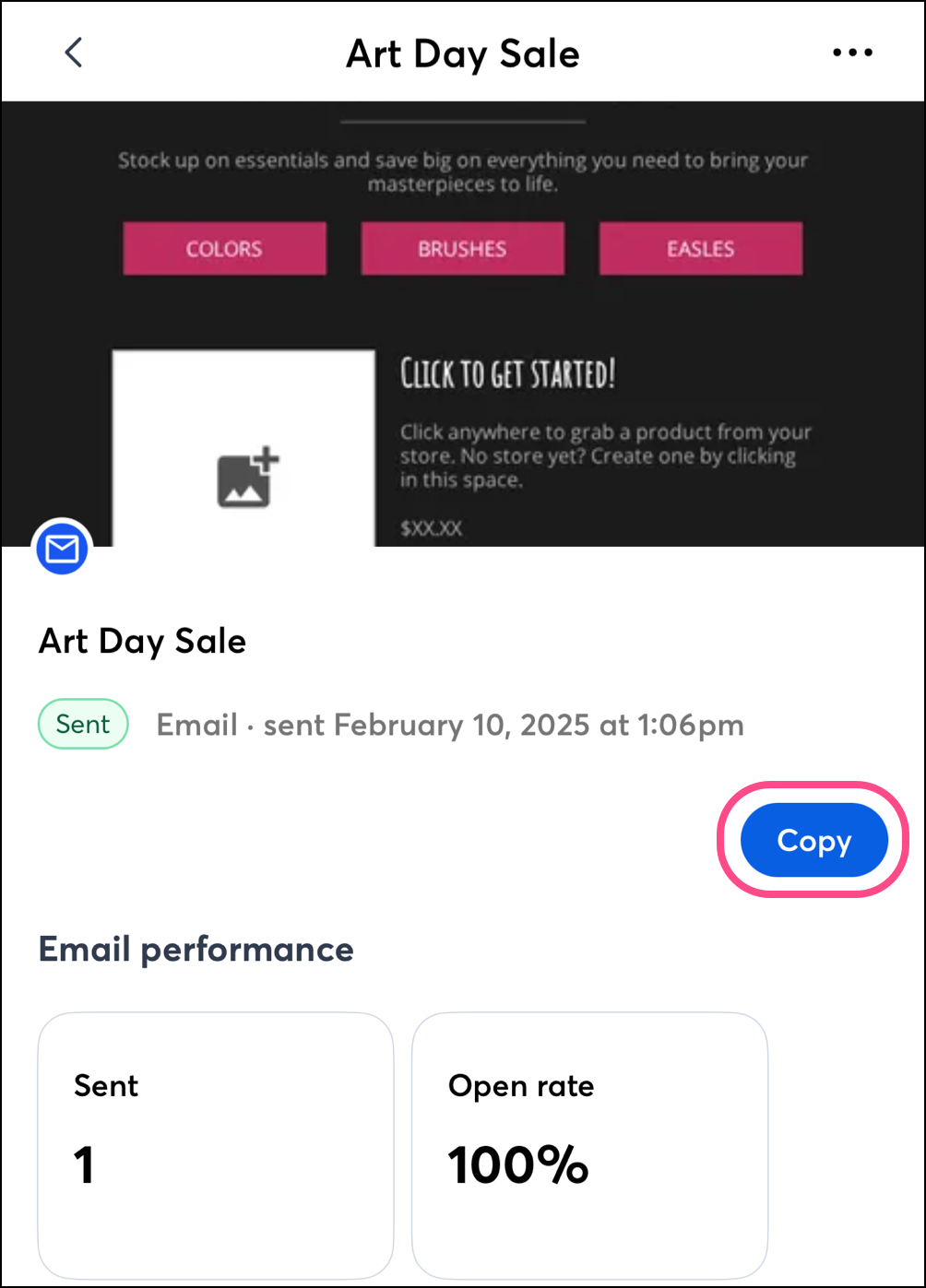
- Tap Copy.
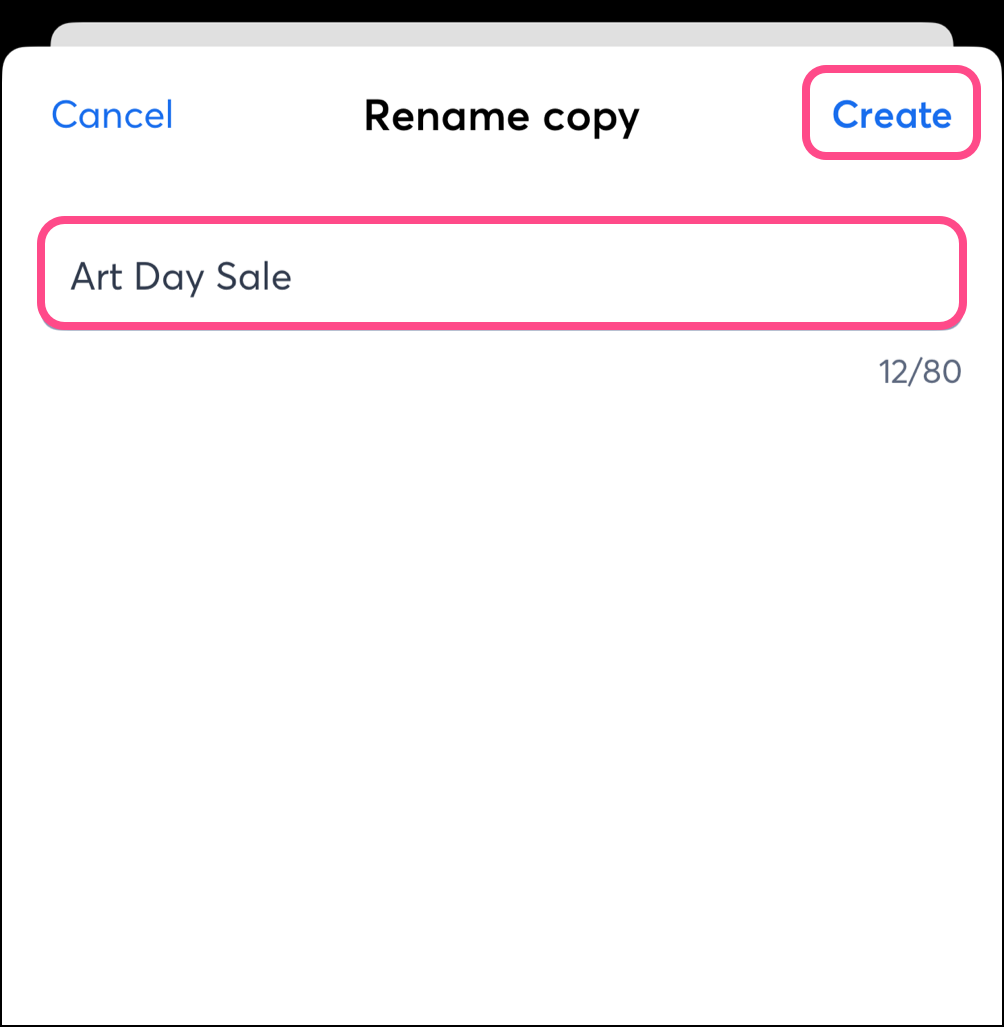
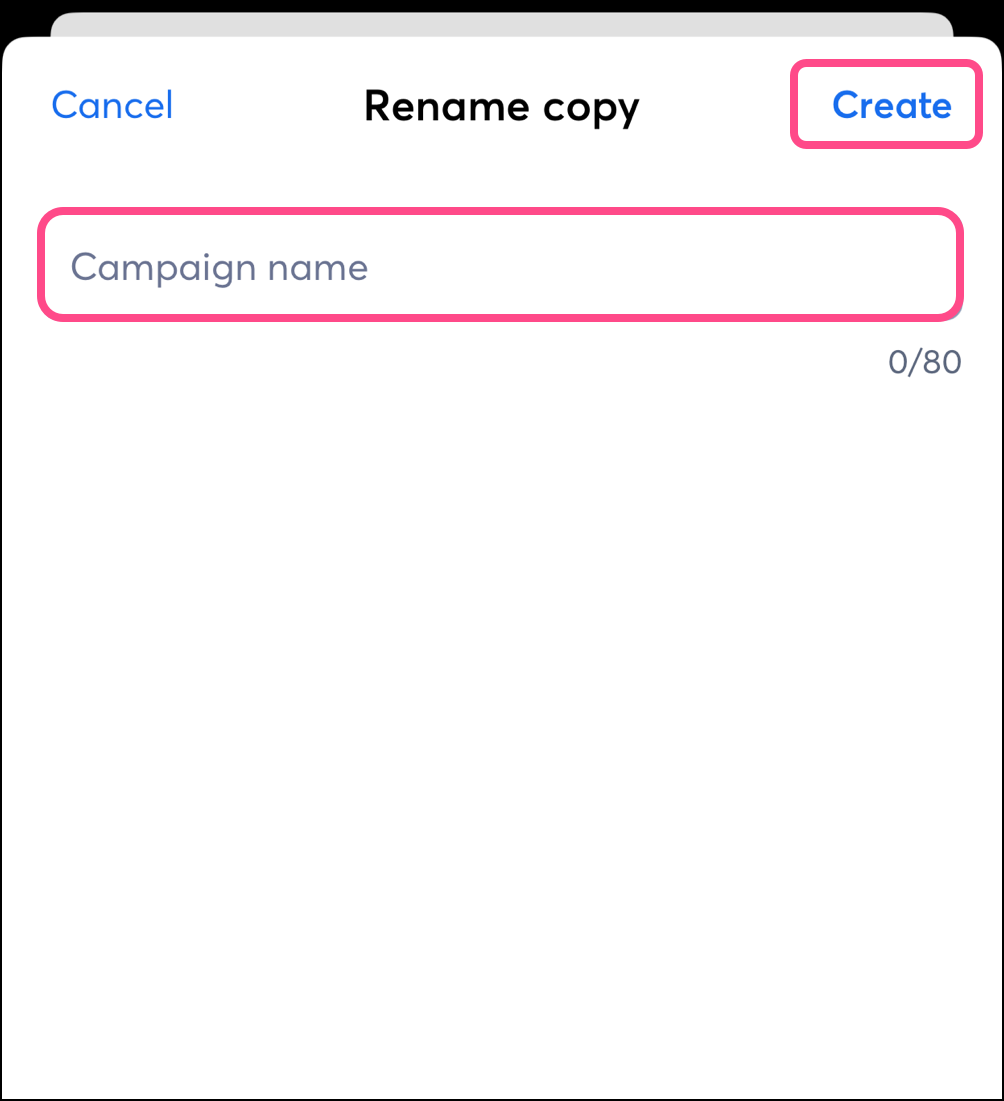
- Enter a new campaign name and then tap Create.
Copy a scheduled or draft email
Complete these steps on Android or on iOS.
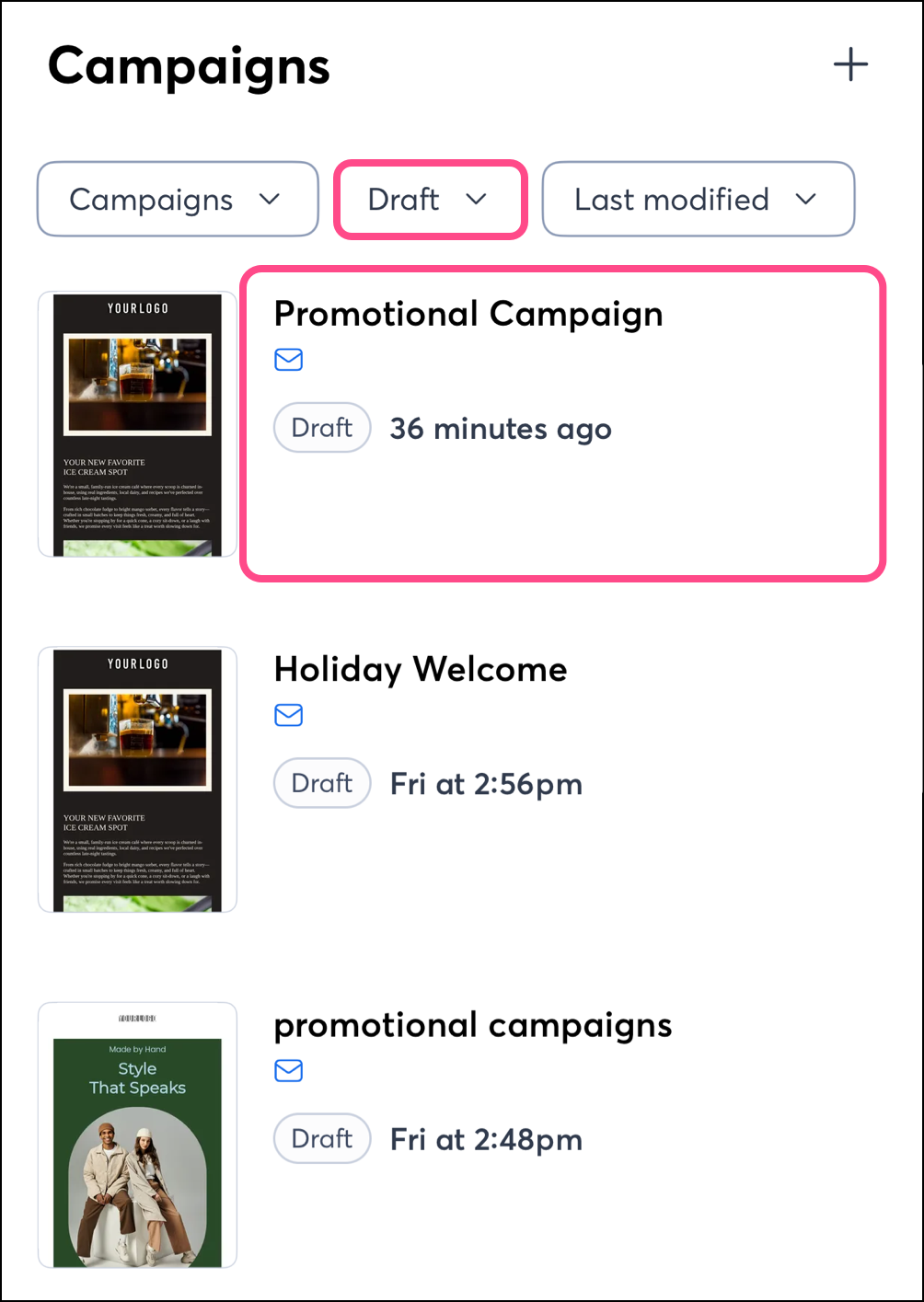
- (Optional) Tap the Status filter and select Scheduled or Draft.
- Tap on the campaign you want to copy.
Note: If you tap on the image of your scheduled or draft campaign instead of the campaign title, the preview will appear. Tap Done or the Back arrow to leave the preview.
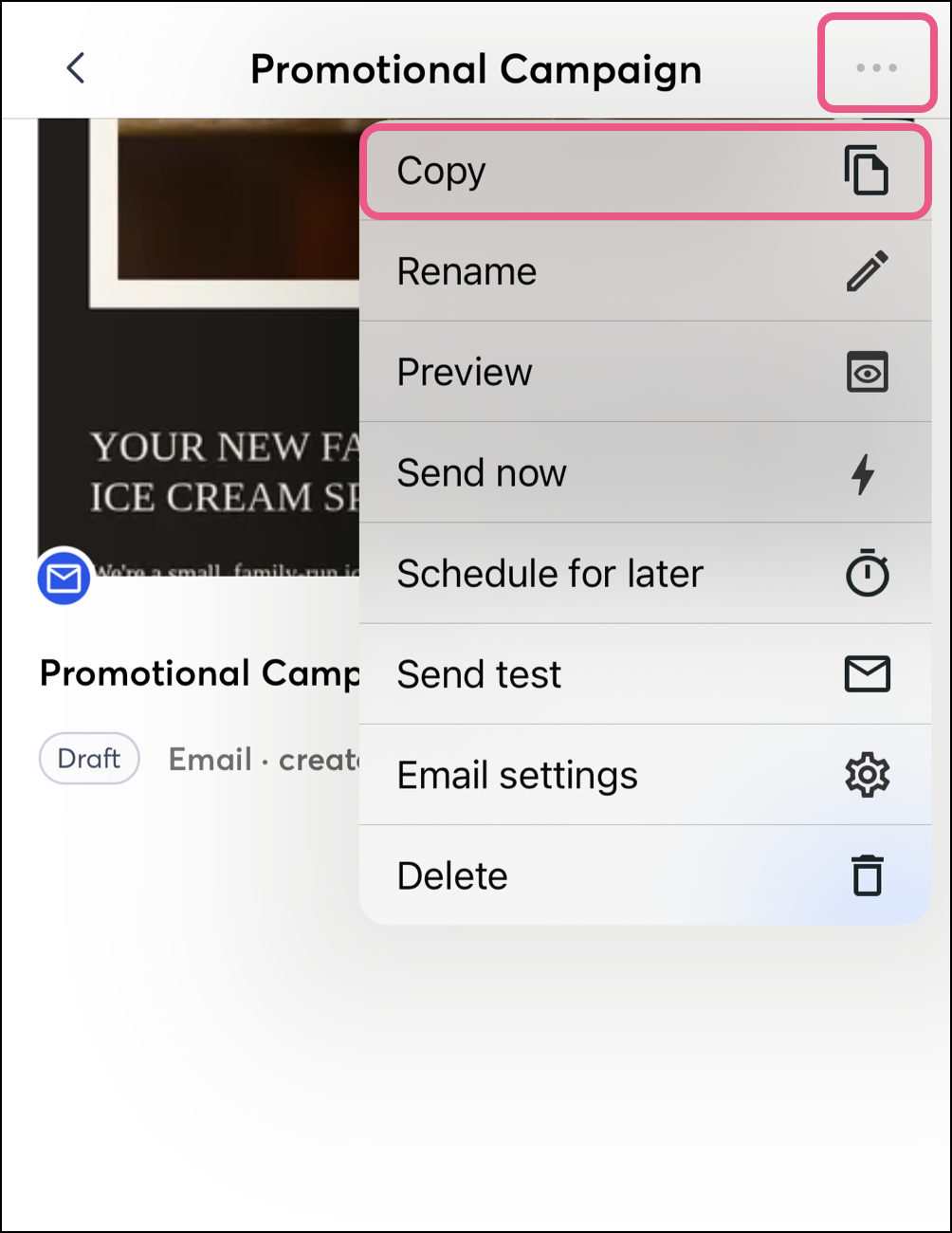
- Tap the three dots in the upper-right and tap Copy.
- Enter a new campaign name and then tap Create.
Delete an email
Complete these steps on Android or on iOS.
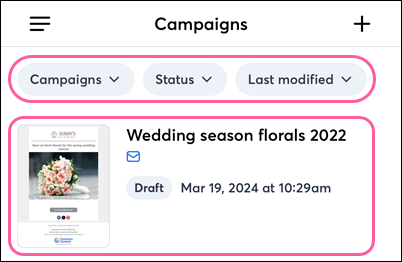
- (Optional) Use the filters at the top of the screen to narrow your campaign list.
- Tap on the campaign you want to delete.
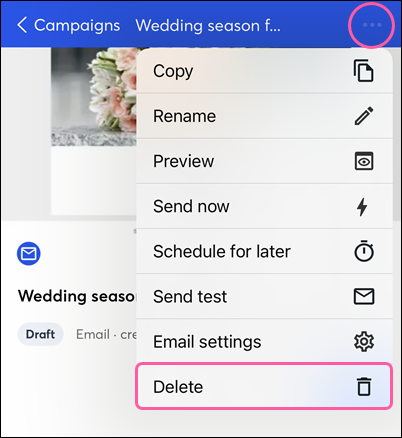
- Tap the three dots in the upper-right and tap Delete.
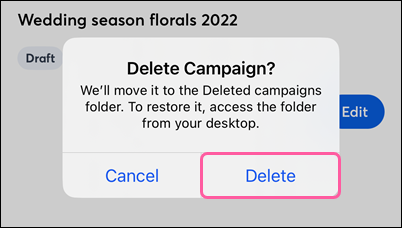
- Tap Delete to confirm.