Email and Digital Marketing
How can we help you?
Search our help articles, video tutorials, and quickstart guides

You've got this. You've got us. Search our Knowledge Base to quickly find answers to your questions.

Manage contact lists in the Constant Contact mobile app

Article: 000024810
Updated: January 21, 2026

View the contacts on an existing email list, create a new list, add contacts to a list, or delete a list

You can easily manage your contact lists from the mobile application. 


View contact lists

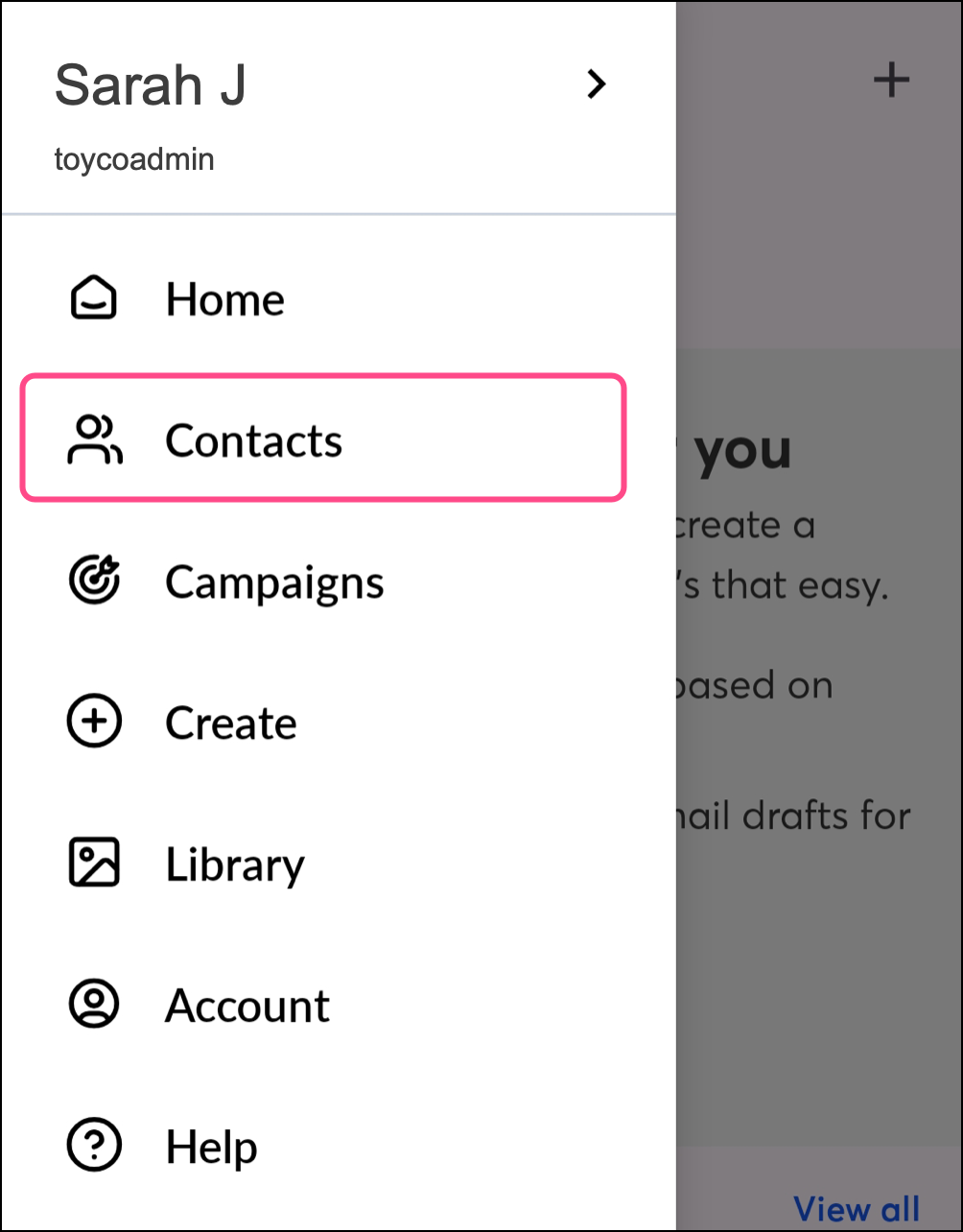
On Android, complete these steps to access your Lists. 

  1. Tap the menu icon Menu icon then Contacts.


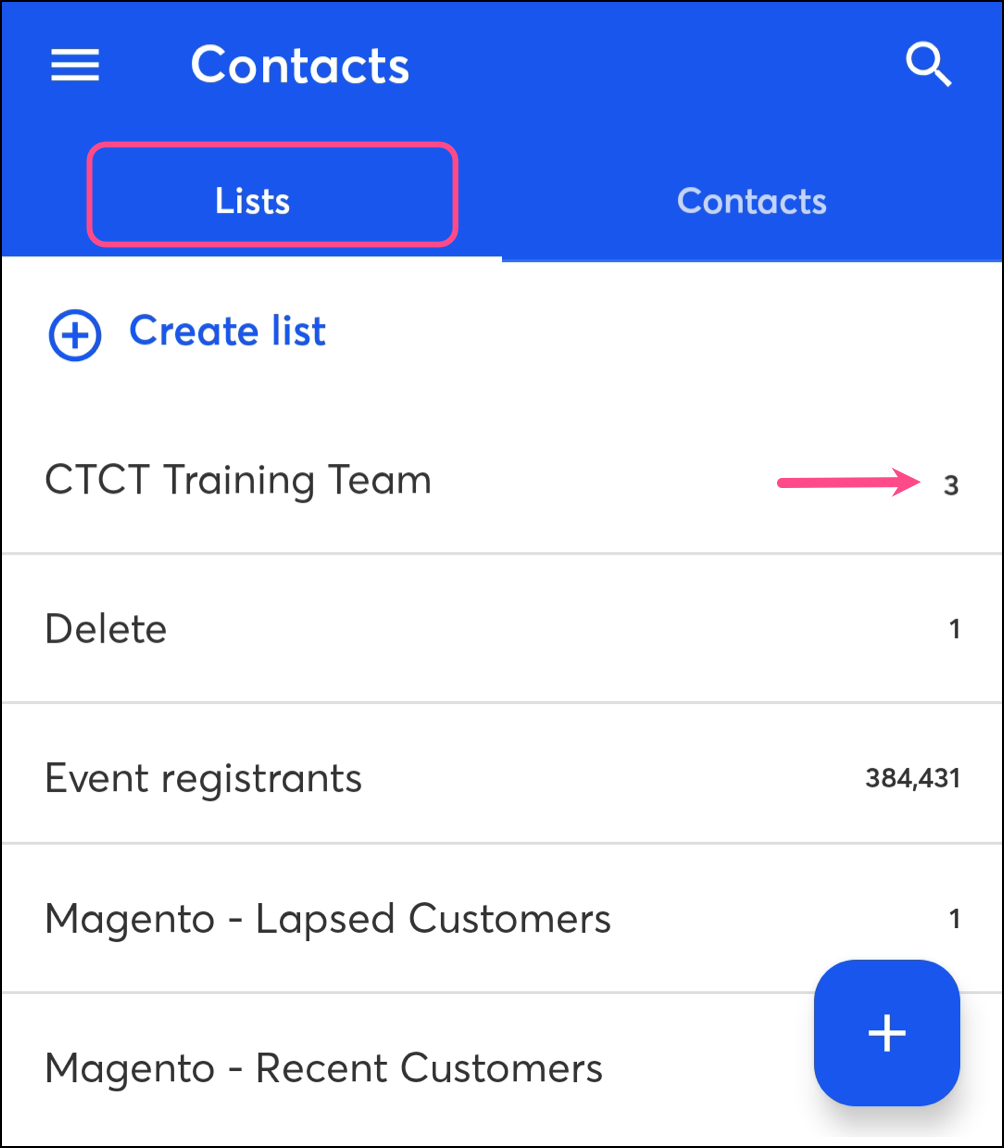
  2. Tap Lists.
  3. Tap on the list name to view the contacts. The number displayed to the right of the list name represents the total number of contacts currently on the list.

    Email Lists


On iOS, complete the following steps to access your Lists.
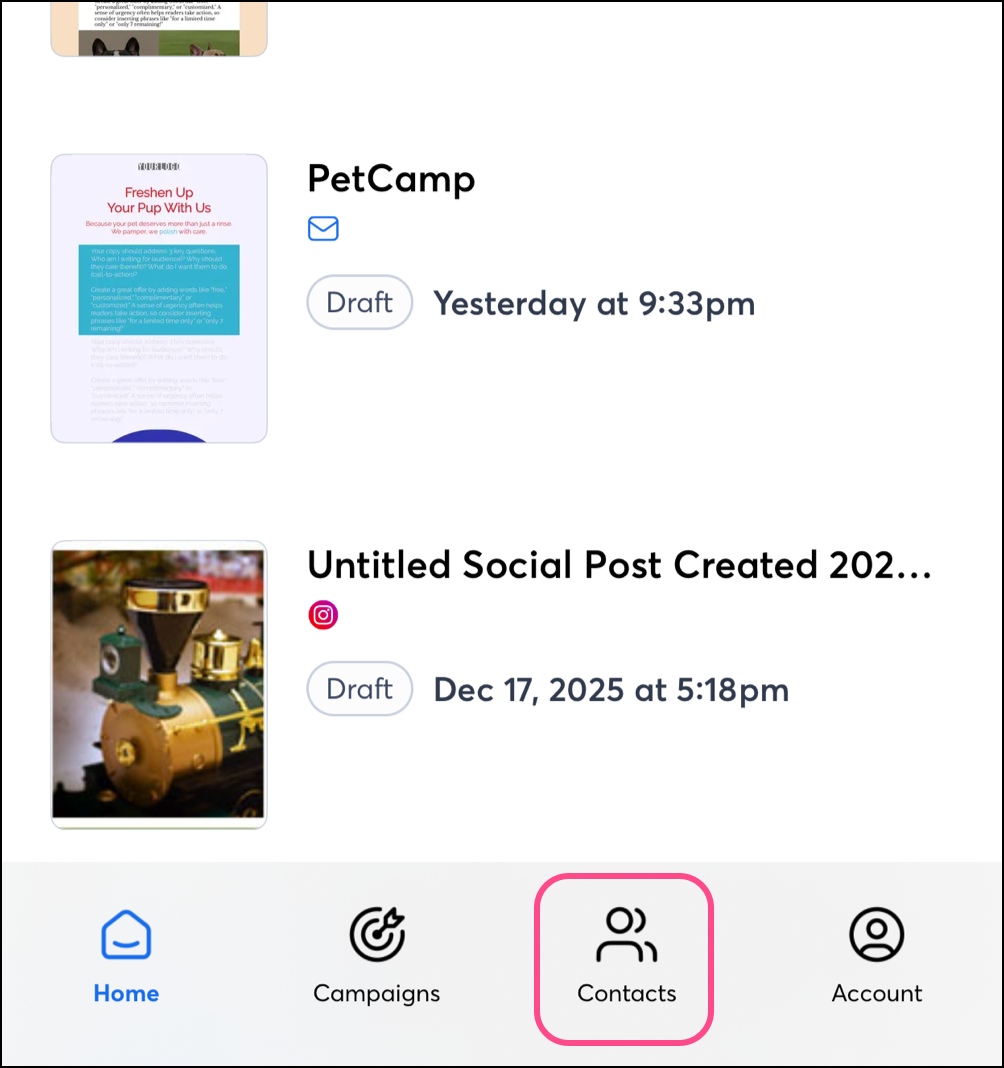
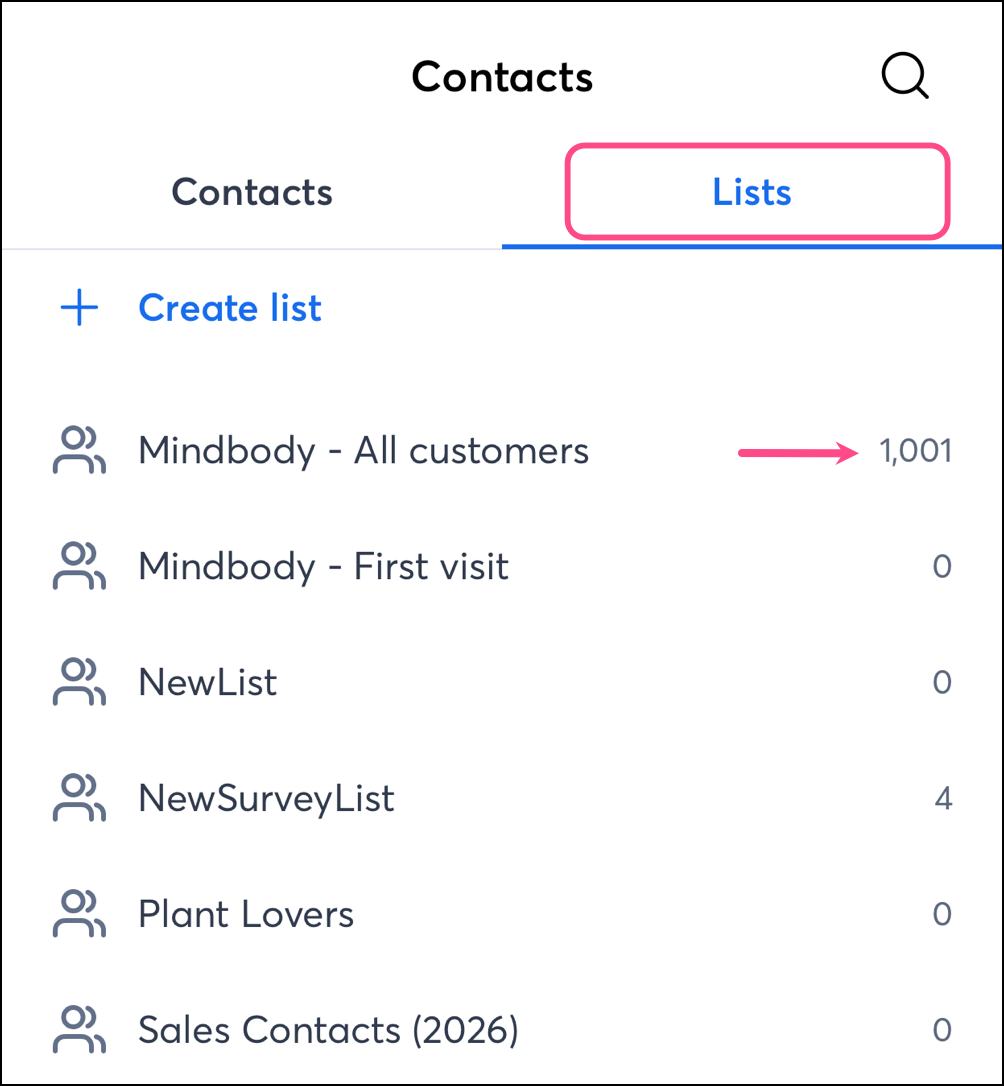
  1. Tap Contacts from the bottom navigation bar. 


  2. Tap Lists
  3. Tap on the list name to view the contacts. The number displayed to the right of the list name represents the total number of contacts currently on the list.


Create a new contact list

Complete the following steps on Android or iOS to create a new list:
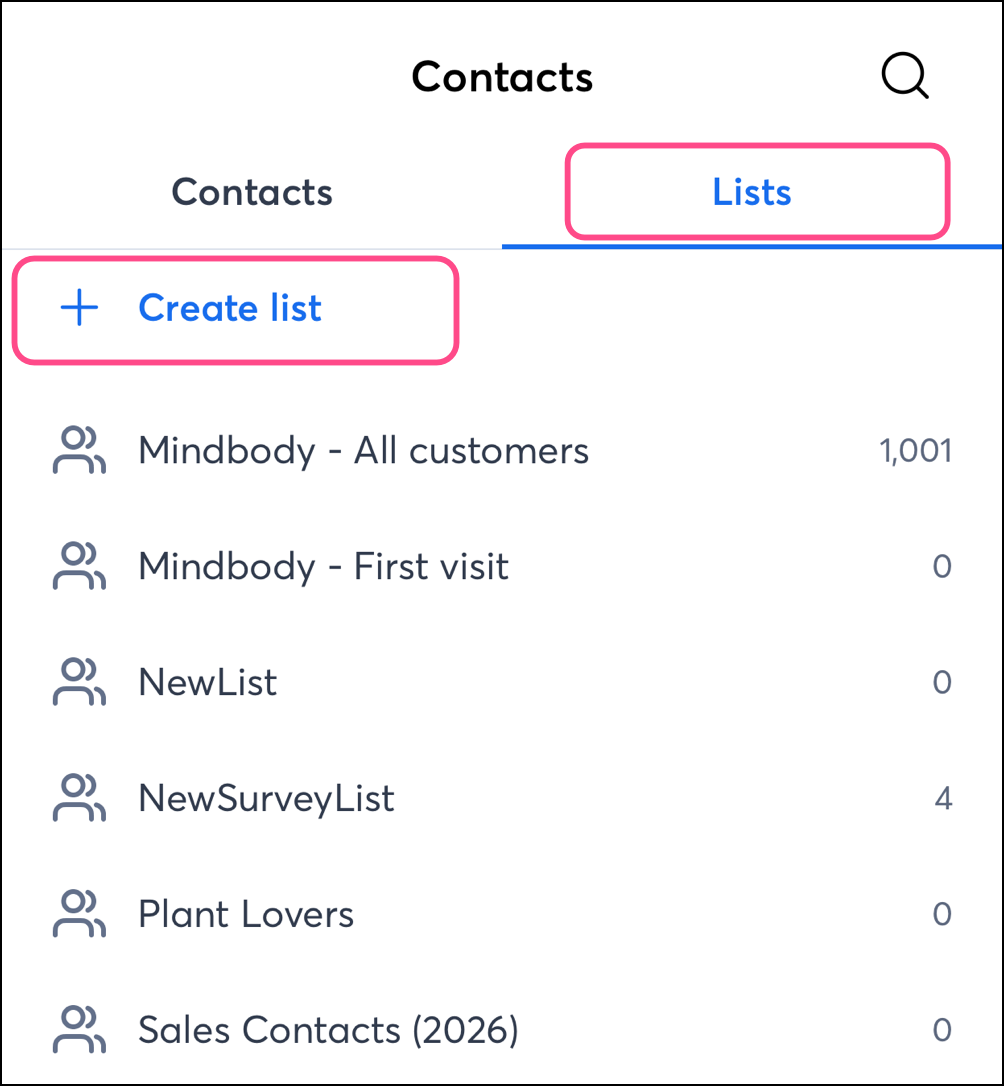
  1. While viewing your contacts, tap Lists.
  2. Tap + Create list.

    Email Lists with New Email List option
     
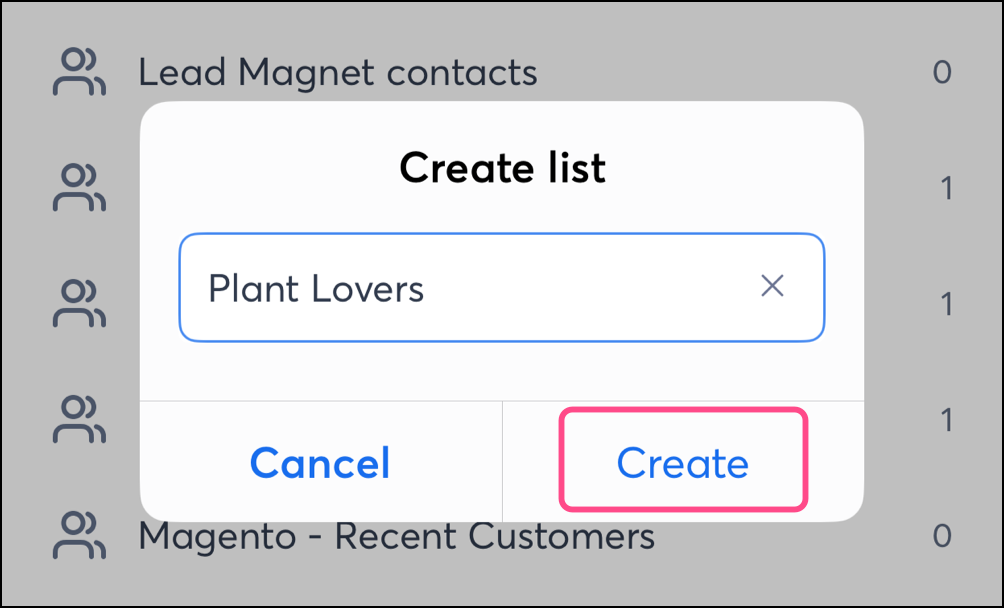
  3. Enter a name for your list.
  4. Tap Create.

    New Email List name and Create button


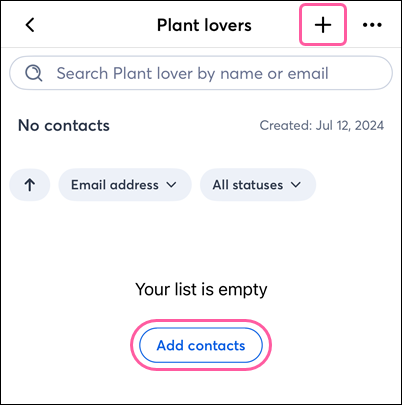
The list is initially empty of contacts. Tap on the plus symbol or Add contacts. You can also manually add existing contacts to your list.


Empty email list with options to add contacts


Rename a contact list

Complete the following steps on Android or iOS to rename a contact list: 
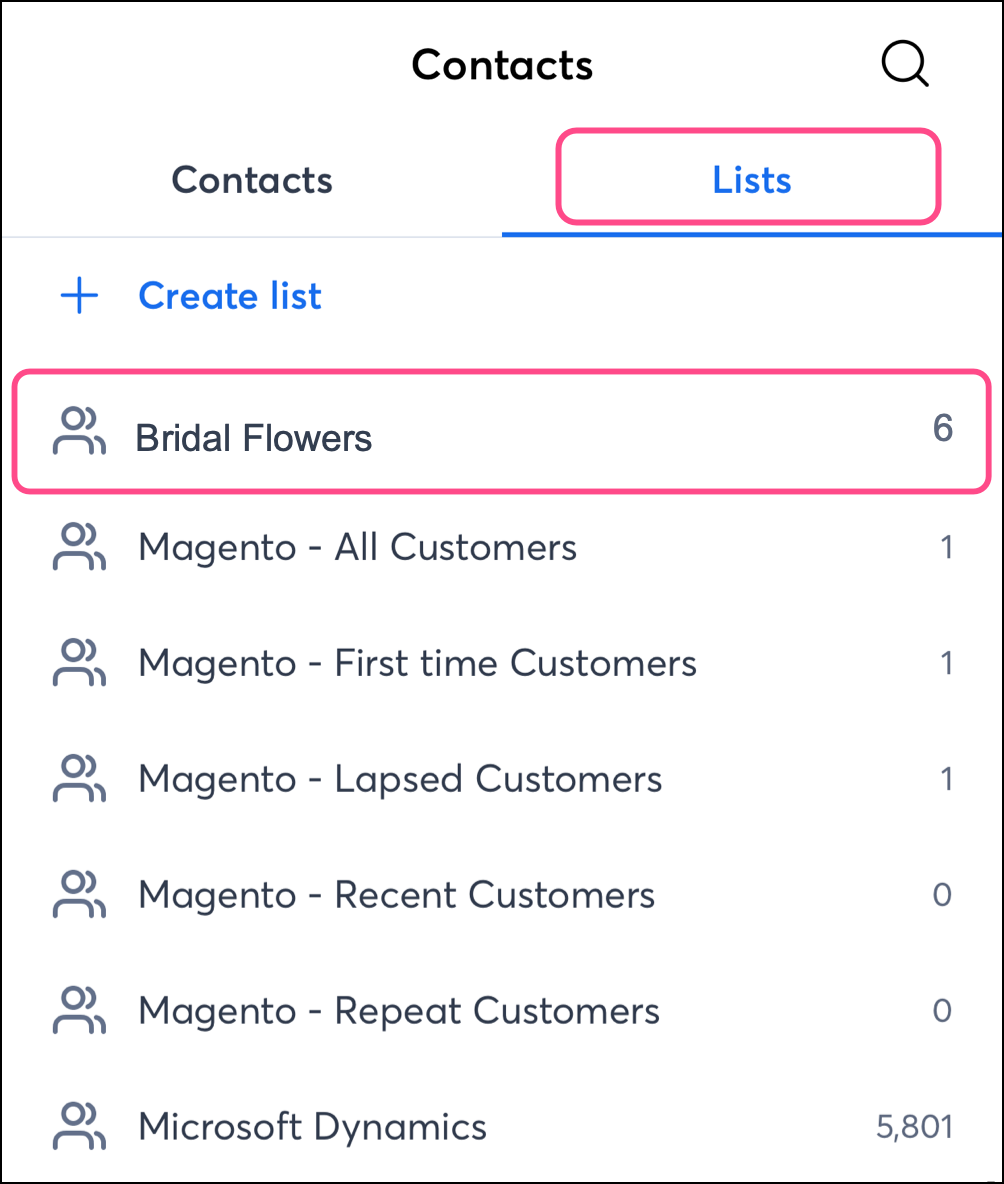
  1. While viewing your Contacts, tap Lists.
  2. Tap on the list you'd like to rename.

    Email Lists with email list selected
     
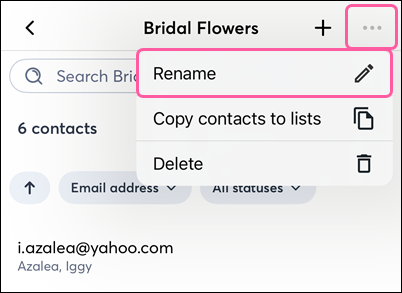
  3. Tap . . .Rename.

    Email List with Edit option
     
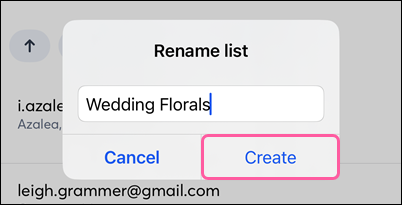
  4. Enter a new name for your list.
  5. Tap Create.

    Rename Email List


Add contacts to a list


Add multiple contacts to a list

On Android or iOS, complete these steps to add multiple contacts to a list.
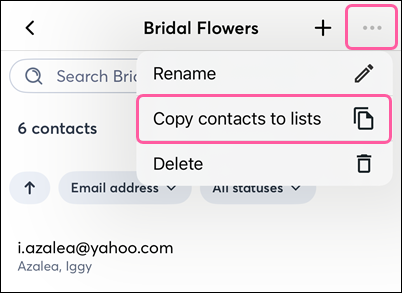
  1. While viewing your contact lists, tap the list you want to copy contacts from.

    Contact Lists and list selected
     
  2. Tap . . . > Copy contacts to lists.

    Email List with Copy Contacts to Lists option
     
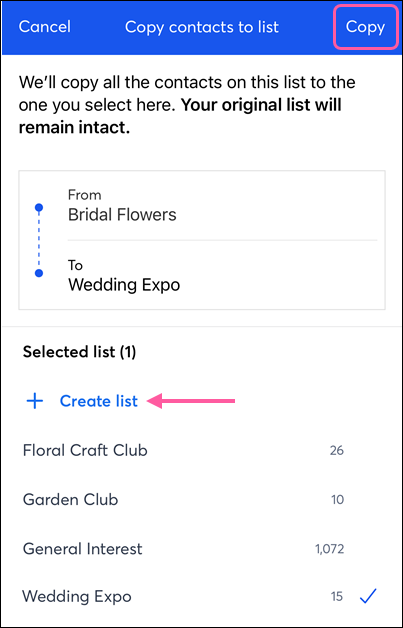
  3. Tap on the list you want to copy these contacts to, or tap Create list to add them to a new list.
  4. Tap Copy.

    List selected to copy contacts to and Copy button
     
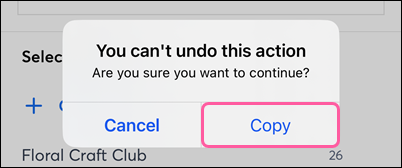
  5. Tap Copy to confirm.

    Copy confirmation message
     

Add a single contact to a list

Complete these steps on Android or iOS to add a single contact to a list.
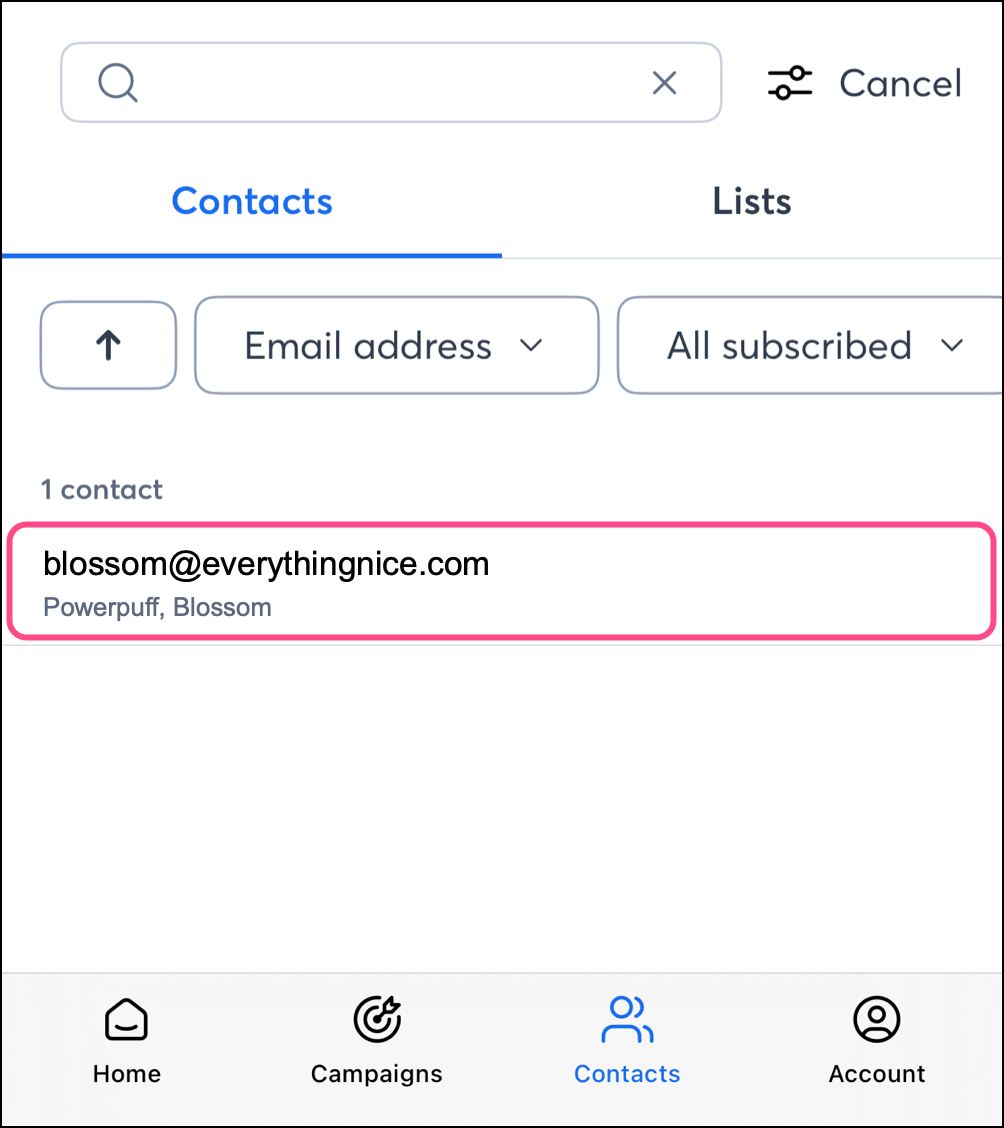
  1. While viewing your contacts, tap on the contact to view their details.

    Active Contacts and contact selected
     
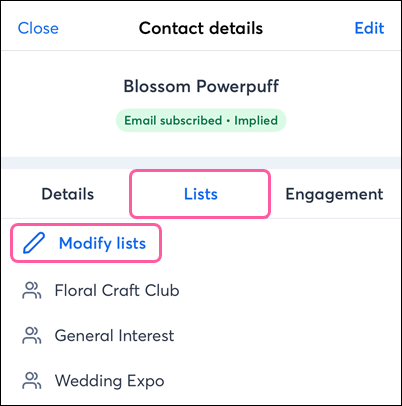
  2. Tap Lists.
  3. Tap Modify lists.

    Contact details, Email Lists, and Modify Lists option
     
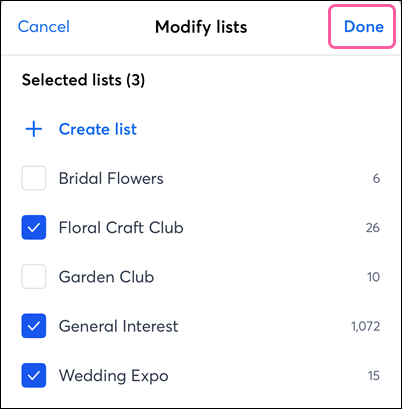
  4. Select the email list(s) you want to add the contact to and then tap Done

    Select Email List and Back Arrow


Delete a contact list

On Android or iOS, complete these steps to delete a list:
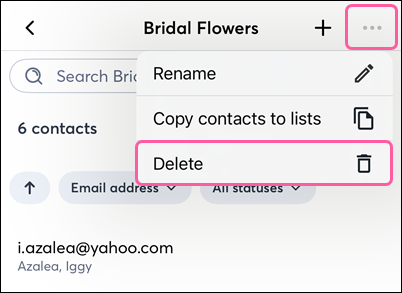
  1. While viewing your contact lists, tap on the one you want to delete.

    Contact Lists and list selected
     
  2. Tap . . . > Delete.

    Email List with Delete option
     
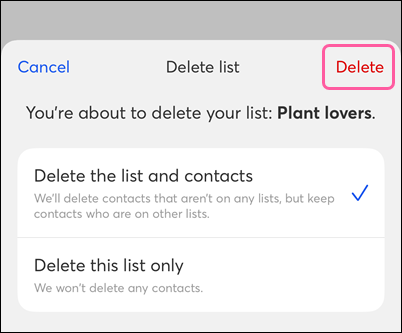
  3. Choose whether to delete the list and its contacts, or just the list. Then tap Delete.

    Delete List and Contacts and Delete List Only options
     
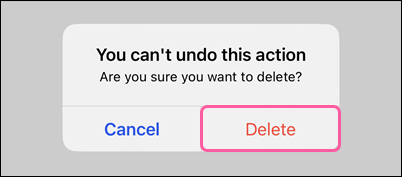
  4. Tap Delete to confirm.

    Delete confirmation message


Questions?

Ask the Community

Did this article answer your question?


Constant Contact Logo

Copyright © 2026 · All Rights Reserved · Constant Contact · Privacy Center