Email and Digital Marketing
How can we help you?
Search our help articles, video tutorials, and quickstart guides

You've got this. You've got us. Search our Knowledge Base to quickly find answers to your questions.

Create a combination email and social post with the Constant Contact mobile app

Article: 000043906
Updated: January 20, 2026

Send a single campaign to your email audience and social networks at the same time

If you need to send a quick message to your audience, create a single message in the Constant Contact mobile app that you can send as an email to your contact lists and post to social media at the same time.

Note: This feature is only available in the mobile app, and once sent, they appear as separate emails and social posts in your Campaigns list.

On Android, complete the following steps to create a combined email and social post: 

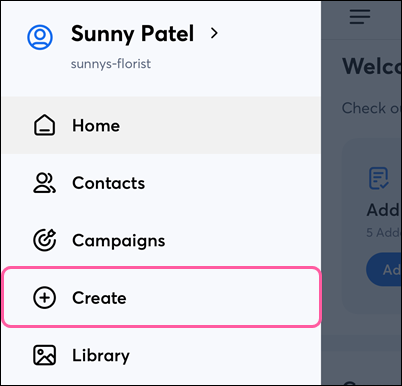
  1. On Android, tap the Menu icon Menu icon then tap Create.

    Screenshot of navigation menu.

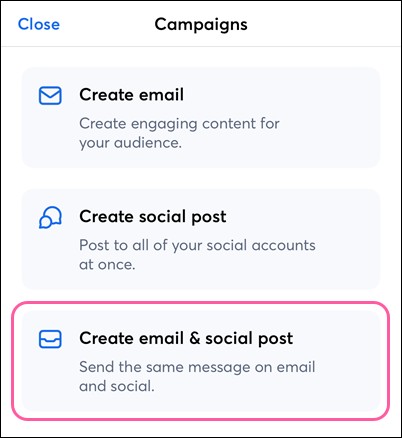
  2. Next, tap Create email & social post

    Create a Campaign menu with Combination option selected

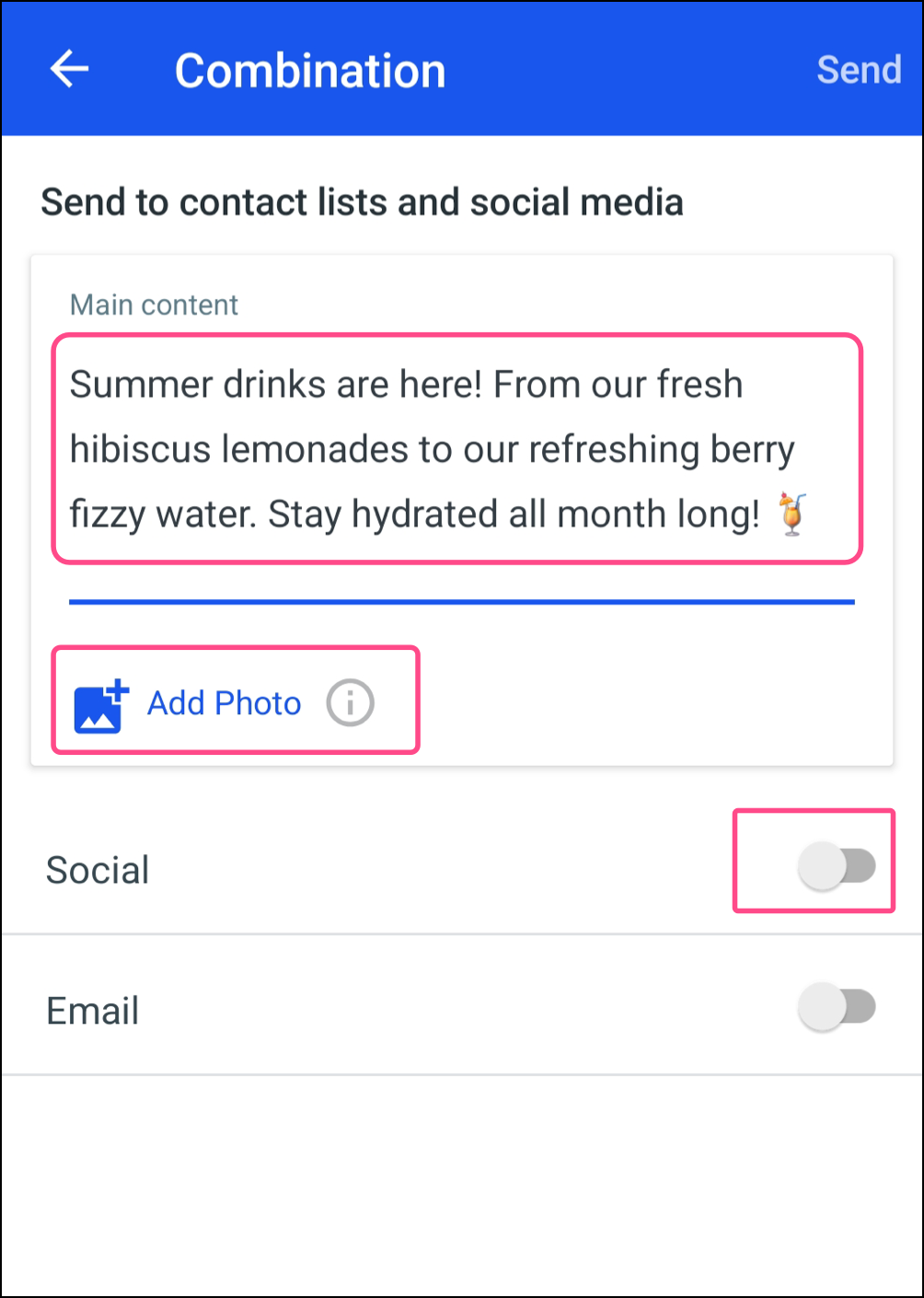
  3. Type out your message in the Main content box.
  4. Add photos as needed.
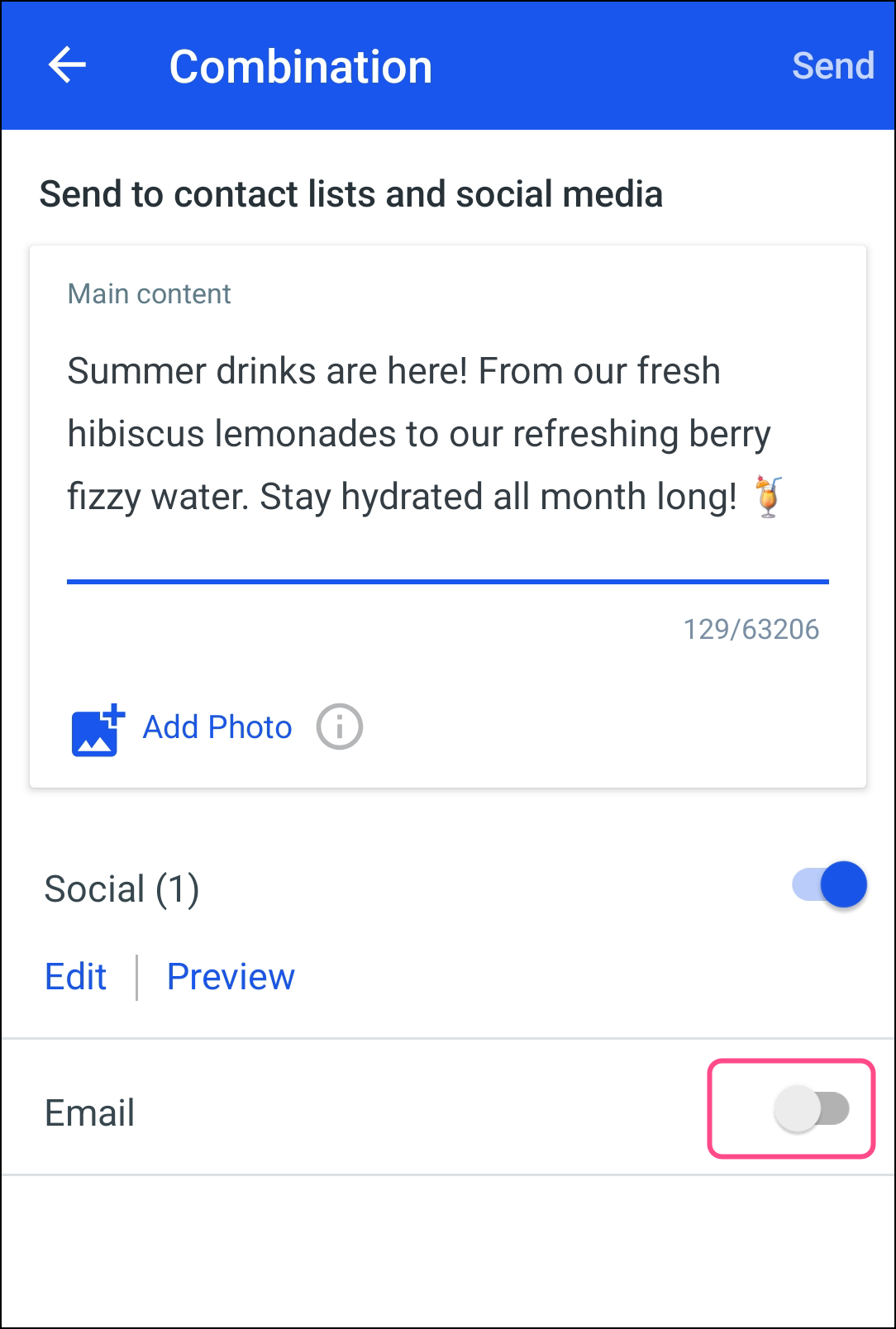
  5. To create a social post with this content, tap on the Social toggle. 


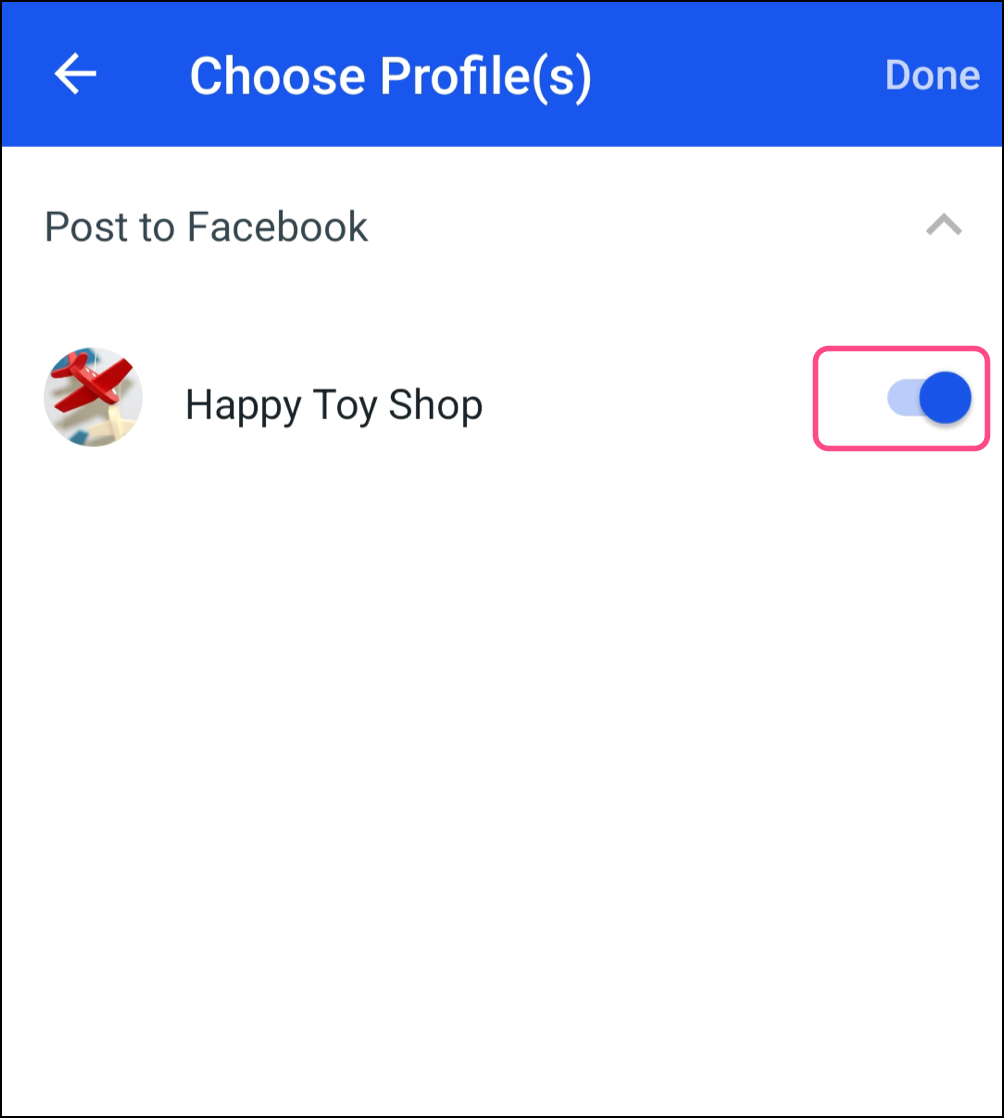
  6. Choose the social account(s) you want to share the post to. 


  7. To create an email with this content, tap on the Email toggle. 


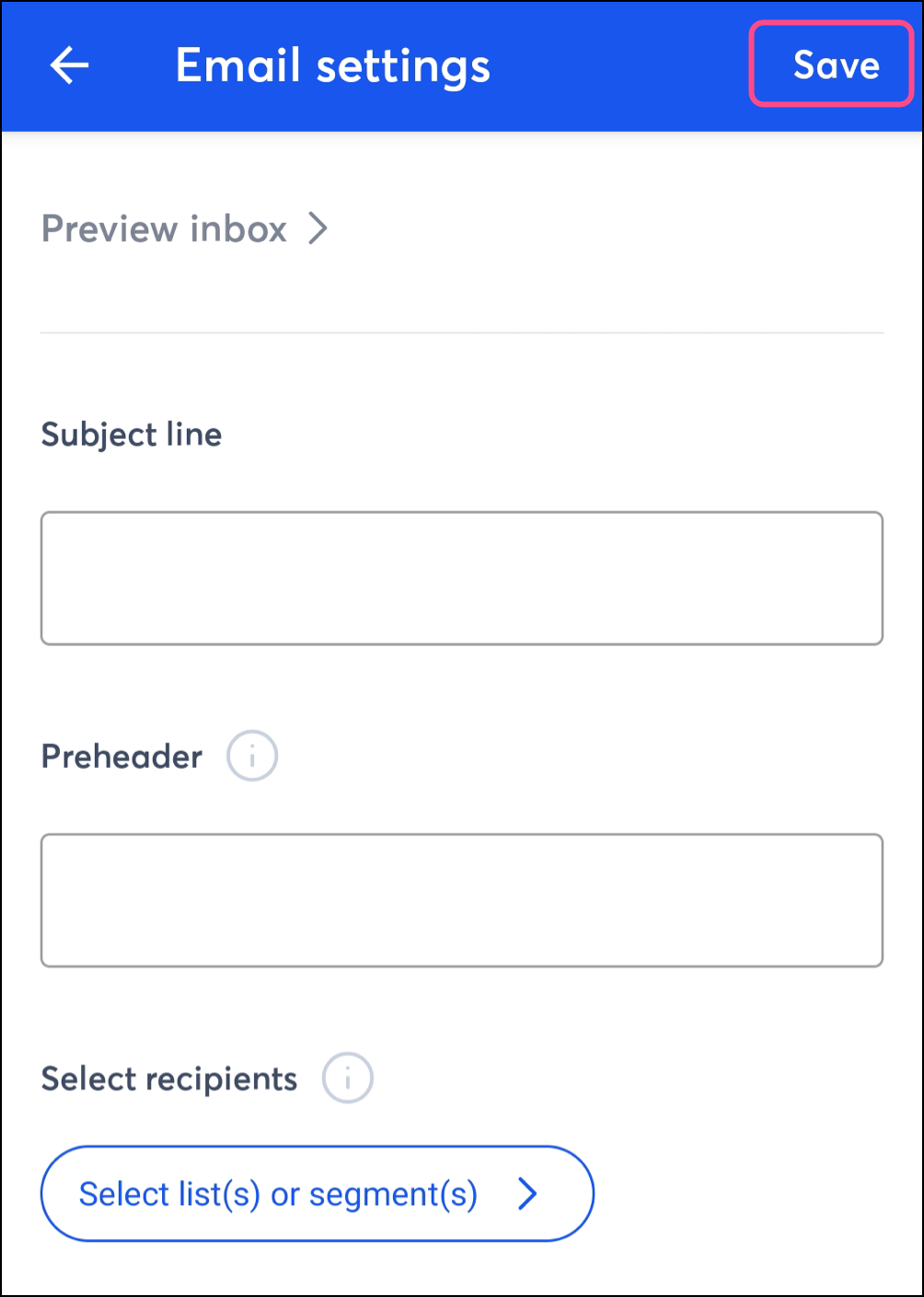
  8. Fill out your email details: 
    1. Enter a Subject line for your email. 
    2. Enter a Preheader for your email.
    3. Select Recipients; choose contact list(s) or select segment(s). 
    4. Optionally, update the From name
    5. Review and modify your From address, if needed. 
    6. Review and modify your Reply-to address, if needed.
    7. Review and modify your Physical address, if needed. 
  9. Tap Save


  10. Choose the social account(s) you want to share the post to. 
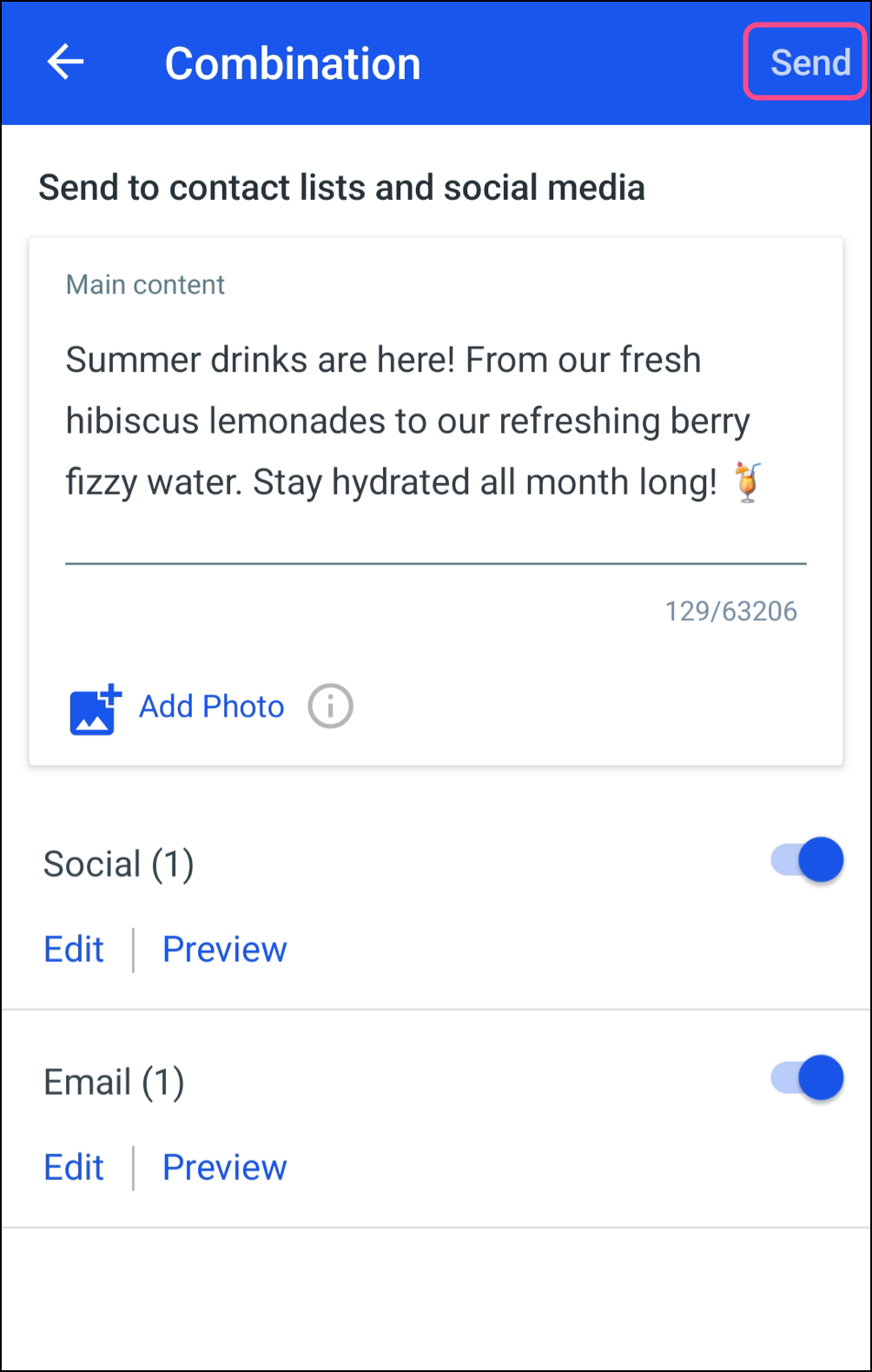
  11. Review your email and social post details, and tap Send


On iOS, complete the following steps to create a combined email and social post: 
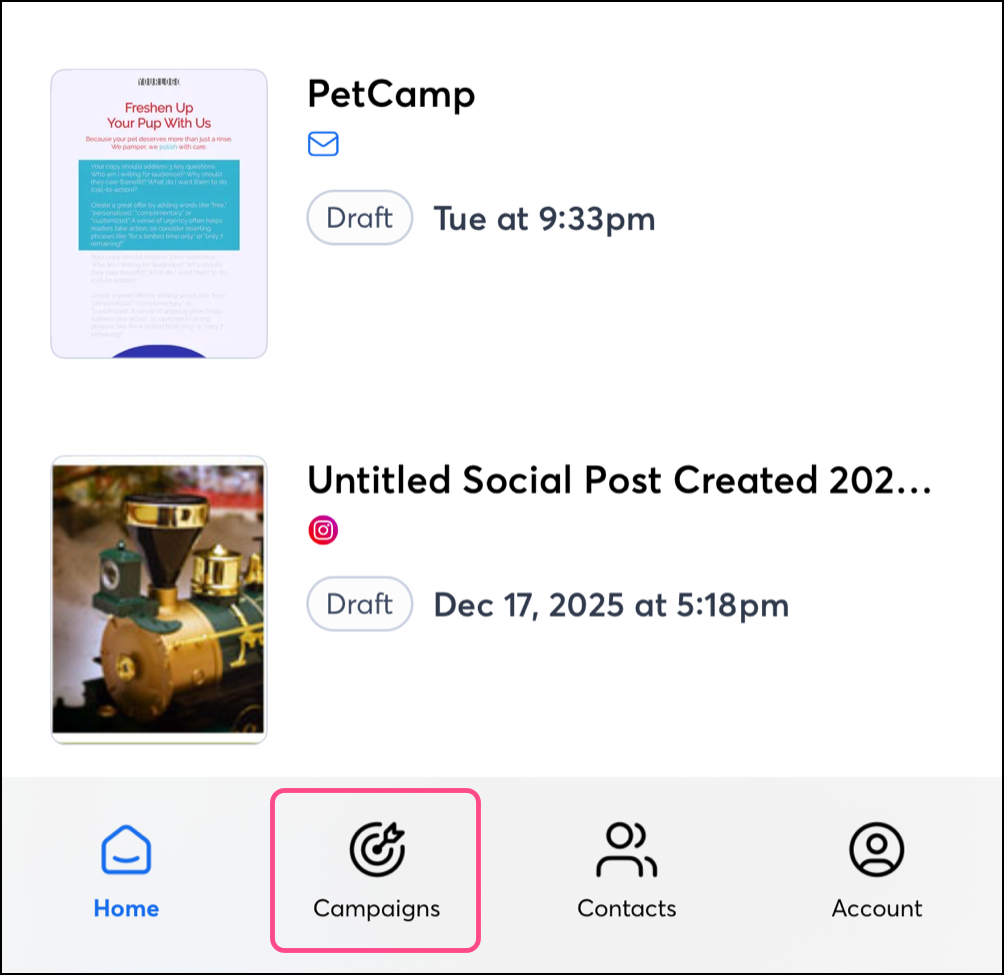
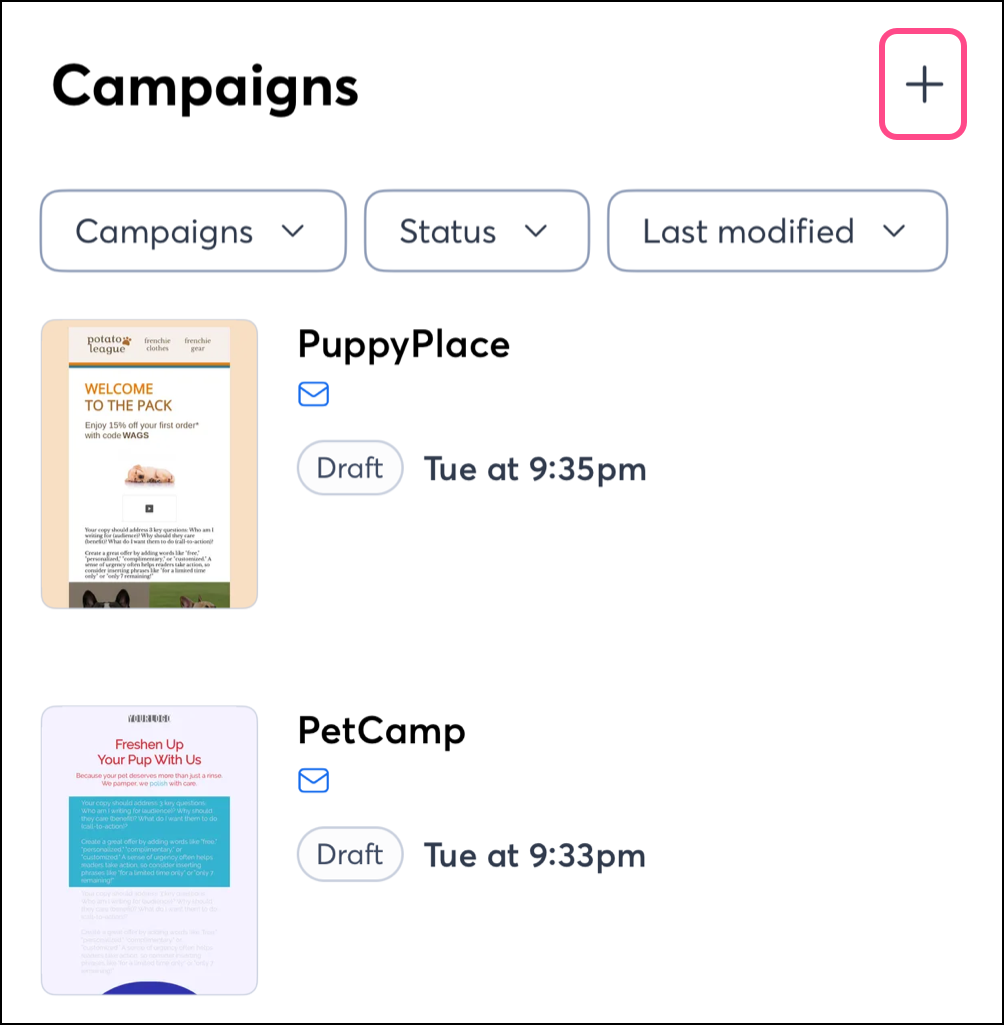
  1. On iOS, tap on Campaigns from the navigation menu.


  2. Then, tap the + plus icon in the top right corner.


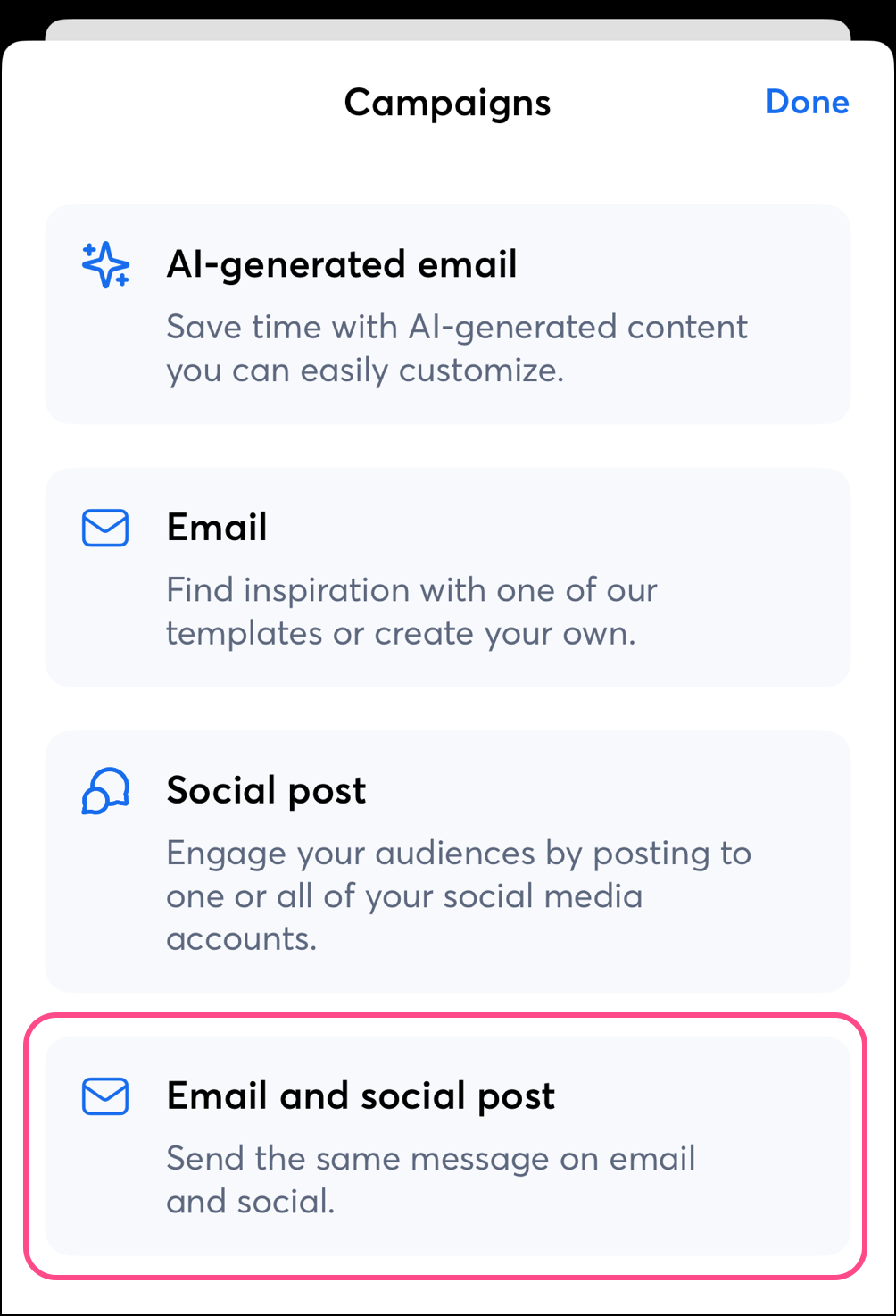
  3. Select Email and social post.


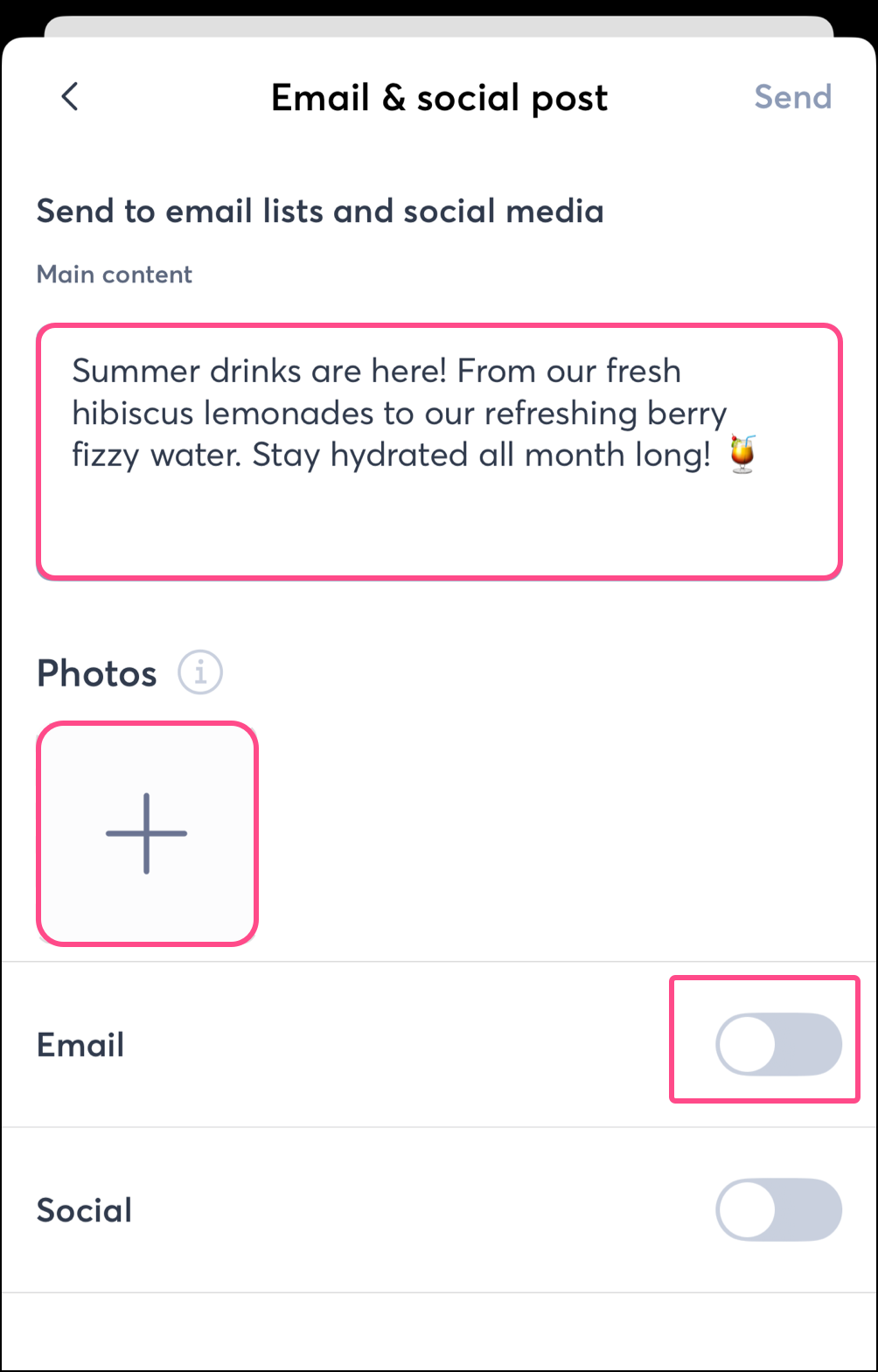
  4. Enter the main content of your email and social post. 
  5. Add photos as needed.
  6. To create an email with this content, tap on the Email toggle. 


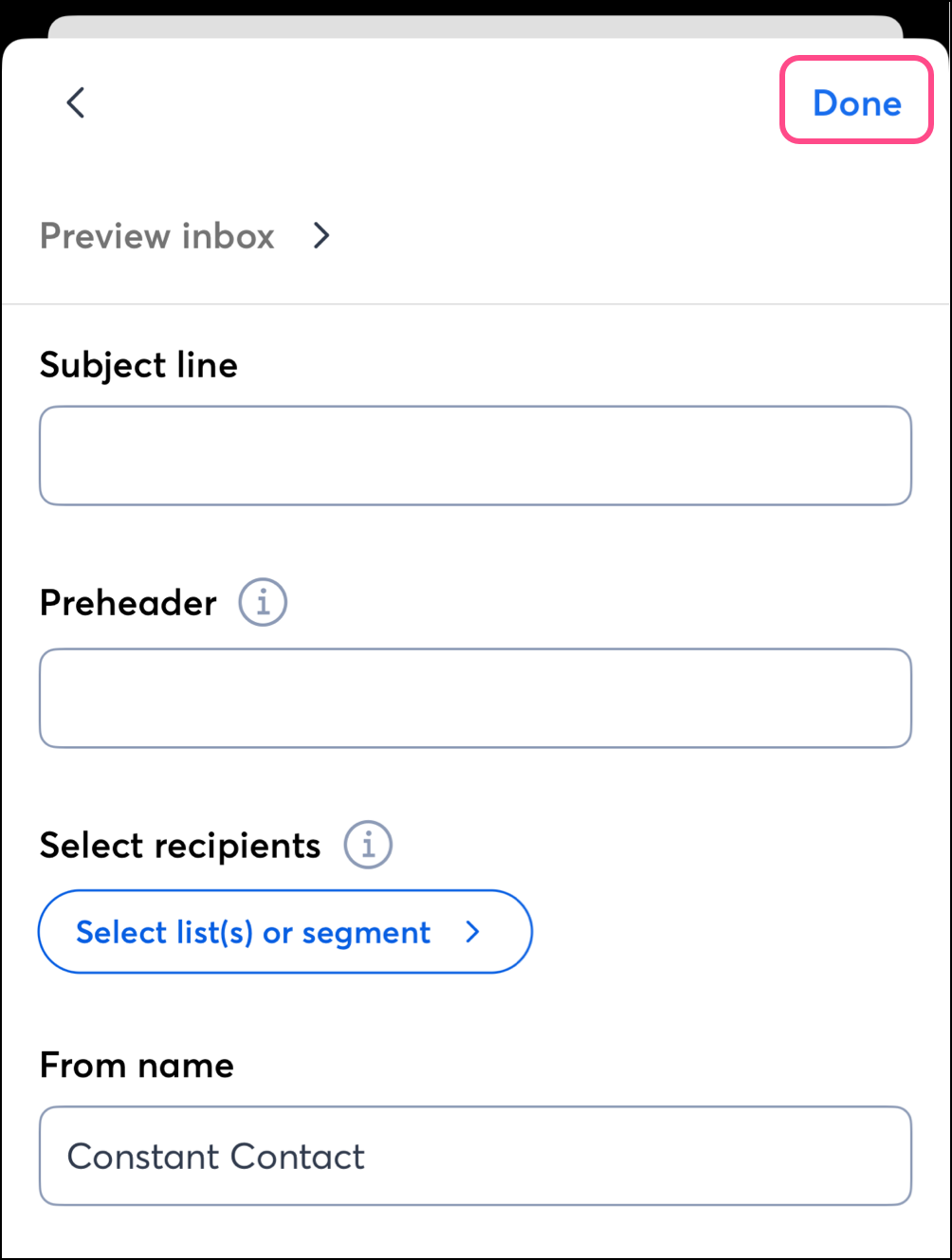
  7. Fill out your email details: 
    1. Enter a Subject line for your email. 
    2. Enter a Preheader for your email
    3. Select Recipients; choose contact list(s) or select segment(s). 
    4. Optionally, update the From name
    5. Review and modify your From address, if needed. 
    6. Review and modify your Reply-to address, if needed.
    7. Review and modify your Physical address, if needed. 
  8. Tap Done


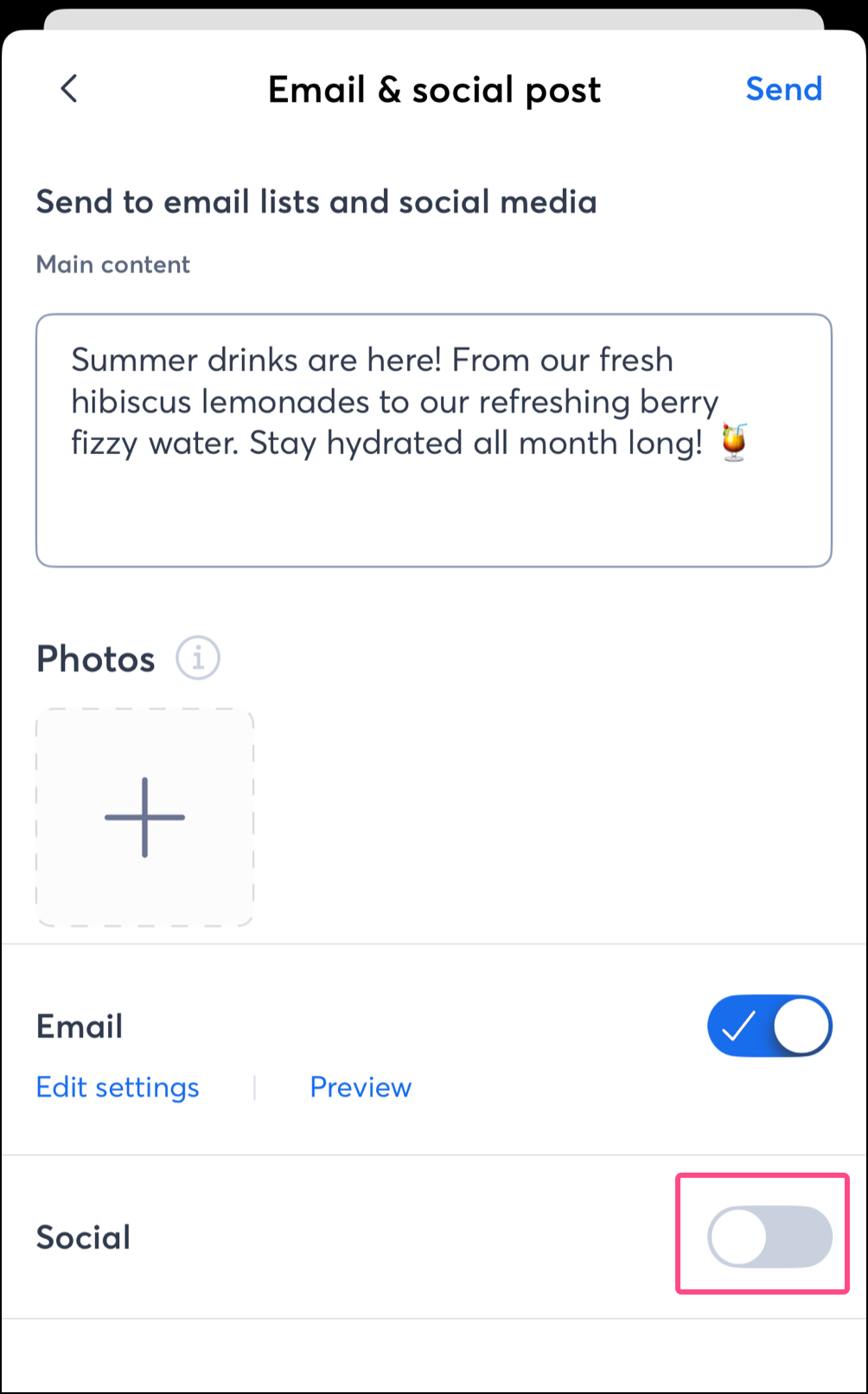
  9. Tap the Social toggle. 


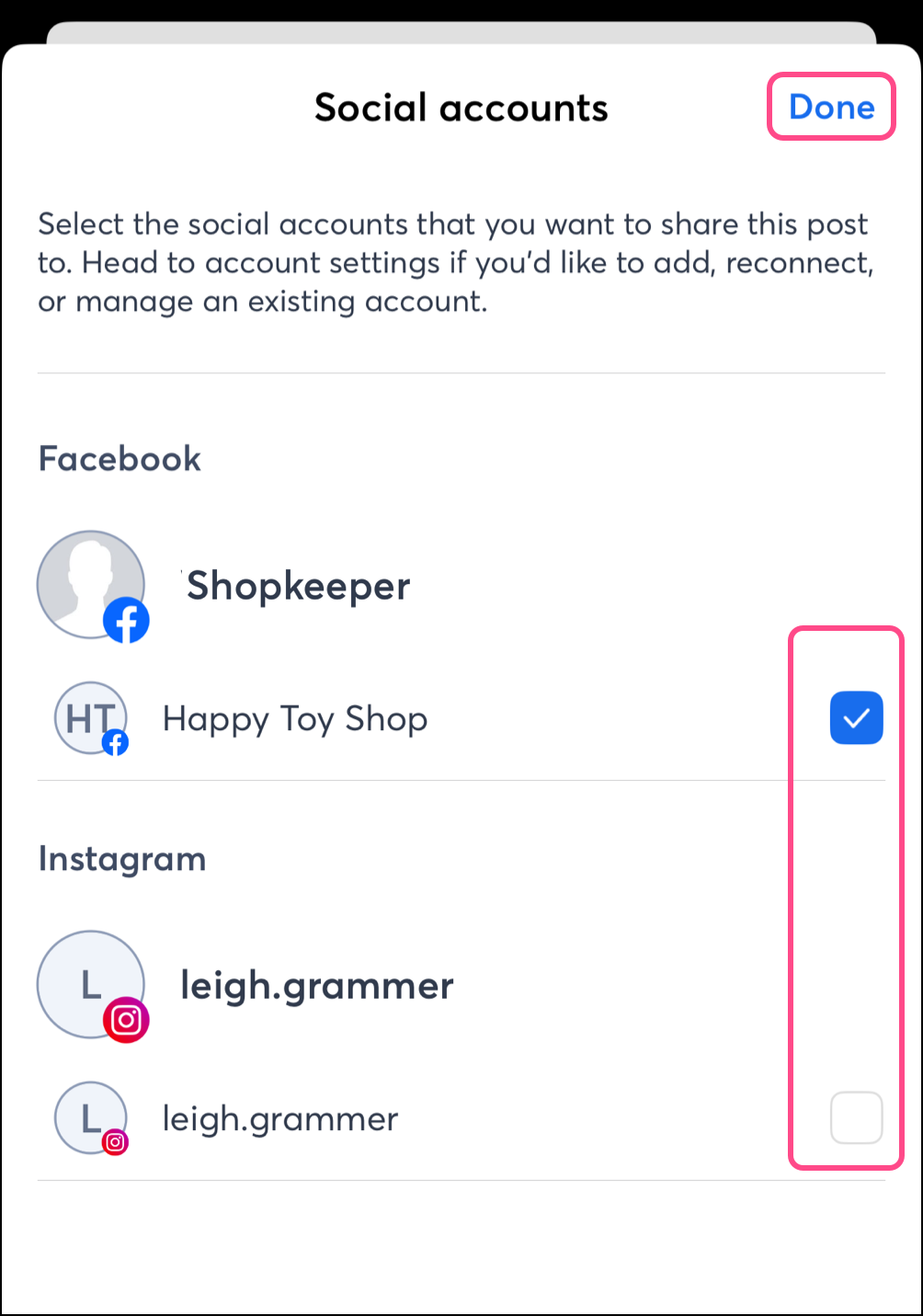
  10. Choose the social account(s) you want to share the post to. 
  11. Tap Done


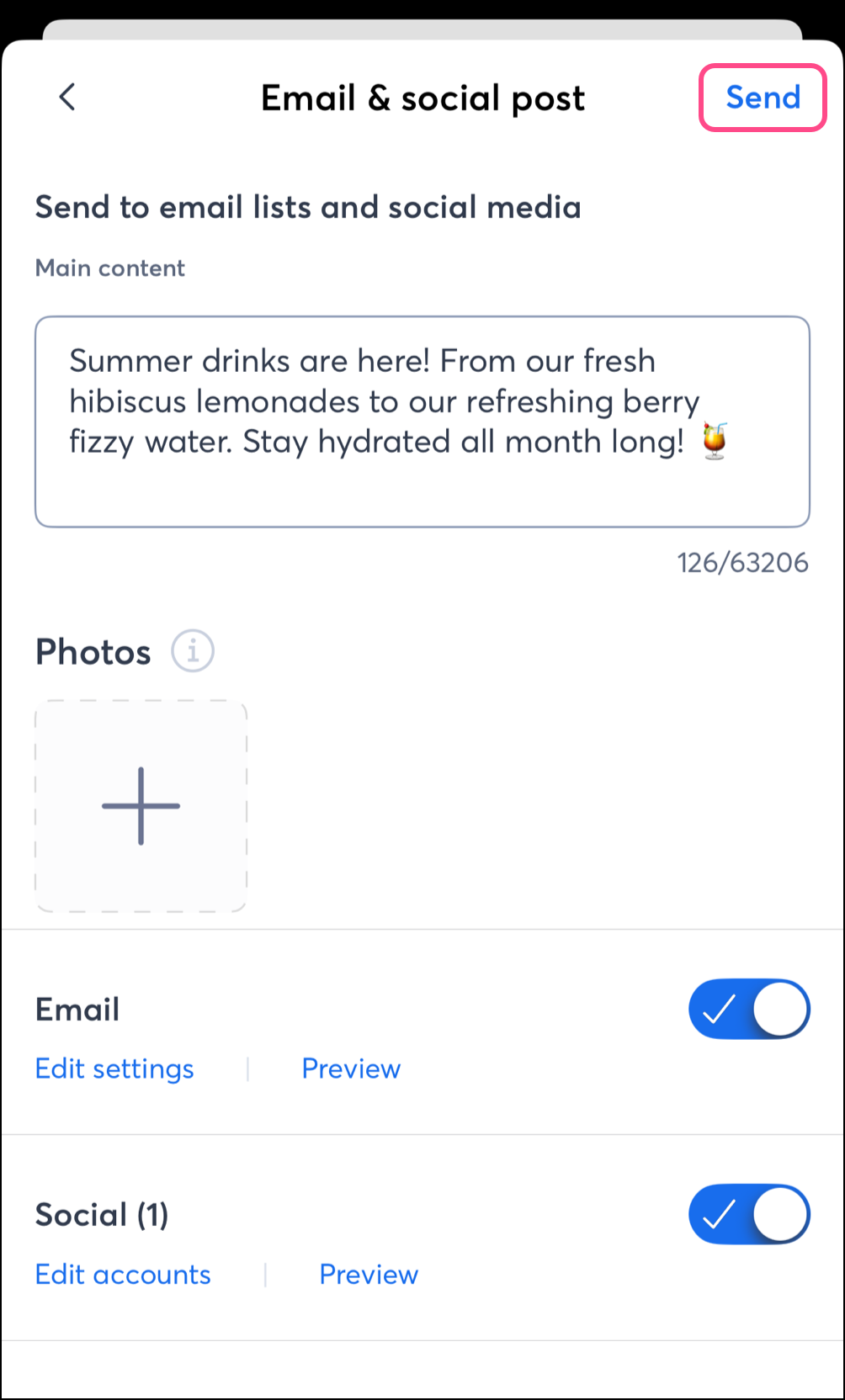
  12. Review your email and tap Send


Questions?

Ask the Community

Did this article answer your question?


Constant Contact Logo

Copyright © 2026 · All Rights Reserved · Constant Contact · Privacy Center