Save time and make sure the design of all your campaigns is consistent and professional by adding your brand colors, logo, fonts, voice, images, and website links to the BrandKit in your account. If you have a website, you can quickly scan it to import your brand assets, or you can add them manually.
Desktop instructions:
Mobile web instructions:
With your colors added to the BrandKit, you can create a theme that's applied to certain templates when creating a new email. Additionally, your logo will automatically appear in newly created campaigns, and your colors and images will be readily available for choosing when customizing the design.
Add your brand assets
If you have a website, you can easily scan it to automatically import your logo and colors into your BrandKit. You can also add or update assets manually at any time.
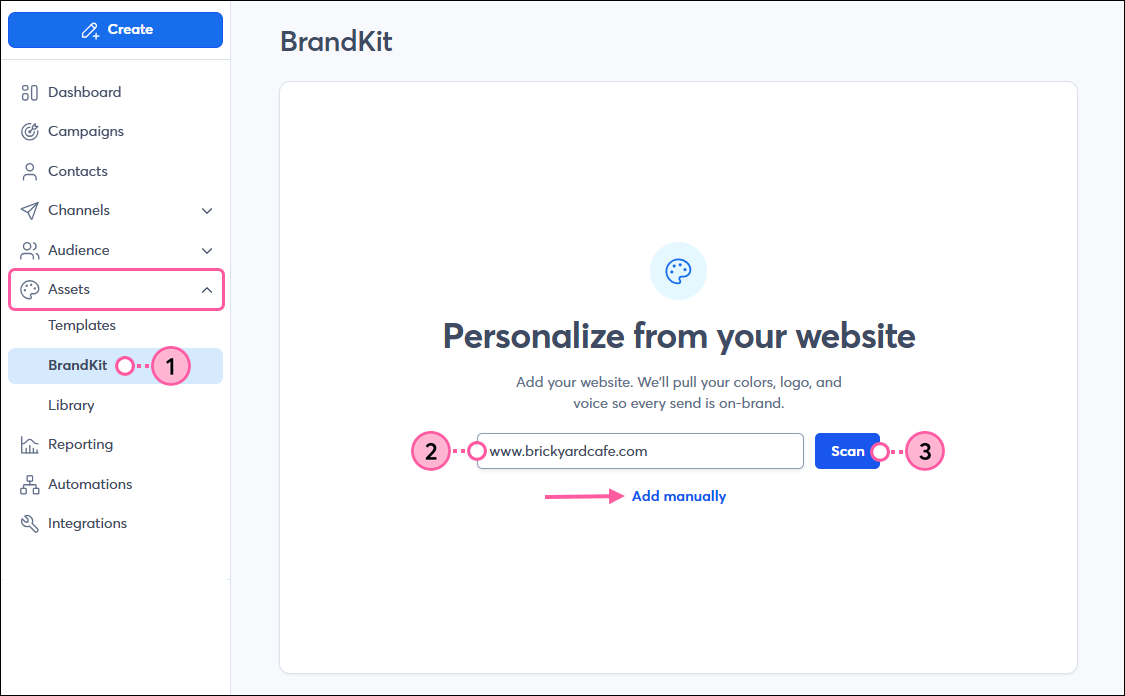
- In the left-hand menu, click Assets > BrandKit.
- Enter your website's URL into the field. Alternatively, you can click the Add manually link to add your brand assets yourself.
Note: If you already added your logo to your account settings, it's automatically added to the BrandKit. To add the rest of your brand assets from your website, click the Re-scan website button in the upper-right. - Click the Scan button.
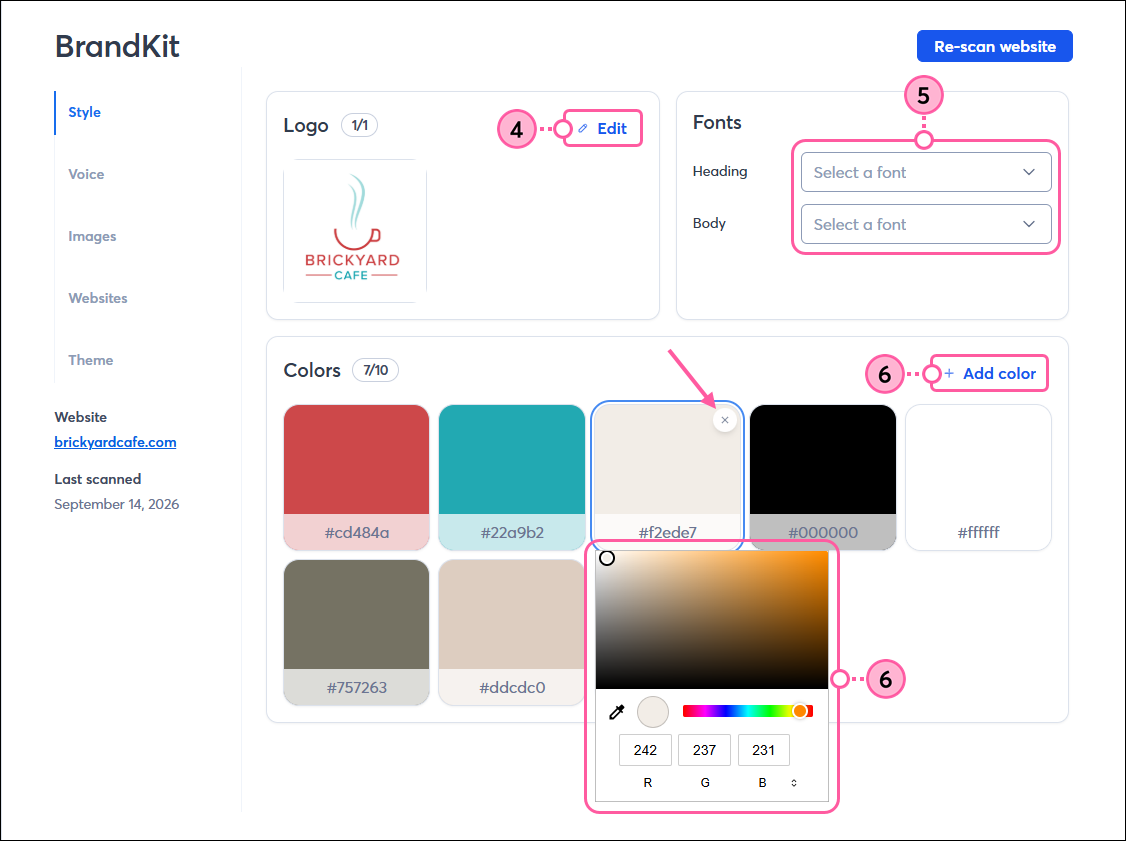
- On the Style tab, your logo, colors, and fonts are automatically pulled from your website and added to your BrandKit. In the Logo section, you can click Edit to choose a different logo.
- In the Fonts section, you can use the drop-downs to select or change the default Heading and Body fonts.
- In the Colors section, you can click + Add color to enter more colors manually, click on an existing color swatch to edit it, or click the X in the upper-right of a color to remove it from the BrandKit.
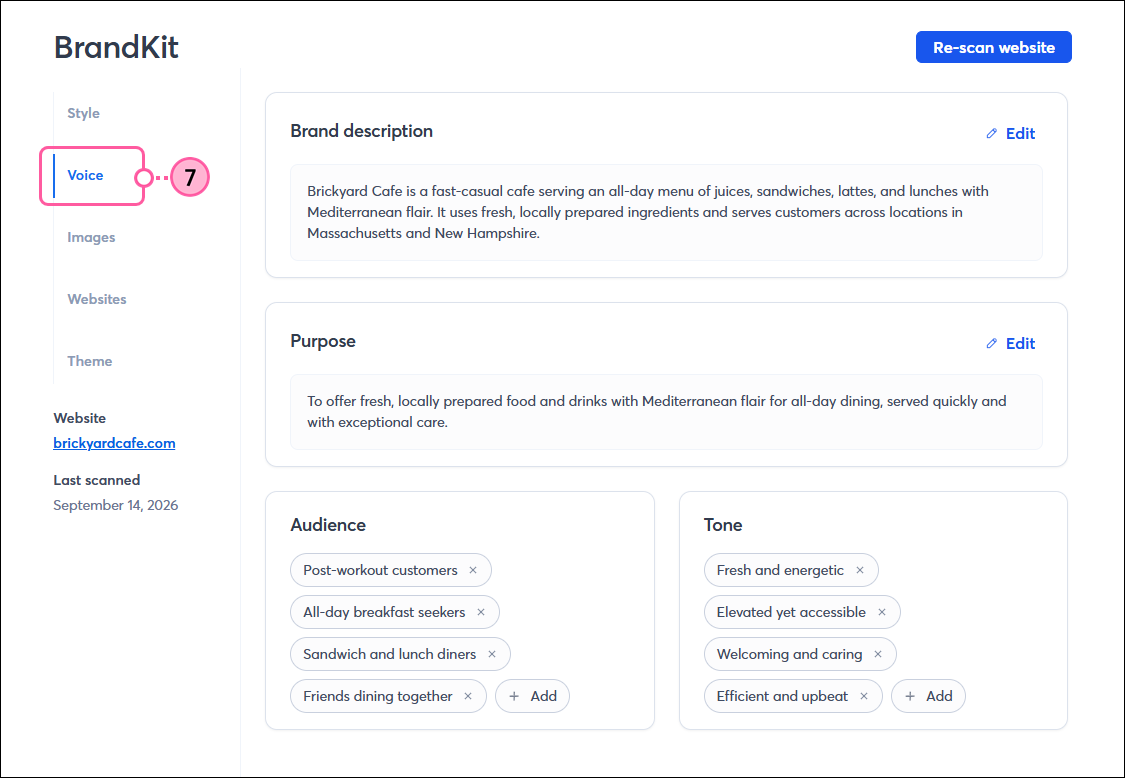
- Click the Voice tab to review and edit your brand description, purpose, audience, and tone as needed.
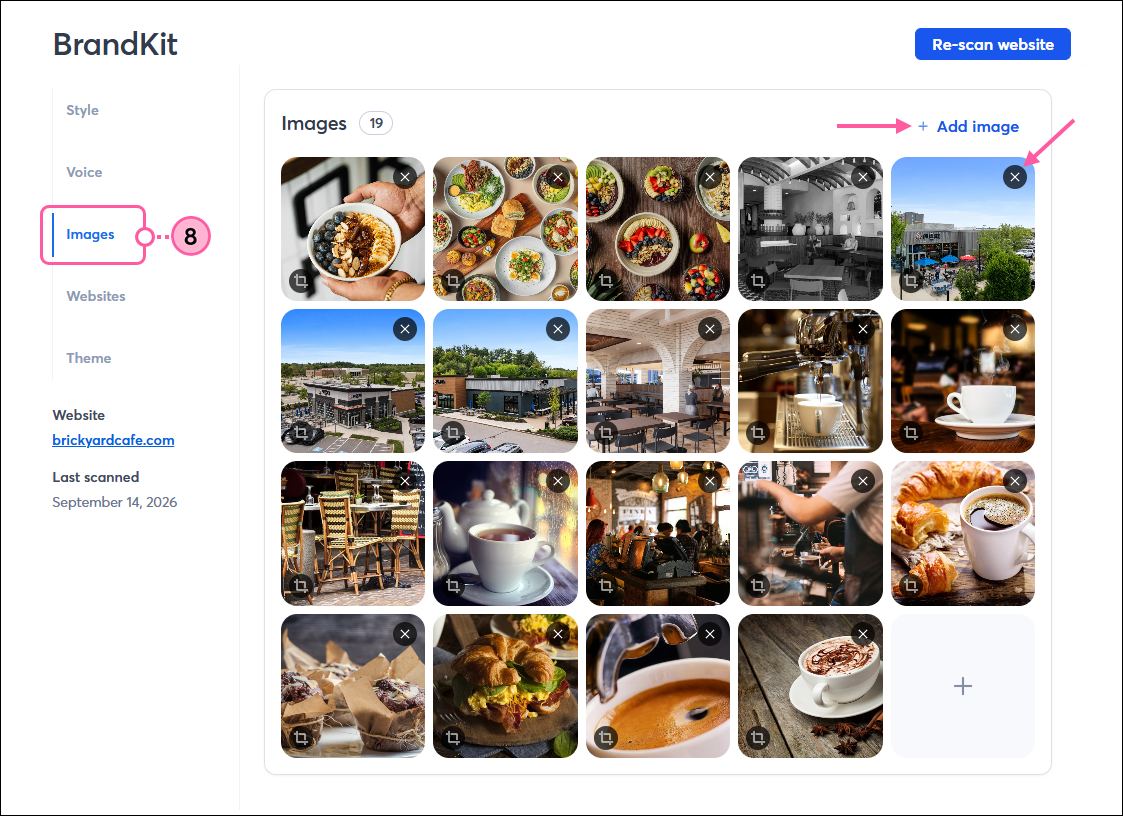
- Click the Images tab to review the images pulled from your website. You can add more by clicking +Add image, or remove any by clicking the X in the upper-right corner of an image. The images are automatically added to your Library and can be easily inserted into your campaigns later.
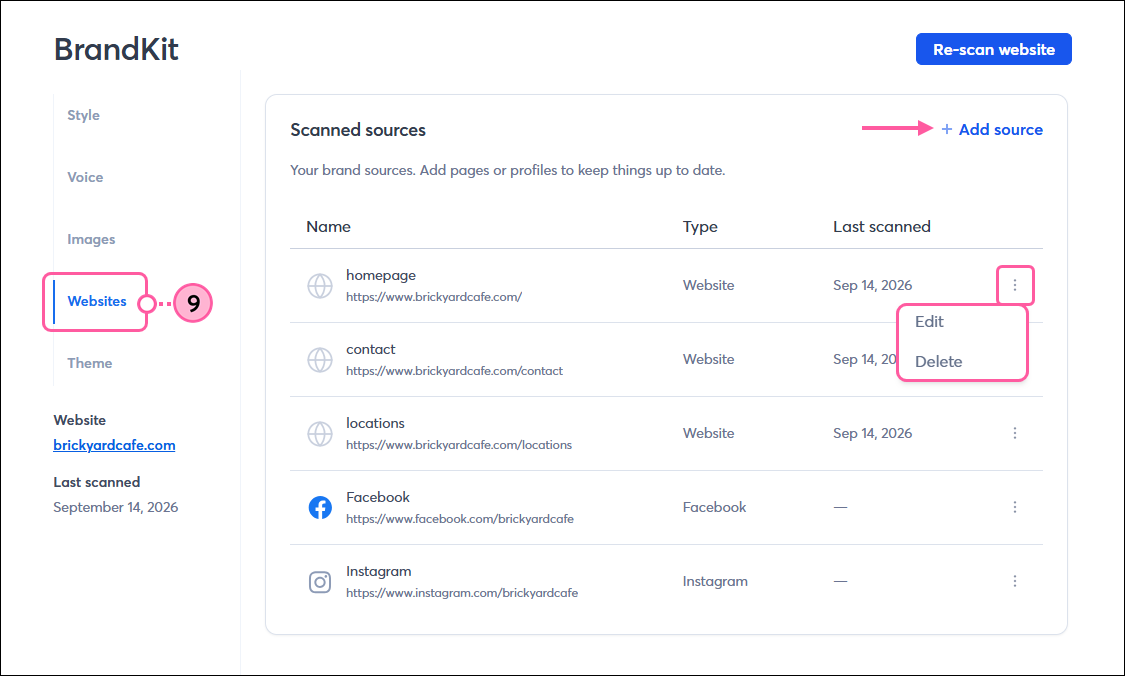
- Click the Websites tab to review the links pulled from your website. Click +Add source to add another link for your organization, or click the three dots to the right of an existing link to edit or delete it from the list.
With your brand assets added, you can now create a theme to apply to your templates the next time you go to create an email.
Access your brand colors when editing a campaign
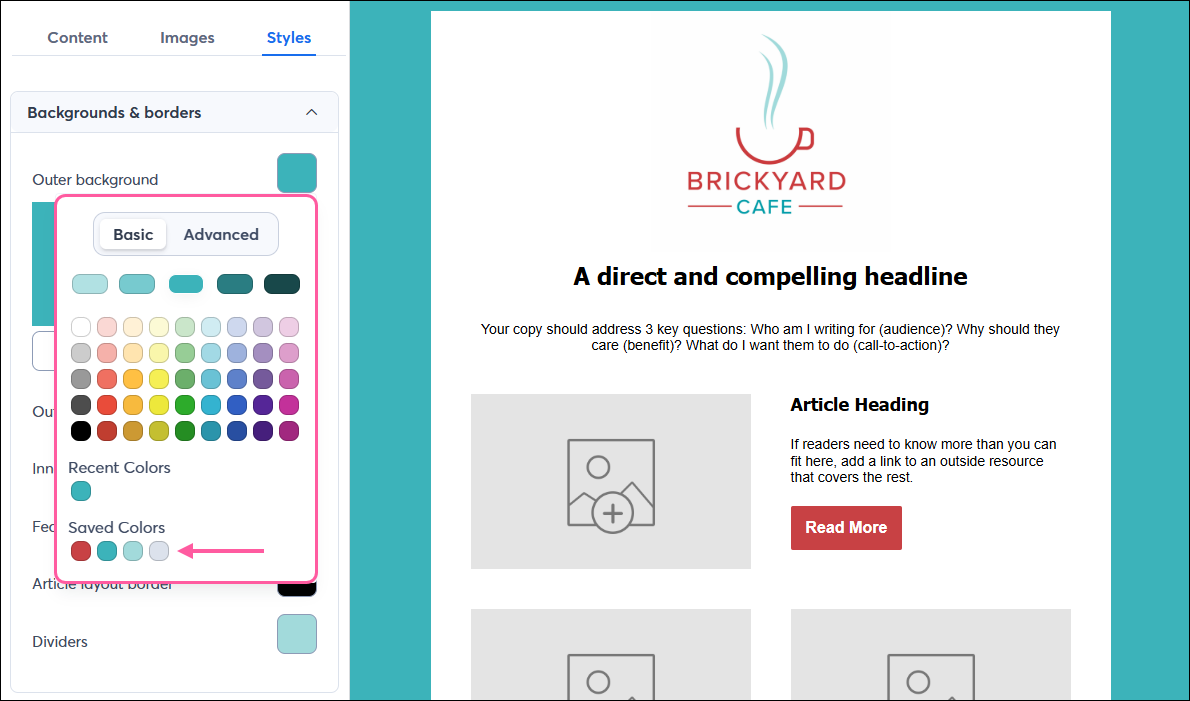
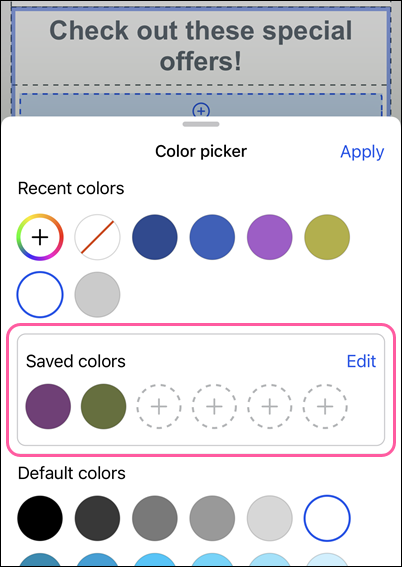
Once you’ve added your brand colors to your BrandKit, they’ll be easily accessible when editing your campaigns. When you go to change the colors, your brand colors will be available under the Saved Colors section of the color picker. You can edit your brand colors within your BrandKit or while editing an email in the Constant Contact mobile app at any time.
| Saved Colors when editing on a desktop | Saved Colors when editing on the mobile app |
 |  |
Automatically add your brand elements from your website (mobile web)
If you’re using Constant Contact on your mobile device's web browser (versus your desktop computer or Constant Contact's mobile app), it’s easy to automatically add your brand elements:
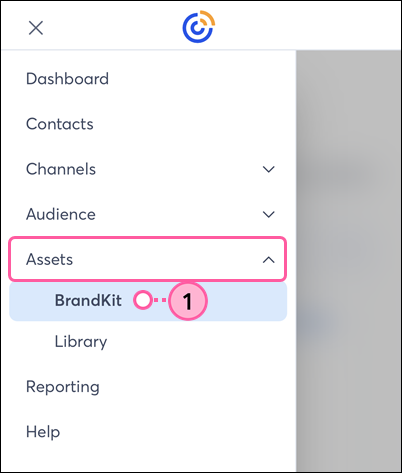
- From the menu, tap Assets > BrandKit.
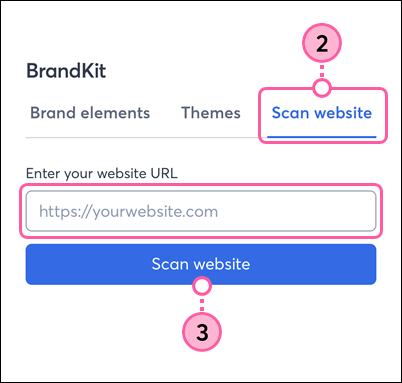
- If needed, tap the Scan website tab.
- Enter your website’s URL and tap Scan website.
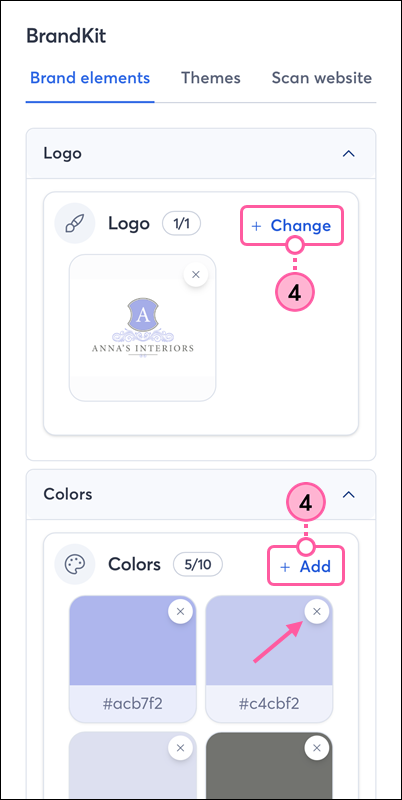
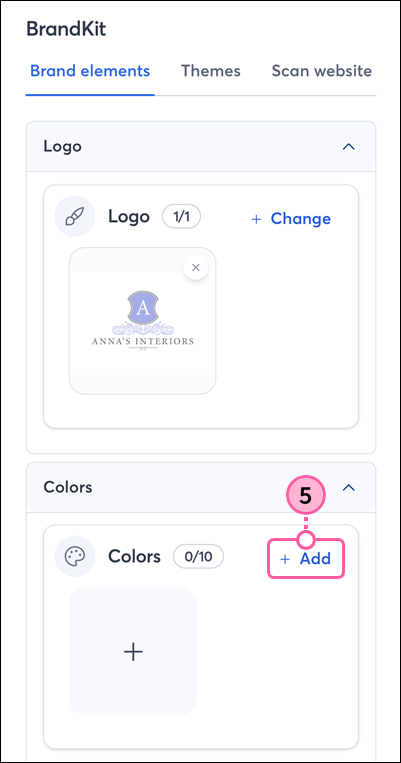
- Your logo, colors, and images are automatically pulled from your website and added to your BrandKit. You can tap + Change to choose a different logo, tap + Add to enter more colors manually, or tap the X to remove any colors.
With your brand assets added, you can now create a theme to apply to your templates the next time you go to create an email.
Manually add your brand elements (mobile web)
If you’re using Constant Contact on your mobile device's web browser (versus your desktop computer or Constant Contact's mobile app), you can manually add your brand elements to your BrandKit:
- From the menu, tap Assets > BrandKit.
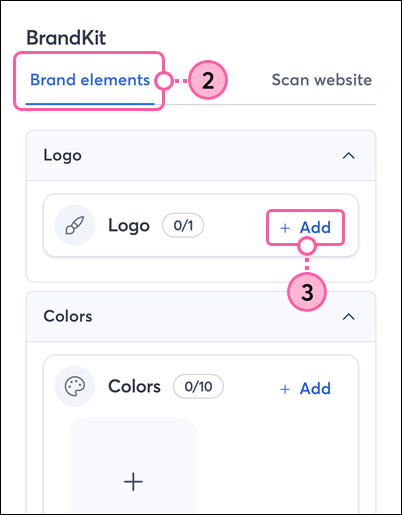
- If needed, tap the Brand elements tab.
- In the Logo section, tap +Add or + Change.
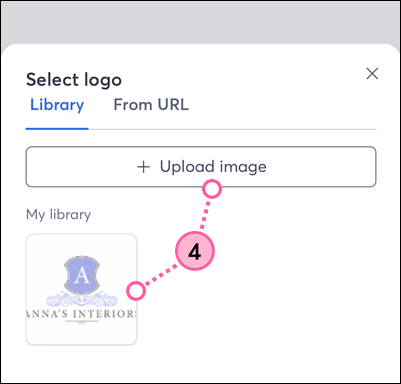
- Select a photo from your Library or tap Upload image to choose a photo saved on your device or take a new photo.
- In the Colors section, tap +Add.
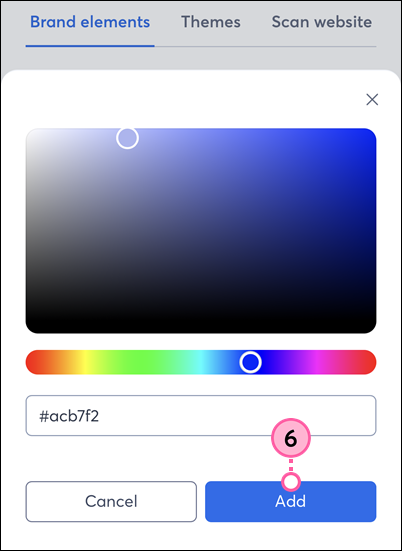
- Enter a hex value and tap Add.
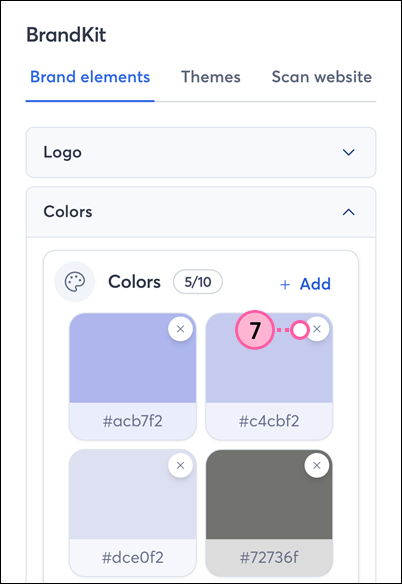
- You can save up to 10 colors in your BrandKit. If you change your mind about a color, tap the X to delete it.
With your brand assets added, you can now create a theme to apply to your templates the next time you go to create an email.
Any links we provide from non-Constant Contact sites or information about non-Constant Contact products or services are provided as a courtesy and should not be construed as an endorsement by Constant Contact.