Email and Digital Marketing
How can we help you?
Search our help articles, video tutorials, and quickstart guides

You've got this. You've got us. Search our Knowledge Base to quickly find answers to your questions.

Find the URL for a Facebook profile or business page

Article: 000006069
Updated: November 26, 2025

Use a social media page URL to edit your social media buttons in your email

Exclamation Point IconImportant: Make sure your Facebook page is published. If the Facebook page is hidden from the public, you won't be able to copy the URL. If your browser is in full-screen mode, it also hides the page URL. Press F11 for Windows or command + shift+ f for Mac.


When you're adding social media icons into your email, they have to be linked to the URL for your unique social media profile. Otherwise, if someone clicks the icon in your email, they're taken directly to the generic main page for the social media platform instead. Here's how to find the URL for your Facebook page:


Light Bulb IconDid you know? It's a best practice to turn your social audience into email marketing contacts, but that doesn't mean you shouldn't promote your social media presence in your emails!


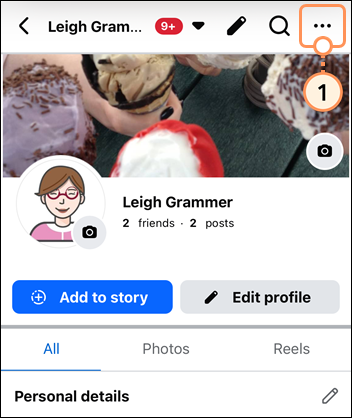
Personal profile mobile device view

  1. Open Facebook on your mobile device, navigate to the profile page, and tap the three dots.

    Facebook personal profile on mobile device and menu button

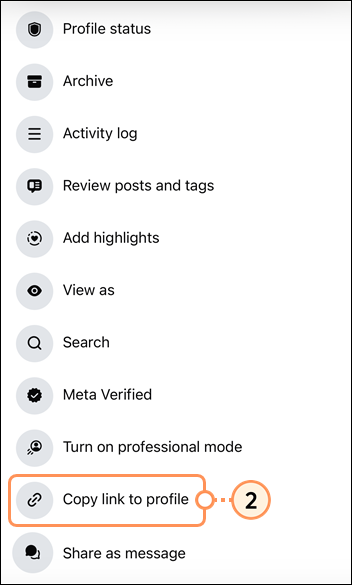
  2. Scroll down to the Your Profile Link section and tap the Copy Link button.

    Business page Profile Settings, Your Profile Link section, page URL, and Copy Link button

  3. The link has been copied to your clipboard. Tap OK to exit the screen.

    Profile Link Copied success message and OK link

To see the URL, you have to paste it somewhere, like the field for the Facebook icon in your email draft, or view your clipboard.
 

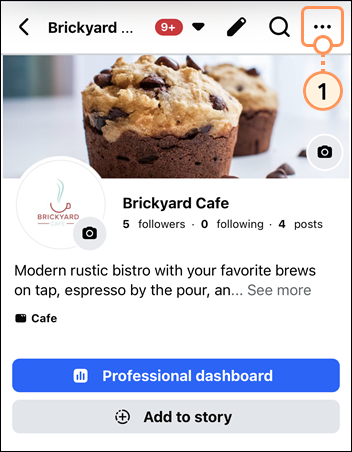
Facebook business page mobile device view

Exclamation Point IconImportant: If you're using an iOS device, we recommend opening Facebook using a web browser on your mobile device instead of using the Facebook app. Android devices generally show the link options in the app, but iOS devices do not.


  1. Open Facebook on your mobile device, navigate to the business page, and tap the three dots to access More.

    Facebook business profile opened in mobile browser and More button

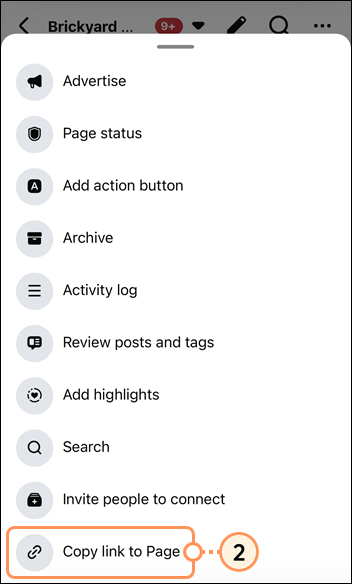
  2. Scroll down and tap the Copy Link button.

    Personal profile menu and Show Link option

  3. Tap OK. The link has now been copied.

    Page URL field and OK button

To see the URL, you have to paste it somewhere, like the field for the Facebook icon in your email draft, or view your clipboard.


Facebook page desktop or laptop view

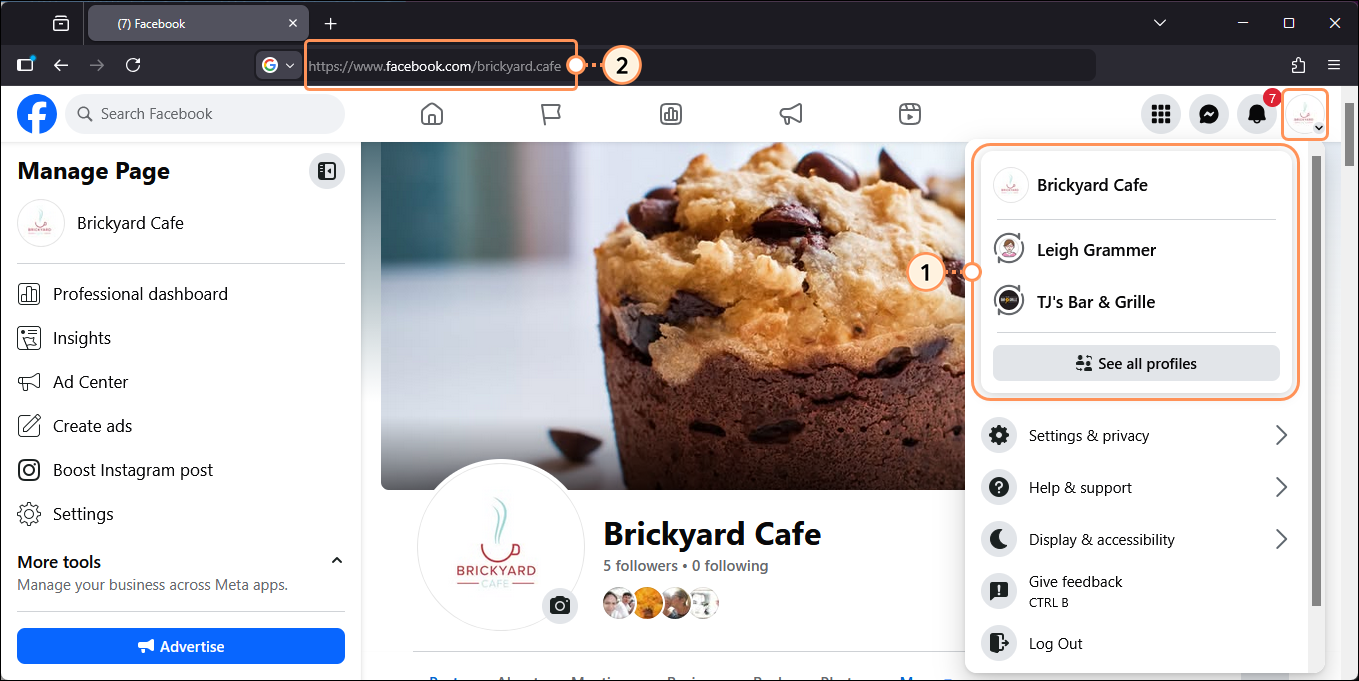
  1. Log in to your Facebook account and click on your profile icon in the upper right-hand corner.
  2. Select a profile from the drop-down menu. If you don't see the profile you want to select, click the See all profiles button.
  3. Copy the page URL in the address bar of your browser.

    Facebook page open in browser, profile icon with profile menu expanded, and page URL at the top of the browser

To see the URL, you have to paste it somewhere, like the field for the Facebook icon in your email draft, or view your clipboard.


Any links we provide from non-Constant Contact sites or information about non-Constant Contact products or services are provided as a courtesy and should not be construed as an endorsement by Constant Contact.


Questions?

Ask the Community

Did this article answer your question?


Constant Contact Logo

Copyright © 2026 · All Rights Reserved · Constant Contact · Privacy Center