Email and Digital Marketing
How can we help you?
Search our help articles, video tutorials, and quickstart guides

You've got this. You've got us. Search our Knowledge Base to quickly find answers to your questions.

Build your own email and SMS campaign anlaytics or contact activity reports

Article: 000054805
Updated: February 19, 2026

Use the Report Builder to create your own reports by choosing the type of report, a date range, the way you want to group your data, and even the specific emails or SMS messages that you want to include within the report

Exclamation Point IconImportant: This feature is in the process of rolling out to our customers and isn't yet visible in some accounts.


Email Plus IconReview your plan: This feature is not available in all Constant Contact plans. If you don’t have full access, you may need to upgrade your plan.


The Report Builder lets you create custom reports for your organization's unique needs. You can build campaign reports to see how your emails and SMS messages are performing or create contact activity reports to check your engagement. A notification can be emailed to a verified email address when your report is complete, and your completed reports can be downloaded from within the report manager.

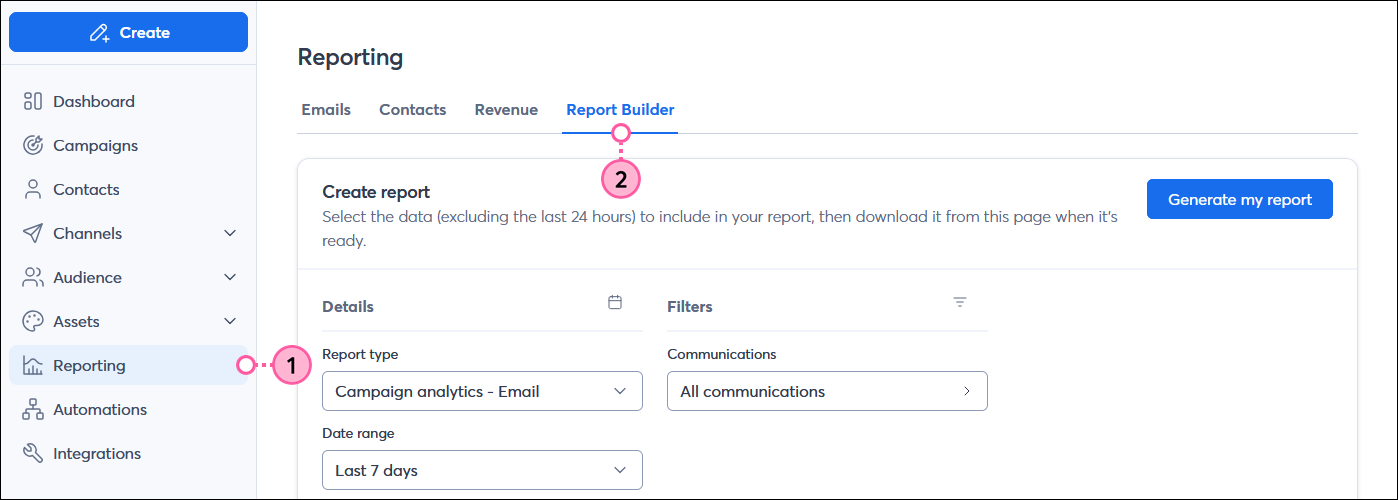
  1. In the menu on the left-hand side, click Reporting.
  2. Click the Report Builder tab and:


Create a report

Clock IconSave time: Though reports can be emailed to any verified email address in your account, you can't verify a new email address from within the Report Builder. It's best to verify the email address before creating your report.


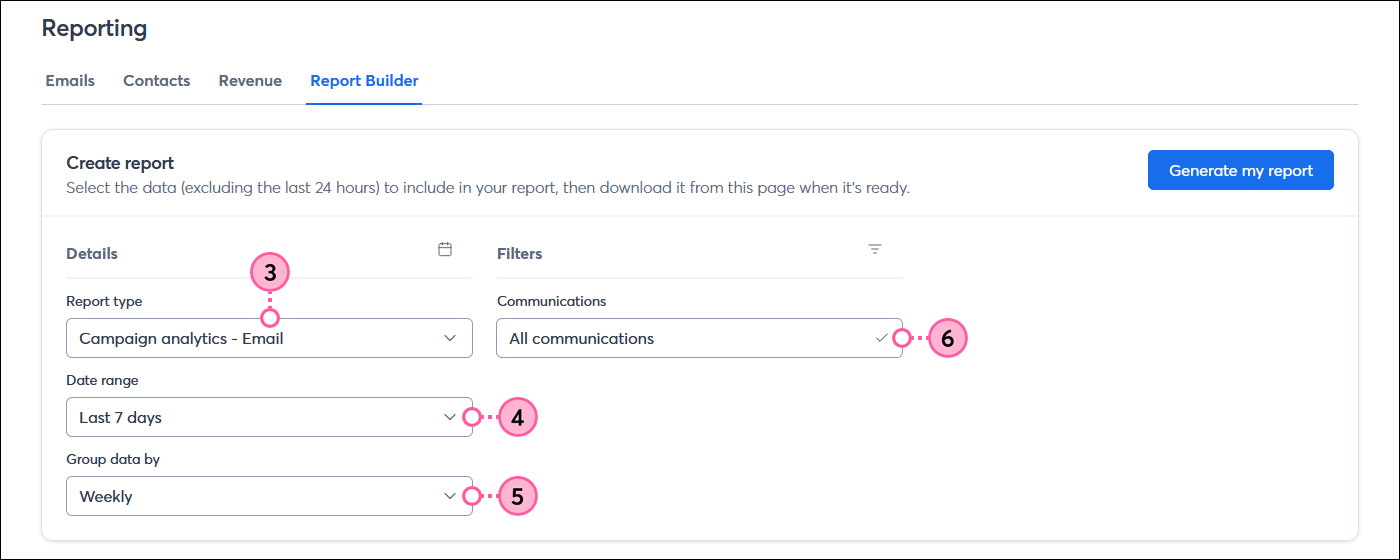
  1. From the Create report section, choose the Report type:
  • Campaign analytics - Email
  • Campaign analytics - SMS
  • Contact activity by campaign - Email
  • Contact activity by campaign - SMS
    Note: Email and SMS contact activity reports are only available to accounts with 250,000 contacts or fewer, at this time.
  1. Select a Date range:
  • Last 7 days
  • Last 30 days
  • Last 90 days
  • Last year
  • Custom date, which can generate a report going back to January 01, 2024, or back to the date your account was created, whichever is the most recent.
    Tip: If you have lots of data in your report because of a large list size, a large number of contact fields and custom fields, and lots of email and SMS messages, choosing a shorter date range helps to decrease failed reports.
  1. If creating a campaign analytics report, choose how you want to Group data by:
  • All time
  • Daily
  • Weekly
  • Monthly
  • Yearly
  1. (Optional) Select specific email or SMS campaigns for your report by clicking on the Communications option.

    Report Builder Create report section with Details section and Report type, Date range, and Group data by drop-down menus, and Filters section with Communications drop-down menu

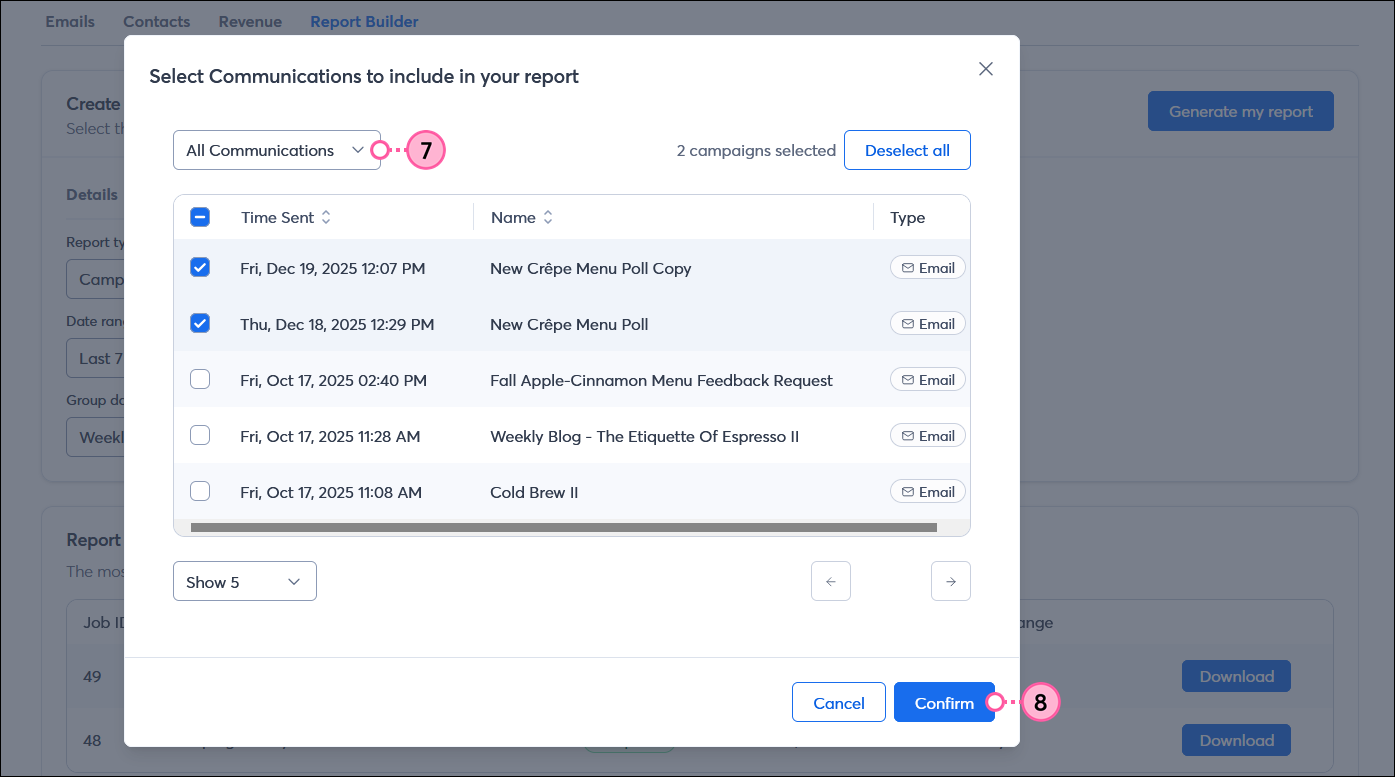
  2. Select the type of communications you want to include in your report from the drop-down menu.
  3. Select the campaigns you want to include and then click the Confirm button.
    Note: Event-related emails, survey invitations, and emails and SMS messages that are part of an automation aren't compatible with the Report Builder.

    Select Communications to include in your report overlayw with All Communications option selected, emails selected, and Confirm button

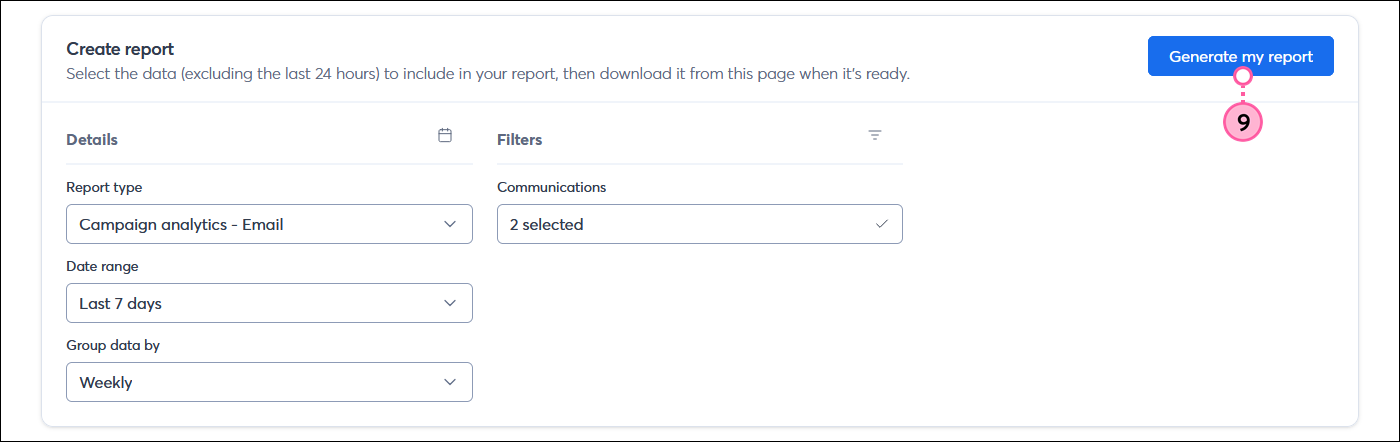
  4. Click the Generate my report button.

    Report Builder Create report section with Generate my report button

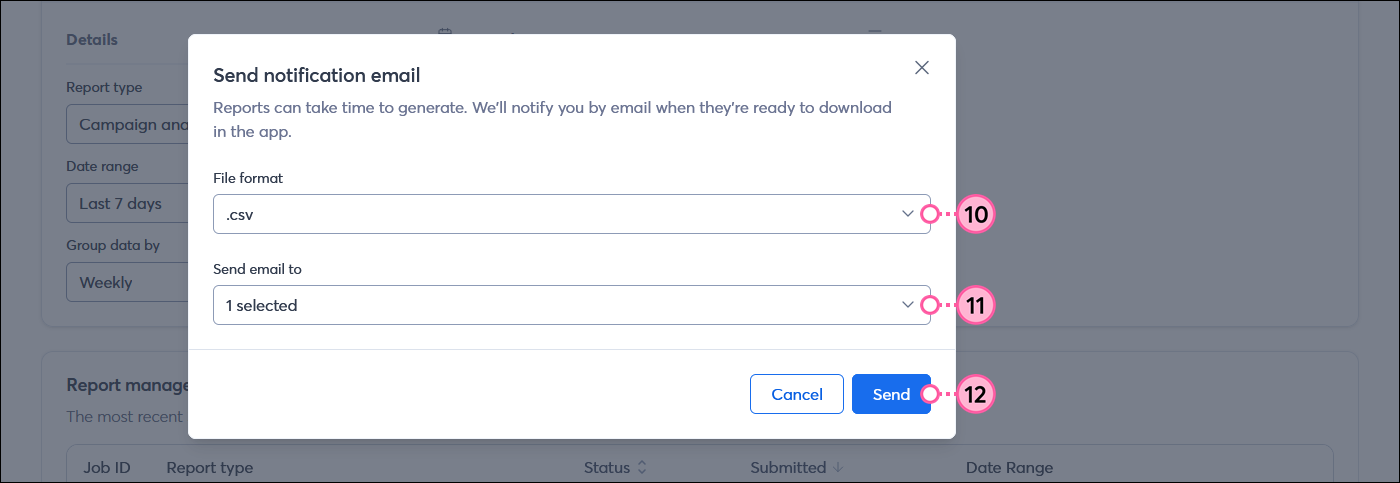
  5. Select the type of file you want to export. It can be either a CSV or XLSX file.
  6. Select the verified email address you want to send the report to.
  7. Click the Send button.

    User-added image


Use the report manager

The Report manager shows you the status of the most recent 30 reports from the past 30 days, and gives you the option to download completed reports too.
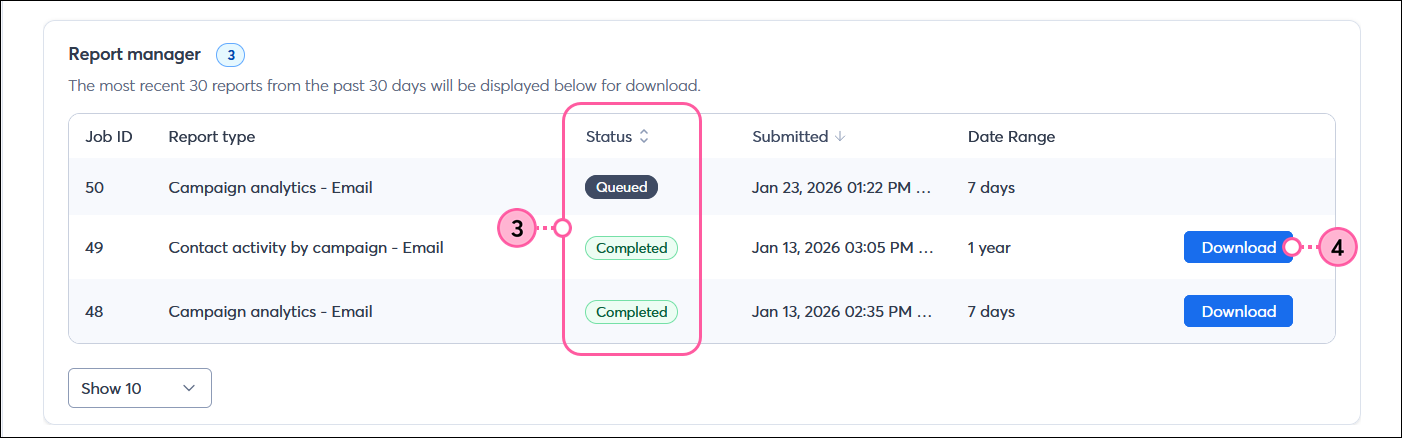
  1. Review the Status of your report.
  • Queued - Your query is submitted but not yet processing.
  • Running - Your report is actively being generated.
  • Completed - Your report is compiled and ready to download.
  • Failed - Your report has failed to generate. Try to submit the report again with a smaller date range selected.
  1. Click the Download button next to any completed report.

    Report Builder with Report manager section, report in queued status and multiple completed reports with Download button


Questions?

Ask the Community

Did this article answer your question?


Constant Contact Logo

Copyright © 2026 · All Rights Reserved · Constant Contact · Privacy Center