Email and Digital Marketing
How can we help you?
Search our help articles, video tutorials, and quickstart guides

You've got this. You've got us. Search our Knowledge Base to quickly find answers to your questions.

Connect your Constant Contact account to Google Sheets

Article: 000055379
Updated: October 22, 2026

Connect your Google Sheets account to Constant Contact and import the contact data from your spreadsheets

If you have Google Sheets, take advantage of our integration to make contact marketing even easier! When you sync Google Sheets to your Constant Contact account, you can select which sheets and even which tabs from your sheets to import contacts from. Once imported, you can send targeted emails and build automations and segments with your contacts.  

Note: Even if you have already completed a Google account integration, you will still need to click on the Google Sheets integration card to complete the integration process.

The Google Sync integration is one-way. Data can be imported from your Google Sheet into your selected Constant Contact list, but changes made to your list in Constant Contact will not be sent back to your Google Sheet.  


Connect Google Sheets to your Constant Contact account

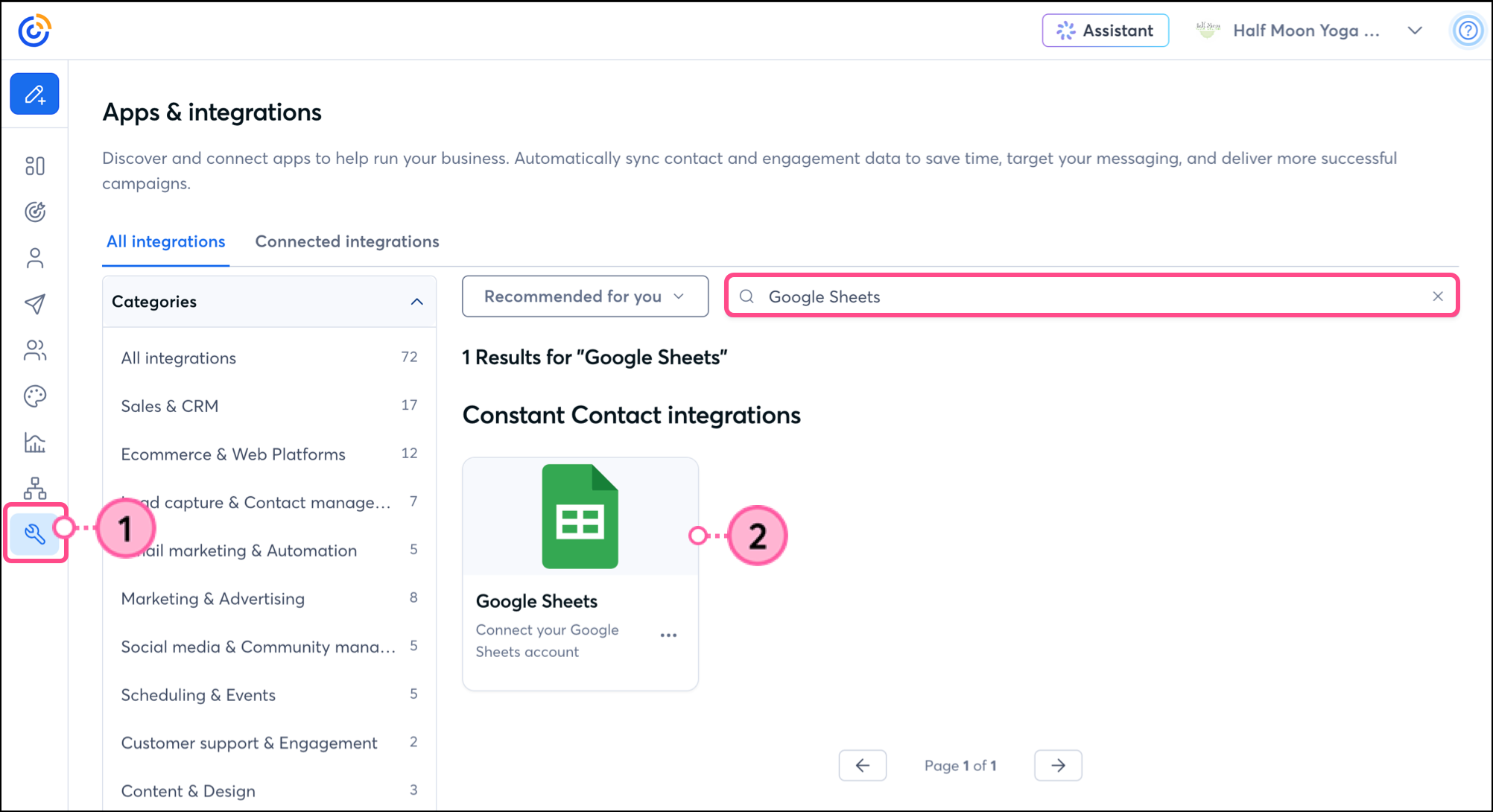
  1. Click Integrations. 
  2. Search for the "Google Sheets" integration and click on the Google Sheets integration card. 

    Note: Please do not click on the Google integration card or any other card with "Google" in the title. You'll need to click on "Google Sheets". 

    Google Sheets card in the Integrations section of the account 
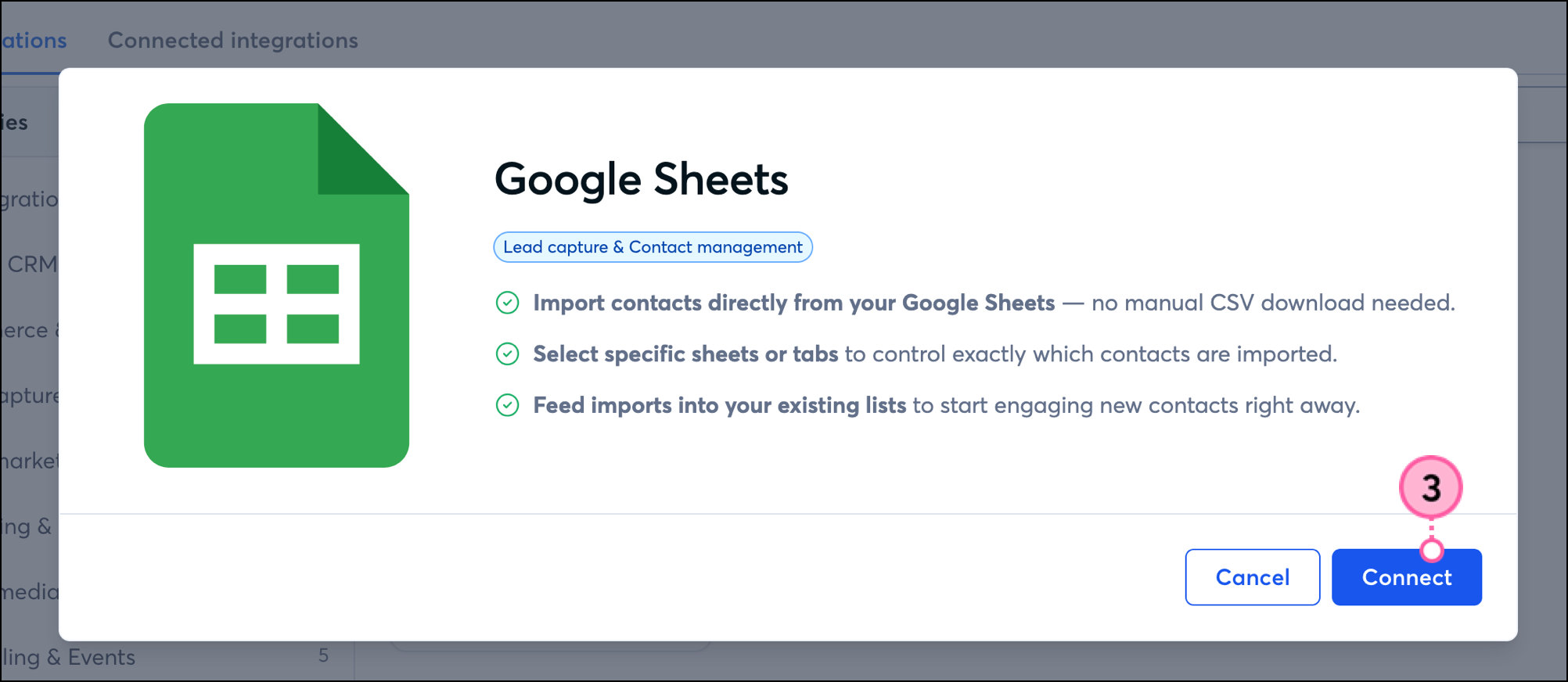
  3. Click Connect. 

    Google Sheets integration pop-up with Connect button 
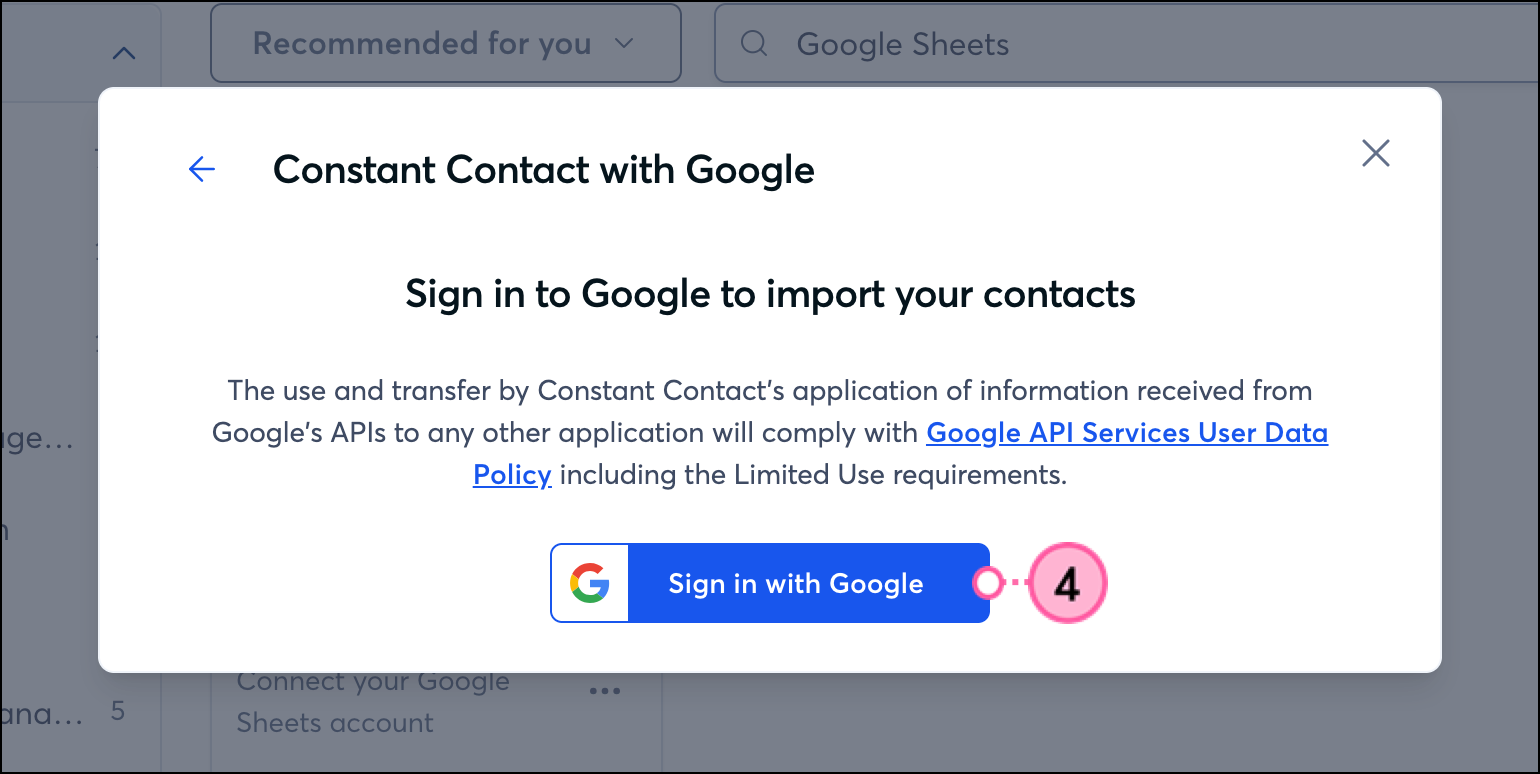
  4. Click Sign in with Google. 

    Sign in with Google pop-up 
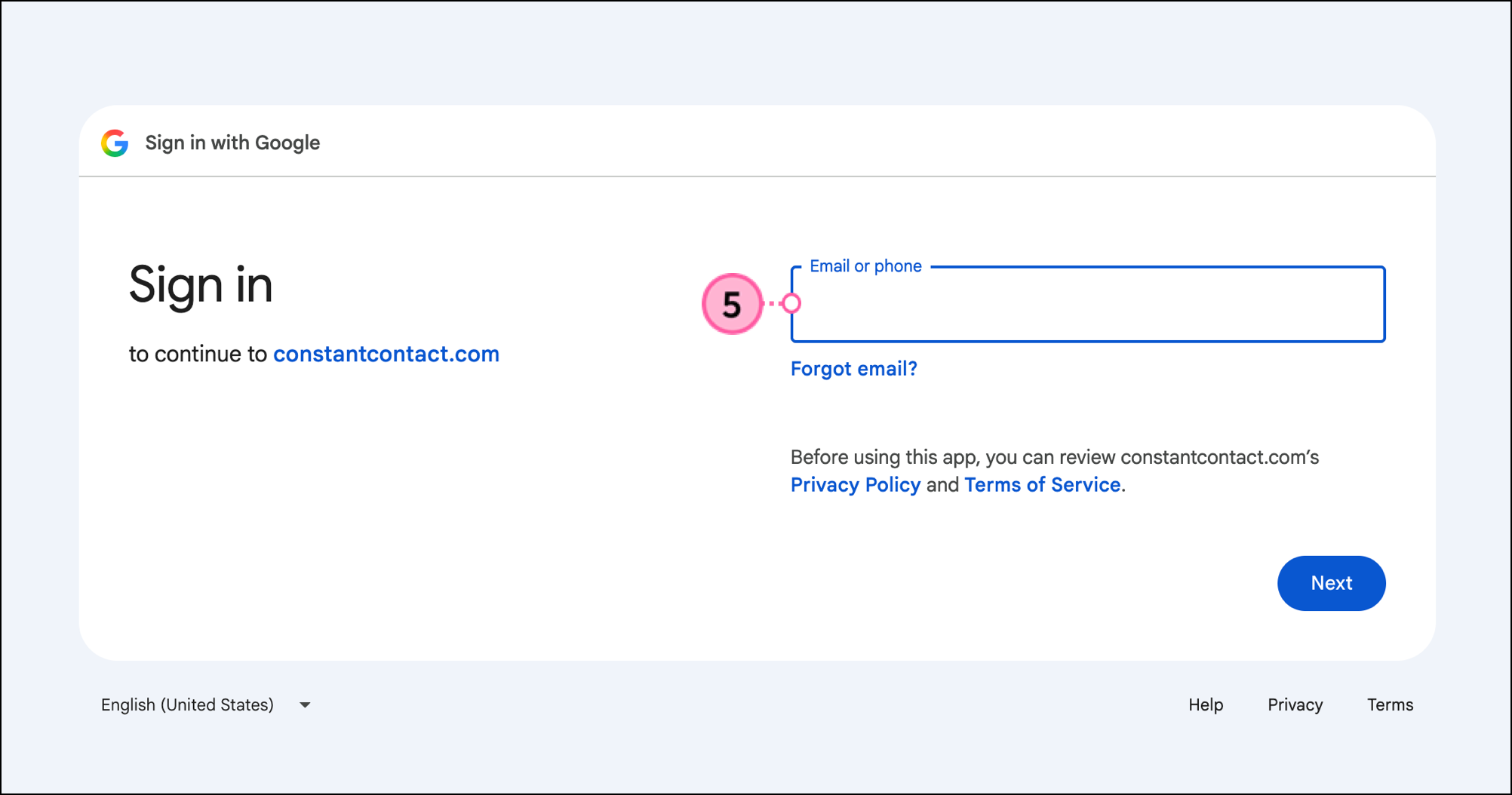
  5. Sign in to your Google account.

    Google Sign-in page with email field and Next button 
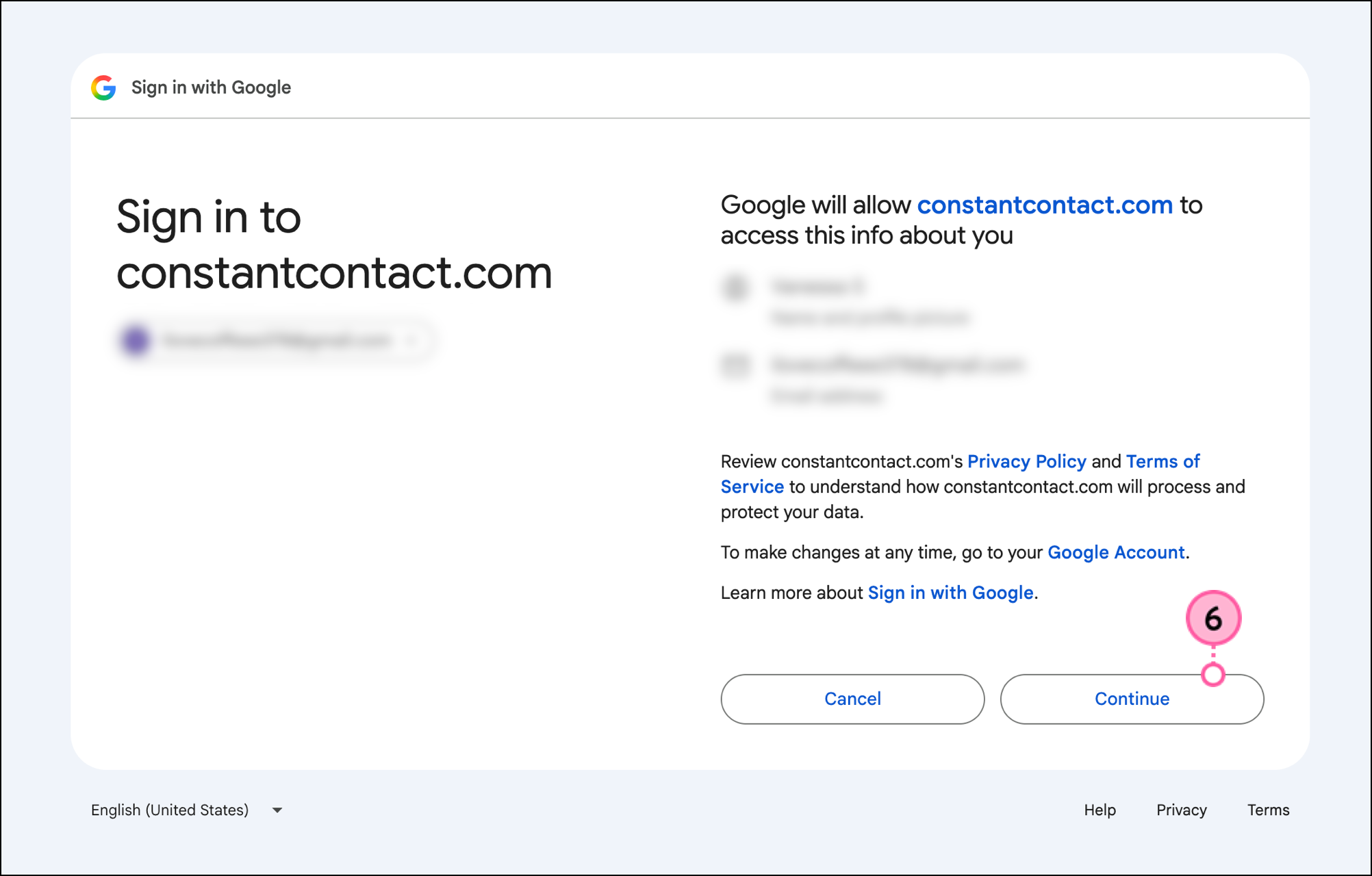
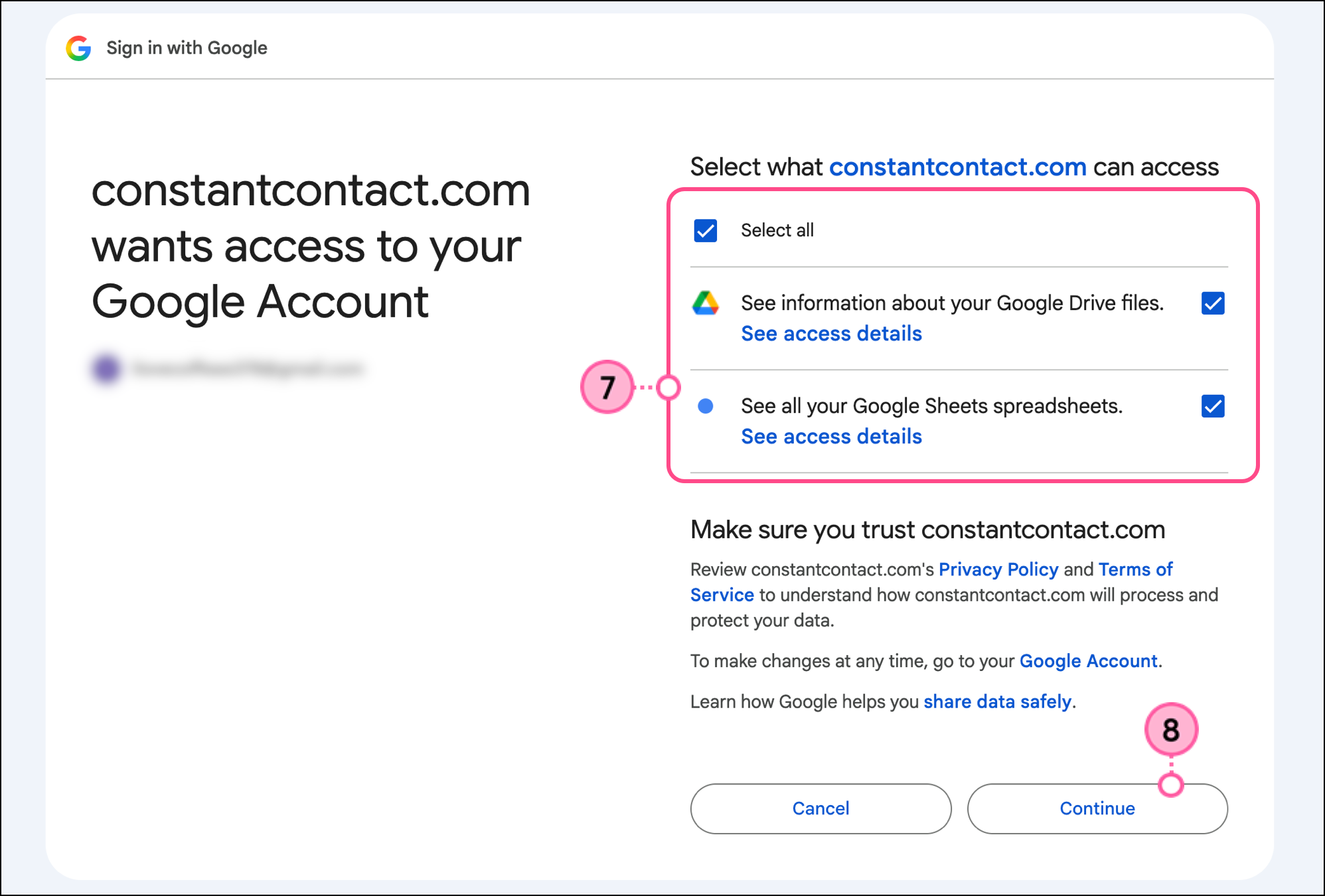
  6. Review the access information for the connection and click Continue. 

    Review of the access that Constant Contact will have and Next button 
  7. Check the box to grant Google permission to share access with Constant Contact.
  8. Click Continue. 

    Checkboxes to grant Constant Contact access to information and Continue button


Complete a Google Sheets import

Once connected, you can import spreadsheets into your Constant Contact contact lists.

Note: You can also import Google Sheets from the Contacts section of your Constant Contact account. Optimize your workflows by choosing the method that's easiest for you. 
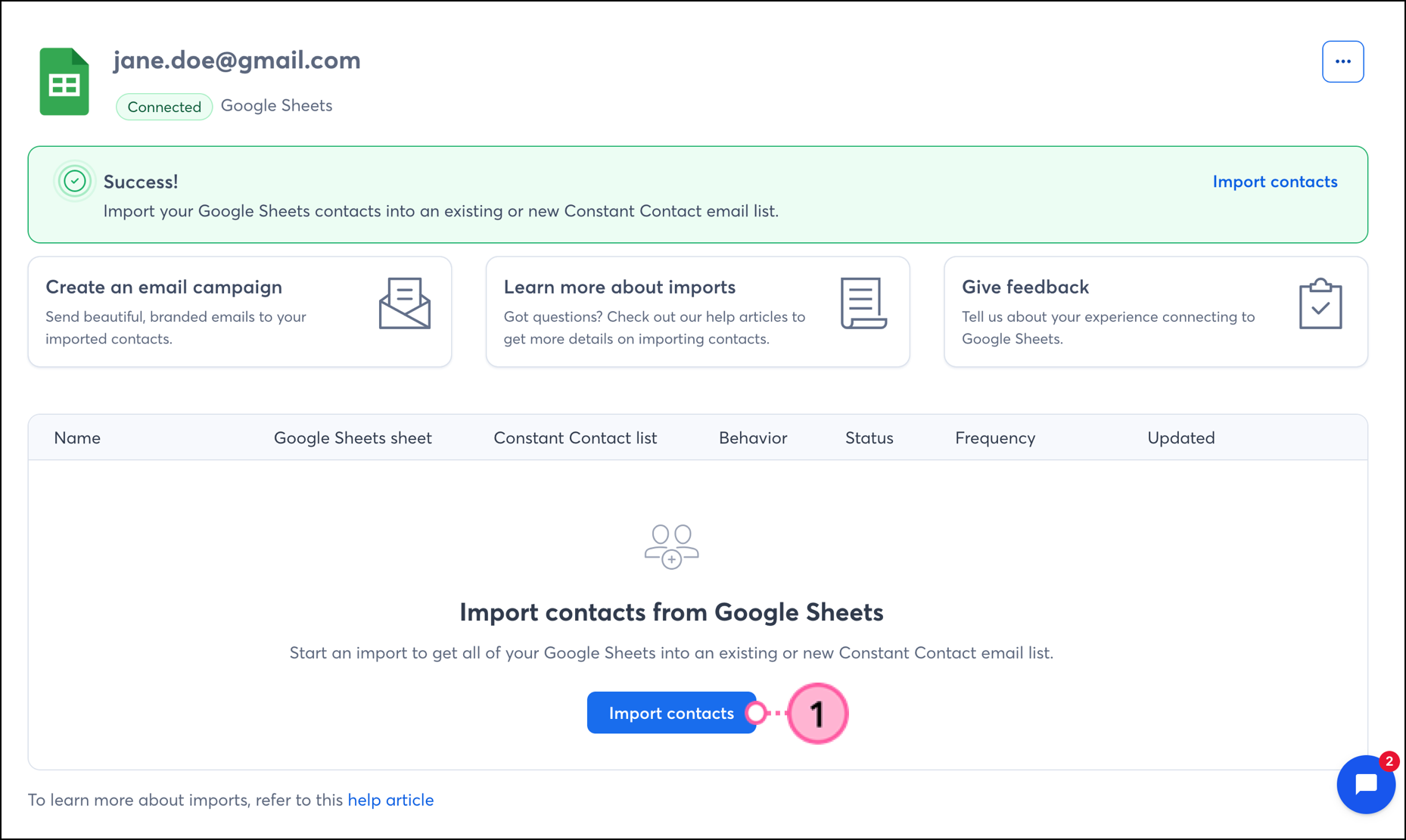
  1. Click Import contacts. 

    Import Contacts button on connected Google Sheets integration 
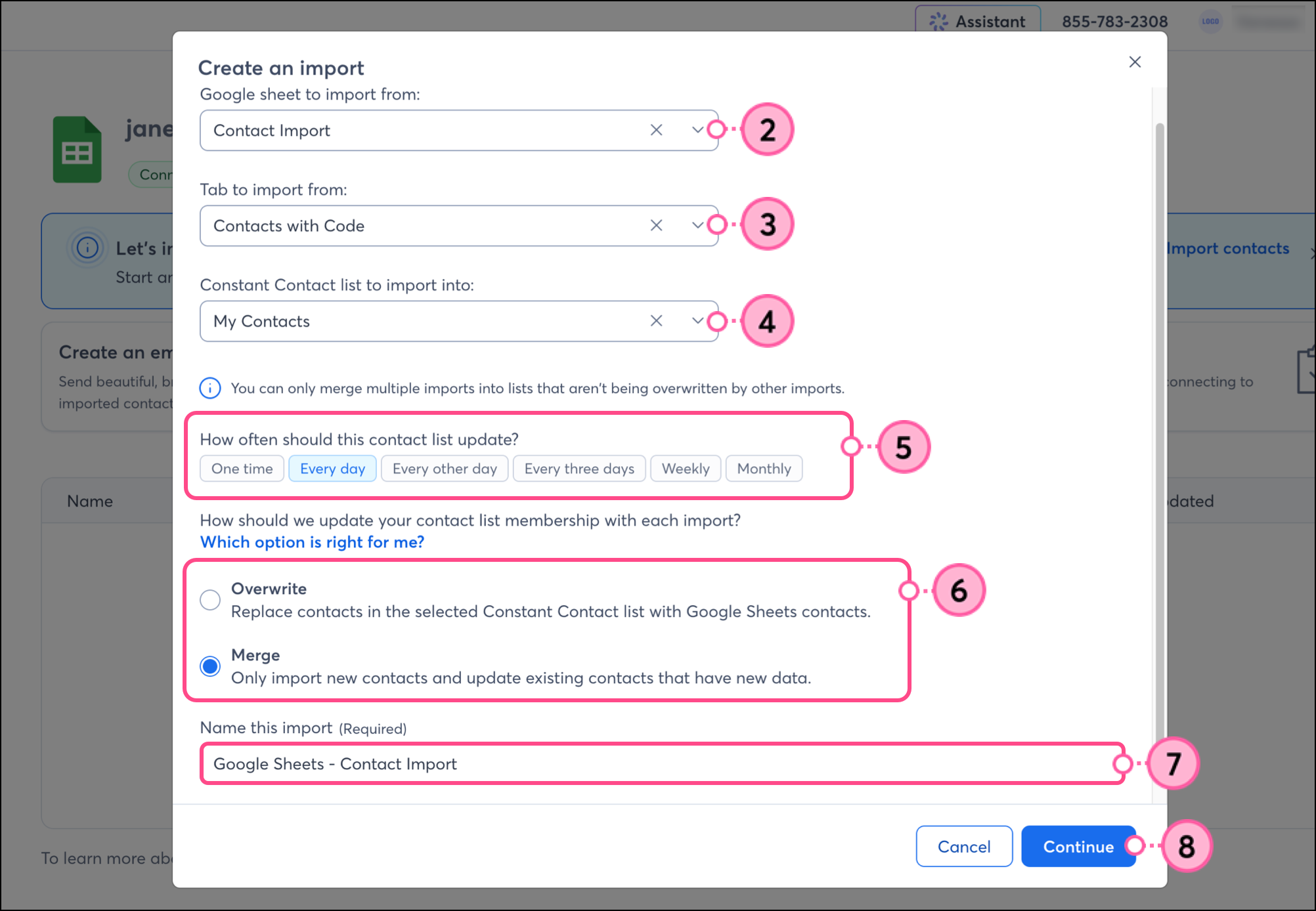
  2. Select the sheet to import from. 
  3. Select the tab of that sheet to import from. 
  4. Select the Constant Contact list to import into. 
  5. Select how often the list should sync and check for new data from the sheet. 

    Note: This integration is a one-way sync. Data will be imported from your Google Sheet into your Constant Contact account. Changes made to your Constant Contact list will not be reflected in Google Sheets. 

  6. Choose whether updated data should overwrite your existing list data or merge with it. 
  7. Enter a name for your import.
  8. Click Continue. 

    Create an import pop-up with import selection fields and Continue button 
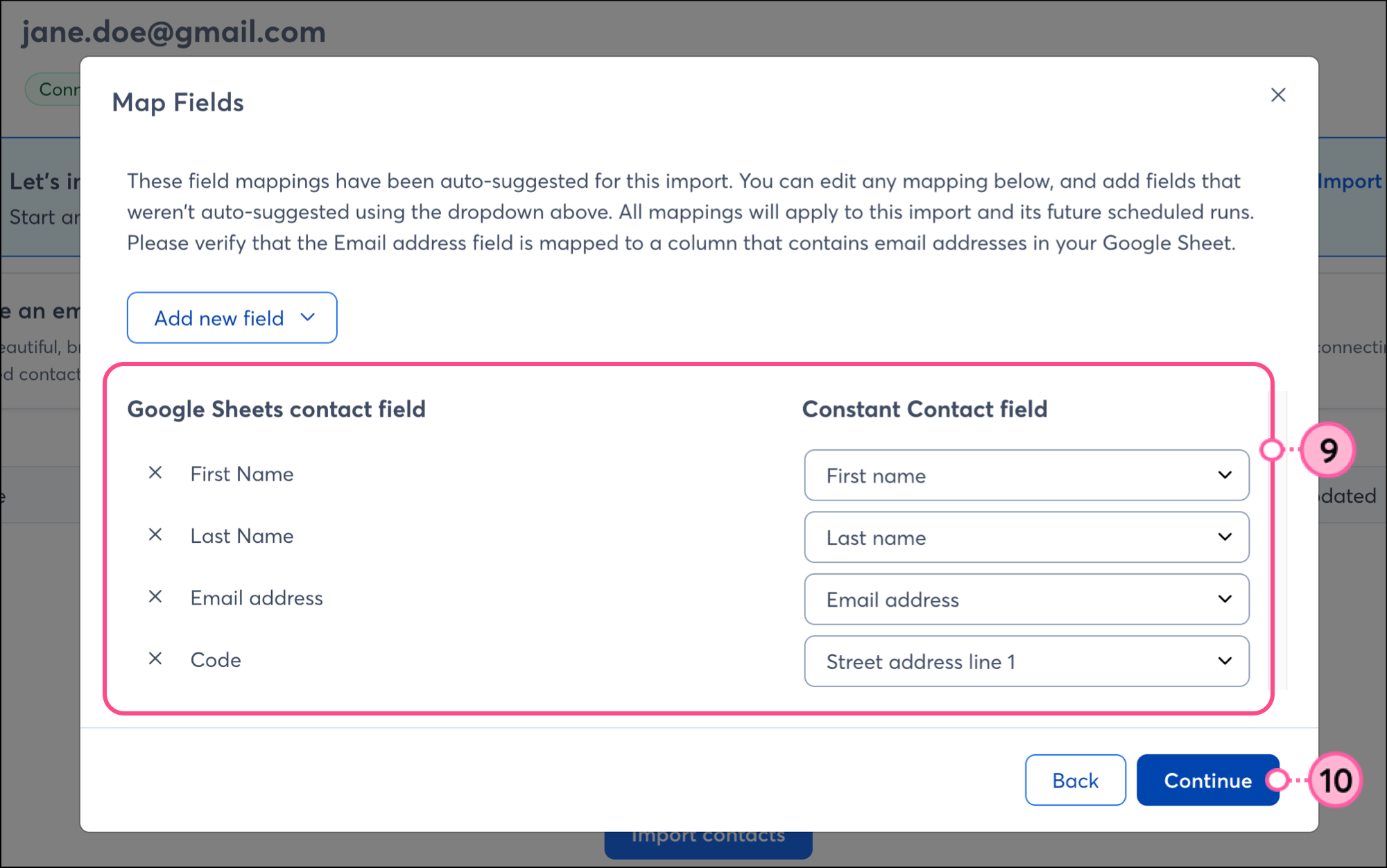
  9. Map the fields in your import.

    Note: If your spreadsheet contains a value that doesn't map directly to an existing field in your Constant Contact account, you can easily create a new custom field and then select it in the Map Fields pop-up. 

  10. Click Continue. 

    Map Google Sheets integrations fields and click Continue

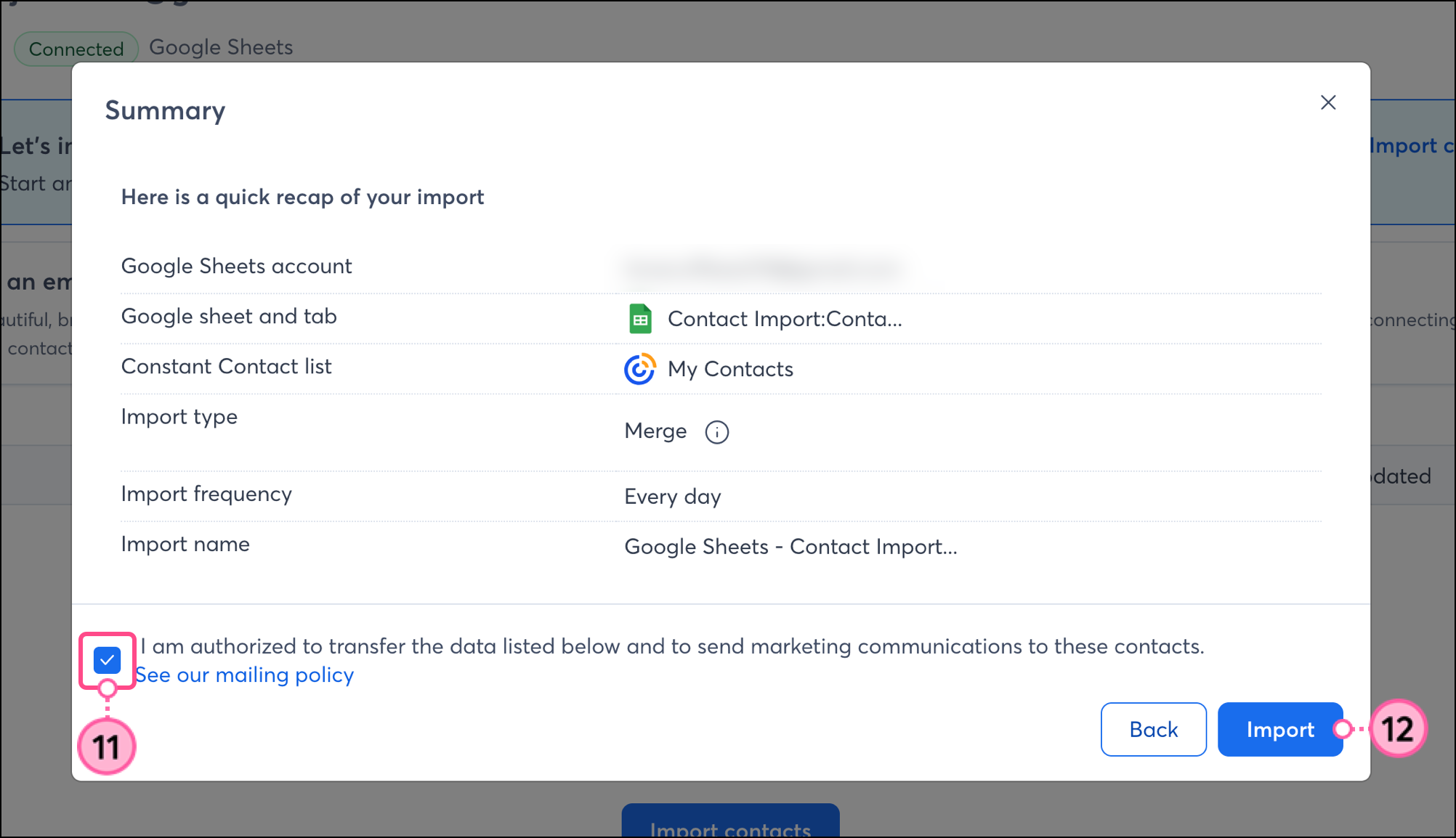
  11. Click the checkmark box to confirm that you agree to the terms and conditions. 
  12. Click Import.

    Checkmark confirmation for the integration and Import button 
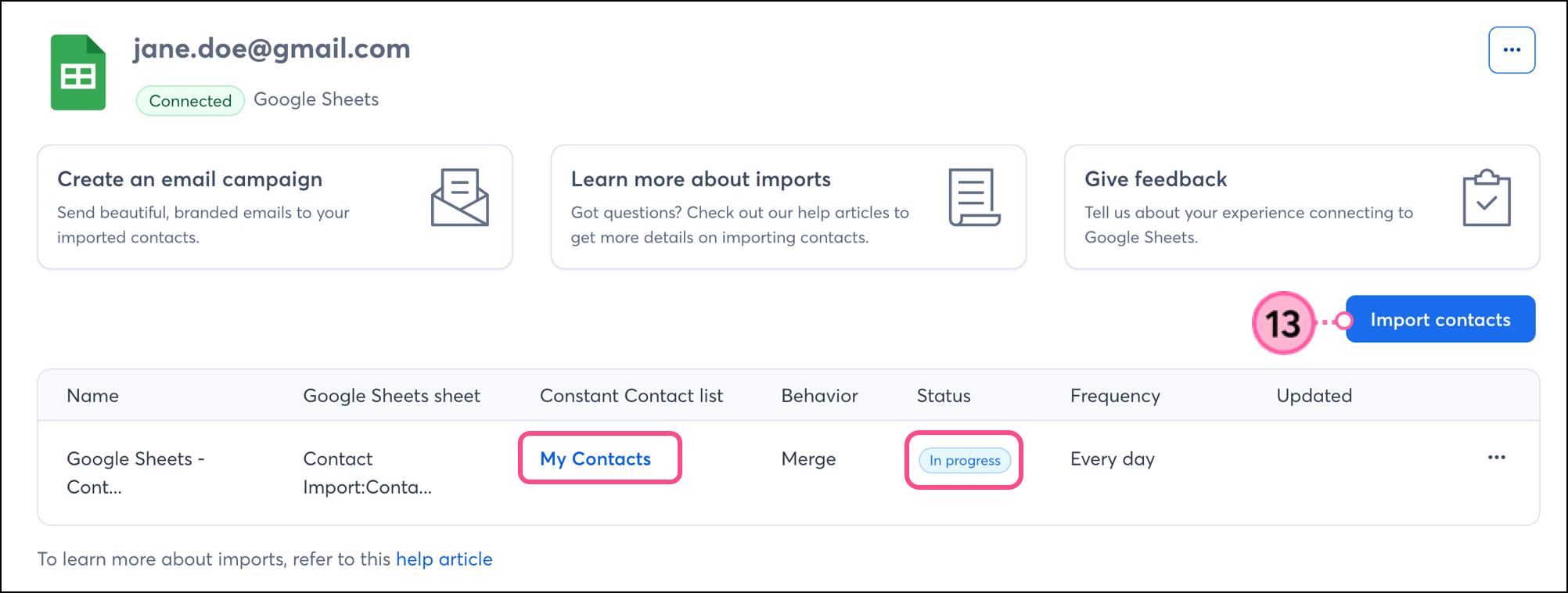
  13.   Complete additional imports as needed by clicking Import contacts. 

    Complete Integration button on the Google Sheets Integrations page 

Note: Special characters or extra spaces in an email address won't prevent you from uploading your contact list, but you must remove them before you can finish uploading the affected contacts. Read Format a file before importing a contact list into Constant Contact for more information on preparing a spreadsheet for import. 
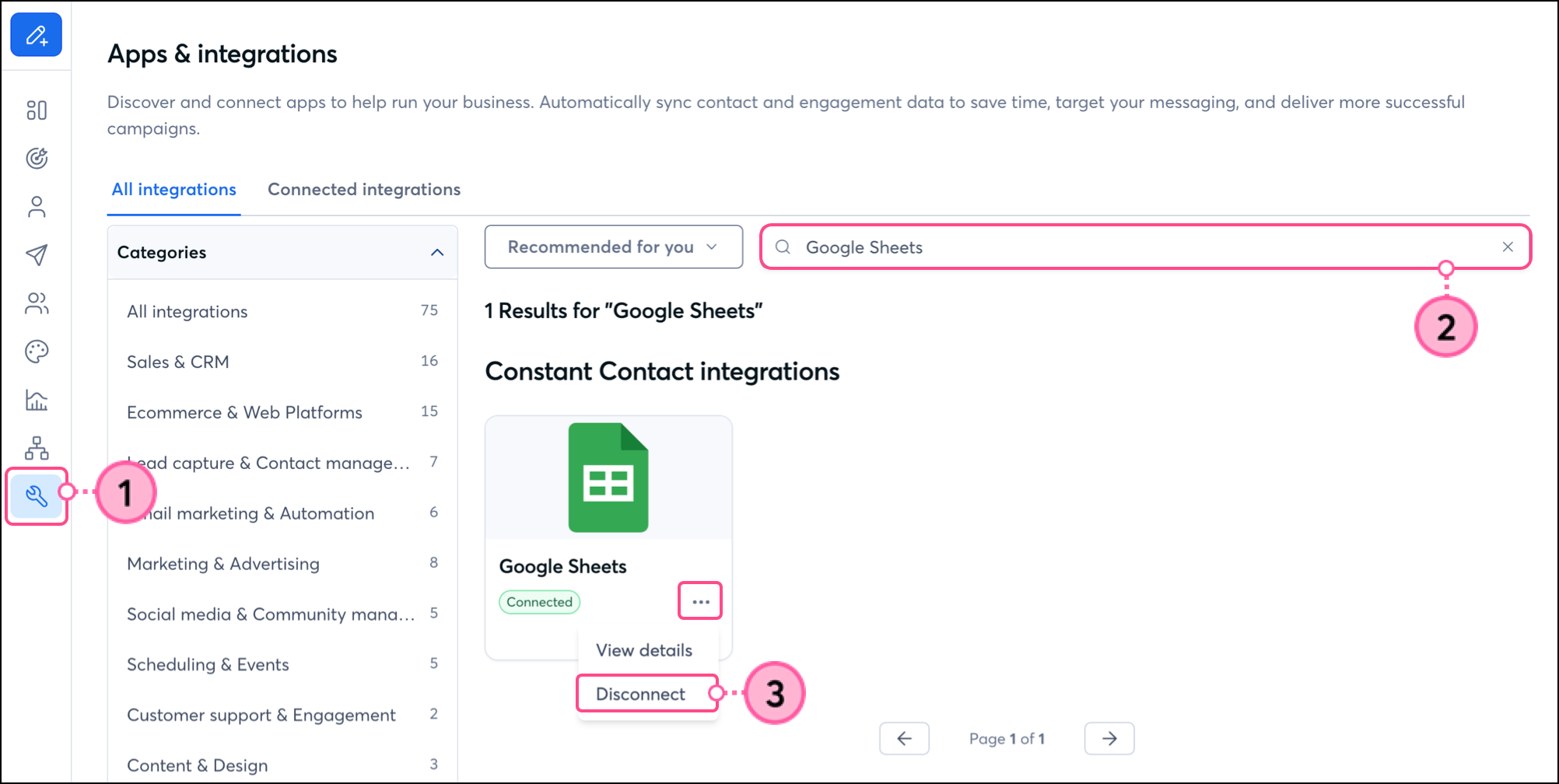


Disconnect Google Sheets

  1. Go to Integrations.
  2. Search for Google Sheets or scroll through the integrations to locate it.
  3. Click the three dots, and then click Disconnect. 

    Disconnect in the expanded Settings menu of the Google Sheets Integration card in the Integrations section

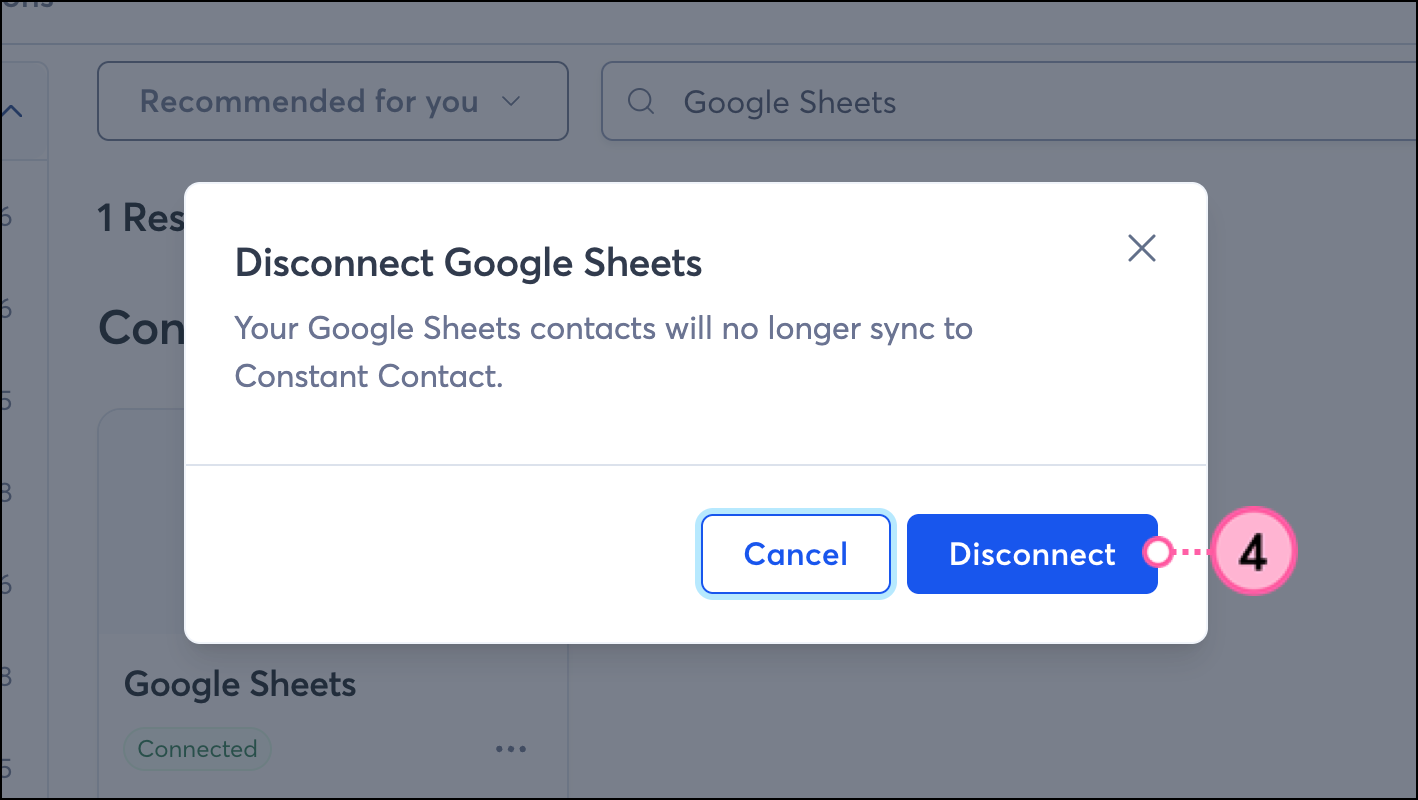
  4. Click Disconnect again.

    Disconnect confirmation pop-up with Disconnect button  


Boost your marketing with the Google Sheets integration

Once you've set up your imports and your Google Sheets contacts are successfully syncing into Constant Contact, there are a variety of ways to target those contacts with customized messaging.


Create a customized contact segment

When importing from a Google Sheet, you can choose which sheet and tab to sync into a Constant Contact list. But maybe you want to segment these contacts even further, to send specific, targeted messaging. You can do so by creating a custom segment of contacts.


Send automated communications

Create personalized automated communications via email and SMS for your customers based on their actions, including welcome emails, thank you series, requests for review, and more.


Any links we provide from non-Constant Contact sites or information about non-Constant Contact products or services are provided as a courtesy and should not be construed as an endorsement by Constant Contact.


Questions?

Ask the Community

Did this article answer your question?


Constant Contact Logo

Copyright © 2026 · All Rights Reserved · Constant Contact · Privacy Center