Email and Digital Marketing
How can we help you?
Search our help articles, video tutorials, and quickstart guides

You've got this. You've got us. Search our Knowledge Base to quickly find answers to your questions.

Connect your Constant Contact account with PayPal

Article: 000055278
Updated: October 15, 2026

Import contact information from PayPal transactions into Constant Contact

Import contact data (names, email addresses, phone numbers, etc.) from transactions in your PayPal Business account (invoices, shipments, donations, etc.) into Constant Contact using the integration. 

The PayPal integration is a one-way sync. Only data from PayPal will be brought over to Constant Contact. Data will not be sent back from Constant Contact to PayPal.


What will be imported?

This integration will import the contact data from your transactions. Imported contact information will include the following fields: 

  • First name
  • Last name
  • Email address
  • Tags
  • Phone number
  • Physical address

Email address is a required import field. If tags, a mobile number, and a physical address are available for the contact that data will be imported, but if not, so long as an email is available the contact will be imported. All other fields will be omitted. 

All Sales transactions will be imported, including the following transaction types: 

  • Invoices
  • Online checkout transactions
  • Point of sale transactions
  • Subscriptions
  • Donations
  • Payment lines and buttons
  • Shipping transactions 

Only data from completed or authorized transactions will be imported. Unclaimed or refunded transaction data will not be imported. 


Connect your PayPal account to Constant Contact

Connect your PayPal account to your Constant Contact account to import contact information. 
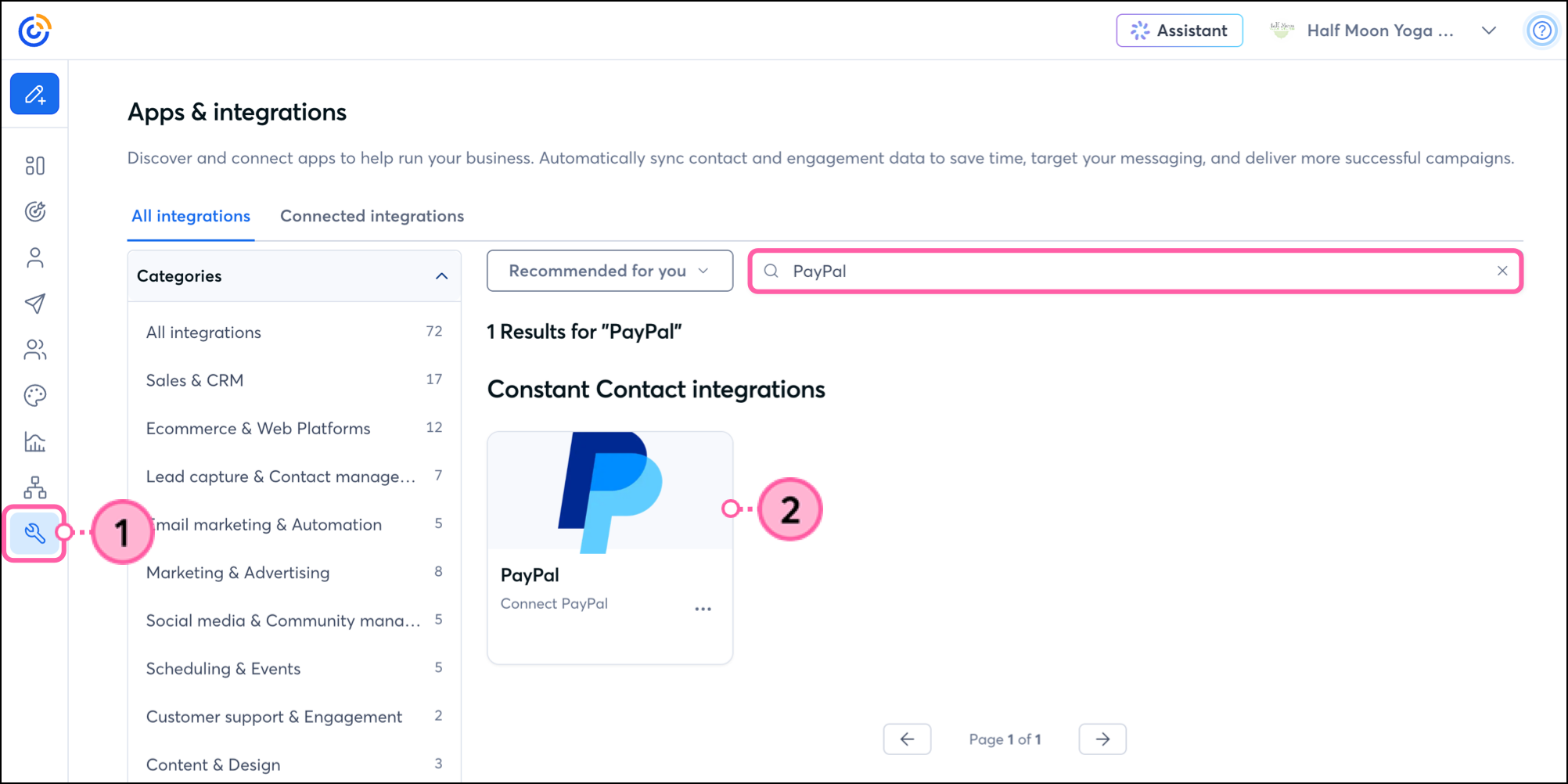
  1. Navigate to the Integrations section of your Constant Contact account. 
  2. Search for “PayPal” and click on the integration card.

    The PayPal Integrations card  
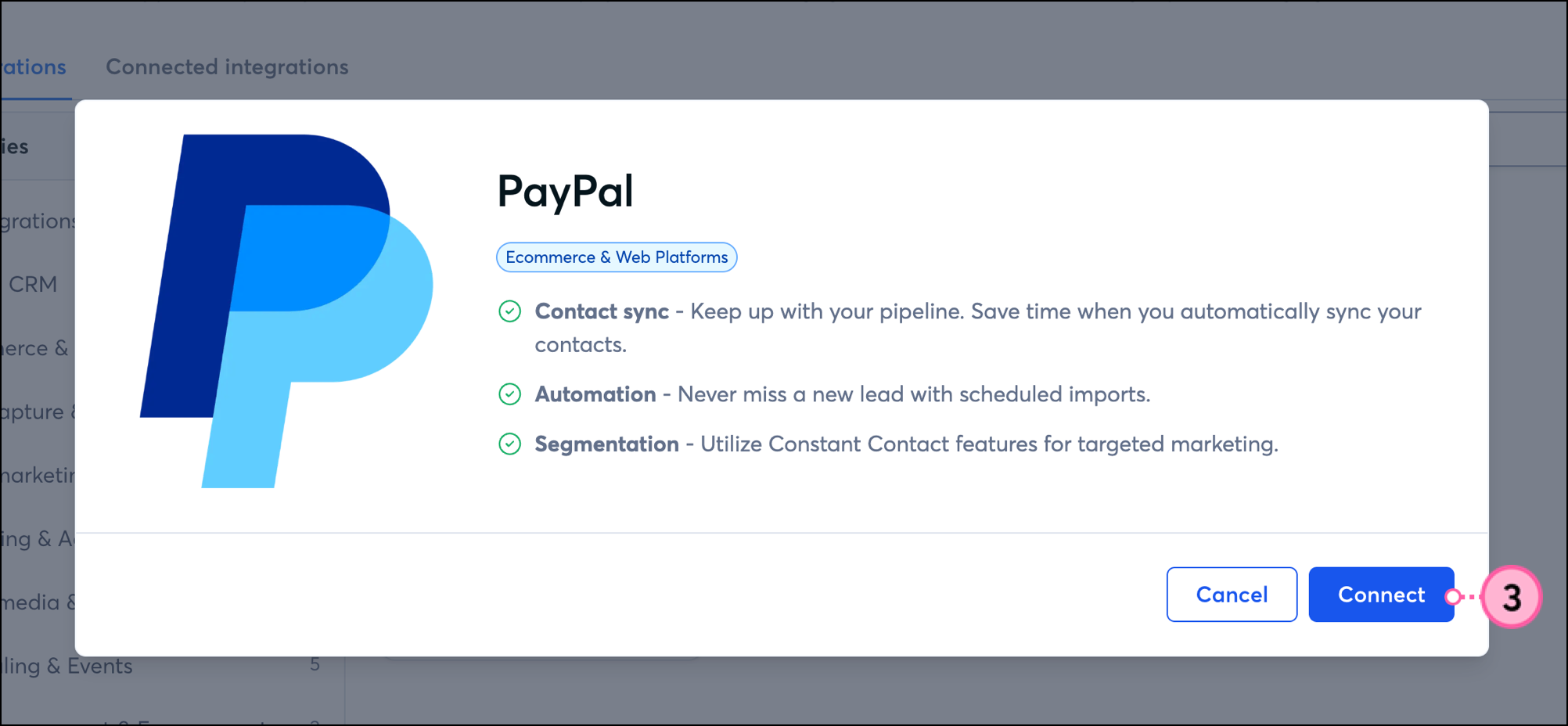
  3. Click Connect. 

    Connect button on PayPal integration overview pop-up 
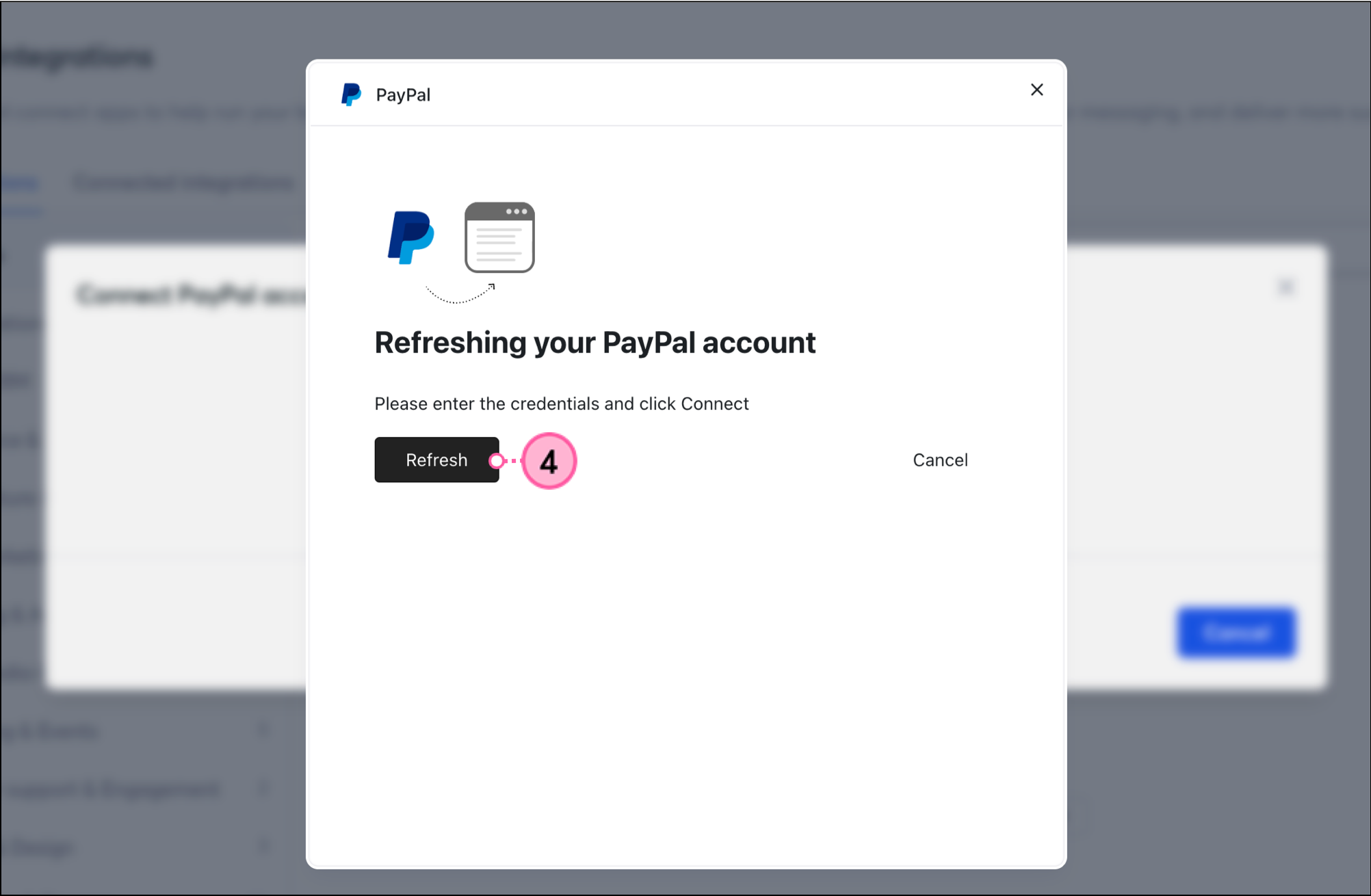
  4. Click Refresh to trigger the PayPal login pop-up.

    Note: If you do not see the Refresh button or have trouble with the login form, please refresh the page and try again. After refreshing your page you should be able to see the Refresh button and the PayPal login screen. 

    Refresh button on the Refreshing your PayPal account pop-up 
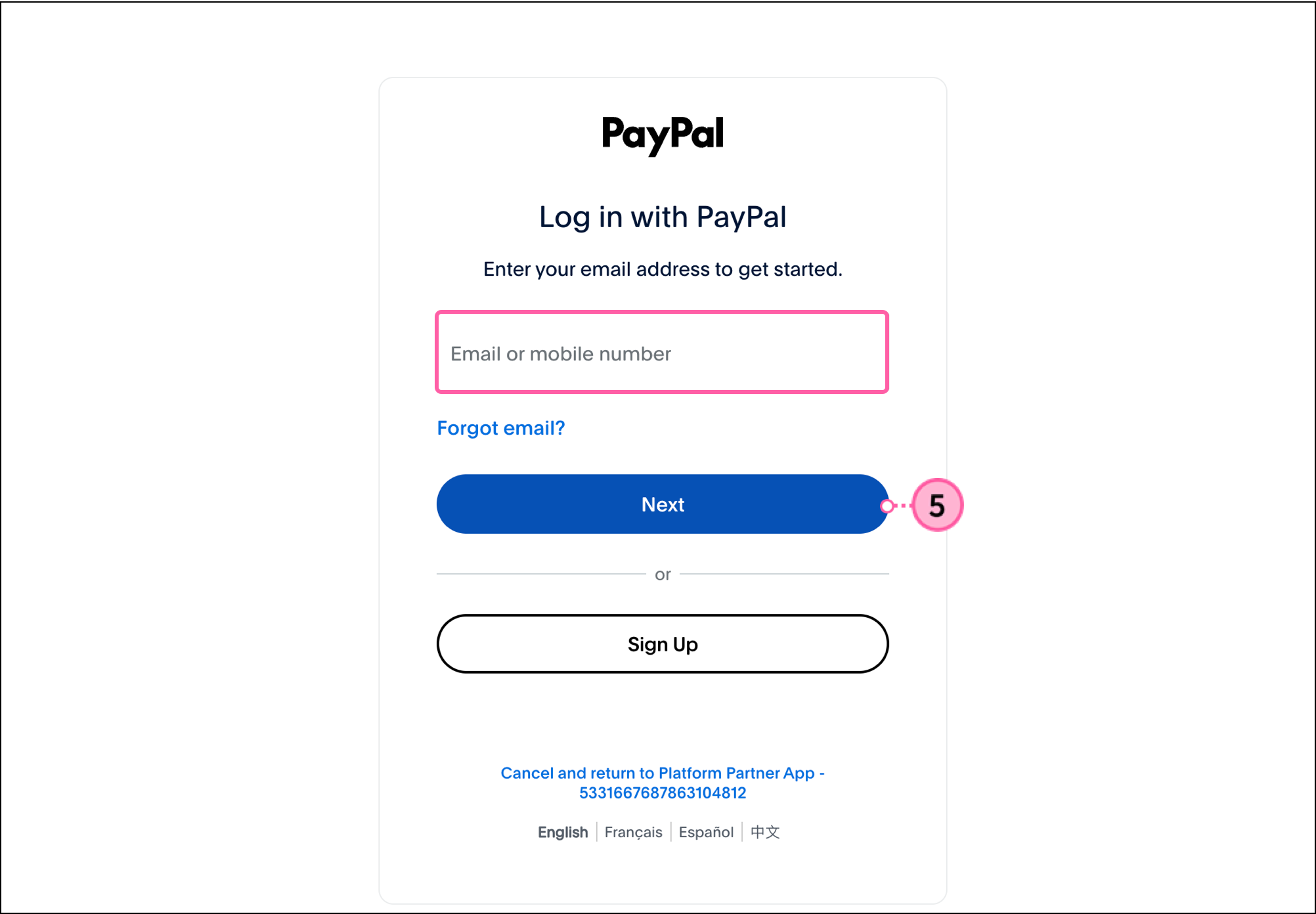
  5. Log in to your PayPal account and click Next.

    Log in with PayPal page with email or mobile number login field and Next and Sign Up buttons 
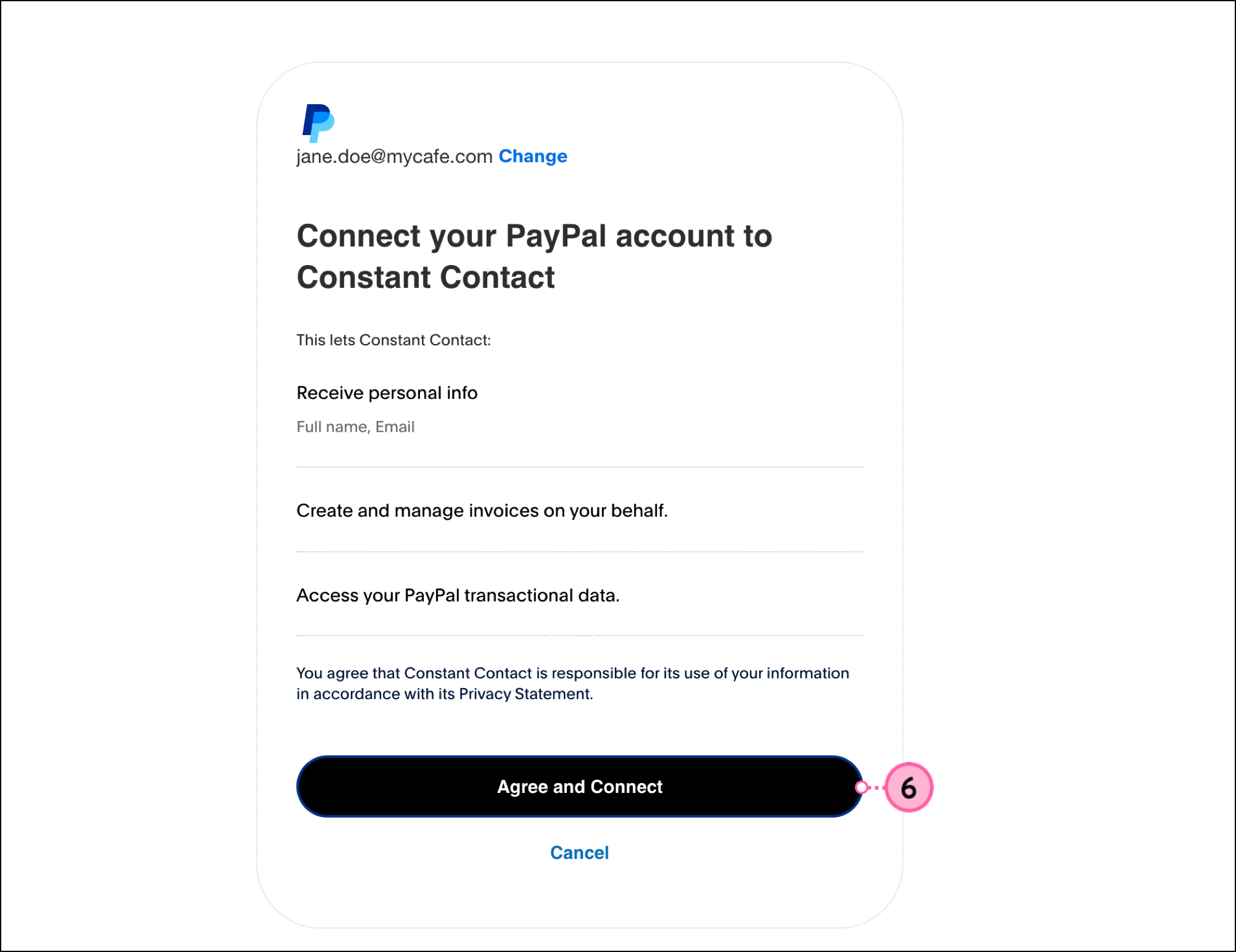
  6. Review the permissions granted to Constant Contact and then click Agree and Connect. 

    PayPal Connect your account permission review page with Agree and Connect button

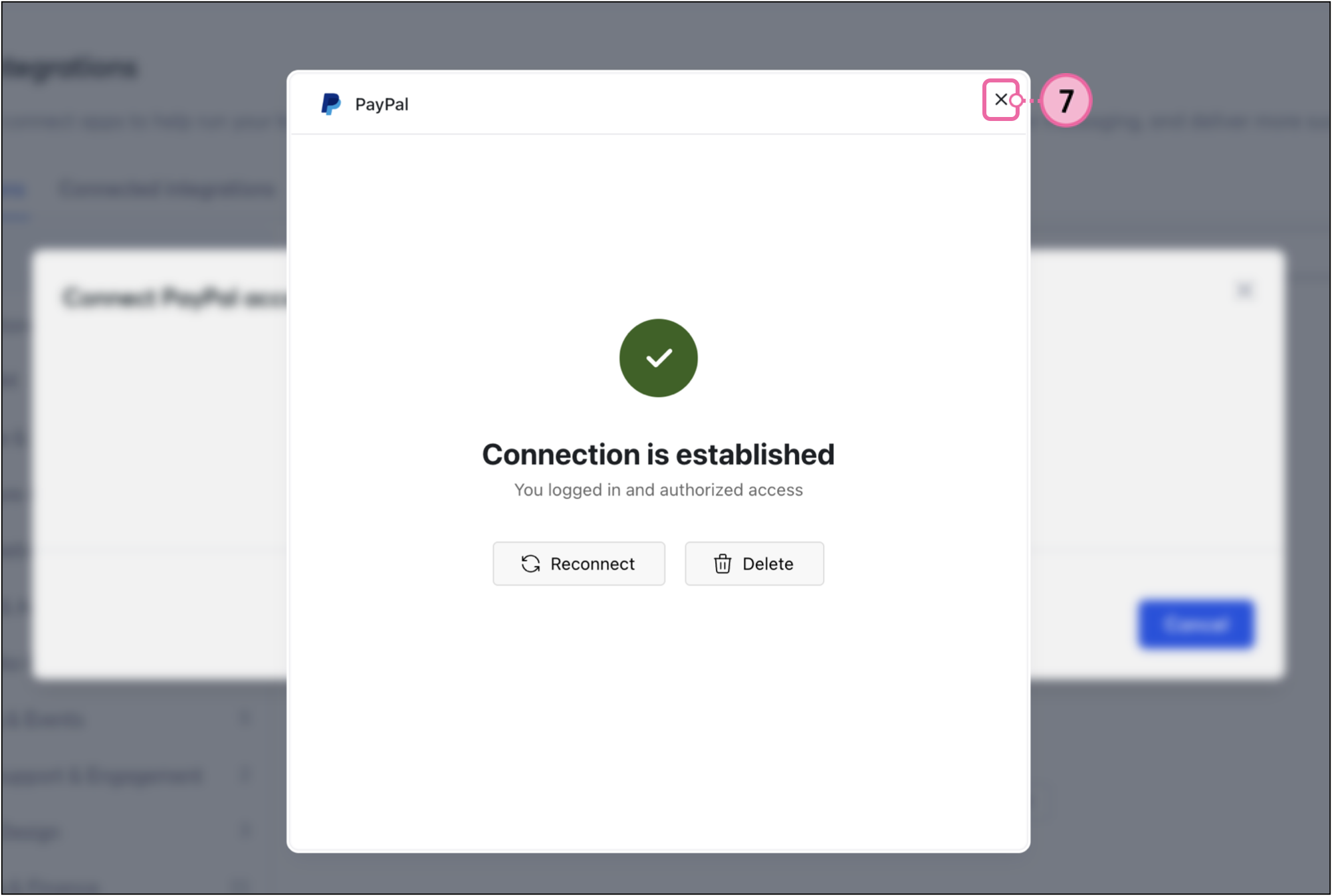
  7. Once connected, you'll be taken back to the Constant Contact integration browser tab. Close the confirmation pop-up. 

    Connection is established pop-up with Reconnect and Delete button options 


Importing contact data from PayPal into Constant Contact

Once you've connected your PayPal business account to Constant Contact, you can import transaction data. 
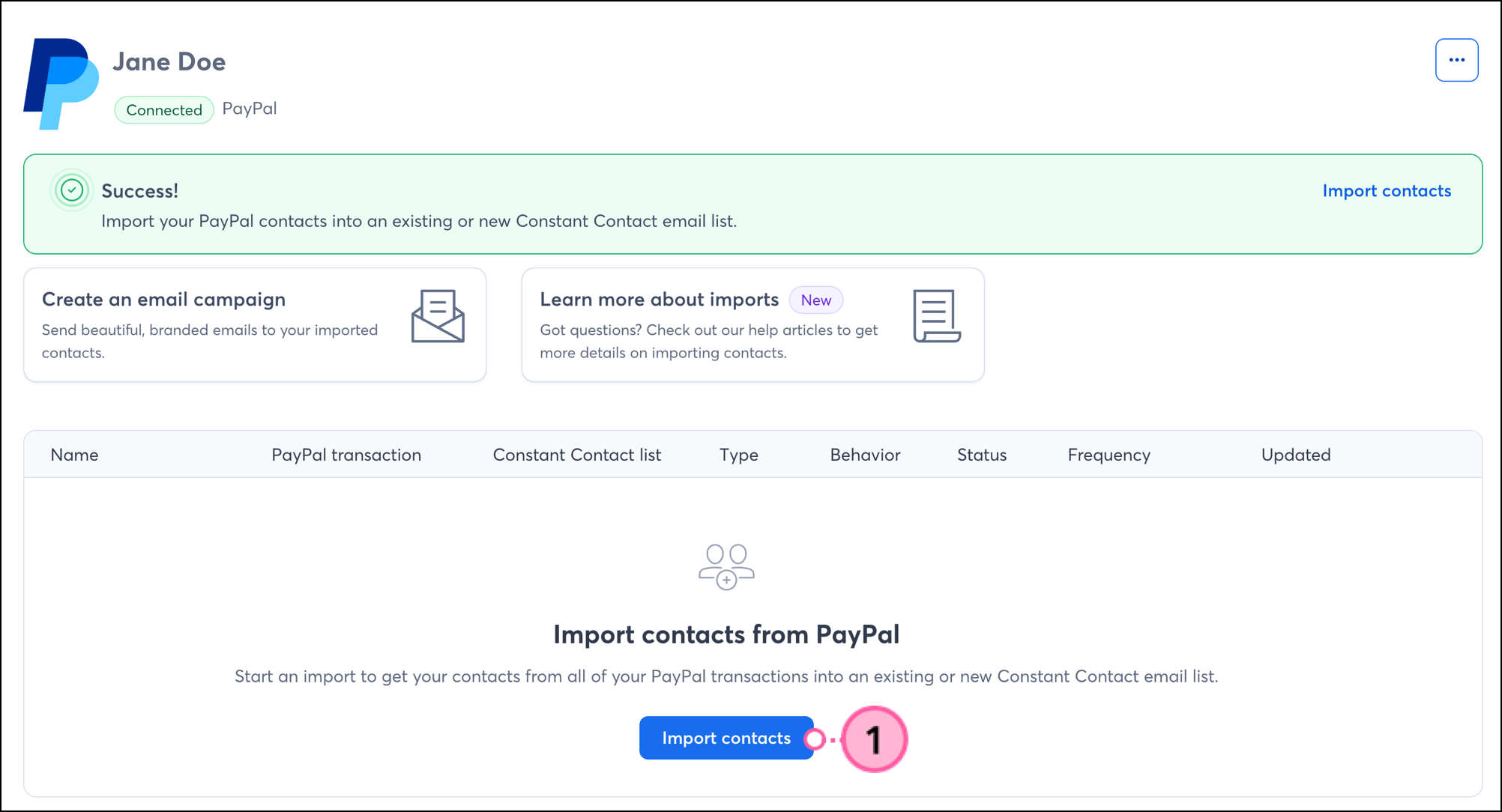
  1. Click Import contacts. 

    Import contacts button at the bottom of the connected PayPal integration page 
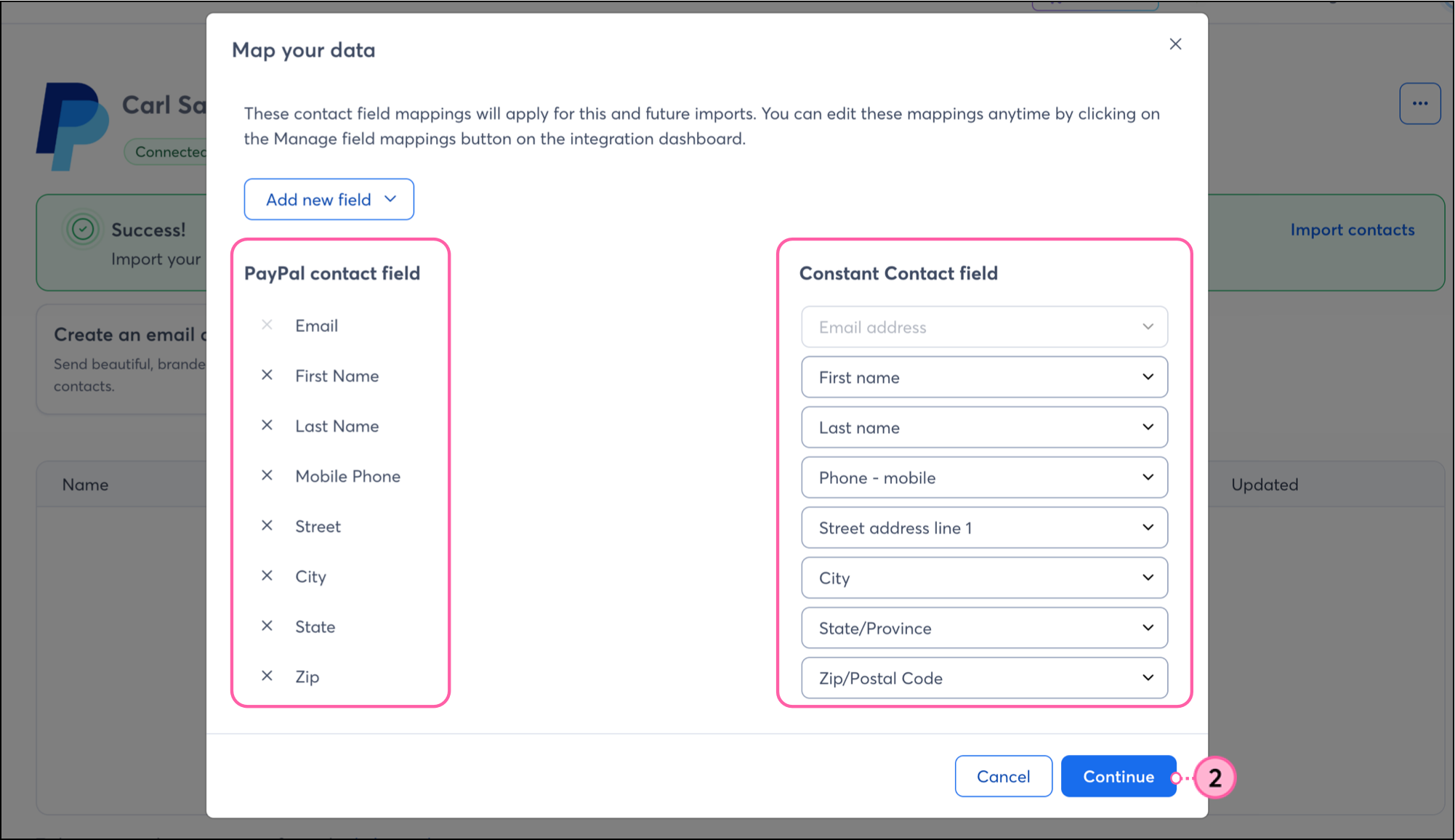
  2. Use the drop-downs on the right to map your PayPal fields to Constant Contact fields. If needed, scroll down in the Constant Contact field list and create a new custom field. 

    Note: Use the X icon next to PayPal fields to remove any unnecessary fields. The email address field cannot be removed. 

    Map your data page with PayPal fields on the left and Constant Contact field drop-downs on the right above Continue button

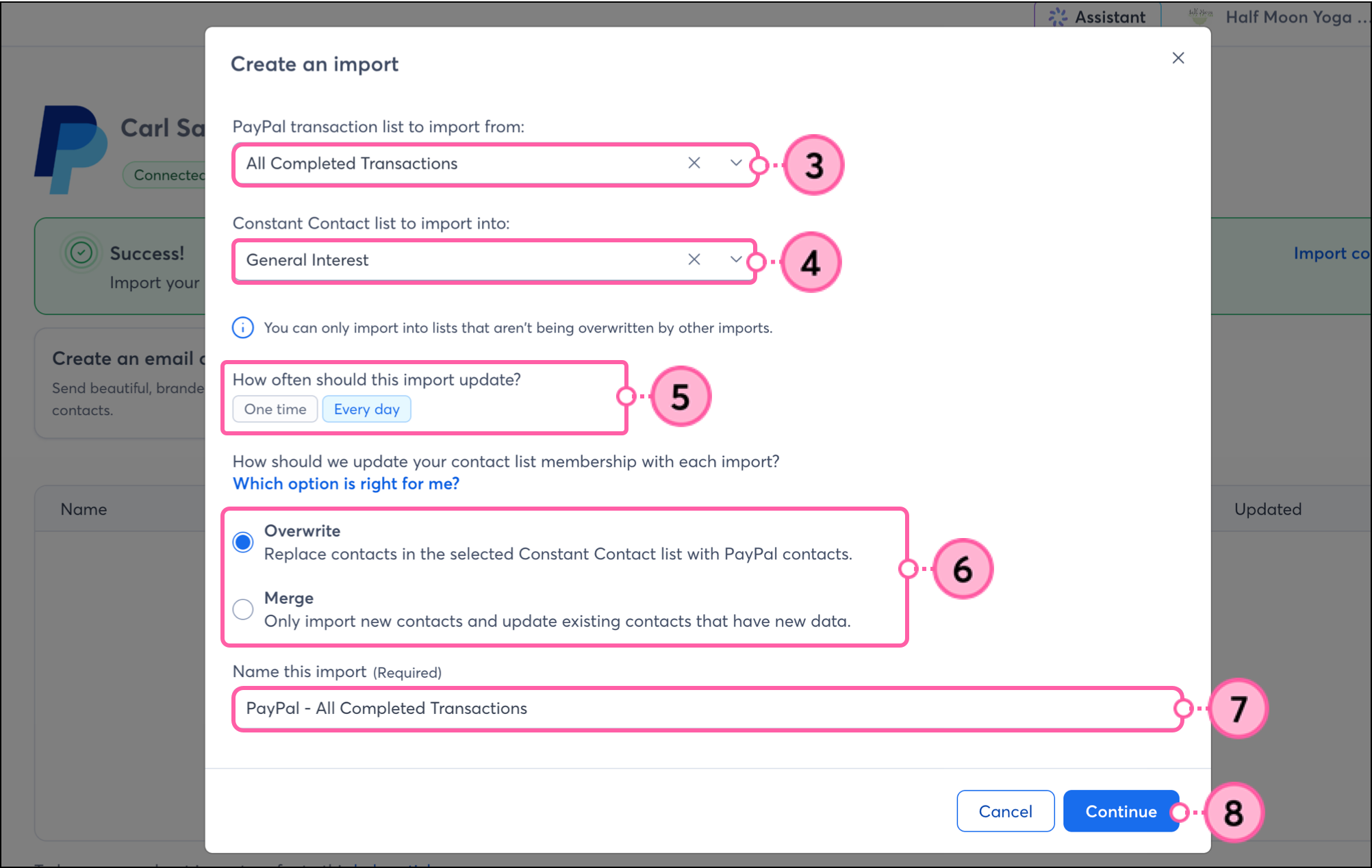
  3. Choose the PayPal category to import contacts from. 
  4. Select the Constant Contact list to import your contacts into. 
  5. Choose how often the Constant Contact list should sync with the latest data from the PayPal list.
  6. Choose to overwrite all data in your list with the incoming PayPal contacts or to merge your PayPal contacts with the existing contacts in the list.
  7. Enter a name for this import job. 
  8. Click Continue. 

    Create an import page with import setting details fields and a Continue button 
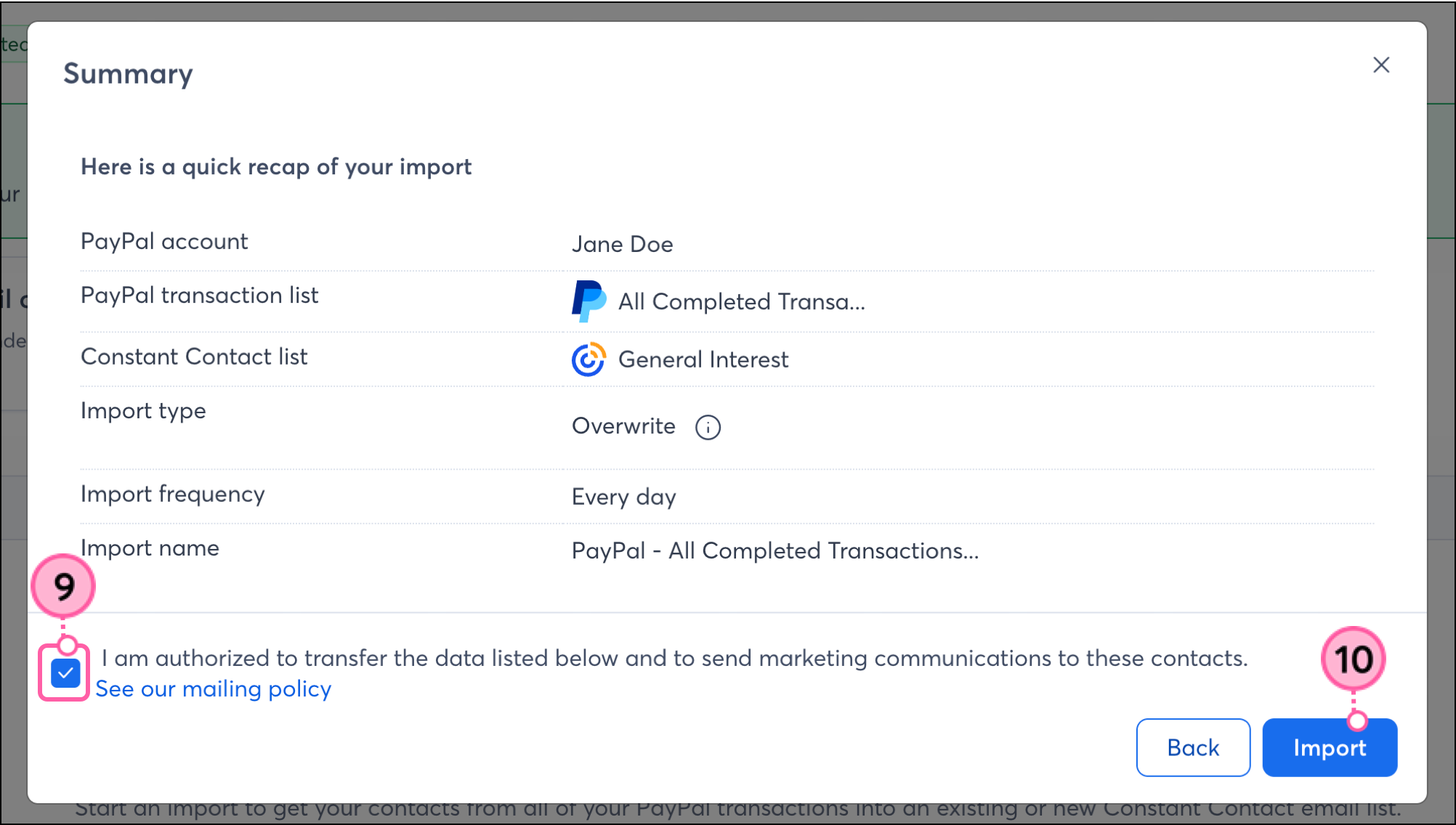
  9. Check the box to confirm that you are authorized to transfer the data. 
  10. Click Import. 

    PayPal integration confirmation pop-up with authorization checkbox and Import button

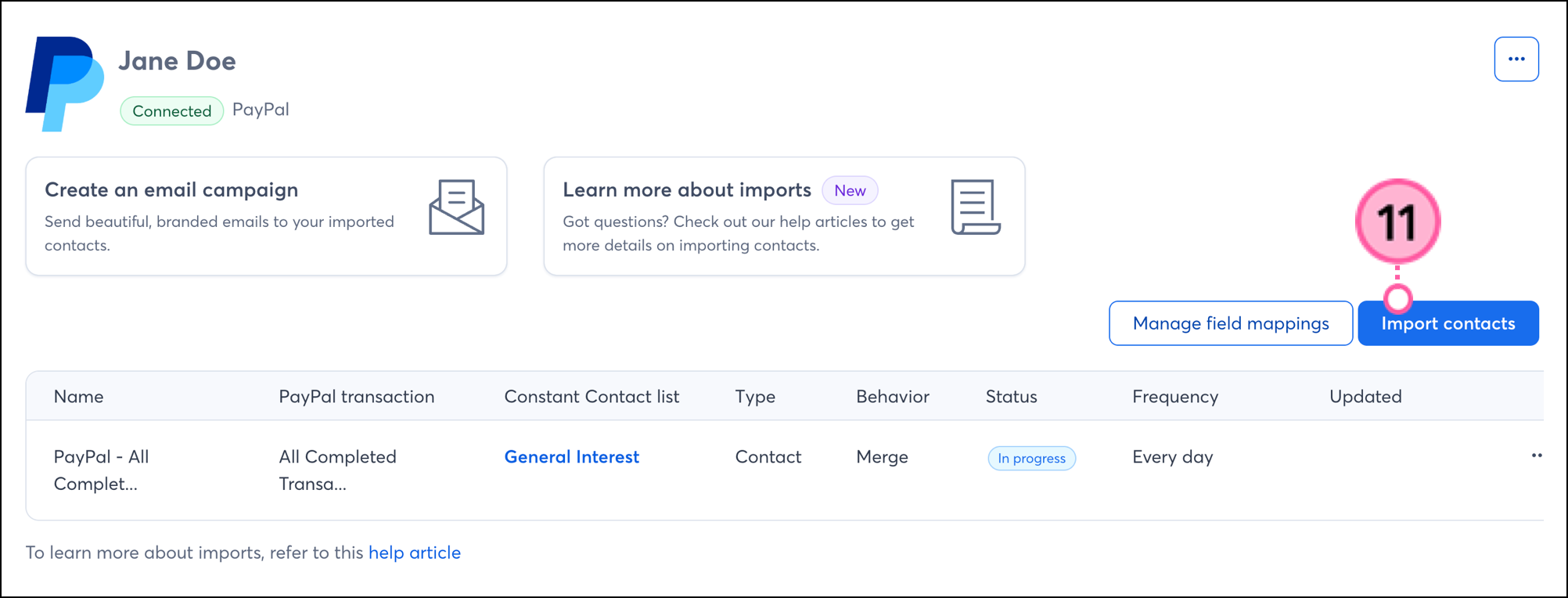
  11. You'll see an In Progress status until the import is complete. If you need to compete another import click Import contacts. 

    In Progress integration and Import Contact buttons sitting above the import 


Boost your marketing with the PayPal integration

Once you've set up your imports and your PayPal contacts are successfully syncing into Constant Contact, there are a variety of ways to target those contacts with customized messaging.


Create a customized contact segment

When importing from PayPal, contacts will be imported into specified lists. But maybe you want to segment these contacts even further, to send specific, targeted messaging. You can do so by creating a custom segment of contacts.


Send automated communications

Create personalized automated communications via email and SMS for your customers based on their actions, including welcome emails, thank you series emails, requests for review, and more.


Disconnect PayPal from your Constant Contact account

If you disconnect the PayPal integration, your imported contacts and emails will remain in your Constant Contact account. New PayPal data will no longer be imported into Constant Contact. 
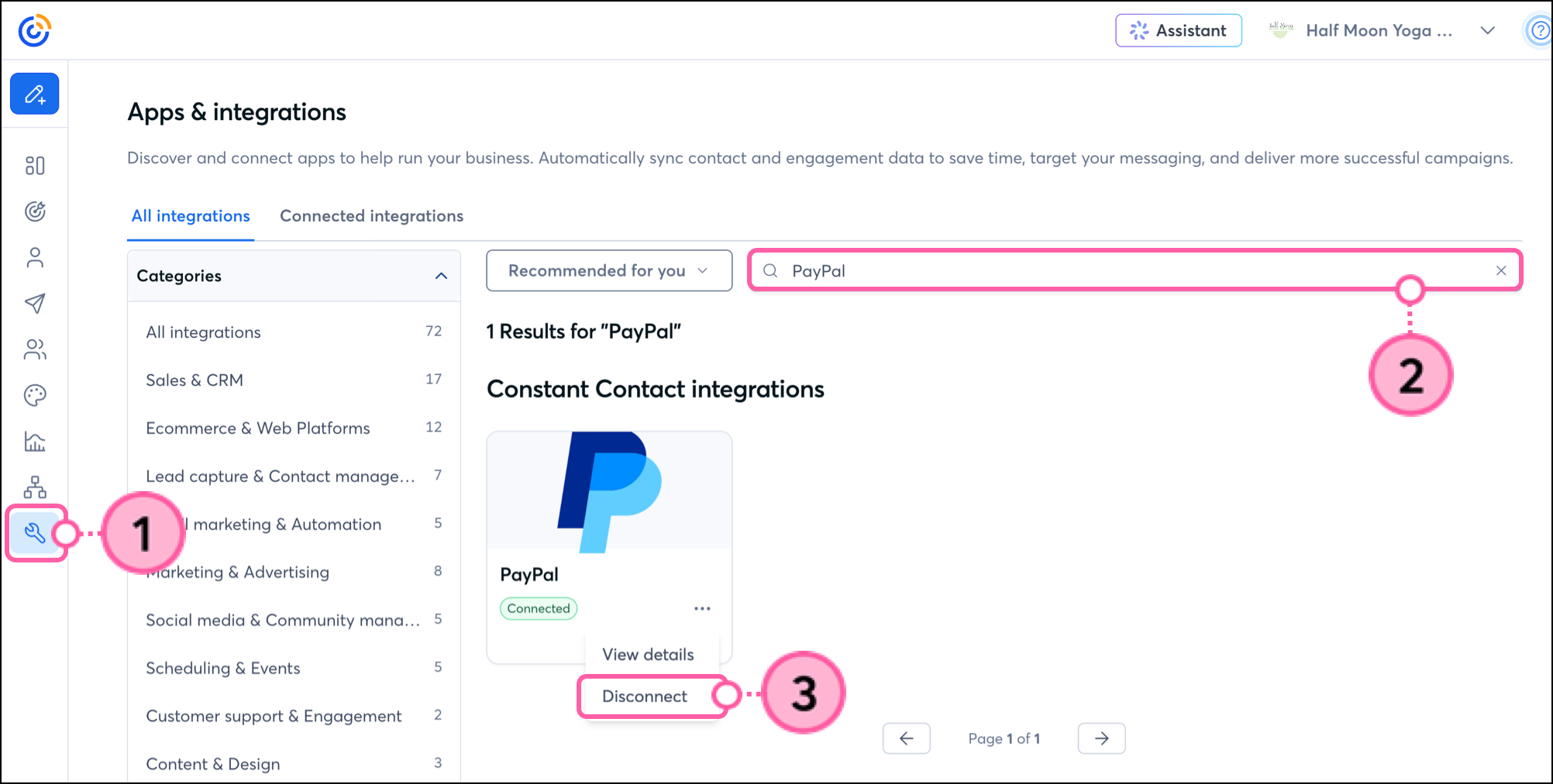
 

  1. Click Integrations.
  2. Search for the PayPal integration. 
  3. Click the three dots on the PayPal block to open the connected Settings menu and then click Disconnect. 

    Disconnect button on expanded settings menu of PayPal integration card 
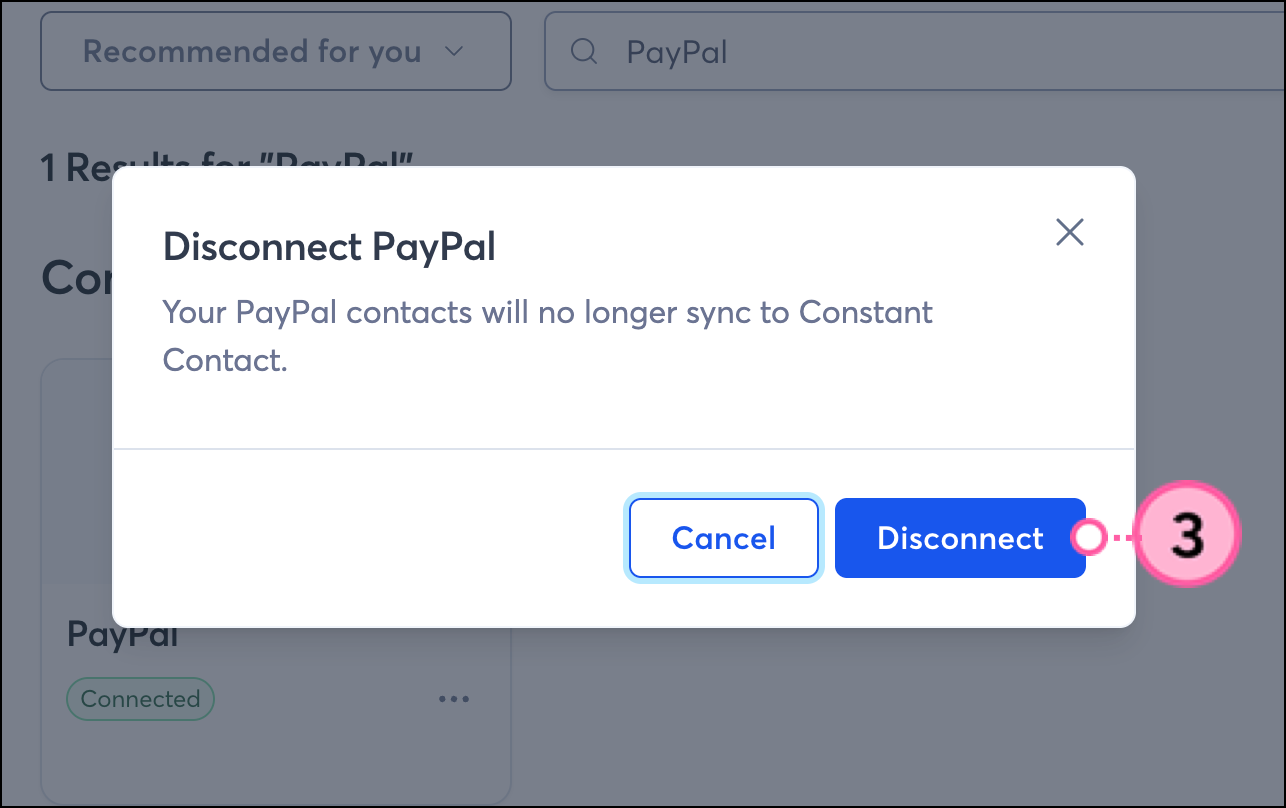
  4. In the confirmation pop-up, click Disconnect to confirm.

    Disconnect button on Disconnect PayPal confirmation pop-up 


Any links we provide from non-Constant Contact sites or information about non-Constant Contact products or services are provided as a courtesy and should not be construed as an endorsement by Constant Contact.


Questions?

Ask the Community

Did this article answer your question?


Constant Contact Logo

Copyright © 2026 · All Rights Reserved · Constant Contact · Privacy Center