Email and Digital Marketing
How can we help you?
Search our help articles, video tutorials, and quickstart guides

You've got this. You've got us. Search our Knowledge Base to quickly find answers to your questions.

Upload images to your library using the Constant Contact ChatGPT plugin

Article: 000055275
Updated: August 13, 2026

If you have an image file or a hosted image URL, use ChatGPT to have it uploaded to your Constant Contact library

Constant Contact has launched a ChatGPT plugin that lets you build campaigns and upload images to your Constant Contact account, right from ChatGPT. Chat with ChatGPT to prompt Constant Contact email templates, social posts, and image uploads without leaving your AI workflow. To learn more about using ChatGPT for social posting and email campaigns, read this

The Constant Contact ChatGPT plugin is available for installation on ChatGPT's Plugins page. Provide ChatGPT with the URL of the hosted image so it can add it to your library. For image files, simply request a library upload, then select the image file (or drag and drop one) from your computer. 


How to install the Constant Contact ChatGPT plugin

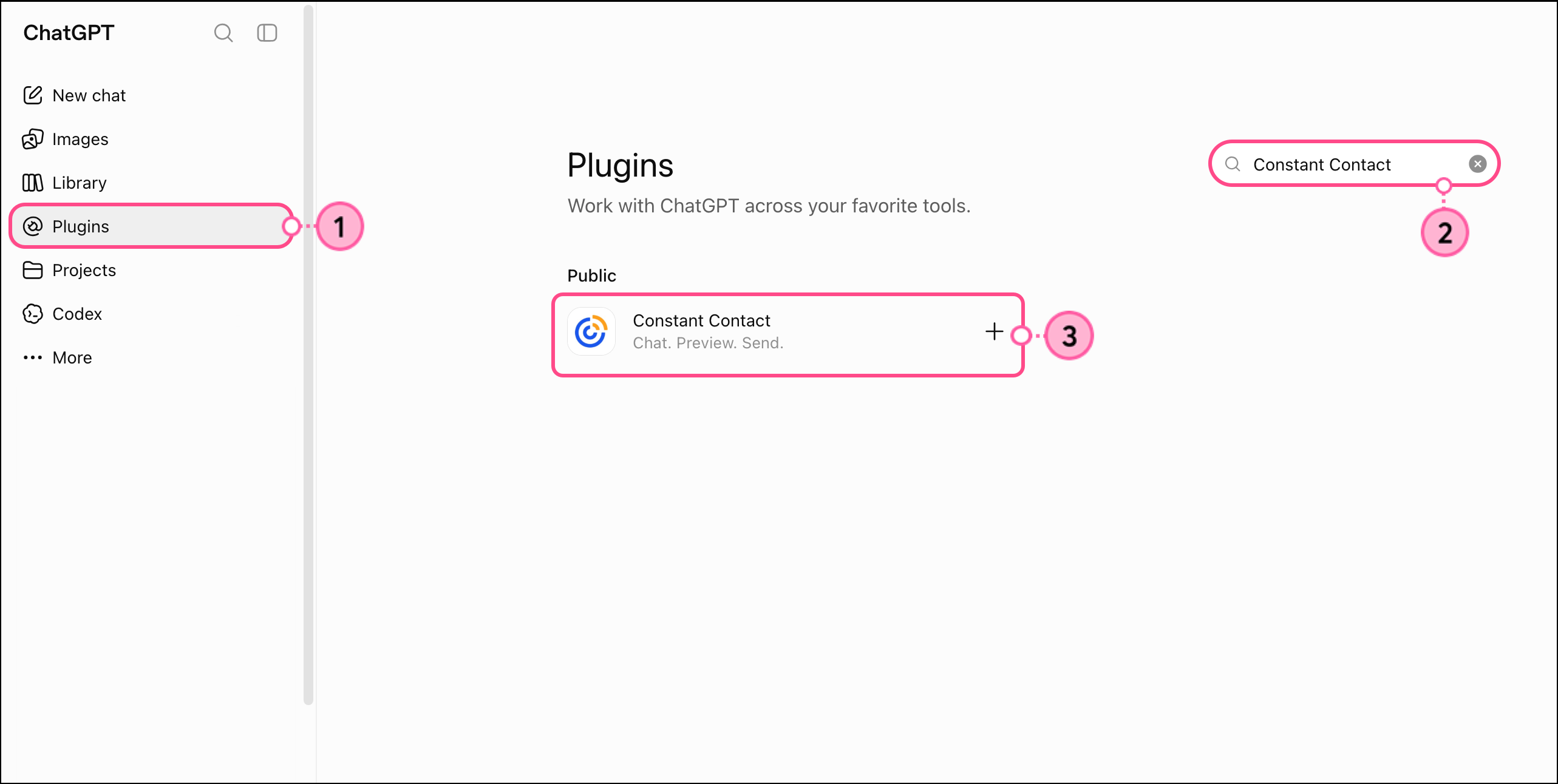
  1. In ChatGPT, click Plugins
  2. Search for Constant Contact.   
  3. Click the Constant Contact application.

    Plugin button in left side menu and Constant Contact app in the search results on the right   
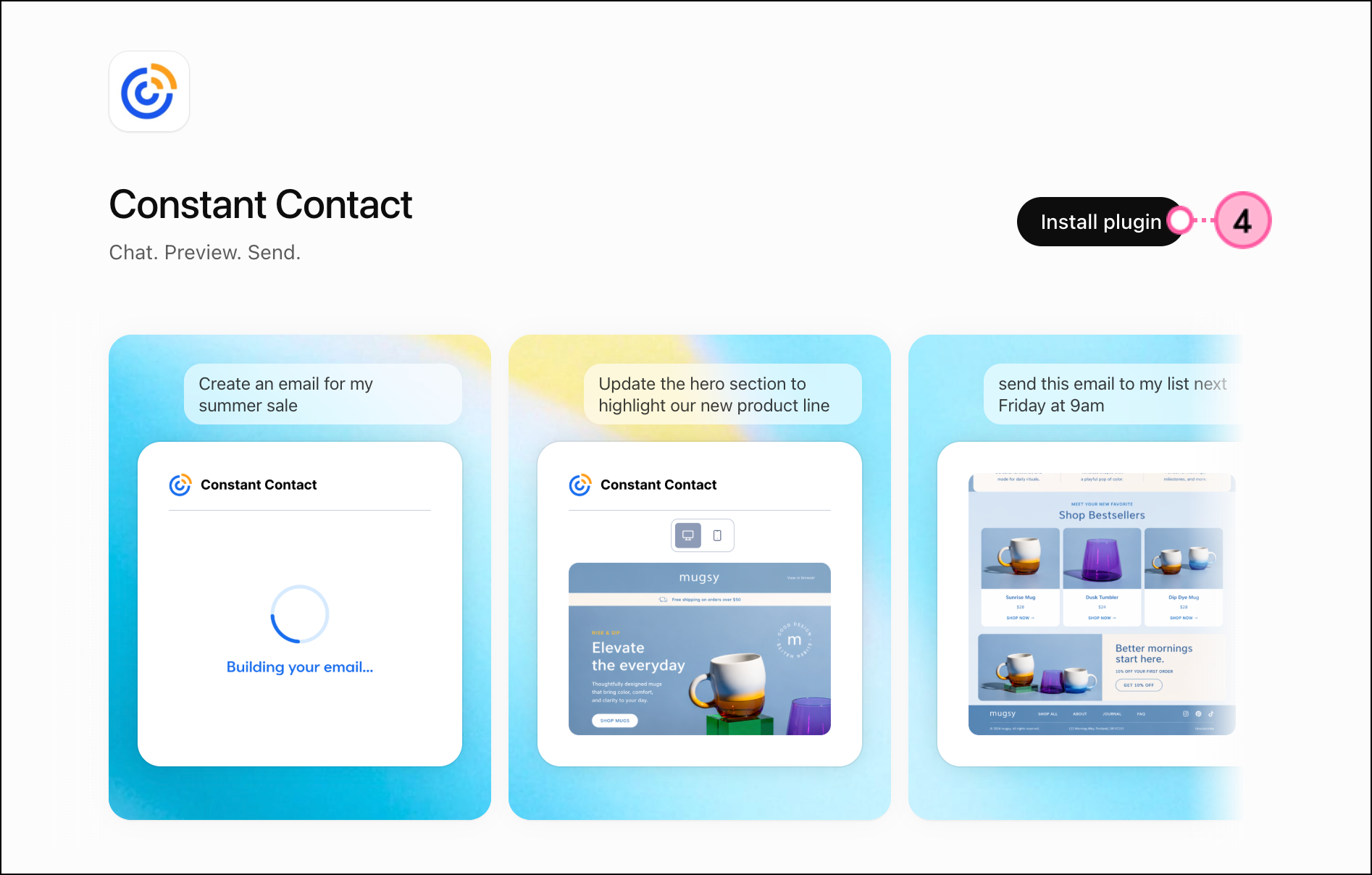
  4. Click Install plugin

    Constant Contact app overview and black Connect button  
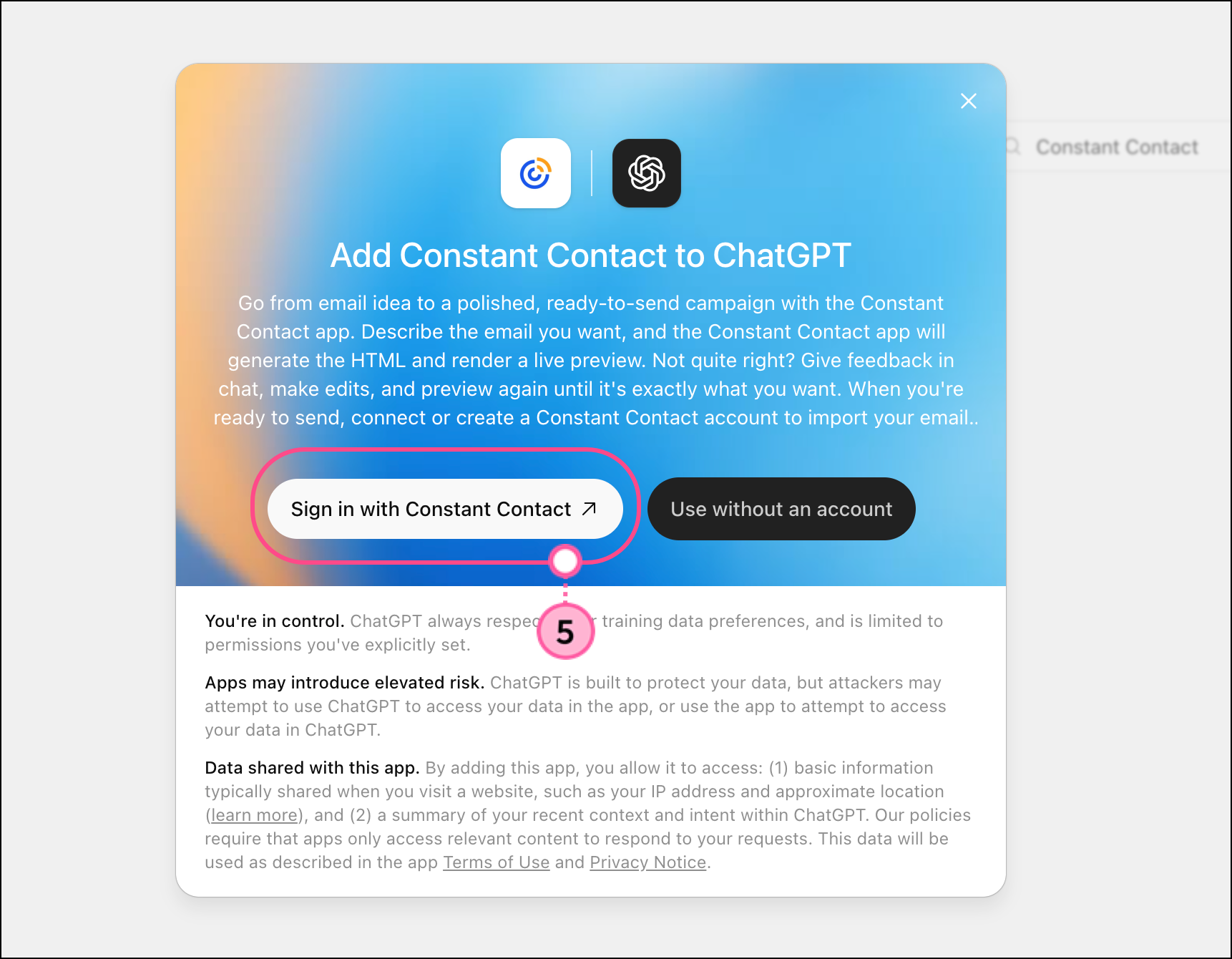
  5. Click Sign in with Constant Contact

    Note: You can use the Constant Contact ChatGPT app for emails and social posts without an account by clicking Use without an account. However, to upload images to your library, you will need to sign in. 

    Sign in with Constant Contact button   
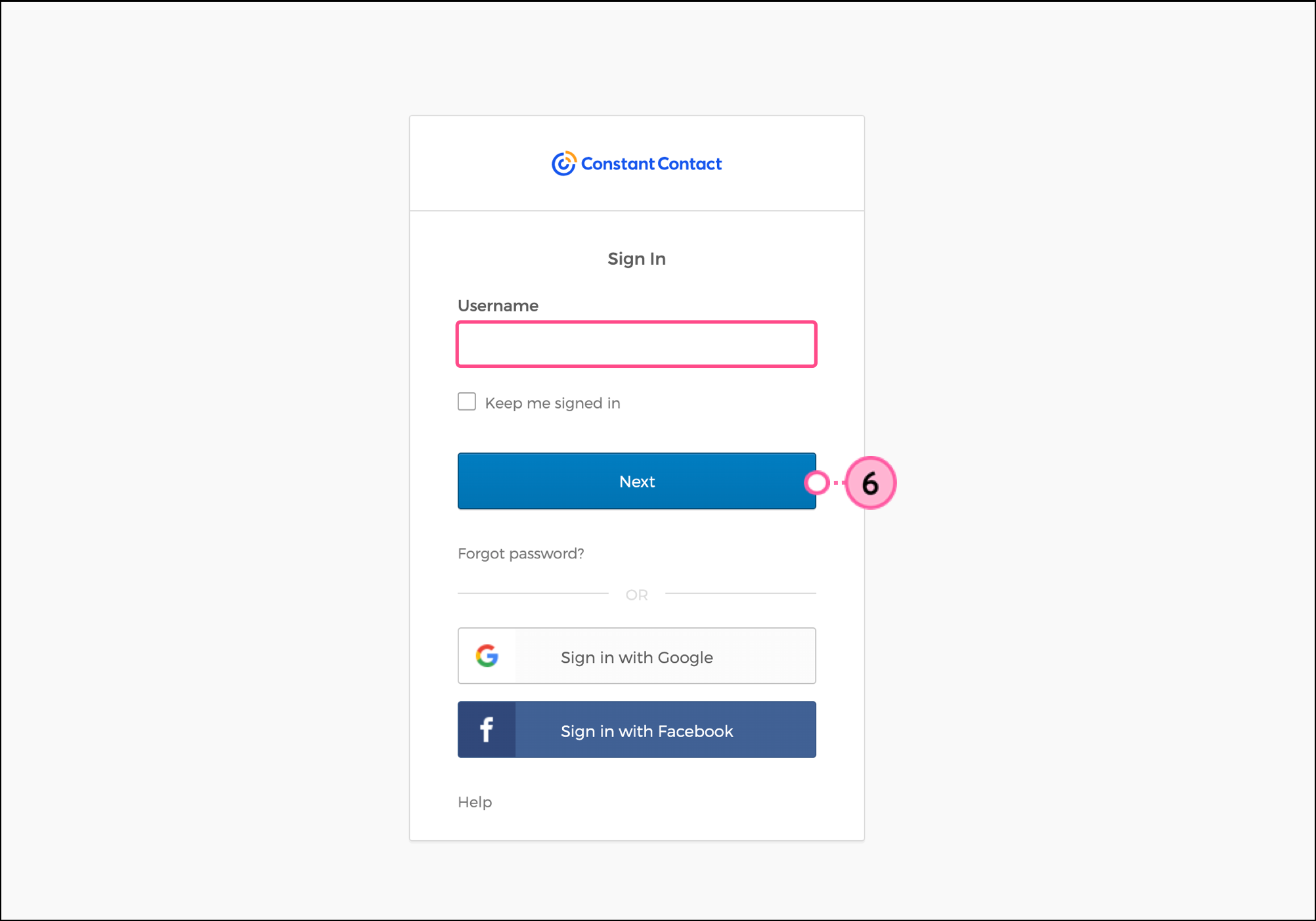
  6. Log in to your Constant Contact account. 

    Constant Contact login form and Next button   
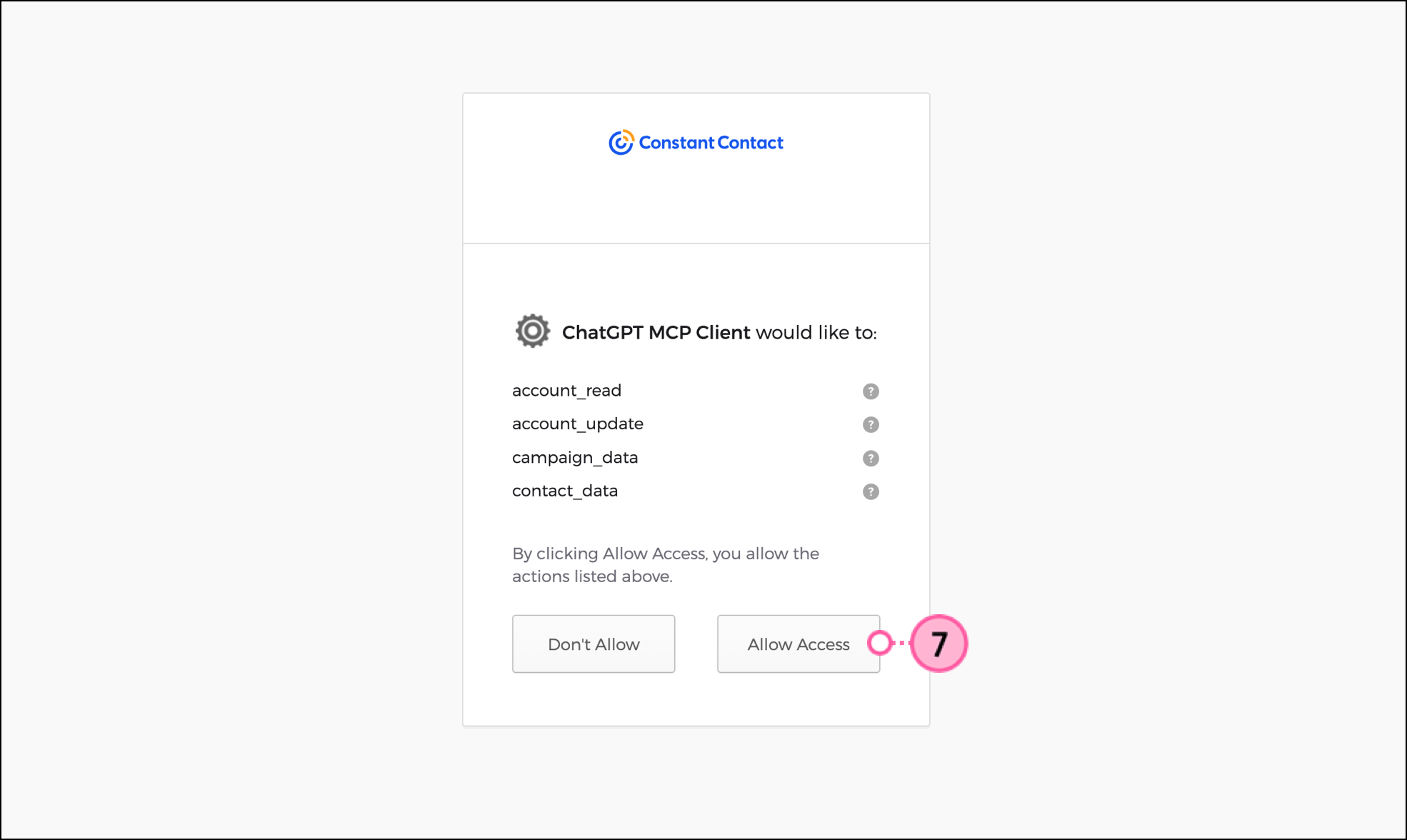
  7. Click Allow Access for ChatGPT to access your account.

    Allow Access button on Constant Contact 
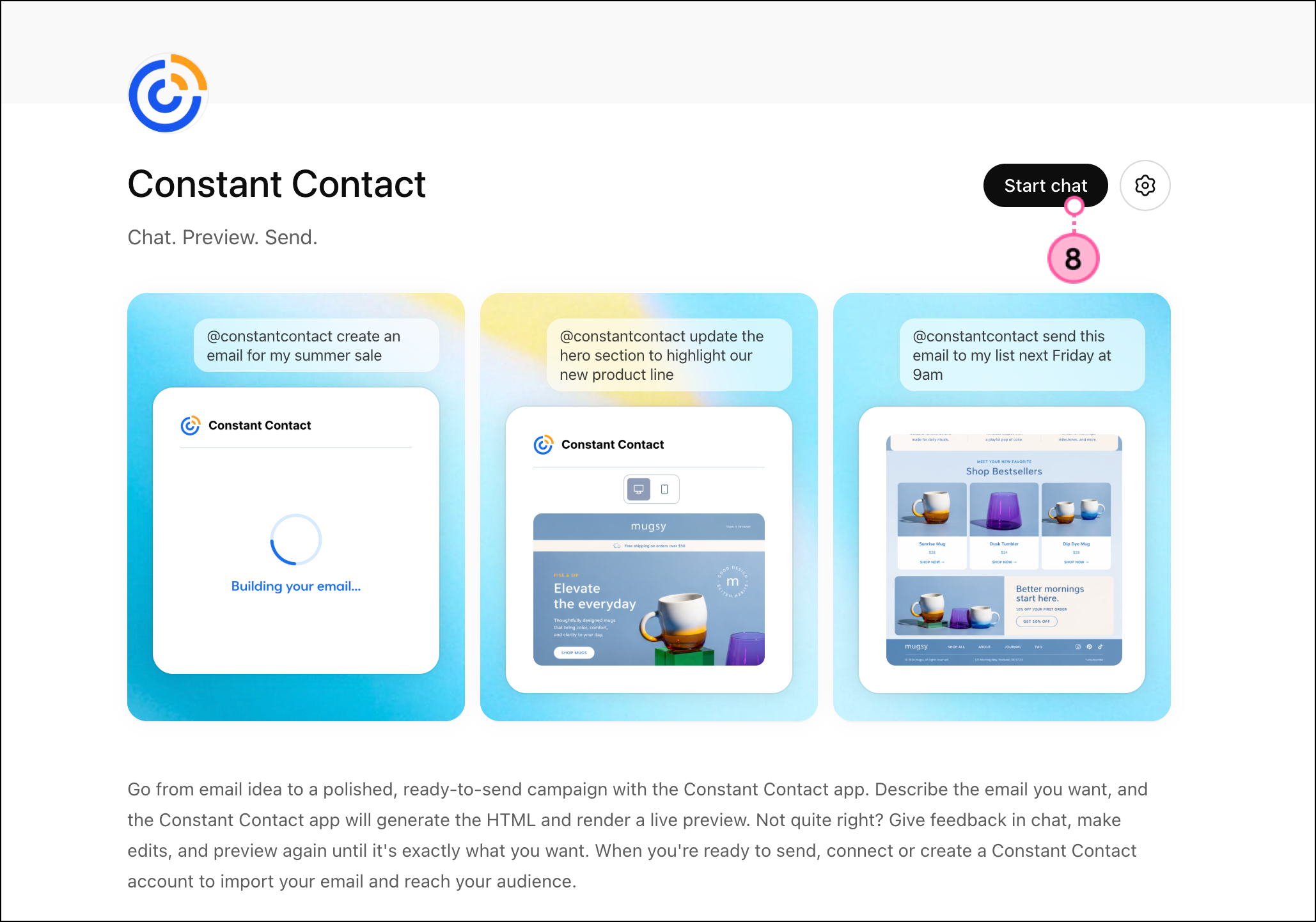
  8. Click Start chat

    Black Start Chat button on connected Constant Contact app 
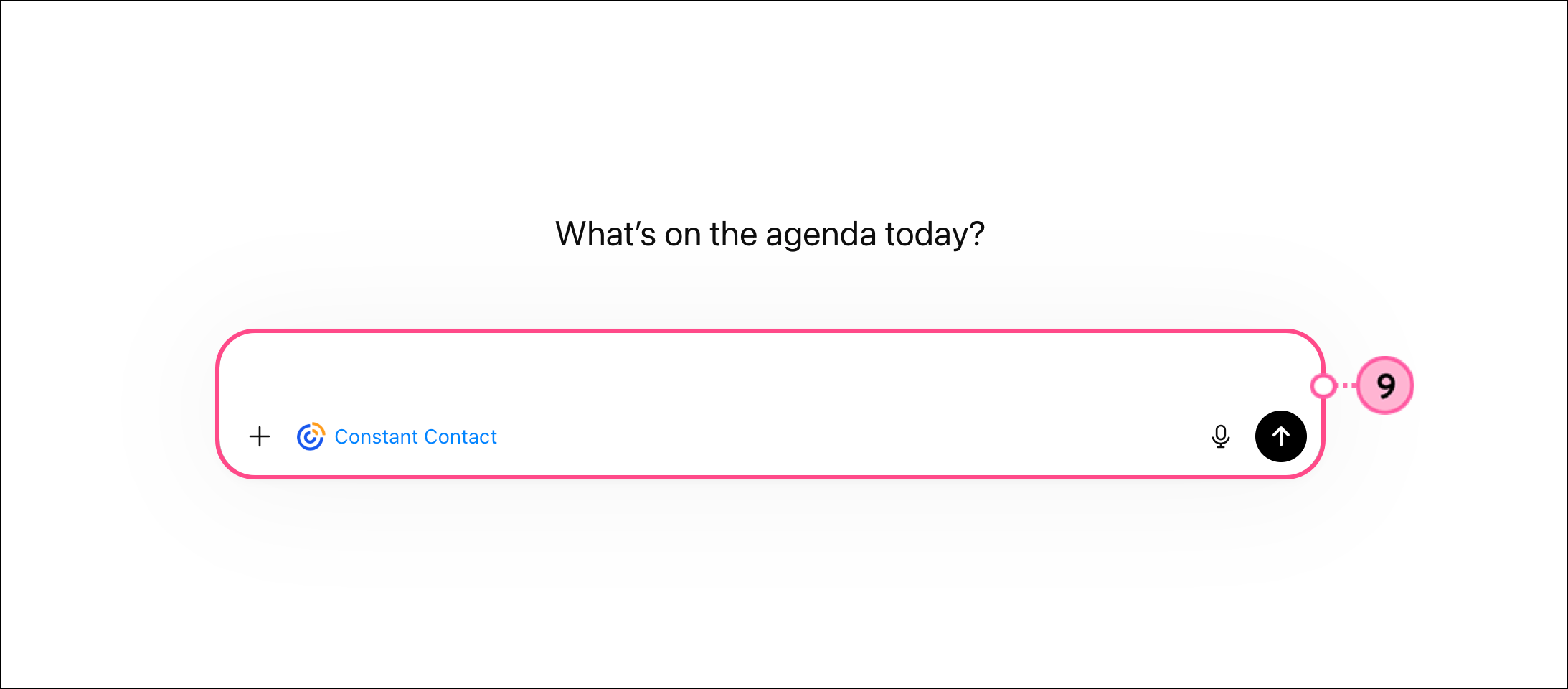
  9. Enter a description of the email you want to create into the prompt text box, then click the arrow to send the request.

    ChatGPT text box with up arrow submit button and connected Constant Contact app icon below 
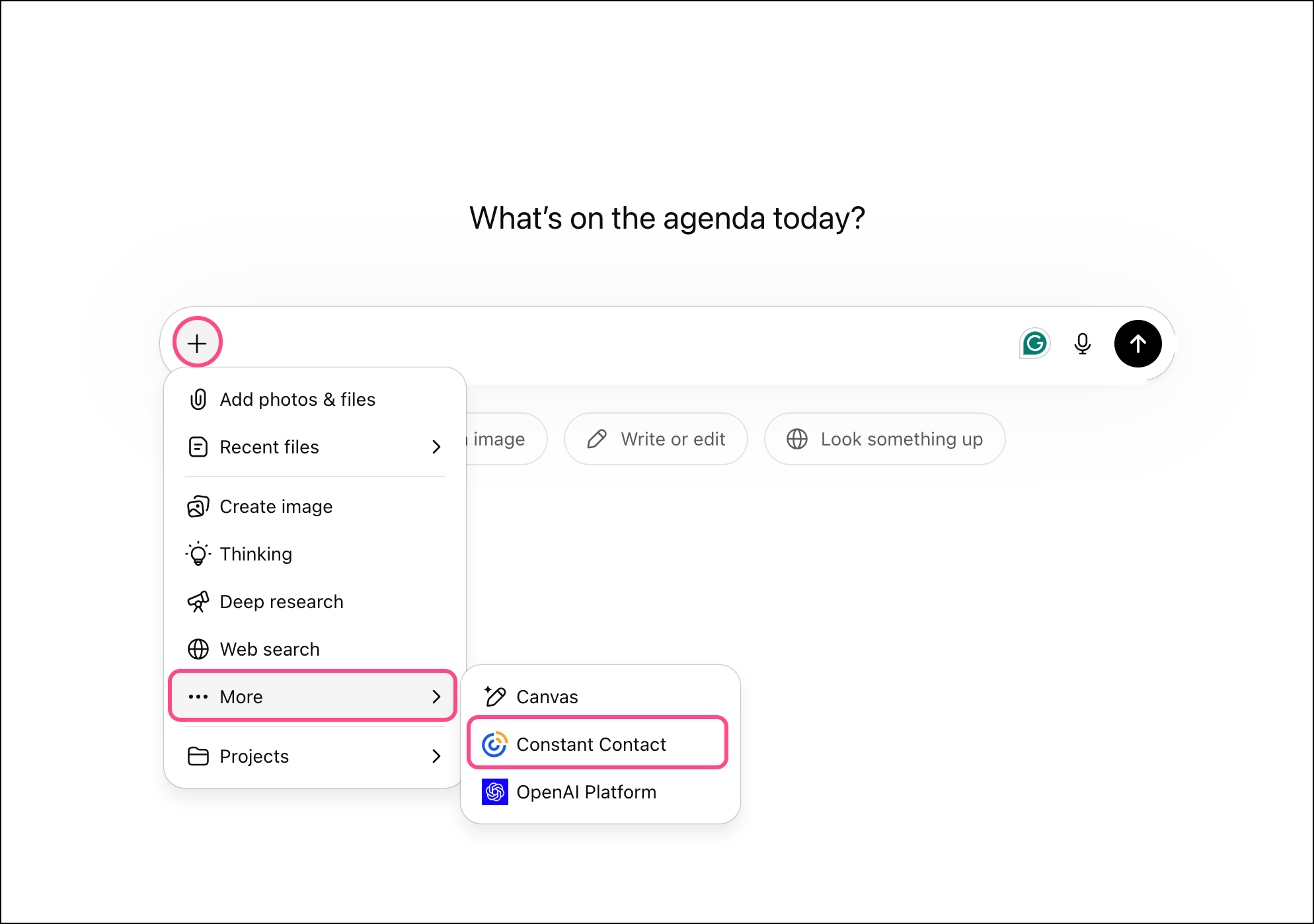
    Note: Once the app is installed, it'll be available to apply to future chats. Click the plus sign to add an app to the conversation. Click More and select the Constant Contact application. 

    Constant Contact app button in More dropdown menu in ChatGPT plus icon menu 

Uploading a hosted image

To upload an image that is hosted somewhere else on the web:
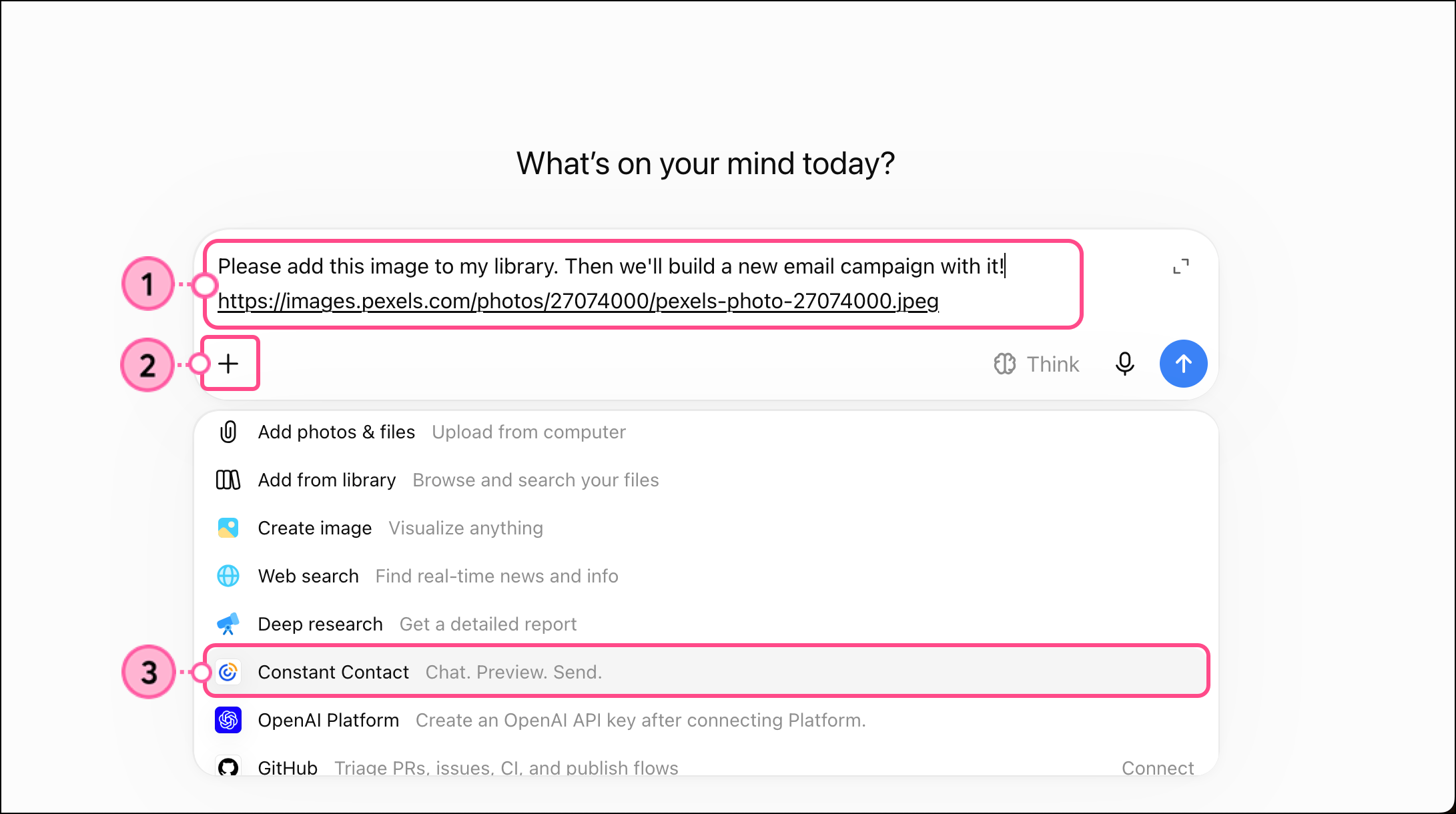
  1. Ask ChatGPT to upload the image(s) to your library, and provide the image URL(s).
  2. Click the + plus sign
  3. Select the Constant Contact app.

    ChatGPT image upload request with URL and expanded app list 
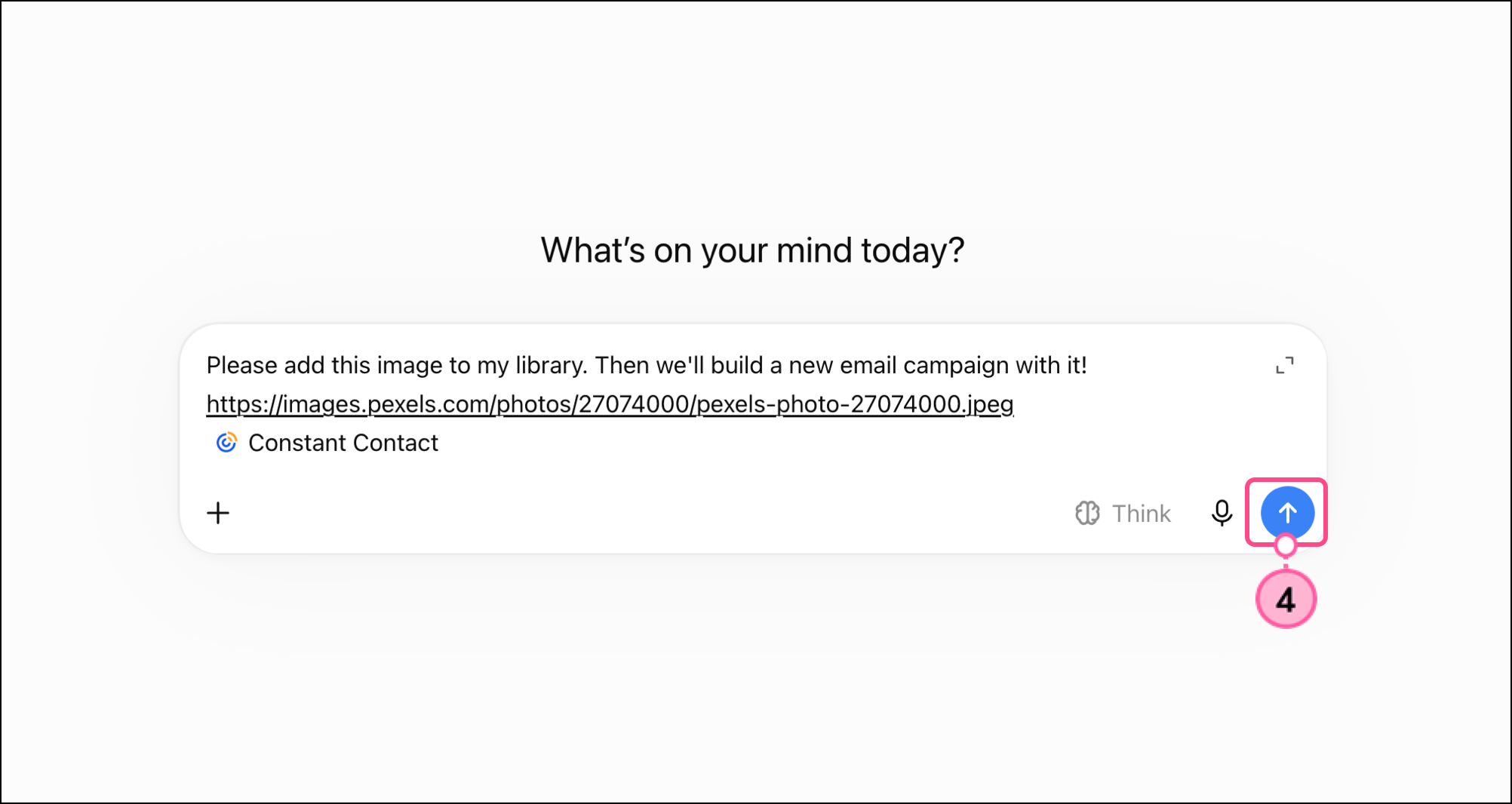
  4. Click the arrow to submit the message. 

    Message arrow submit button 

The app will inform you when the upload is finished. When you navigate to your Constant Contact library, you will see the image(s) as the latest upload.
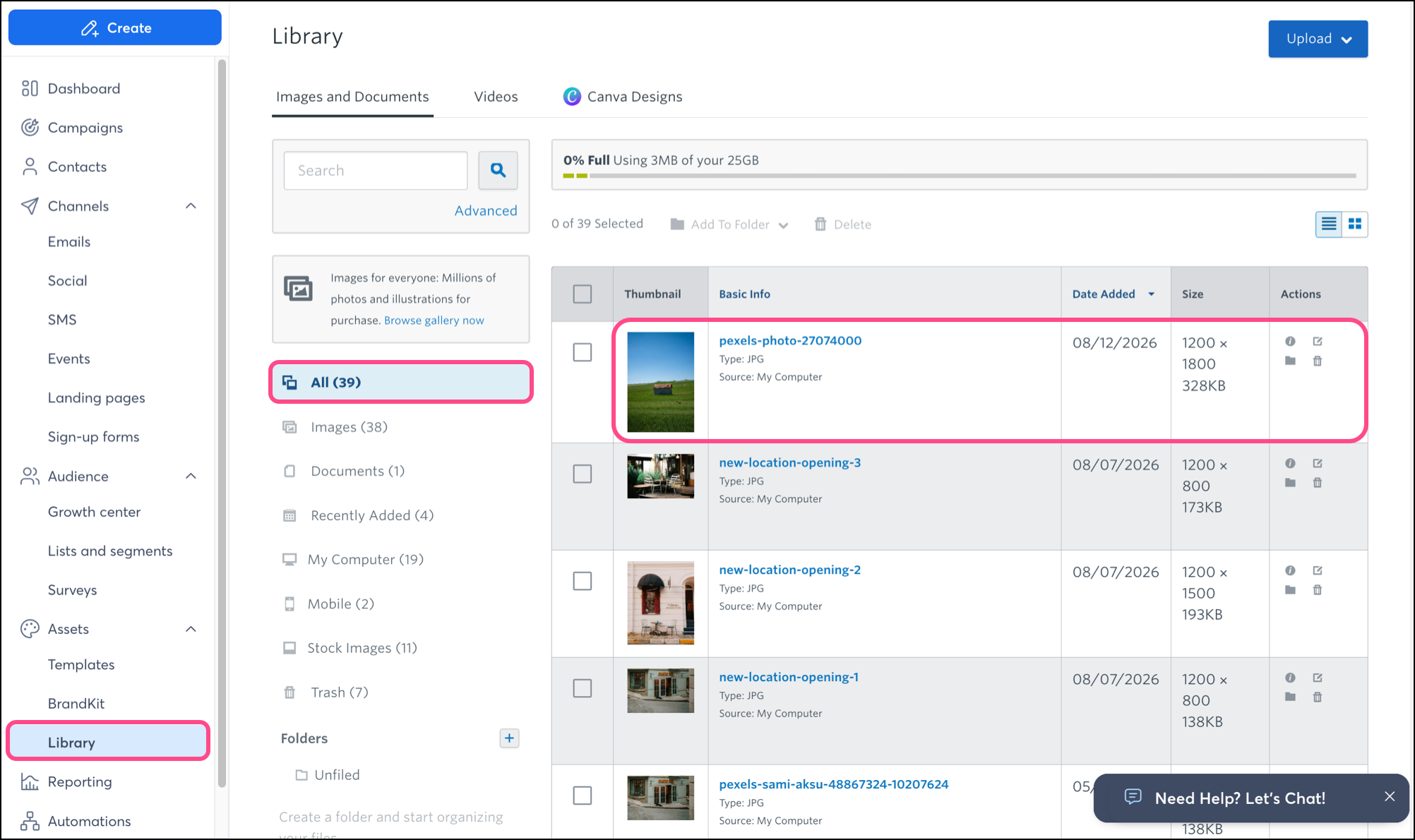
 

Constant Contact Image Library


Uploading an image file

To upload an image that is saved to your computer, simply prompt ChatGPT to help you upload an image to your library.
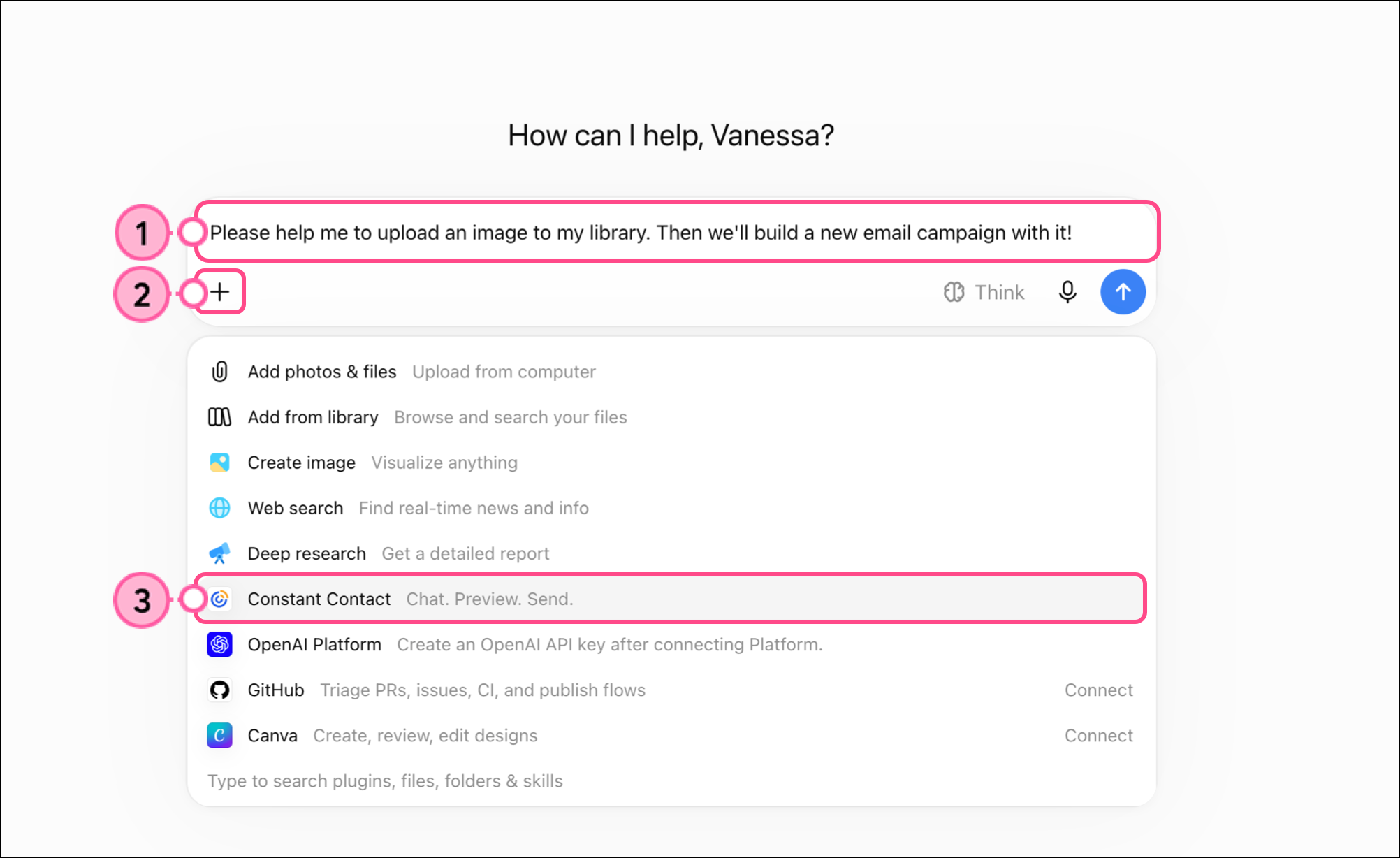
  1. Ask ChatGPT to help you upload an image to your Constant Contact library. 
  2. Click the + plus sign
  3. Select the Constant Contact app.

    ChatGPT image upload request and expanded connected Apps menu

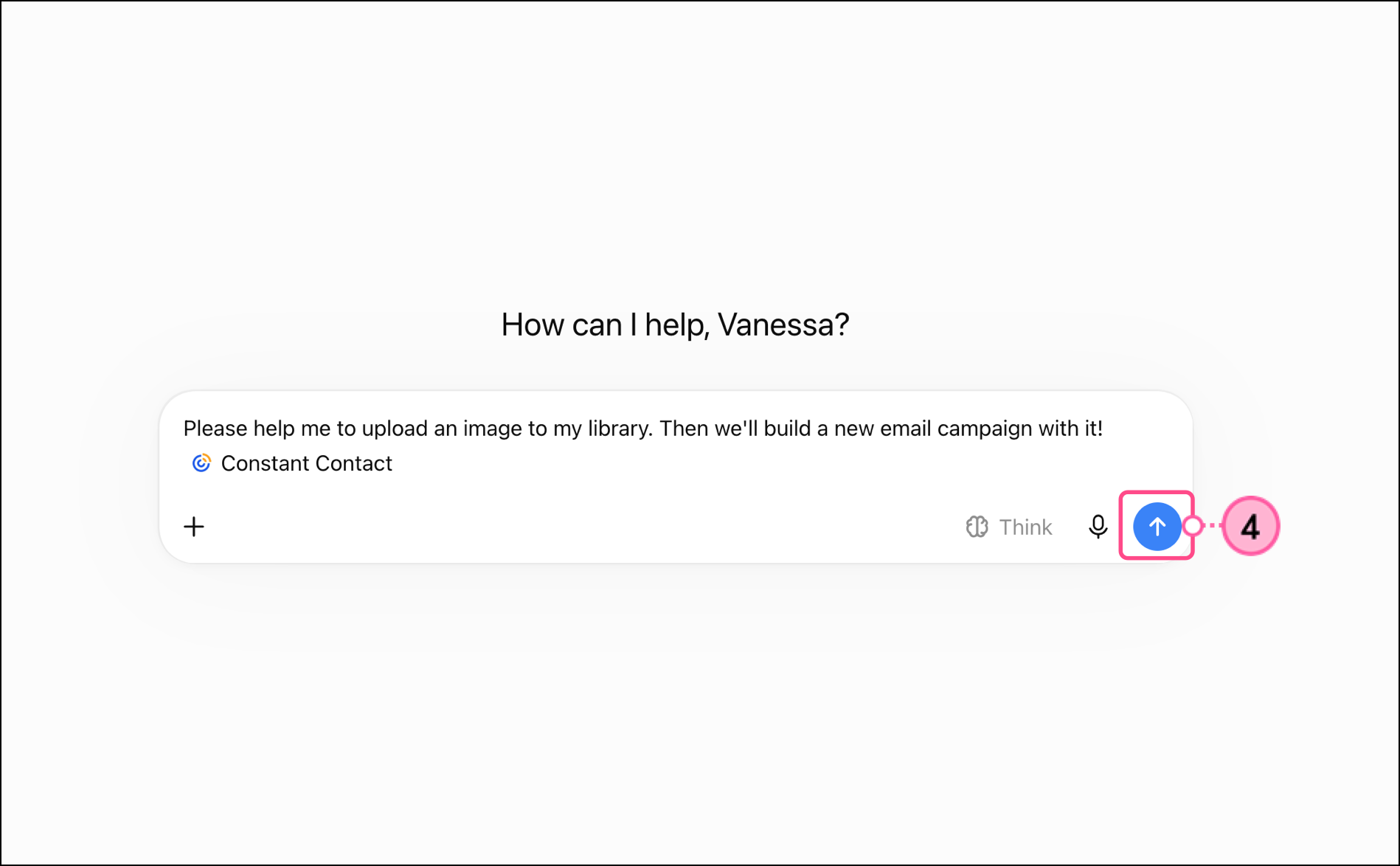
  4. Click the arrow to submit the message.

    Arrow submit button

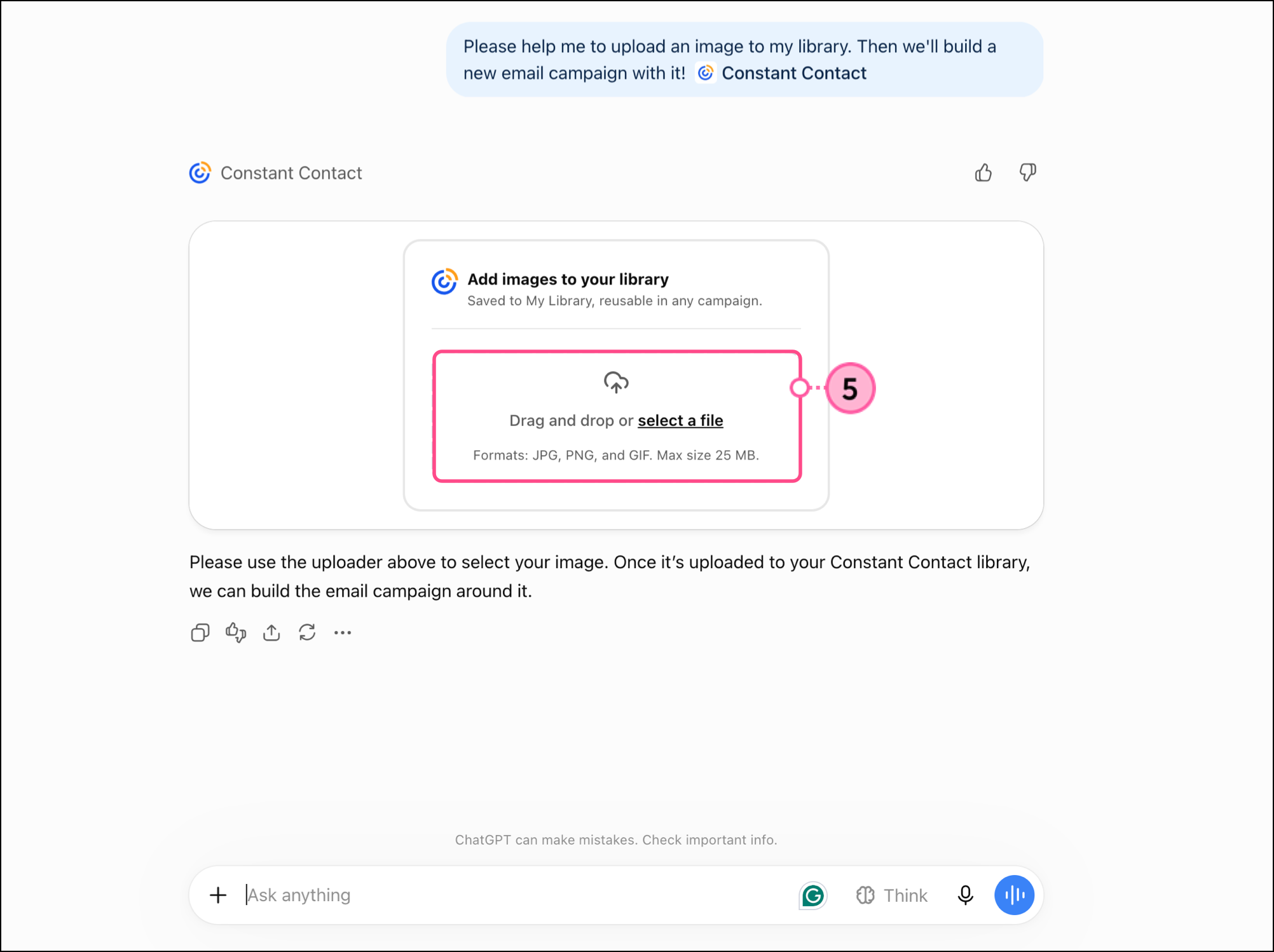
  5. ChatGPT will display an image file uploading widget. Drag and drop your file(s) into it or click select a file.

    Constant Contact ChatGPT app image upload drag and drop or select file widget 
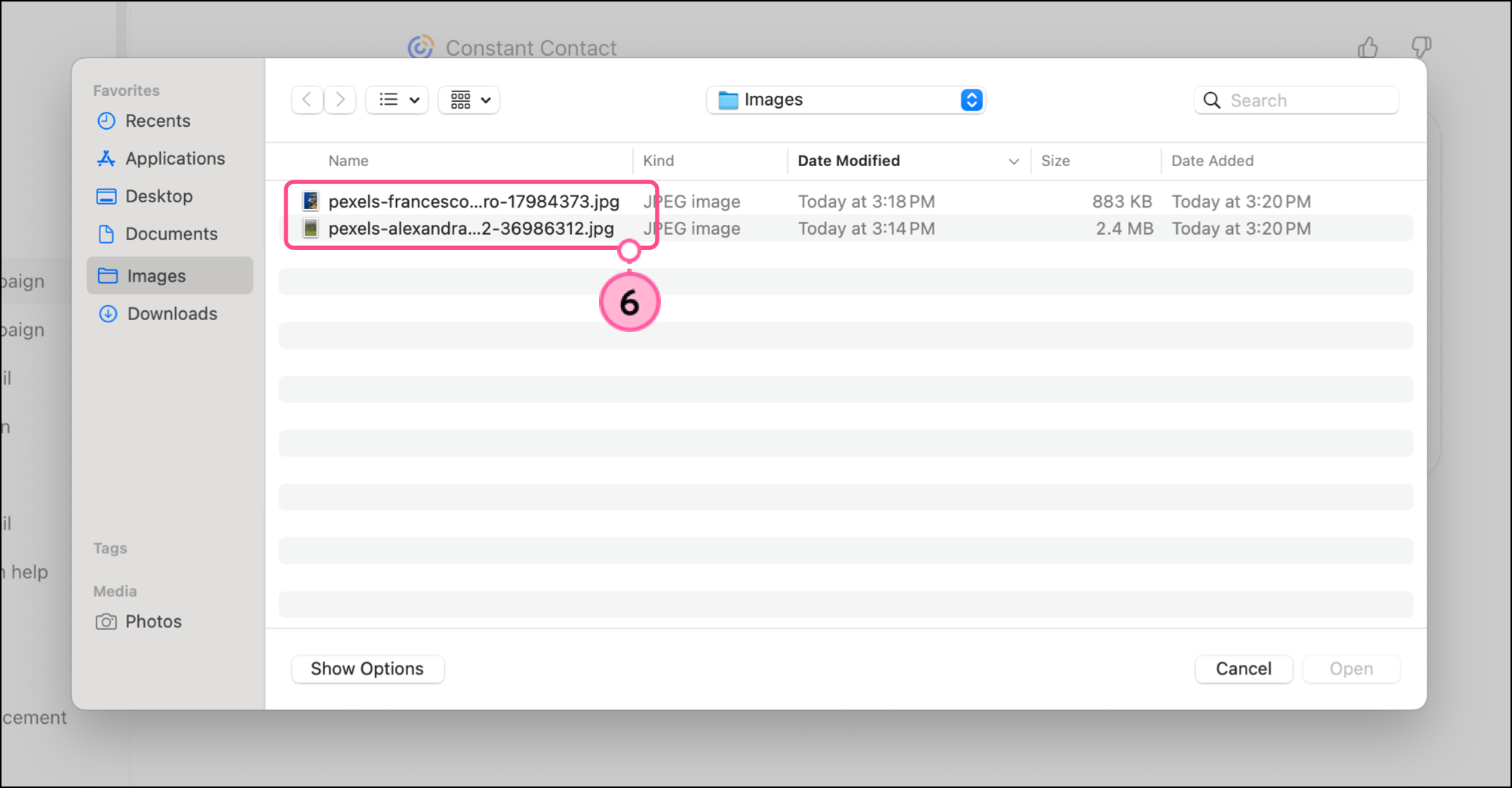
  6. Select the image file(s) you want to upload from your computer folder(s).

    Image files in computer folder pop-up 
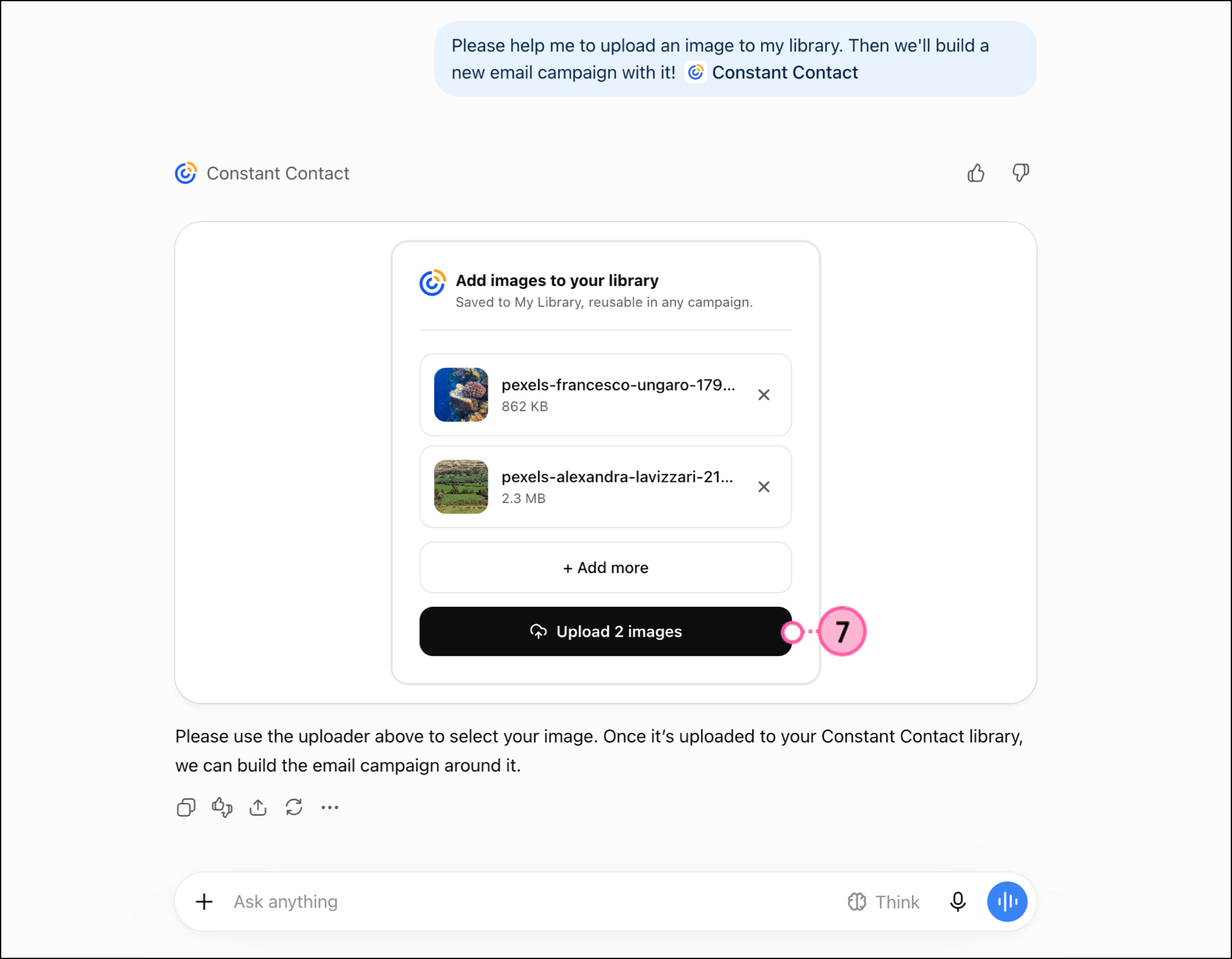
  7. Click Upload Images.

    Constant Contact ChatGPT app with images uploaded and black Upload 2 files submit button  

The app will inform you when the upload is finished. When you navigate to your Constant Contact library, you will see the image(s) as the latest upload.
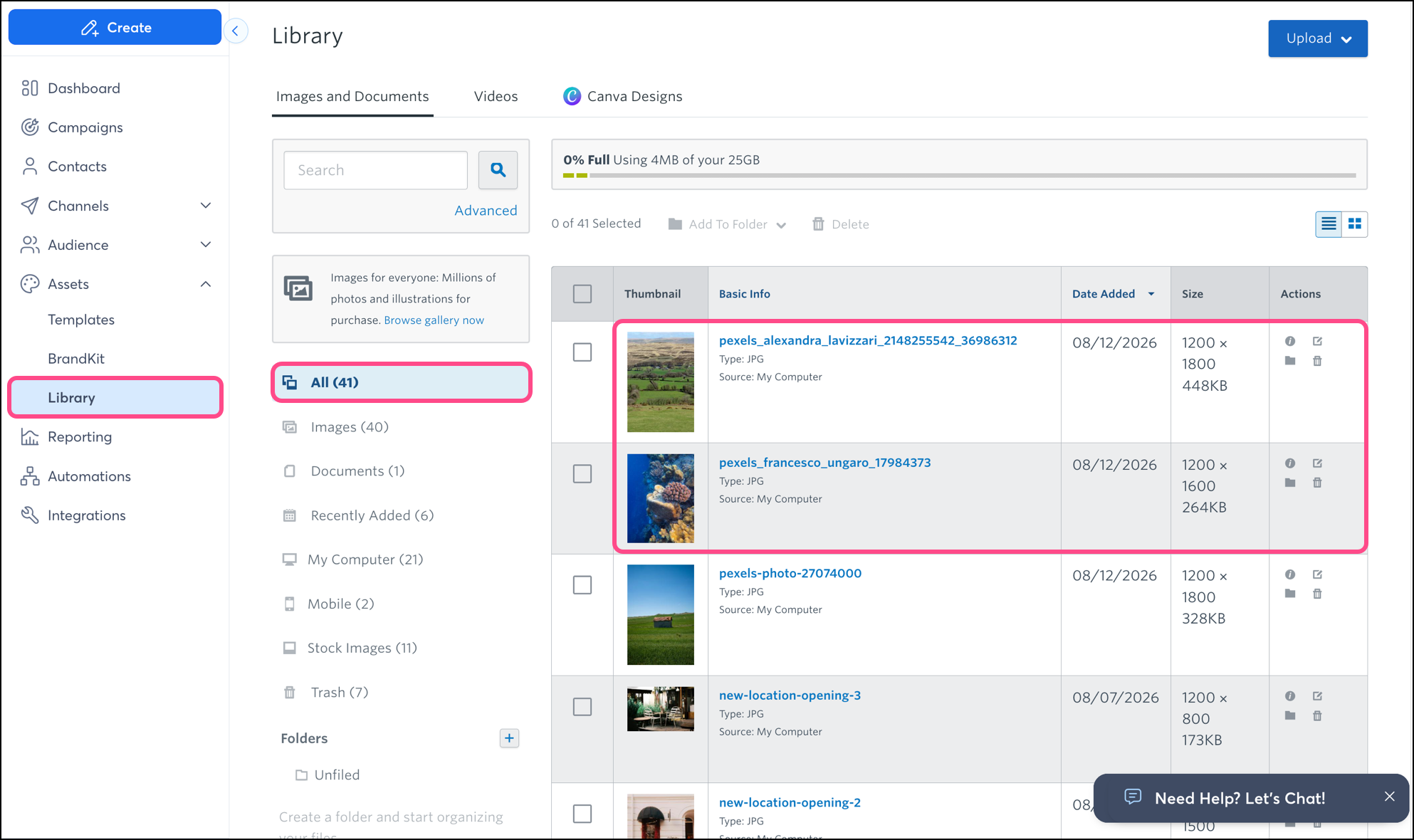
 

Constant Contact library with newly included images 

Any links we provide from non-Constant Contact sites or information about non-Constant Contact products or services are provided as a courtesy and should not be construed as an endorsement by Constant Contact.


Questions?

Ask the Community

Did this article answer your question?


Constant Contact Logo

Copyright © 2026 · All Rights Reserved · Constant Contact · Privacy Center