Email and Digital Marketing
How can we help you?
Search our help articles, video tutorials, and quickstart guides

You've got this. You've got us. Search our Knowledge Base to quickly find answers to your questions.

Partners: Connect your Coldwell Banker Commercial account with Constant Contact

Article: 000055181
Updated: March 4, 2026

Activate a Constant Contact account directly within your Coldwell Banker Commercial account

Email Plus iconNot seeing this feature in your account? Our integration with Coldwell Banker Commercial is being gradually rolled out to customers at this time. If you are not yet seeing the functionality outlined in this article within your Coldwell Banker Commercial account, stay tuned!


Activate and link Constant Contact to your Coldwell Banker Commercial account and easily send out campaigns to your contact lists property listings of your choosing. Select your desired template, edit the email design, and then preview before you send out your campaign.


Activate your Constant Contact account

Add contacts

Create a new list

Create and schedule a campaign


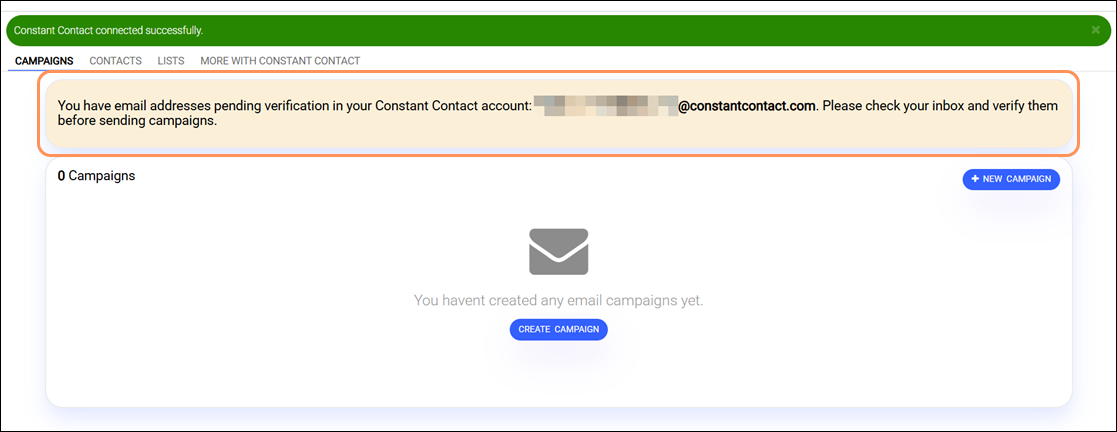
Activate your Constant Contact account


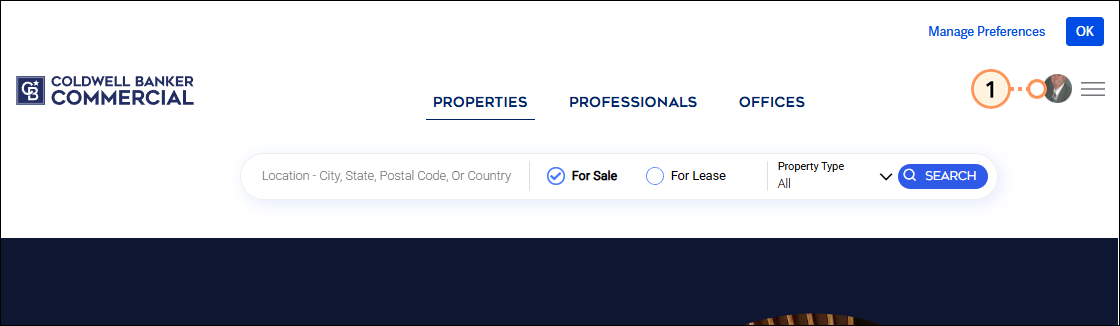
  1. Click on your profile icon in the top right.

    Profile Icon

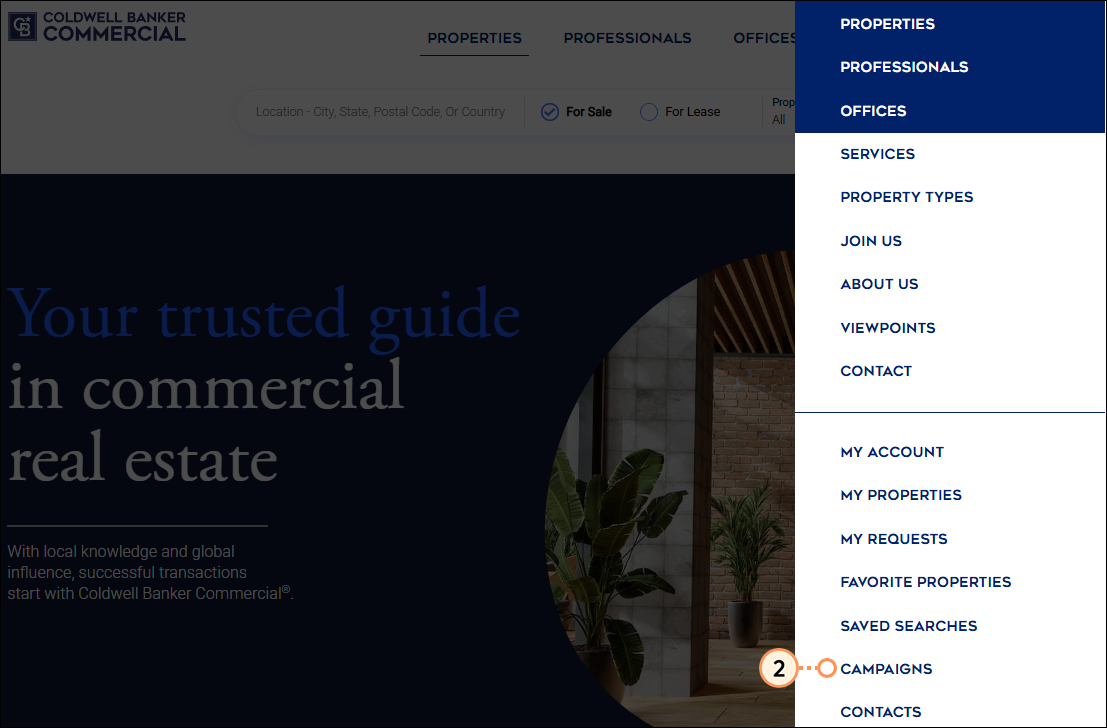
  2. Click Campaigns from the dropdown.

    Dropdown campaigns option

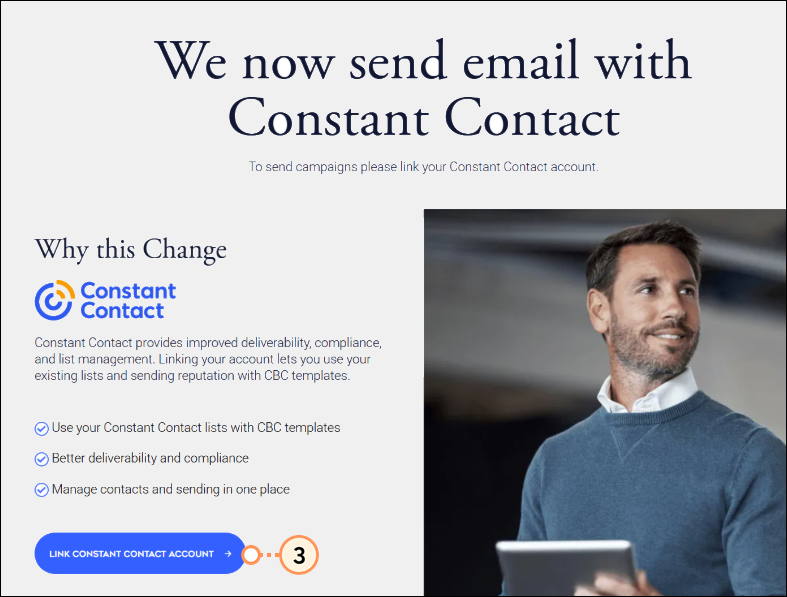
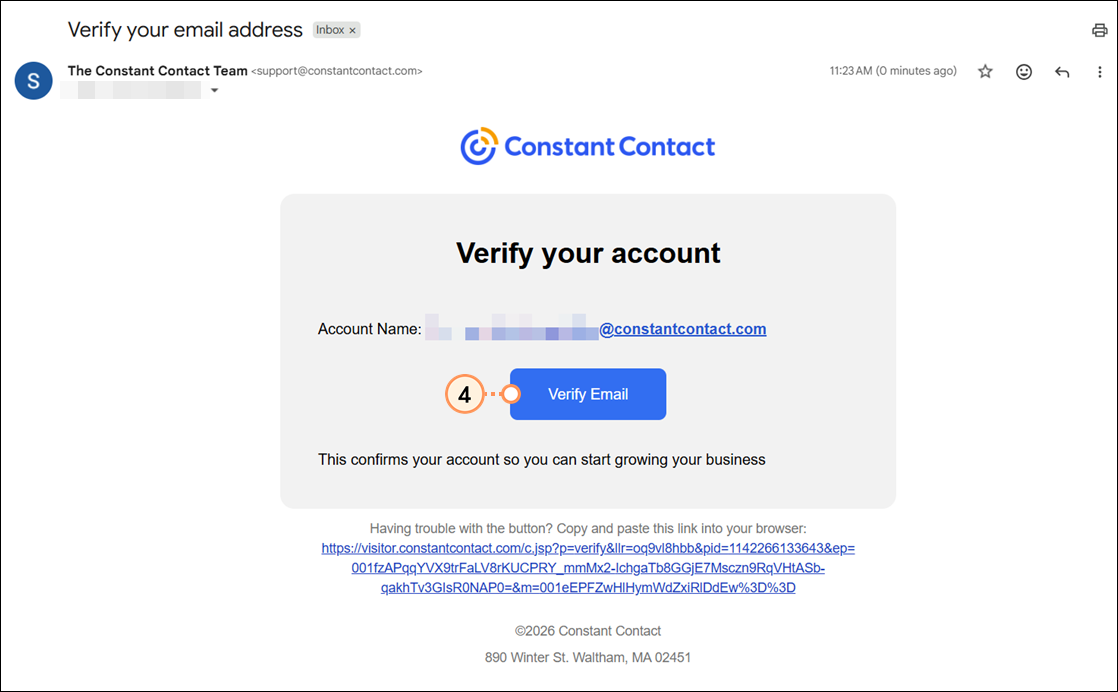
  3. Click the Link Constant Contact Account button.

    Link Constant Contact account button


Add contacts


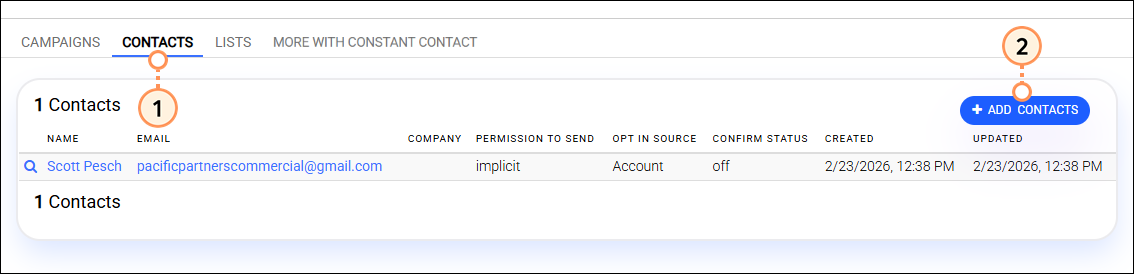
  1. Click the Contacts tab.
  2. Click the Add Contacts button.

    Contacts tab Add Contacts button

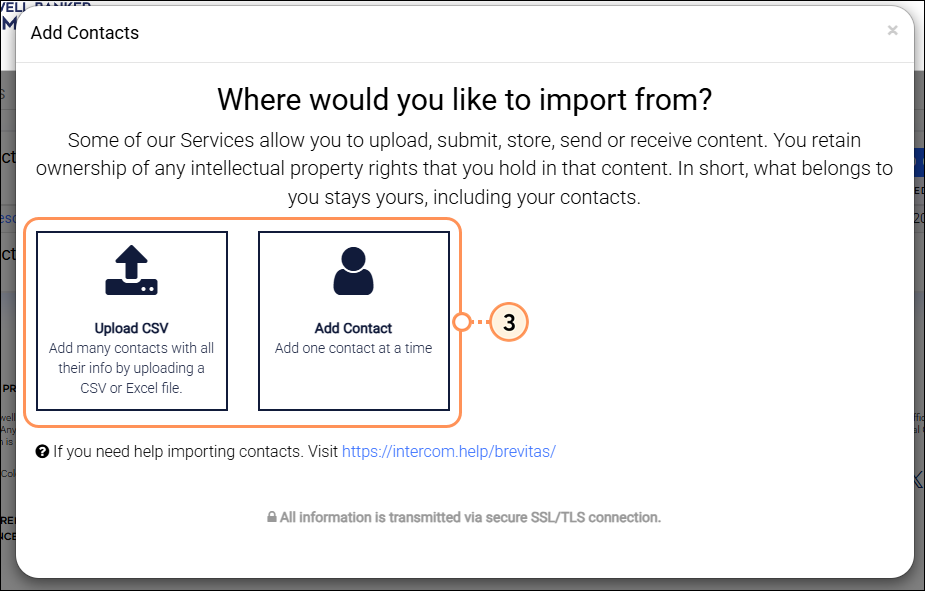
  3. Click Upload CSV or Add Contact to upload a file of contacts or manually add contacts one at a time.

    Upload file or add contacts manually options

  4. If you chose to:
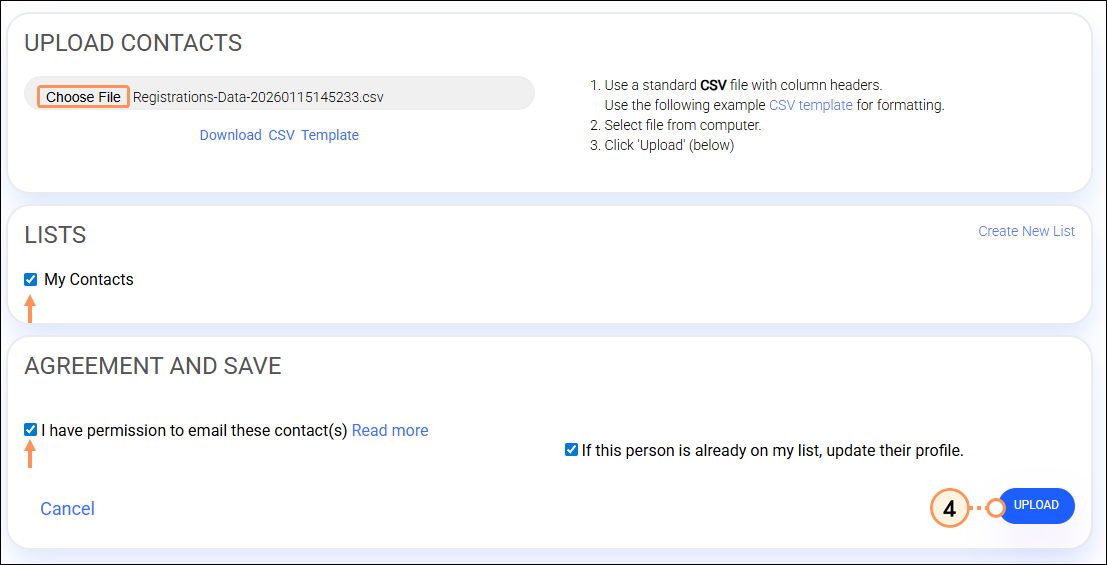
    • Upload a CSV - Select your file, choose the list(s) contacts should be added to, checkmark the agreement box, and then click Upload.

      Select file choose lists agreement checkbox and upload button

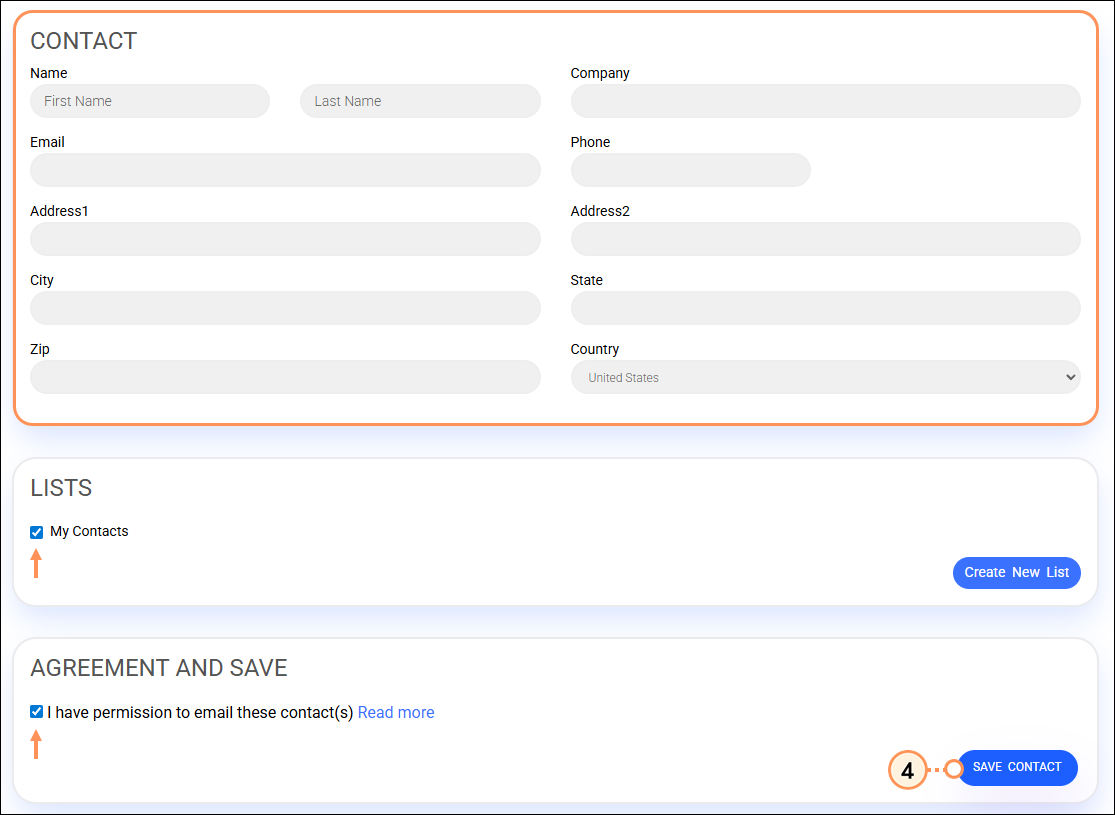
    • Add contacts manually - Enter the contact details, choose the list(s) the contact should be added to, checkmark the agreement box, and then click Save Contact.

      Contact detail fields choose lists agreement checkbox and save contact button


Create a new list


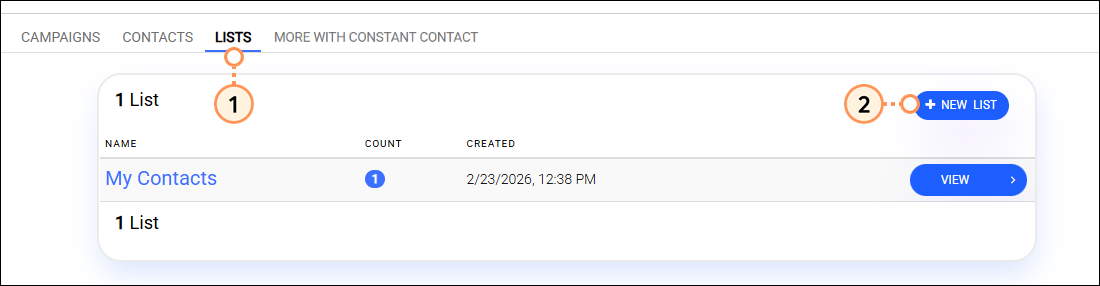
  1. Click on the Lists tab.
  2. Click New List.

    Lists tab and New List button

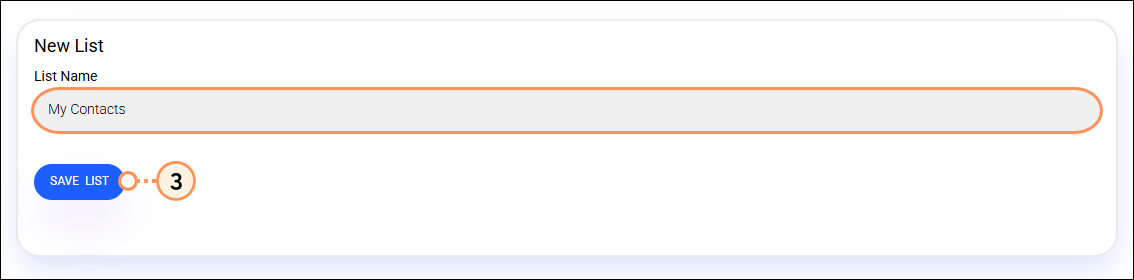
  3. Enter a list name and then click Save List.

    List name field and Save List button


Create and schedule a campaign


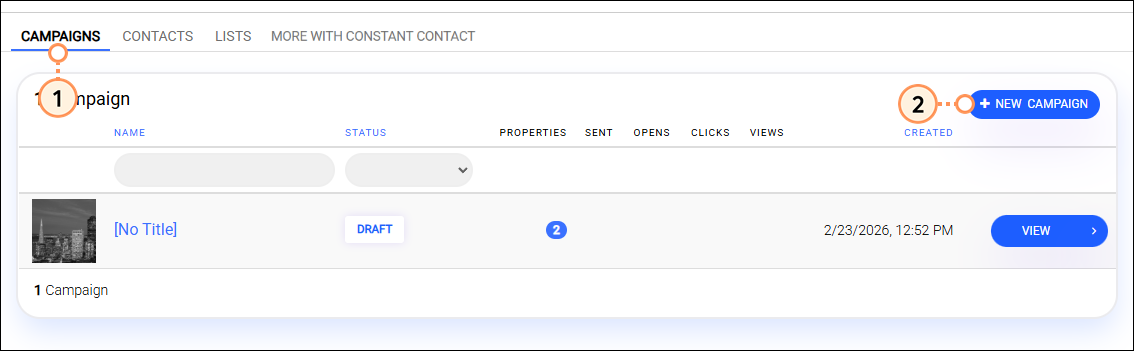
  1. Click the Campaigns tab.
  2. Click Create Campaign.

    Campaigns tab Create Campaigns button

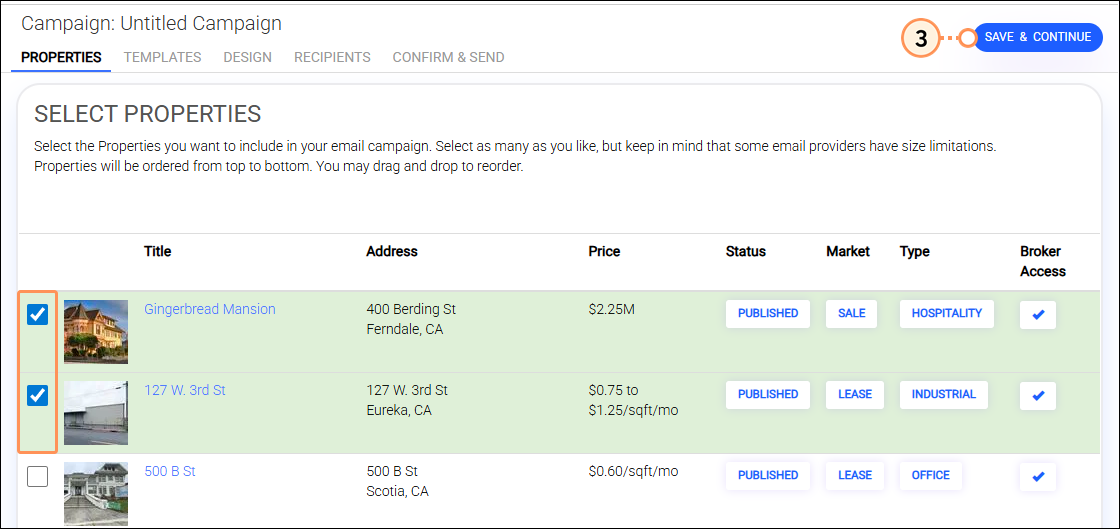
  3. Select the listing you'd like to include in the campaign and then click Save & Continue.

    Property selecting Save and continue button

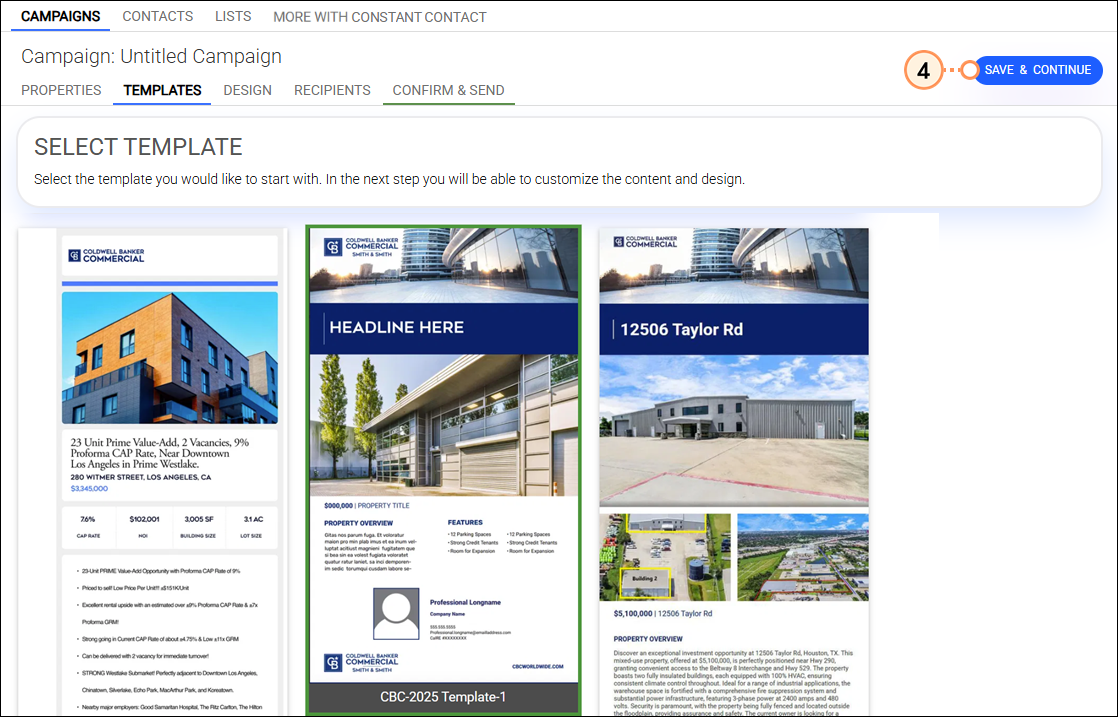
  4. Select a template and then click Save & Continue.

    Template selectiong save and continue button

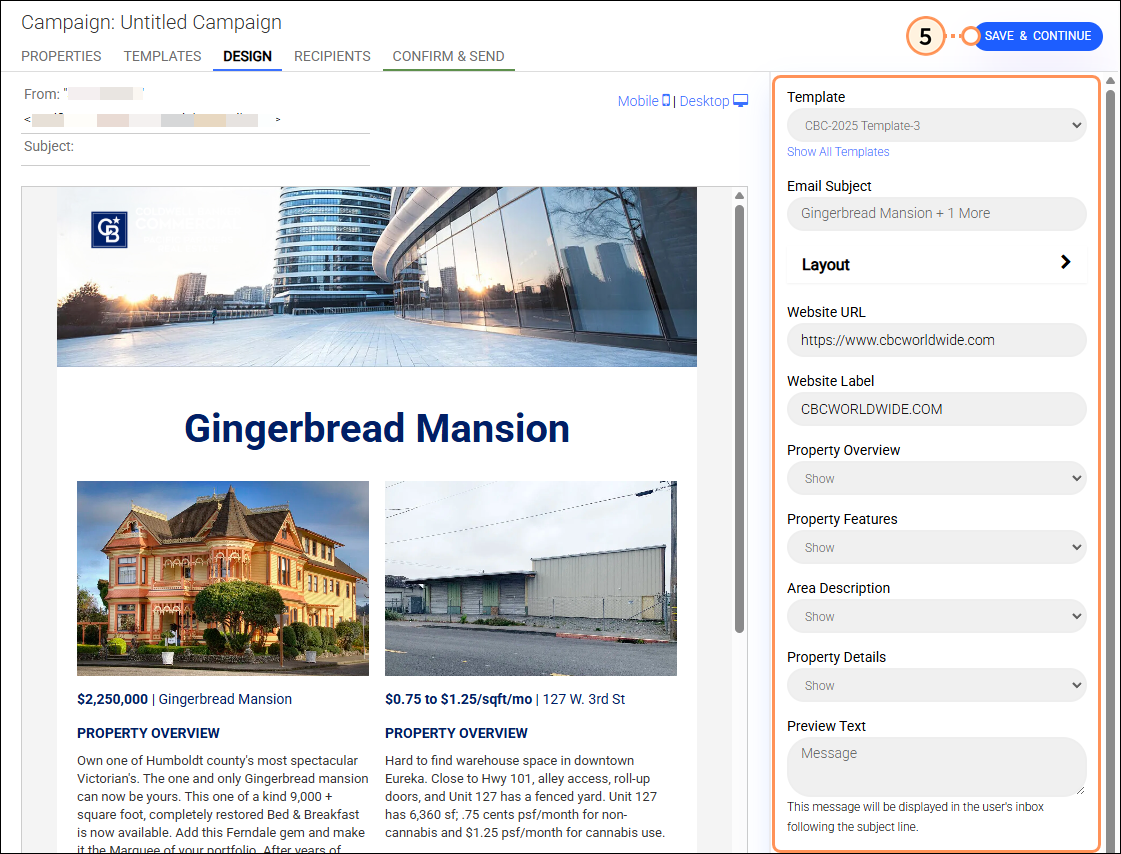
  5. Review and update your details in the panel on the right, as desired. Then click Save & Continue.

    Edit Details save and continue button

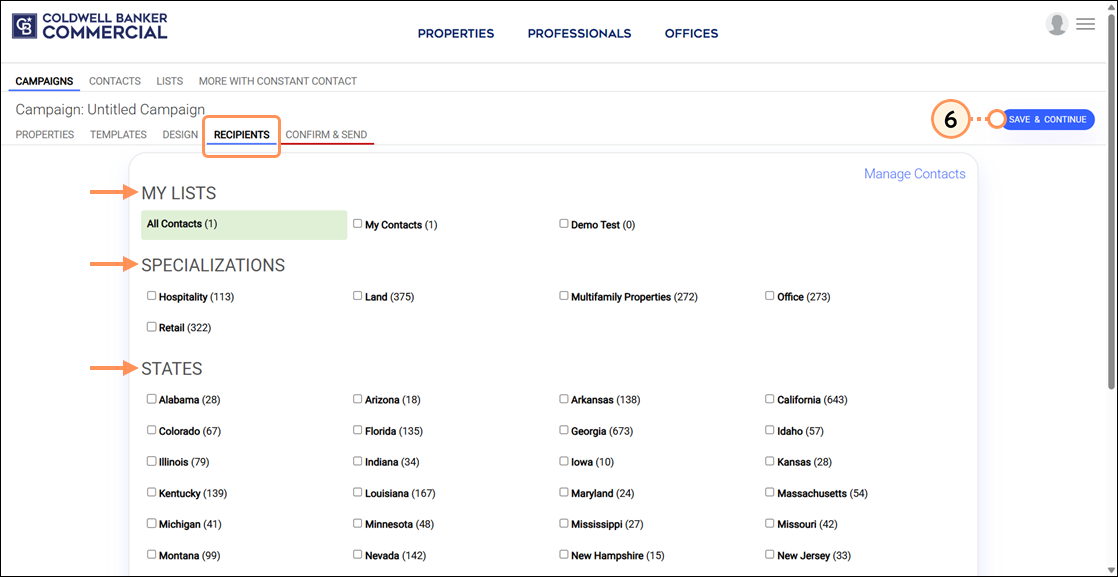
  6. Select the contact list(s) you want to send to and then click Save & Continue.

    List selection save and continue button

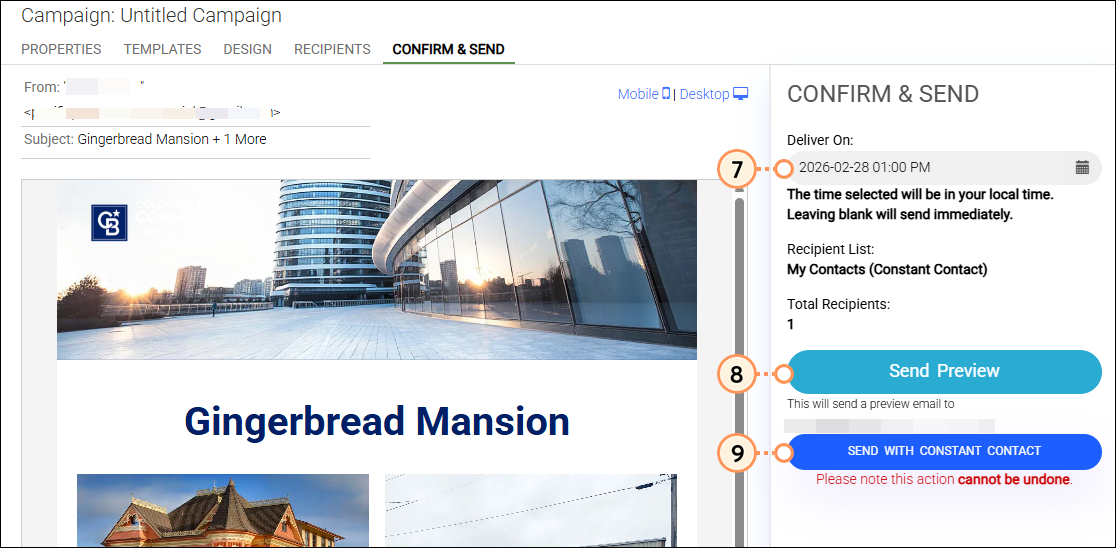
  7. Select the date and time you'd like to send your campaign, or leave the field blank to send immediately.
  8. To send a preview of the email to yourself before sending out to your contacts, click Send Preview
  9. When you're ready to send out your campaign, click Send With Constant Contact.

    Delivery date field Preview and send buttons


Questions?

Ask the Community

Did this article answer your question?


Constant Contact Logo

Copyright © 2026 · All Rights Reserved · Constant Contact · Privacy Center