With Lofty, instantly transfer new leads and contact updates from Lofty to Constant Contact to keep your email lists up to date. Then, easily send campaigns to your contact lists with property listings of your choice. Select your desired template, edit the email design, and preview before sending your campaign.
Please note that this is a one-way sync. Newly added and updated contacts will not import from Constant Contact into Lofty. However, contacts that are unsubscribed in Constant Contact will sync back to Lofty.
Connect your Lofty account to your Constant Contact account to import contact, user profile, and transactional data.
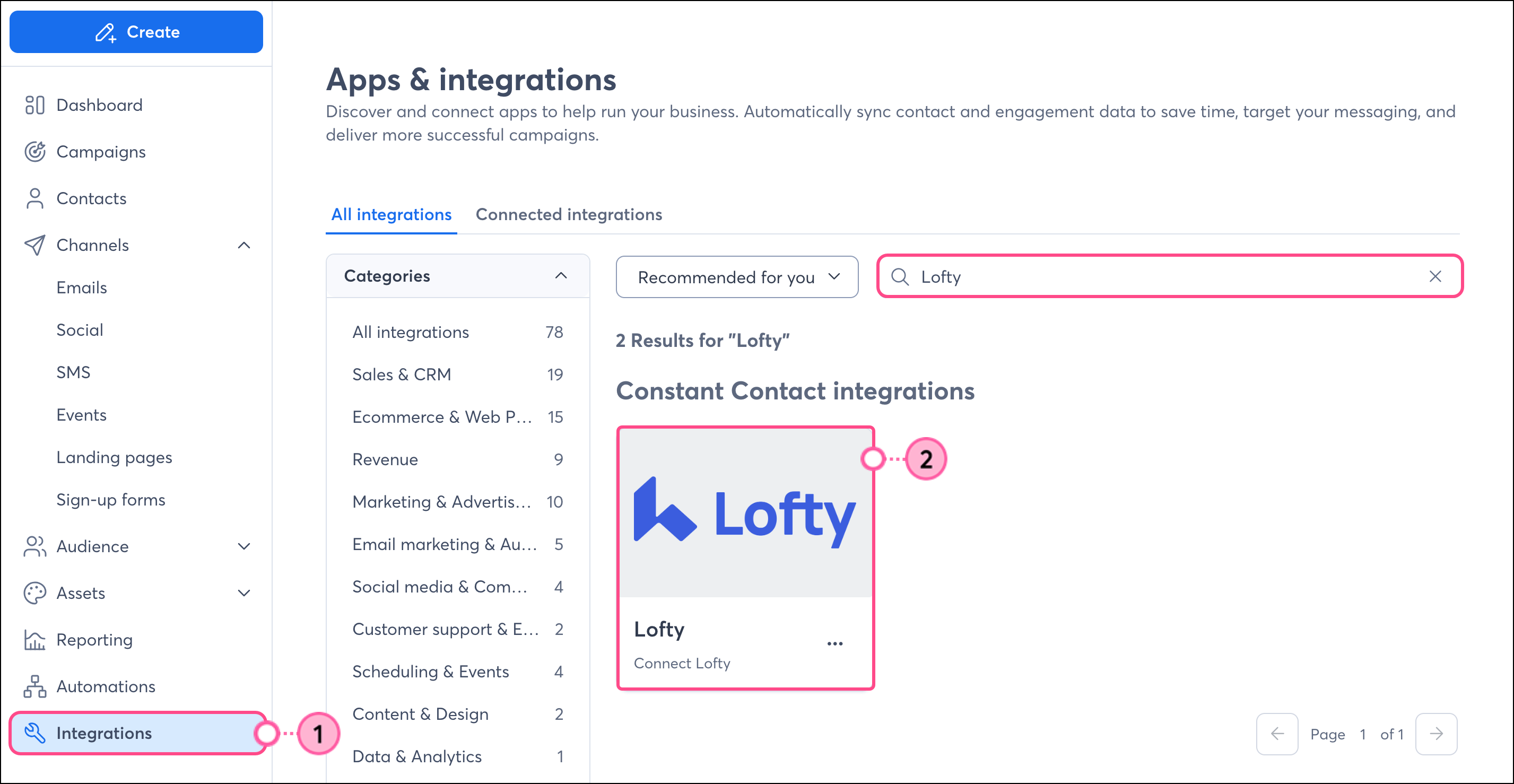
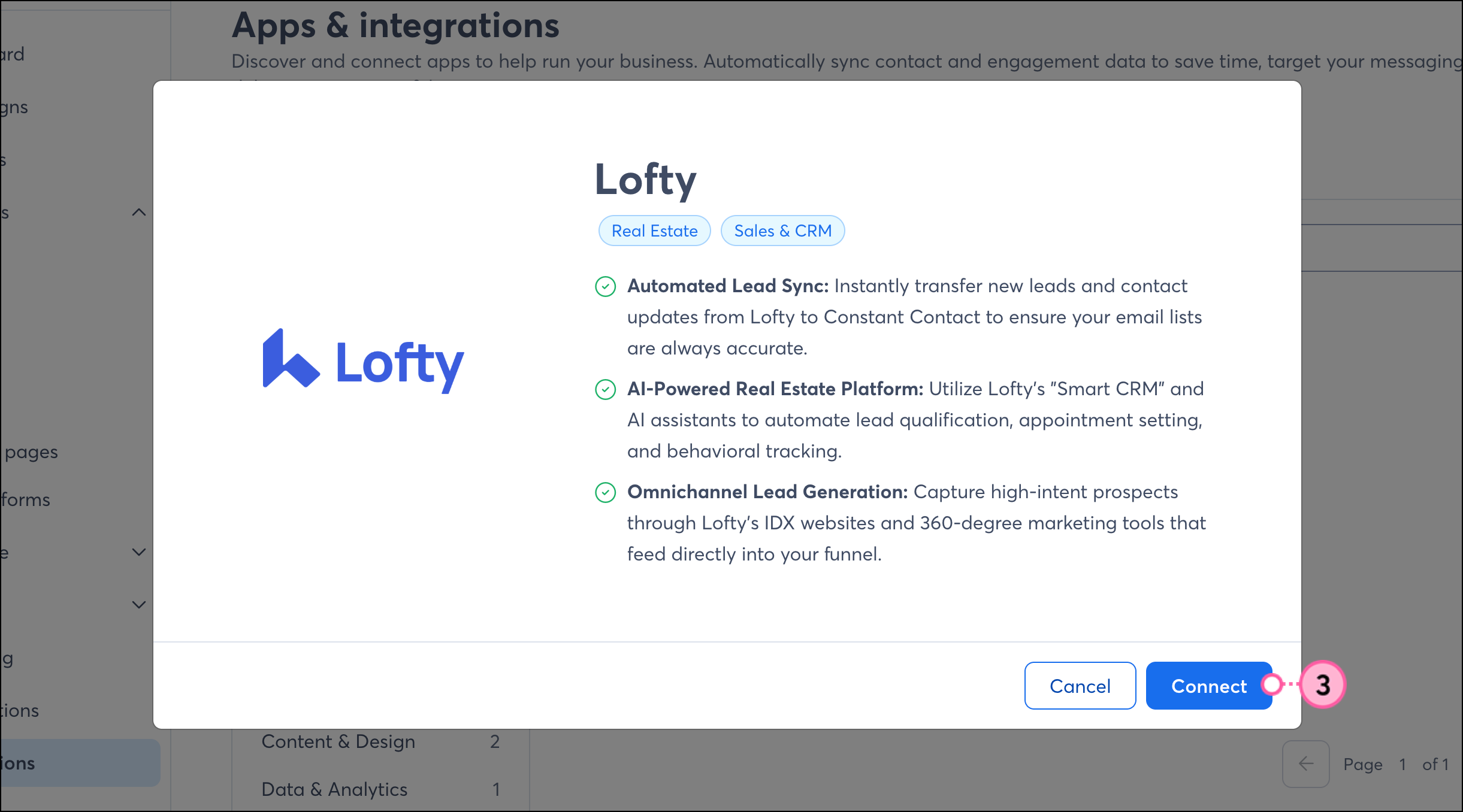
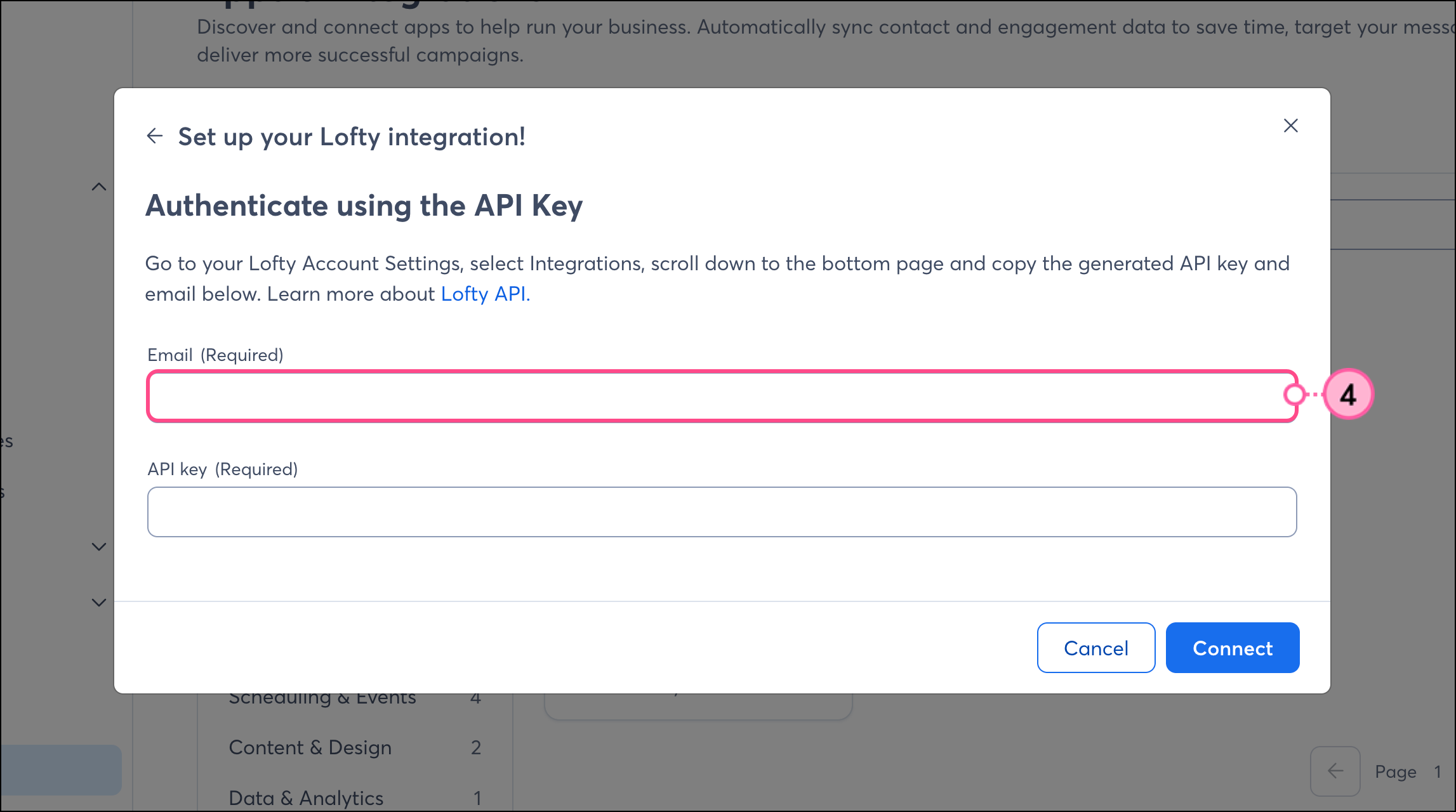
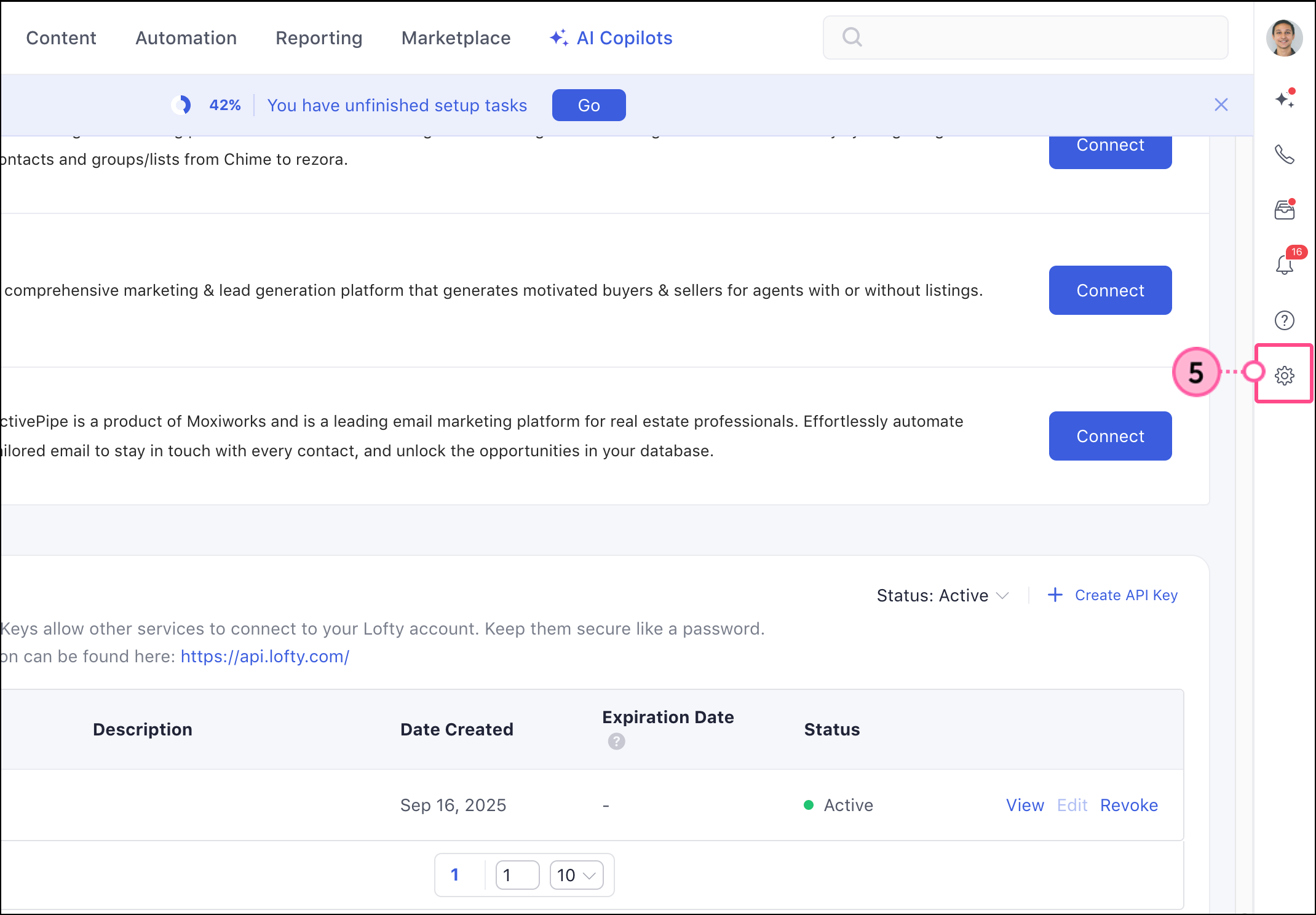
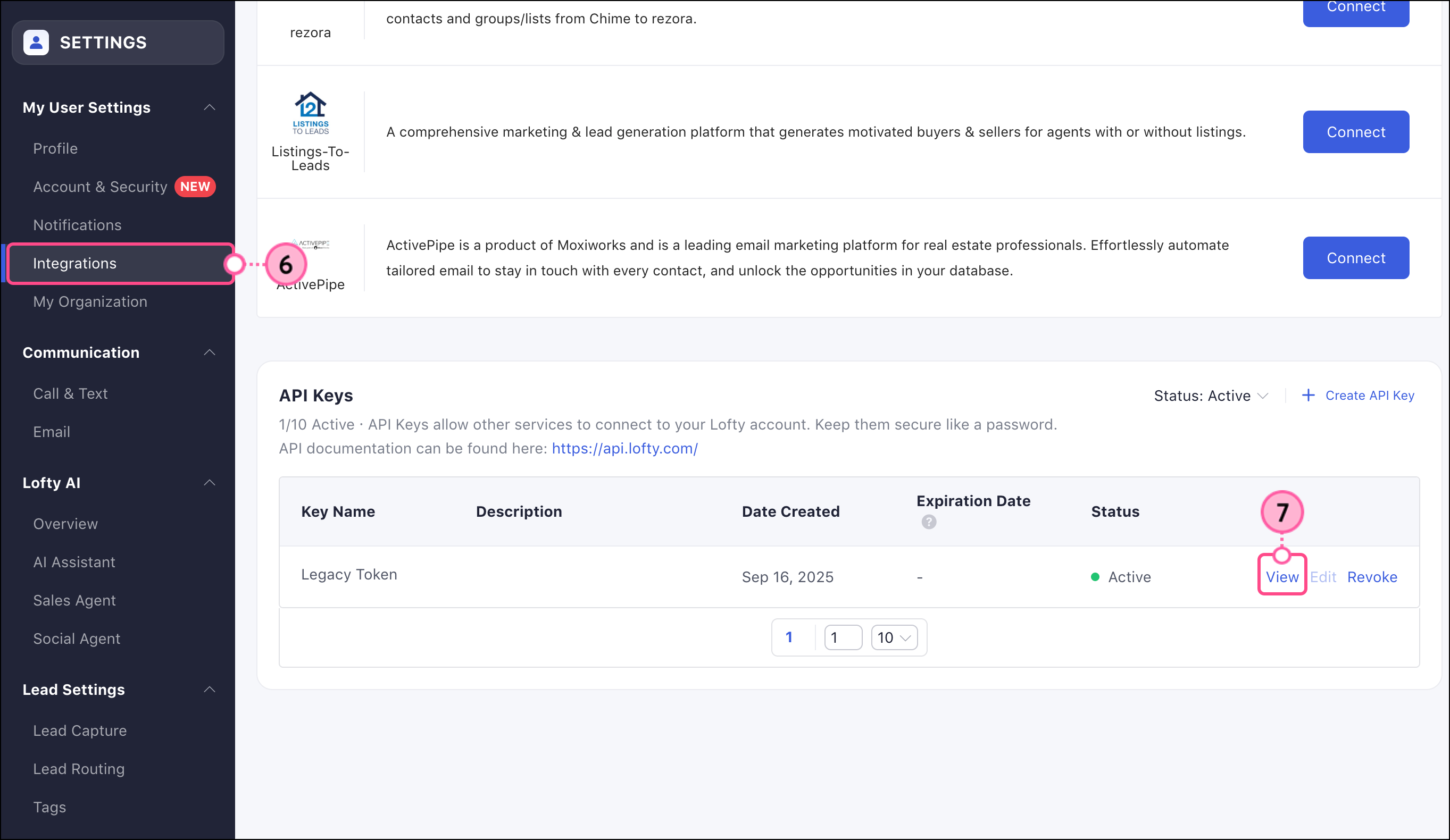
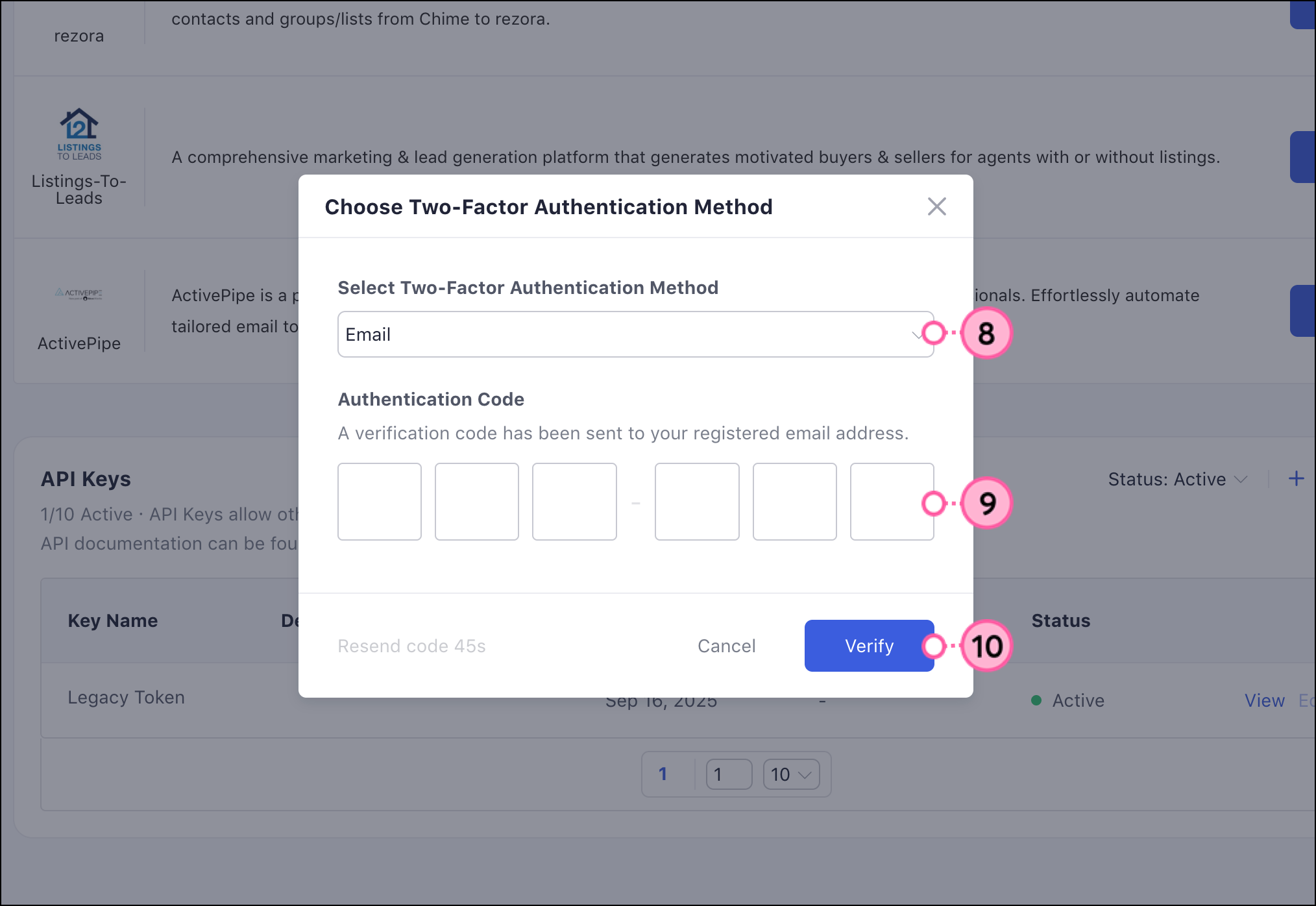
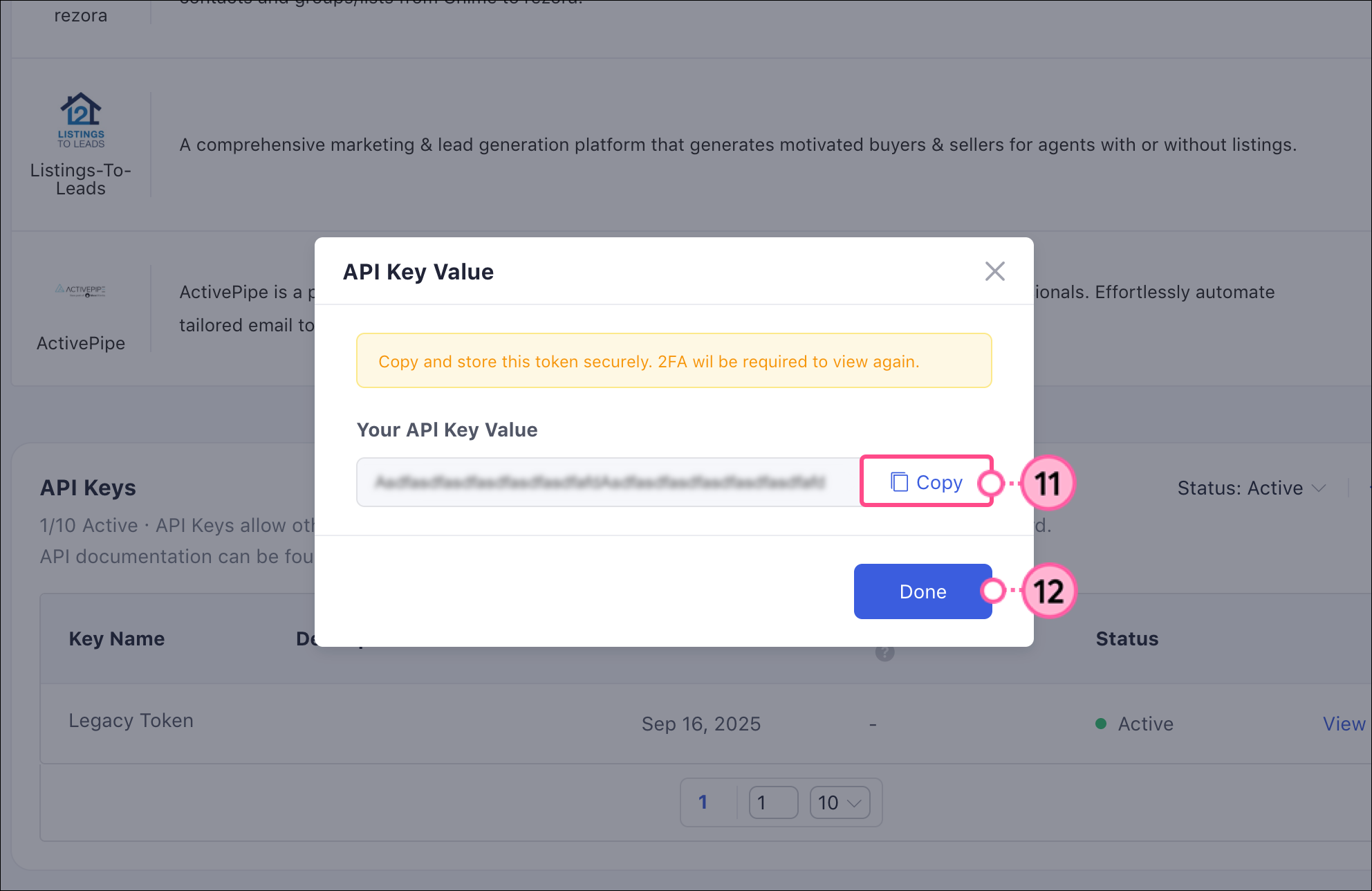
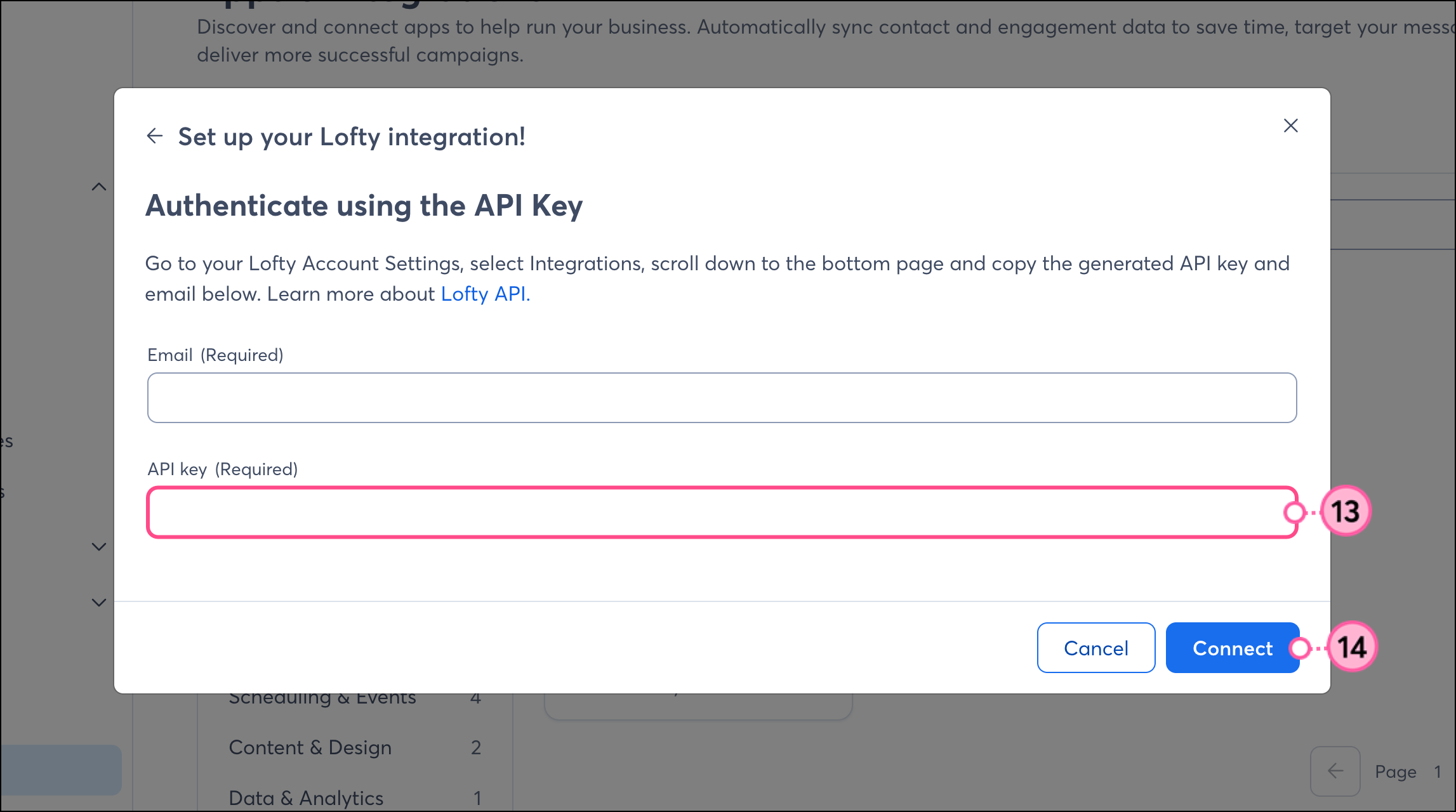
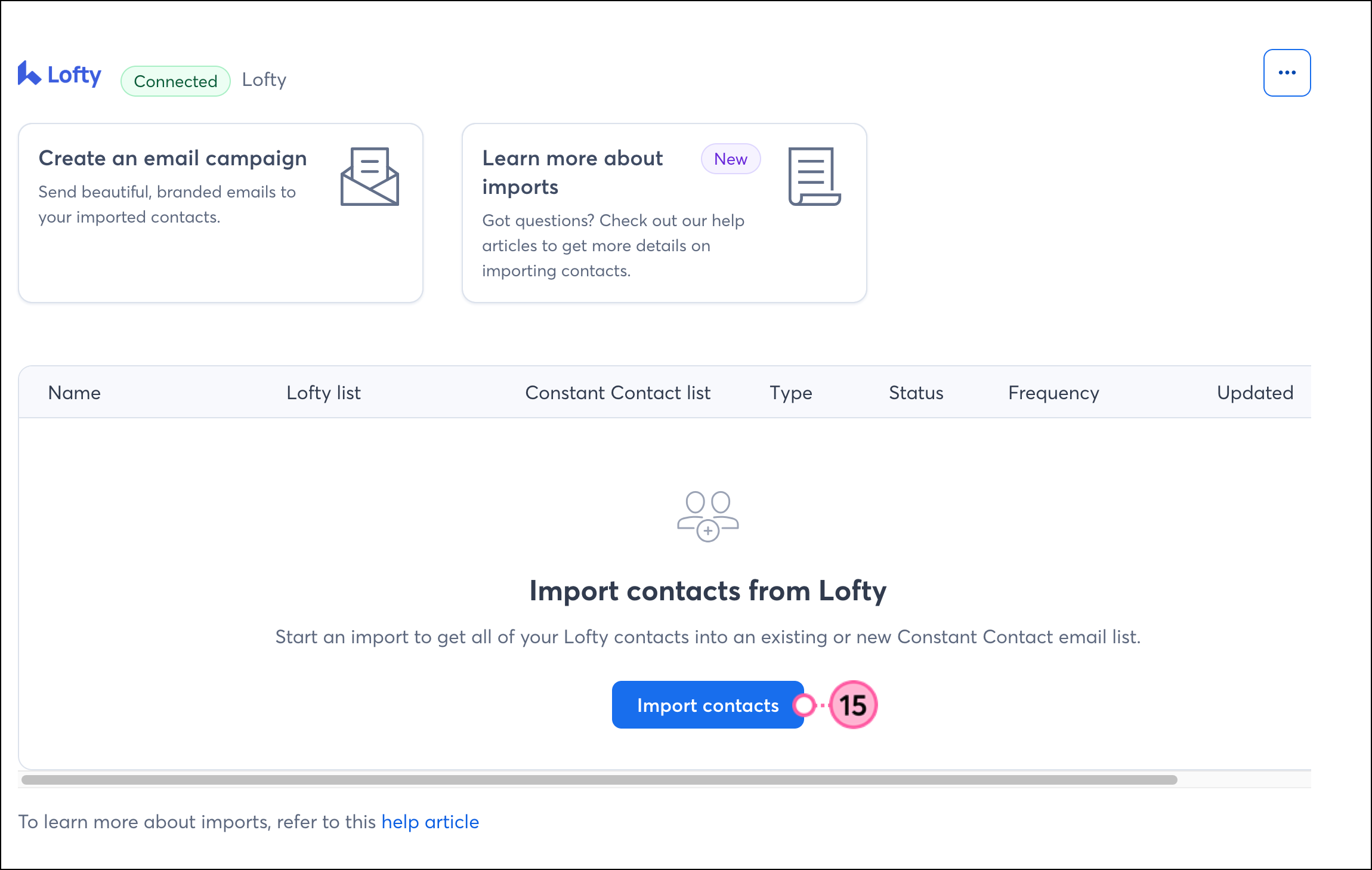
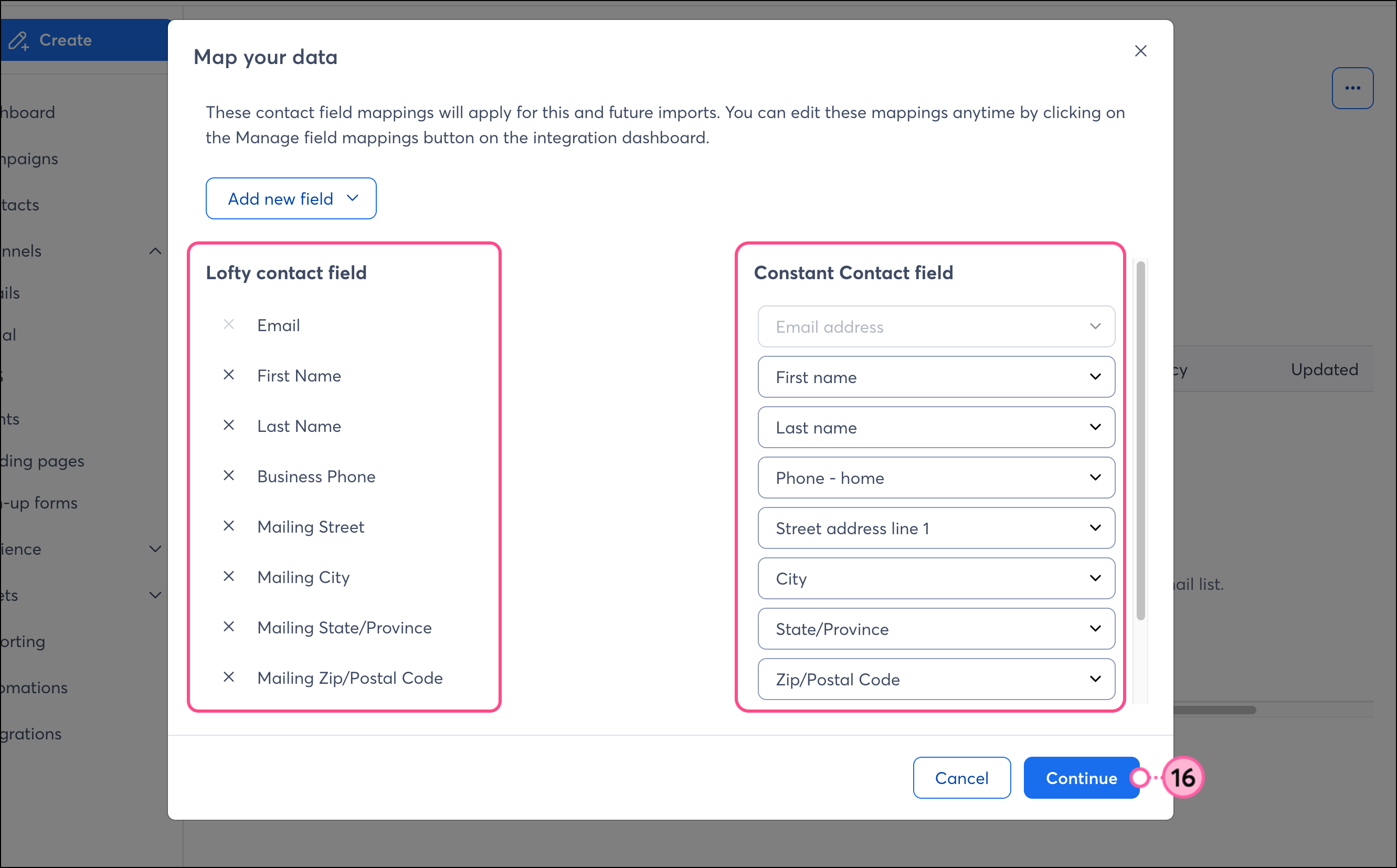
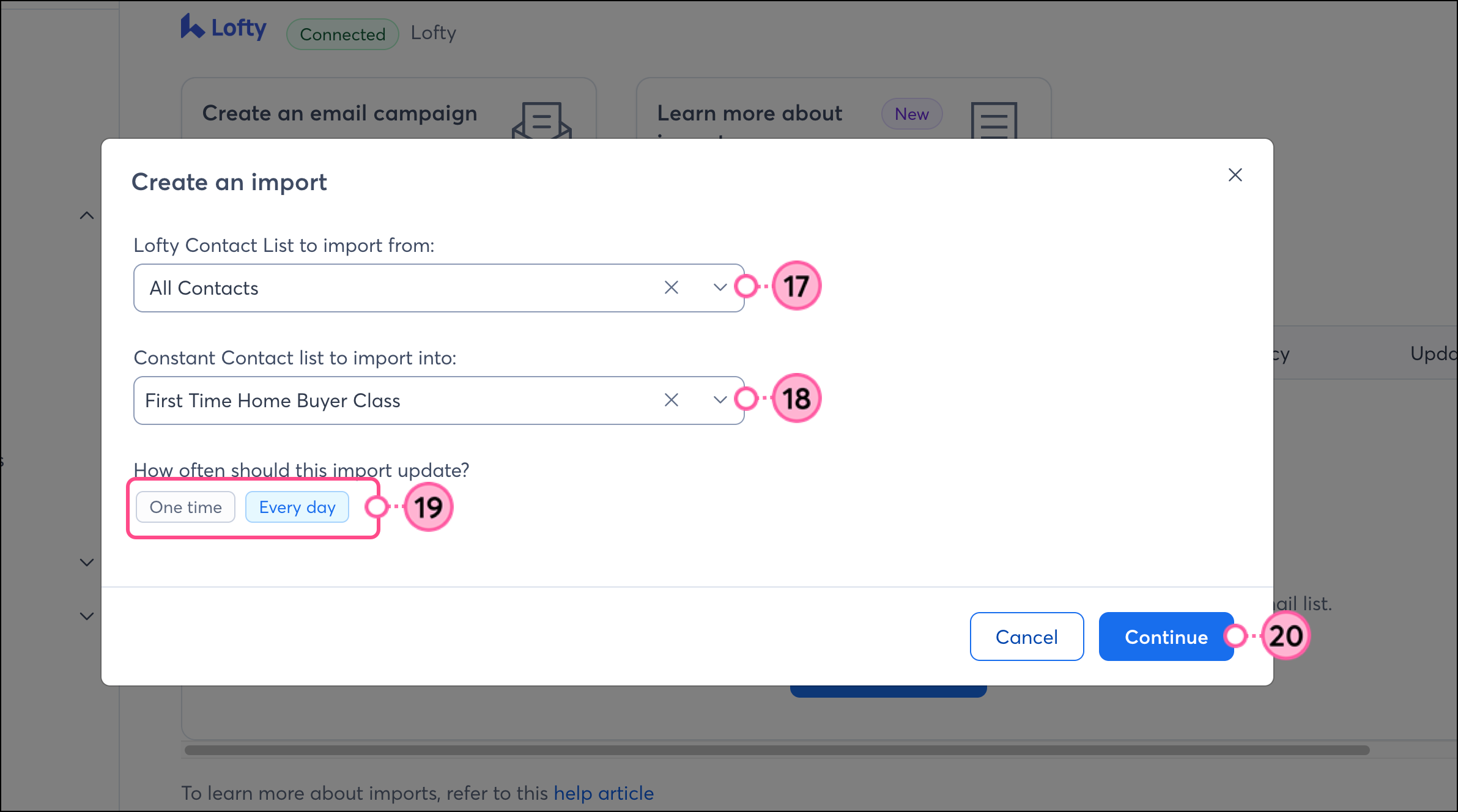
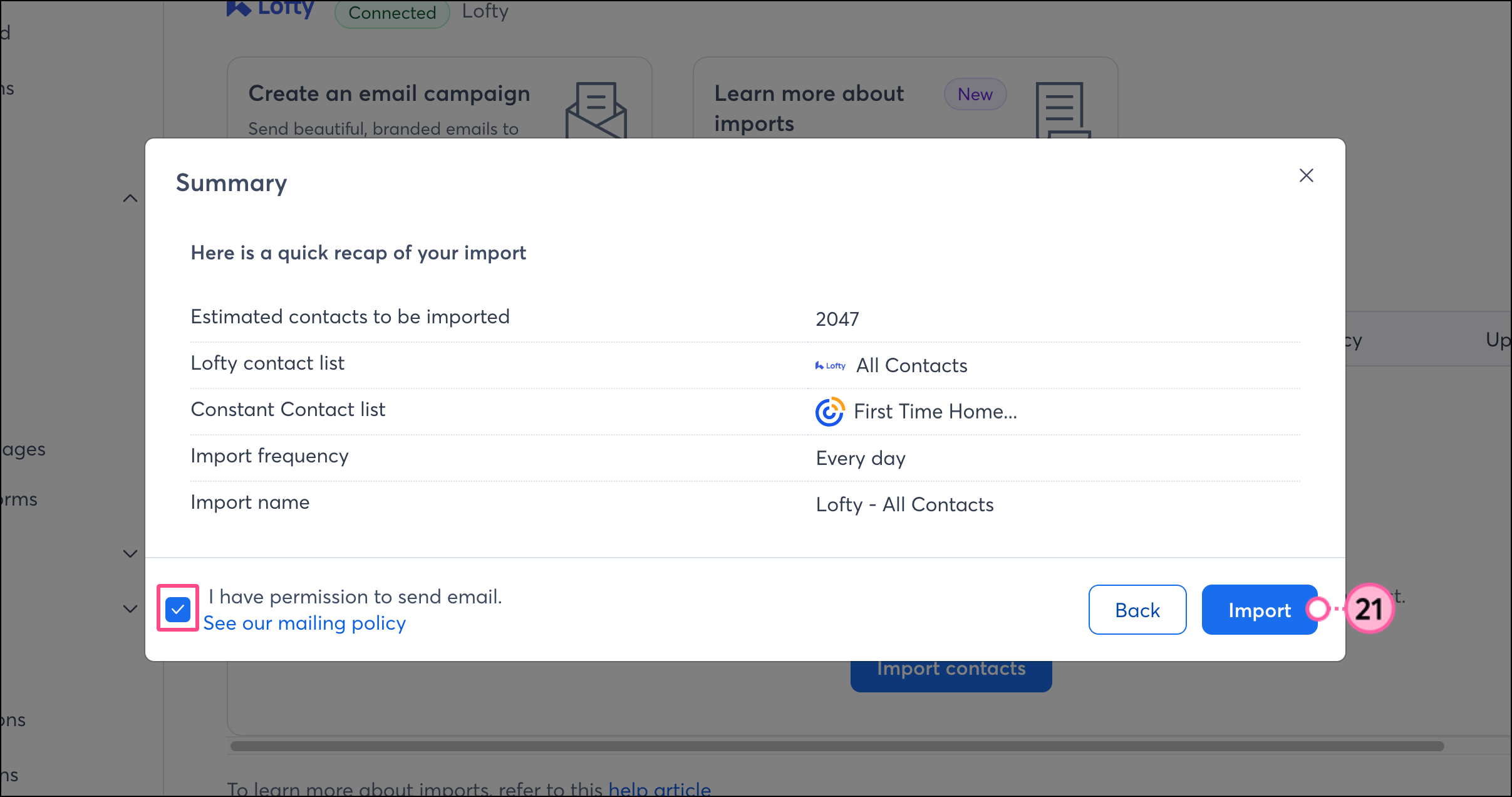
Once connected, you’re then brought back into Constant Contact and to the Lofty Integration dashboard, where you can review your imported leads. Depending on the number of leads being imported, the initial sync can take anywhere from 30 minutes (for imports of less than 100K contacts) up to 4 hours (for imports of more than 200K contacts).
Once your Lofty account is synced to Constant Contact, there are several ways to use the integration throughout your Constant Contact account:
Create a customized contact segment - When importing contacts from Lofty, they will be synced into segmented lists for you. But perhaps you want to segment these contacts even further to send specific, targeted messaging. You can do so by creating a custom segment of contacts.
Create an automated Welcome Path - Create a Welcome Path. When your list syncs, newly added contacts are automatically sent an email or SMS message.
Create an automated Anniversary Path - Send annual emails or SMS messages to your customers based on the date of their first visit to your business.
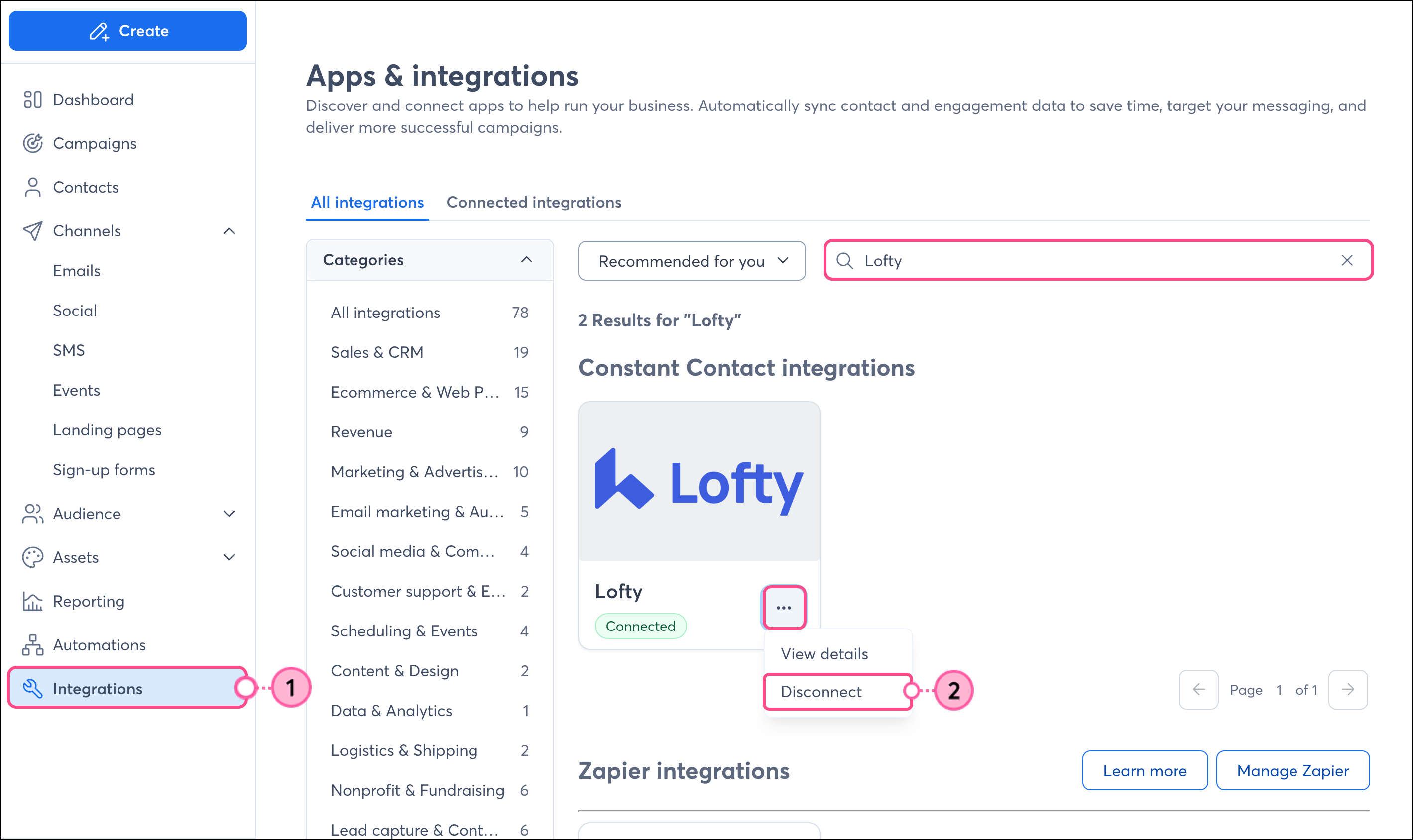
If you disconnect the Lofty integration, your imported contacts will remain in your Constant Contact account. New Lofty data will no longer be imported into Constant Contact, nor will unsubscribes be sent back from Constant Contact to Lofty:
Any links we provide from non-Constant Contact sites or information about non-Constant Contact products or services are provided as a courtesy and should not be construed as an endorsement by Constant Contact.
Copyright © 2026 · All Rights Reserved · Constant Contact · Privacy Center