Email and Digital Marketing
How can we help you?
Search our help articles, video tutorials, and quickstart guides

You've got this. You've got us. Search our Knowledge Base to quickly find answers to your questions.

Partners: Sync Multiple Client Calendars to Your Personal Calendar

Article: 000054791
Updated: January 8, 2026

Add the campaign information from your clients' Constant Contact calendars to your personal calendar in order to track their activity in one place

Use our Calendar Sync feature within each of your subaccounts to keep track of scheduled content across all your managed accounts. Overlay multiple marketing schedules onto a single external calendar, like Google, Outlook, or Apple Calendar, to provide a "bird's-eye view" of all your client activity. This saves you time by eliminating the need to log into each individual account to check dates. Additionally, it allows you to: see campaign launch dates for all clients in one place, ensure you aren't scheduling major launches for multiple clients on the same day, and track deadlines using your mobile device or desktop calendar app.


Sync client calendars to your personal calendar

Frequently Asked Questions


Sync client calendars to your personal calendar


To start, you need to collect the unique calendar feed URL for each child account you want to track. Once you have gathered the links from your various child accounts, you can add them to your preferred calendar application. Once the calendars are added, you can color-code them and toggle them on or off as needed.


Step 1: Retrieve the Calendar Link from a Child Account


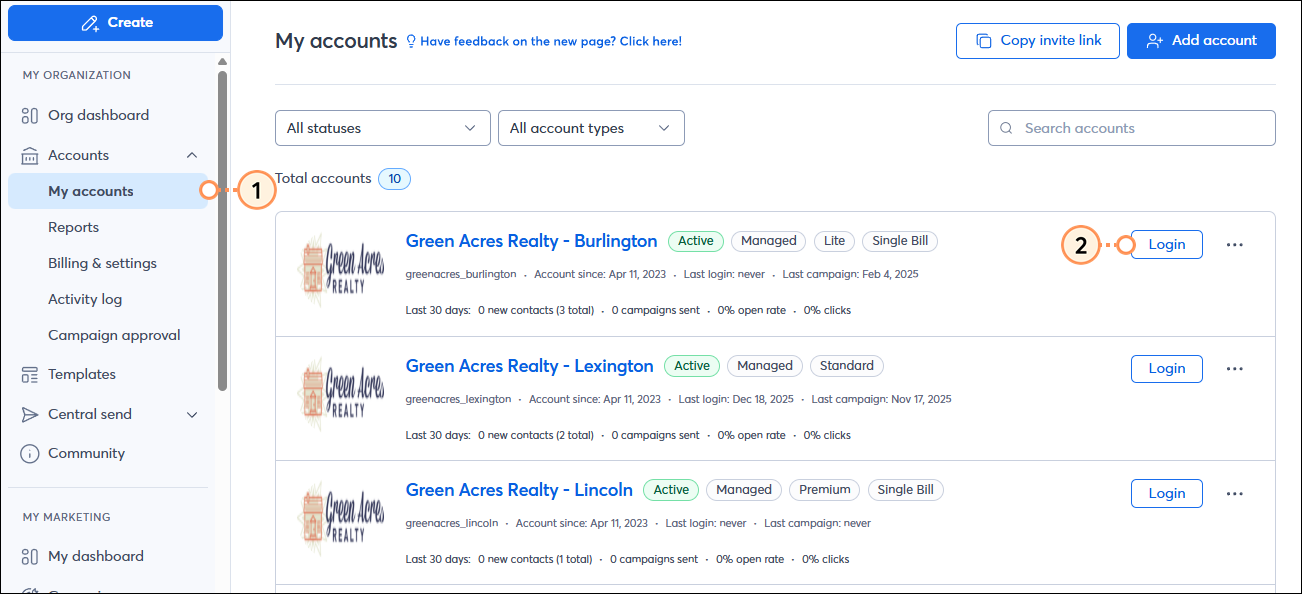
  1. From the "My Organization" section of the left-hand menu, click Accounts > My accounts.
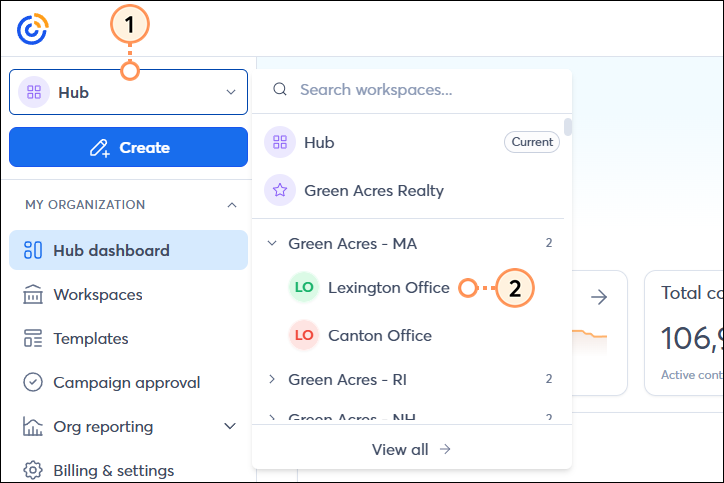
  2. Find the managed account you want to sync and click the Login button to access the child account dashboard.

    Accounts page login to subaccount button

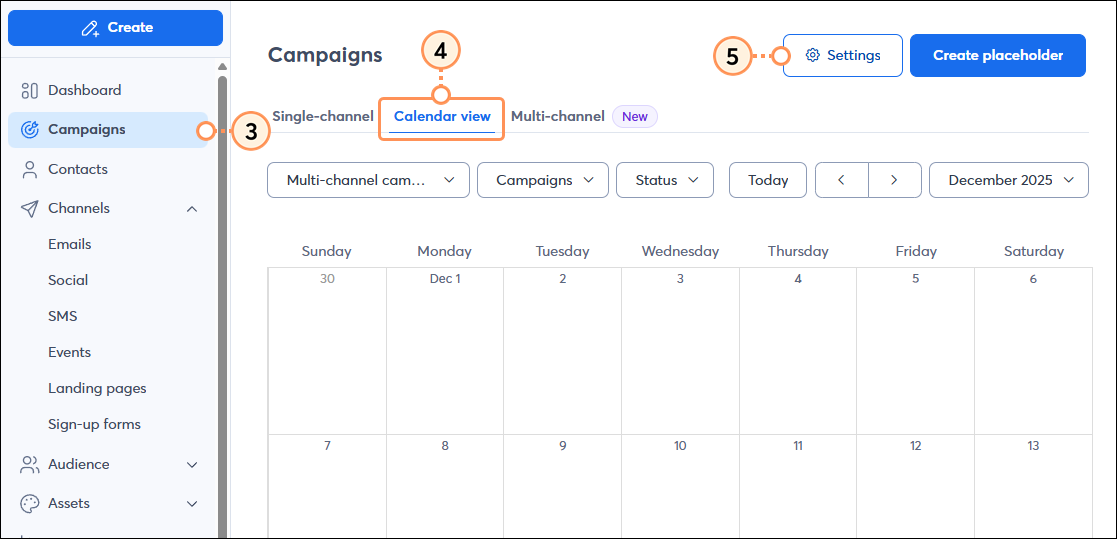
  3. Within the subaccount, click the Campaigns tab.
  4. Click the Calendar view tab.
  5. Click Settings.

    Campaigs page Calendar tab Settings button

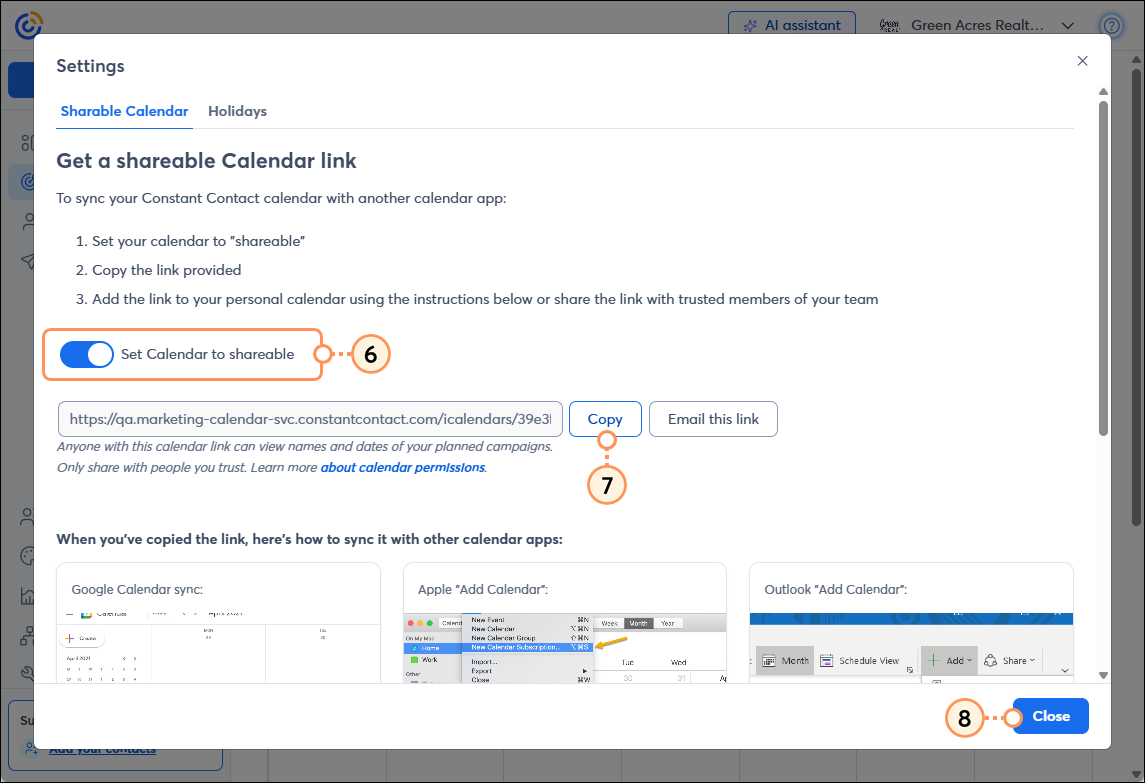
  6. In the pop-up window, click the toggle to enable calendar sharing.
  7. Click Copy.
    Tip: Paste this link into a temporary document or spreadsheet and label it with the client's name. You will need these links in the next section.
  8. Click Close.

    Copy shareable link


Once you have the link, log out of the subaccount and return to your Partner account to repeat the process for any other accounts you wish to sync.


Step 2: Add the Links to Your Personal Calendar


Note: Each account must be added as a "New Calendar" or "Calendar Subscription" so they remain distinct.


For Google Calendar:


  1. Within Google Calendar, on the left sidebar, click the + icon to the right of "Other calendars".
  2. Select From URL.
  3. Paste the link you copied from the subaccount.
  4. Click Add calendar.
  5. (Optional) Find the new calendar under "Other calendars," click the three dots, and rename it to the Client's Organization name.


For Outlook (Web):


  1. With Outlook Calendar, click Add calendar and select Subscribe from web.
  2. Paste the subaccount URL.
  3. Give the calendar a name (e.g., "Client A - CTCT") and click Import.


Step 3: Organize Your View


Once the calendars are added to your personal calendar, you can do the following to organize them:


  • Color Coding - Assign a different color to each subaccount to easily distinguish which client is sending which campaign.
  • Toggle Visibility - If your view becomes too cluttered, uncheck the box next to specific client calendars to temporarily hide them.


Frequently Asked Questions


Does the calendar update automatically?
Yes. When you schedule, reschedule, or unschedule a campaign within a subaccount, the change will reflect on your personal calendar. Note that some calendar providers (like Google) may take up to 24 hours to refresh the data.


Is this a "read-only" sync?
Yes. You can view your campaigns on your personal calendar, but any changes to dates or content must be made directly within the specific Constant Contact subaccount.


Can I share these links with others?
Yes. If you have a team member who manages specific clients, you can provide them with the unique URL so they can also sync that client's calendar to their personal calendar.


Questions?

Ask the Community

Did this article answer your question?


Constant Contact Logo

Copyright © 2026 · All Rights Reserved · Constant Contact · Privacy Center