Email and Digital Marketing
How can we help you?
Search our help articles, video tutorials, and quickstart guides

You've got this. You've got us. Search our Knowledge Base to quickly find answers to your questions.

Create, manage, and delete hashtag groups for social posts

Article: 000054065
Updated: October 6, 2025

Create groups of up to 30 hashtags ahead of time so you can quickly add them to a social post, edit a hashtag group to add or remove hashtags, or delete a hashtag group

Hashtags are social media staples! They help you extend your reach past your friends and followers, so they're great additions to your social posts. When you find yourself using the same hashtags over and over, it's time to create a hashtag group; these let you create the hashtags once and then you can add them to your post with a couple of clicks!
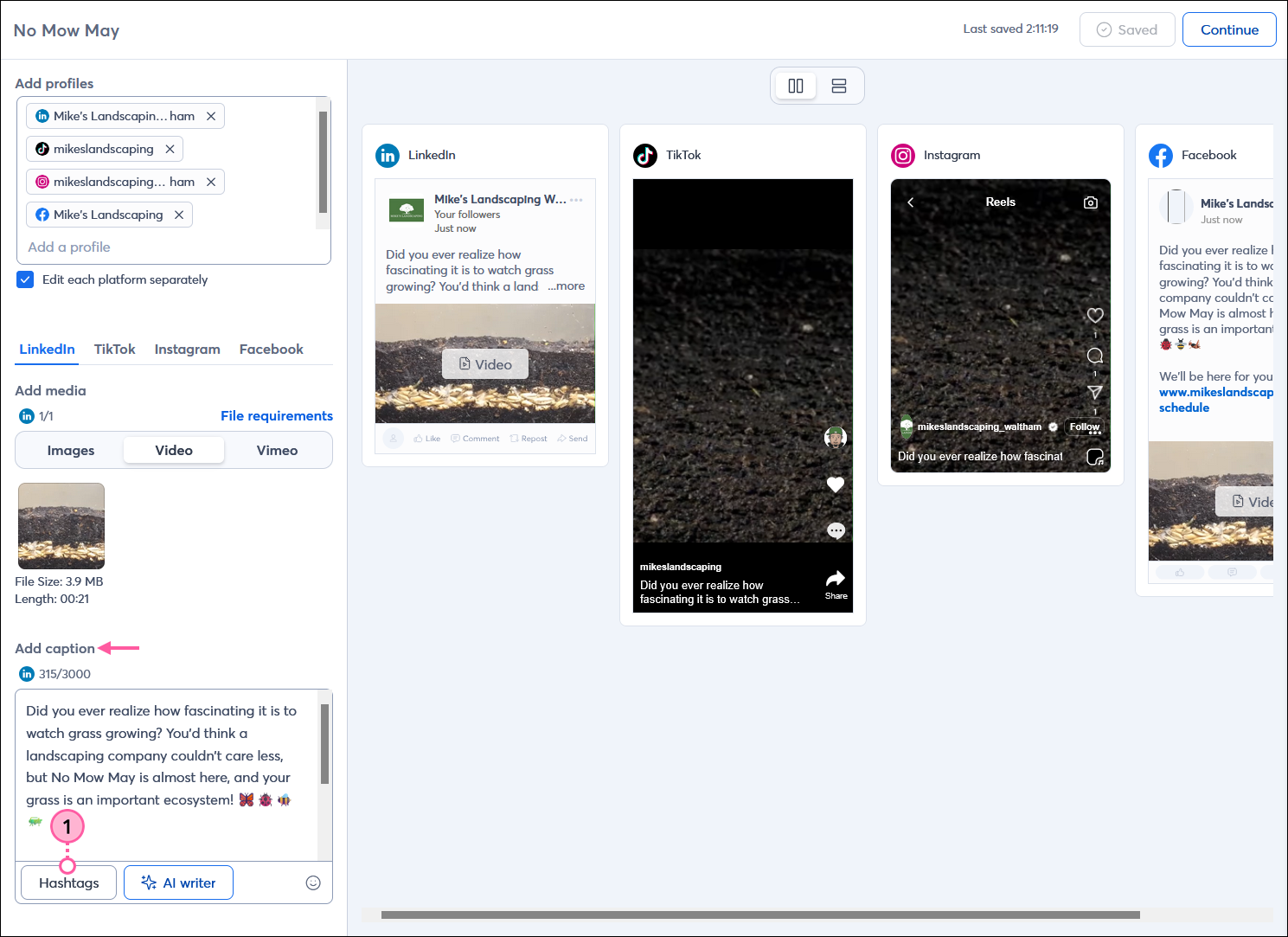
  1. While creating or editing a social post, click the Hashtags button in the Add caption section.

    Social post editor with multiple profiles and post variation enabled, LinkedIn option selected, Add caption section with post content and Hashtags button

  2. From the Select hashtag groups to add to your post overlay, you can:


Megaphone IconBe a better marketer: Be sure to check out our best practices for engaging with your audience on social media!


Create a new hashtag group

Exclamation Point IconImportant: TikTok only supports 5 hashtags per post. If you create a hashtag group with more than 5 hashtags, the first 5 hashtags in the selected group are applied to the TikTok post. For the most control over which hashtags are applied, you can use post variations and add a separate hashtag group to your TikTok variation.


Each hashtag group you create can have up to 30 hashtags.
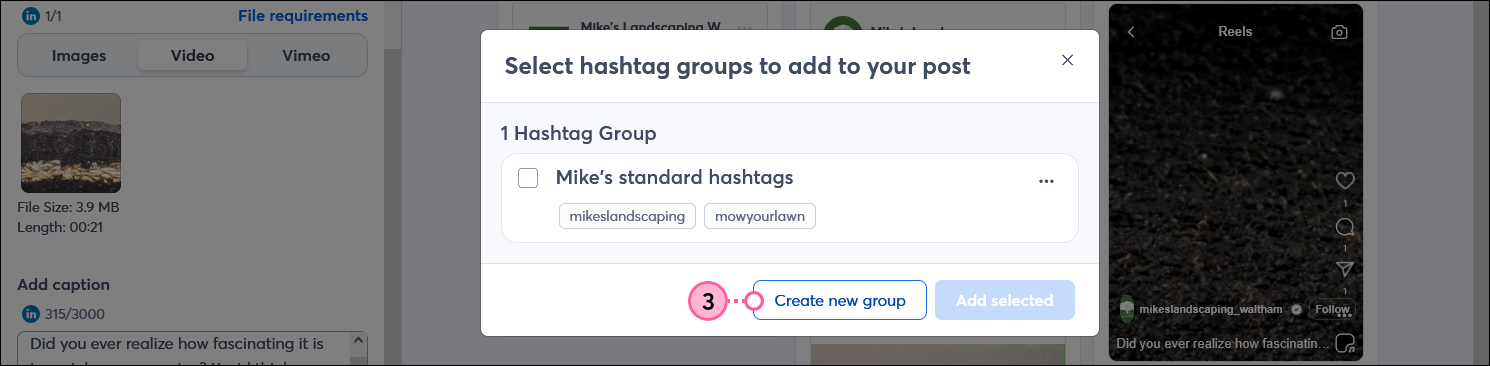
  1. Click the Create new group button.
    Note: The first time you click the Hashtags button, you're brought right into the hashtag group editor—skip to step 4.

    Select hashtag groups to add to your post overlay with 1 hashtag group created and Create new group button

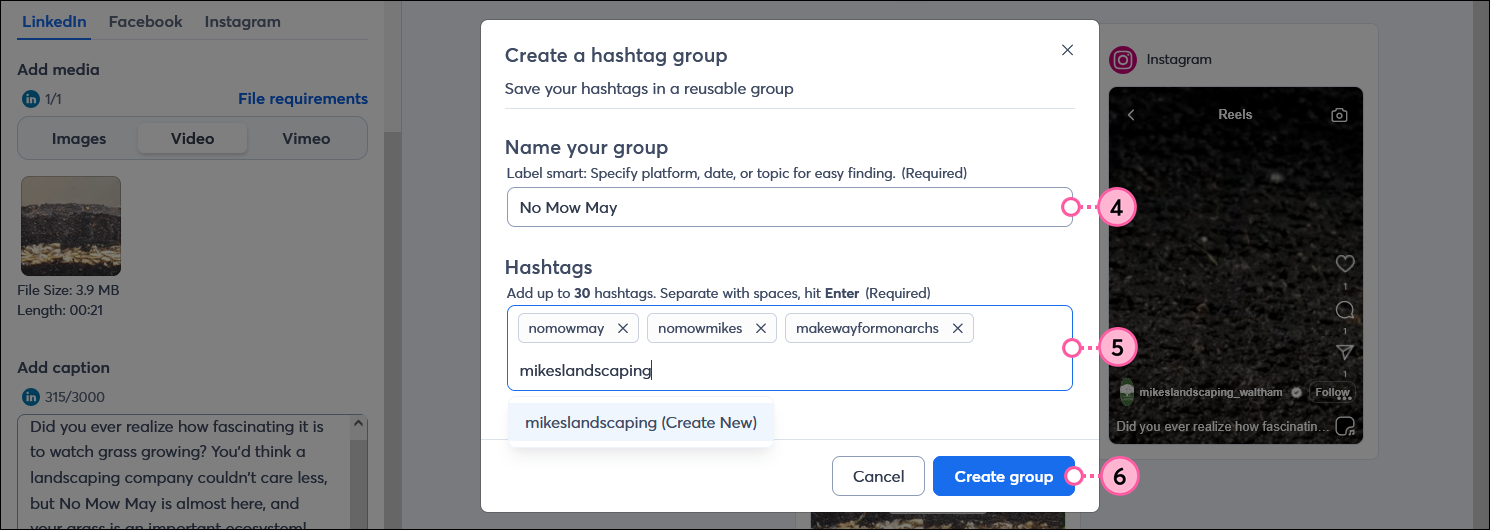
  2. Give your hashtag group a new name.
  3. Enter each hashtag you want to include in the group.
    Note: Hashtags with hyphens (-) aren't compatible with Instagram or Facebook. We recommend using a single, continuous string of characters for all platforms instead.
  4. Click the Create group button.

    Create a hashtag group overlay with Name your group field, Hashtags field with multiple hashtags, and Create group button


Select a hashtag group to add to your post

You can select a single hashtag groups or select several to add to your social post. If there are duplicate hashtags in multiple groups, we remove them so they only appear once per post.
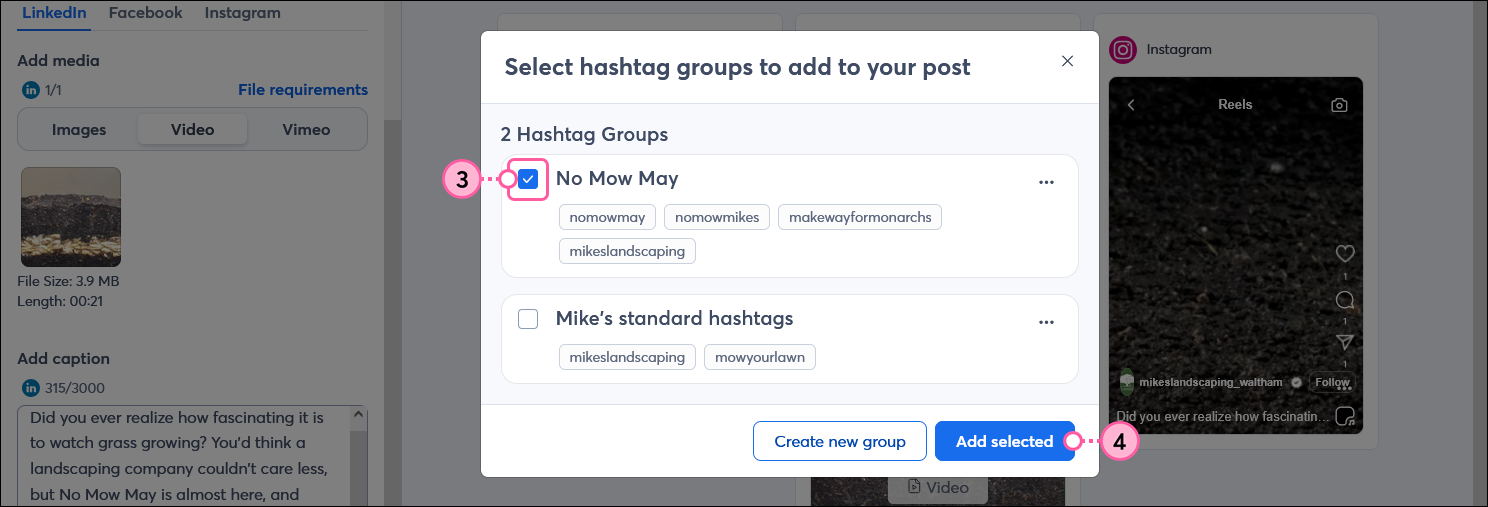
  1. Check the box next to each hashtag group you want to include in your post.
  2. Click the Add selected button.

    Select hashtag groups to add to your post overlay with hashtag group selected and Add selected button


Clock IconSave time: If you are creating multiple versions of a post for different social platforms, it's a good idea to create all of the content, including the hashtag group, that is common to each variation before you check the "Edit each platform separately" option.


Edit or rename a hashtag group

It's super easy to edit your hashtag group when you need to add or remove hashtags from a group, or if you want to change the group's name.
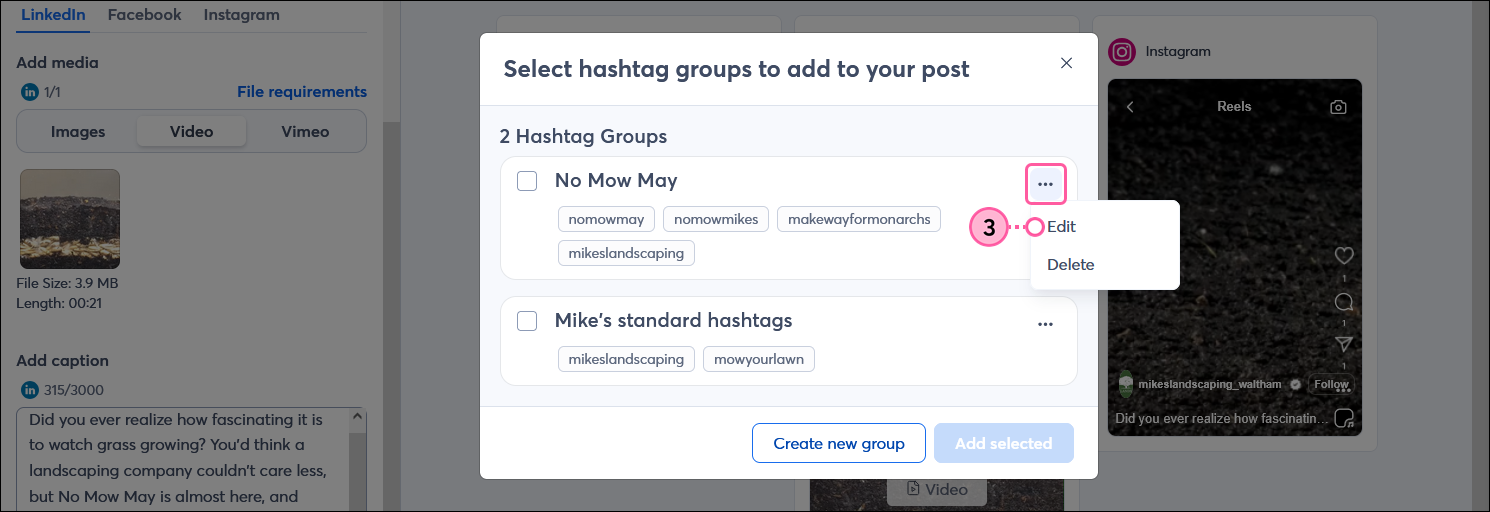
  1. Next to the hashtag group you want to edit, click . . . > Edit.

    Select hashtag groups to add to your post overlay with hashtag group menu expaneded and Edit option selected

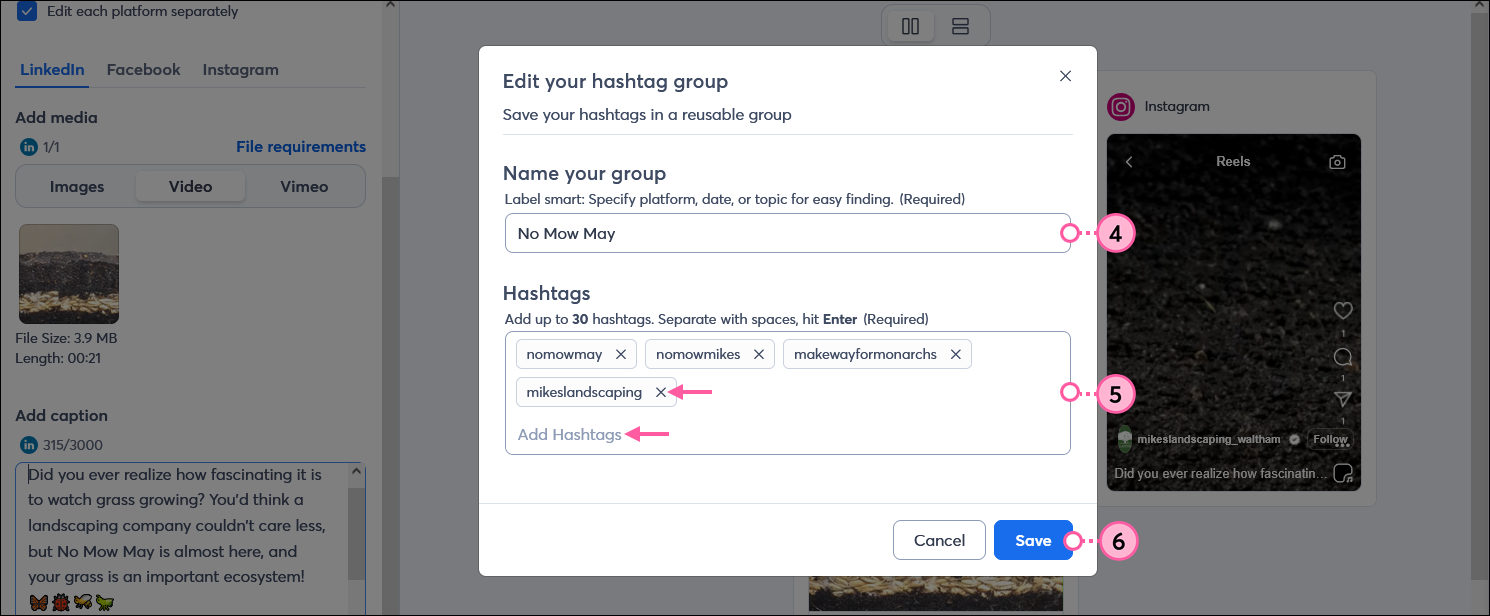
  2. Update the name for your hashtag group. It must be unique!
  3. Add new hashtags or remove hashtags.
  4. Click the Save button.

    Edit your hashtag group overlay with Name your group field, Hashtags field with multiple hashtags and add and delete options, and Save button


Delete a hashtag group

When you need to do a bit of clean-up you can delete your outdated or unused hashtag groups at any time. Deleting the hashtag group doesn't affect any draft or published posts that already include the hashtags within the group.
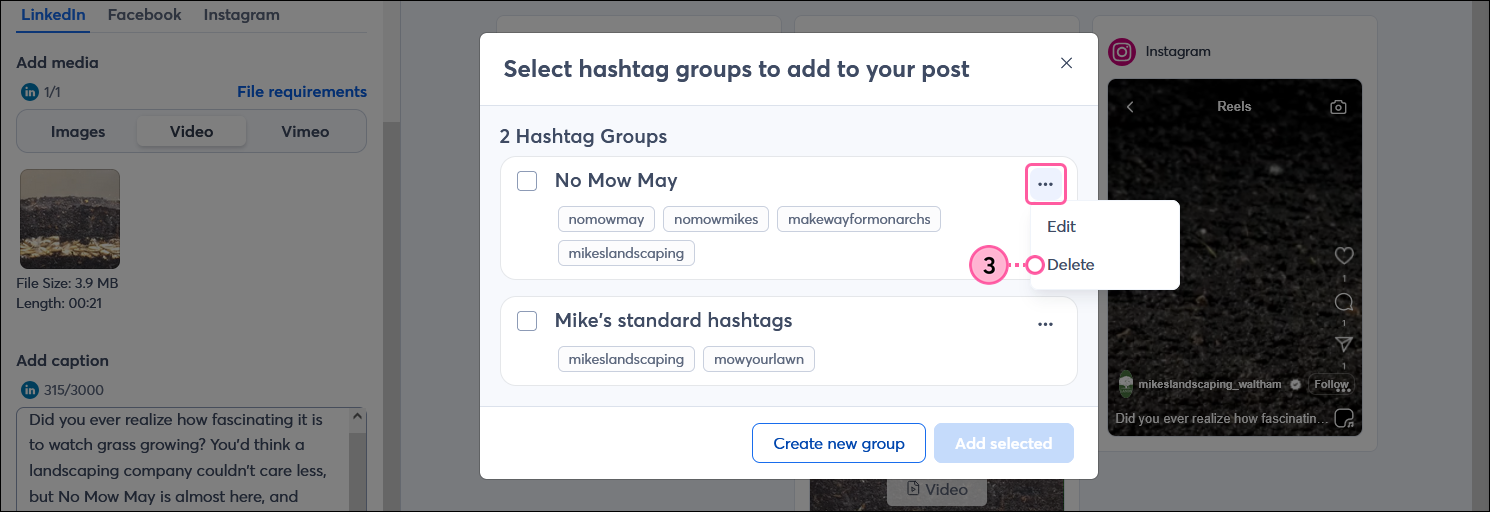

  1. Next to the hashtag group you want to delete, click . . . > Delete.

    Select hashtag groups to add to your post overlay with hashtag group menu expaneded and Delete option selected

  2. Click the Delete button to confirm the action.

    There's not going back overlay with Delete button


Questions?

Ask the Community

Did this article answer your question?


Constant Contact Logo

Copyright © 2025 · All Rights Reserved · Constant Contact · Privacy Center