The website tracking code is an embed code that is added to your website. It can capture real-time events, like page views, for your existing contacts. Then your contacts can be segmented by their page visit behavior, and you can use our automation tools to send email and SMS messages for hyper-targeted campaigns.
 | Important: The website tracking code captures information from website visitors. You must understand and comply with all applicable privacy laws, regulations, and industry guidelines concerning data collection. Learn more. |
How the tracking code works
The website tracking code is added to each page of your website that you want to track within the <head> tags. It identifies individuals who click a link within a Constant Contact email or SMS message and then proceed to browse your website. These individuals are tracked using cookies so they can be identified during all future visits to your website.
- The tracking code only tracks a managed contact within your Constant Contact account and only after they have clicked a tracking link in a Constant Contact email or SMS message.
- If an existing contact opens an email or views an SMS message and clicks a link that directs them to your website, they will be tracked whenever they visit your website going forward.
- If a visitor to your website is not one of your managed contacts, we capture the event as "anonymous," and it is deleted within 30 days. This includes anyone who isn't a contact and views an email through the permanent URL, which is used to share the email in a social post or other online locations, and then clicks a link within it.
The CID parameter
Constant Contact’s website tracking works by adding an additional CID parameter to all the URLs you send. The unique encrypted value is then decrypted by the website tracking code and allows Constant Contact to identify the user who clicked through the URL. The CID parameter is automatically appended when emails and SMS are sent, but should not affect the load times of your links or break any links based on its placement.
For example:
https://www.example.com/?cid=abcycpbFxd9nabcdGB9zg23QcFXzpQ6_Drg7Drmet123hvyzSOOFQNg8dxxxxxxxxxx2rE0khUN8Y3ioS3aaaaaaaaM6YXbPyUEIA9MaqX
How to activate and install the Constant Contact tracking code
| Important: This article requires you to use HTML code. If you work with a webmaster, they can assist you in installing the code on your website. If you're using a website builder, please contact their support for help with placing the code. Your website builder or hosting platform must support JavaScript for the Constant Contact tracking code to work. |
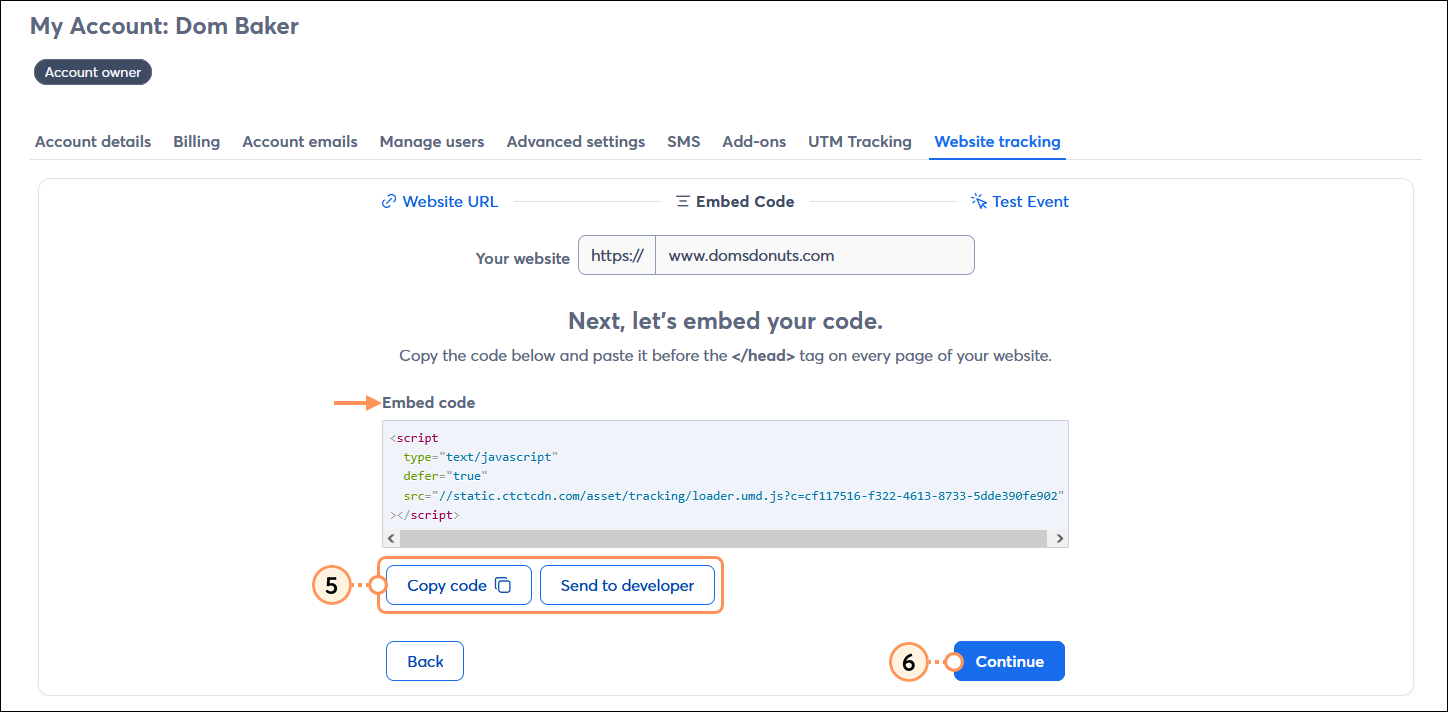
The Constant Contact tracking code needs to be added before the closing head tag </head> on every page of your website. Here's how to generate the code:
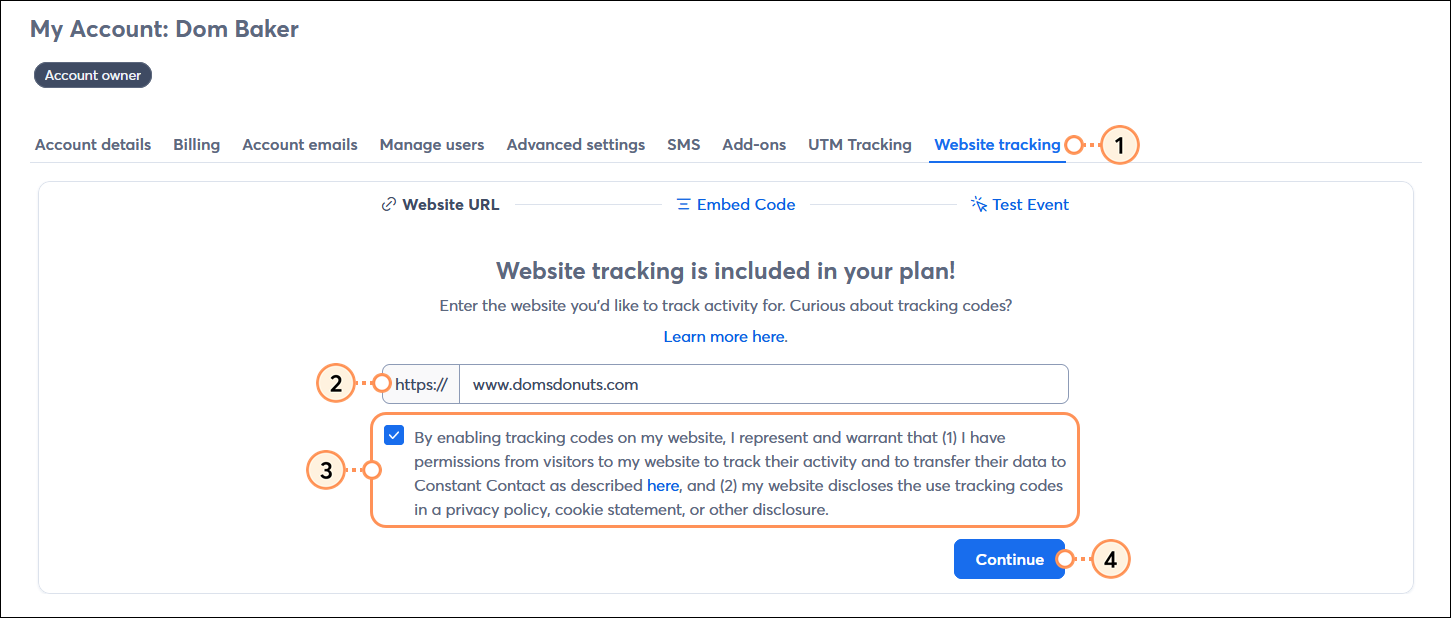
- From your account settings, click the Website tracking tab.
- Enter the URL for the website you want to track.
- A privacy policy is required when collecting personal information through the tracking code. Review the terms and conditions for the tracking code and check the box if you agree.
- Click the Continue button.
- Click either the:
- Copy code button - This allows you to manually copy the code and add it to your website yourself.
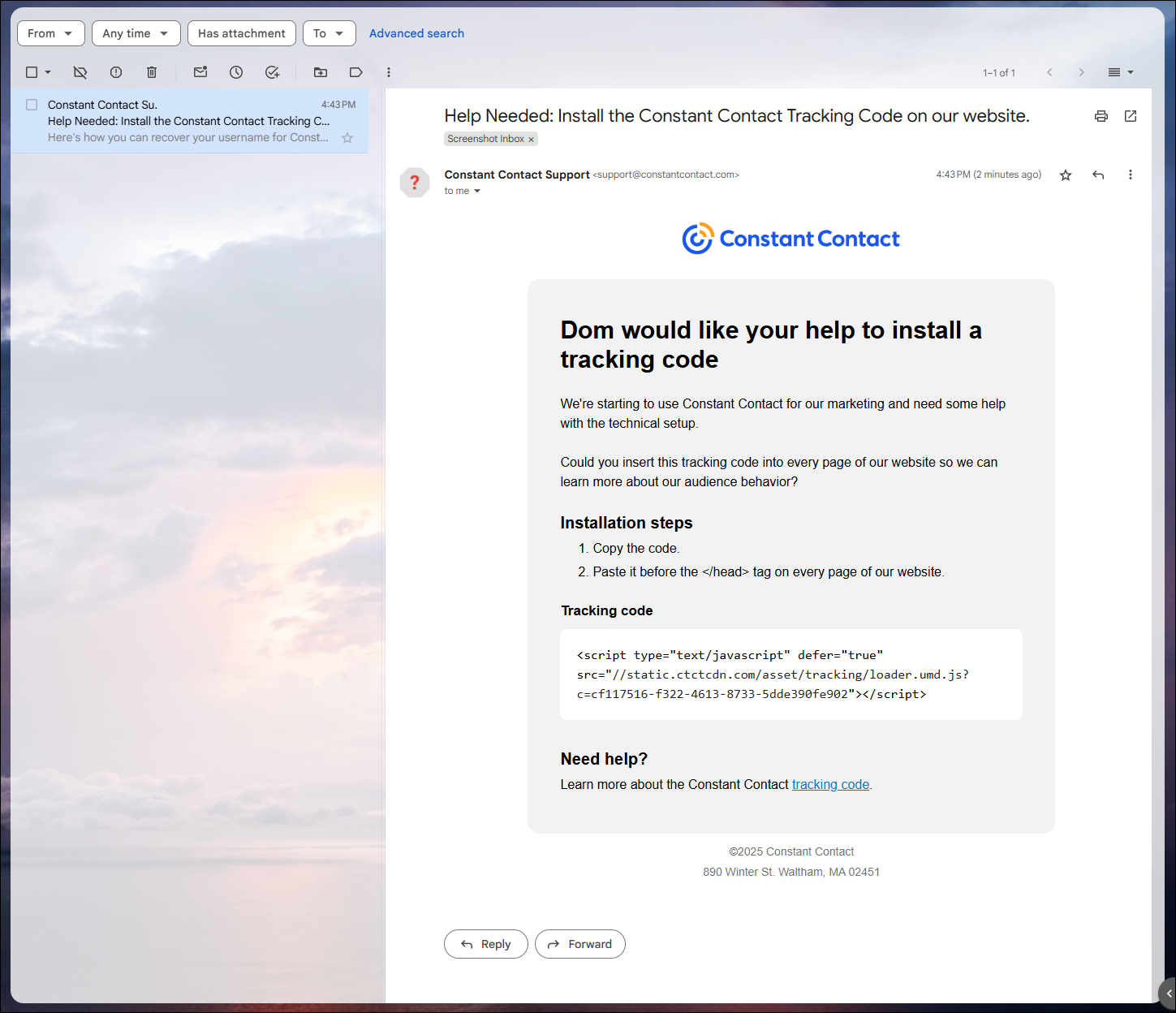
- Send to developer button - This allows you to enter an email address for your webmaster to send the code directly to them. The email includes instructions on how to add the code to your website. (See email example below.)
- After the tracking code is installed on your website, click the Continue button.
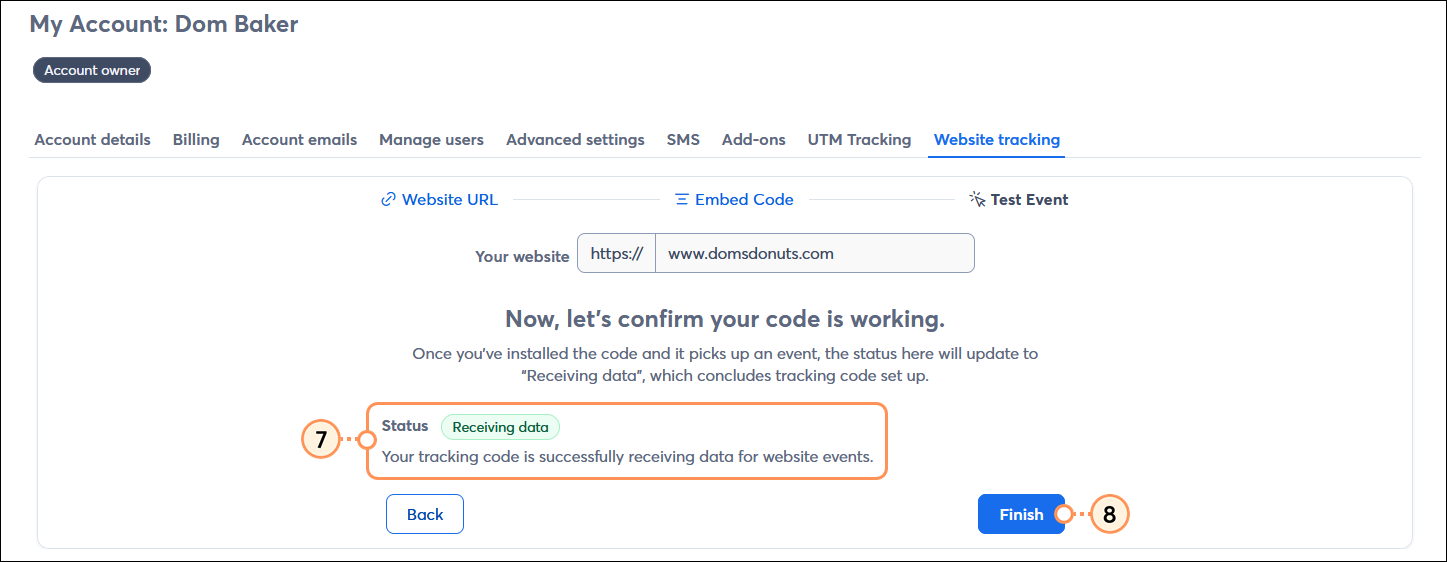
- Check the status of your tracking code:
- Receiving data - Your tracking code has been installed successfully, and it is receiving data for website events.
- Not receiving data - Your tracking code is either not installed or has an issue. Ensure you've installed the tracking code into your website's code immediately before the closing head tag. After you’ve installed the tracking code, visit a webpage from your site where the code is installed to confirm your tracking code is working.
- Disabled - Your tracking code is no longer collecting data because it is disabled.
- Click the Finish button.
Example developer email
Use Constant Contact tools with the website tracking code
Once you've successfully installed the tracking code on your website, you can utilize our segmentation and automation tools to deliver targeted messaging to your contacts at the optimal time.
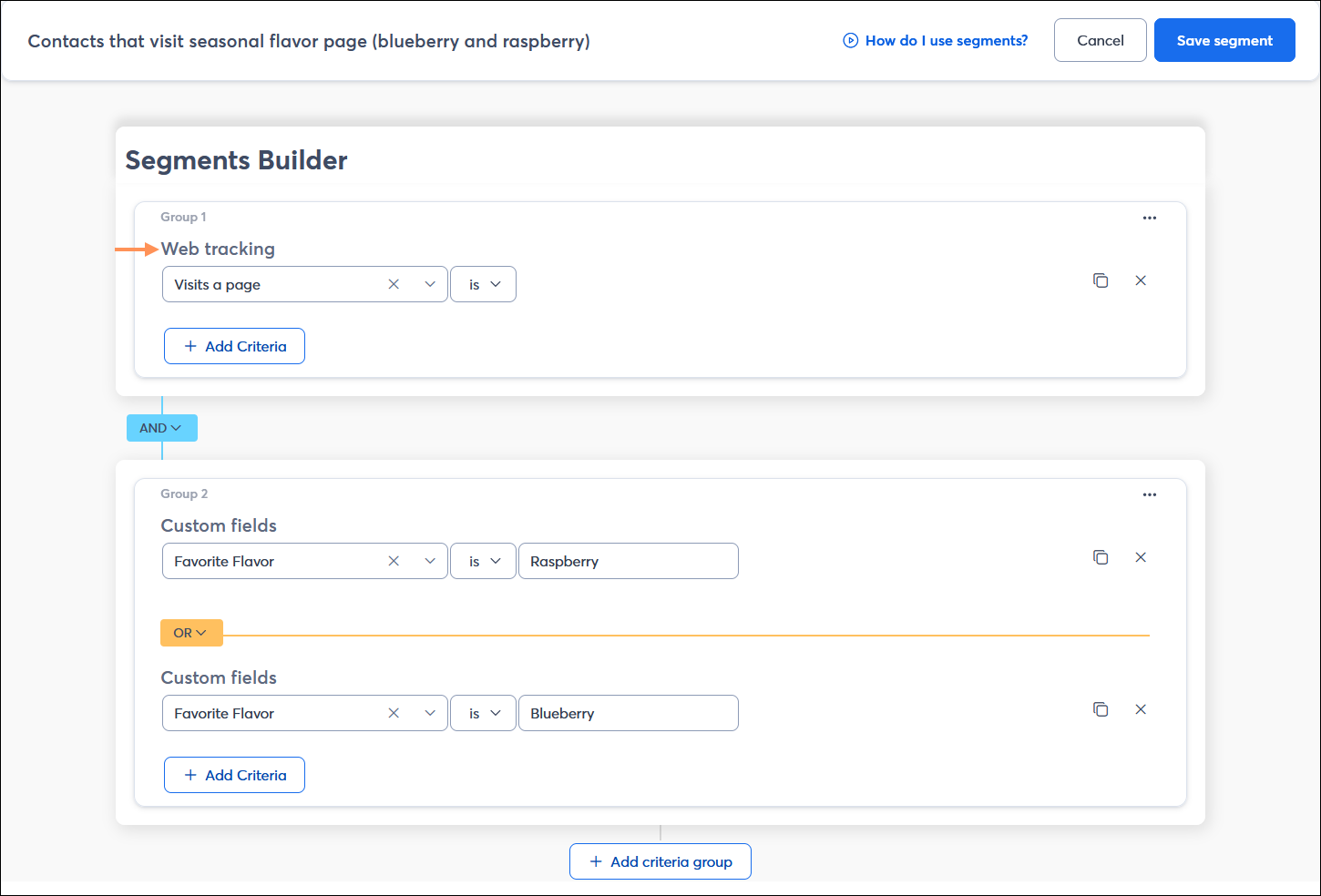
- Segmentation - Use the Segment Builder to filter your contacts into segments based on a visit to a page of your website with the tracking code installed. The segments filter out contacts who meet all the criteria of the segment, allowing you to send them targeted email and SMS message content. The web tracking criterion can be used on its own, or you can use AND/OR logic to combine it with other criteria to meet your needs.
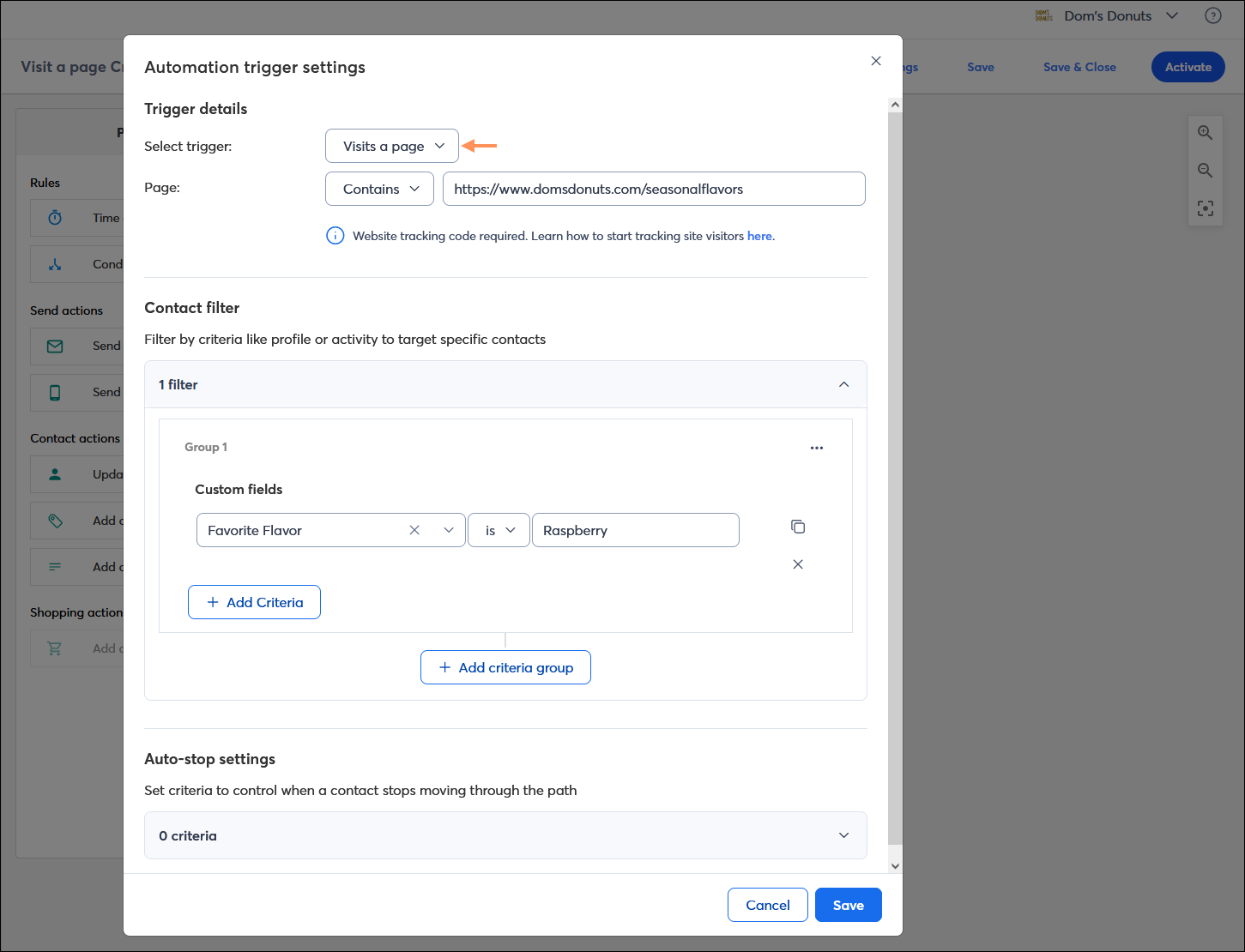
- Automation - Use the Automation Path Builder to create an automation triggered when a contact visits a page of your website with the tracking code installed. Your automation can be as simple as sending a single email, or you can add complexity with conditional splits, time delays, and other path actions. You can even drive traffic back to your website through email and SMS messages, too.
Note: If you create an automation using a different type of trigger, you can still build website visits into the trigger using a filter or auto-stop. In addition, as you build out your automation, you can add a conditional split and select a segment based on website visits as the condition for the path split.
How to edit or deactivate the Constant Contact tracking code
If you need to make URL changes or pause the website tracking on your website, it's easy!
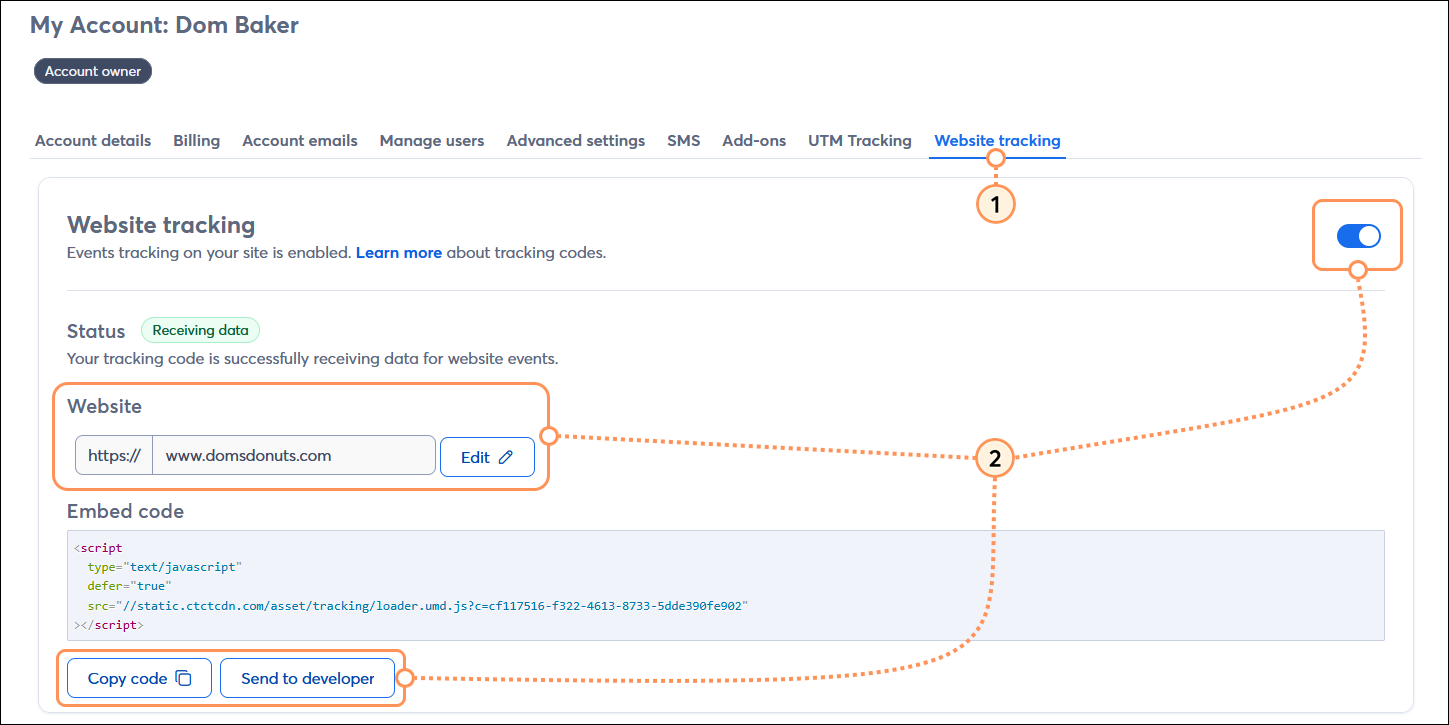
- From your account settings, click the Website tracking tab.
- From here you can take the following actions:
- Turn off website tracking - Click the toggle to disable tracking, and then click the Yes, turn it off button to confirm the action. The toggle can be re-enabled at any time. When you disable the tracking code, no additional web events will be sent to Constant Contact, and any active automations or segments set to use event data from the Website tracking code will no longer fire for new events.
- Change the website URL you're tracking - Next to the Website field, click the Edit button, then enter the new URL you want to track. When you change the URL, you need to add the tracking code to the new website.
- Re-share the tracking code - Under the Embed code field, click either the Copy code or Send to developer button.
| Important: To fully remove and disable the Constant Contact tracking code, don't forget to manually remove the tracking code from your website’s code. |
