Email and Digital Marketing
How can we help you?
Search our help articles, video tutorials, and quickstart guides

You've got this. You've got us. Search our Knowledge Base to quickly find answers to your questions.

Automatically apply your branding to your emails

Article: 000053094
Updated: March 12, 2026

Create a design theme in your BrandKit to automatically apply your brand colors to your email templates

After you add your brand assets to your BrandKit, you can then quickly apply your brand colors to a theme, saving you time when designing your emails!


Create a branded theme

Your BrandKit includes a single design theme that you can customize with your saved colors and with additional colors, too!
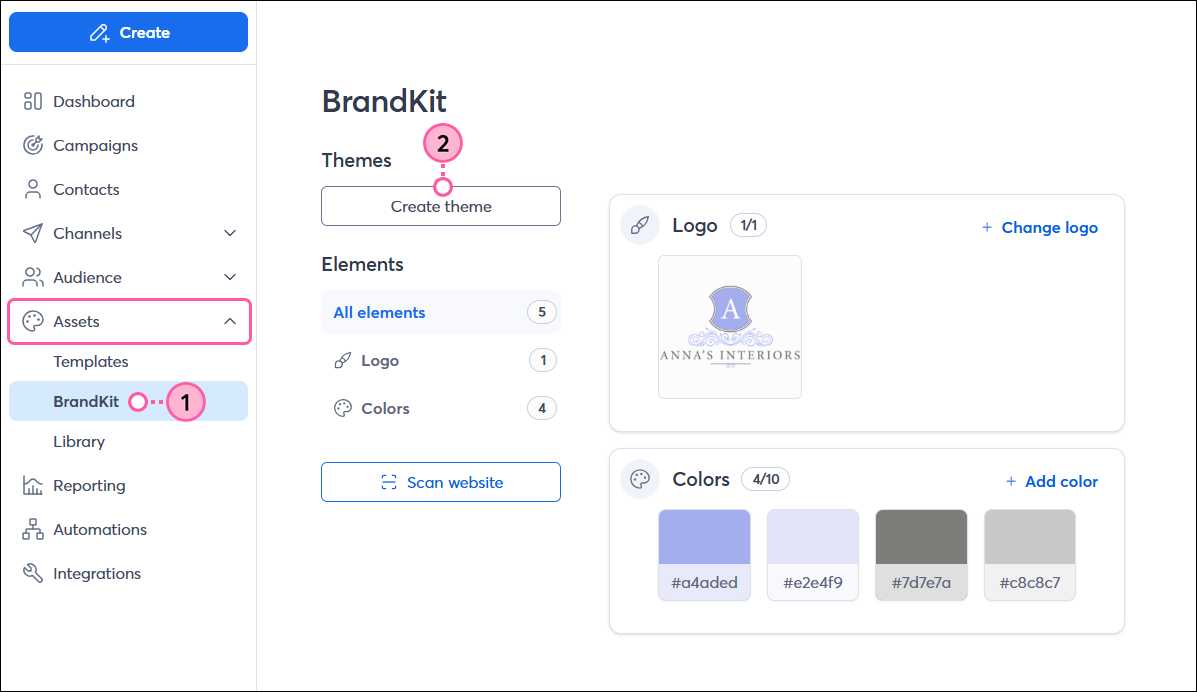
  1. In the left-hand menu, click Assets BrandKit.
  2. Depending on your account, click either Create theme or New theme.
    Note: Currently, you can only have one theme. 

    Left navigation with Assets section expanded, BrandKit option selected, BrandKit with assets added and Create Theme buttonLeft navigation with Assets section expanded, BrandKit option selected, BrandKit with assets added and New Theme button


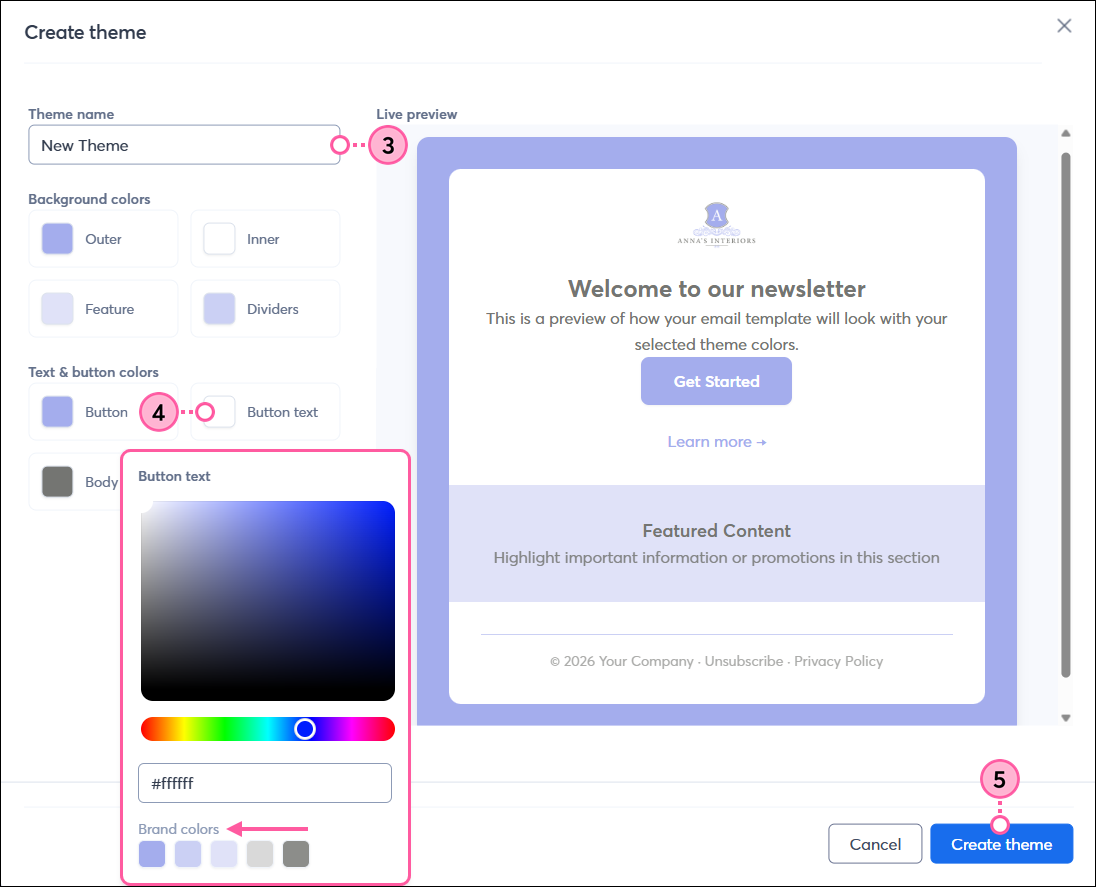
  3. (Optional) Edit the name of your theme. 
  4. Click on the color swatch next to each template element to select a color. Your BrandKit colors are at the bottom of the palette for easy access, but you can also enter a specific hex value.
    Light bulb iconTip: If you aren't sure of the hex value for the color you want to use, you can use a color picker, such as Color Cop or Color Schemer Online, to find it.
  5. Depending on your account, click Create theme.

    BrandKit dashboard with Theme Name field, theme color options with color palette expanded, and Create Theme buttonBrandKit dashboard with New Theme tab selected, theme color options with color palette expanded and Basic tab selected, and New Theme name field and edit icon (pencil)


You can return here to update your theme and change the theme name at any time.


Create an email with your theme applied

Your theme is automatically applied to a group of email templates that you can select from and then further customize whenever you create a new email:
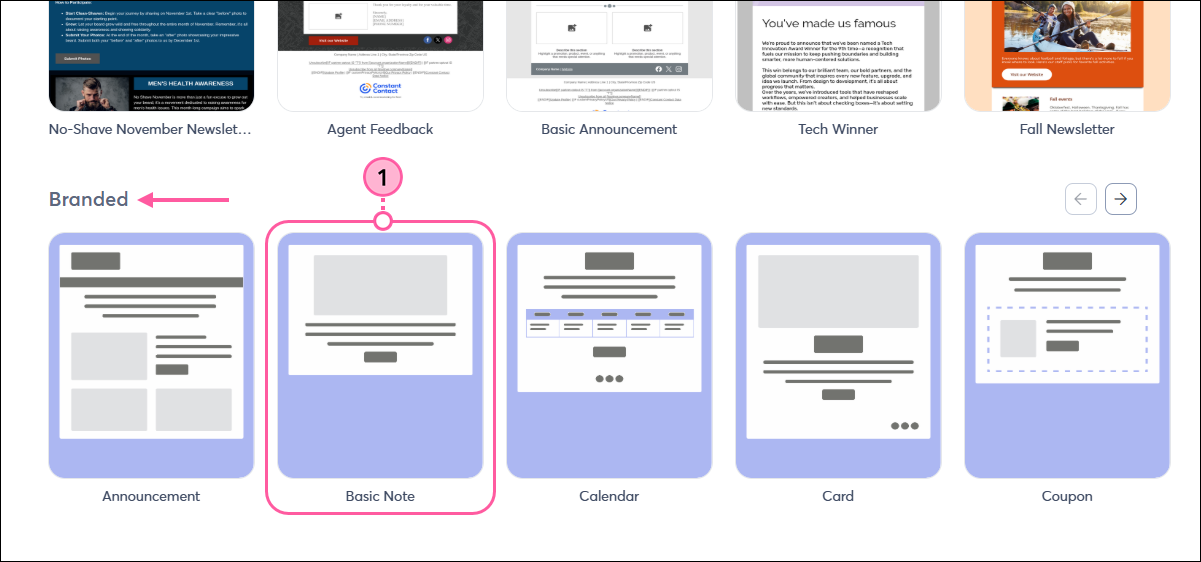
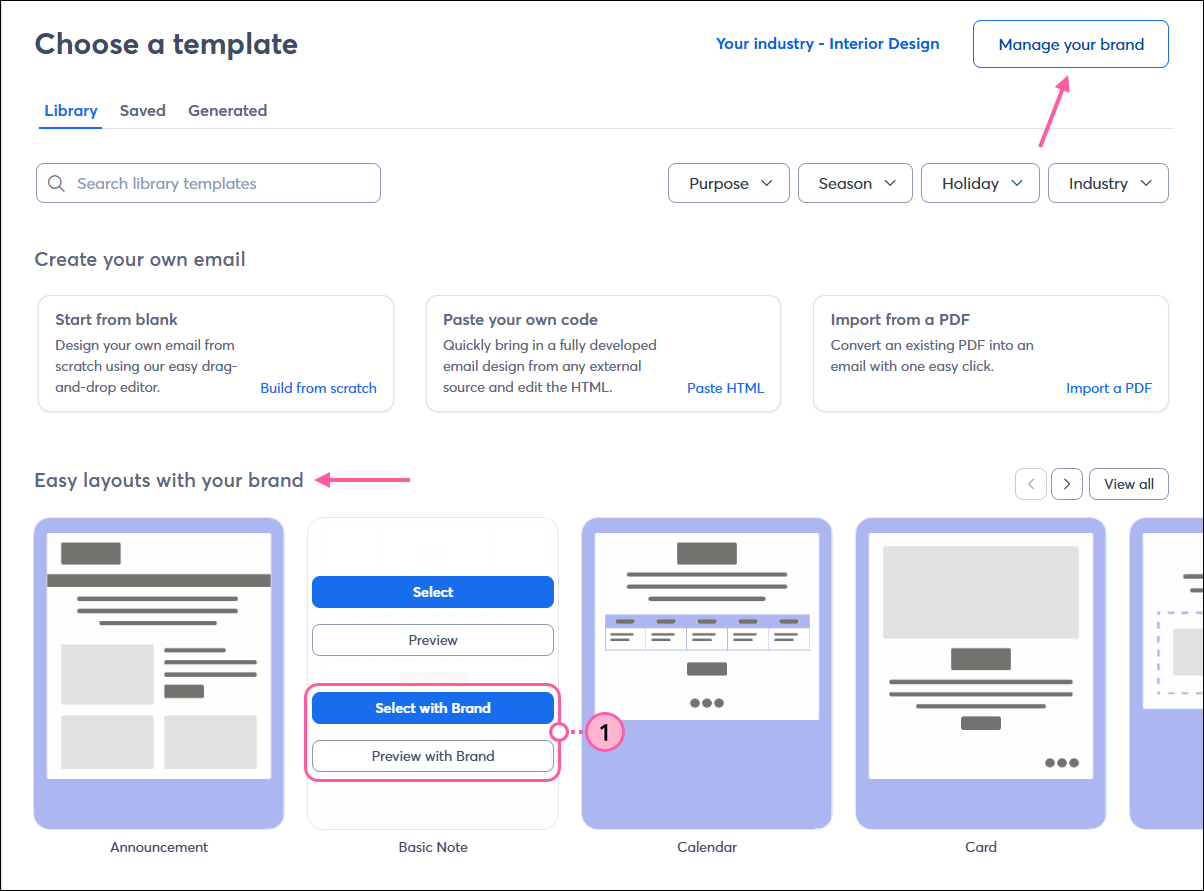
  1. In the Easy layouts with your brand section of the email template picker, place your cursor over the template and click Select with Brand. To get a closer look at the template before selecting it, click Preview with Brand.
    Note: If you want to change how the colors are applied to your theme, click Manage your brand at the top of the template picker.

    Choose a template page with Branded tab selected, branded template options, and template with Select, Preview, Select with Brand, and Preview with Brand buttons displayed


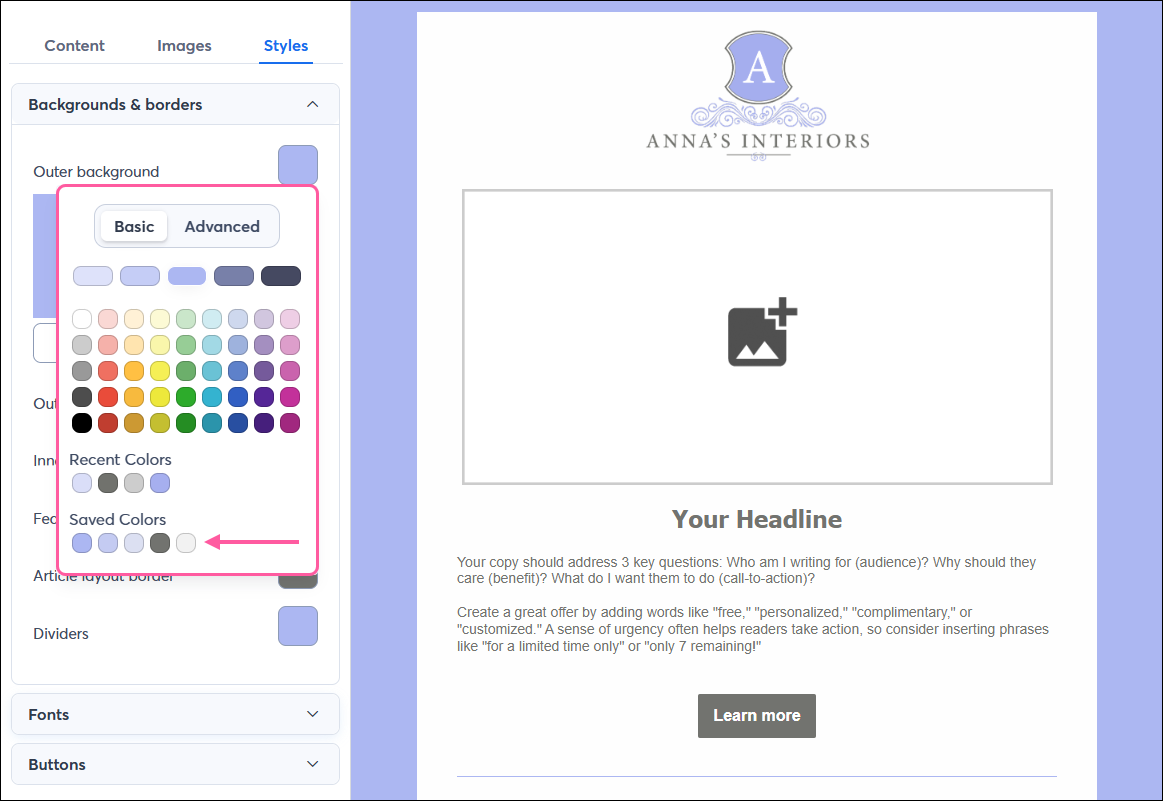
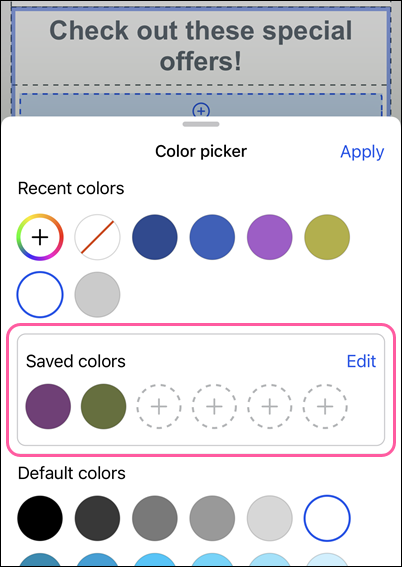
Once you’ve selected the template, you can add your content and further customize the design. When you go to change the colors in your email, your brand colors will be available under the Saved Colors section of the color picker. You can edit your brand colors in your account or while editing an email in the Constant Contact mobile app at any time.


Saved Colors when editing on a desktopSaved Colors when editing on the mobile app
Email editor with Design tab selected and Backgrounds & borders section expanded, background and border options and color palette visible with Basic tab selected and Saved Colors optionsMobile app color picker with Saved Colors


Any links we provide from non-Constant Contact sites or information about non-Constant Contact products or services are provided as a courtesy and should not be construed as an endorsement by Constant Contact.


Questions?

Ask the Community

Did this article answer your question?


Constant Contact Logo

Copyright © 2026 · All Rights Reserved · Constant Contact · Privacy Center