Email and Digital Marketing
How can we help you?
Search our help articles, video tutorials, and quickstart guides

You've got this. You've got us. Search our Knowledge Base to quickly find answers to your questions.

View and manage event registrations

Article: 000049706
Updated: January 2, 2026

Keep track of your registrant list, view payment status details, edit registrant information, check in a registrant, and more


After you've created and activated your event, view the list of registered attendees and edit their details, if necessary, directly from within the event dashboard. Additionally, you can export registrants into a CSV file, check in a registrant at the time of your event, and cancel a registration if a registrant is unable to attend your event.


Manually register someone

To manually register someone, click the Register someone button at the top of the event dashboard.

Manually register someone
 

View and export your registrant list


Exclamation point iconImportant: When someone registers for your event, it does not necessarily mean that they want to receive non-event-related email from you. So, refrain from adding registrants to your lists. If you would like to give registrants the option to opt in and join your mailing list, you can include that option on your event registration form.


To see a list of your registrants, along with their payment status, ticket total, and payment total:
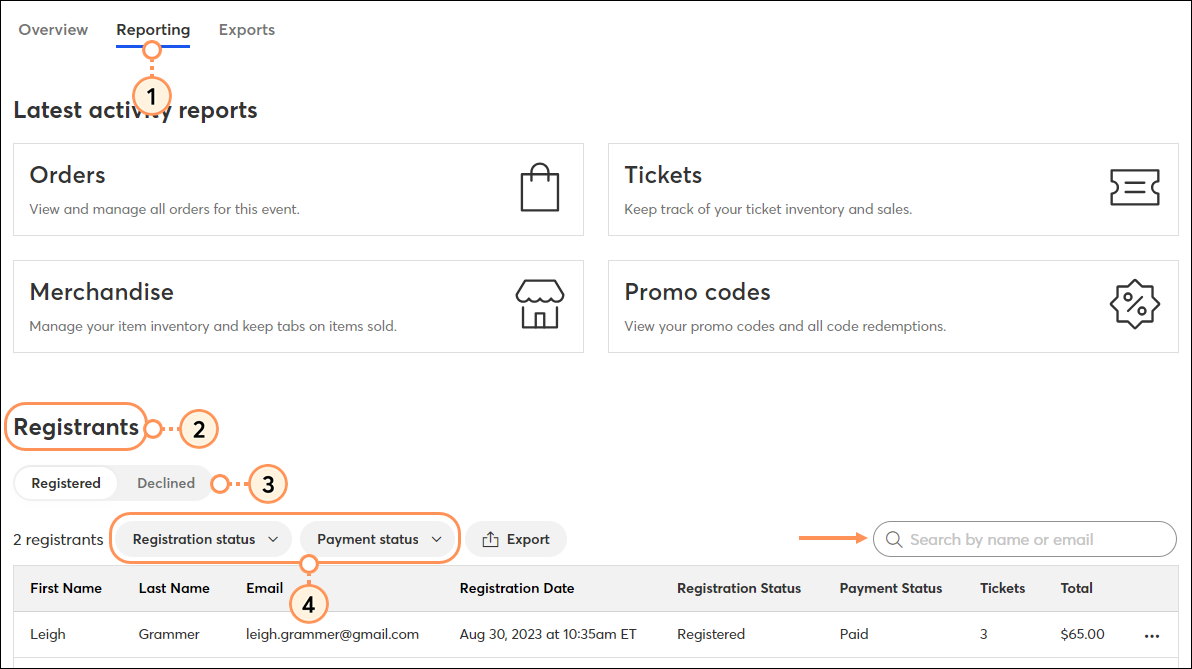
 

  1. Click the Reporting tab on the event dashboard.
  2. Scroll to the Registrants section.
  3. Switch the toggle to view either those who have registered or those who have declined.
  4. Optionally, filter by registration or payment status. Use the search bar to search for a registrant by name or email address.

    Reporting Tab Registrants Table 
     

Registrants can have the following statuses:


  • Registered - This contact has successfully registered for your event
  • Canceled - This contact registered for your event and then had their registration canceled
  • Abandoned - This contact started registering and entered their contact information, but the window timed out before they completed the registration. When you export a full or custom registrant report, these contacts will appear as "Expired."


Light bulb iconDid you know? An "Abandoned" status is different than a "Canceled" status, and if a registrant has an "Abandoned" status, it doesn't necessarily mean they don't want to attend your event. It simply means that the registration session timed out. So don't be afraid to give them a little nudge! Encourage them to complete their registration, as well as anyone else who hasn't responded yet, by sending an email to event non-responders.


If you'd like to reach out to your registrants, you can send them an event-related email.


To export your list of registrants into a CSV file:
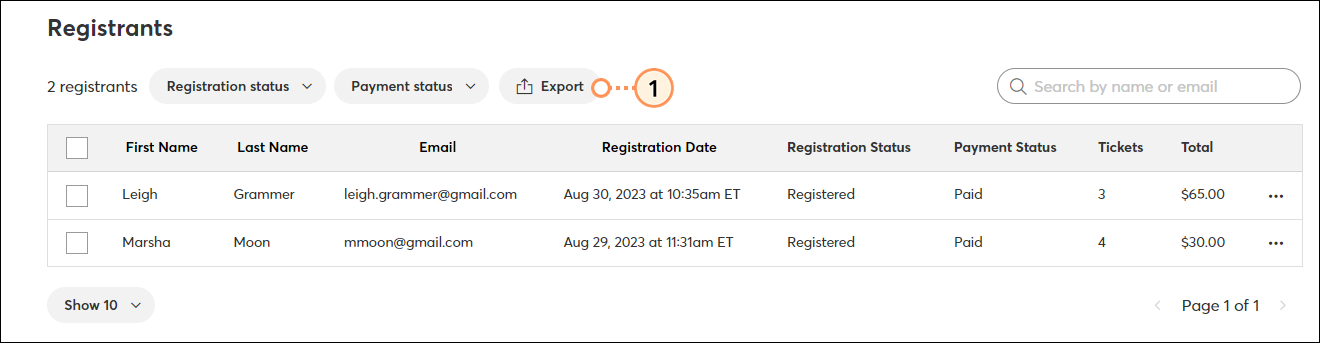
 

  1. Scroll to the Registrants list and click Export.

    Export list of registrants into CSV file
     
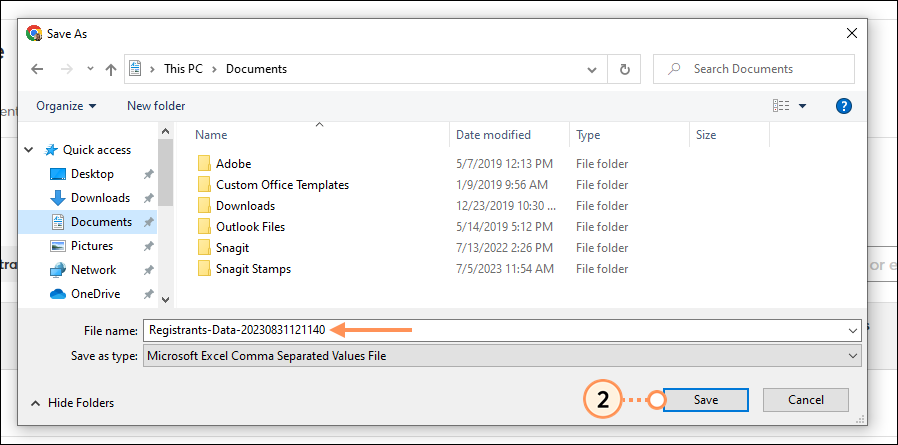
  2. Edit the file name if you wish and then click Save.

    Edit File name and save export
     

Access the downloaded file and open it.


Light bulb iconDid you know? There are several other event reports you can view and download, including a full registrant report, a custom report, and an attendee report.


View a registrant's details


To view registration details for a particular registrant:
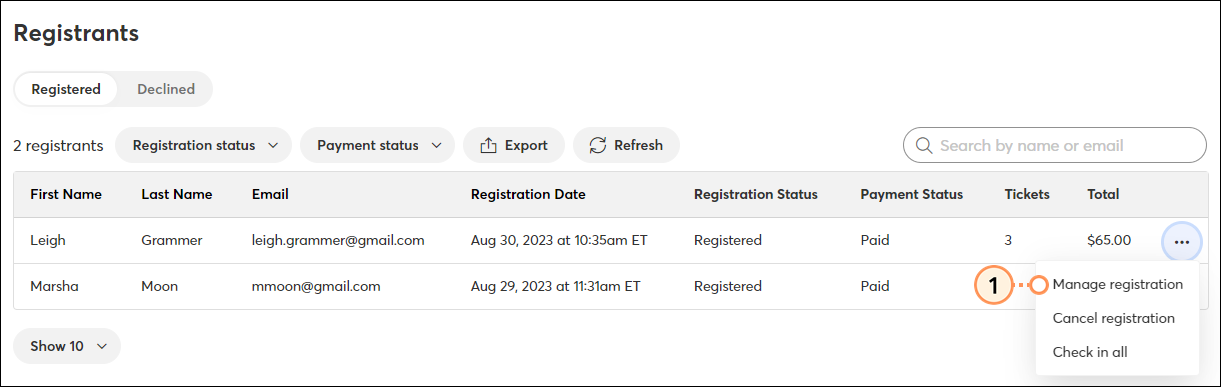
 

  1. Click the three dots on the right and click Manage registration.

    Manage Registration
     
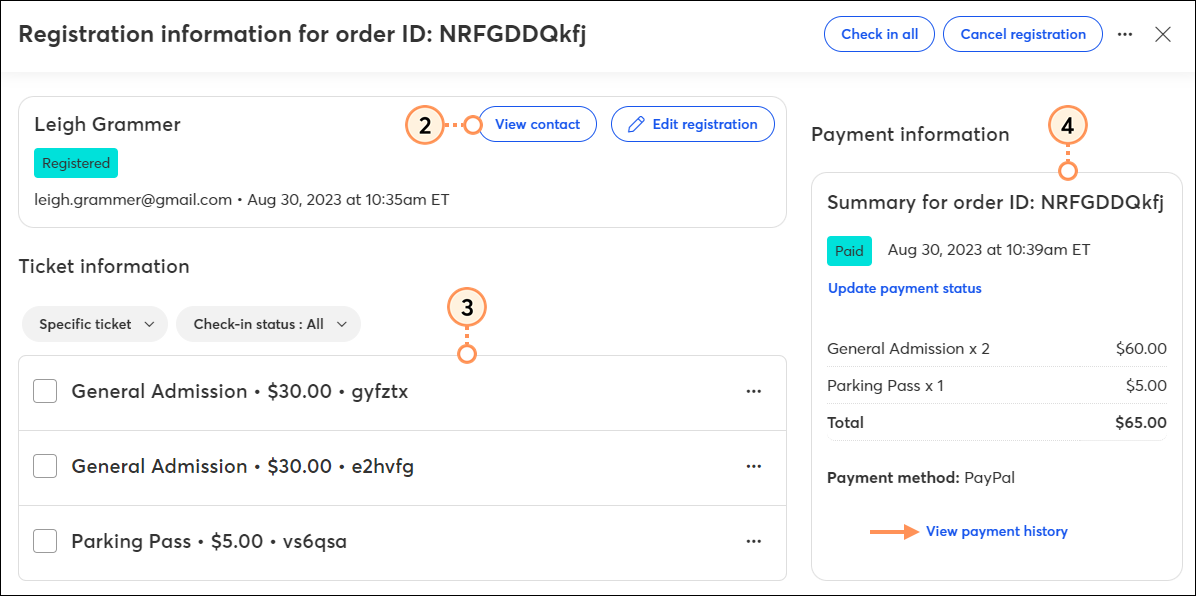
  2. At the top, review the registrant's name and email address. To view the contact record, click "View contact." An additional tab will open, directing you to the contact details page.
  3. In the "Ticket information" section, review details related to the registrant's ticket purchase(s).
  4. In the "Payment information" section, review the payment summary and method. At the bottom of this section, click the "View payment history" link to view further details.

    View registrant info, view payment history


Edit a registration

You can edit the contact information for the primary registrant and any information you collected via your registration form for each ticket. For example, if you collected t-shirt sizes for each ticket holder, but a registrant contacts you to request a change to their t-shirt size, you can make that adjustment within the registration. Additionally, you can update the payment status for a registrant.


Registration details


To edit the contact information for the primary contact:
 

  1. Click the three dots on the right and select Manage registration.

    Edit registration
     
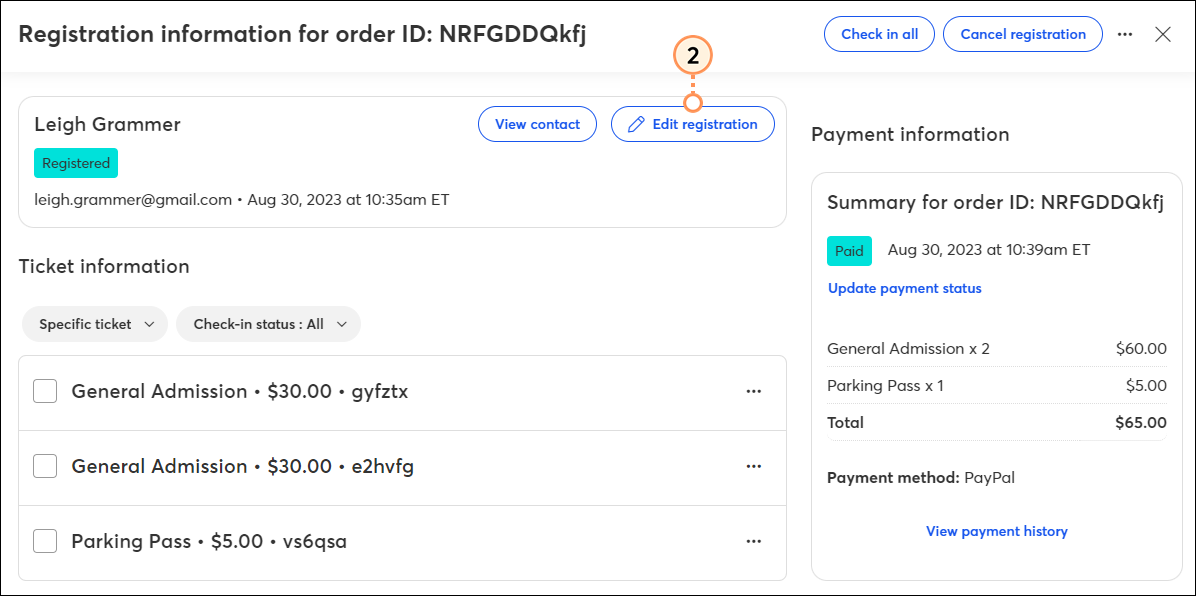
  2. Click Edit Registration.

    Edit Registration Details
     
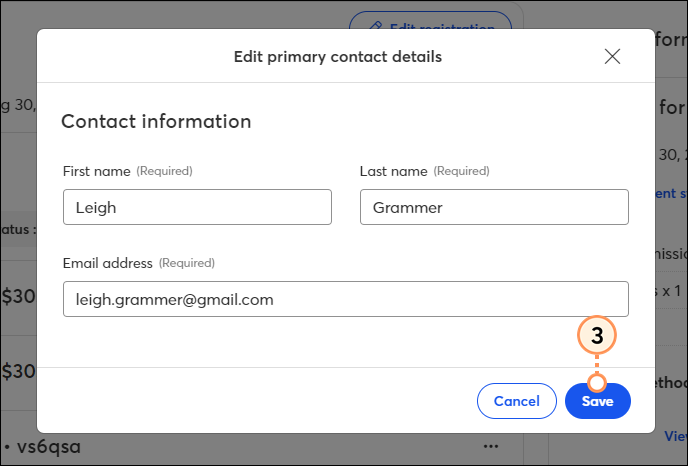
  3. Update the registrant's first name, last name, and/or email address, and then click Save.

    Edit primary contact details


Ticket Details


To edit information collected on your form for each ticket:
 

  1. Click the three dots on the right and select Manage registration.

    Edit registration

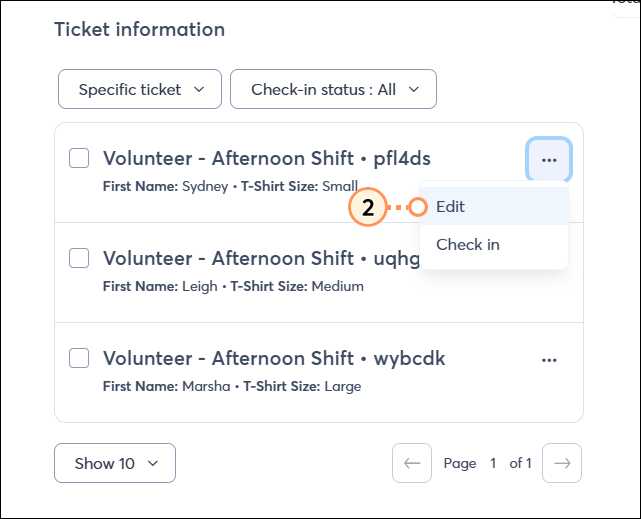
  2. Click the three dots to the right of the ticket you'd like to edit and click Edit.

    Ticket dropdown menu edit option 

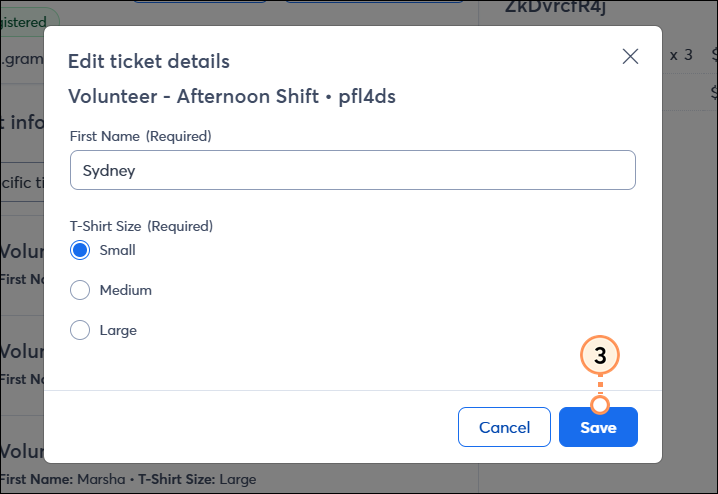
  3. Update the information as necessary, and then click Save.

    Update ticket details and save 


Update payment status


If you need to update a registrant's payment status - for example, if you sent them a refund - you can manually update their payment status:
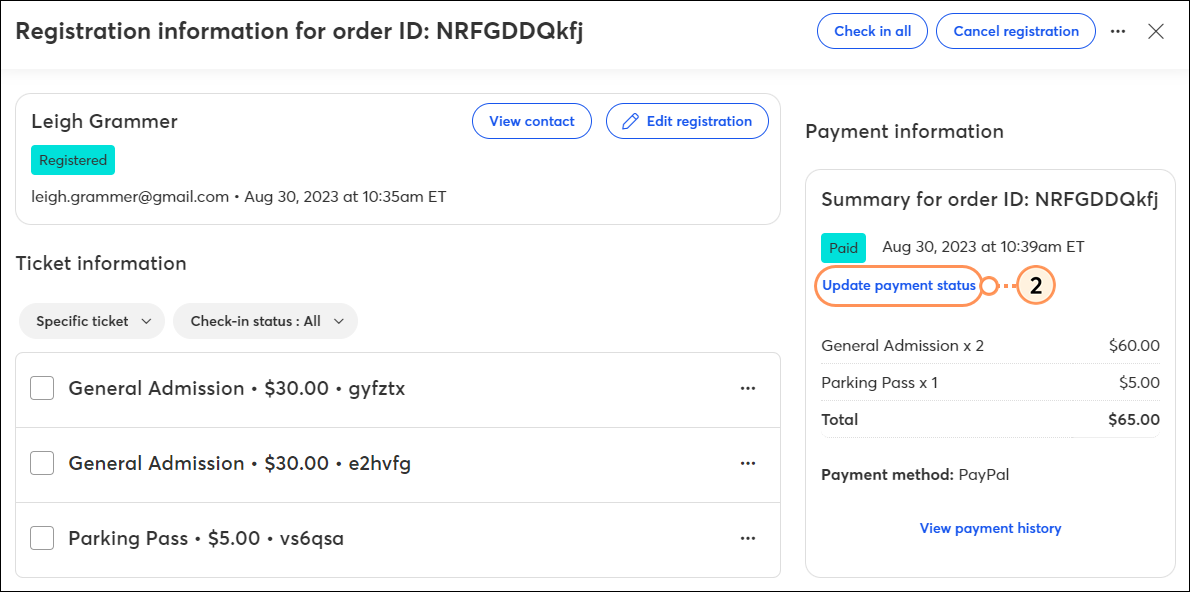
 

  1. Click the three dots on the right and click Manage registration.

    Manage Registration
     
  2. Click "Update payment status."

    Update payment status
     
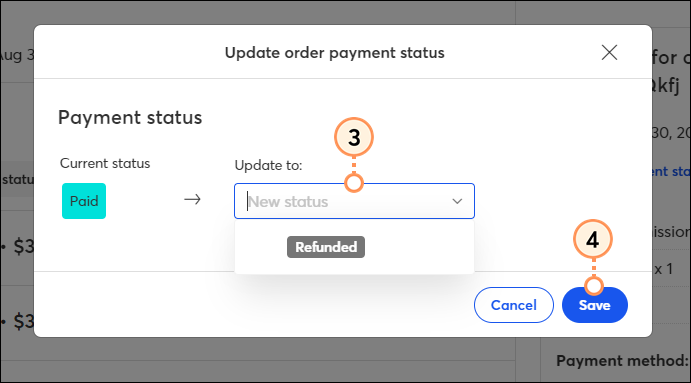
  3. In the dropdown, select the new payment status.
  4. Click Save.

    Select new payment status
     

Once saved, the payment status will automatically update in the Registrant List.


Check in a registrant


When a registrant arrives at your event, you can mark them as checked in.
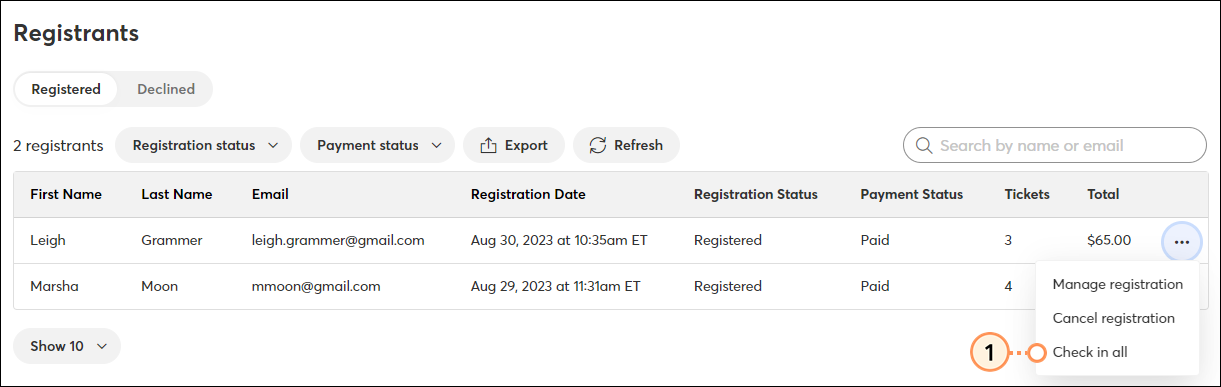
 

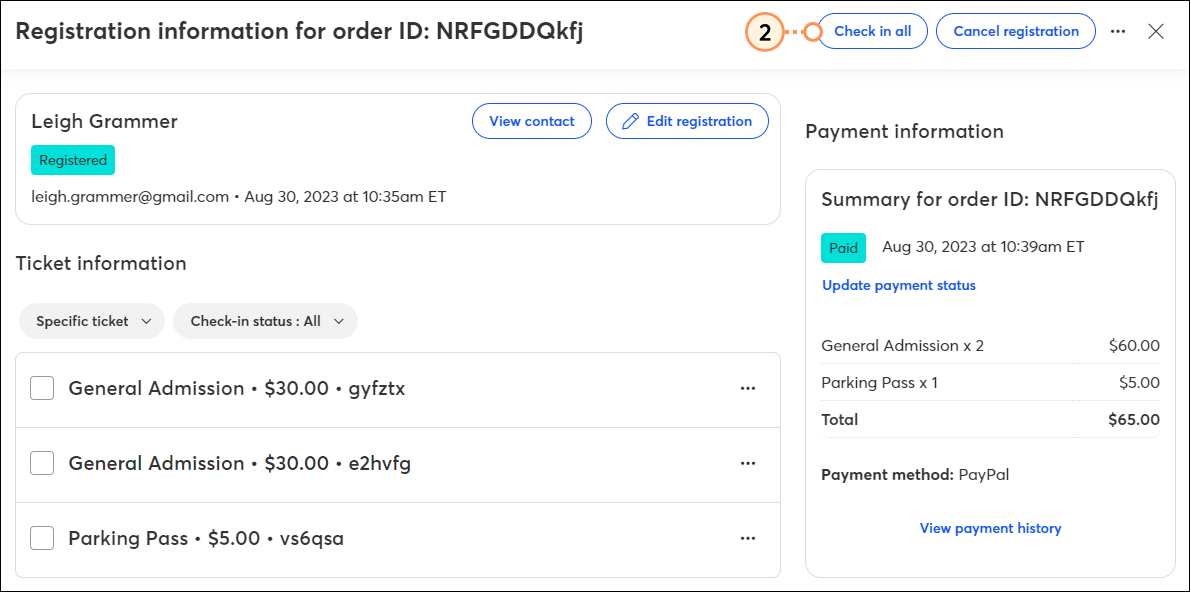
  1. For the registrant you are checking in, click the three dots on the right and then select Check in all.

    Check in a registrant
     
  2. To check in:
    • All tickets - Click the Check in all button.

      Check in all tickets for registrant
       
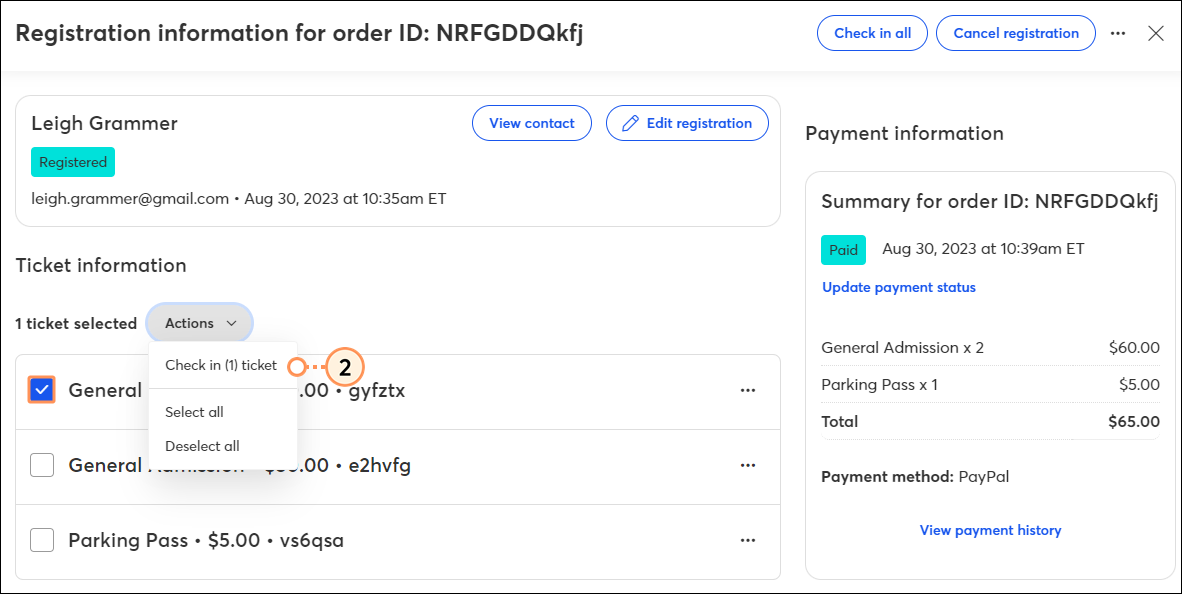
    • Selected tickets only - Checkmark the tickets you'd like to check in. Then click Actions > Check in (x) ticket(s).

      Check in only selected tickets
       
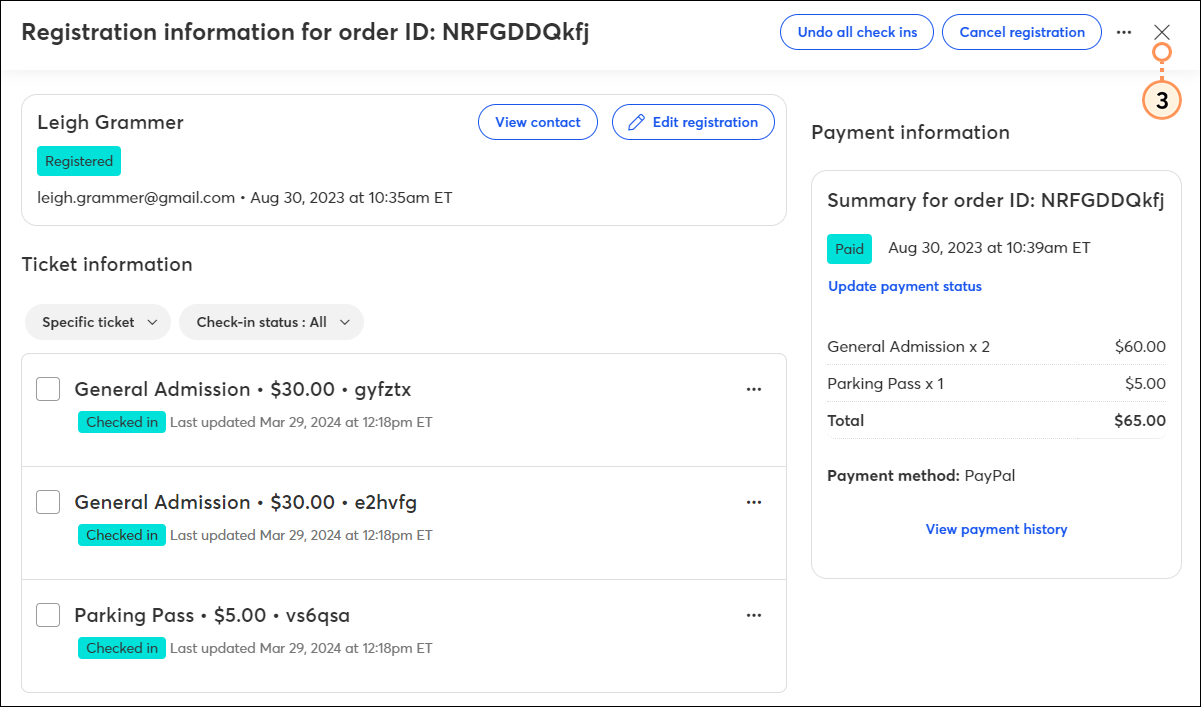
  3. Click the X to close.

    Close out of screen
     

Cancel a registration


If a registrant is unable to attend your event, you can cancel their registration. When you cancel a registration, it cannot be undone. If you choose to send an email to event registrants, canceled registrants will not receive the email. To cancel a registration:
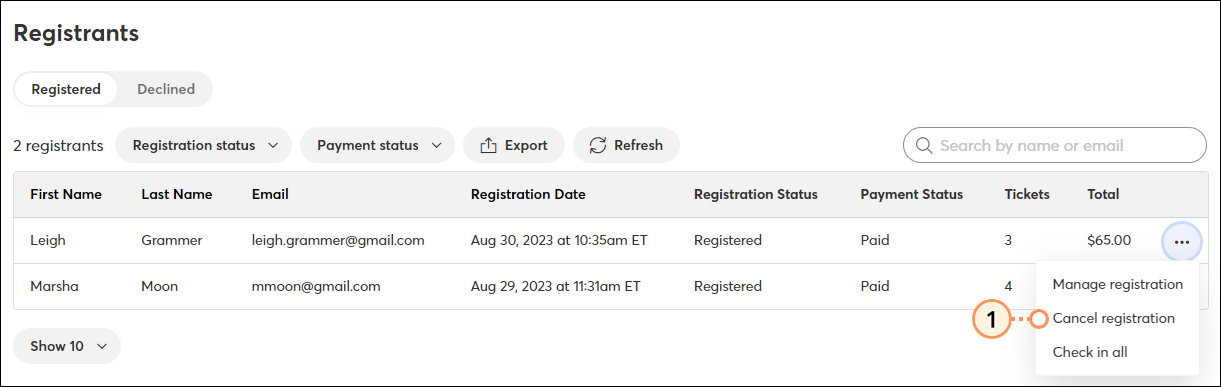
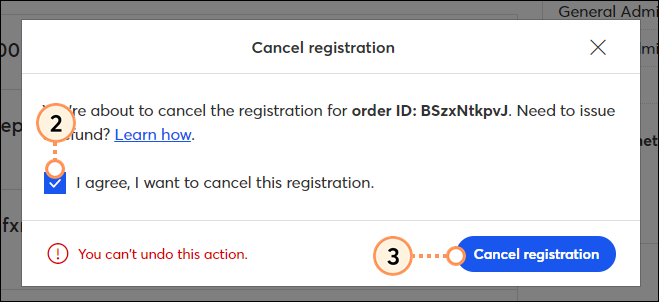
 

  1. Click the three dots on the right and click Cancel registration.

    Cancel a registration
     
  2. Check the "I agree, I want to cancel this registration" box.
  3. Click Cancel registration.

    Confirm and cancel registration


Once you've canceled the registration, you can process a refund to the registrant via the payment processor used for the transaction, if necessary.


If you want to delete the canceled registration from the registrants list, click the three dots on the right and click Delete registration.


Delete an abandoned registrant

An abandoned registrant status indicates that the registrant initiated the registration process but timed out before completing it. If you would like to delete an abandoned registrant from the registrations list:
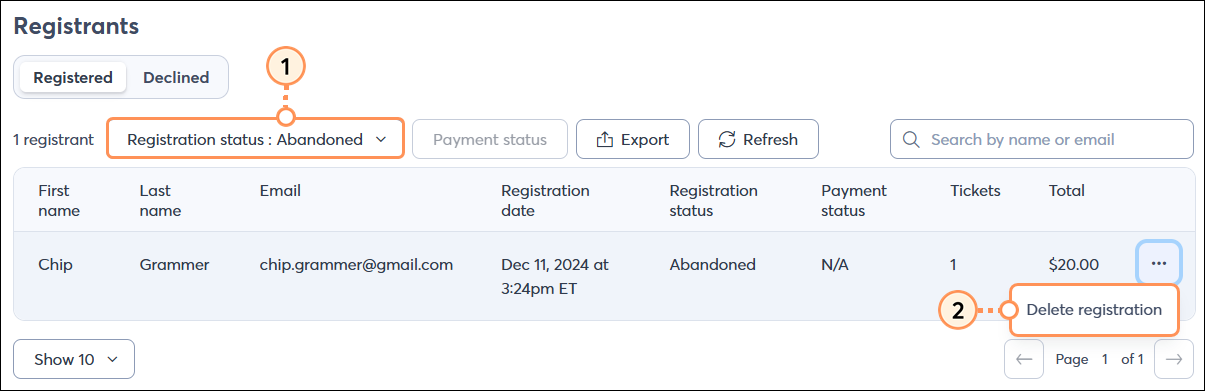
  1. Select the "Abandoned" status from the dropdown.
  2. Click the three dots on the right and click Delete registration.

    Delete abandoned registration


Questions?

Ask the Community

Did this article answer your question?


Constant Contact Logo

Copyright © 2026 · All Rights Reserved · Constant Contact · Privacy Center