 | Important: In order to successfully set up this integration and import your Magento contacts into Constant Contact, your Magento account needs to be at 2.2 or higher. |
Our integration with Magento lets you sync your customers with Constant Contact, automatically importing them into segmented lists so you can send more targeted emails. Once connected, you can create custom contact segments based on e-commerce activity, send automated communications, and review sales reporting.
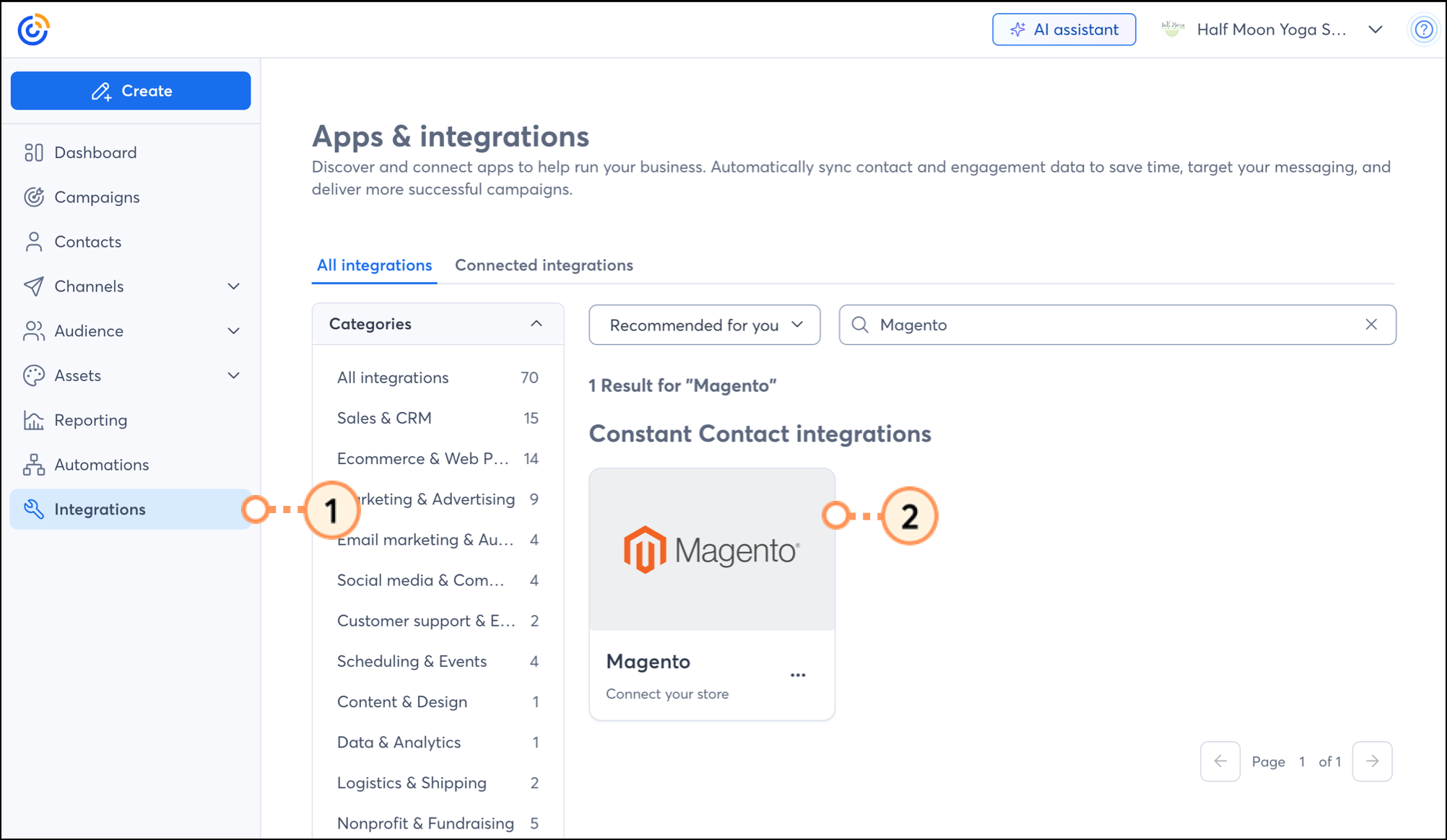
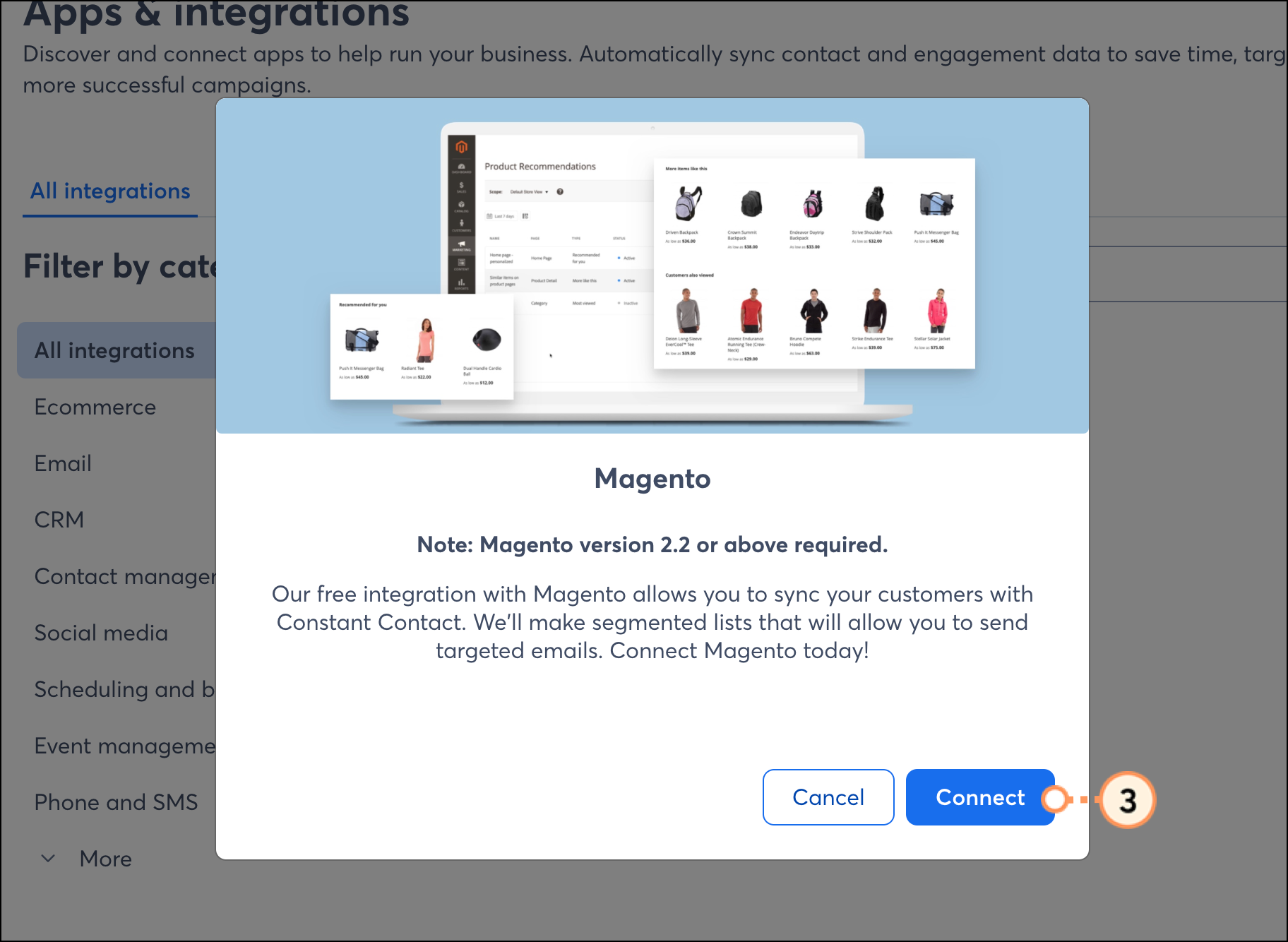
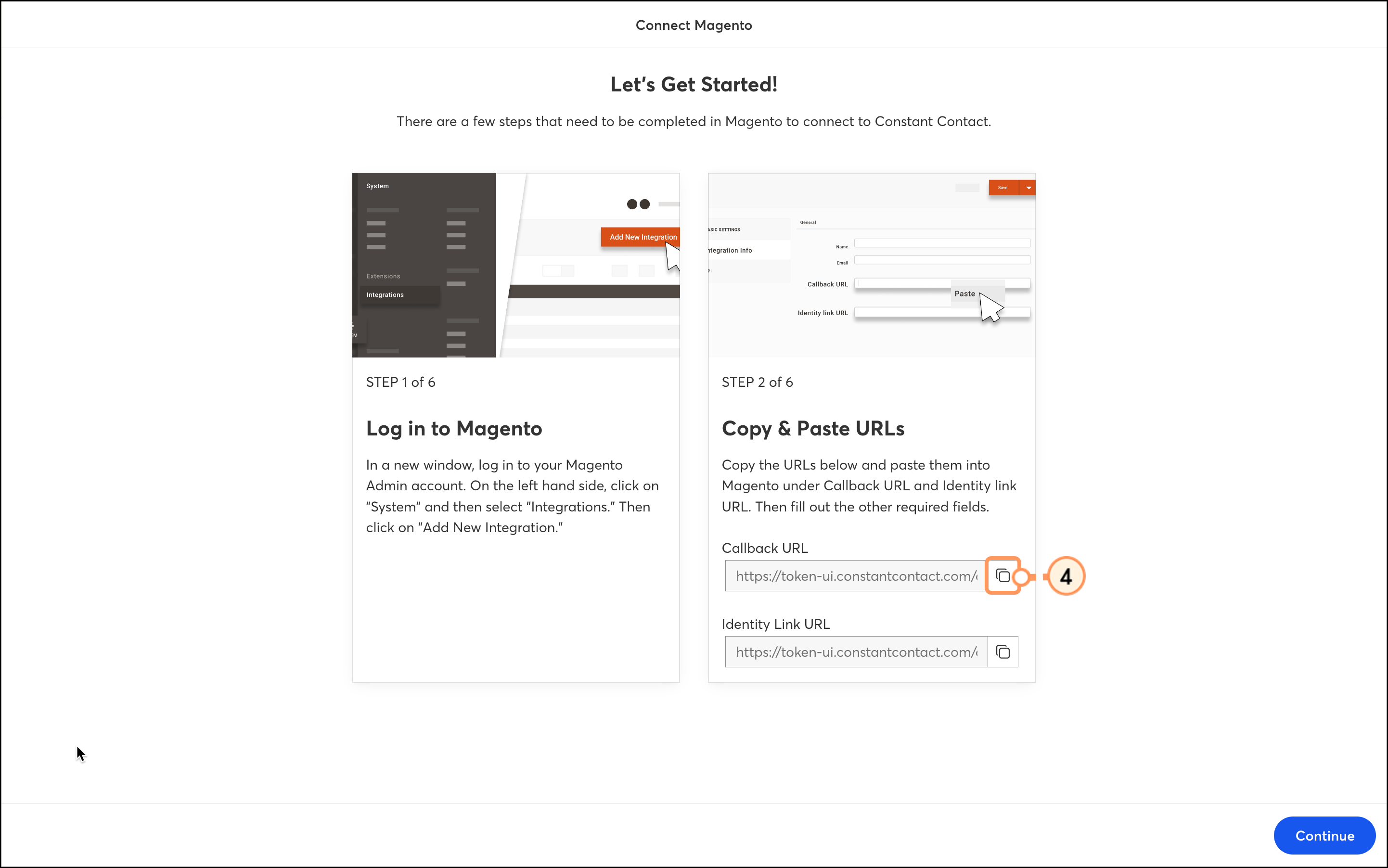
Open your Magento account. Click System > Integrations. 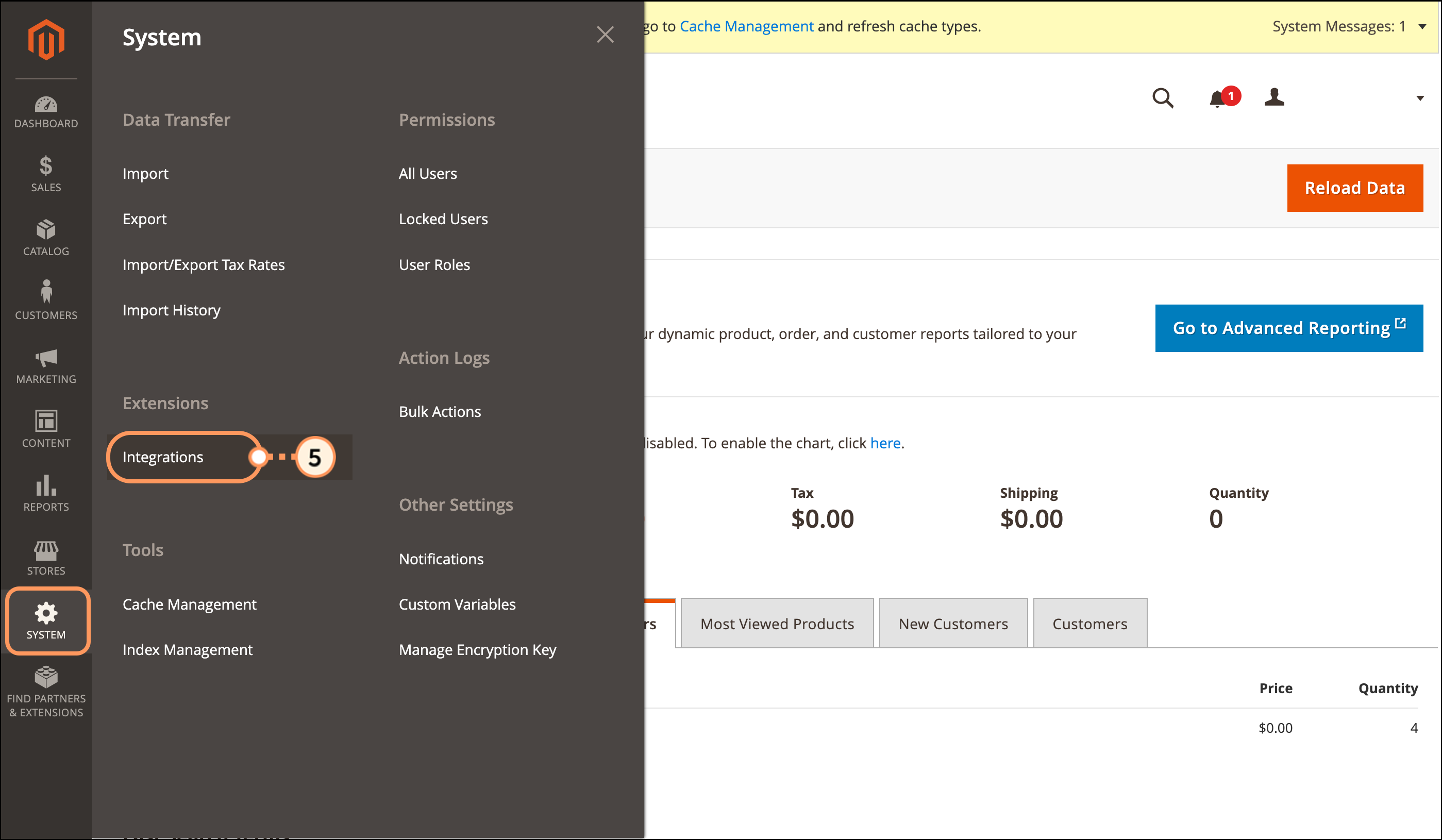
Click Add New Integration.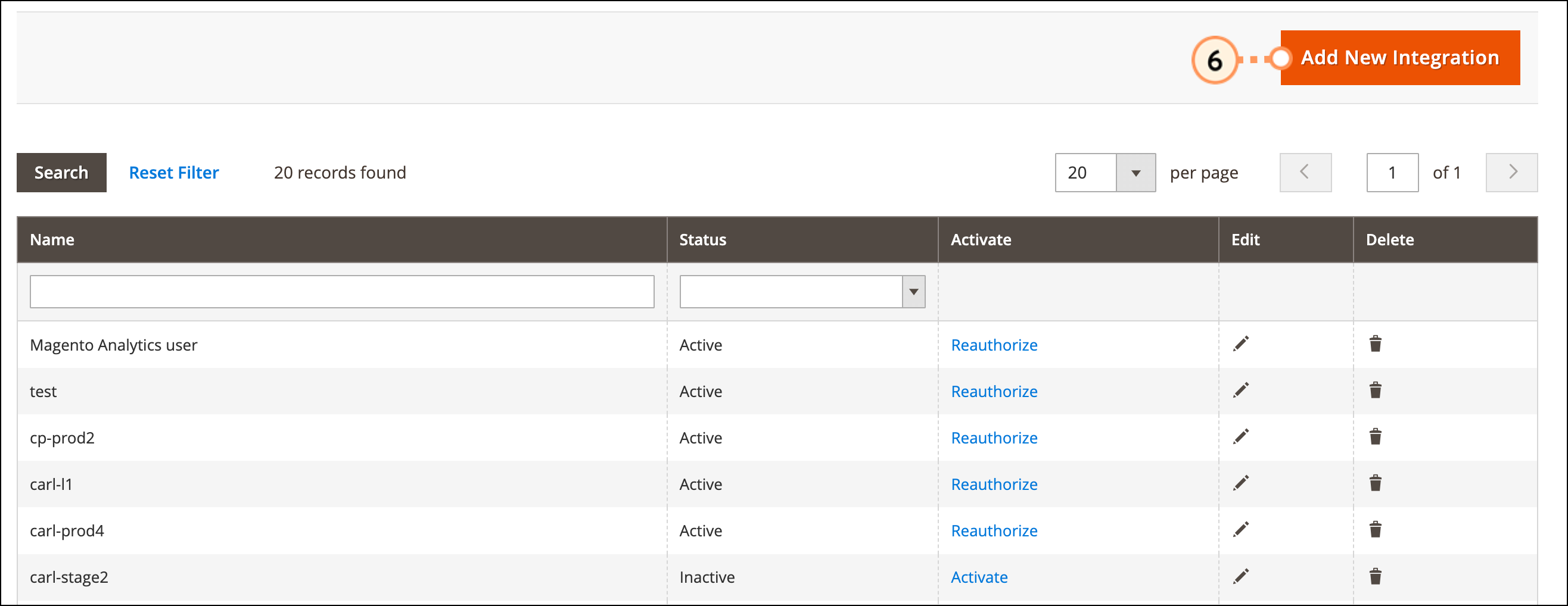
Edit the integration name.
(Optional) Edit the integration email address.
Paste the URL you’ve copied into the Callback URL field.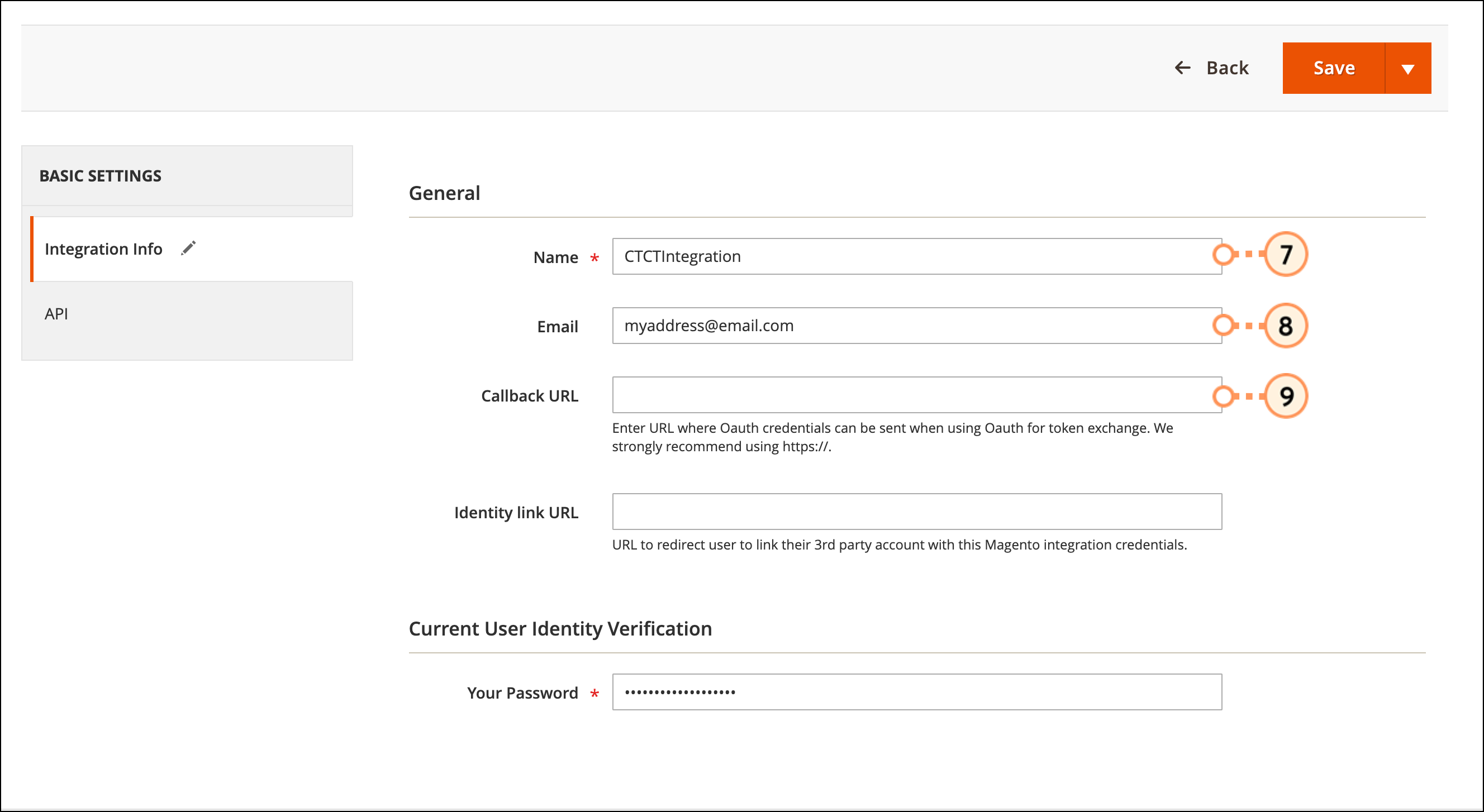
Return to the tab with the URLs from Step 4 and use the clipboard icon to copy the Identity Link URL.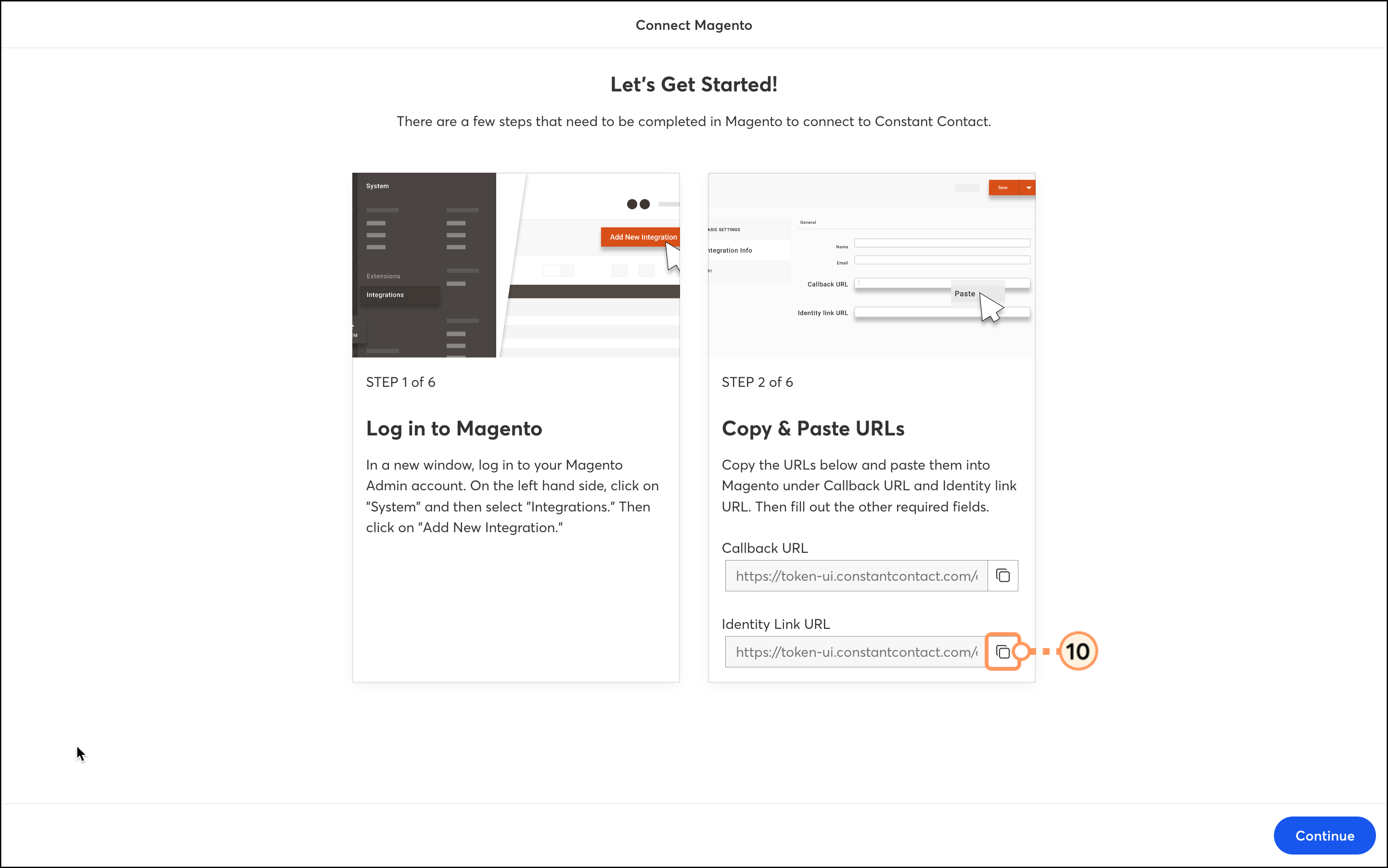
Back in your Magento Integration, paste the URL you’ve copied into the Identity Link URL field.
Re-enter the password used to sign into your Magento account to verify your identity.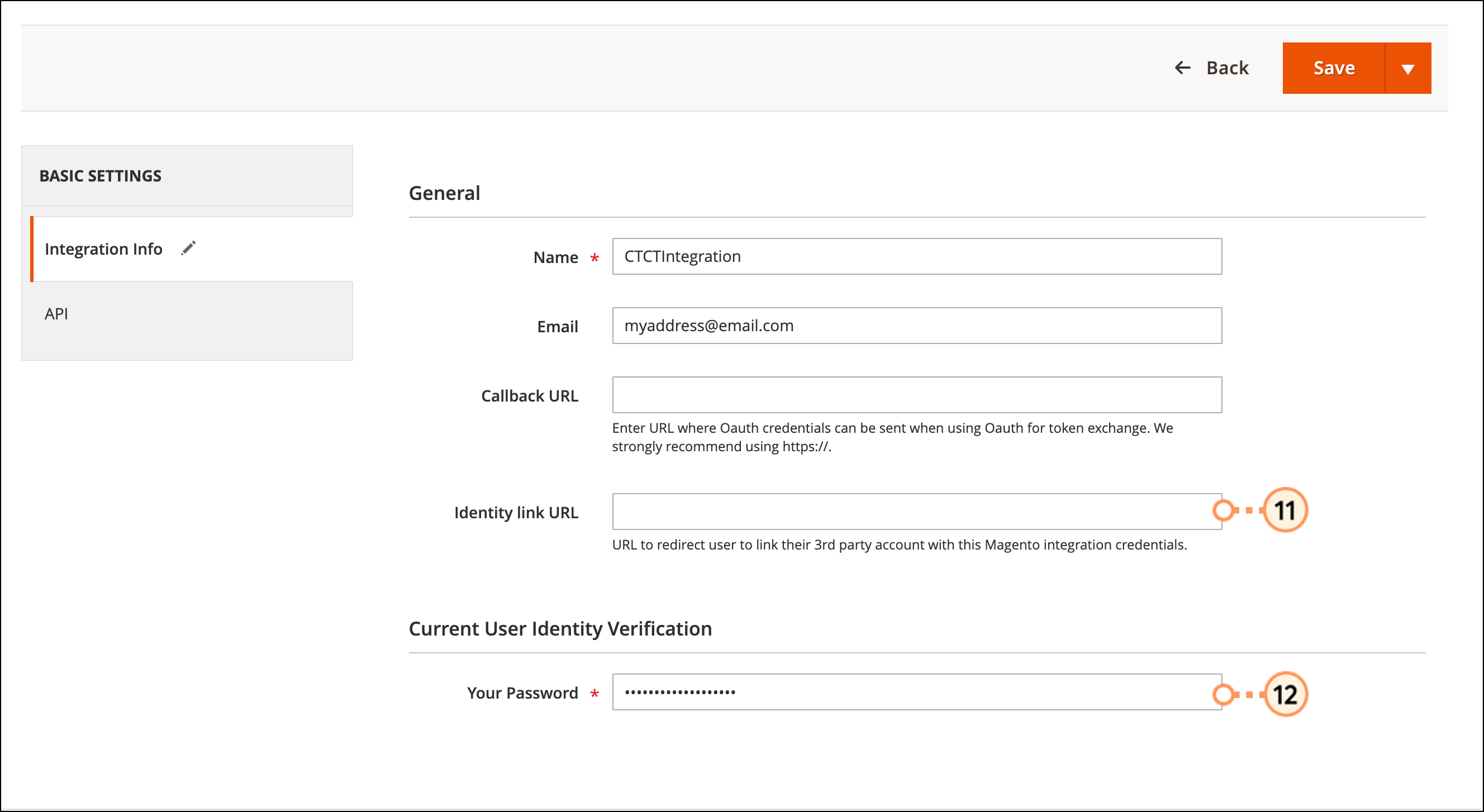
Click the API tab.
In the Resource Access dropdown menu, select All.
Click the dropdown next to Save to select Save and Activate.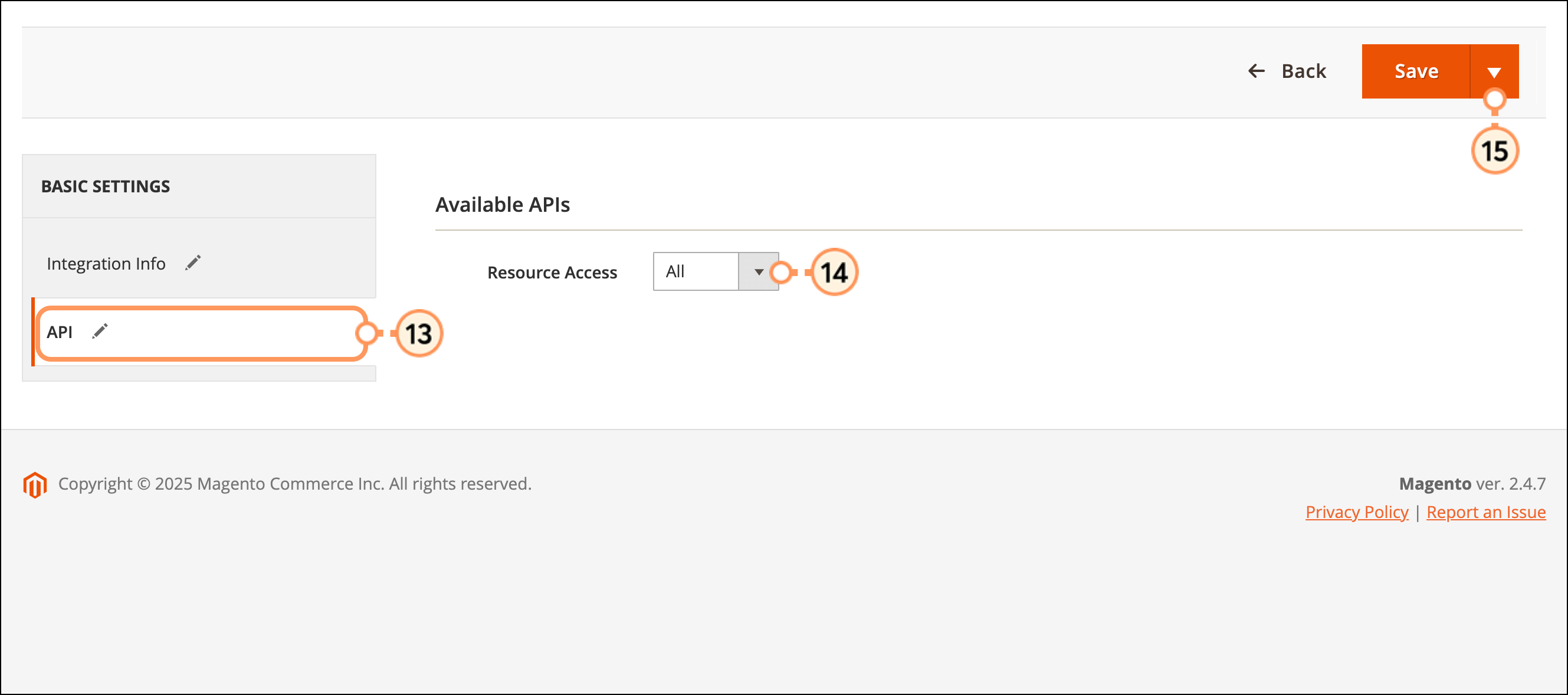
If your integration doesn't automatically start, you may need to return to your list of integrations and click Activate.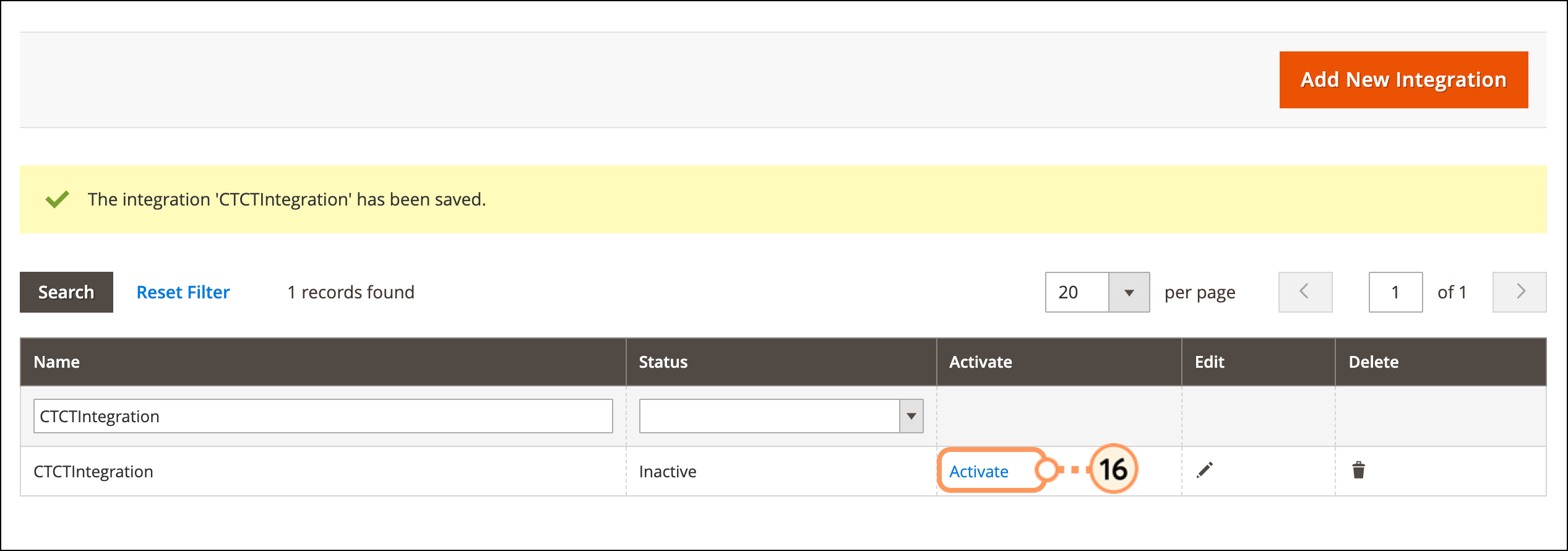
Click Allow.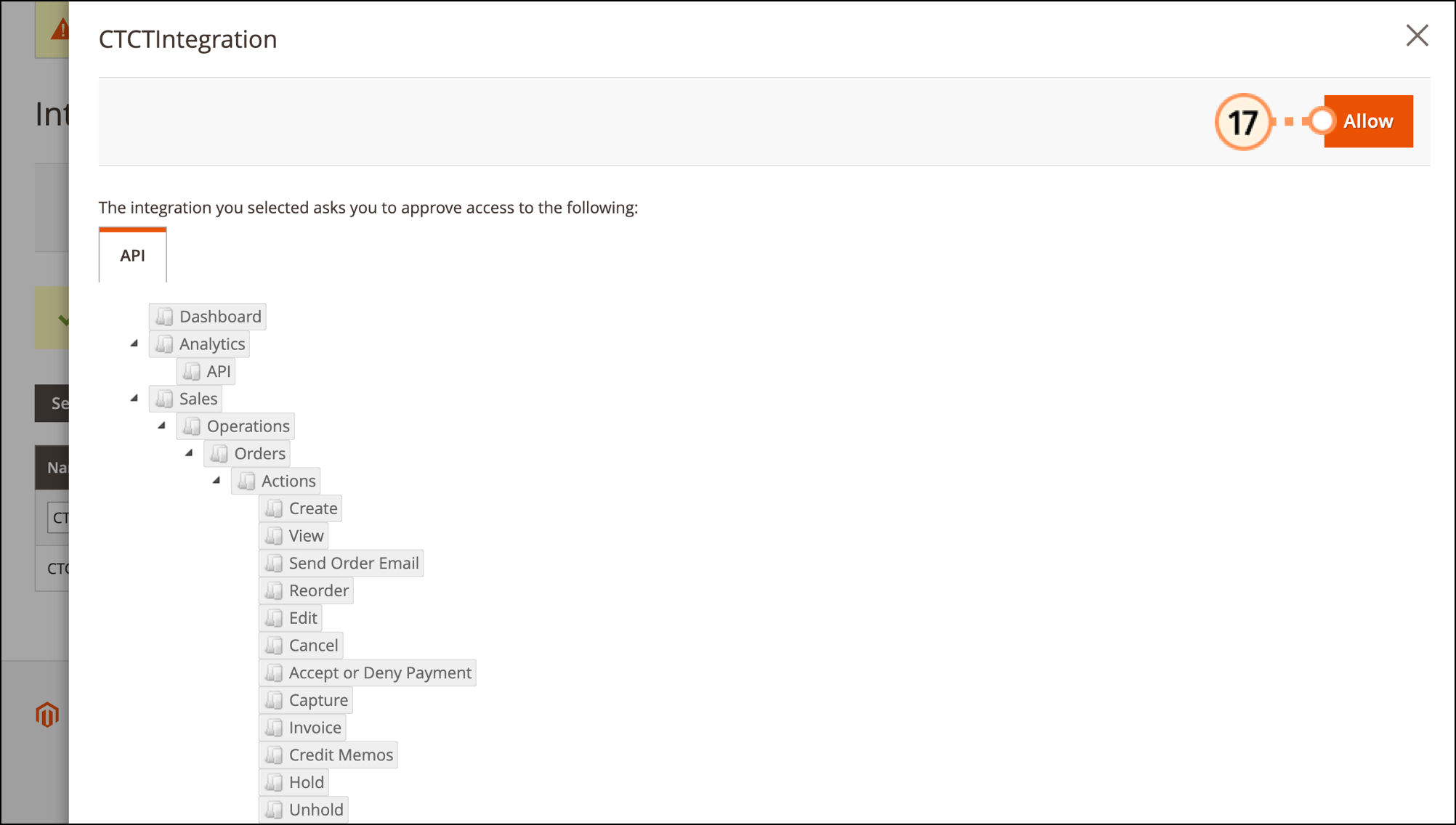
Select your store, then click Complete Integration. 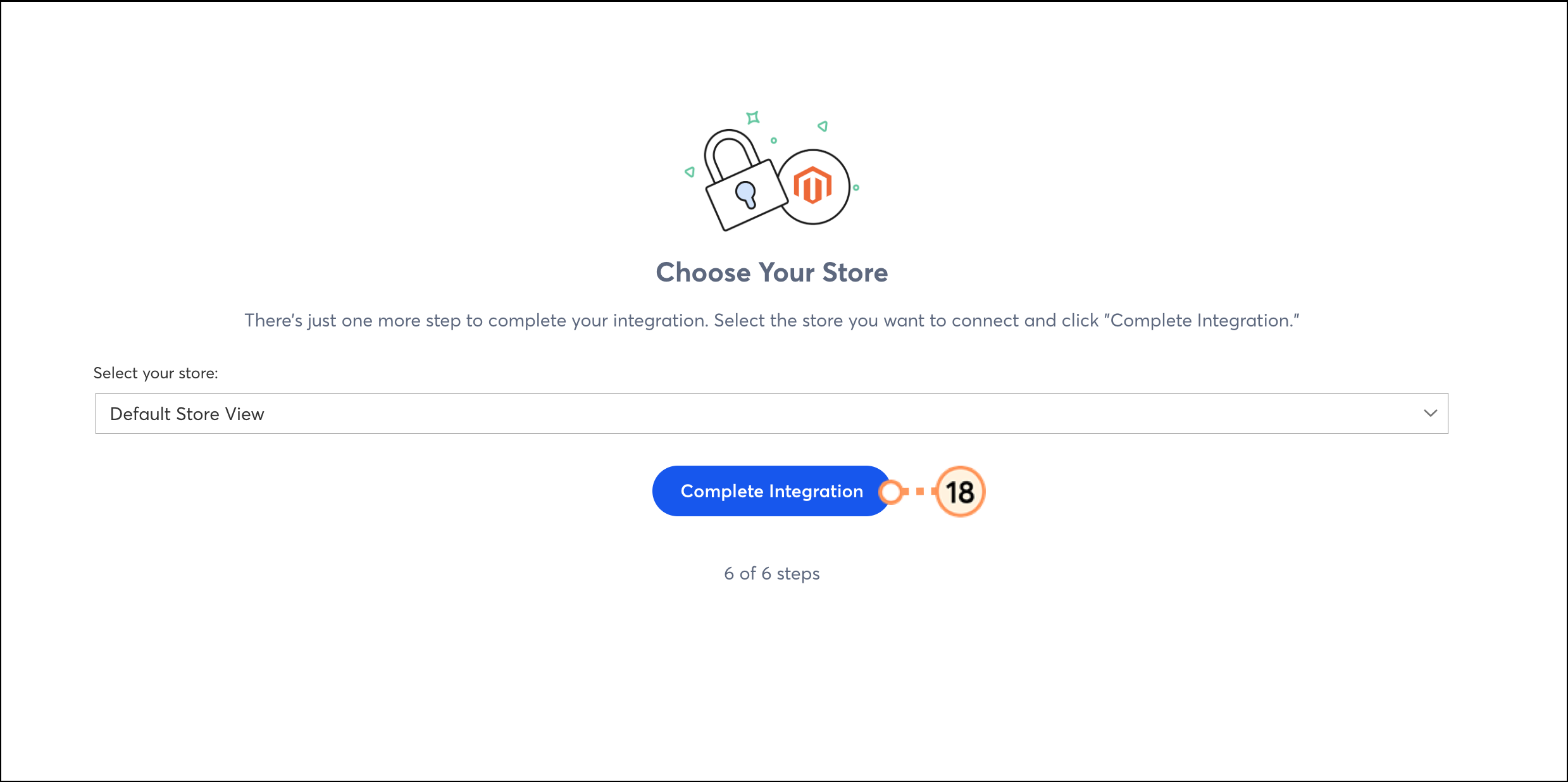
Return to Constant Contact once the process is complete to see your synced contacts. Depending on the size of your Magento store, the import can take up to 90 minutes or longer. Once the import is complete, you will receive a system email.
Your Magento contacts will be imported into segmented lists:
Magento – All Customers: All contacts in Magento
Magento – First-time Customers: Purchase total of 1
Magento – Lapsed Customers: No purchases within the last 120 days
Magento – Recent Customers: Purchased within 30 days
Magento – Repeat Customers: More than 1 checkout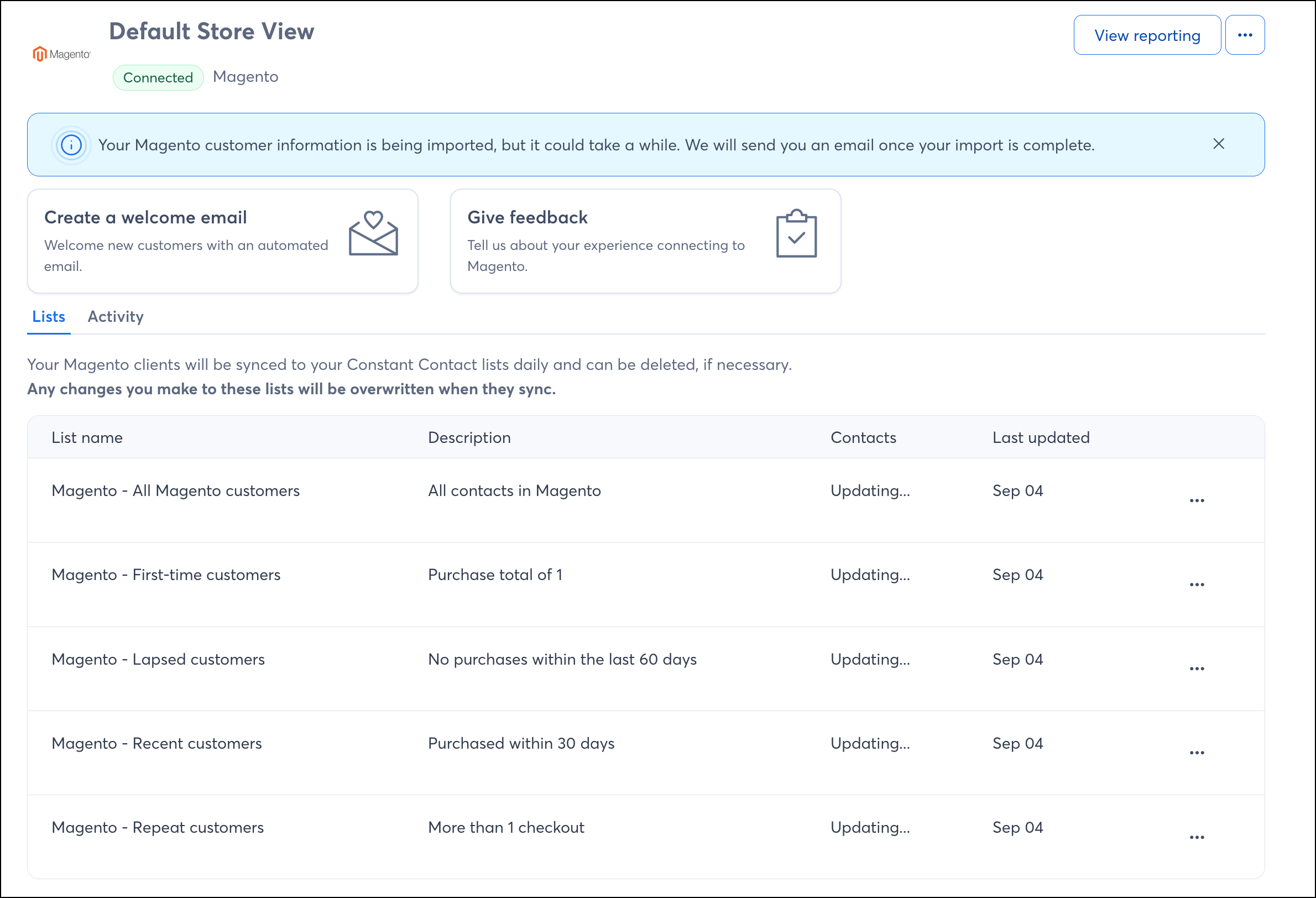
Once your Magento store is synced, there are a few ways to utilize the integration throughout your Constant Contact account.
When you connect your Magento account to Constant Contact, your Magento contacts are placed into segmented lists based on their activity and are synced daily. However, if there's a specific segment of contacts you'd like to create in order to send more targeted messaging, you can do so by creating a custom segment of contacts.
Create personalized automated communications via email and SMS for your customers based on their actions, including welcome emails, thank you series, requests for review, and more.
Our reporting shows you the correlation between when your emails were sent and your Magento sales so that you get an idea of how your emails are having an impact. Check out our article on using an email for e-commerce to learn best practices for selling goods and services through an email.
Copyright © 2026 · All Rights Reserved · Constant Contact · Privacy Center