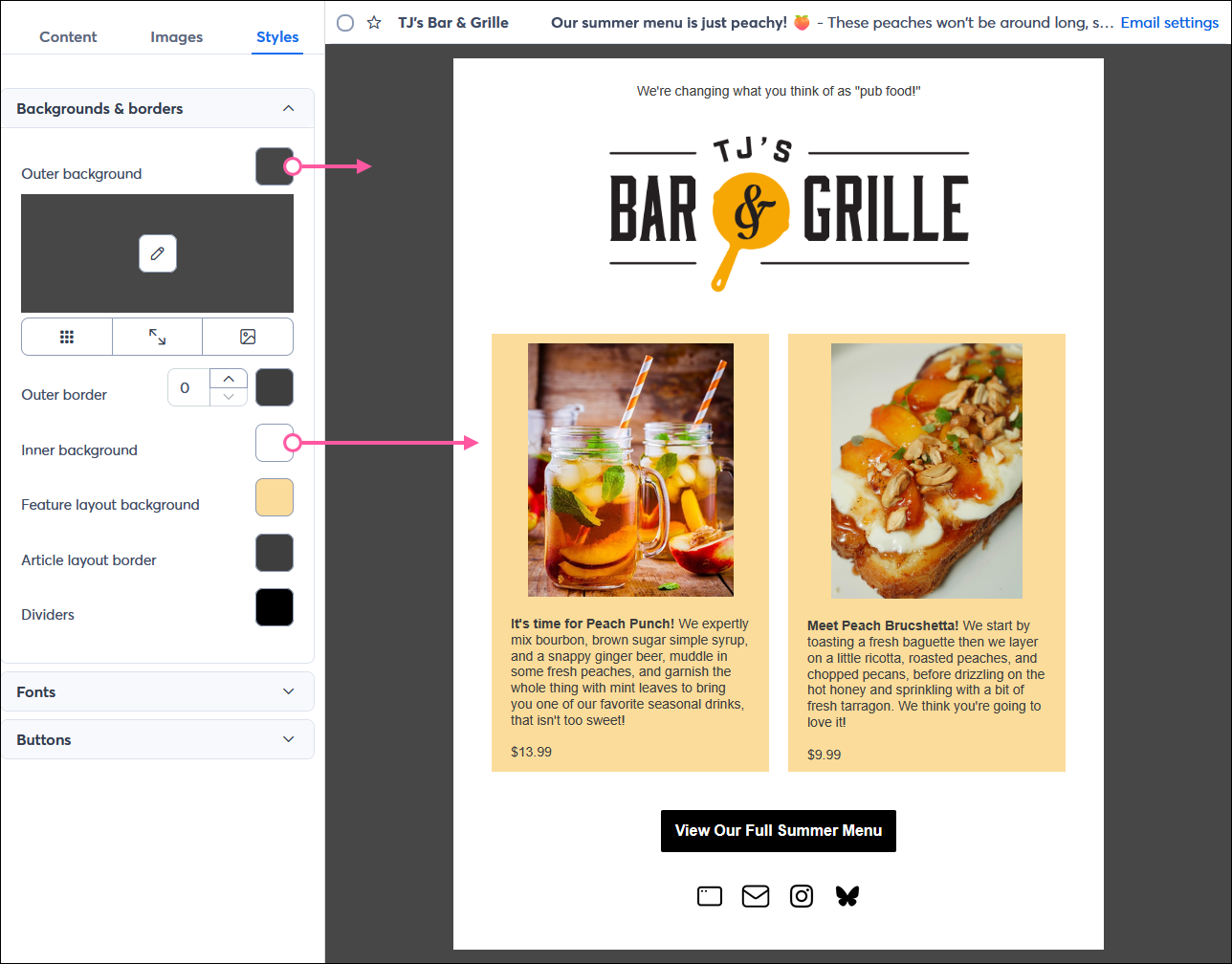
There are two different versions of Outlook, a web-based version (New Outlook) and the more traditional desktop app (Classic Outlook). Occasionally, there are email display issues associated with Classic Outlook. Here's what to do if you run into them:
 | Design tip: If you have access to the desktop version of Outlook, you can send a test email to yourself to look for display issues before sending the final version to your contacts. If you have many contacts with Outlook addresses (outlook.com, hotmail.com, live.com, msn.com), it might be worth creating a separate version of your email for them so you can design around these display issues. |
Fine lines that look like a misplaced divider can appear in emails that have different colors selected for the outer background and inner background/body, and have multi-column layouts that include multiple pieces of content, like a headline, image, and text, in each block. This is an issue known to Microsoft and impacts all emails, not just emails created with Constant Contact.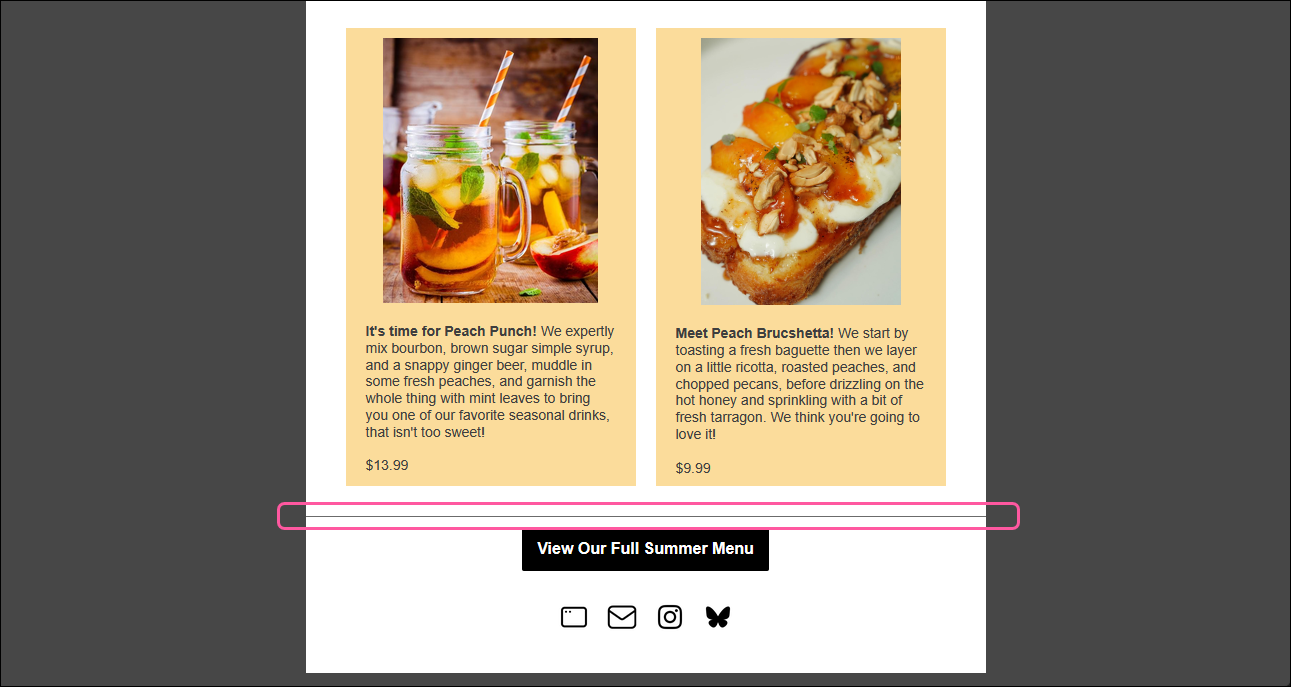
To prevent the lines from showing in your email, make sure your outer background color matches the inner background color.
Outlook's desktop app uses MS Word to render emails, and occasionally, this can impact the way emails display because of the way MS Word handles page breaks. When a page break falls in the middle of text, it usually isn't noticeable, but sometimes there can be gaps within images or tables. This is because page breaks shift content down to the next page, filling the space in between with background color.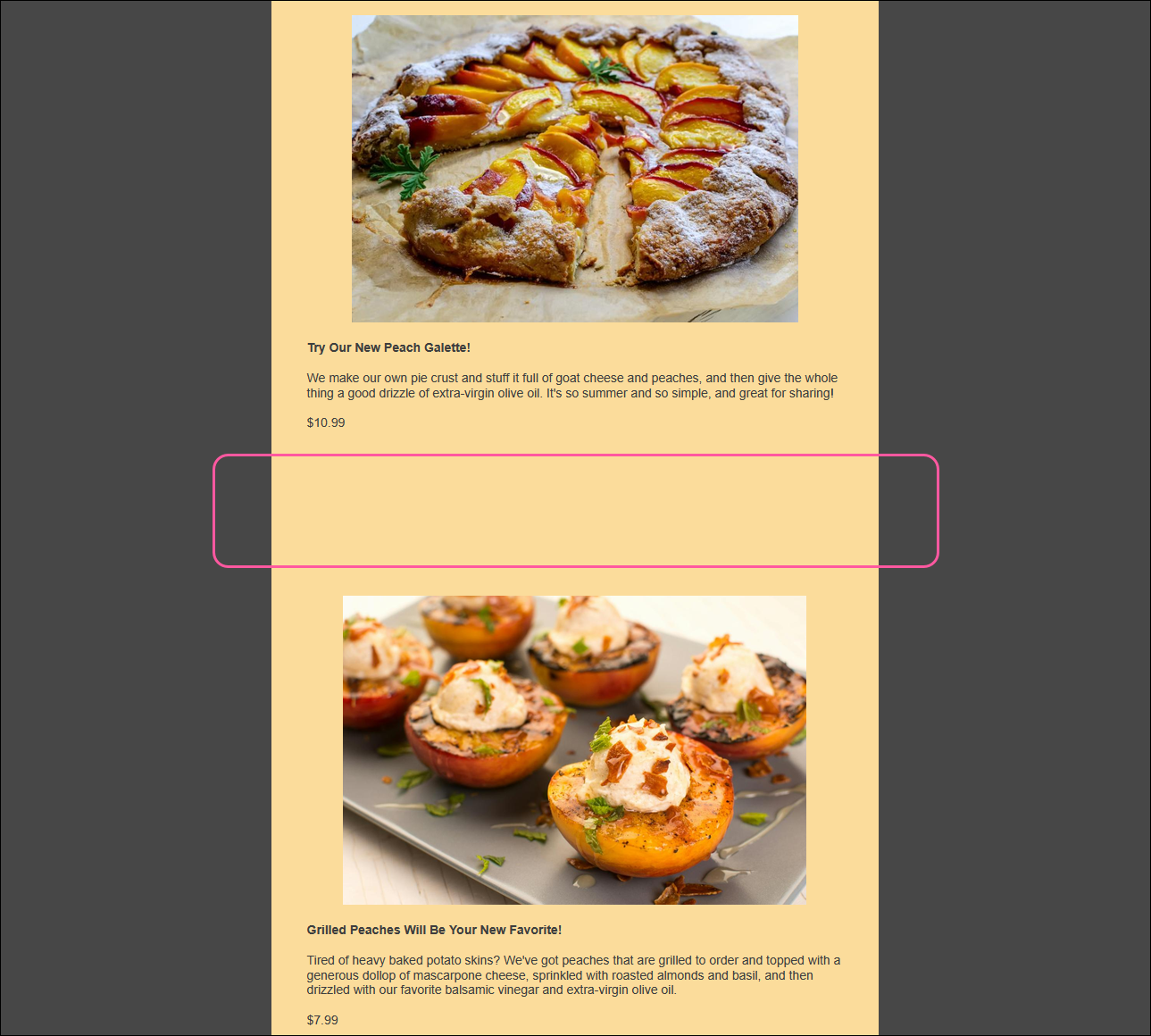
If your email is separated by a page break, there are several options to make the email display more consistently. We recommend trying them in the order they are listed for the least impact on the design of your email:
For best results, avoid putting all of your content into one block. The block acts as a table on the back-end and can trigger page breaks if it gets too long.
 | Did you know? If your image doesn't have a gap and it instead looks distorted when viewing it in Outlook, you may need to change its size or change the DPI scaling settings on your computer. |
Any links we provide from non-Constant Contact sites or information about non-Constant Contact products or services are provided as a courtesy and should not be construed as an endorsement by Constant Contact.
Copyright © 2026 · All Rights Reserved · Constant Contact · Privacy Center