Interested in tracking user activity from your Sign-up Landing Page or Custom Landing Page to help better understand your contacts and your marketing performance? Our landing pages are compatible with both Google Analytics 4 and the Meta Pixel. Here's how to add one or both to the page settings:
Google Analytics anonymously tracks how visitors interact with a website or landing page and presents the information in an easy-to-read, visual report. It shows you geographic data for your site visitors so you can better allocate your marketing time and effort with Google Ads, and it shows you how well your page is performing so you can make content or design changes if needed.
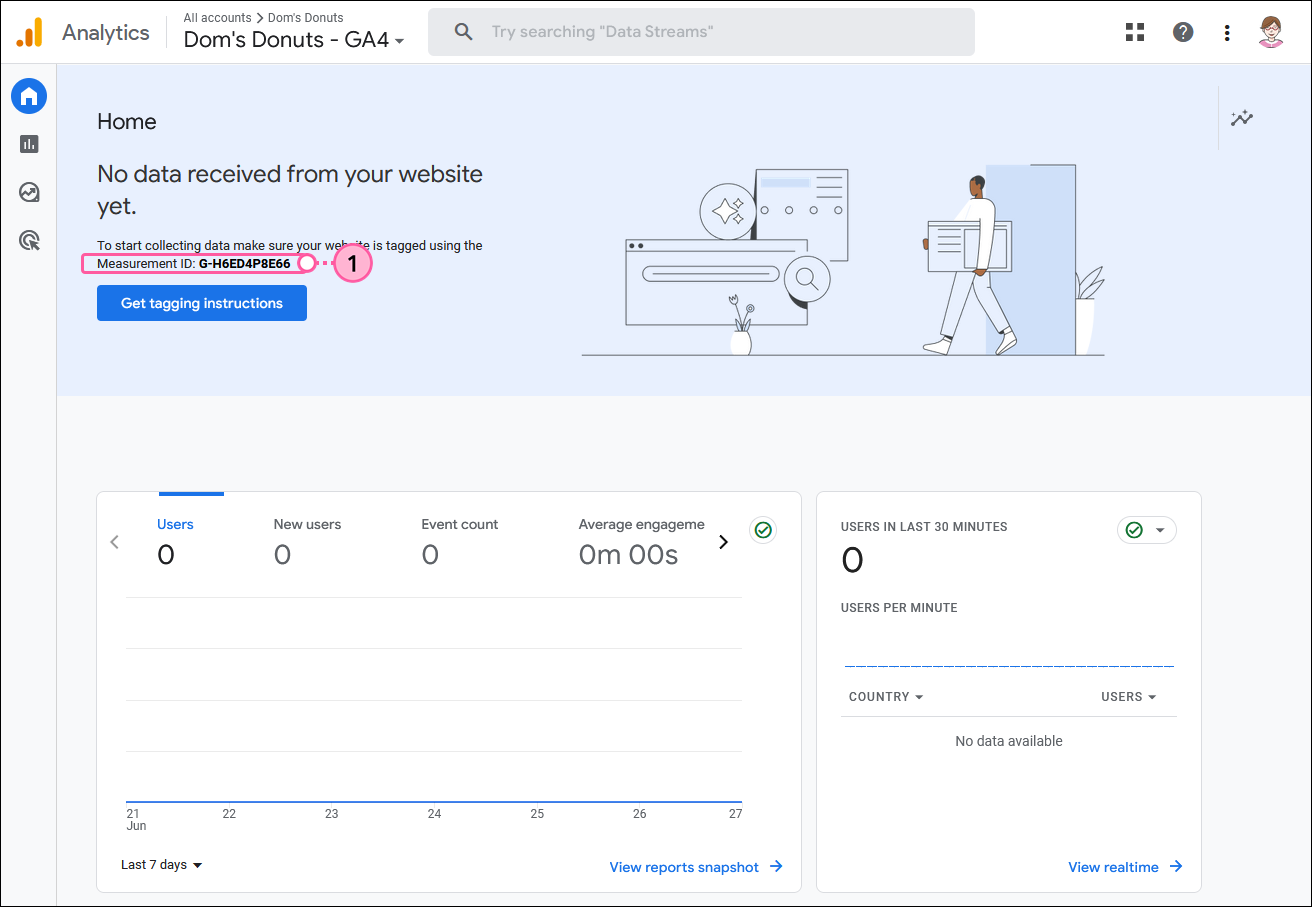
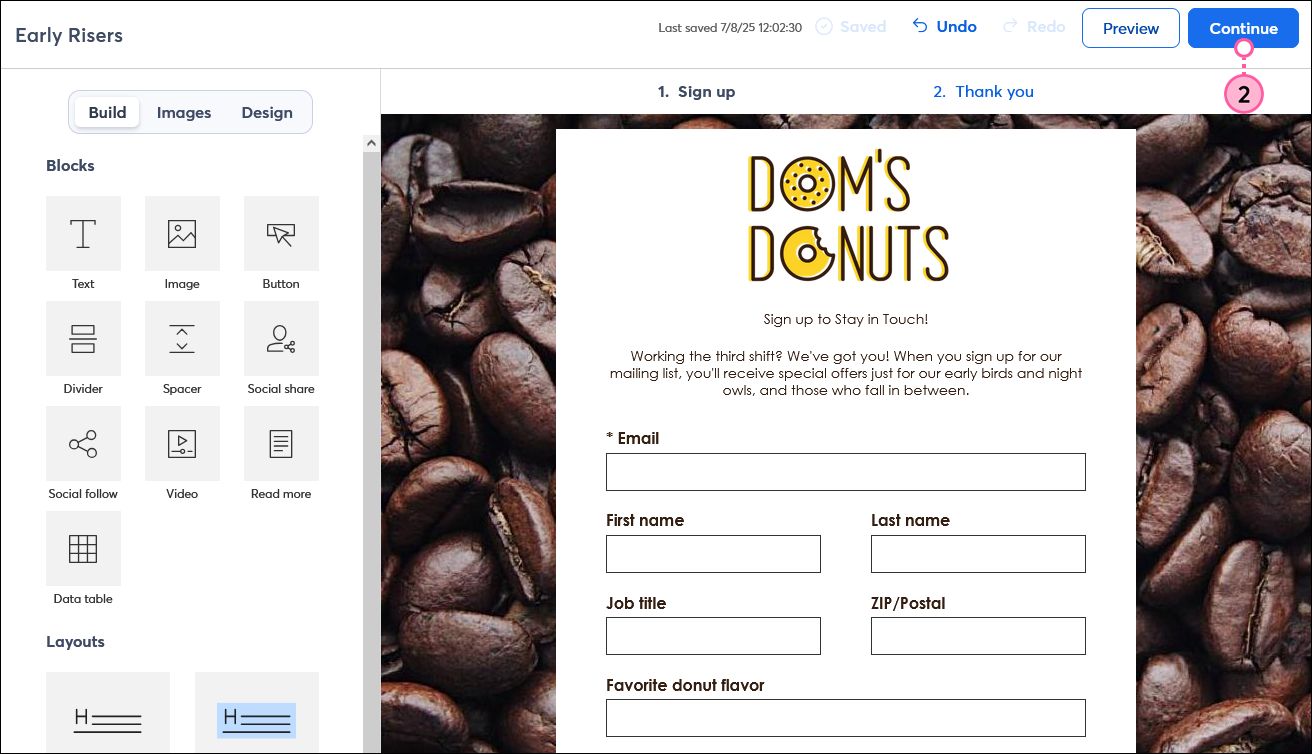
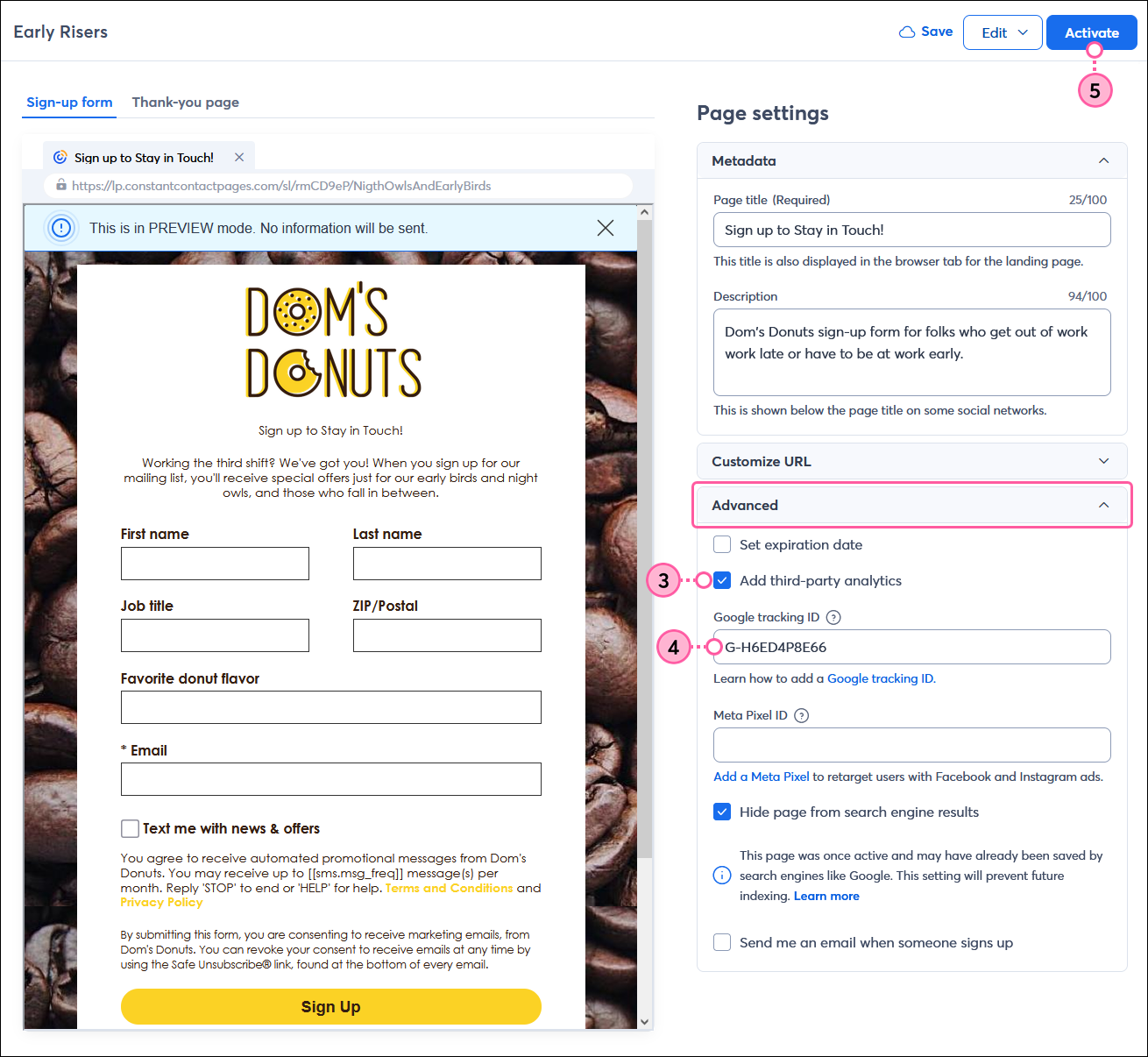
For more information about the Google Tracking ID, please see Google's support.
The Meta Pixel is a tracking pixel that can be added to a webpage or landing page. Once the pixel is installed on your page, Meta can track your page visitors and match them to their Facebook pages so that you can target them with Facebook and Instagram Ads. In your Facebook Ads Manager, you can then use the data to track conversions, create custom audiences, or set up dynamic ads.

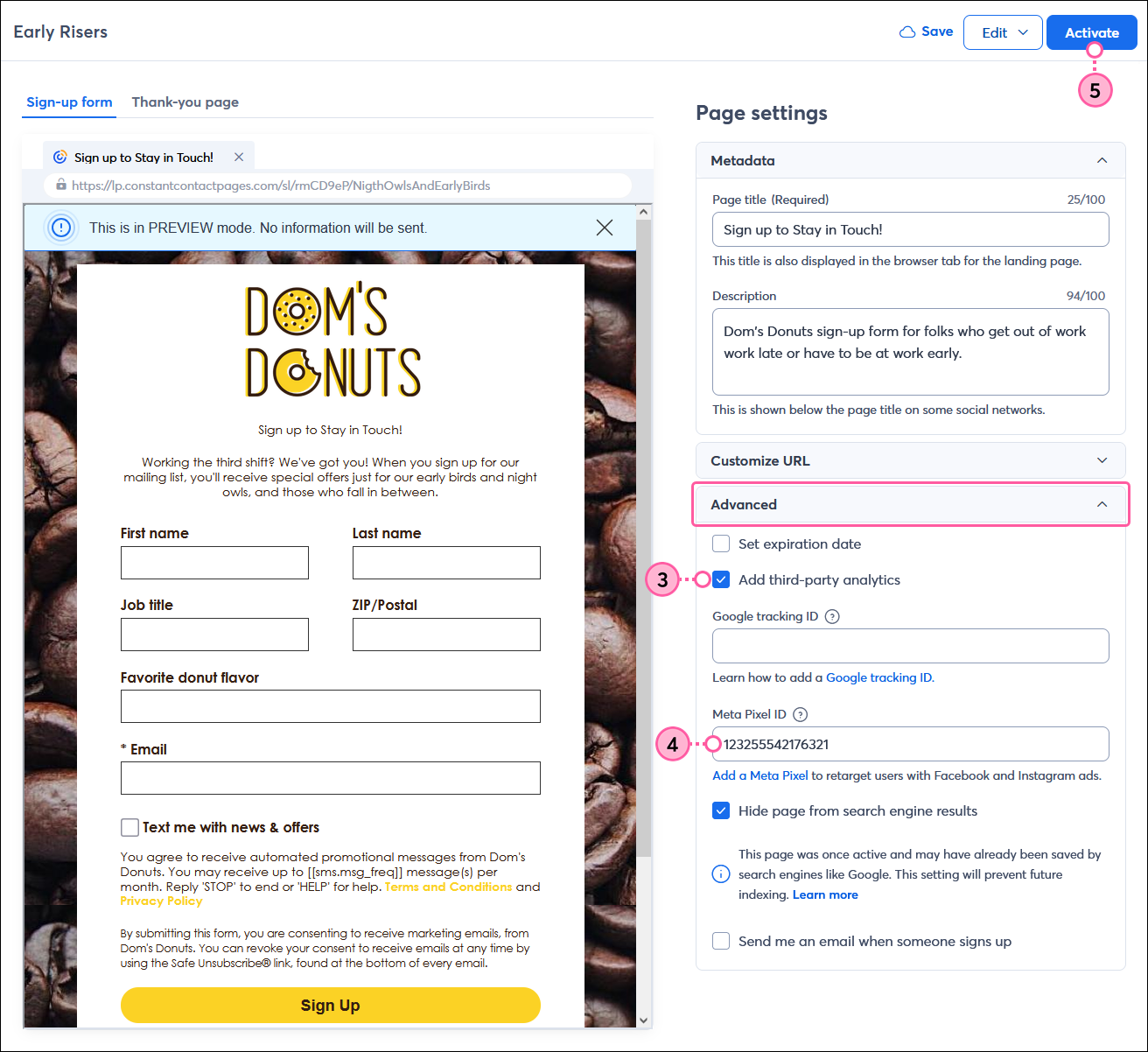
For more information about the Meta Pixel, please see Meta's support.
Any links we provide from non-Constant Contact sites or information about non-Constant Contact products or services are provided as a courtesy and should not be construed as an endorsement by Constant Contact.
Copyright © 2026 · All Rights Reserved · Constant Contact · Privacy Center