Email and Digital Marketing
How can we help you?
Search our help articles, video tutorials, and quickstart guides

You've got this. You've got us. Search our Knowledge Base to quickly find answers to your questions.

Connect Setmore to your Constant Contact account

Article: 000035240
Updated: August 3, 2026

Sync Setmore with Constant Contact to automatically import newly added Setmore contacts


Our integration with Setmore will allow you to automatically import newly added Setmore customers into the Constant Contact email lists of your choosing. Once connected, when customers book an appointment with you through your Booking Page in Setmore or if you add a contact manually, they'll automatically be pulled into the Constant Contact lists you designated when setting up the integration.


Connect your Setmore account

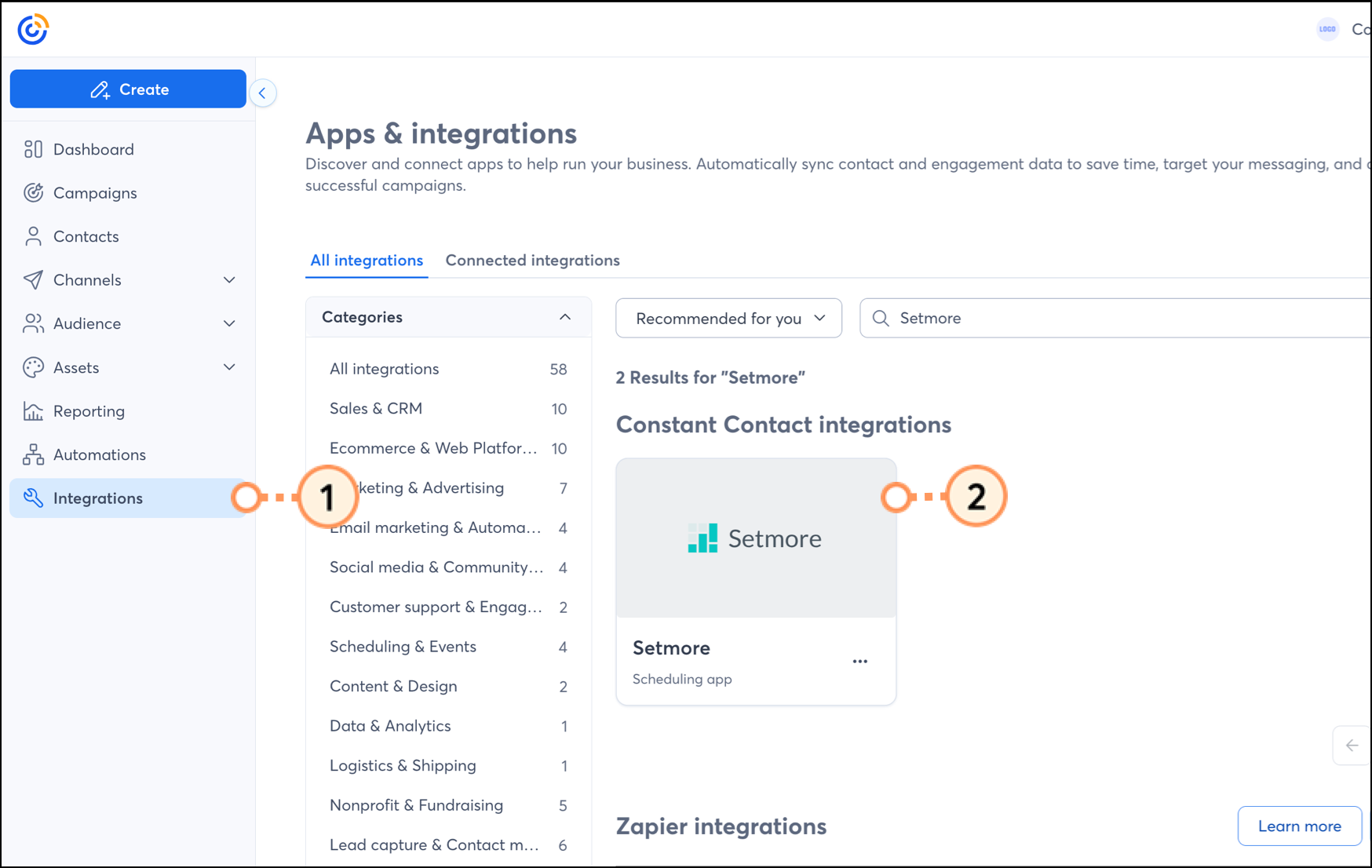
  1. Click Integrations.
  2. Under the "All Integrations" tab, either search for Setmore or scroll through the list to locate it. Then, click on the block.

    Setmore integrations card
     
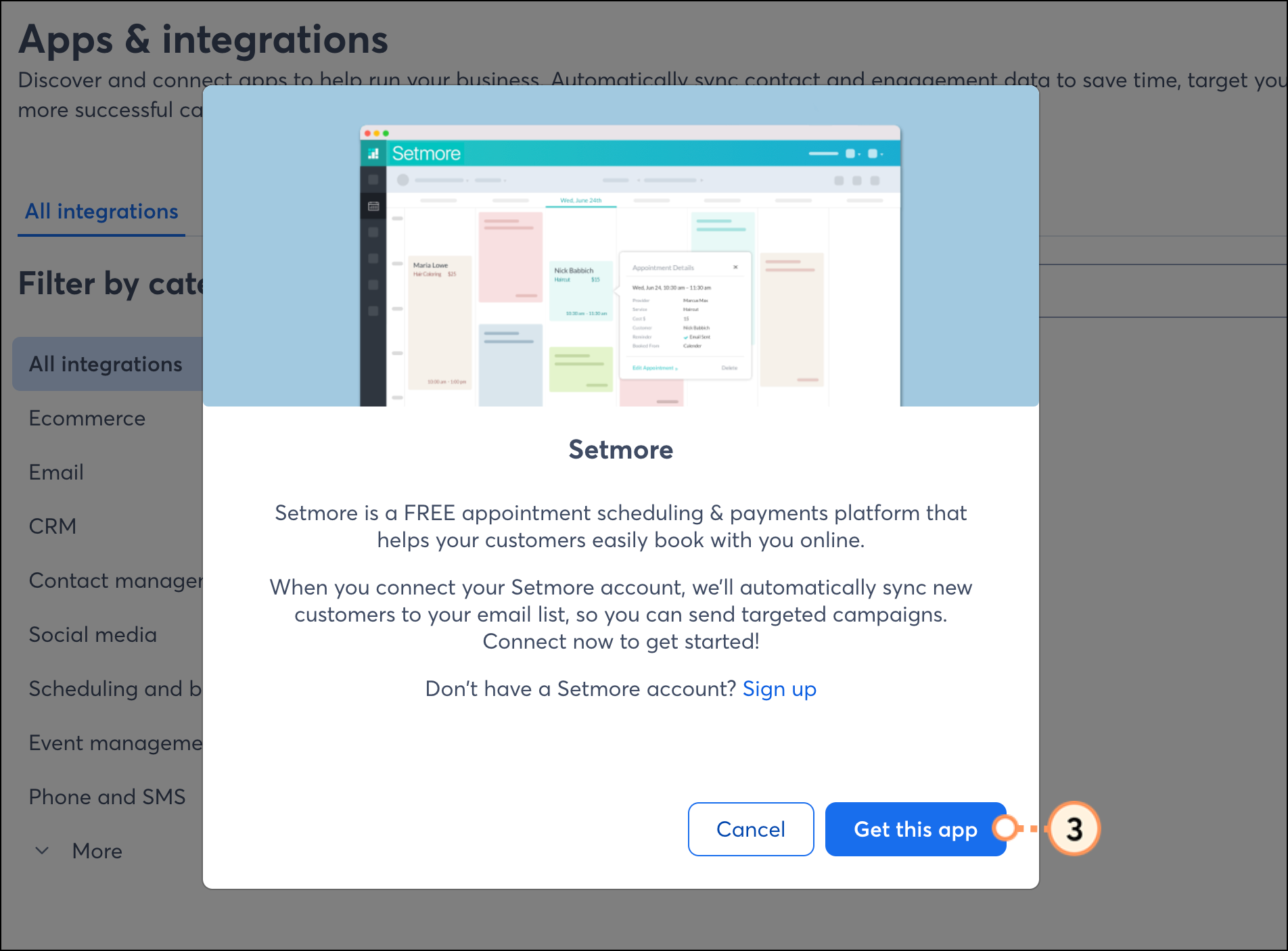
  3. Click Get this app.

    Setmore overview pop-up with blue Get this app button  
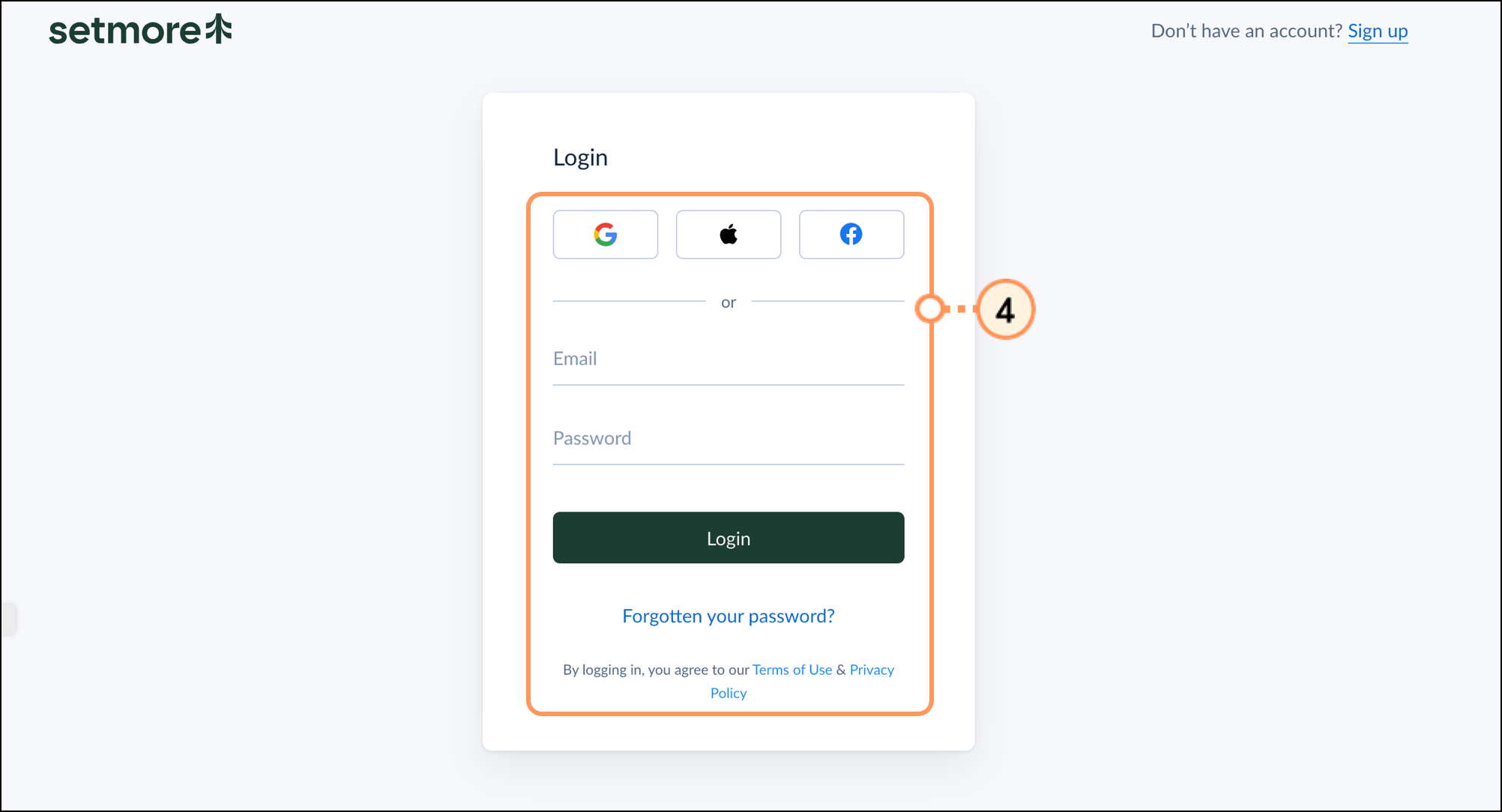
  4. Enter your Setmore username and password, and then click Login.

    Setmore login form  
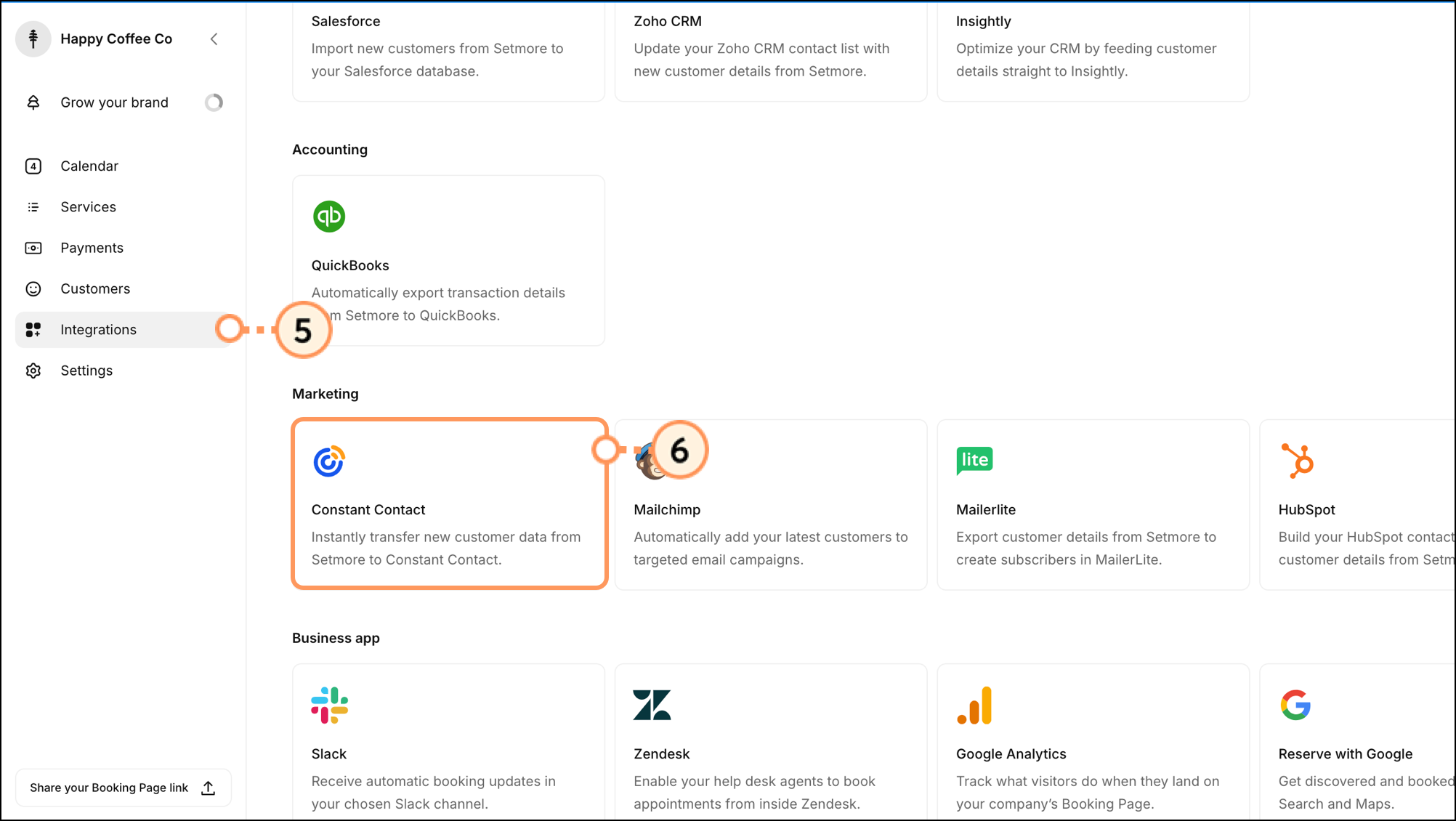
  5. Click the "Integrations" tab from the menu on the left-hand side.
  6. In the Marketing section, click the "Constant Contact" block.

    Constant Contact app under Marketing in the Setmore Integrations section  
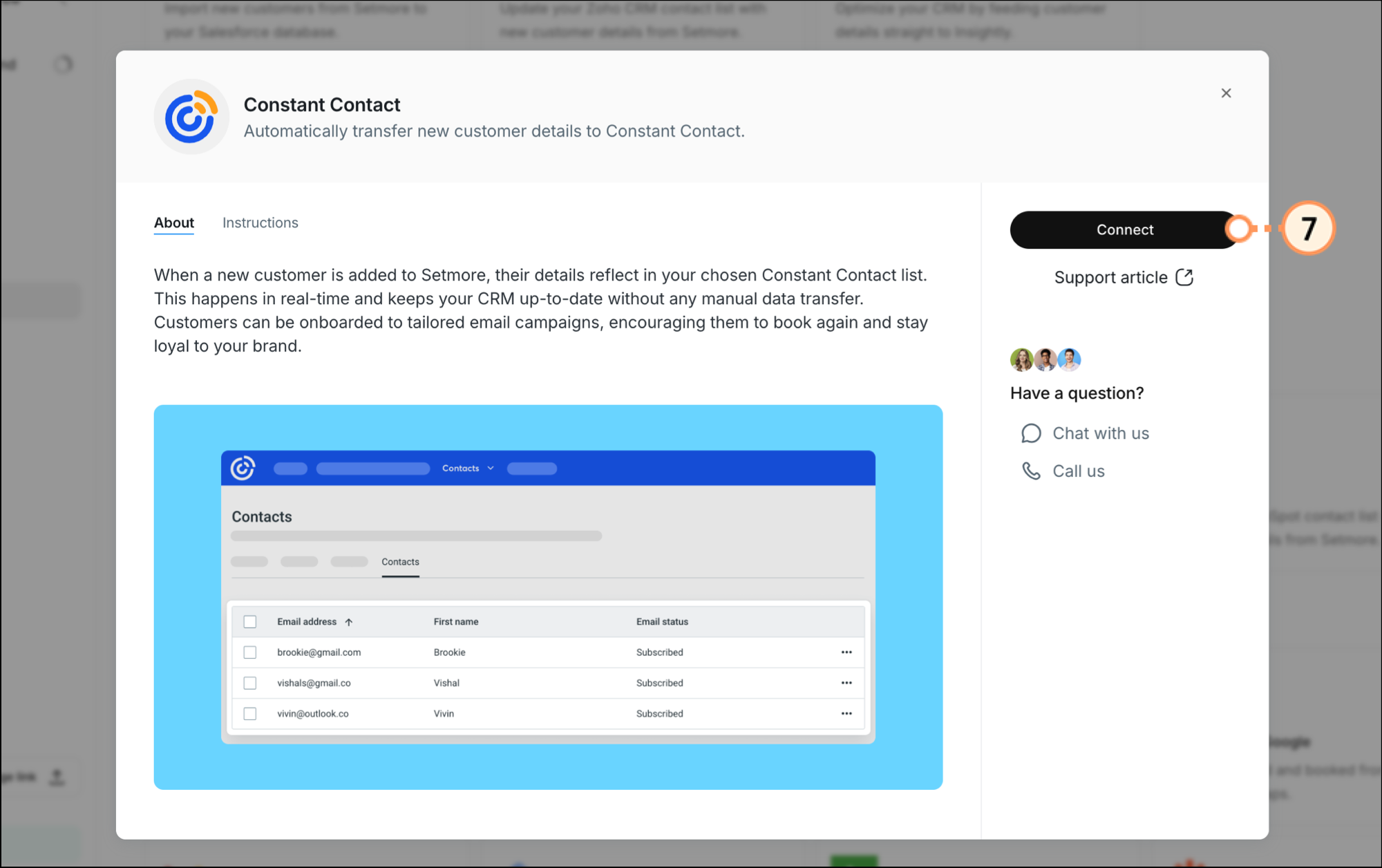
  7. Click Connect.

    Constant Contact Setmore app with black Connect button  
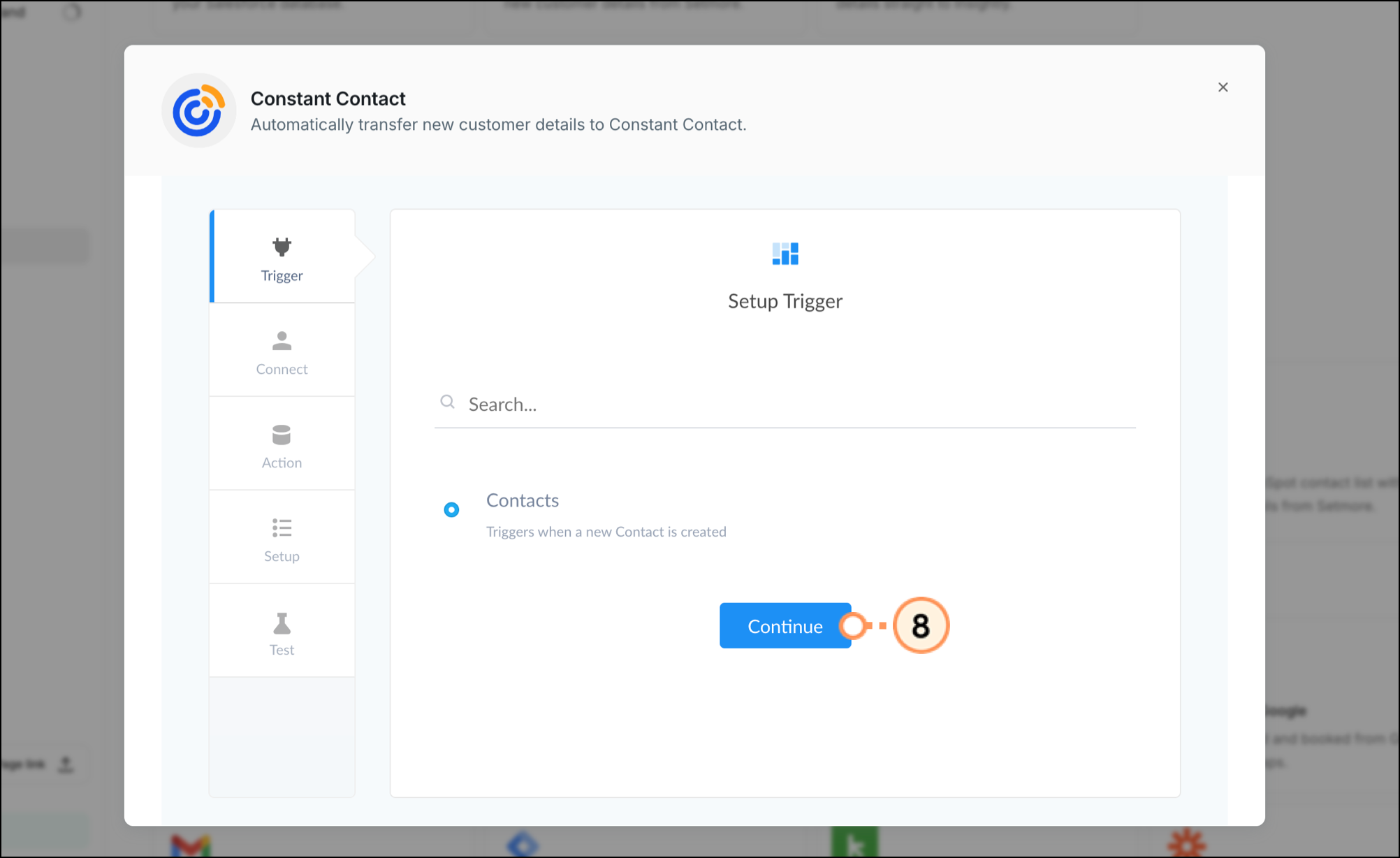
  8. In the integrations setup widget, with Contacts selected, click Continue.

    Constant Contact Setmore app with blue Continue button  
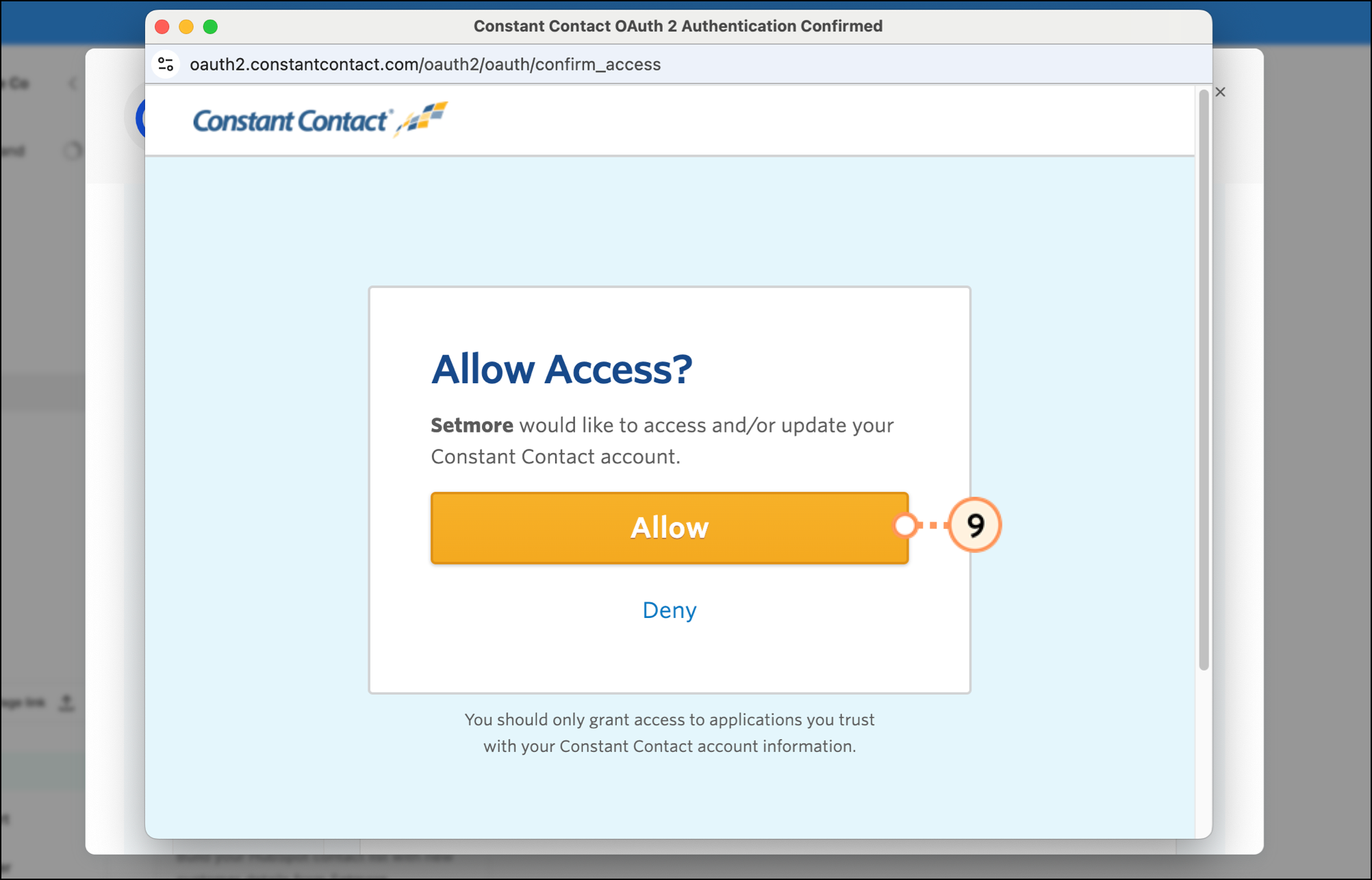
  9. Log in to your Constant Contact account and click Allow to grant access. 

    Constant Contact Allow Access popup with orange Allow button 
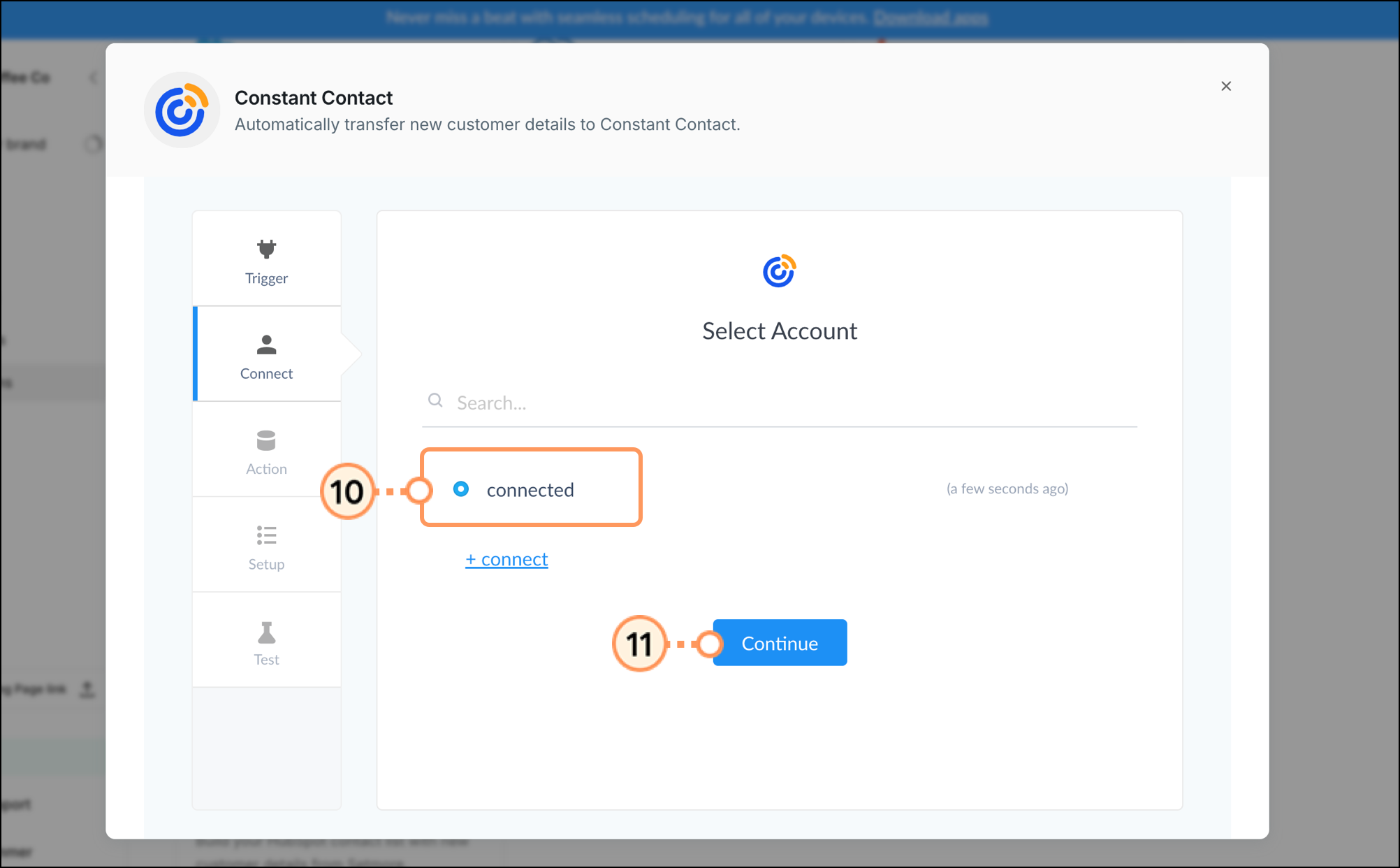
  10. Click the radio button next to the Constant Contact account that was connected.
  11. Click Continue.

    Select Account page in the Constant Contact Setmore app with blue Continue button 
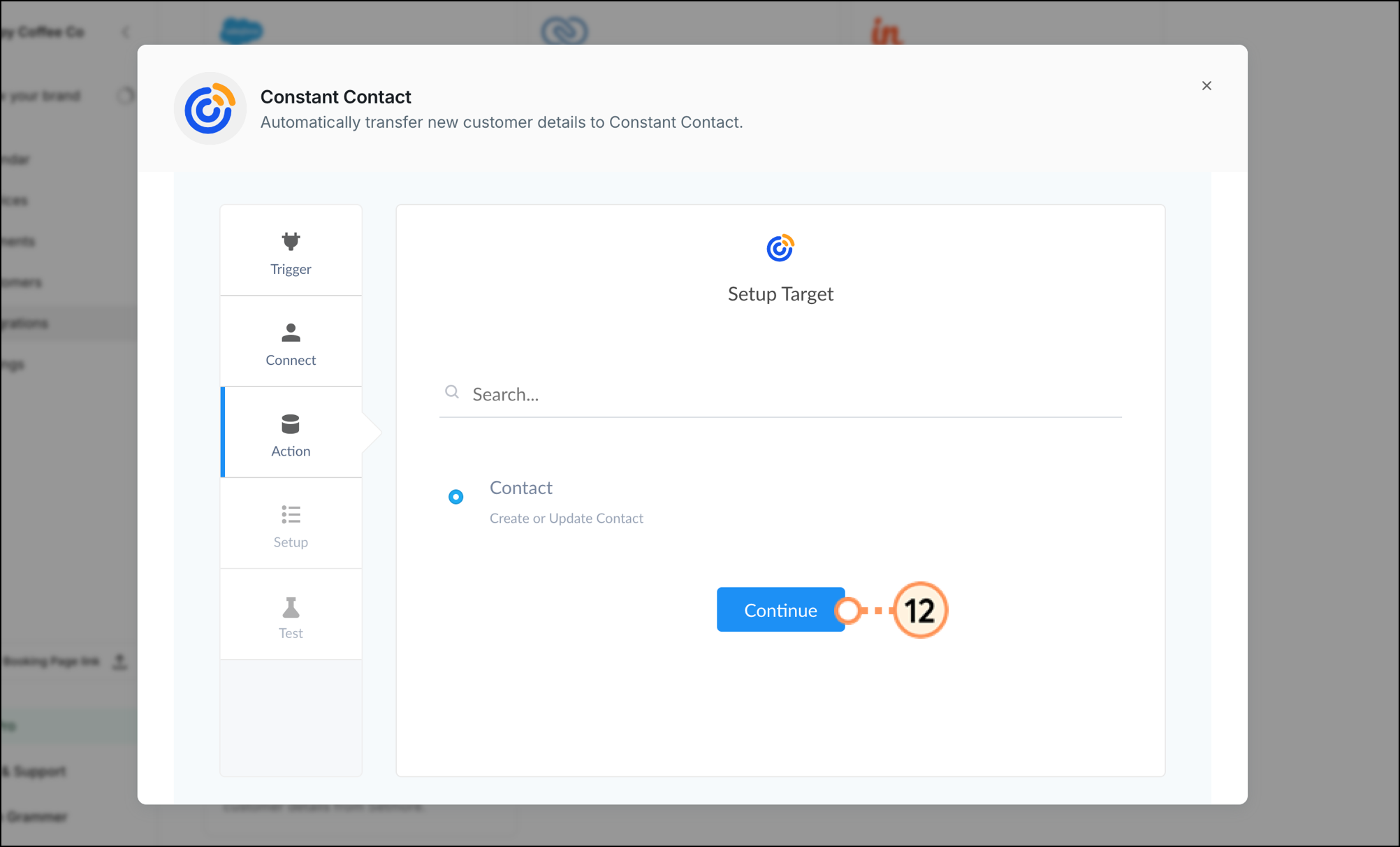
  12. With the radio button for creating Contacts selected, click Continue.

    Select Target page in the Constant Contact Setmore app with blue Continue button 
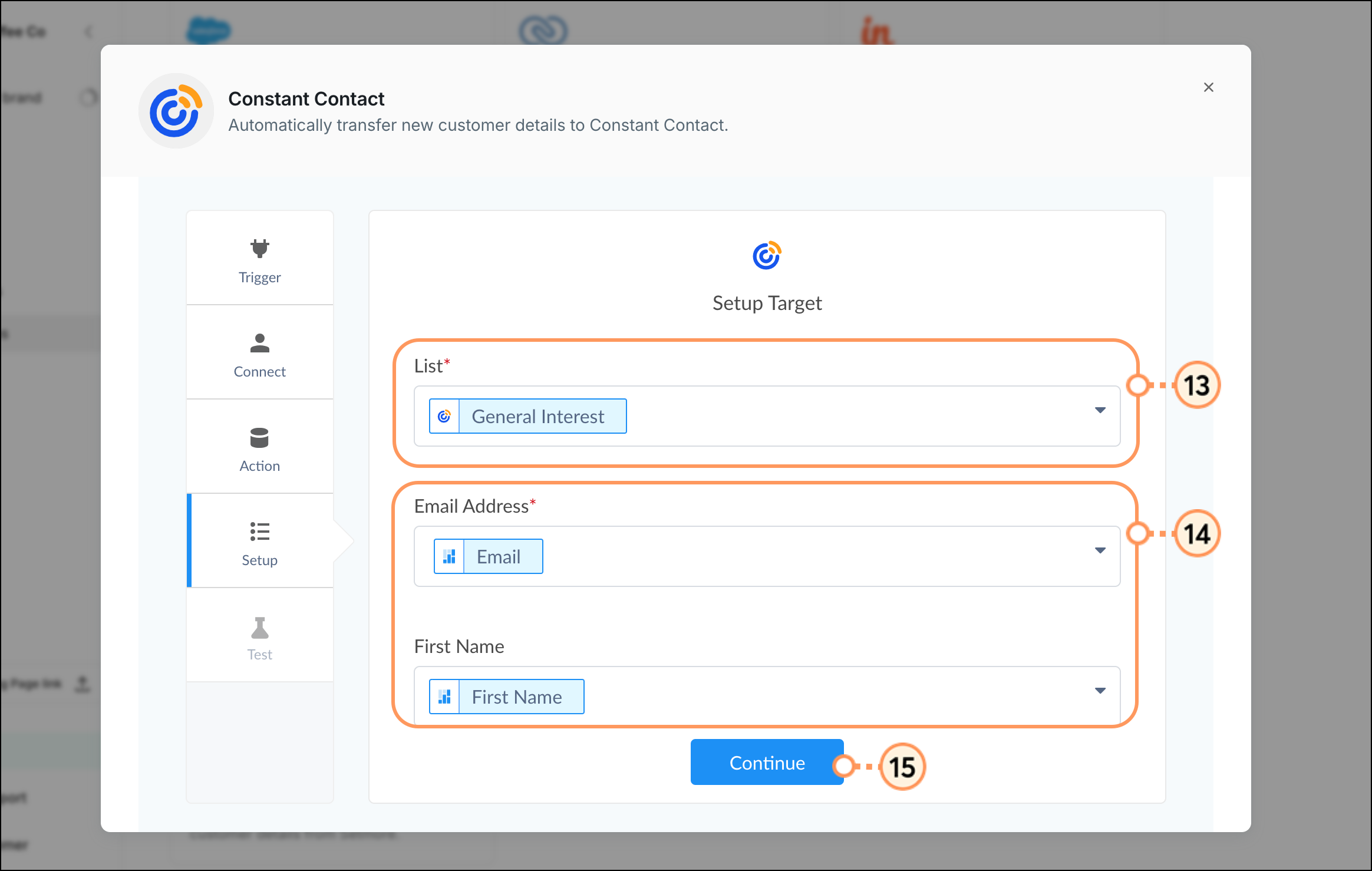
  13. Select the lists to add your Setmore contacts to. 

    Note:
     Only existing lists will display. If you would like to add Setmore contacts to a new list, create it prior to setting up the integration.

  14. Map the additional fields from Setmore to your Constant Contact list fields.
  15. Click Continue

    Setup Target page in the Constant Contact Setmore app with list, email, first name, and blue Continue button 
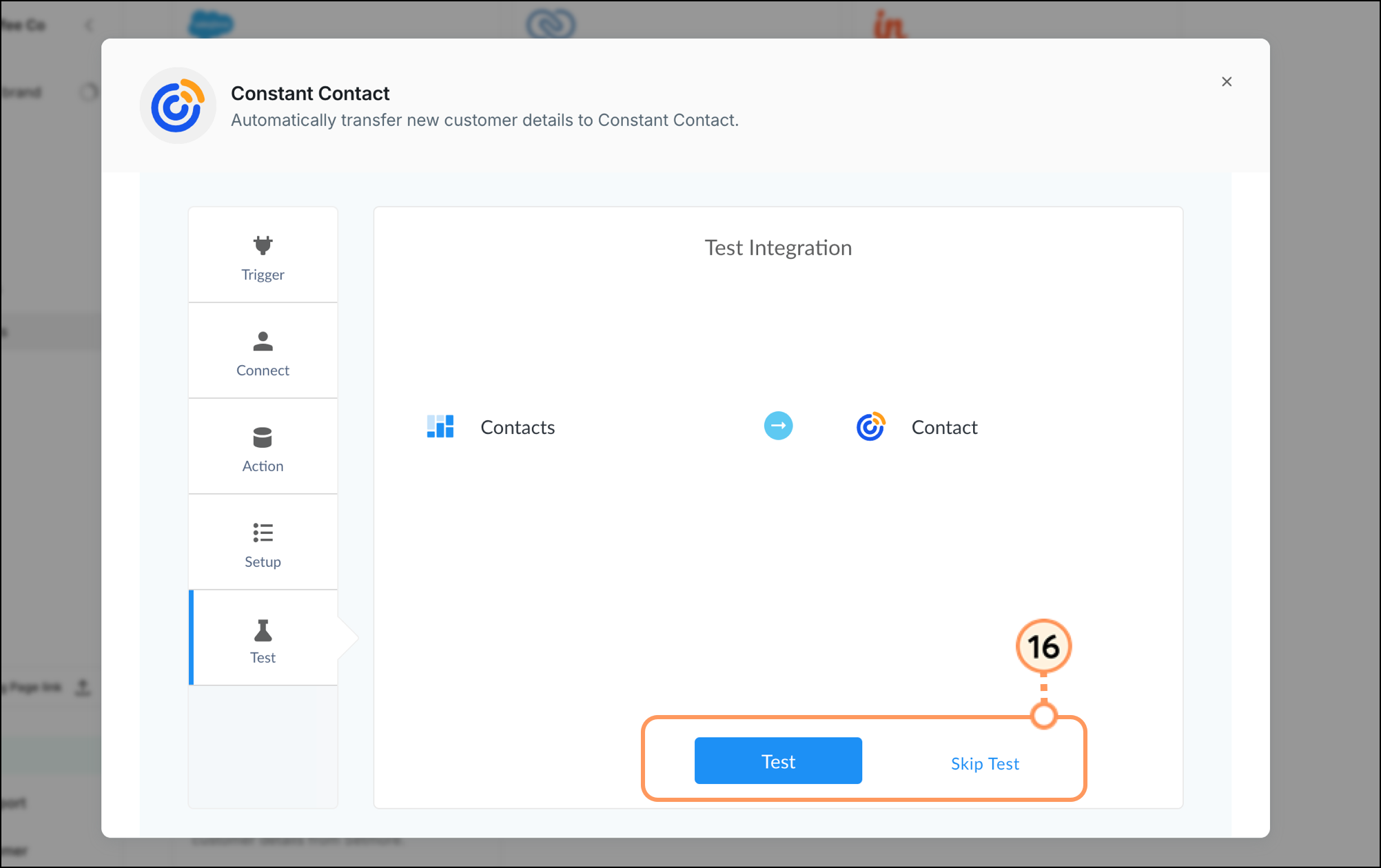
  16. Click Test to test your integration setup or Skip Test

    Test Integration page in the Constant Contact Setmore app with blue Test button and Skip Test button 


Boost your marketing with the Setmore integration

Once the integration has been set up and newly added customers are synced into Constant Contact, you can begin sending them emails, take advantage of automation and segmentation tools:


Insert a booking link into an email

Allow your customers to easily book appointments with you by including a Setmore booking link in your email.


Create a customized contact segment

When importing contacts from Setmore, all contacts will be imported into the list(s) of your choosing. If you want to segment these contacts further, in order to send specific, targeted messaging, you can do so by creating a custom segment of contacts.
 

Send automated communications

Create personalized automated communications via email and SMS for your customers based on their actions, including welcome emails, thank you series, requests for review, and more.

 Any links we provide from non-Constant Contact sites or information about non-Constant Contact products or services are provided as a courtesy and should not be construed as an endorsement by Constant Contact.


Questions?

Ask the Community

Did this article answer your question?


Constant Contact Logo

Copyright © 2026 · All Rights Reserved · Constant Contact · Privacy Center