Email and Digital Marketing
How can we help you?
Search our help articles, video tutorials, and quickstart guides

You've got this. You've got us. Search our Knowledge Base to quickly find answers to your questions.

Copy and paste contact information to create multiple email or SMS contacts

Article: 000033112
Updated: April 7, 2026

Quickly add a handful of email contacts by copying and pasting their names and email addresses, or enter your contacts' email and SMS information into a table, and choose additional contact details and custom fields to include

Clock IconSave time: You can add a maximum of 50 contacts by typing or pasting. If you have more than 50 contacts or want to import contacts with tags, we recommend adding their information to a formatted spreadsheet to upload instead.


If you collect only a few pieces of contact information or add only a handful of contacts at a time, copying and pasting them is a quick and easy way to add them to your account.

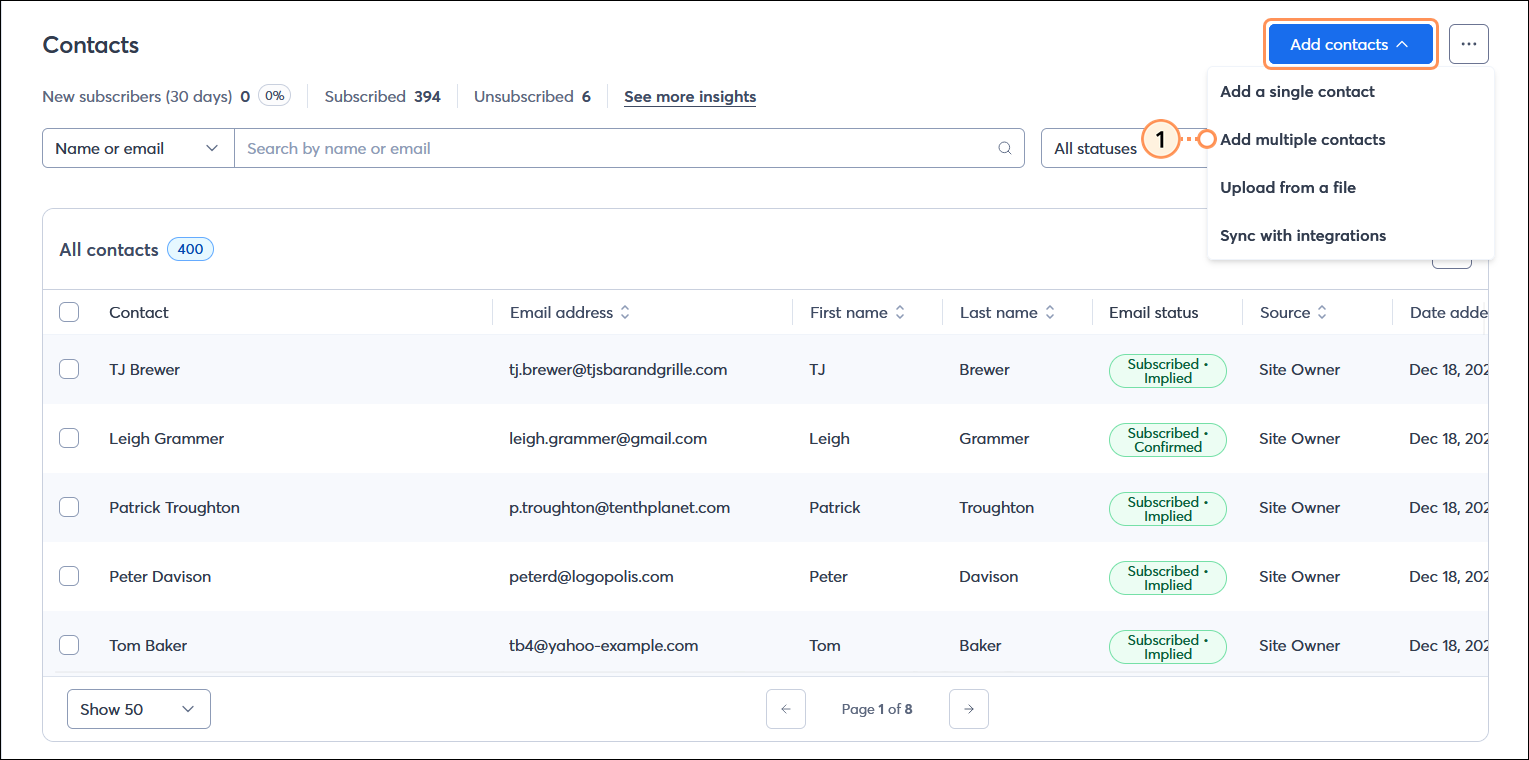
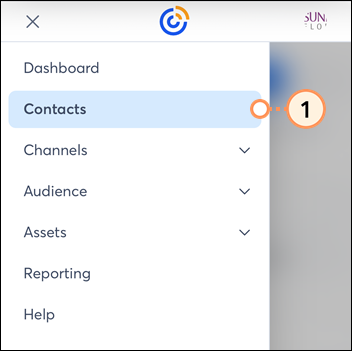
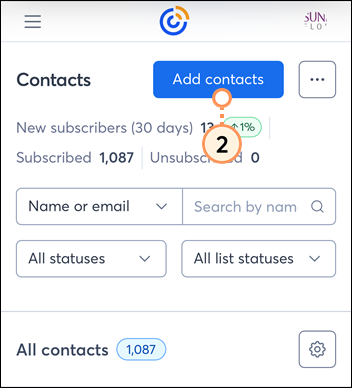
  1. From the Contacts page, click the Add contacts button and select the "Add multiple contacts" option.

    Contacts page with All contacts table and Add contacts button menu expanded with Add multiple contacts option selected

  2. Select one of the tabs to add your contact information and then click the Continue button:
    Note: Clicking "Advanced list settings" expands the section so you can select lists and tags to apply to your contacts, or create new lists and tags as needed.
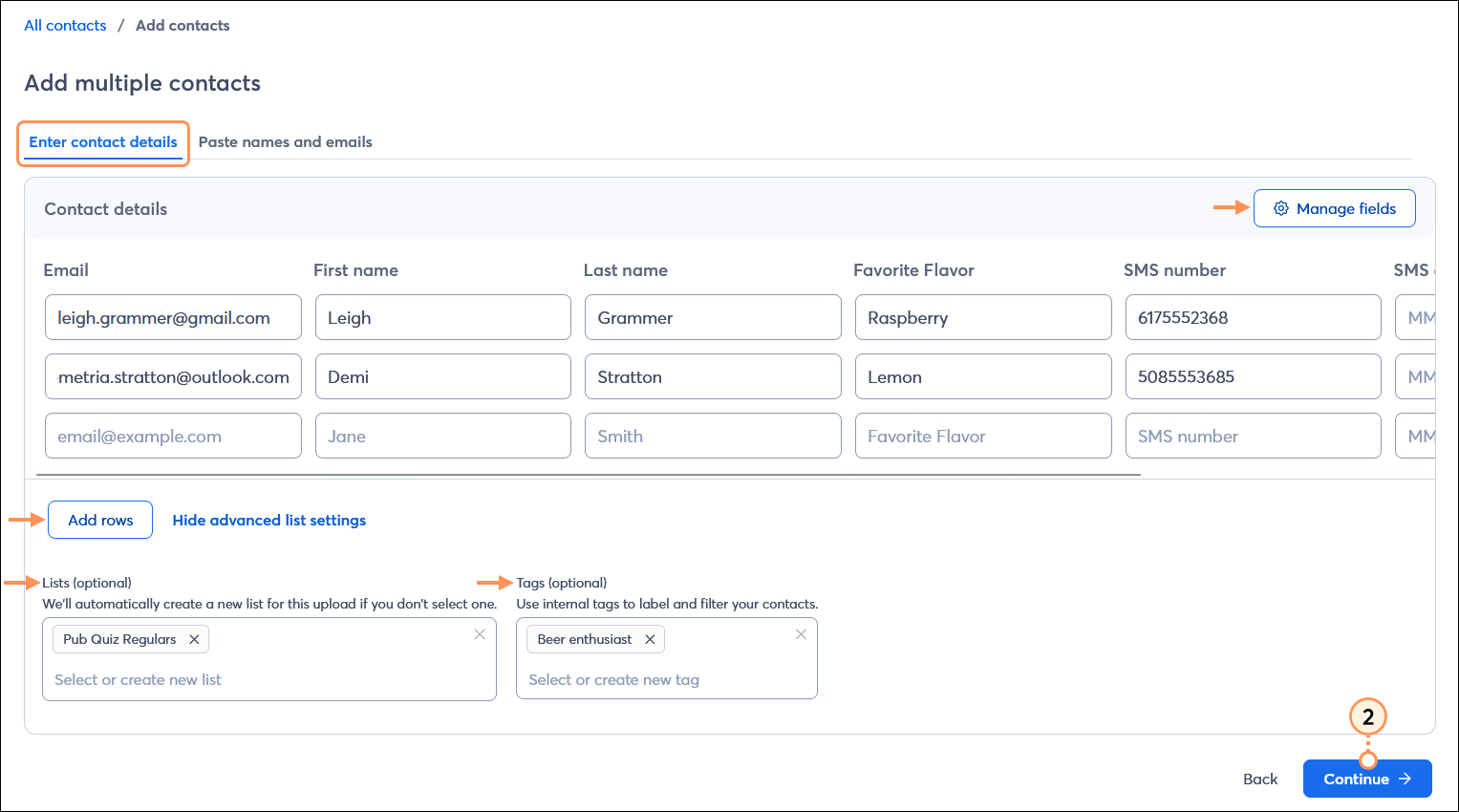
  • Enter contact details tab (email or SMS) - Contact information is entered field-by-field for each contact. Click the Manage fields button to add or remove contact fields or create new custom fields. SMS contacts can be added by selecting the SMS number and SMS consent date fields. Click the Add rows button below the table to create additional rows. A contact must have either an email address or an SMS number, but they can have both, too.

    Add multiple contacts page with Enter contact details selected, Contact details table with contact information entered, Manage fields button, and Add new field button, Advanced list settings expanded with Lists and Tags options displayed, and Continue button

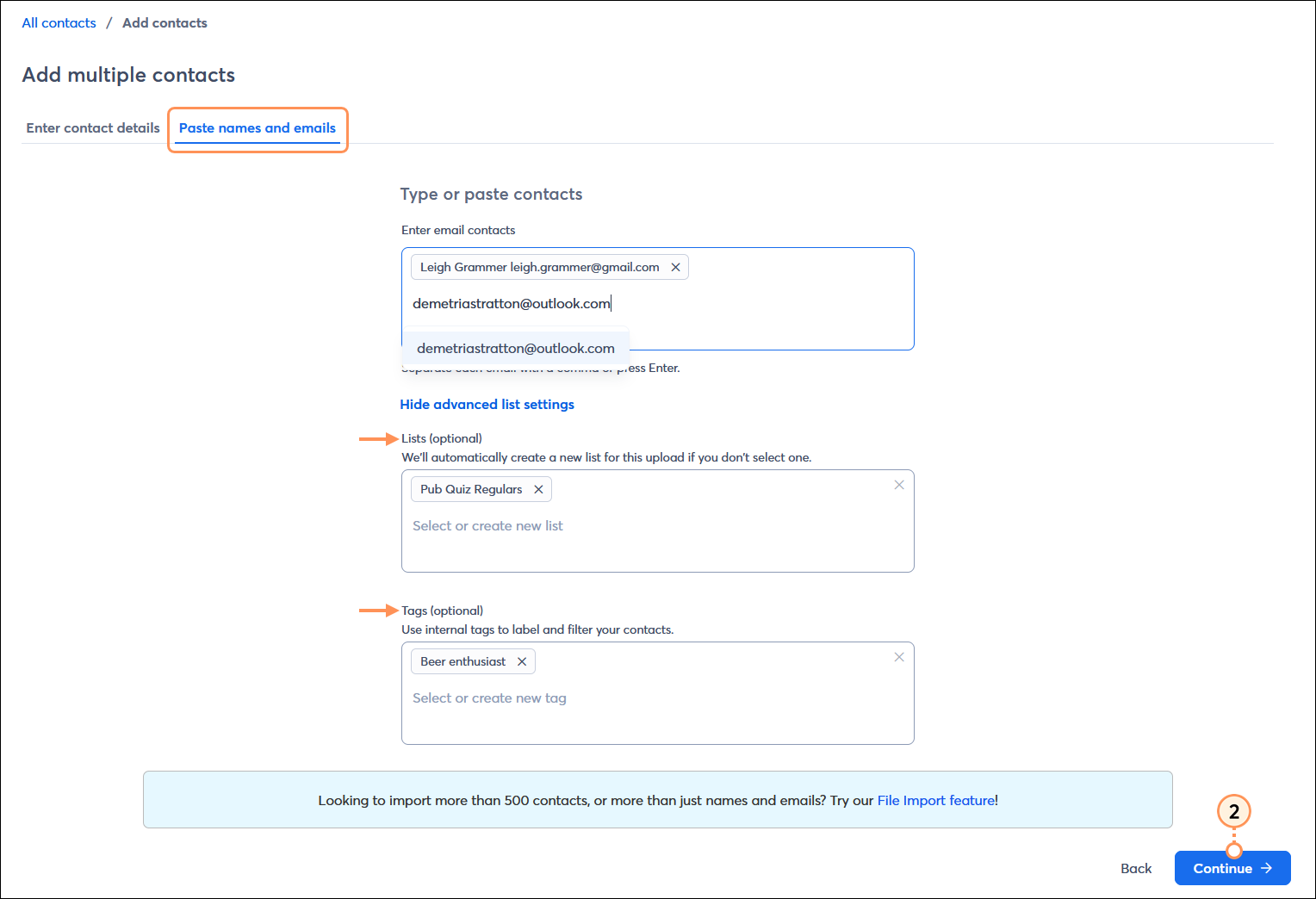
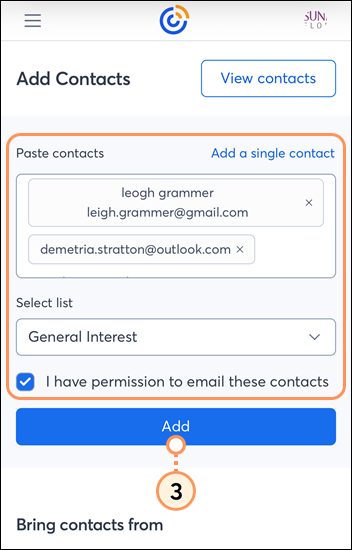
  • Paste names and emails tab (email only) - Limited contact information is added by typing or pasting it into the field, with each contact separated by a comma. Enter contacts individually, pressing "Enter" after each address, or paste a group of contacts at once. Each contact must have an email address, and you can also include a first and last name. SMS information isn't recognized; if you need to add SMS contacts, click the Enter contact details tab instead.
    Note: If you get more information about your contacts later, like their company name or birthdate, you can edit their contact records at any time. Having extra contact details is handy when you want to send more targeted content or to personalize your emails with contact information.

    Paste names and emails tab with Enter email contacts field, Advanced list settings expanded with Lists and Tags options displayed, and Continue button

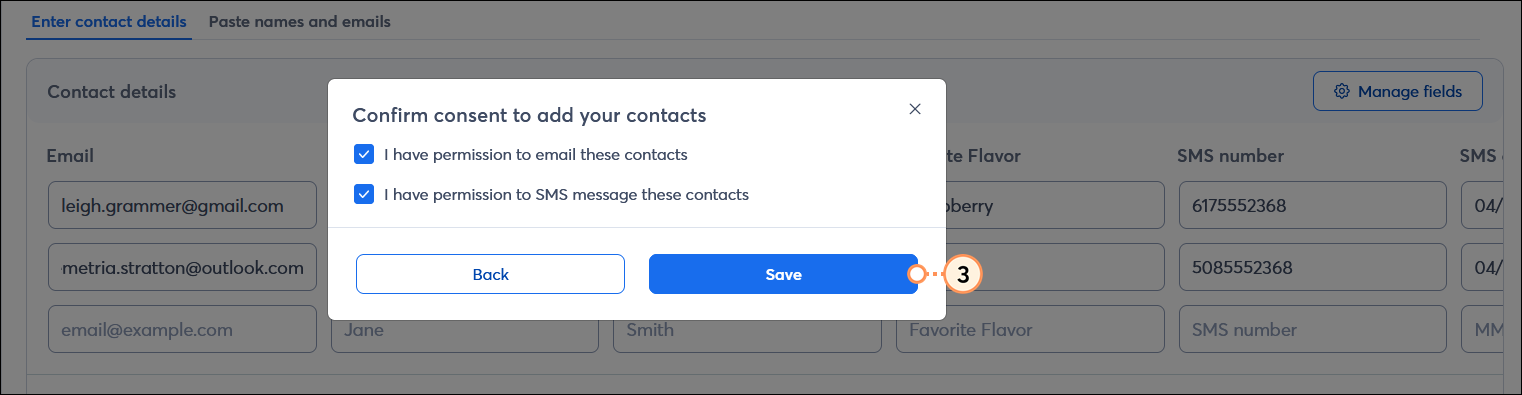
  1. Check the box to confirm that you have permission to email your contacts and/or send SMS messages to your contacts and click the Save button.

    Confirm consent to add your contacts overlay with I have permission to email these contacts and I have permission to SMS message these contacts options, and Save button


Light Bulb IconDid you know? If you have an Android or iOS tablet, try using our ListBuilder app - it lets you collect sign-ups at your register, trade show, farmer's market booth, or craft fair table, even if you're offline! When you have service again, it automatically imports them onto your chosen list.


Questions?

Ask the Community

Did this article answer your question?


Constant Contact Logo

Copyright © 2026 · All Rights Reserved · Constant Contact · Privacy Center