Email and Digital Marketing
How can we help you?
Search our help articles, video tutorials, and quickstart guides

You've got this. You've got us. Search our Knowledge Base to quickly find answers to your questions.

Merge multiple contact lists into a single list

Article: 000032812
Updated: October 22, 2025

Select multiple contact lists and combine them into a single list to better organize your contacts

When you merge multiple contact lists together, you can choose to move all the contacts from your selected lists into a new or existing list. You can create a new list at the same time you perform the merger, but if you want to create your new list ahead of time, that's fine too! Once you merge contact lists together, it can't be undone.
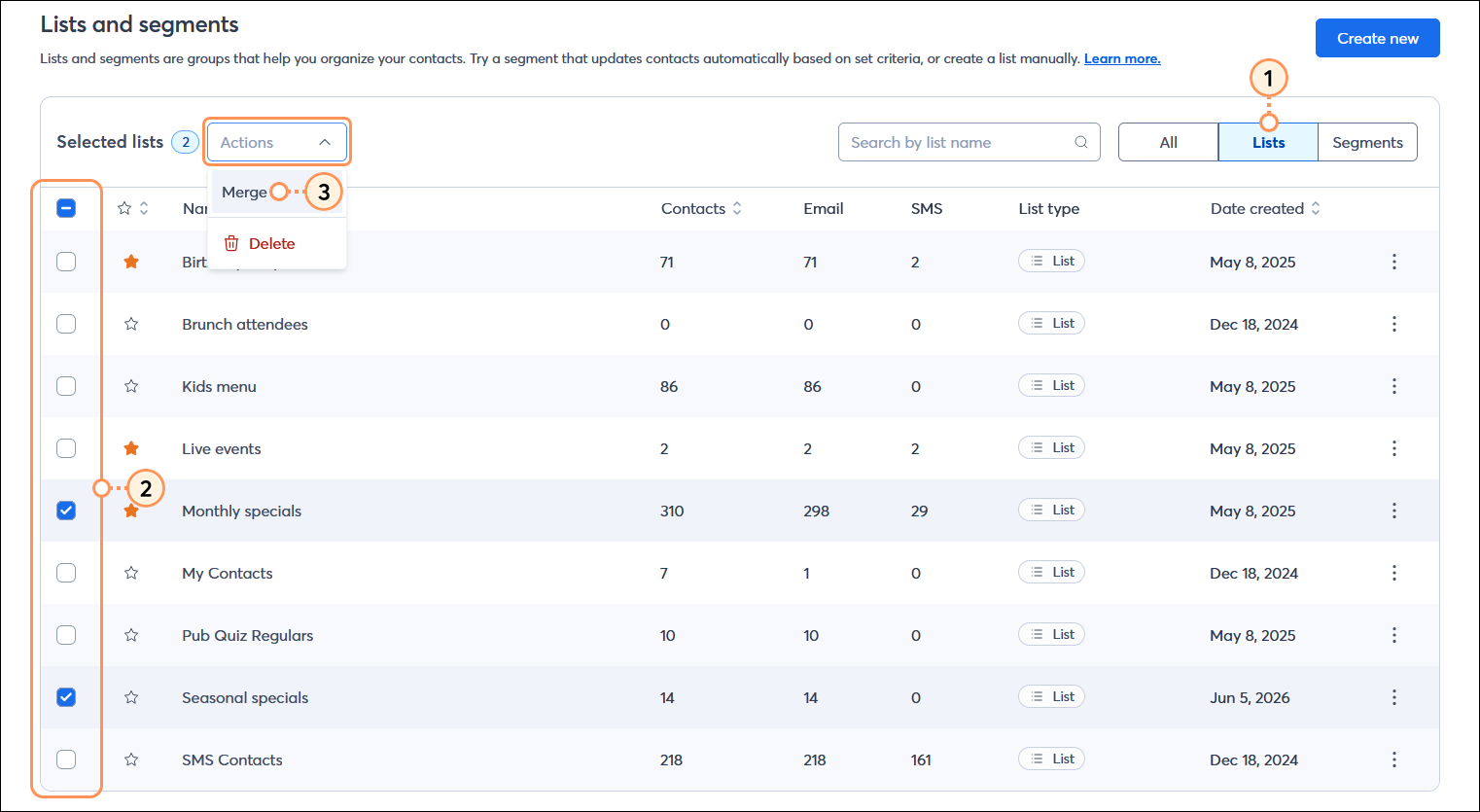
  1. From the Lists and Segments page, select the "Lists" option from the List types drop-down menu.
    Note: Segments aren't compatible with lists and can't be merged.
  2. Select the combination of lists you want to merge.
    Note: When merging lists into an existing list, don't select the existing list here. You select it in step 4.
  3. Click Actions > Merge.

    Lists and segments page with List type drop-down menu with Lists option selected, Lists table with multiple lists selected, and Actions menu expanded with Merge option selected

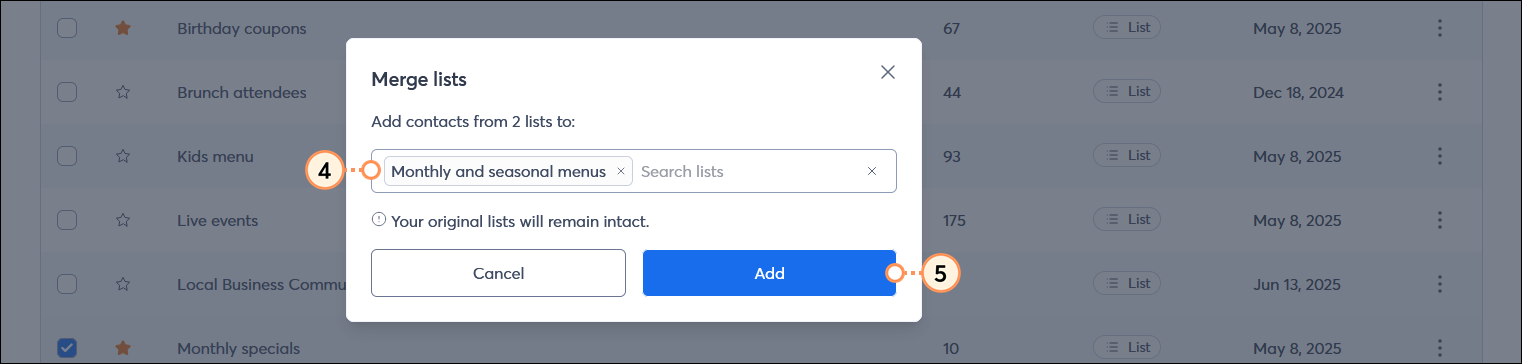
  4. From the Merge lists overlay, select the list or lists you want to merge the contacts onto. You can create new lists as needed by typing in the new name and then selecting "Create new [list name]" from the drop-down menu. List names are limited to 255 characters and must be unique.
  5. Click the Add button.

    Merge lists overlay with Lists options drop-down menu, and Add button

After your lists are merged, the original lists are left as-is, but you can always rename or delete them later. Sometimes a single contact can be part of multiple lists. If one contact is on multiple lists being merged together, the contact only appears once in your resulting list. If the same contact is on other lists that weren't merged, they remain on those lists. You can view a contact's record to see all the lists they belong to.


Light Bulb IconDid you know? You can use our segmentation tools across multiple lists to find your most or least engaged contacts, or find contacts based on the contact details you have on file for them.


Questions?

Ask the Community

Did this article answer your question?


Constant Contact Logo

Copyright © 2026 · All Rights Reserved · Constant Contact · Privacy Center