Email and Digital Marketing
How can we help you?
Search our help articles, video tutorials, and quickstart guides

You've got this. You've got us. Search our Knowledge Base to quickly find answers to your questions.

Add a menu of links to your email

Article: 000023730
Updated: May 5, 2026

Create a horizontal navigation bar in an email using a five-column layout block

Menu bars are great for organizing multiple links, especially when you want each link to have equal prominence in your email. A five-column layout block gives even spacing between menu items. When viewing the email on a desktop, the menu bar displays horizontally, and you can choose how you want the menu items to stack when viewed on a mobile device.


The do's and don'ts

At their best, navigational menus evoke your brand by giving your email the same look and feel as your website. At their worst, they're distracting and compete with your call-to-action. If you want to create an effective menu bar, follow these design tips:

The do's:

Your menu bar should be short and relate to your email content:

  • Relate the navigation to the call-to-action - You could recreate your full website menu, but it may distract some of your contacts from your main message or call-to-action in your email. Instead, look for links on your website that either relate to your call-to-action or support it with additional information. 
  • Enable click segmentation - If you have multiple links in your email, click segmentation lets you add the contacts who click on a specific link to a contact list of your choosing. When you know which contacts are interested, you can send more targeted emails to them later.
  • Use a link that takes you a step further - You lose part of your audience with every click it takes to get from point A to point B, so be sure to link to the most relevant content. For example, if you want your readers to see your contact information, don't link to your main webpage. Instead, link directly to the page where your contact information is prominently displayed.


The don'ts:

It's tempting to add a menu bar to catch all the contacts who aren't interested in your call-to-action, but jamming a little something for everyone into your email gives you a misleading sense of engagement. It's better to send targeted emails to the contacts who care about the specific content, so your message doesn't get lost, and you get a crystal-clear picture of your email engagement.

  • Don't compete with your call-to-action - If your click report is telling you that you're getting lots of clicks, you may think it's because you've got a great call-to-action, but when you look closer, your menu is getting all the attention. Only add links if they give a fuller picture of your main content and call-to-action. You can also try swapping the menu bar's position so it sits at the bottom of your email instead of the top.
  • Don't recreate your website navigation - It's the look and feel of your website that you're going for, so don't reinvent the wheel by adding in all the same content! Instead, pick a few of the most important links, especially if they relate to your email content, and leave the rest out.
  • Don't use double-decker bars - Adding multiple menu bars takes up a lot of screen space on mobile devices and can lead to unnecessary scrolling to reach your main call-to-action. Instead, narrow down your options so your call-to-action doesn't get pushed to the bottom of your email.


did you knowDid you know? If you're not sure about how to start segmenting your contact list into different audiences, click segmentation can help!  It lets you add the contacts who click on specific buttons, links, or clickable images to a list of your choosing so that you can send them more targeted content next time.


Create a menu bar

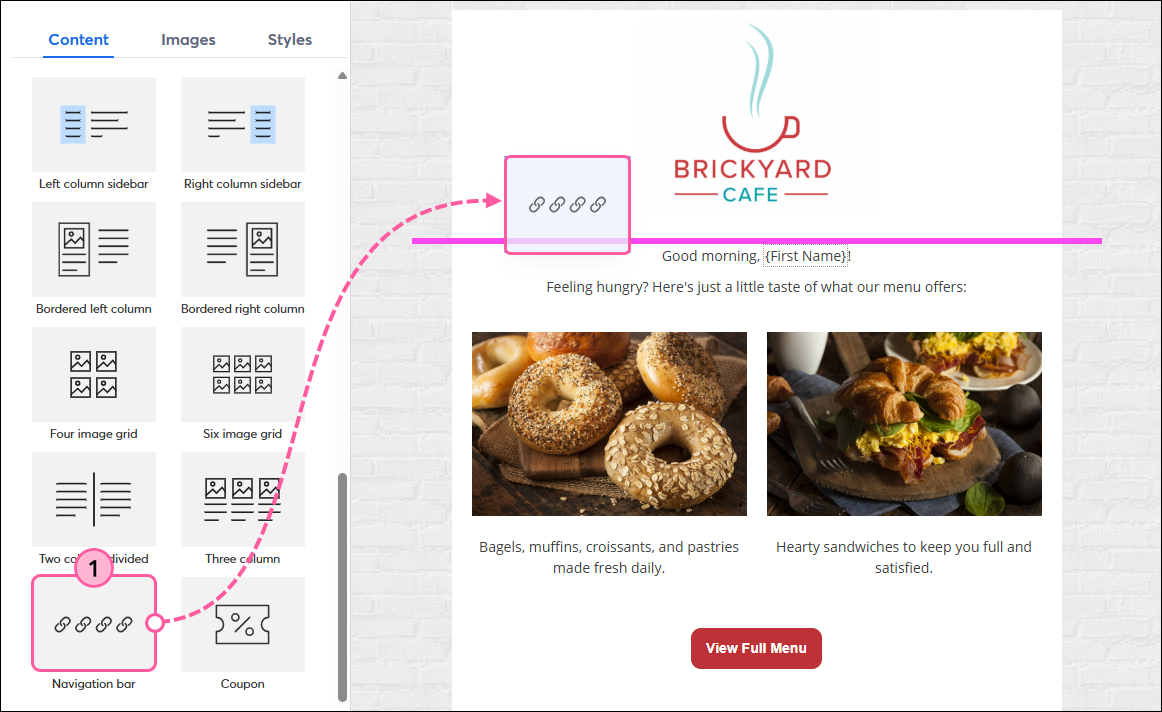
  1. From the Content tab, scroll down to the Layouts section and drag a Navigation Bar block into your template.

    Content Tab, Drag-and-drop Navigation Bar Layout Block into Template
     
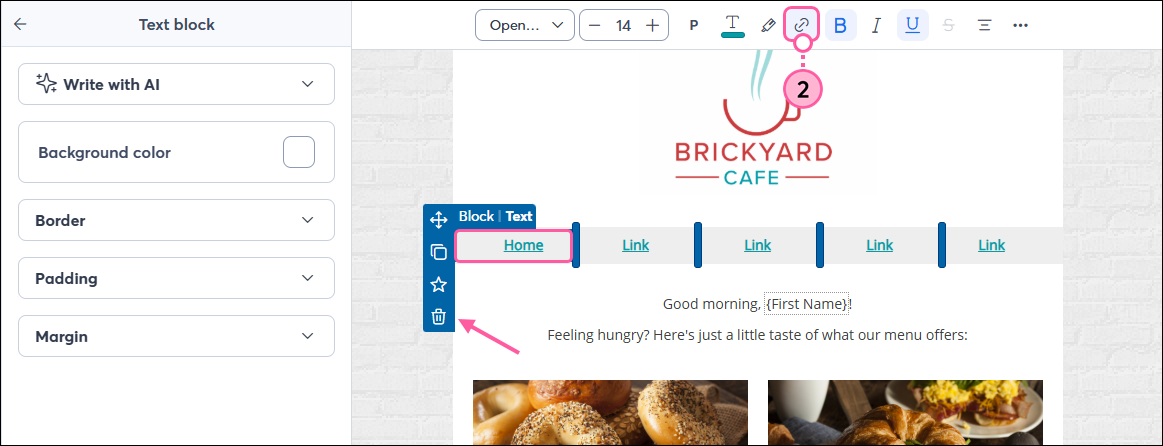
  2. Click on each link in the menu and click the Link icon to add the URL for each. You can change the link text at the same time you add the URL.
    Note: If you don't need all five menu items, you can delete columns by clicking the trash can icon.

    Text Toolbar with Highlighted Link Button and Trash Can icon
     
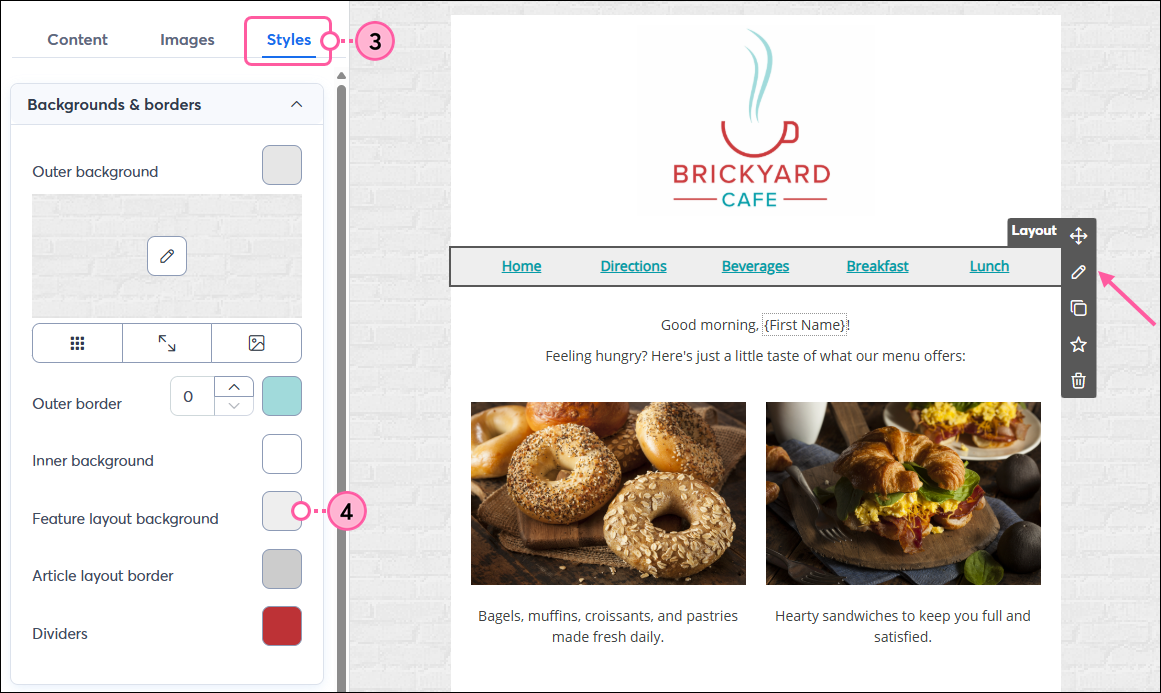
  3. Click the Styles tab.
  4. (Optional) The Navigation Bar background color is controlled by the Feature layout background option in the Backgrounds & borders section. You can also change the menu bar's background color on its own by clicking the pencil icon if you don't want to affect the rest of your template.

    Styles Tab, Feature Layout Background Color Swatch, and Layout pencil icon
     
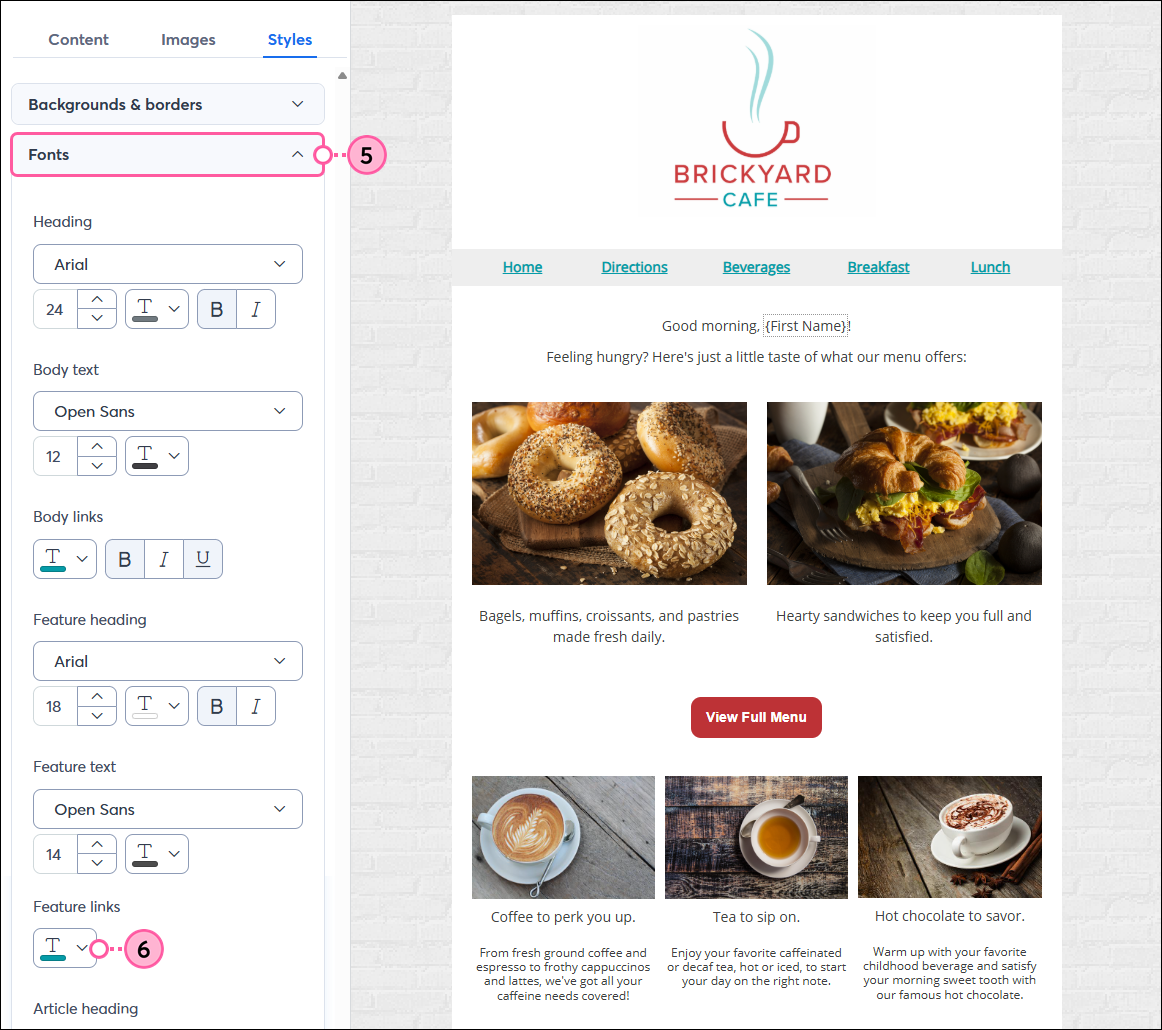
  5. Click to expand the Fonts section.
  6. The Navigation Bar link color is controlled by the Feature links option.

    Styles Tab, Fonts section expanded, and Feature Links Option


Questions?

Ask the Community

Did this article answer your question?


Constant Contact Logo

Copyright © 2026 · All Rights Reserved · Constant Contact · Privacy Center