Email and Digital Marketing
How can we help you?
Search our help articles, video tutorials, and quickstart guides

You've got this. You've got us. Search our Knowledge Base to quickly find answers to your questions.

Control how your email content stacks when viewed on mobile

Article: 000055194
Updated: April 2, 2026

Choose if you want columns to stack left-to-right, right-to-left, or not at all when viewed on a mobile device

Exclamation point iconNote: We are in the process of releasing this functionality to customers, so you may not have access to it yet.


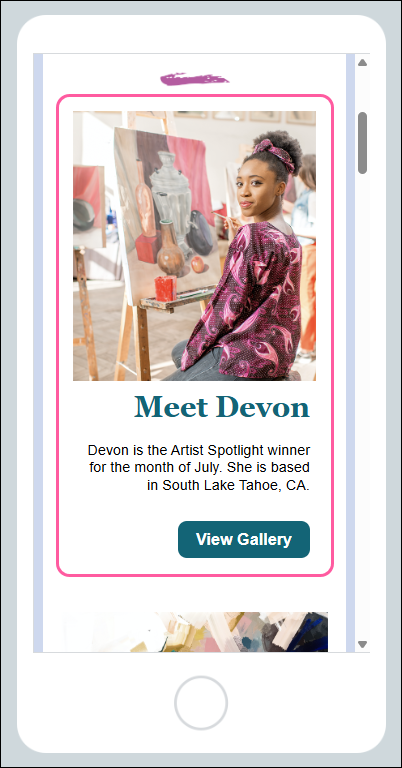
If your email contains multiple columns, those columns automatically stack on top of each other when viewed on a mobile device. For example, a two-column layout with an image on the left and text on the right stacks with the image on top and the text below it. 

Now you can choose how you want your content to display for your mobile readers—no stacking, stack left-to-right, or stack right-to-left—without affecting how your email looks when viewed on a desktop. 


While editing your email:
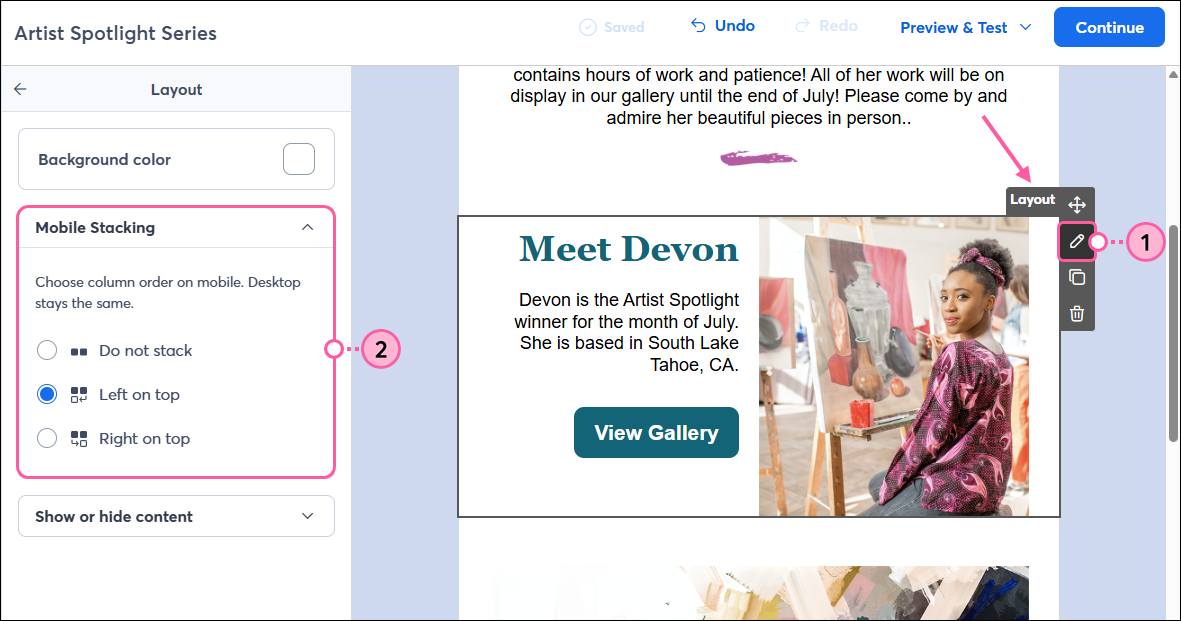
  1. Hover over a Layout containing 2-5 columns and click the pencil icon. 
  2. From the panel on the left, select the Mobile Stacking option you want:
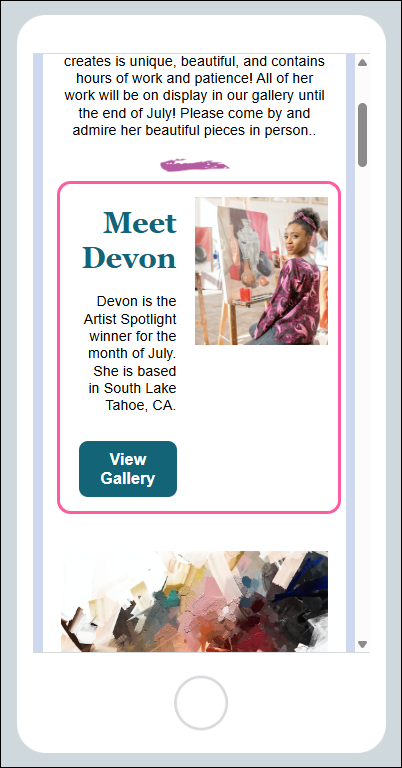
    • Do not stack - Your columns will scale down and remain side-by-side when viewed on a mobile device. This is a good option for small images or icons that look better next to each other.
      Note: With this option, large text may wrap to the next line. Be sure to preview your email to see how it will display on mobile and adjust the text size as needed.
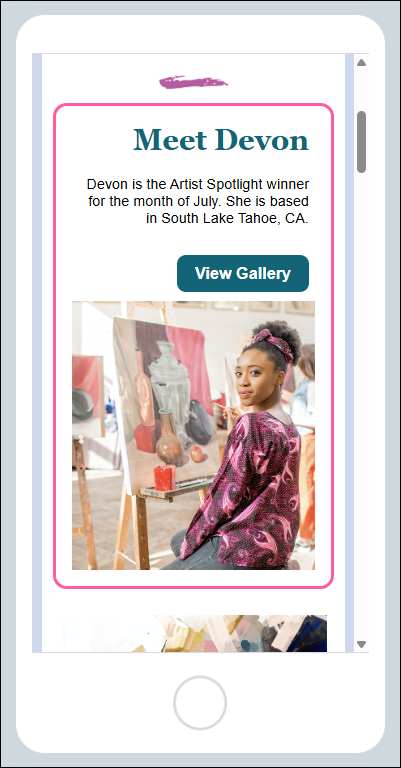
    • Left to right - Your left-hand content will stack on top of the right-hand content. This is the default behavior.
    • Right to left - The right-hand content will stack on top of the left-hand content. This is a good option when your right column contains your main call-to-action or most important content that you want readers to see first.

      Email editor with Layout highlighted, Pencil icon, Layout panel and Mobile Stacking options

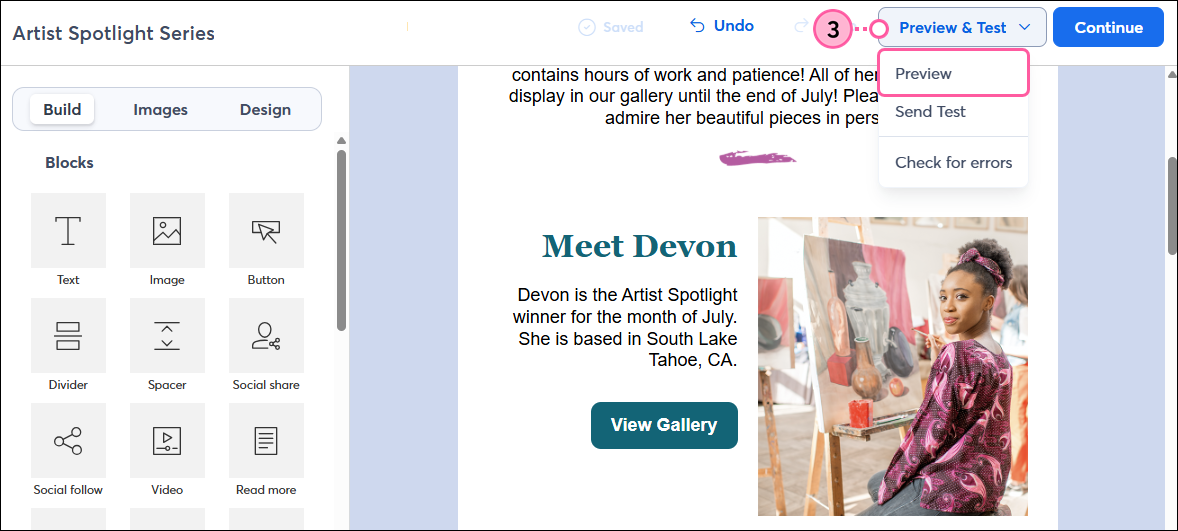
  3. You won’t notice a change from the desktop view, so be sure to preview your email to see how your content will stack on mobile. Click Preview & Test > Preview.

    Email editor with Preview and Test drop-down and Preview option

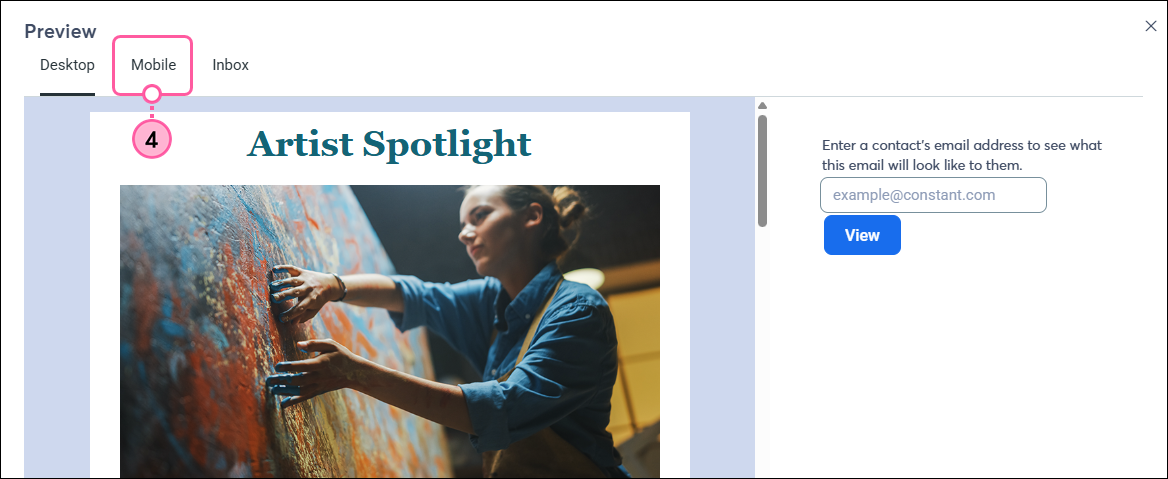
  4. Click the Mobile tab.

    Email preview with Mobile tab selected

Check to make sure the content displays how you want. You can return to the editor and make any adjustments needed before sending to your contacts.


Do not stackLeft to rightRight to left


Email preview with columns not stacked


Email preview with columns stacked left to right


Email preview with columns stacked right to left


Questions?

Ask the Community

Did this article answer your question?


Constant Contact Logo

Copyright © 2026 · All Rights Reserved · Constant Contact · Privacy Center