Some email templates already include pre-built column layouts, but you can also easily create two, three, four, or five columns using the pre-built layout blocks found on the Content tab, allowing you to place text, images, or other content side-by-side.
Columns are designed to stack when viewed on mobile devices to make the content easier to read. By default, the content in the left-most column appears before the content in the column immediately to its right, and so on, for each additional column. Depending on your content and which information you want to display first, you can control how the columns stack in each layout.
 | Design tip: Make sure you preview your email before sending it to your contacts to get a good idea of how your content stacks when viewed on a mobile device. |
The Layouts section of the Content tab has dual-column layouts to get you started quickly—just drag one into your template. Any block can then be dragged into the two-column layout.
| Did you know? The two Heading blocks at the top of the Layouts section can also be used in dual-column layouts if you drag them into the template first. Once in your template, drag it into a column or place it next to another block to create a two-column layout. |
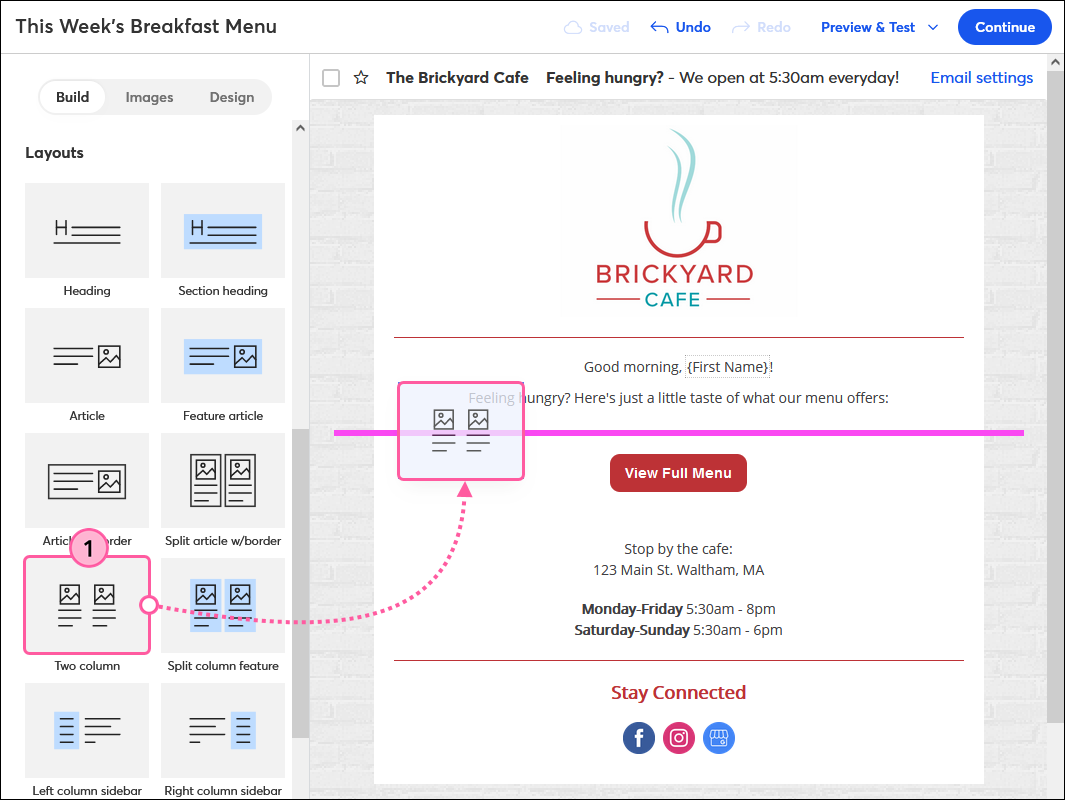
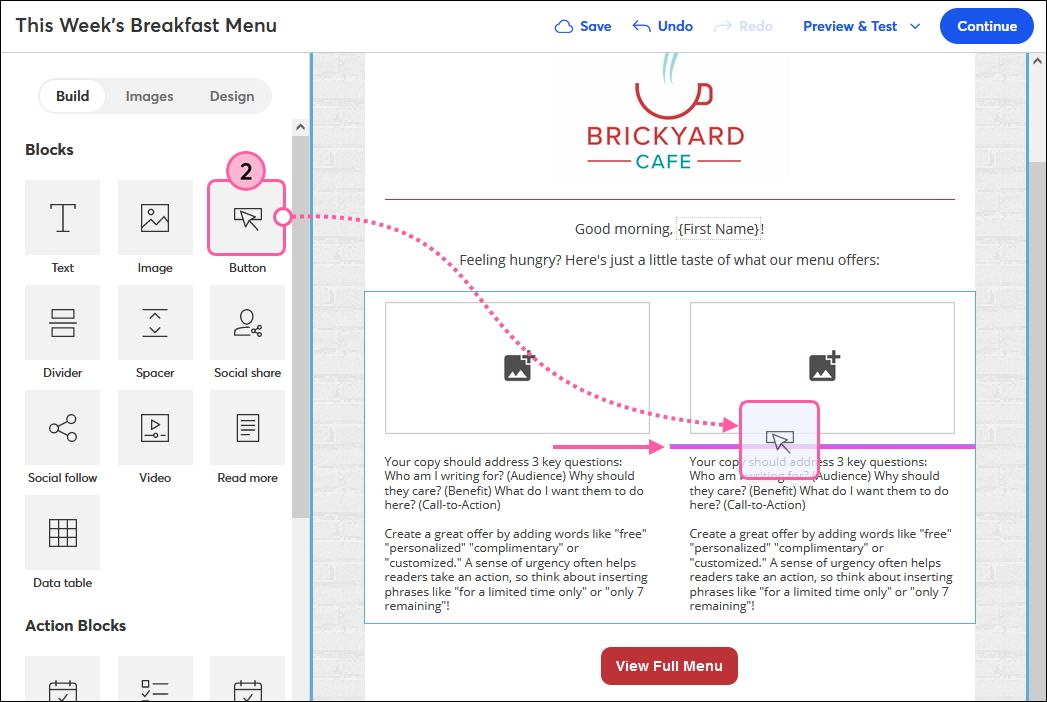
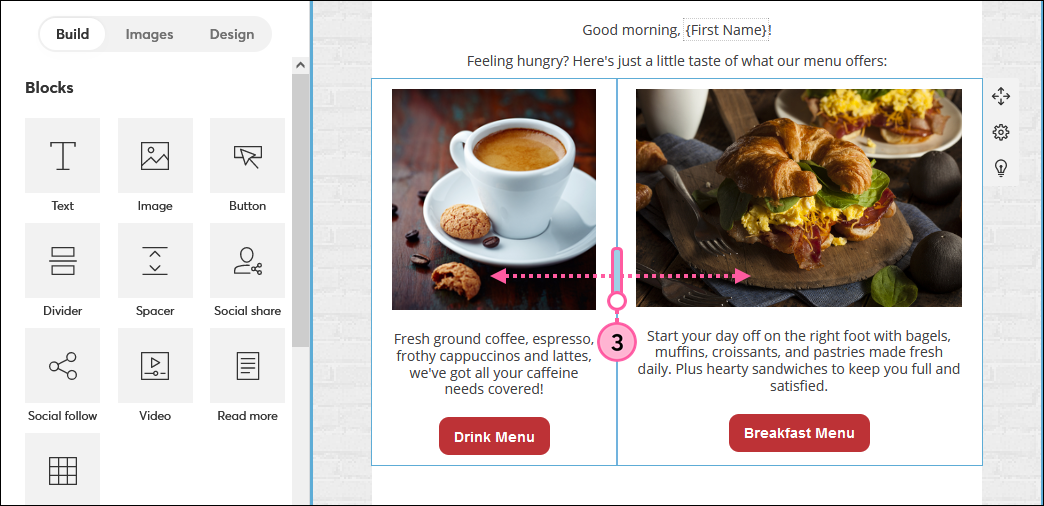
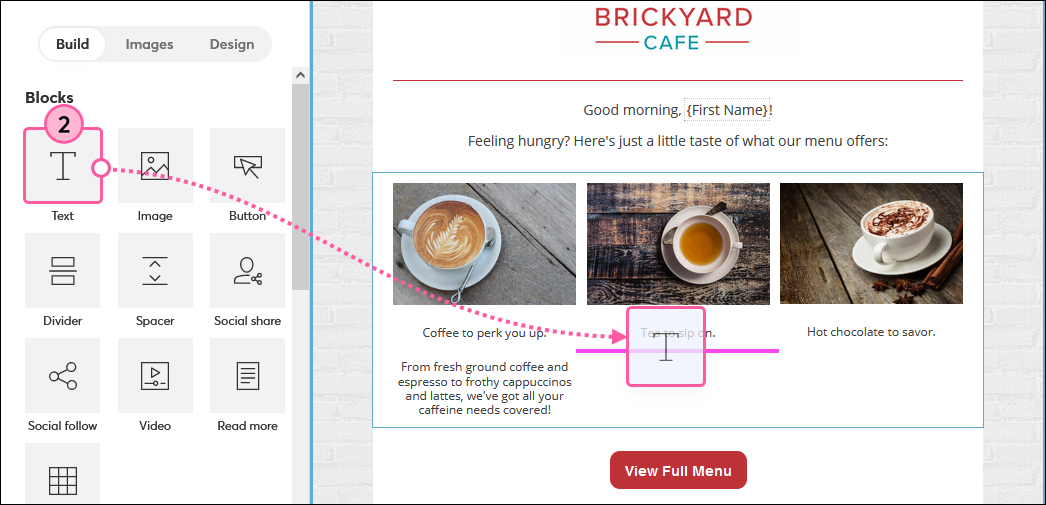
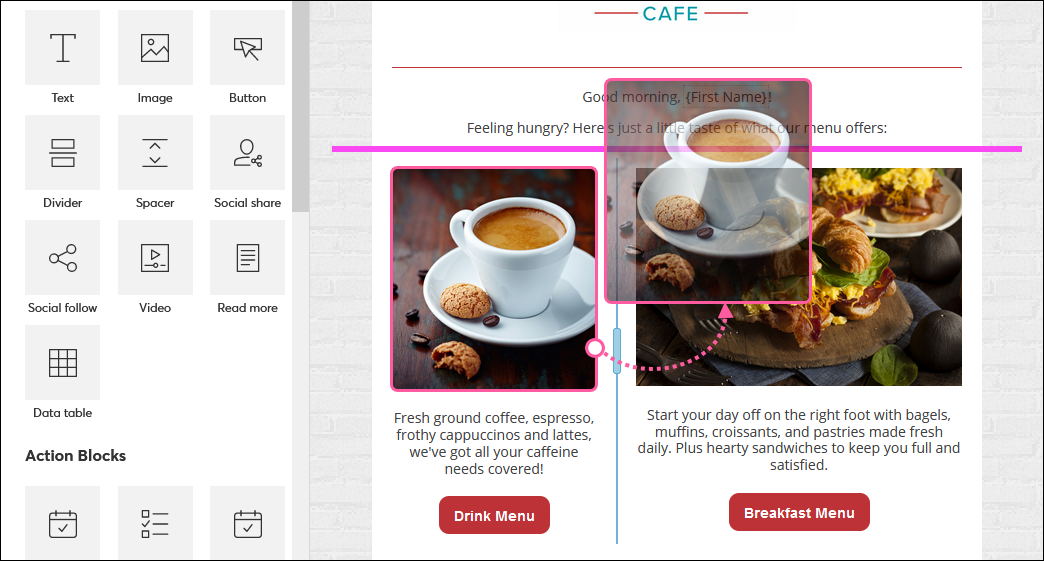
Alternatively, you can insert blocks, such as text, images, and buttons, side-by-side to create two or three columns: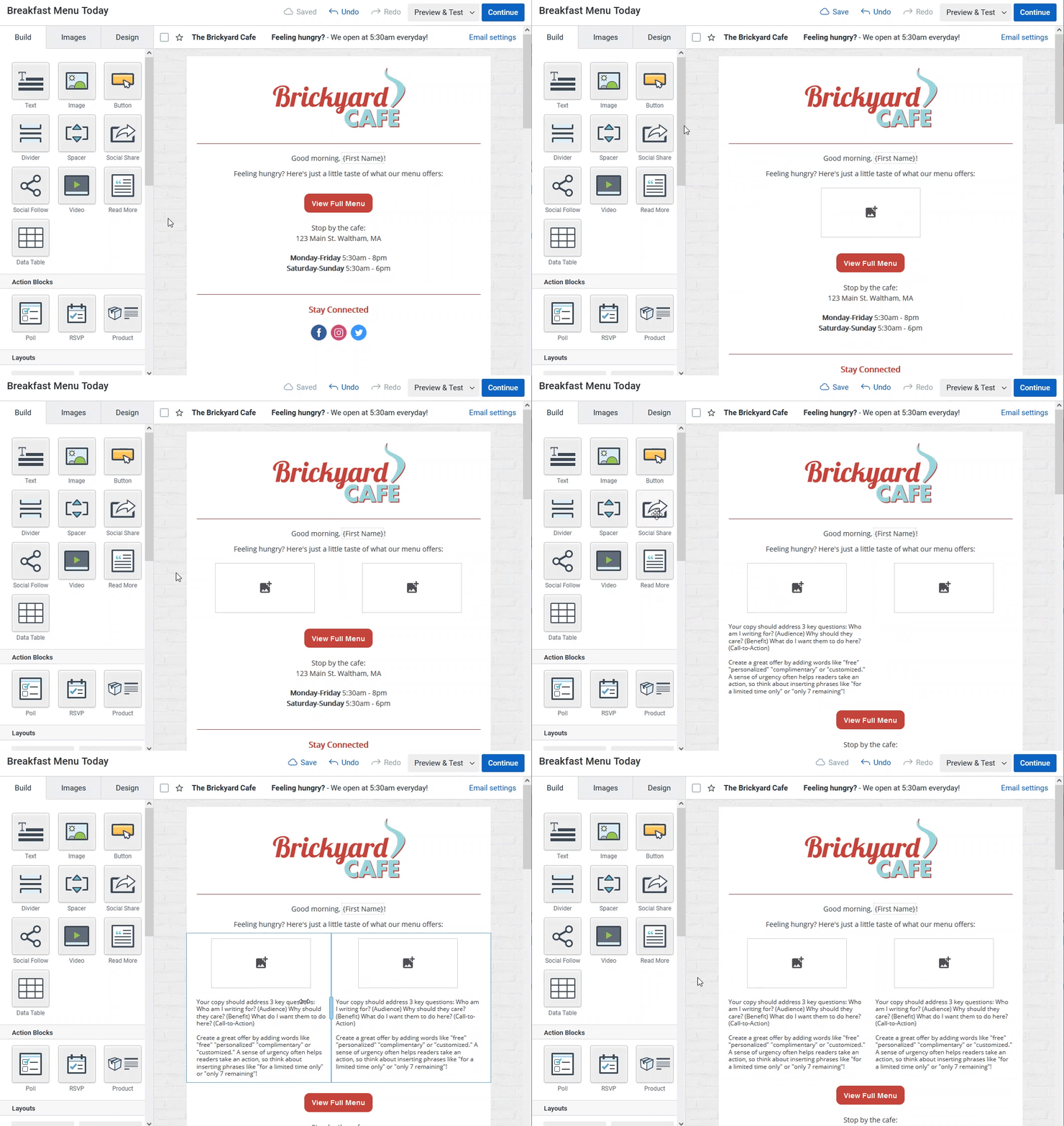
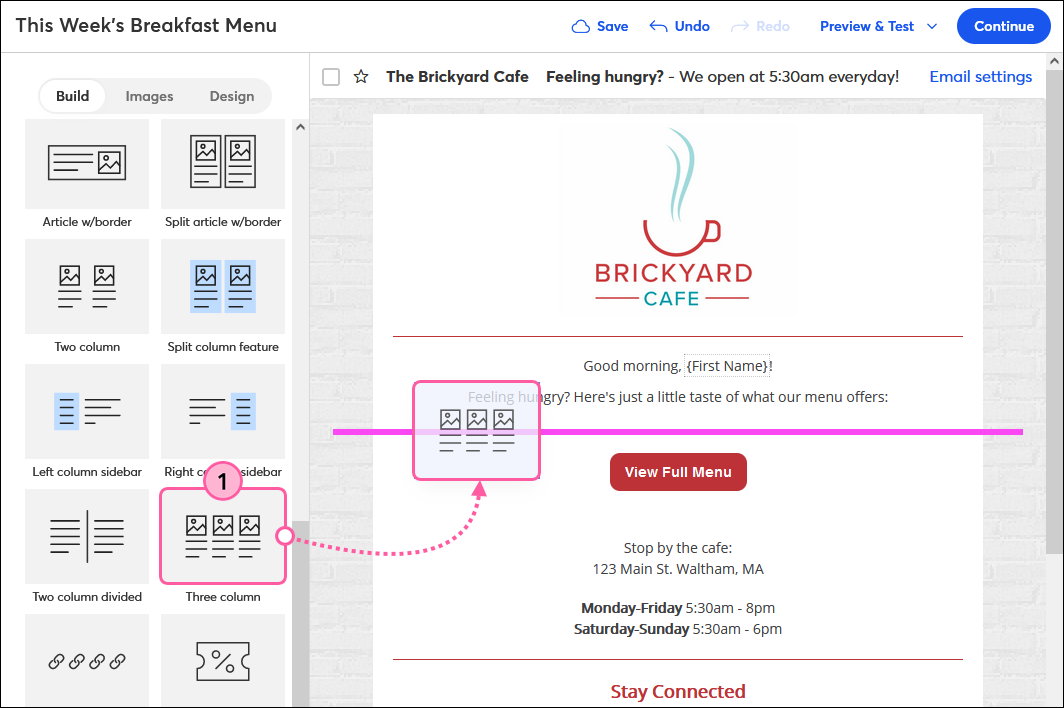
The best way to add three columns to your email is to use the "Three column" layout. Additional blocks can then be dragged into the layout as desired.
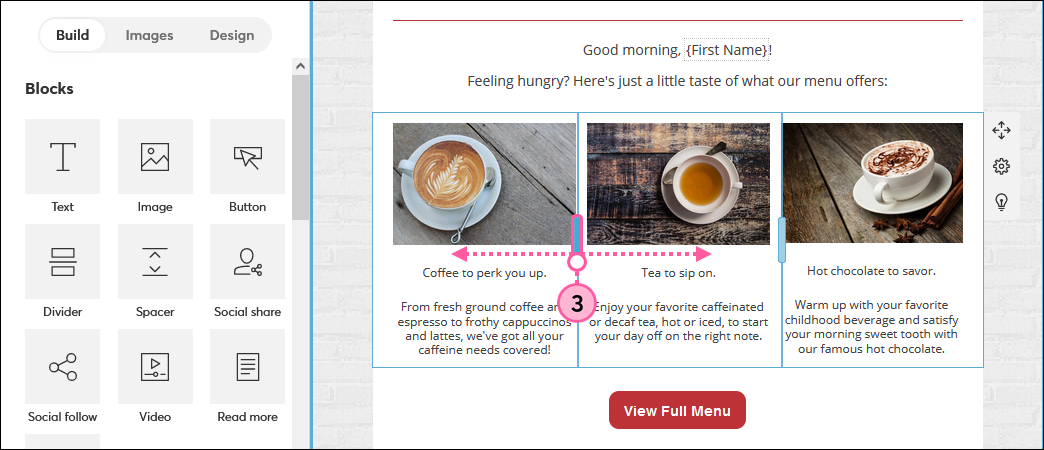
If you delete a column from a three-column layout, you can add it back by dragging and dropping any block to the left, right, or in between the remaining blocks. "Two column" blocks in the Layouts section of the Content tab can't be used to create three columns in the same way.
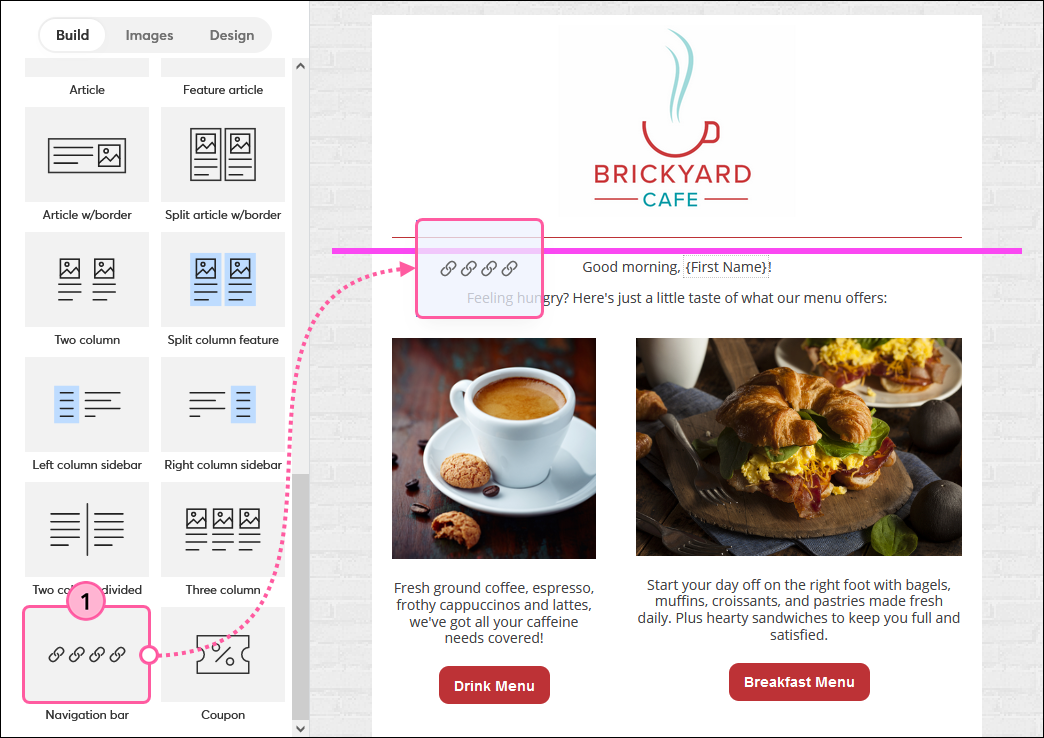
The "Navigation bar" layout is five columns and can be used as-is, or you can delete a column to create a four-column layout. When using four or five columns, the widths are set and cannot be adjusted.
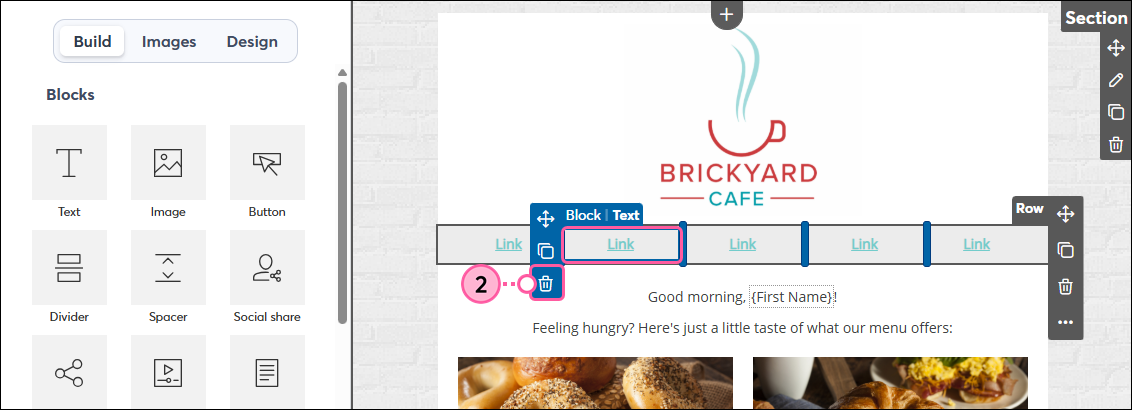
| Tip: If you're having trouble inserting a block into one of the columns, try entering at least two lines of text in one of the columns first. |
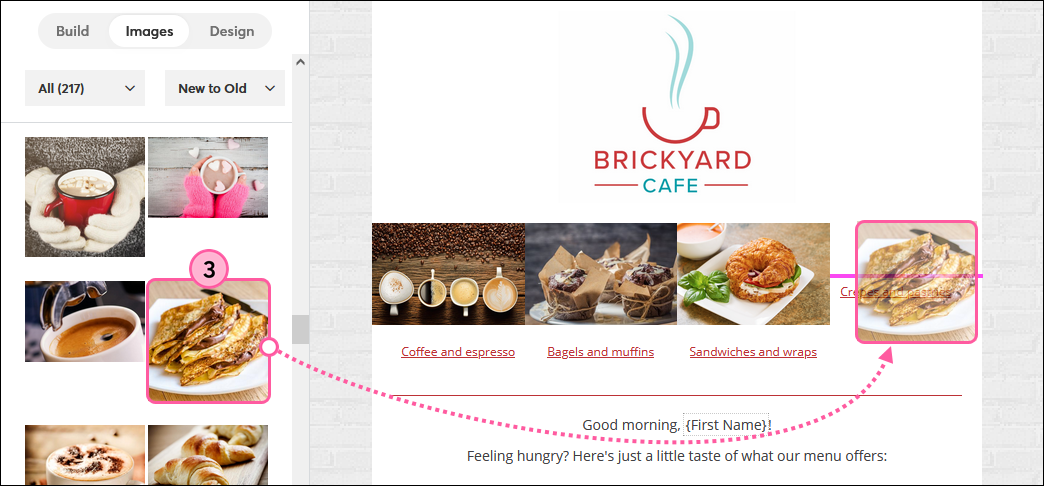
If you delete a column from a five-column layout, you can add it back by dragging and dropping any block to the left or right of the remaining blocks. Two- and three-column blocks in the Layouts section of the Content tab can't be used to create a four or five-column layout in the same way.
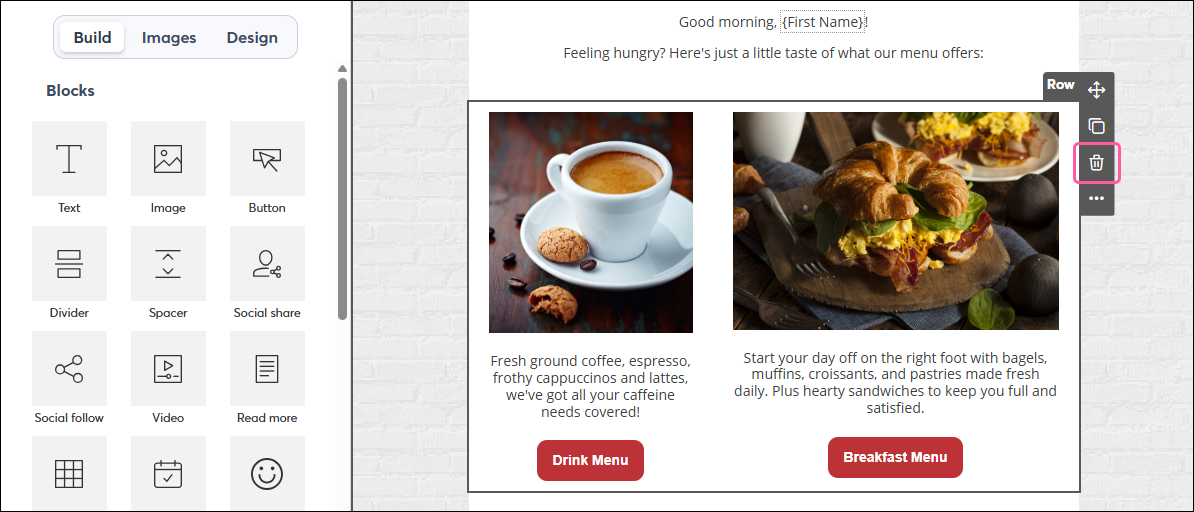
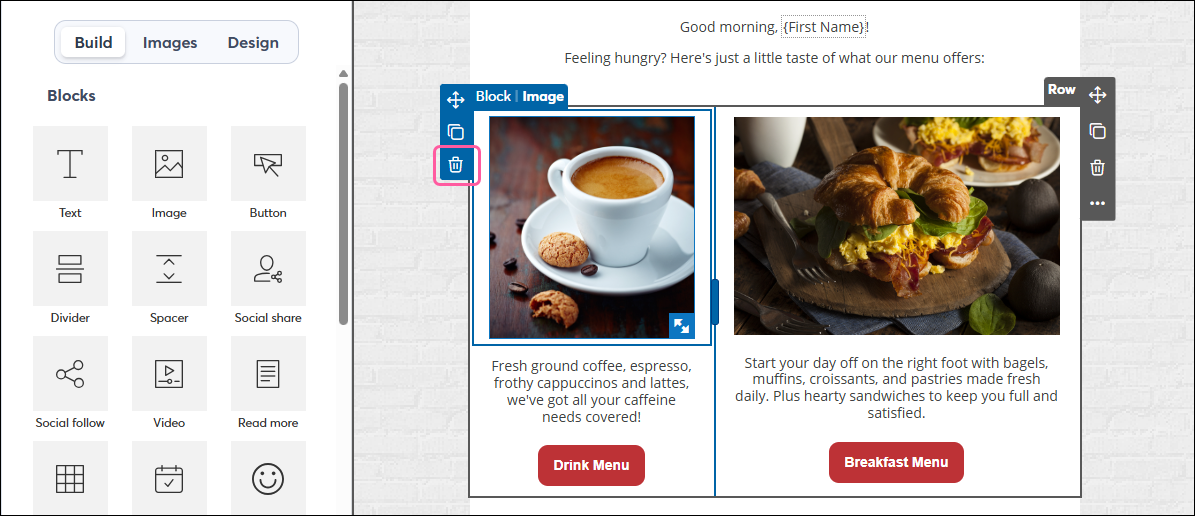
There are a couple of ways you can get rid of unwanted columns:
Copyright © 2026 · All Rights Reserved · Constant Contact · Privacy Center