Email and Digital Marketing
How can we help you?
Search our help articles, video tutorials, and quickstart guides

You've got this. You've got us. Search our Knowledge Base to quickly find answers to your questions.

Select an email template

Article: 000043797
Updated: February 6, 2026

Find the right template for your email


When creating a new email, the first step is choosing a template. You can easily narrow down your options based on the type of email you want to send, your industry, or the layout that best suits your content. All of our templates are fully customizable and mobile-responsive, ensuring that your email looks great on any device.
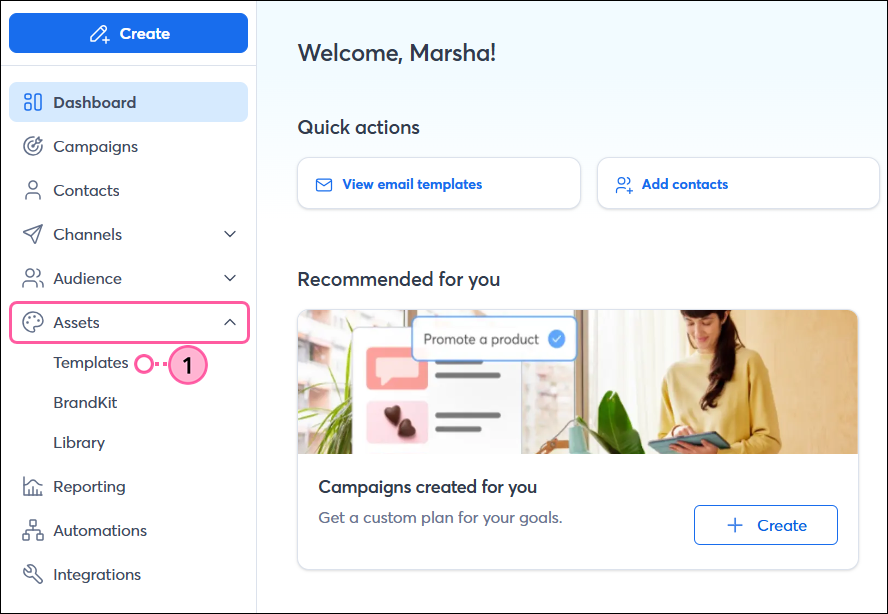
 

  1. From the menu on the left, click Channels > Emails.
  2. Click the + Create an email button.

    Marketing channels menu expanded with Email option selected, Email dashboard with + Create an email button 
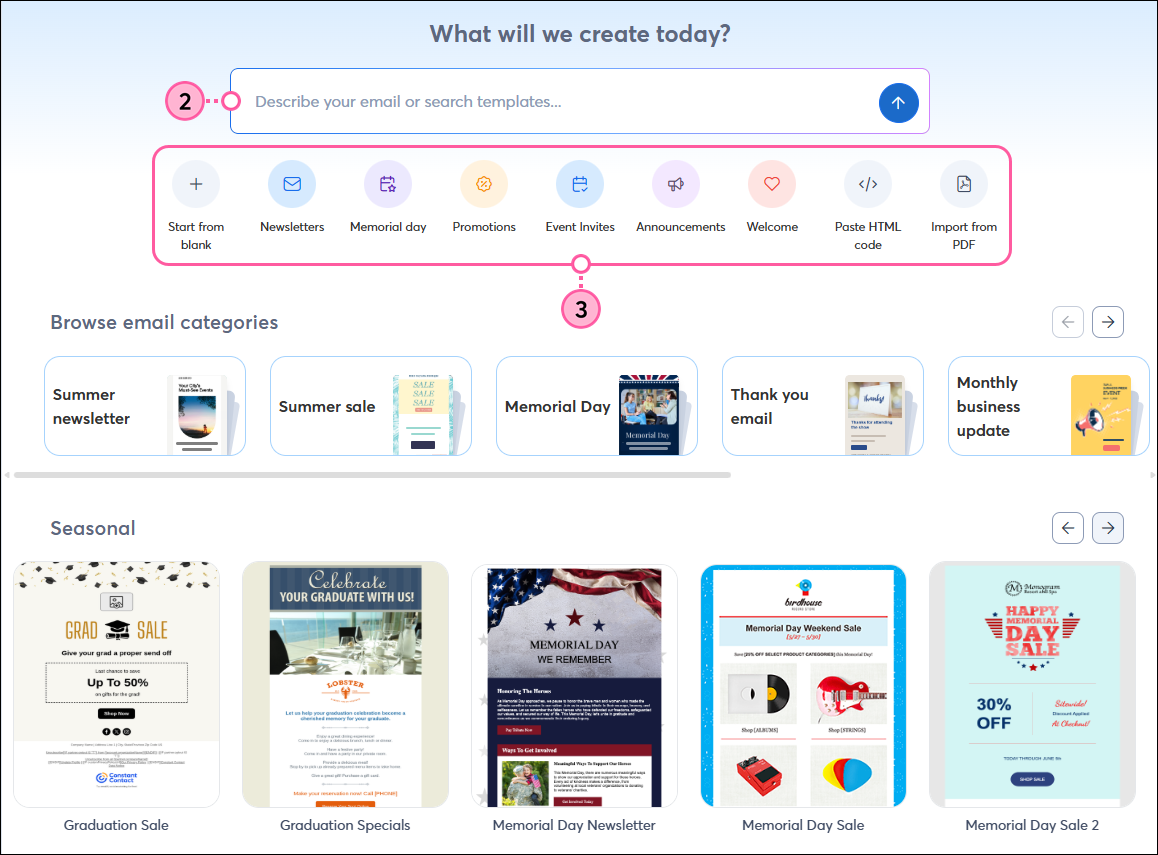
  3. From here, you can choose from our library of pre-built designs, your saved templates, or AI-generated templates. You can also start from a blank template, use your own HTML code to create your email, or convert a PDF into an email.

    Template picker with Build Your Own drop-down options


Select a pre-built template

On the Library tab, you can browse our pre-built templates, including templates with your brand automatically applied and templates based on your industry.

  1. Enter one or a few keywords into the field to search our library of templates, or use the filters to find templates based on the purpose of your email, season, major holiday, or industry.
  2. As you browse each category on this tab, you can use the arrows to scroll through the options or click View all.

    Template picker with Library tab selected, search field, filters, scroll arrows, and View All button

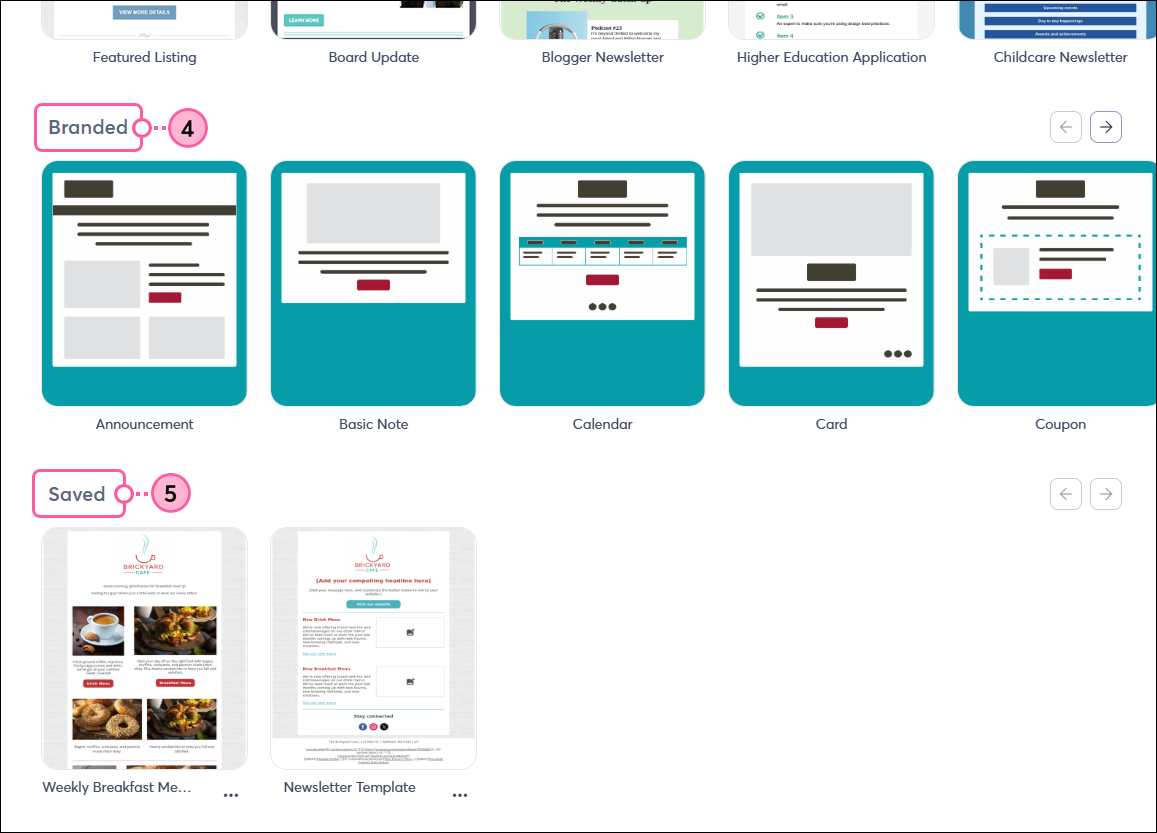
  3. In the Easy layouts with your brand section, you can choose a template based on the basic layout that best suits your content, with your brand colors already applied. If you haven’t added your brand assets to your account yet, click Scan my website to quickly add your brand colors and create a template theme. To change how your colors are applied to the templates, click Manage your brand.
  4. To select one of these templates, hover over the thumbnail and click Select to use the non-branded template or Select with Brand to use the template with your brand applied. You can also click Preview to take a closer look before selecting.

    Template picker with Branded templates, Manage Your Brand button, and Preview and Select buttonsTemplate picker with no brand added, Scan My Website button, and Preview and Select buttons


  5. Scroll down to the Your industry category to browse templates designed for your audience based on the industry set in your account settings. You can click Change my industry if you don't think it's the right match. If you haven't added your industry yet, click Set your industry at the top of the page to find the one that best describes your organization.

    Template picker with Industry templates and Change My industry linkTemplate picker with Set Your Industry link


  6. When previewing a template, you can click Previous template or Next template at the bottom to scroll through additional template options, or click the X in the top-right to return to the full list of templates.
    Note: All templates are fully mobile-responsive, meaning that when someone views the email on a smartphone or tablet, the text and images may appear stacked (image on top, text on bottom) to make it easier to read.
  7. If you like the template, click Select template.

    Template preview with Previous and Next options, X to close, and Select Template button

You can continue scrolling down the page to view templates instantly generated for you, templates for upcoming occasions, our newest template designs, and newsletter-style templates. Once you've selected your template, you can change up the layout, customize the colors, and add your content and images. Don't forget to preview and send a test version of your email to make sure it looks the way you want before sending it to your contacts!


Select a saved template

If you’ve saved a previously created email as a template, you can easily select it to use for your next email:

  1. Click the Saved tab.
  2. Hover over the thumbnail image and click Select to use the template. To get a better look before selecting it, click Preview. If you have many saved templates, use the search field or filter drop-down to find the right one.

    Template picker with Saved tab selected and Preview and Select buttons

After selecting, you’ll be brought to the email editor, where you can customize the content, layout, and design as much as you need before sending the email to your contacts.


Generate an email

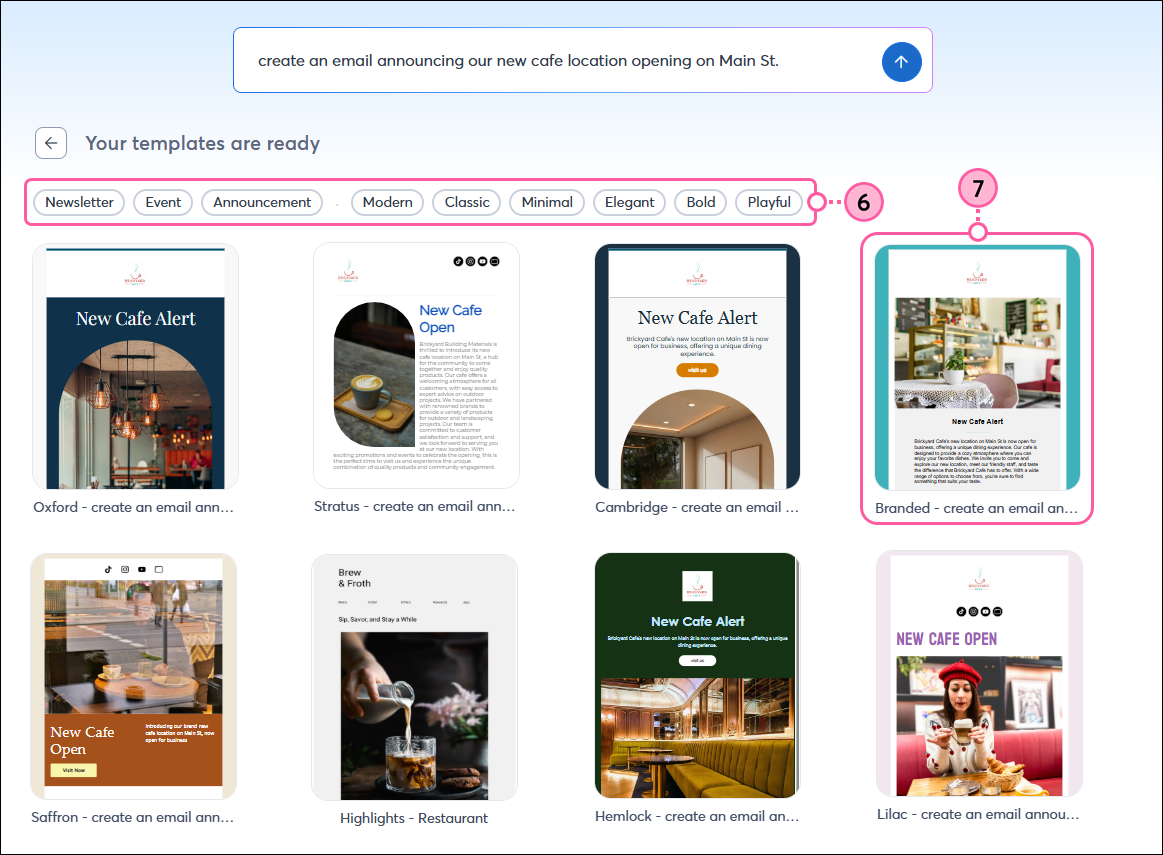
We instantly generate templates for you based on your industry, but you can also generate something more specific by entering a bit of information about what you want to share.


Light bulb iconDid you know? If you have a specific marketing goal in mind, we can generate a multi-channel campaign for you!


  1. Click the Generated tab.
  2. Scroll through to see templates instantly generated for you based on your industry, or enter a description of what you’re looking to send to generate something more specific.
  3. Click the arrow to start generating. The generated emails will include content and images based on your prompt, and you’ll be able to customize them to your liking before sending them to your contacts.

    Template picker with Generated tab selected, prompt field, and Create button

  4. (Optional) Click Regenerate to see additional options.
  5. Hover over a thumbnail and click Select to choose a template, or click Preview to get a closer look before selecting it.

    Generated templates with Regenerate button and Preview and Select buttons

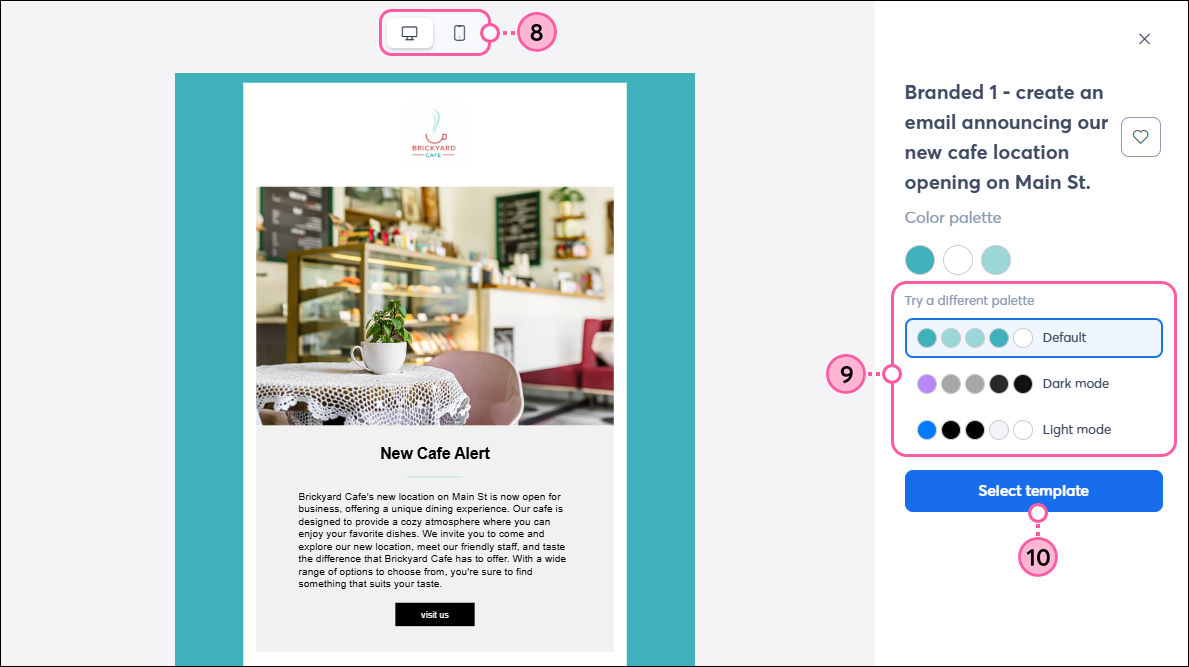
  6. Click on the similar theme options on the right to see the generated email with a different color scheme.
  7. Click the X to return to the generated template options, or click Select template to use the template and continue to the email editor.

    Template preview with similar theme options, X to close, and Select Template button


Once you've selected your template, you can customize the content, layout, and design as much as you need before sending it to your contacts. Don't forget to preview and send a test version of your email to make sure it looks the way you want before sending it to your contacts!


Questions?

Ask the Community

Did this article answer your question?


Constant Contact Logo

Copyright © 2026 · All Rights Reserved · Constant Contact · Privacy Center