If you spent time designing a great email and want to use it for future emails, you can easily save it as a template—it can be an email you previously sent or one you have saved as a draft. The next time you create a new email, simply select it from the “Saved" section in the template picker, and then you can customize it as needed before sending it to your contacts.
Please note: Custom Code emails cannot be saved as a template.
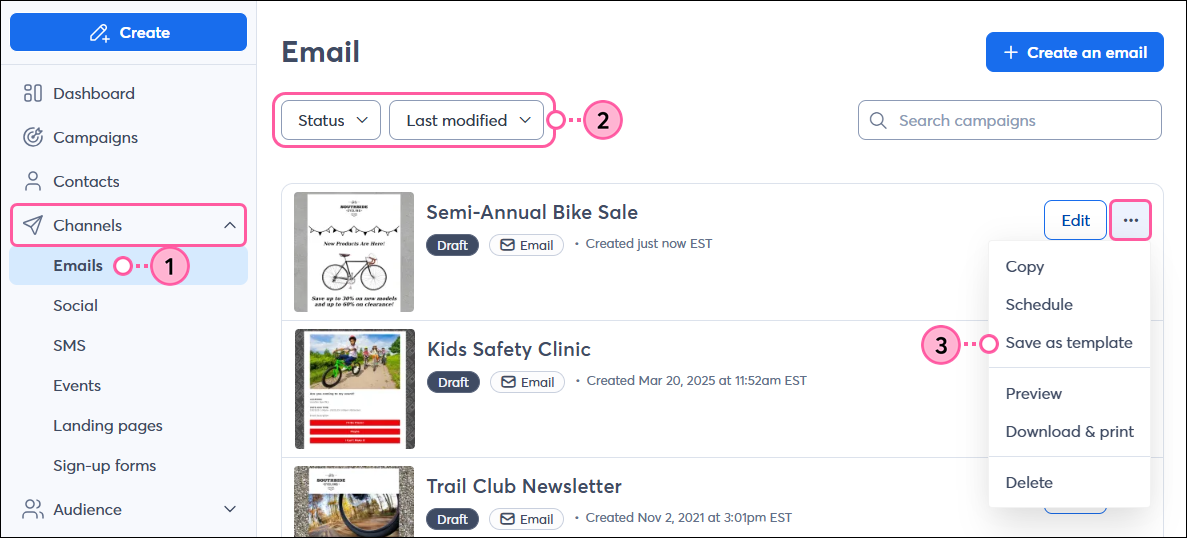
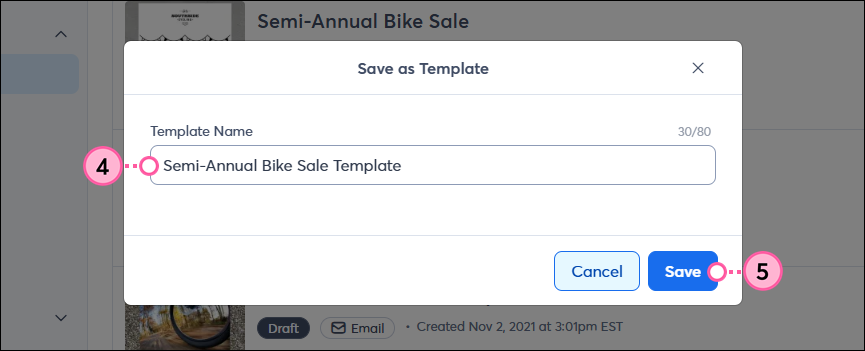
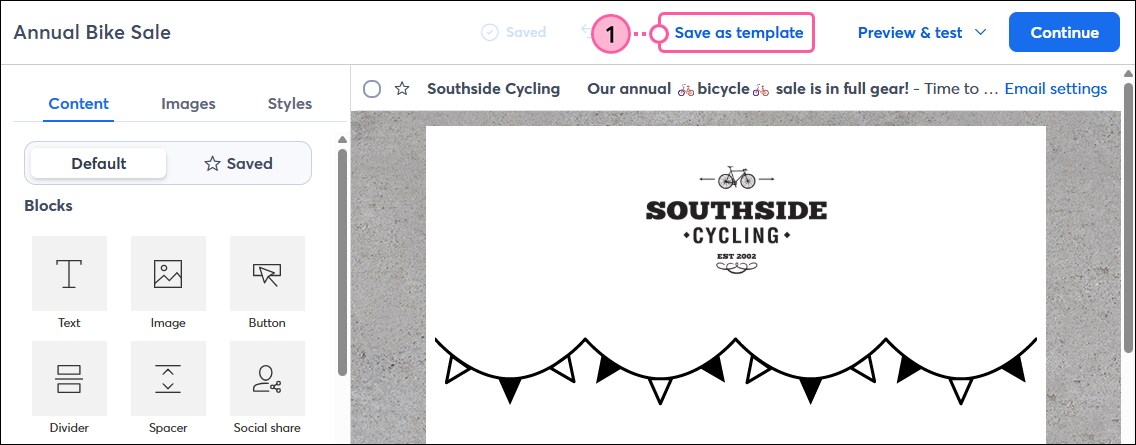
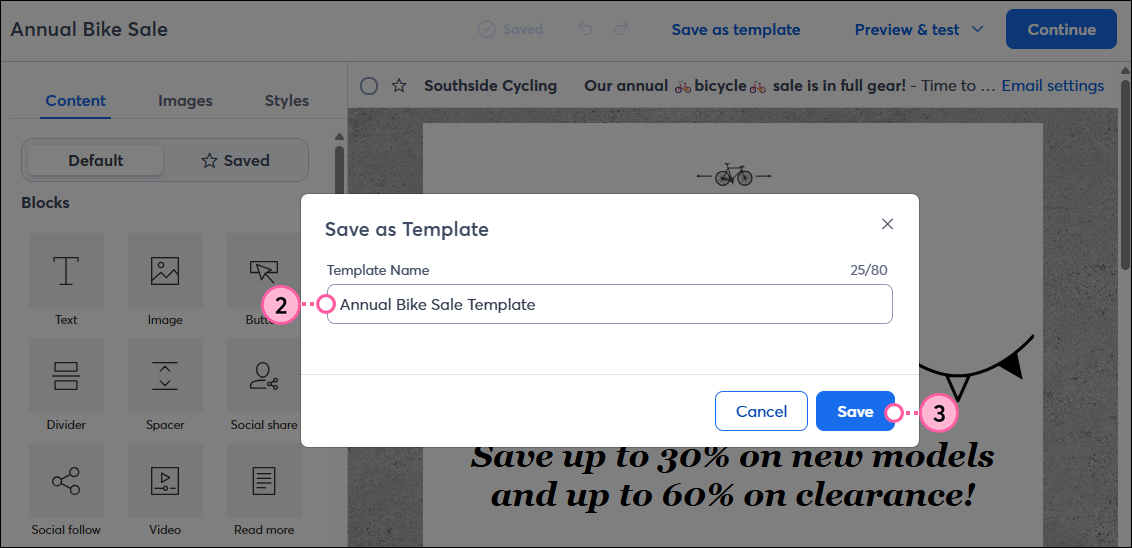
Any draft or previously sent email can be saved to the template picker for future use. You can save as many emails as you want from the Emails page or while editing a draft.
Note: If you want to make changes to a saved template, you can do so by selecting it from the template picker, making your edits, and saving it as a new template. You can then delete the previous version to avoid confusion, if needed.
 | Tip: Be sure to make all your desired edits to the draft before saving it as a template. If you want to make changes to the template after it’s been saved, you’ll need to make your edits and save it again as a new template. You can then delete the previous version if needed to avoid confusion. |
Whenever you create a new email, you can select your saved template from the "Saved" tab or category.
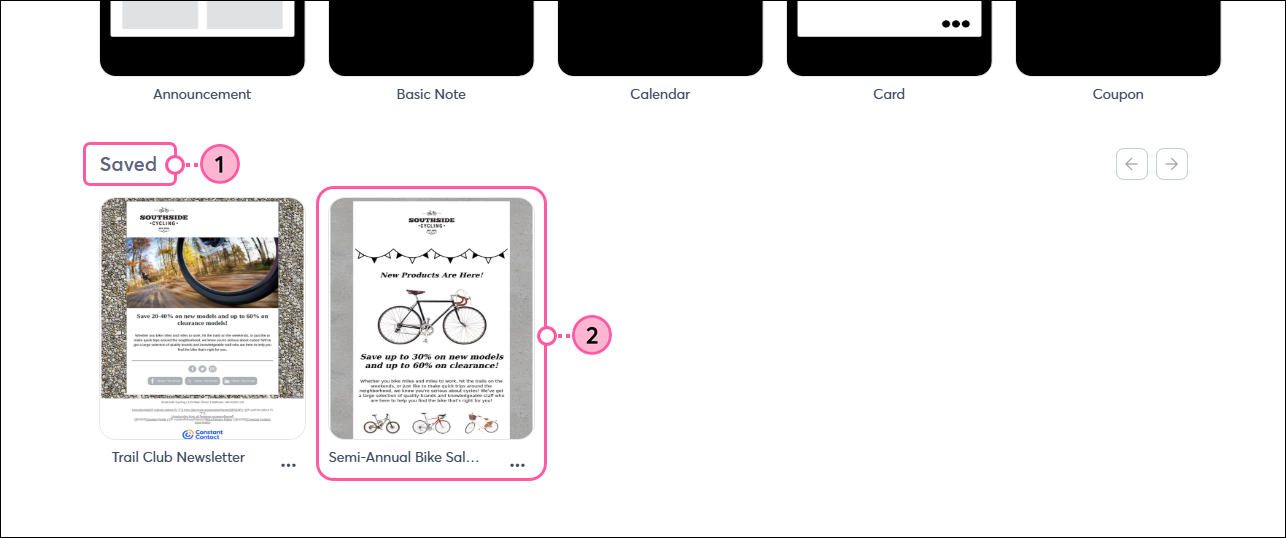 | 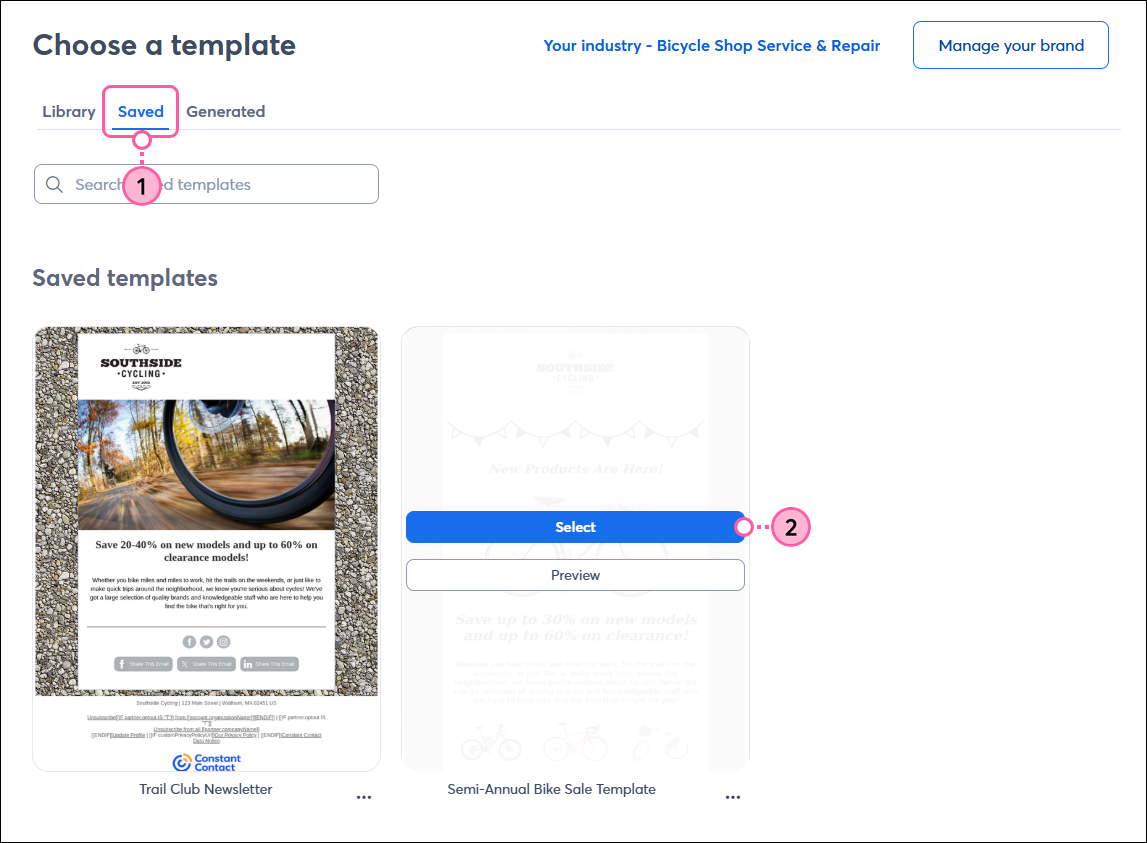 |
Your template opens in the email editor, and you can modify the content, branding, and layout as much as you like before sending it to your contacts.
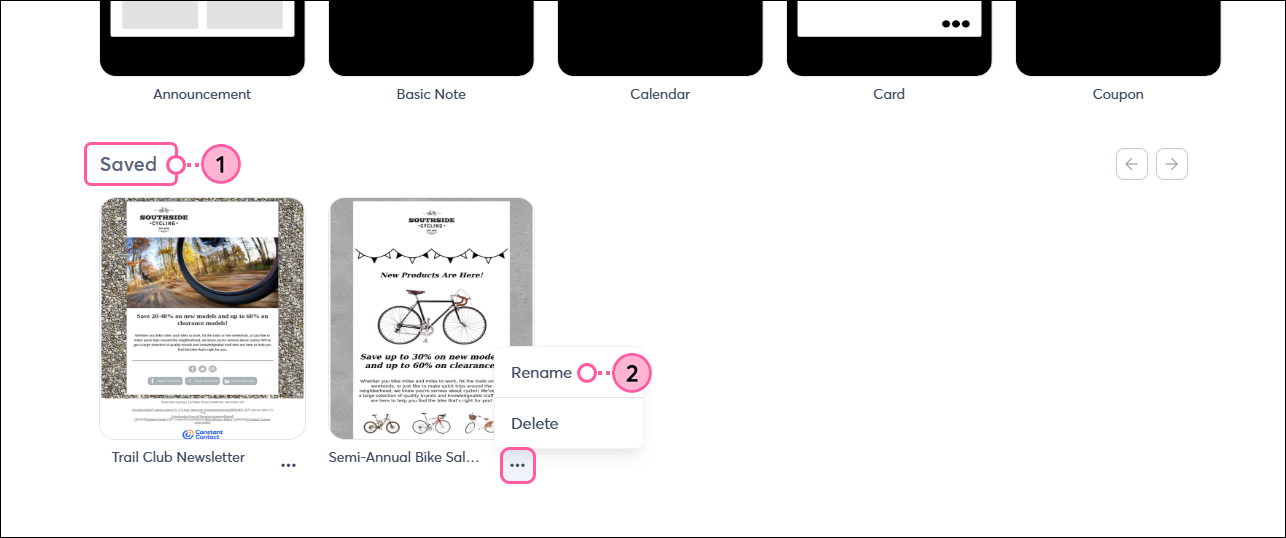
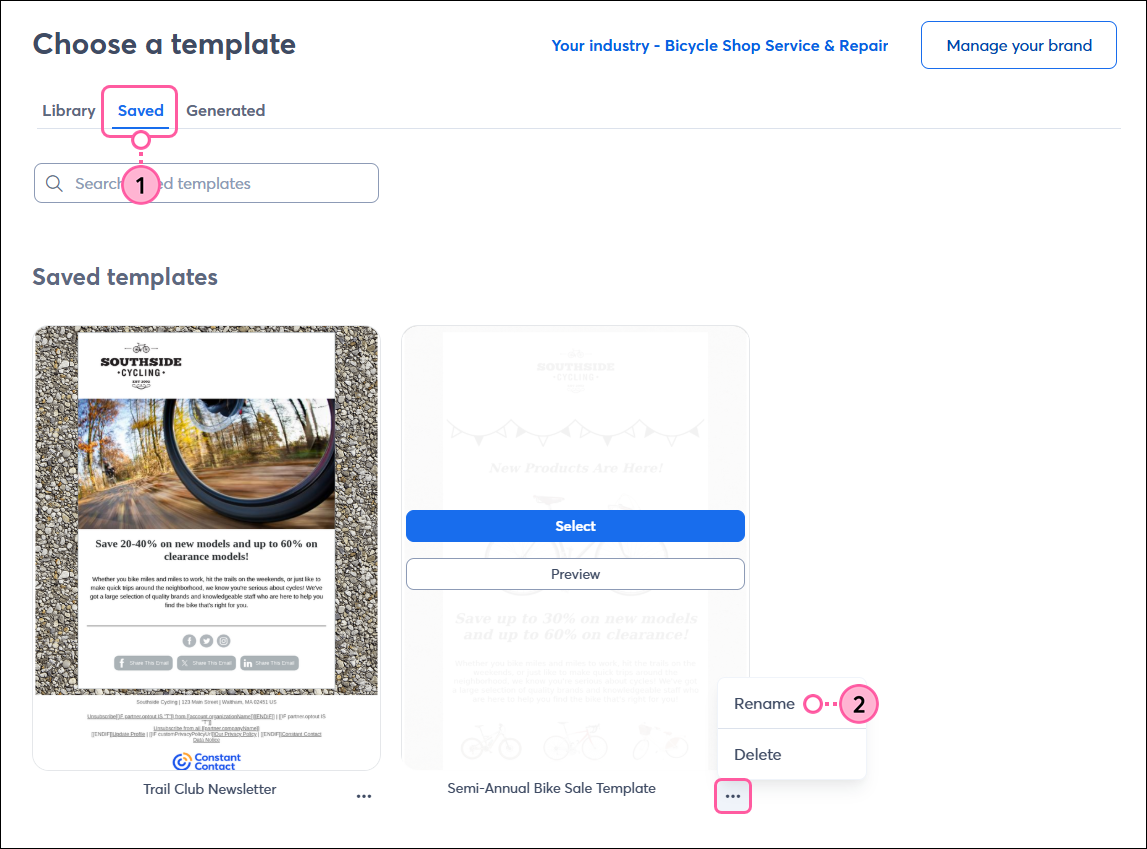
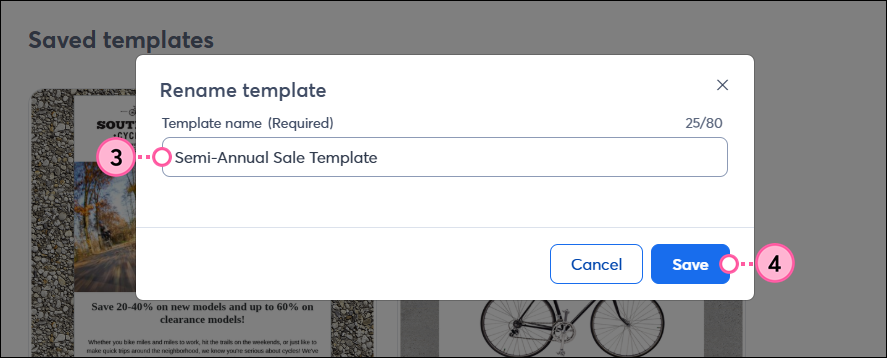
If you want to rename any saved templates, you can do so from the "Saved" section in the template picker. The new name must be unique and have no more than 80 characters:
 |  |
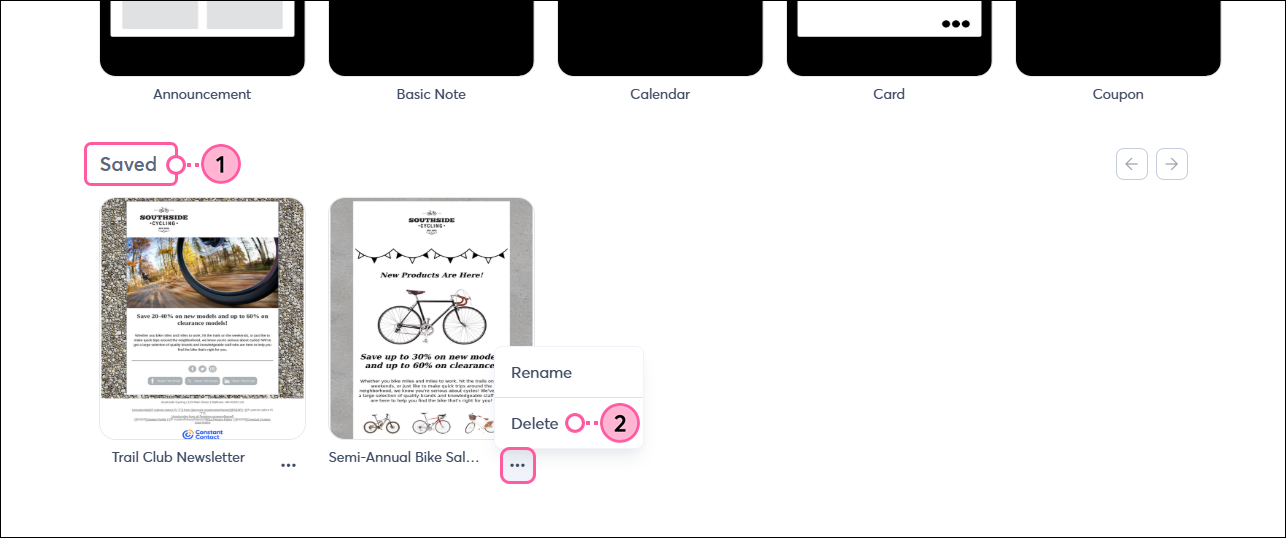
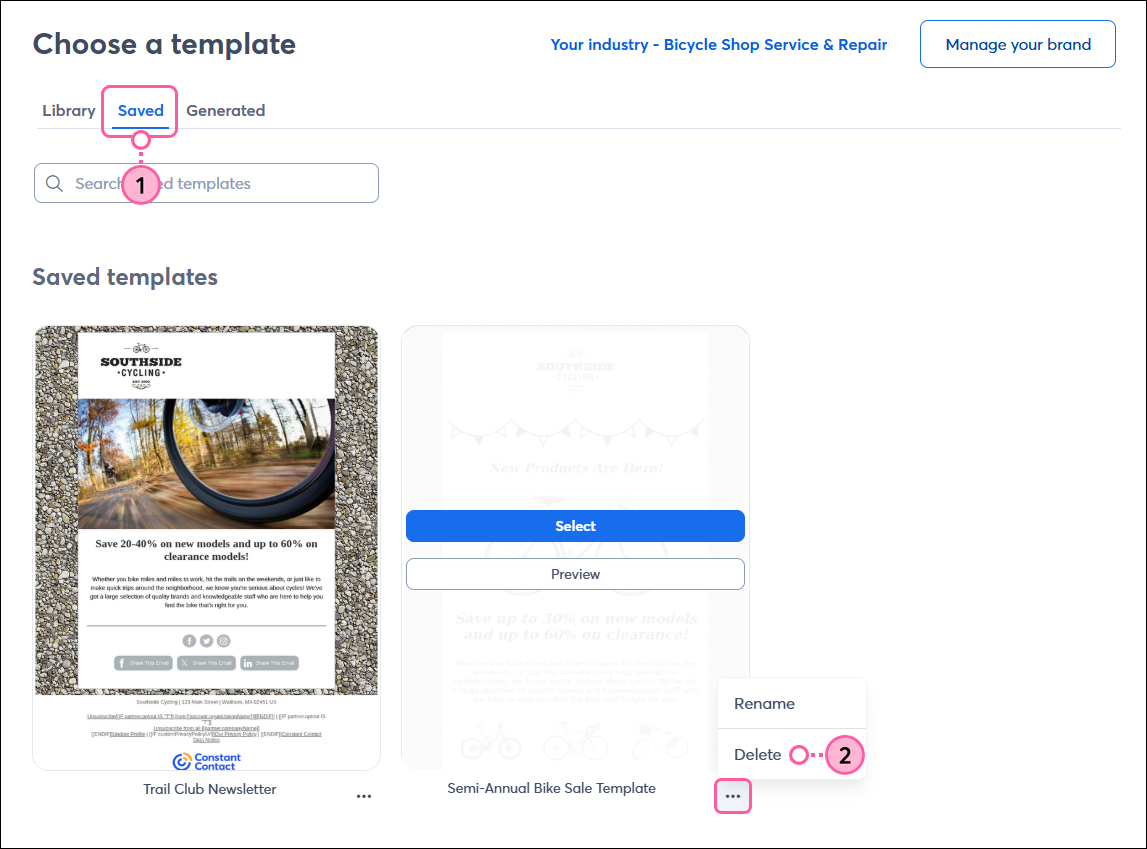
When it's time to clean up old content, you can delete any of your saved templates from the "Saved" section in the template picker. This doesn't delete your email; it only removes it from the template picker.
 |  |
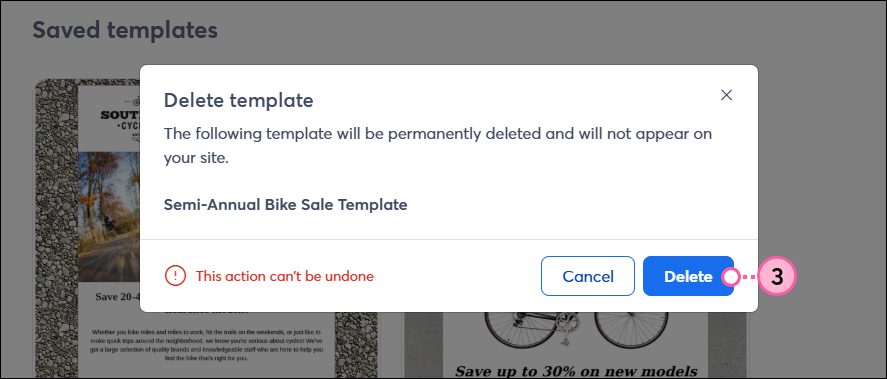
You can’t undo this action, but you can always save the email as a template again if you wish.
Copyright © 2026 · All Rights Reserved · Constant Contact · Privacy Center