Email and Digital Marketing
How can we help you?
Search our help articles, video tutorials, and quickstart guides

You've got this. You've got us. Search our Knowledge Base to quickly find answers to your questions.

Reset your factors for Multi-Factor Authentication (MFA)

Article: 000046735
Updated: September 25, 2026

Reset your secondary MFA factors if you lost your device, changed phone numbers, or want to update your authentication methods

If you've set up Multi-Factor Authentication (MFA) for your account and need to update your secondary factors for any reason—like if you lost or don't have access to your device, want to change the secondary factor you're using, or want to add another factor—you can reset them from your account settings or from the MFA login screen. Once reset, you'll be able to select new MFA factors the next time you log into your account.


Important things to note:

  • All factors will be reset: If you have multiple secondary factors set up (like SMS and Voice Call), resetting MFA removes all existing factors. Upon your next login, you’ll need to re-enroll in all desired factors.
  • MFA cannot be disabled: Multi-Factor Authentication is required for account security and cannot be completely turned off.


Best practice: We recommend setting up at least two secondary factors, using different devices (for example, a mobile phone for SMS authentication and a landline phone for Voice Call authentication) to help prevent you from being locked out of your account if you lose or misplace one of your devices.


Reset MFA at login (lost or unavailable device)

If you lost or don't have access to the device you used to set up MFA, you can set up a new device when logging in.

  1. Go to the Constant Contact login page and enter your credentials.
  2. On the MFA verification screen, click the Set up a new phone or tablet link.

    MFA login screen with Set Up New Phone or Tablet link

  3. Follow the on-screen prompts to verify your identity before you can set up a new device for MFA.
  4. Log back into your account and follow the prompts to set up your new secondary MFA factors.


Method 2: Reset MFA from account settings (logged-in users)

If you’re able to log into your account and want to change your authentication methods, you can reset your MFA factors from the Account settings page.

 

  1. Click the profile name in the upper-right and select Account settings from the drop-down.

    Profile drop-down with Settings option selected

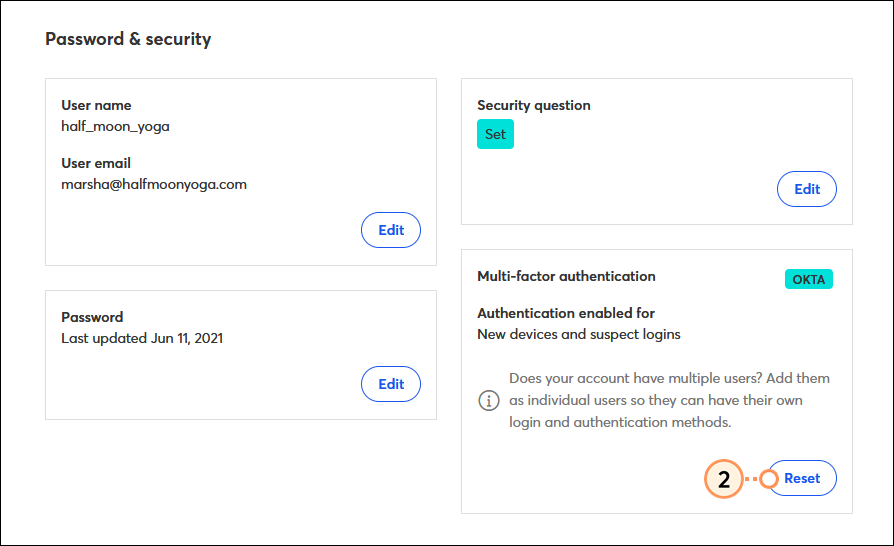
  2. Scroll down to the Password & security section and click Reset in the Multi-factor authentication area. 

    Password and Security section, Multi-Factor Authentication section and Reset button

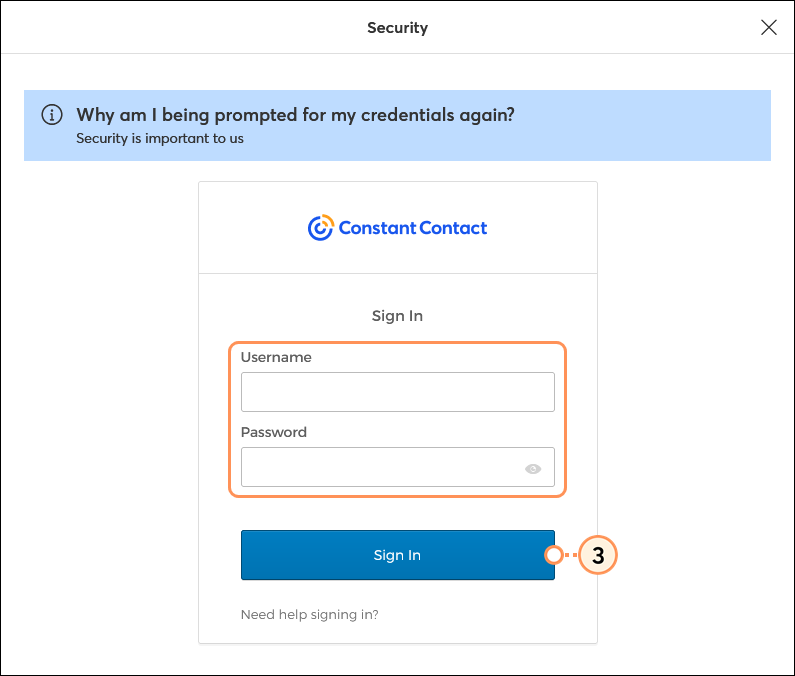
  3. If prompted, re-enter your Constant Contact username and password, then click Sign in. 
    Note: In some cases, you may also need to verify your login with your current MFA factor before you can proceed. 

    Constant Contact login username, password, and Sign in button

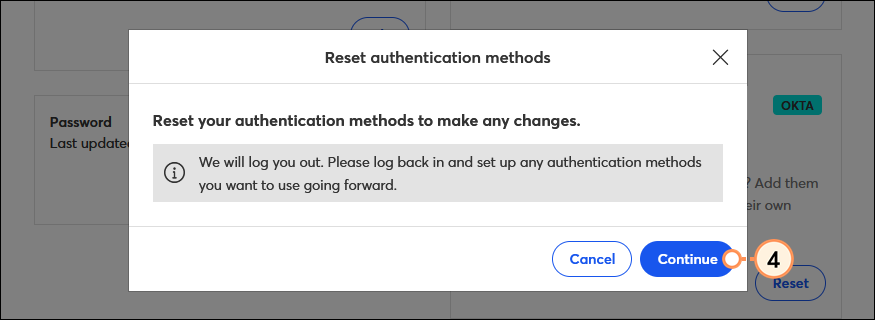
  4. Click Continue to confirm you want to reset your MFA factors. You'll be automatically logged out of your account.

    Logout confirmation and Continue button

  5. Log back into your Constant Contact account and follow the prompts to set up your new secondary MFA factors.


Questions?

Ask the Community

Did this article answer your question?


Constant Contact Logo

Copyright © 2026 · All Rights Reserved · Constant Contact · Privacy Center