The security of your Constant Contact account is important to us! To help keep your account more secure from hackers and account takeovers, we require all users to enroll in Multi-Factor Authentication (MFA) as an extra layer of security to help prevent unauthorized logins. There is no extra cost for this service.
 | Important: Once you enroll in MFA, you can't unenroll, but you can change your secondary factors at any time. |
How does logging in with MFA work?
After logging in to your Constant Contact account with your username and password, you're prompted to enter a code, or secondary factor, to verify your identity. You choose how you receive the code: by text message to your mobile device, by phone call to your mobile device or landline, or through an authenticator app (not available for all accounts). Learn more:
How do I enroll my account in MFA?
 | Keep your account secure: If multiple people work in your account and they're currently sharing your login information, be sure to add them as individual users so each has their own username and password. This allows each user to set up their own account logins and MFA factors on their devices. |
If your account is already enabled for MFA by default, you're automatically prompted to "Add Multi Factor Authentication" when you log into your account for the first time. If you're being prompted for MFA, skip to these steps to set up your secondary factor.
If you're not sure if your account has MFA enabled, you can check through your account settings:
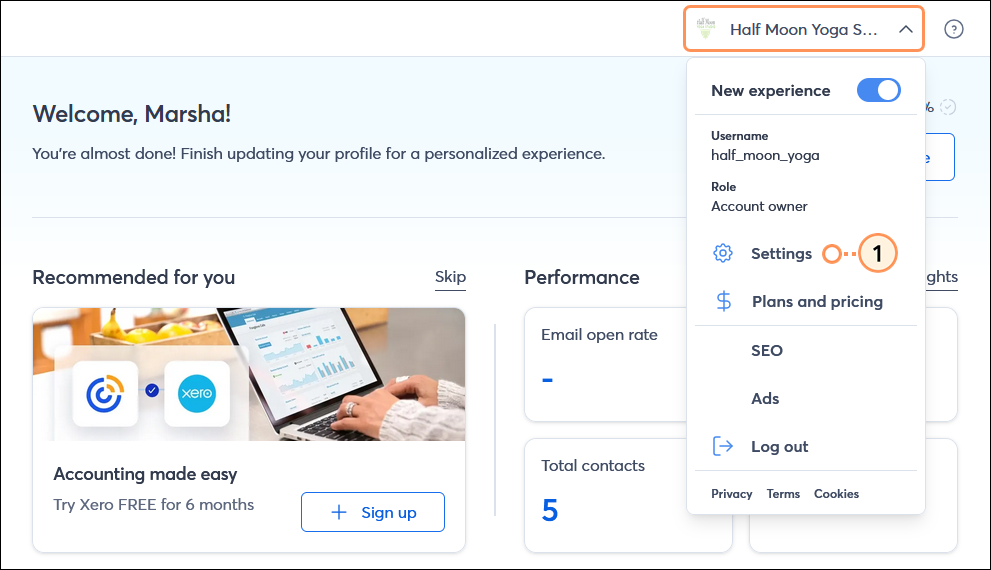
- Click the profile name in the upper-right and select Settings.
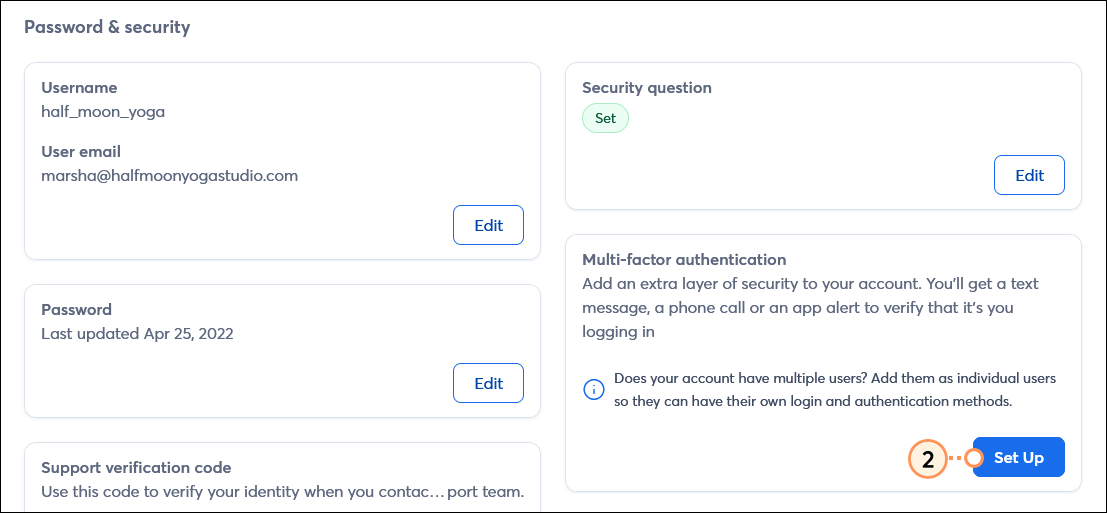
- Scroll down to the Multi-factor authentication section and click Set Up.
Note: If you see a Reset button instead, MFA is already enabled.
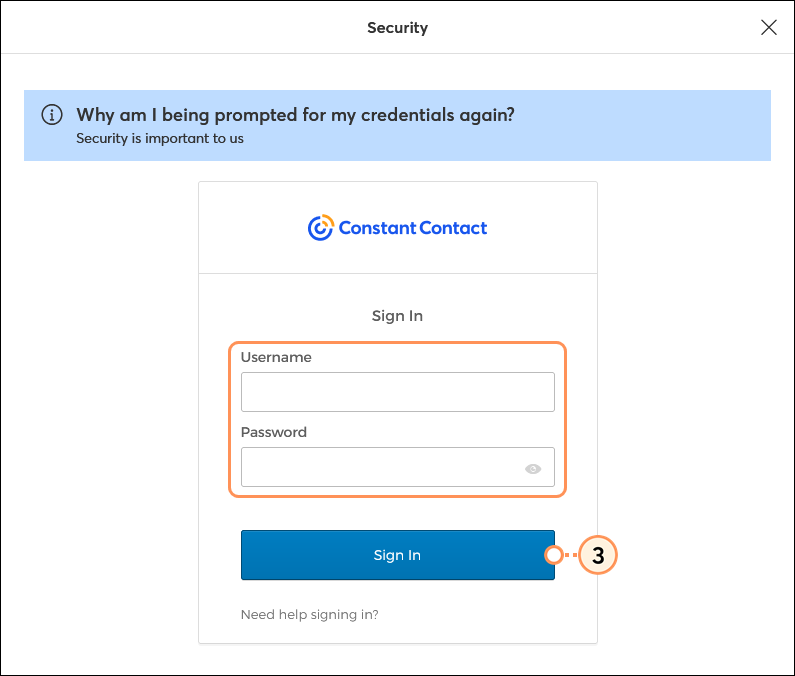
- If prompted, enter your Constant Contact username and password, then click Sign in.
- Click Continue to finish enrolling in MFA. You'll be logged out of your account.
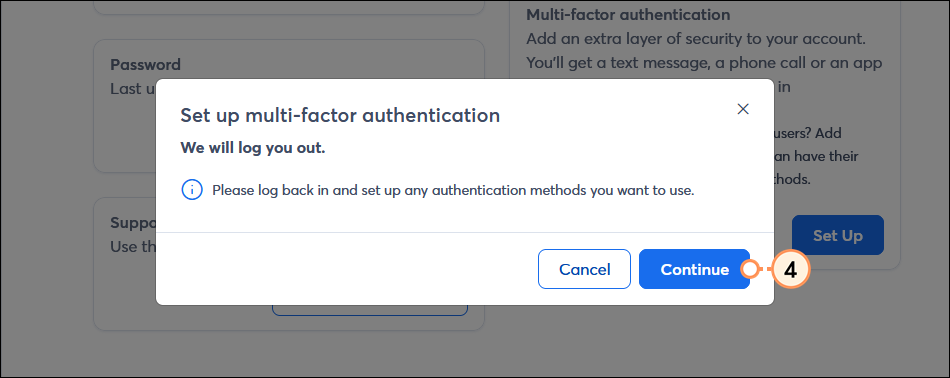
The next time you log into your Constant Contact account, you'll be prompted to set up your secondary factors of authentication.
What authentication methods can I use for my secondary factor?
| Important: Each secondary factor can be associated with only one device, so we recommend setting up multiple secondary factors on different devices, such as your mobile phone, landline, work phone, and tablet. This helps to prevent you from being locked out of your account if you lose or misplace one of your devices. For example, if you set up SMS Authentication with your mobile phone, you should set up Voice Call Authentication with your landline phone. We also advise against using third-party apps as a replacement for any of our approved MFA apps. |
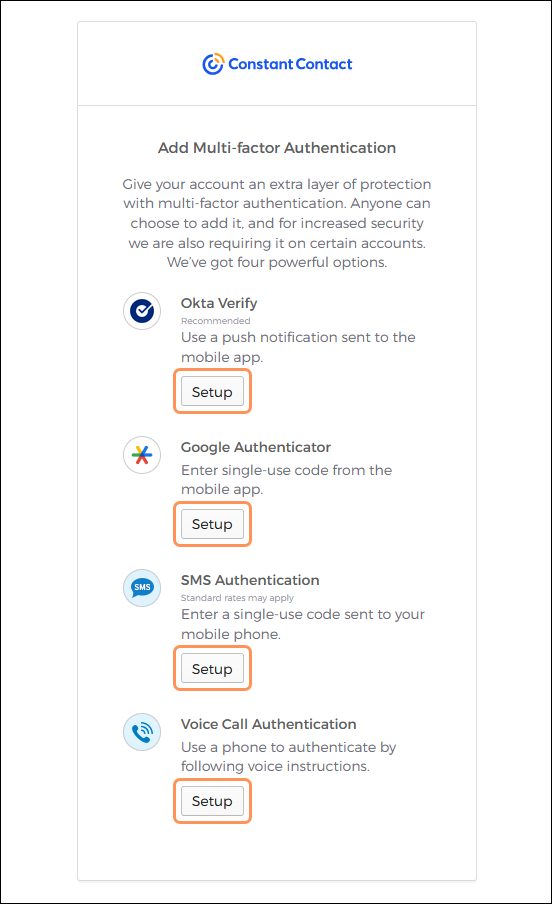
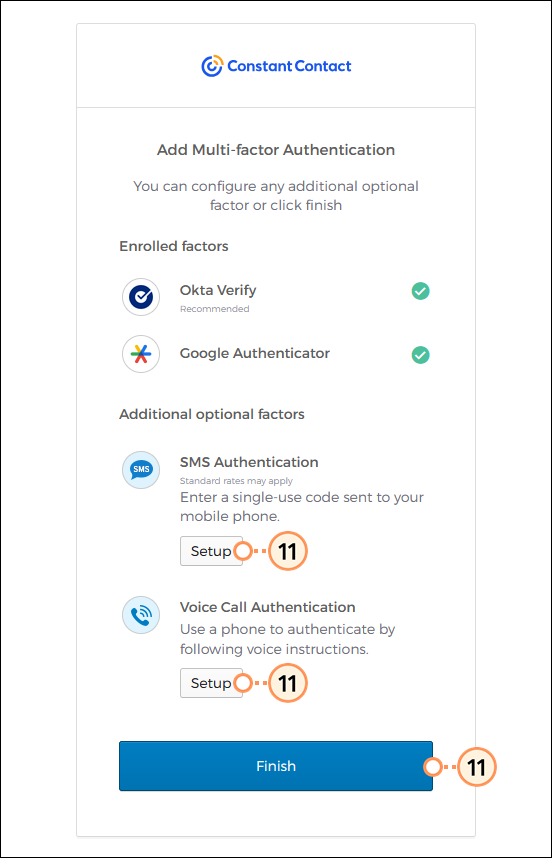
Once enrolled in MFA, the next time you log into your Constant Contact account, you're prompted to choose from the following options to set up your secondary factor(s) of authentication. When prompted, click the Setup button next to the option you want to use:
- SMS Authentication - Enter your mobile phone number to receive a text message containing a one-time code for you to enter when logging in to your account.
- Voice Call Authentication - Enter a phone number to receive a phone call with a verbal one-time code for you to enter when logging into your account.
- Okta Verify - Download the Okta Verify app (for Android or iOS) to your mobile device to verify your identity by approving a push notification sent to your device. This option is not available in all accounts.
- Google Authenticator - Download the Google Authenticator app (for Android or iOS) to your mobile device to generate a one-time code to enter when logging into your account. This option is not available in all accounts.
 | Did you know? Email addresses can't be used as secondary factors because they're easily compromised. MFA requires something you have (e.g., your smartphone) in addition to something you know (e.g., your password). |
⏵ Setting up SMS Authentication (Click to expand)
| Important: Both U.S. and international numbers are supported with SMS authentication. Text and data rates may apply. |
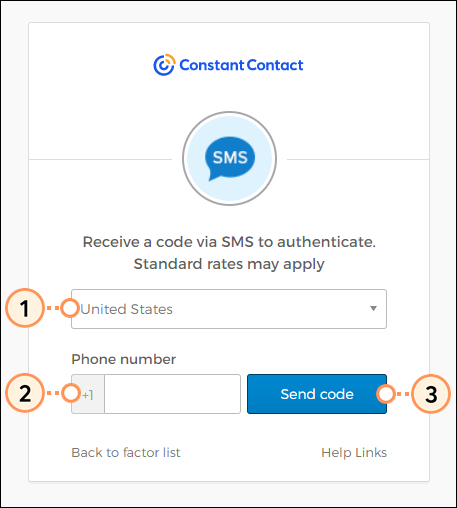
- Select your country from the drop-down.
- Enter your phone number in the field.
- Click Send code.
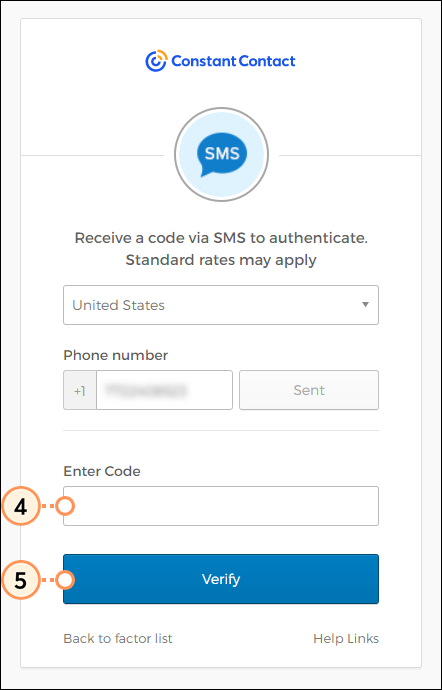
- In the field, enter the code you received via text message on your mobile device.
- Click Verify.
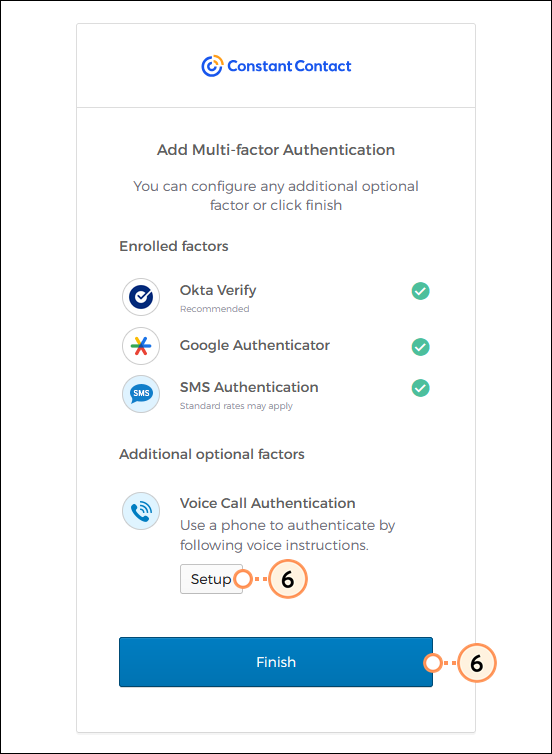
- It's recommended that you set up an additional secondary factor. Click Setup for the next method you want to enroll in. If you're done setting up all your desired factors, click Finish.
⏵ Setting up Voice Call Authentication (Click to expand)
| Important: Both U.S. and international numbers are supported with Voice Call authentication. |
- Select your country from the drop-down.
- Enter your phone number in the field.
- Click Call.
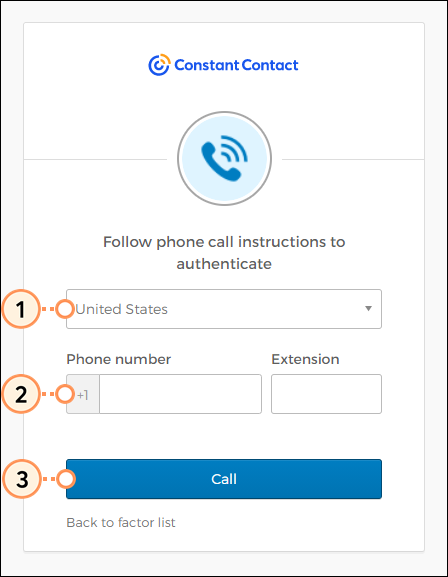
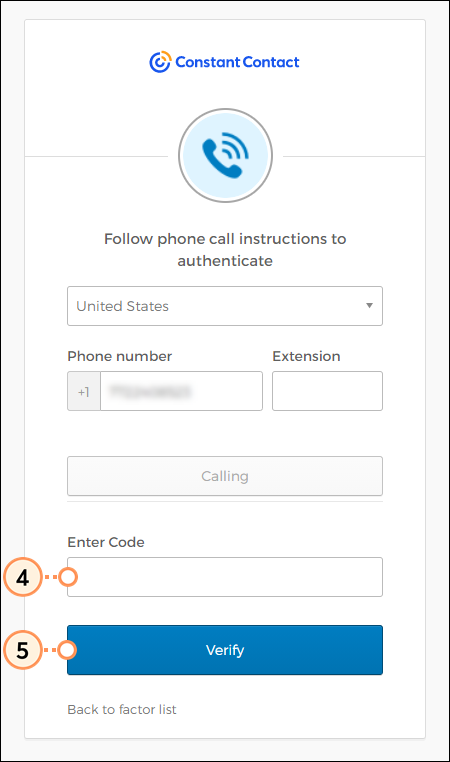
- Answer the call on your phone and enter the code provided.
- Click Verify.
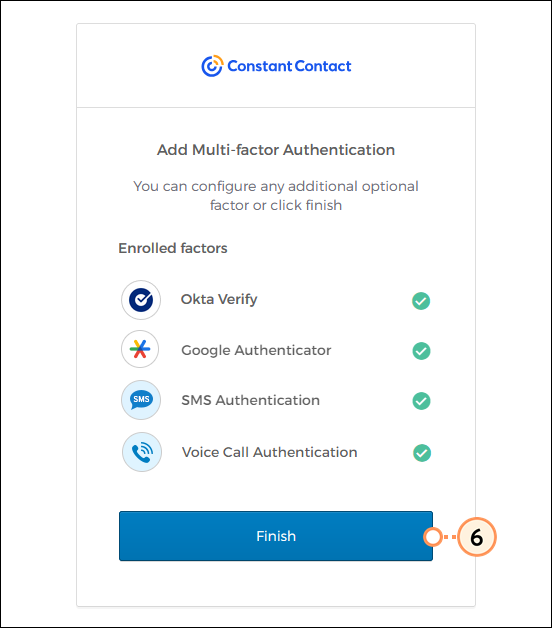
- It's recommended that you select an additional secondary factor. Click Setup for the next method you want to enroll in. If you're done setting up all your desired factors, click Finish.
⏵ Setting up Okta Verify (Click to expand)
If you're already using Okta Verify and need help adding a new account, please visit Okta's Support.
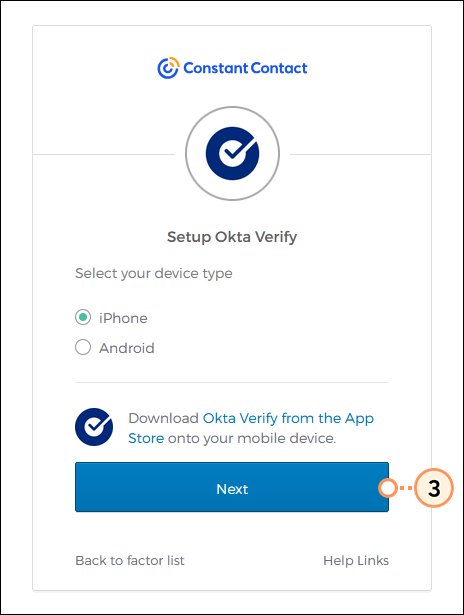
- Select if you have an iPhone or Android device.
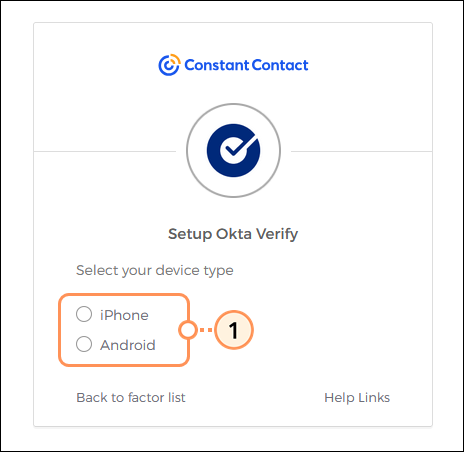
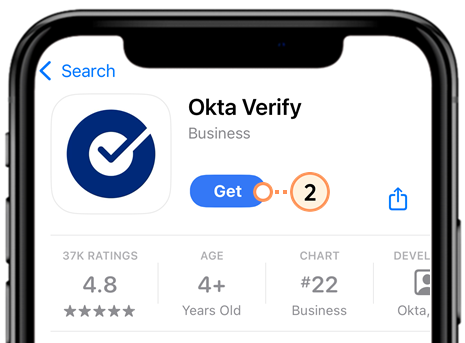
- Download the Okta Verify app from your device's app store.
- Back on your desktop screen, click Next.
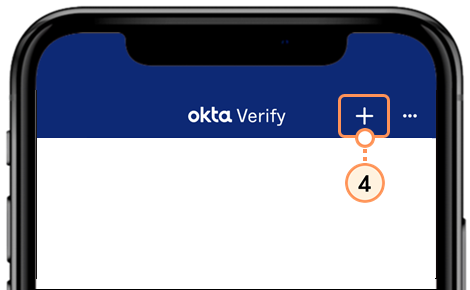
- Open the Okta Verify app on your device and click the plus sign (+) in the top right to add an account.
Tip: To save time, you can automatically add the account by opening your device's camera and scanning the QR code displayed on your desktop screen.
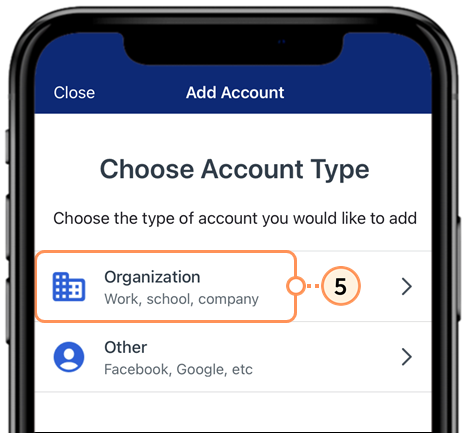
- Select the Organization account type.
- Click Scan a QR Code.
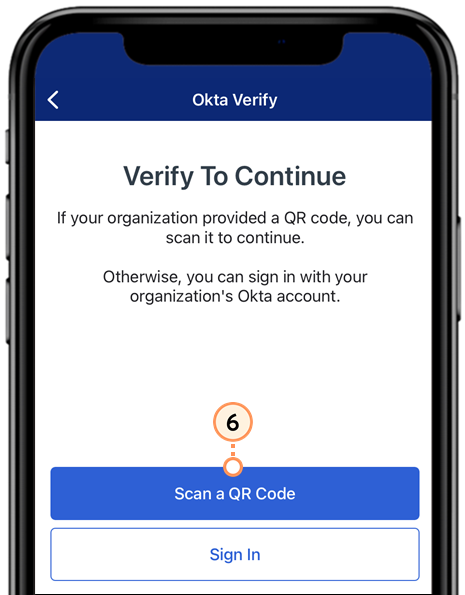
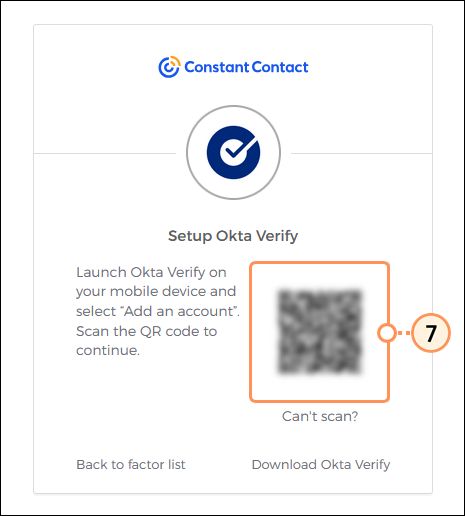
- Use your device's camera to scan the QR code provided on your desktop screen.
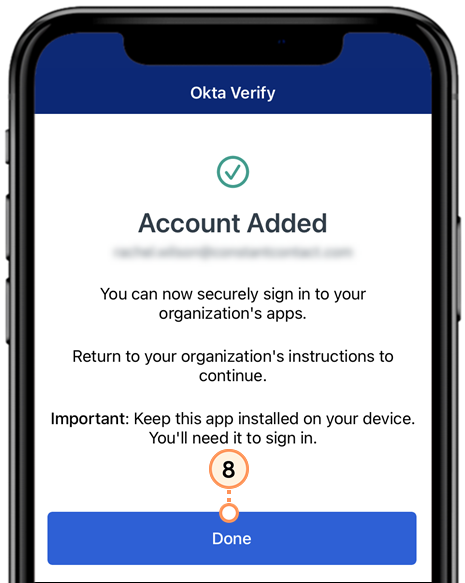
- Click Done.
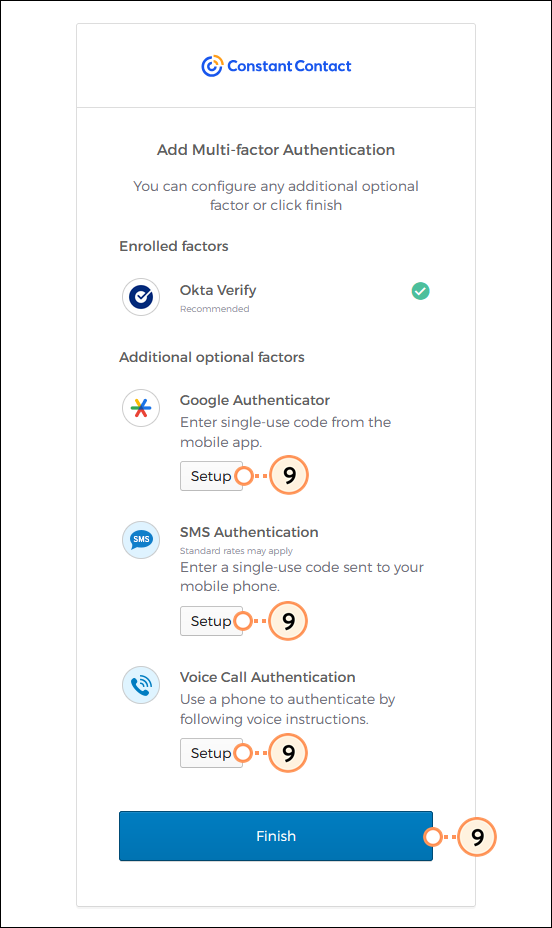
- It's recommended that you set up an additional secondary factor. Back on your desktop screen, click Setup for the next method you want to enroll in. If you're done setting up all your desired factors, click Finish.
⏵ Setting up Google Authenticator (Click to expand)
If you're already using Google Authenticator and need help adding a new account, please visit Google's Support.
- Select if you have an iPhone or Android device.
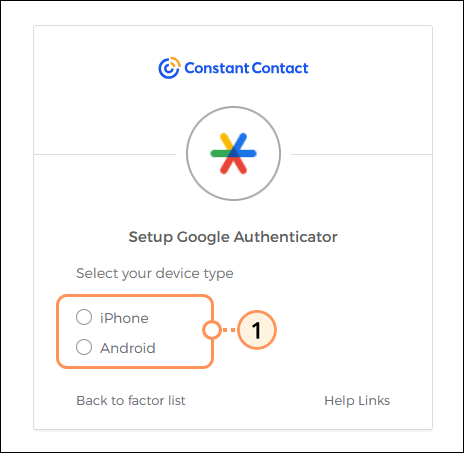
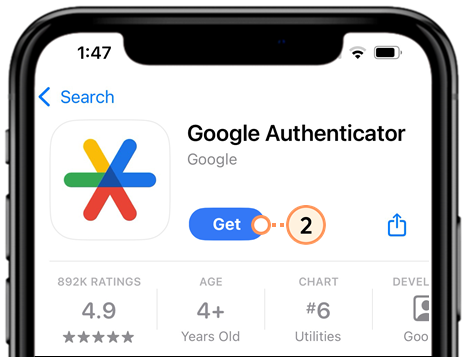
- Download the Google Authenticator app from your device's app store.
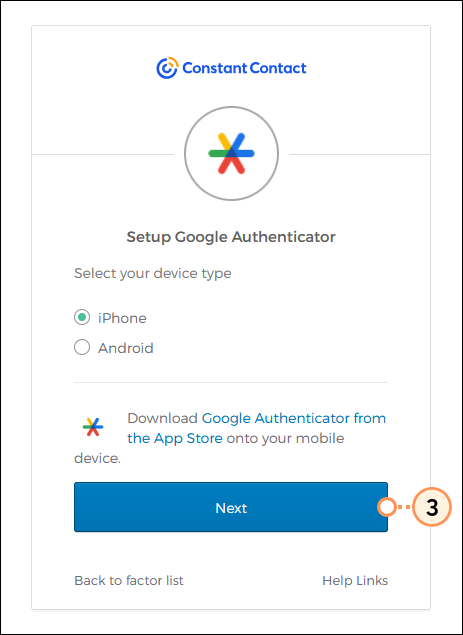
- From your desktop screen, click Next.
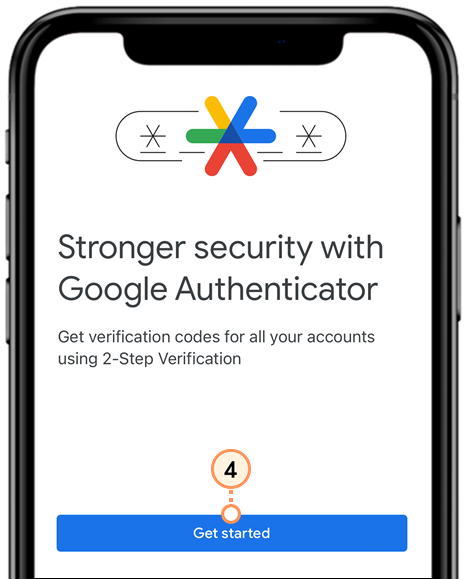
- Open the Google Authenticator app on your device and click Get started.
- Click Scan a QR code.
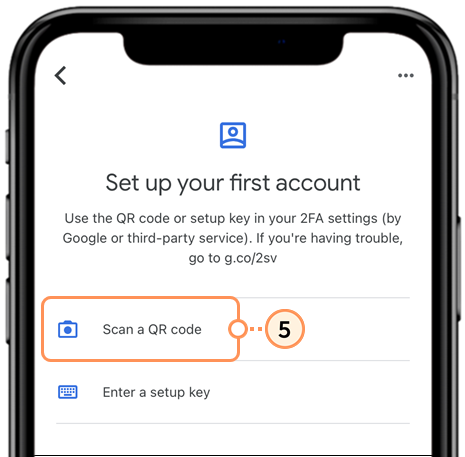
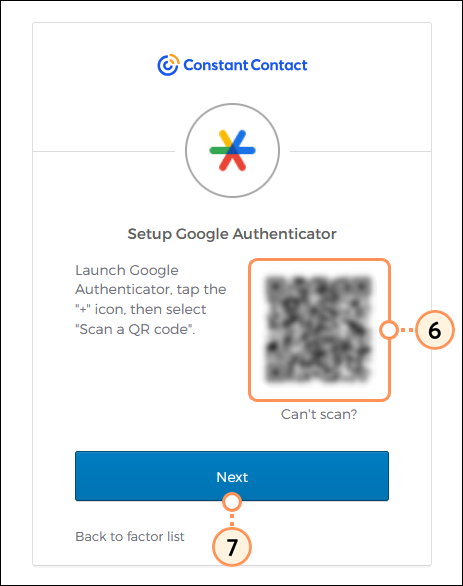
- Use your device's camera to scan the QR code on your desktop screen.
- Click Next.
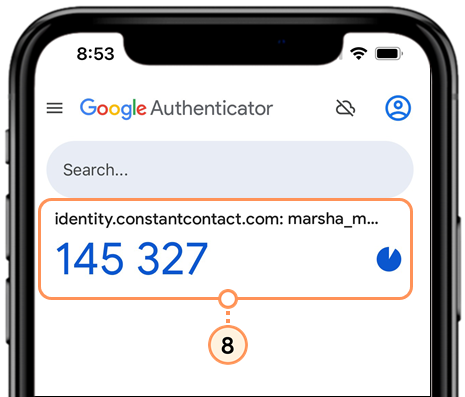
- Locate the code in the Google Authenticator app.
Note: Your Constant Contact account will display as “identity.constantcontact.com (your username)” within the Google Authenticator app.
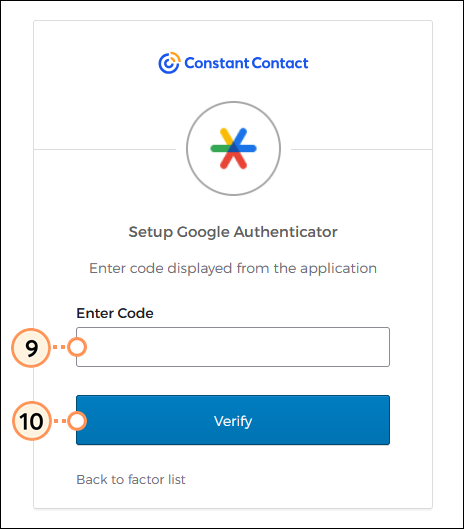
- Back on your desktop screen, enter the code in the field.
- Click Verify.
- It's recommended that you set up an additional secondary factor. Click Setup for the next method you want to enroll in. If you're done setting up all your desired factors, click Finish.
How do I log in with MFA
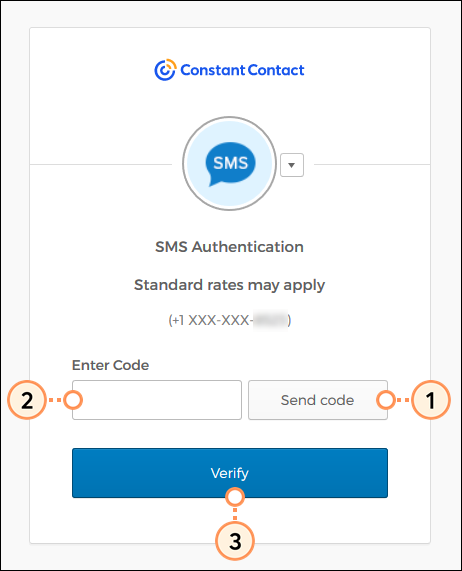
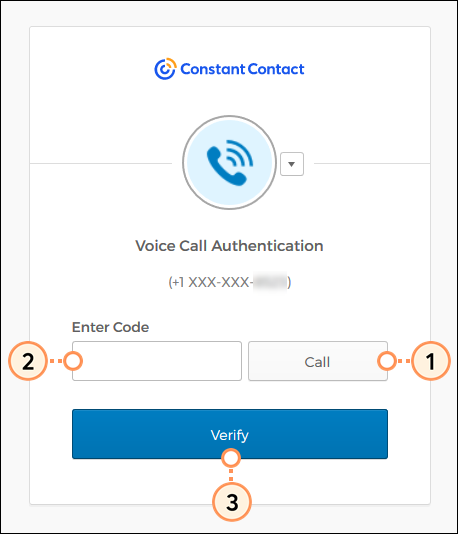
After you log in with your username and password, you're prompted to generate a code through the authentication method you've enabled. Most have a button to initiate the process, but each looks slightly different:
⏵ Logging in with SMS Authentication (Click to expand)
- Click Send code.
- Enter the code received via text message.
Note: The code will be valid for 5 minutes. If the code expires, you'll need to click Resend code to receive a new code. - Click Verify.
⏵ Logging in with Voice Call Authentication (Click to expand)
- Click Call.
- Answer the call on your phone and enter the code provided.
- Click Verify.
⏵ Logging in with Okta Verify (Click to expand)
- Click Send Push.
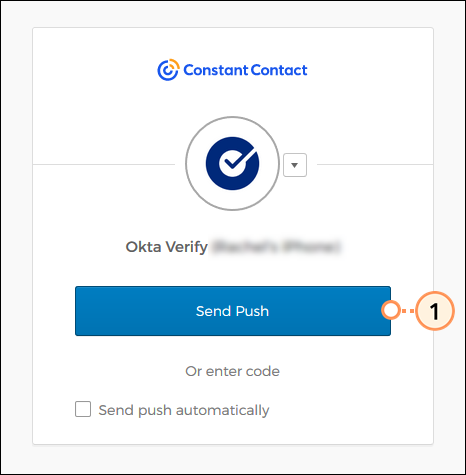
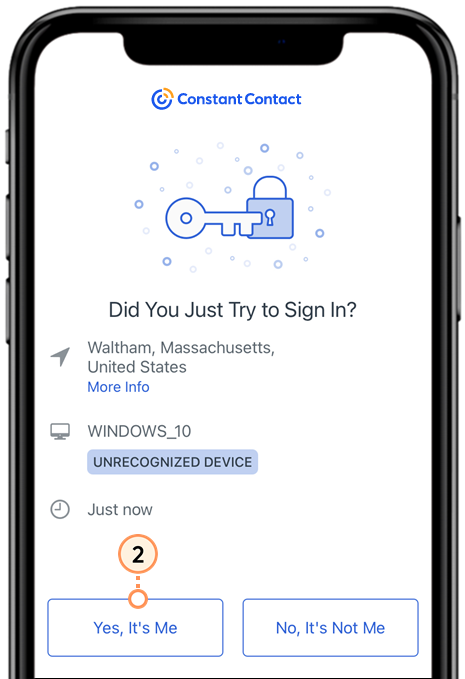
- Open the notification on your device and click Yes, It's Me to approve the login attempt.
⏵ Logging in with Google Authenticator (Click to expand)
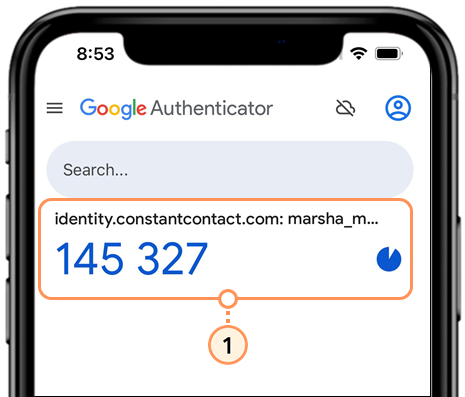
- Open the Google Authenticator app on your device and locate the code provided.
Note: Your Constant Contact account will display as “identity.constantcontact.com (your username)” within the Google Authenticator app.
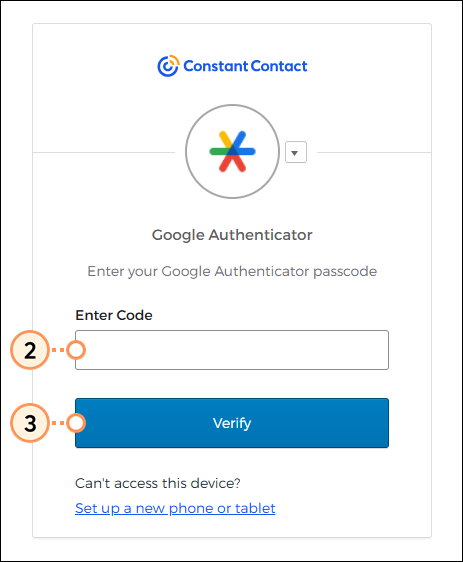
- On your desktop screen, enter the code in the field.
- Click Verify.
How do I log in with a different authentication method when I have more than one enabled?
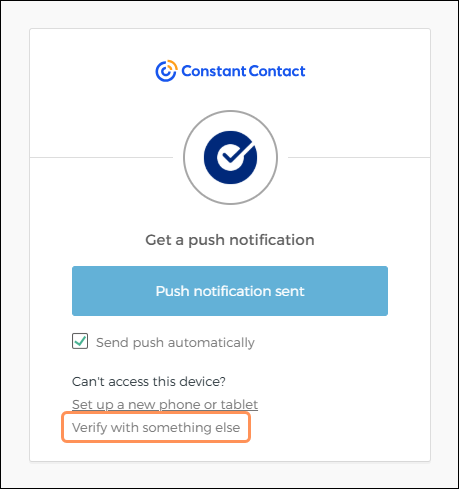
If you set up more than one authentication method, you can switch between them when you're logging in. When you're prompted for your secondary factor, click the "Verify with something else" link.
How often am I prompted to log in with MFA?
You're prompted to verify your identity with MFA when you first log in to your account after enabling MFA, and again when you log in from a new or unrecognized device. When logging in on an unrecognized device, you'll receive an email letting you know, so you can determine whether the login attempt was expected or possibly from a bad actor.
Can I update or change my secondary factor to something else?
If you need to update your MFA secondary factors, you can reset them in your account settings or on the account login screen, then enable the factors you want to use going forward.
| Important: When you reset MFA for your account, it resets all of the factors you're currently using. If you have multiple factors enabled, each one needs to be updated independently. |
Any links we provide from non-Constant Contact sites or information about non-Constant Contact products or services are provided as a courtesy and should not be construed as an endorsement by Constant Contact.