Email and Digital Marketing
How can we help you?
Search our help articles, video tutorials, and quickstart guides

You've got this. You've got us. Search our Knowledge Base to quickly find answers to your questions.

Customize what each contact sees in your email with dynamic content

Article: 000028143
Updated: April 3, 2026

Add, edit, or remove dynamic content in your email to show relevant information to contacts based on their city, state, or other detail

Email Plus IconReview your plan: This feature is not available in all Constant Contact plans. If you don’t have full access, you may need to upgrade your plan.


See how it's done: Check out how to use this feature in our video tutorial:


Sending targeted emails is key to making sure your contacts receive only the information that’s important to them, but you don’t always have the time to create and send multiple versions of your email. Dynamic content blocks let you customize one email to show or hide content based on the details you've collected from your contacts, such as their city, state, job title, or any custom field you’ve created. This allows your contacts to only see what is relevant to them.

For example, if you hold events in multiple cities or states, you can send one email containing a list of all your upcoming events, but only show your contacts the events happening in their area.


Exclamation Point IconImportant: To use dynamic content, you’ll need to collect additional details from your contacts beyond just their name and email address.


Add dynamic content

While editing your email, you can choose to make any block or layout "dynamic," including text, images, events, calls-to-action, and more.
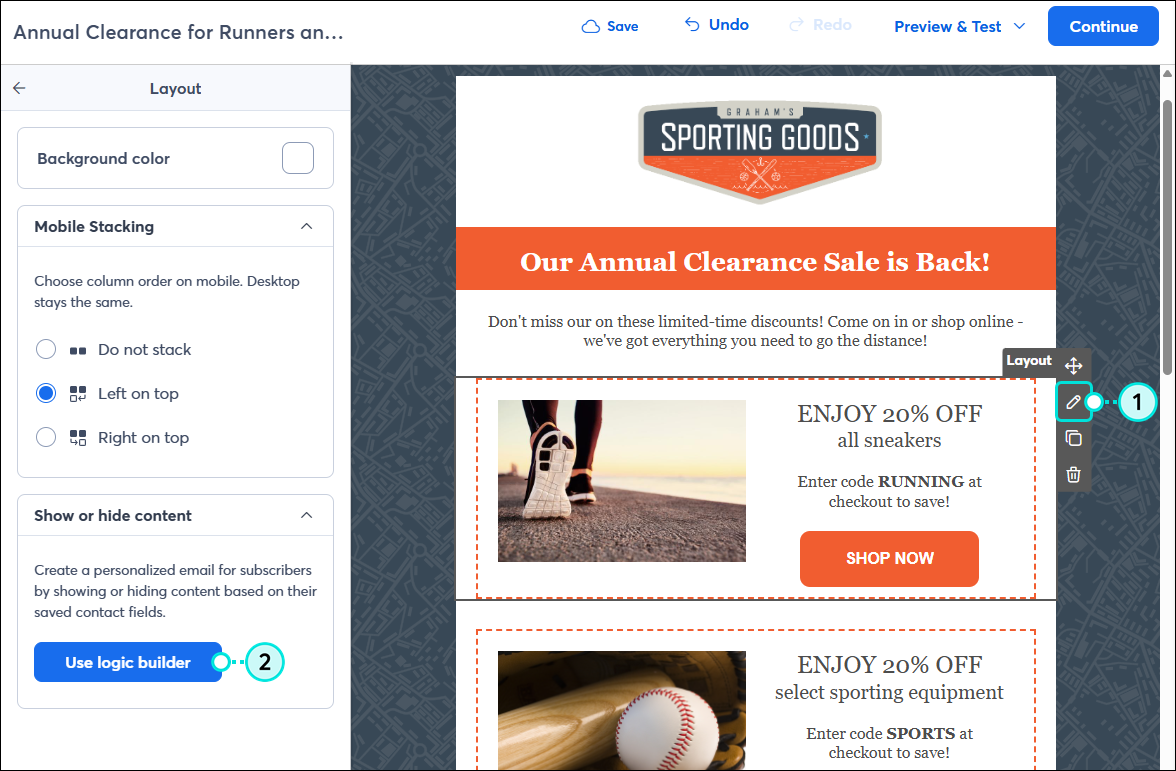
  1. Place your mouse over the block you want to show to specific contacts. Then, depending on your account, click either the three dots or the pencil icon from the controls on the right.
  2. Depending on your account, select the light bulb symbol from the controls on the right or click the Use logic builder button in the panel on the left.

    Block controls with Lightbulb SymbolLayout controls with Pencil icon, and Layout Panel with Use Logic Builder button


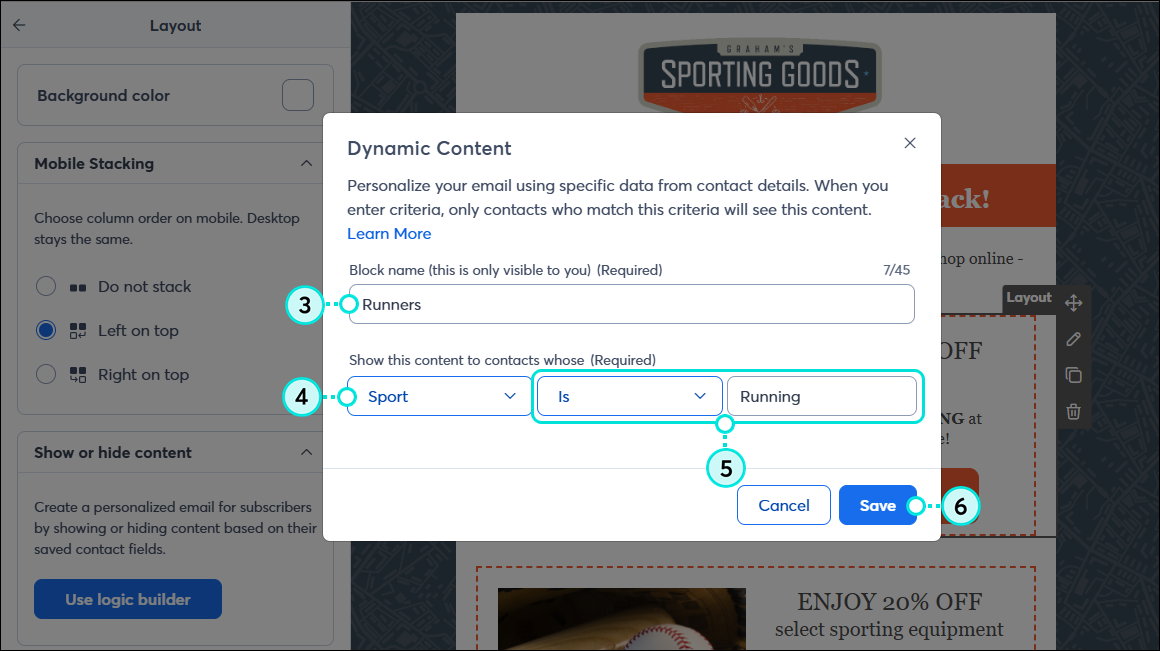
  3. If needed, switch the toggle on to make this block a dynamic content block. Then enter a name for the block that you can easily recognize later. This will be helpful when previewing your email.
  4. From the drop-down, select the contact detail you want to base the block's criteria on:
  • City
  • Company Name
  • Country
  • Job Title 
  • Postal Code 
  • State
  • Custom fields
  1. Select the desired criteria. The options will vary if you selected a custom field in step 4.
    Note: For text-based contact details, if you select "is" from the drop-down, be sure to enter the criteria in the next field exactly as it appears in your contact's profile. For example, if you're looking to target customers in the city of Boston, you would select “City” from the contact detail drop-down, choose “is,” and type "Boston" in the field. 
  1. Click Save.

    Dynamic Content criteria and Saved button
     

A blue dotted line appears around the block in your email draft to indicate the content that will only be visible to contacts who meet your selected criteria. Content outside the dotted line will be seen by all recipients. The dotted line won't display in the sent email.

To further customize your email for different contacts, repeat steps 1-6 for each content block.


Exclamation Point IconImportant: When using dynamic content blocks in your email, make sure to also include a default block that will be visible to those contacts who do not meet the criteria defined in the dynamic content blocks.


Edit dynamic content

To change which contacts will see the dynamic content block:
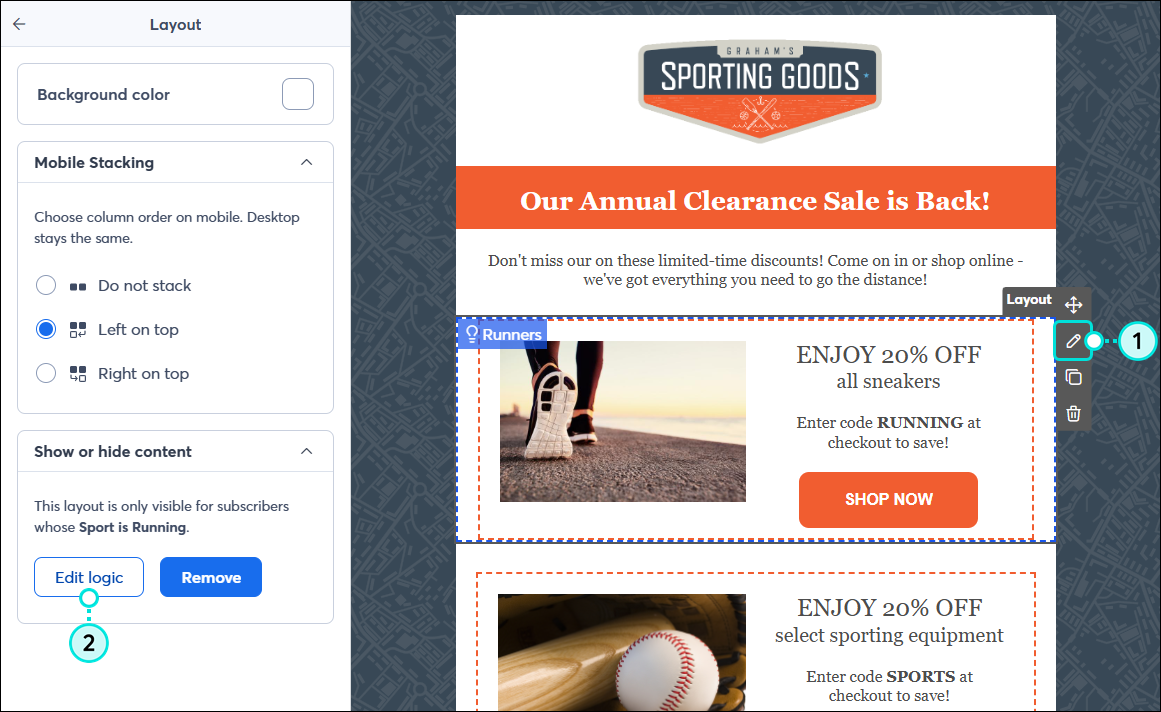
  1. Place your mouse over the block, and either click the three dots or the pencil icon. 
  2. Either click the light bulb symbol from the controls on the right or click the Edit logic button in the panel on the left.

    Block controls with Lightbulb SymbolDynamic Content Block controls with Pencil icon, and Layout panel with Edit Logic button


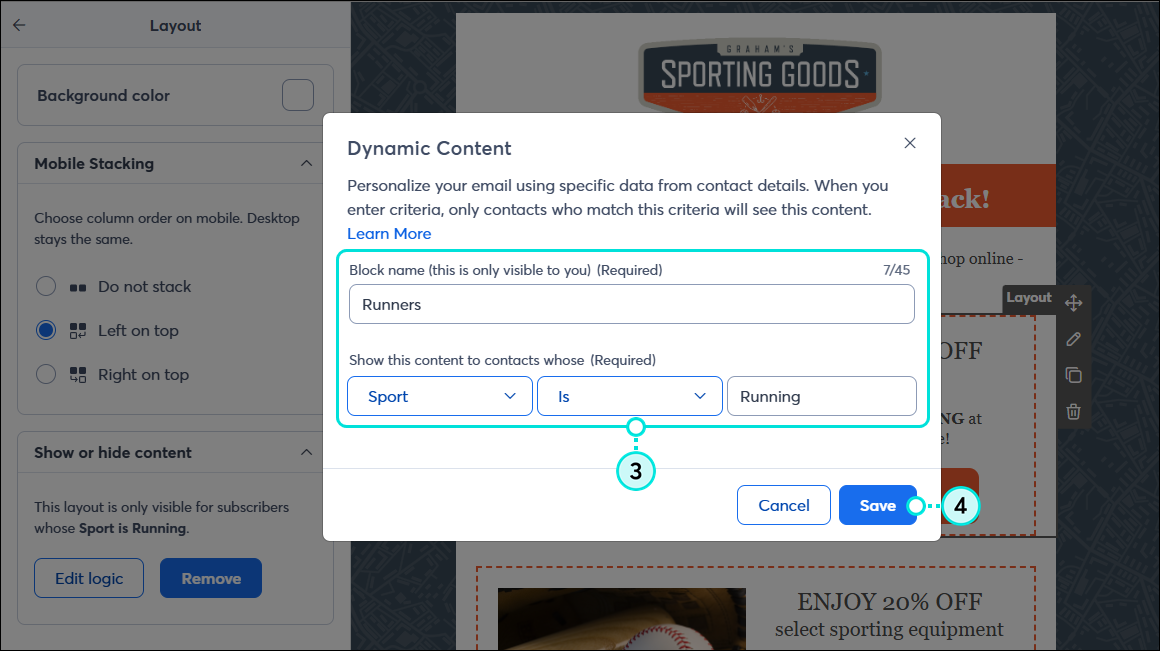
  3. Edit the block name and criteria accordingly.
  4. Click Save.​

    Edit Dynamic Content Criteria and Save button


Remove dynamic content

To remove the dynamic content criteria from the block and allow all contacts to see this content: 
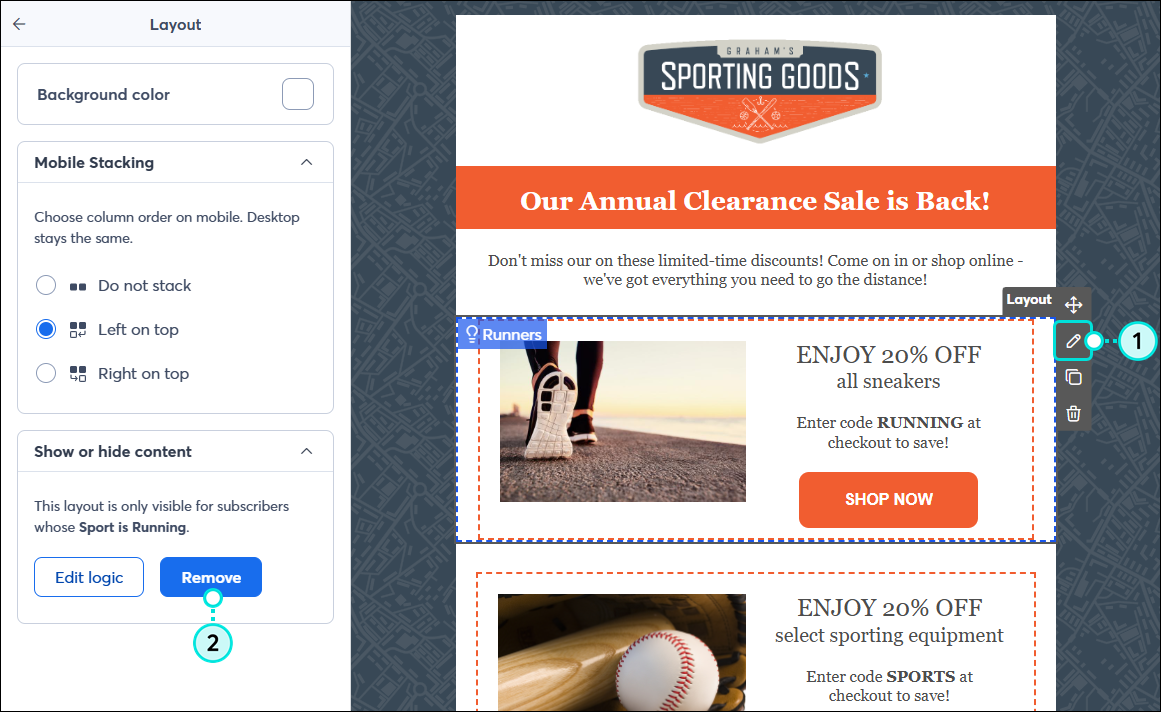
  1. Place your mouse over the block, then click either the three dots and light bulb symbol or the pencil icon.

    Dynamic Content Block with Lightbulb SymbolDynamic Content Layout with Pencil icon


  2. Switch the toggle off and click Save, or click Remove from the panel on the left.

    Toggle Off Dynamic ContentDynamic Content Layout panel with Remove button


Preview your dynamic content

Once you’re done editing your email and are ready to see how it will look to your contacts:

  1. Click Preview & Test > Preview.​

    Preview and Test Dropdown

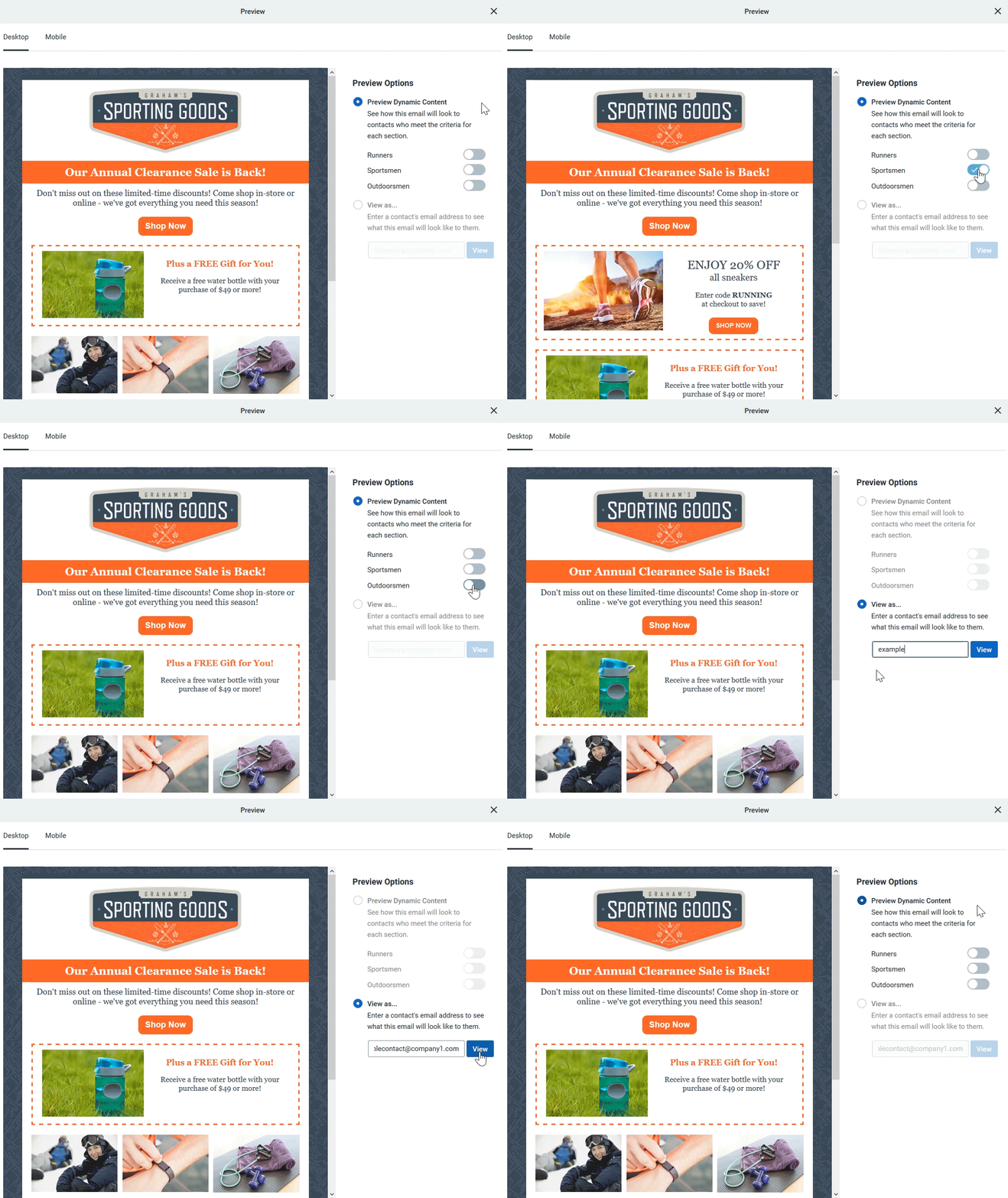
  2. Under the Preview Dynamic Content option, click the toggle switch next to the dynamic content block you want to preview. This will show you how the email will look to the contacts who meet the criteria for that block.
  3. Select the View as option, enter a specific contact's email address, and click View to preview how the email will look to that recipient. 

    Preview Dynamic Content


Now you’re ready to send a single email that targets different contacts!


Exclamation Point IconImportant: When sending a test version of your email, you'll see the dynamic content based on the details in your own account. Dynamic content blocks using custom fields will not display in your test email.


Questions?

Ask the Community

Did this article answer your question?


Constant Contact Logo

Copyright © 2026 · All Rights Reserved · Constant Contact · Privacy Center