Email and Digital Marketing
How can we help you?
Search our help articles, video tutorials, and quickstart guides

You've got this. You've got us. Search our Knowledge Base to quickly find answers to your questions.

View and respond to social media conversations with friends and followers

Article: 000033133
Updated: October 9, 2025

Monitor conversations with friends and followers on Facebook and Instagram, and then draft and post responses


After you create and share posts, keep your social media friends and followers engaged by responding to their comments and messages through your social inbox. Comments, messages from Facebook and Instagram, and mentions and follower posts on Facebook, are available within your social inbox. You can respond to each comment, and your response will be displayed on Facebook or Instagram. If anyone responds to your comment, it's automatically synced back into your Constant Contact account, so you can continue the conversation.
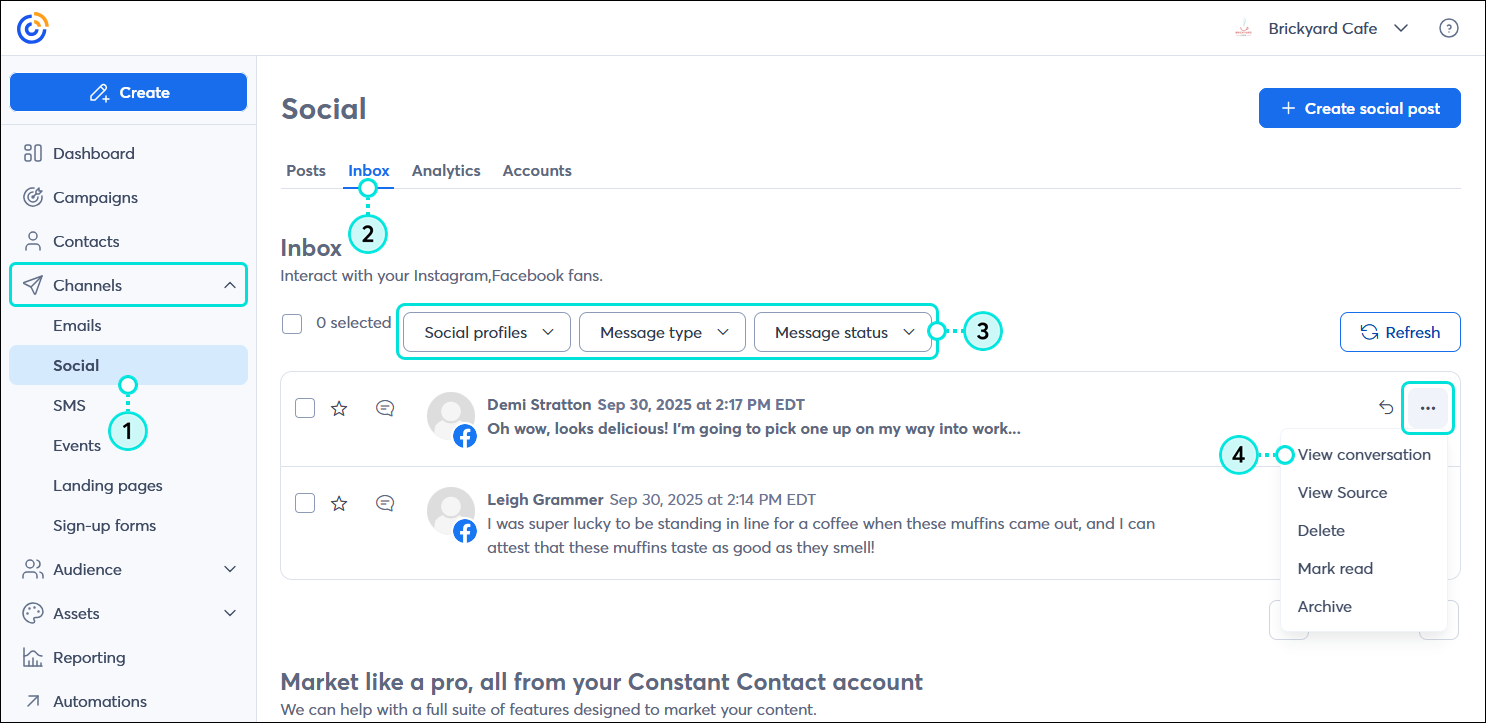
  1. Go to Channels > Social.
  2. Click the Inbox tab.
  3. (Optional) To help narrow your search, select an option from the drop-down menus:
  • Social Profiles - Select any profile connected to your Constant Contact account.
  • Message type - Select from Comments, Messages, Mentions, or Follower posts on Facebook, or Comments and Messages on Instagram.
  • Message status - Select from All, Unread, Favorited, or Archived.
  1. Next to the comment or mention you want to respond to, click . . . > View conversation.
    Note: Alternatively, you can click the arrow next to the comment or mention, but viewing the conversation lets you see your post content and any additional comments in the thread.

    Channels menu expanded with Social option selected, Social dashboard with Inbox tab selected, Social profiles, Message type, and Message status drop-down menus, message with menu expanded and View conversation option selected

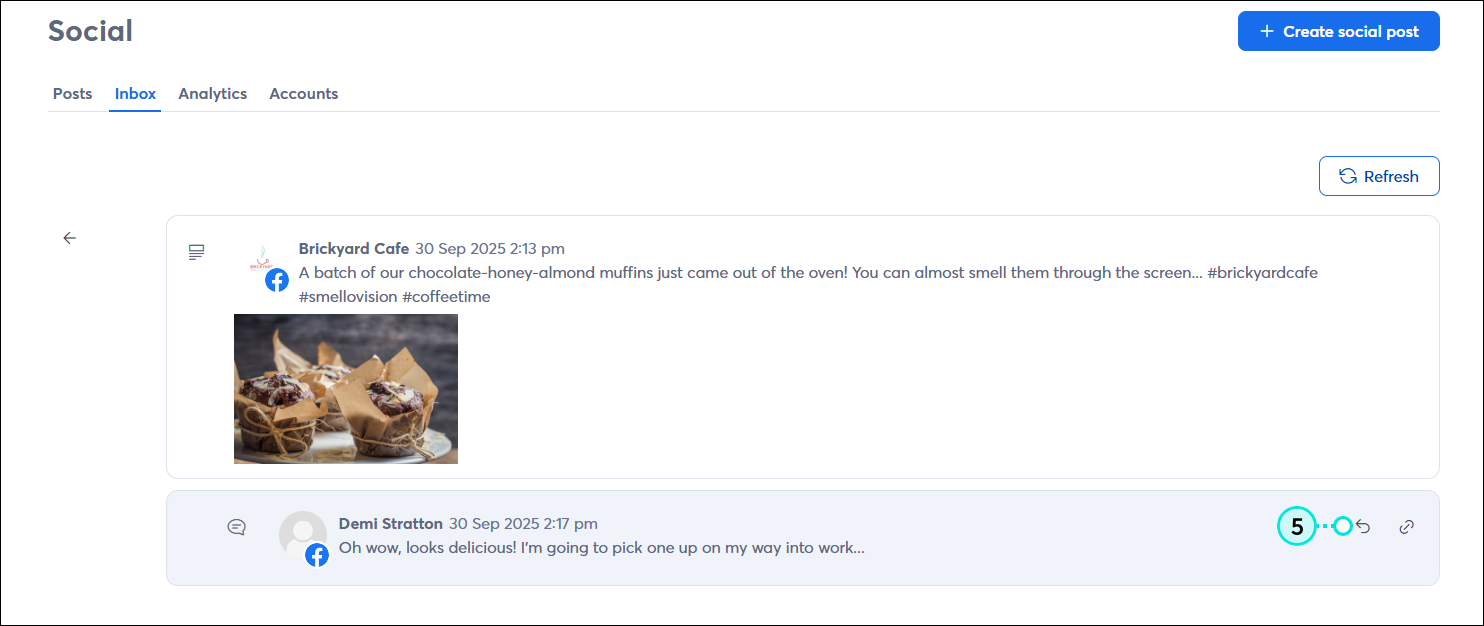
  2. Click the arrow next to the comment you want to respond to.

    Social post thread with original post and new comment with reply option

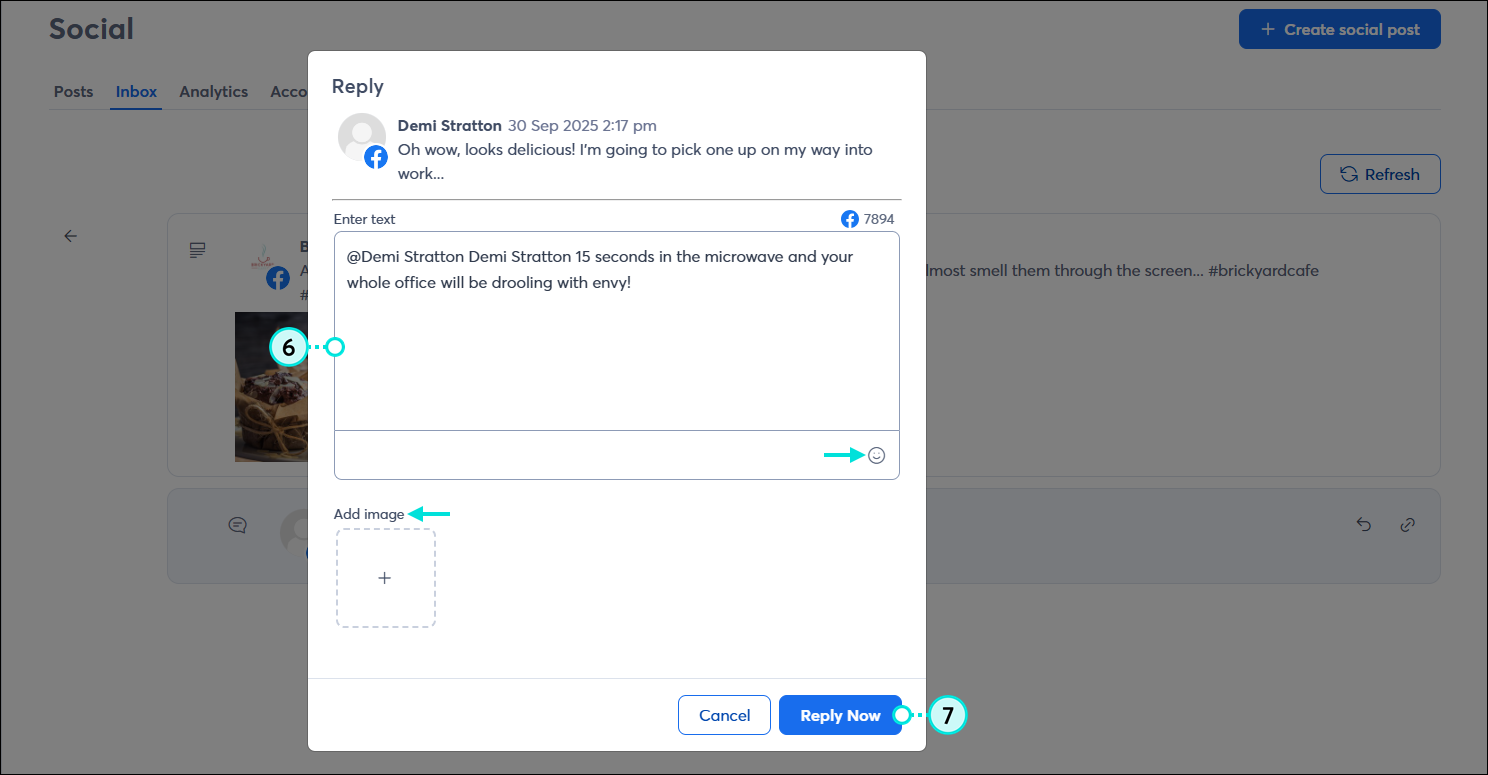
  3. Type your response. You can include an image from your Library and emoji in the post content too.
  4. Click the Reply Now button.

    Reply overlay with Enter text field, Emoji option, Add image option, and Reply Now button


Any links we provide from non-Constant Contact sites or information about non-Constant Contact products or services are provided as a courtesy and should not be construed as an endorsement by Constant Contact.


Questions?

Ask the Community

Did this article answer your question?


Constant Contact Logo

Copyright © 2026 · All Rights Reserved · Constant Contact · Privacy Center