Email and Digital Marketing
How can we help you?
Search our help articles, video tutorials, and quickstart guides

You've got this. You've got us. Search our Knowledge Base to quickly find answers to your questions.

Disconnect Your Google Account From Constant Contact

Article: 000006423
Updated: August 7, 2026

Add contacts from a different Google account by disconnecting the one currently connected

In order to import contacts from a different Google account, you need to first disconnect the Google account currently connected to Constant Contact. 
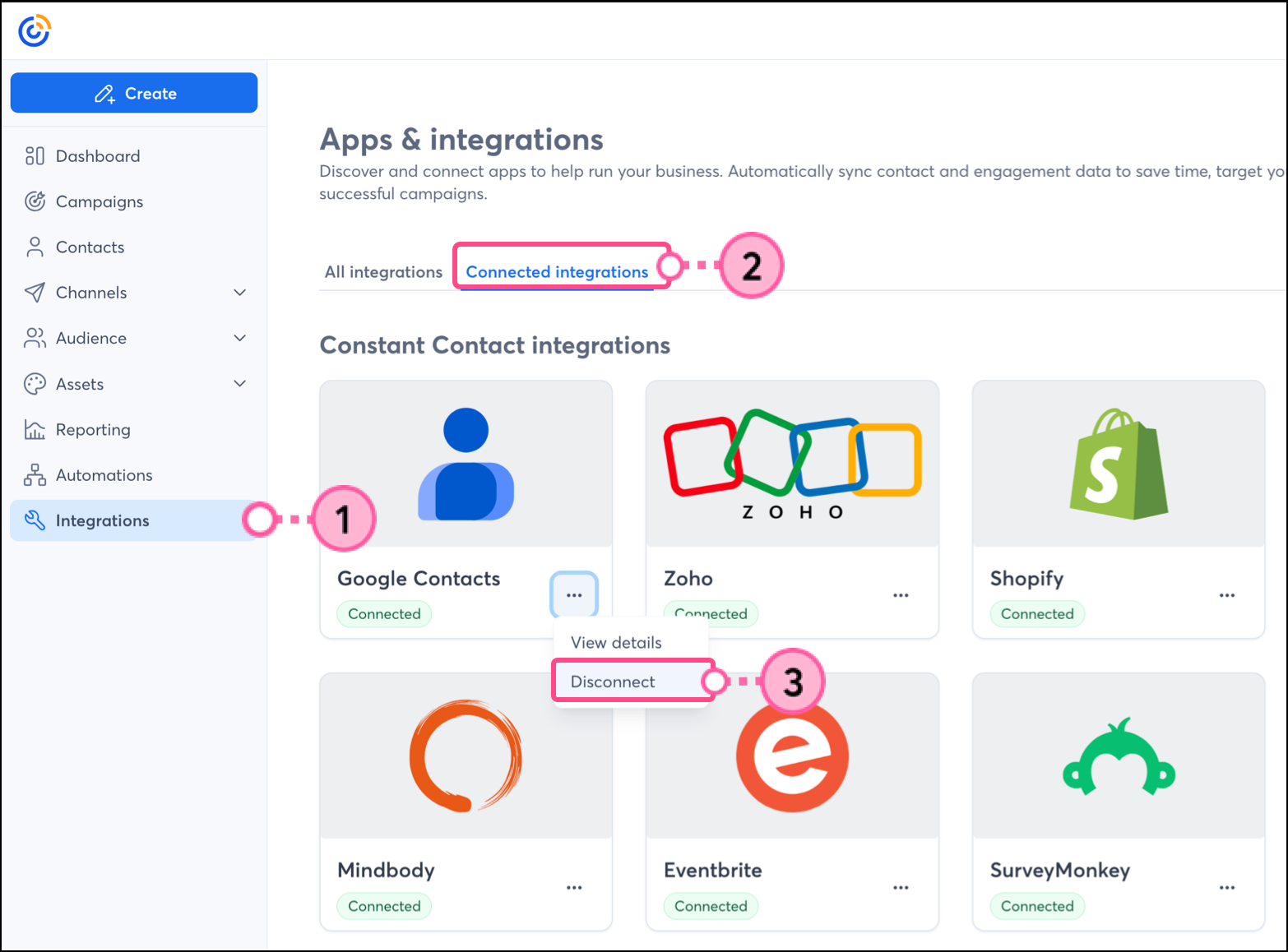
  1. Click Integrations.
  2. Click the "Connected Integrations" tab,
  3. Locate the Google Contacts block. Click the three dots and then click Disconnect.

    Disconnect button in the expanded Options menu of the Google Contacts integrations card  
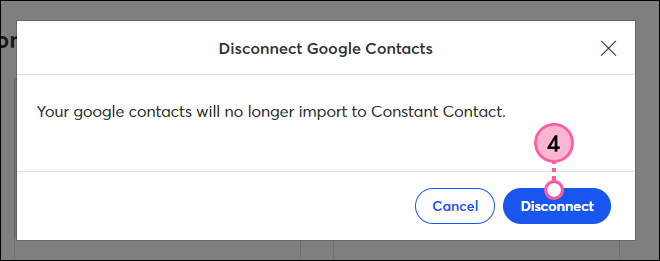
  4. Click Disconnect again to confirm the action.

    Disconnect Google Contacts confirmation pop-up with blue Disconnect button 
     

You are now ready to import contacts from a different Google account into Constant Contact. In order to switch between Google accounts, you need to repeat these steps each time. 

Any links we provide from non-Constant Contact sites or information about non-Constant Contact products or services are provided as a courtesy and should not be construed as an endorsement by Constant Contact.


Questions?

Ask the Community

Did this article answer your question?


Constant Contact Logo

Copyright © 2026 · All Rights Reserved · Constant Contact · Privacy Center