Moving from Mailchimp to Constant Contact? From the Integrations tab, connect your Mailchimp account to import your contacts, emails, and assets.
Note: Changes to contacts and assets made in Constant Contact will not be reflected in Mailchimp.
What can be migrated?
You can import:
- Contacts (including Tags)
- Images and documents
- Library folders
- Email campaigns
At this time, you cannot import:
- Automations
- SMS Messages
- Products
- Landing Pages
- Sign-up forms
Note: Only assets (media and documents) from products, sign-up forms, and landing pages will be imported. Those assets will be put into a Library folder in Constant Contact.
This process is easier and more efficient than exporting your contacts and manually importing them into Constant Contact, but you can choose the method that works best for you.
 | Tip: Mailchimp emails imported into your Constant Contact account will be editable in the Constant Contact email editor, with content blocks and full drag-and-drop functionality. Read Create an email to learn how to use the editor. |
Unsubscribed contacts
Unsubscribed contacts will not be imported, and unsubscribe data from Constant Contact is not passed back to Mailchimp. If needed, you’ll have to manually export unsubscribed contacts from your Mailchimp account and then import them into your Constant Contact account.
Generate an API Key in Mailchimp
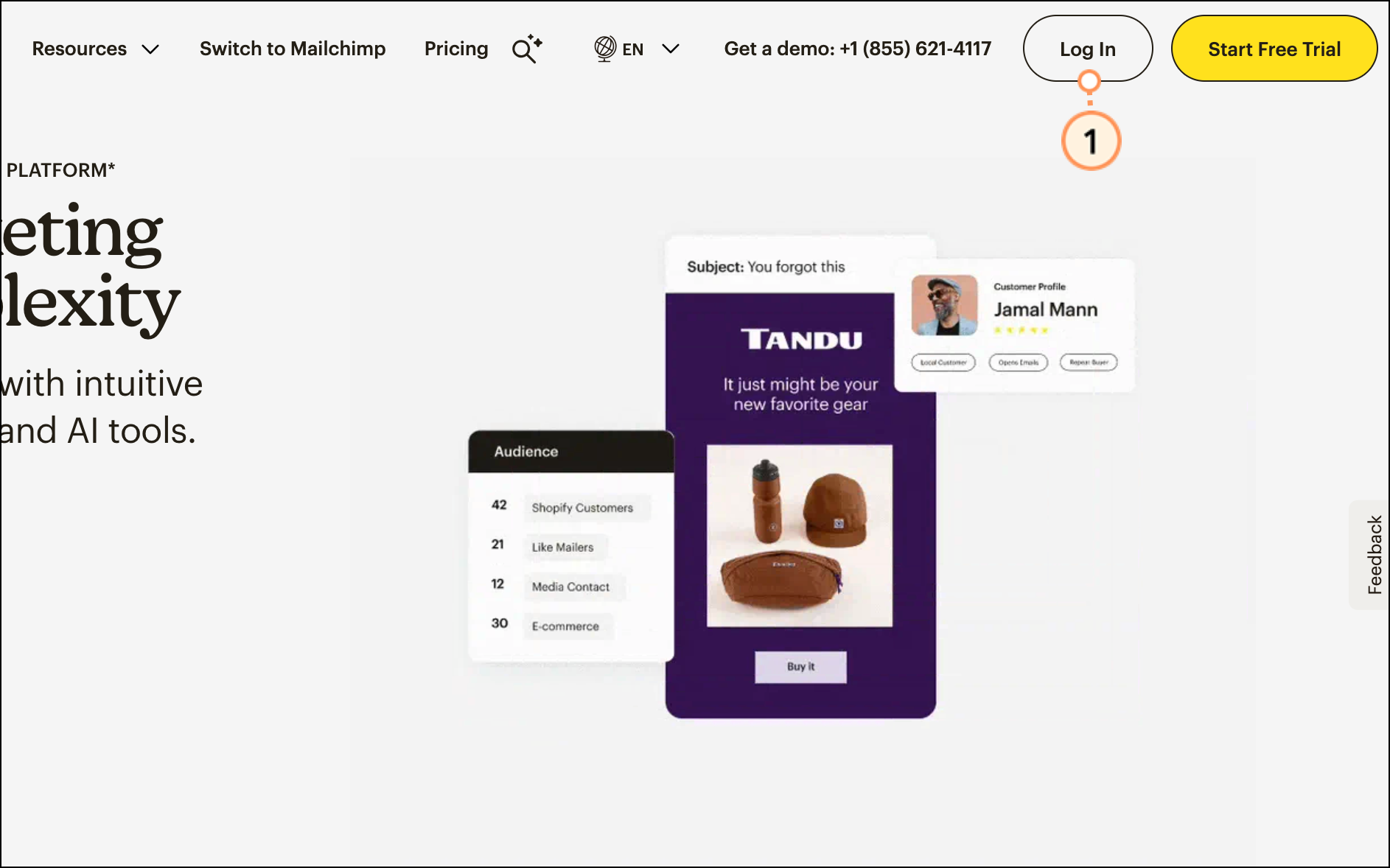
- Go to mailchimp.com and Log In.
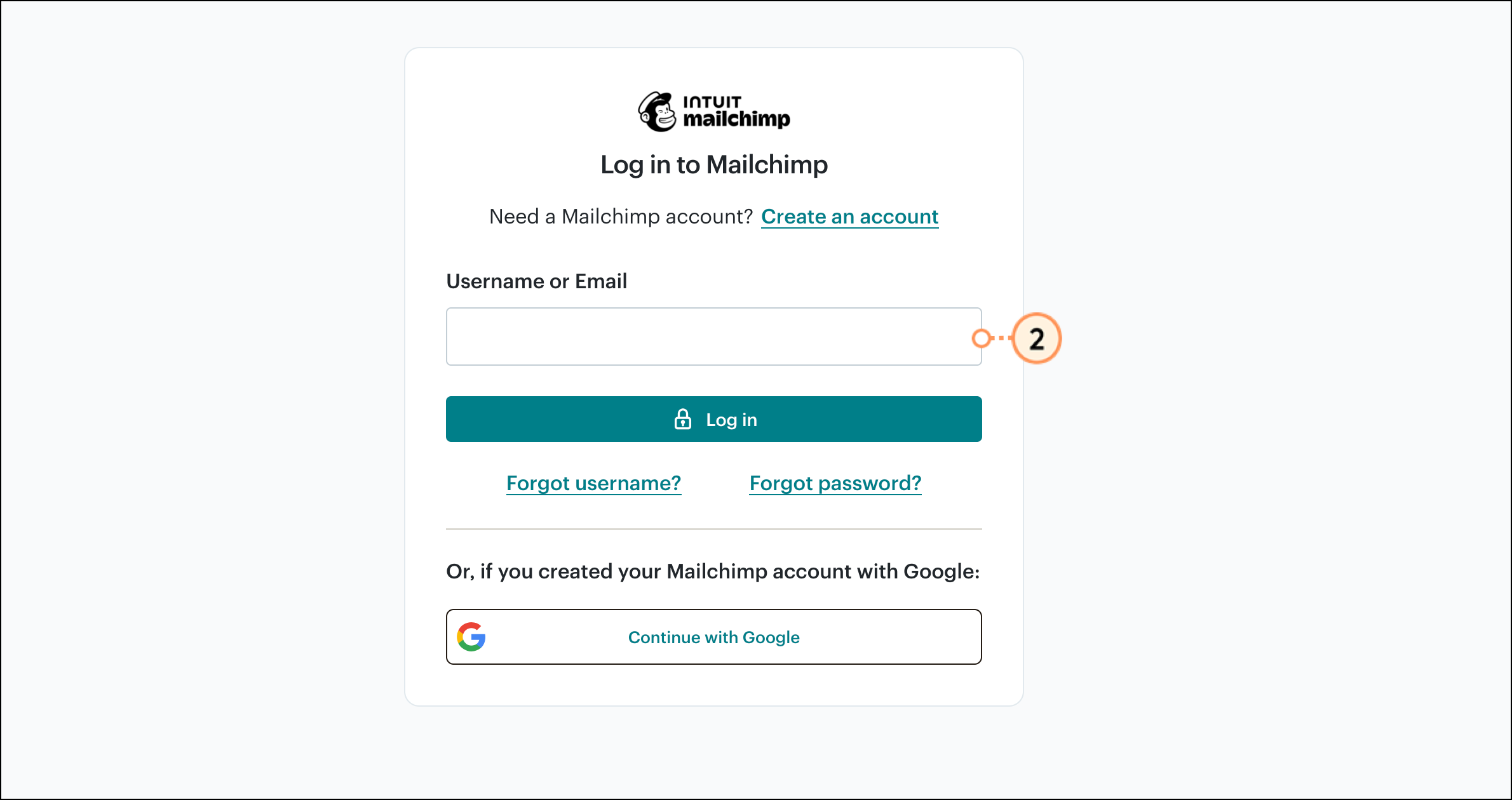
- Log in with your Username, Email address, or a Google Account.
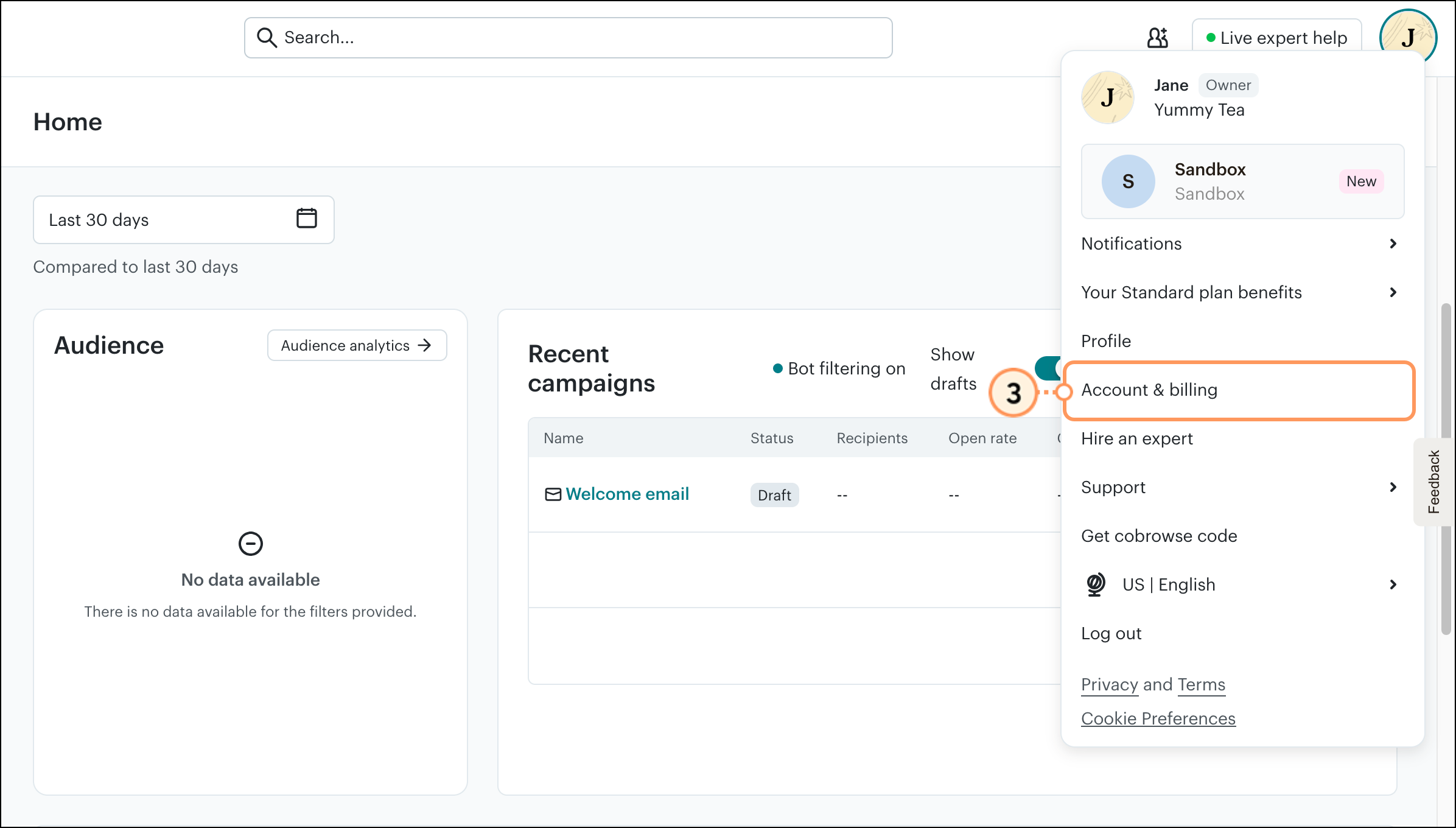
- Click the profile icon in the top-right corner, and select Account & billing from the dropdown.
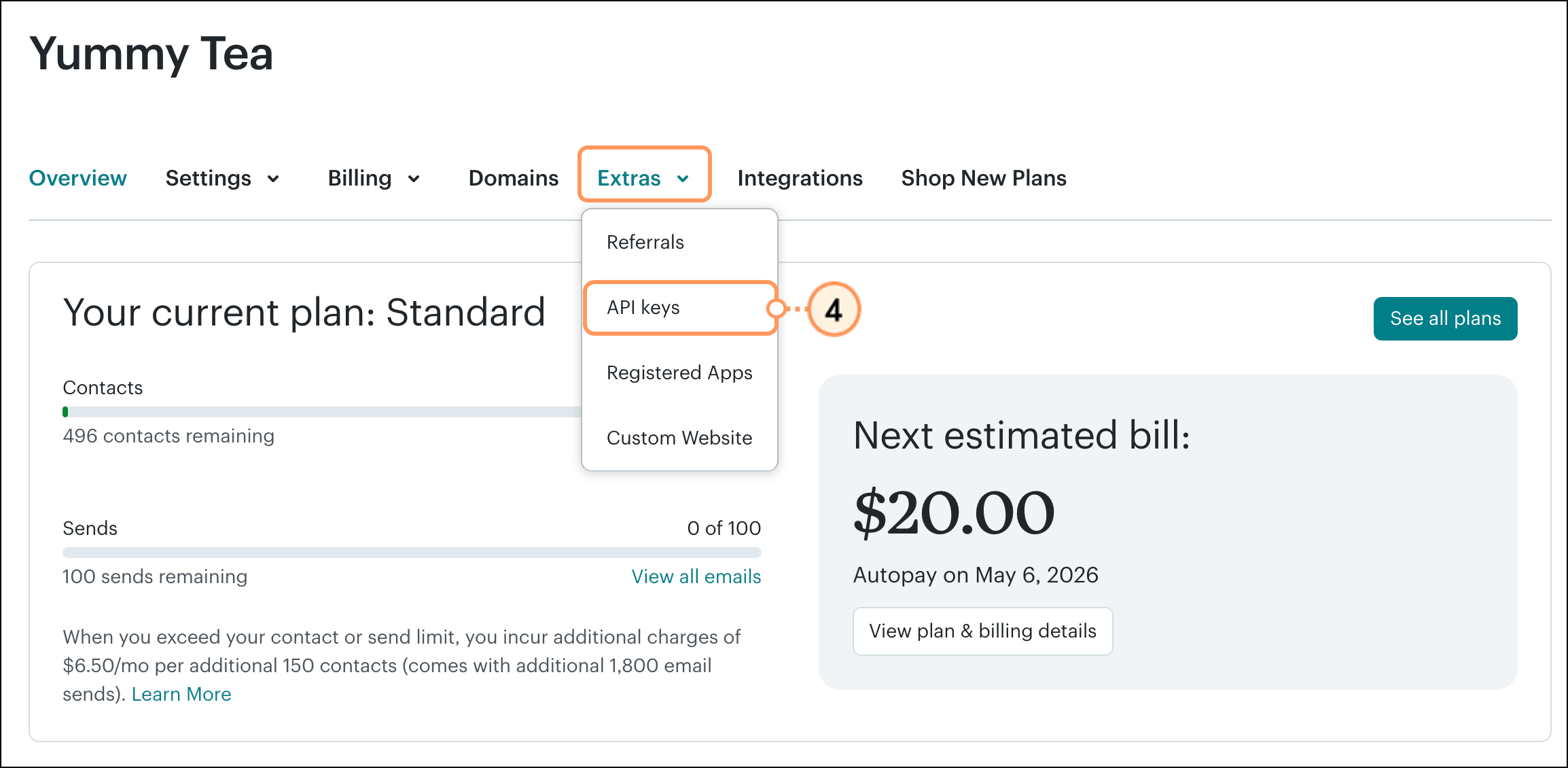
- Click the Extras tab and select API keys from the dropdown menu.
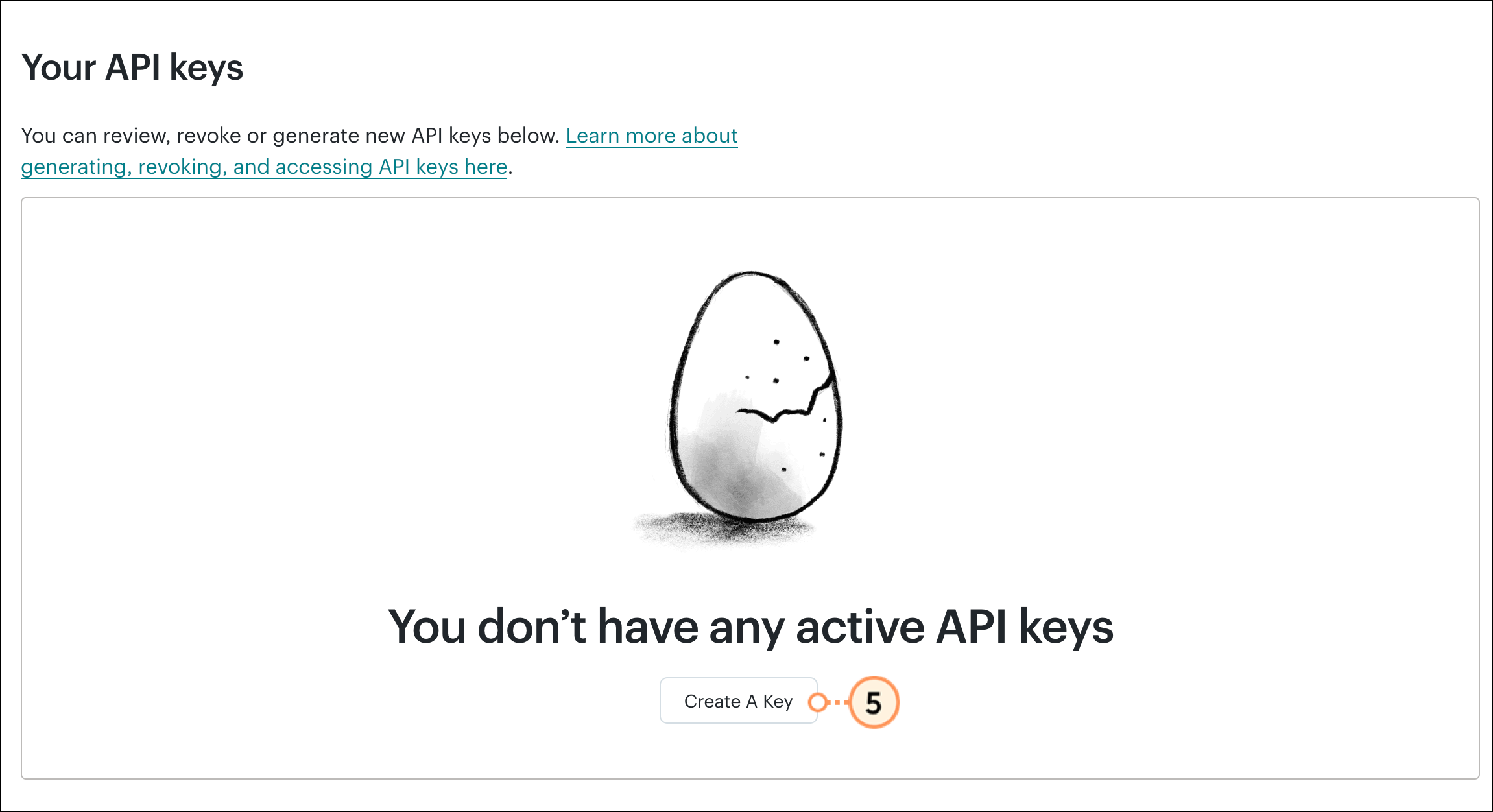
- Scroll down and click Create A Key.
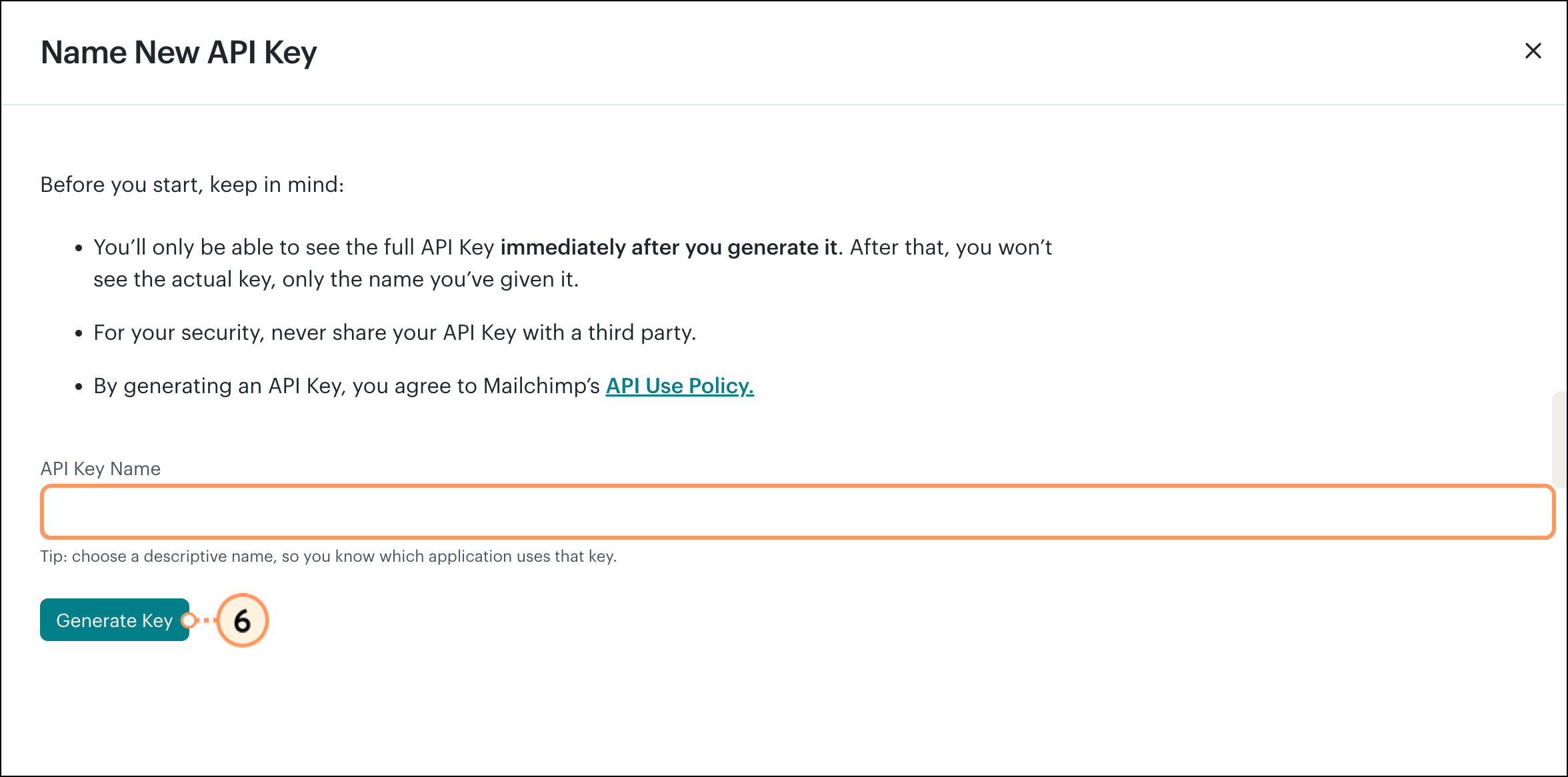
- Enter a name for the key and click Generate Key.
Note: It’s best to complete the connection now or write down your API key for future use. This is the only time you'll be able to see the key. After leaving the page, you'll only see the key's name in the future. If you forget the key, return to this page to generate a new one.
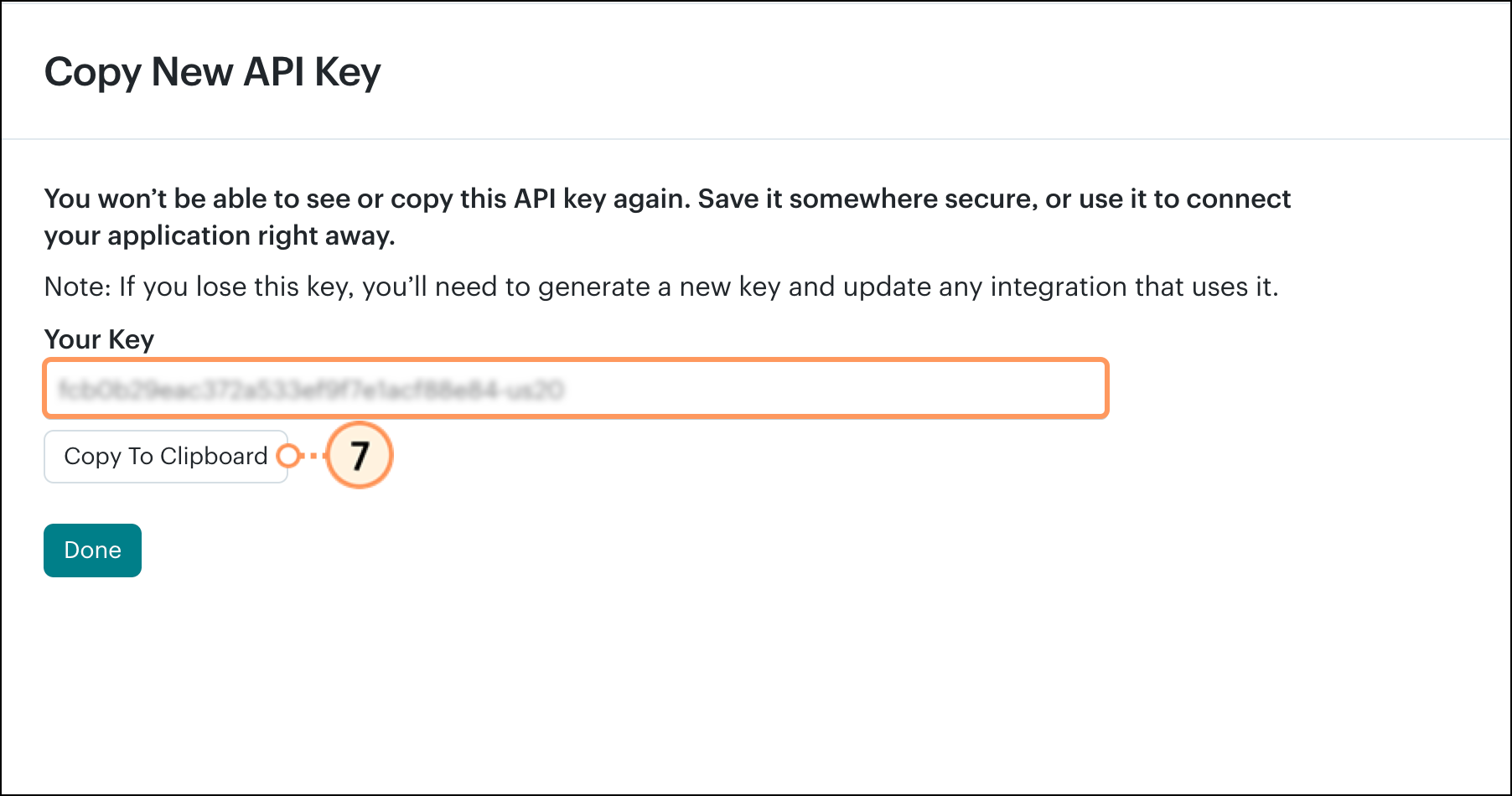
- Copy the key shown to the clipboard. Highlight the key and copy it, or click the Copy to Clipboard button.
 | Important: You may see two different keys: the API Key and a MailChimp Client Key. Please be sure to copy the API Key for your Constant Contact integration. Using any other keys will cause the integration to fail. |
Connect Mailchimp to Constant Contact
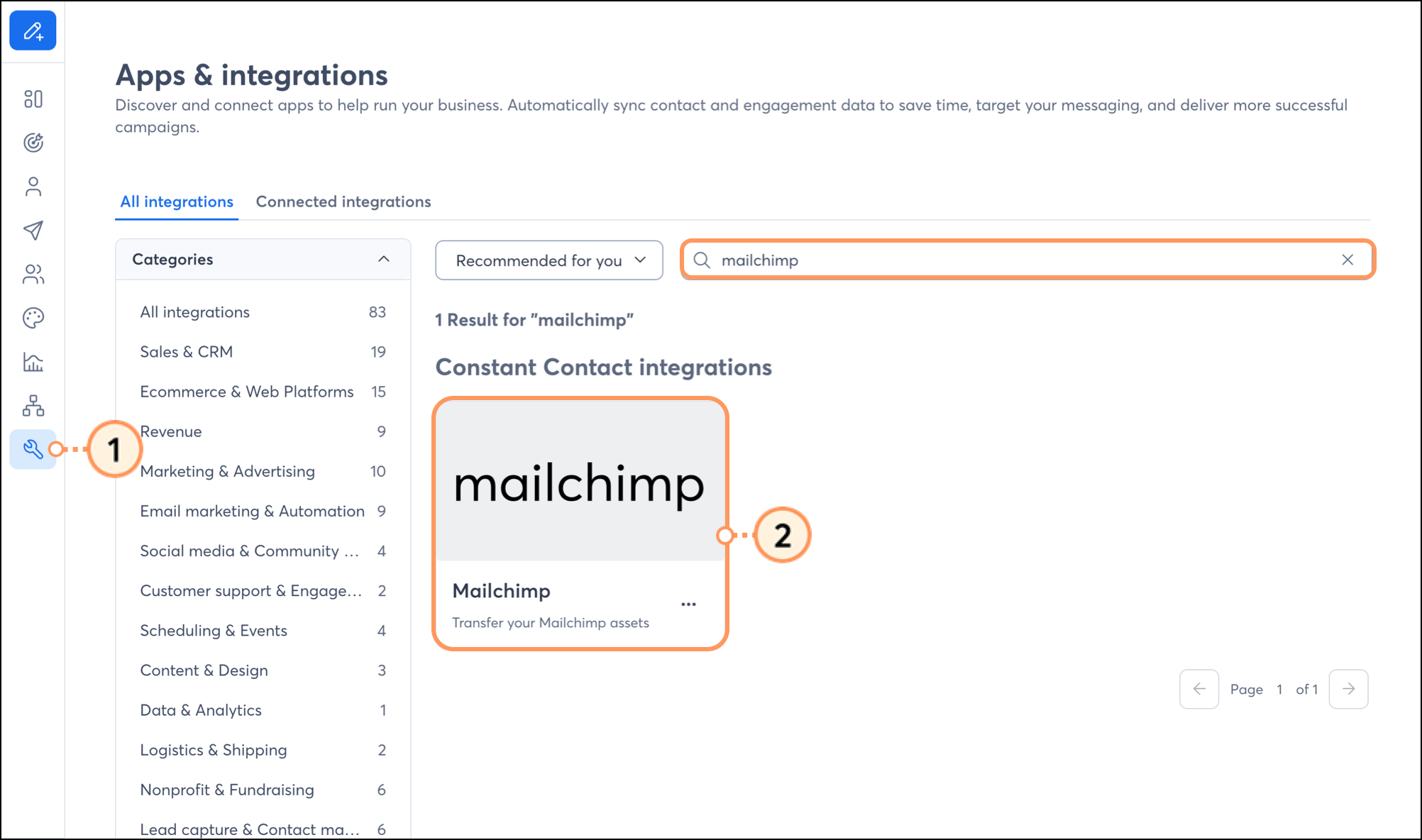
- In a new browser tab, log in to your Constant Contact account and click on Integrations.
- Search for Mailchimp or scroll through the integrations to locate it. Then click the Mailchimp card.
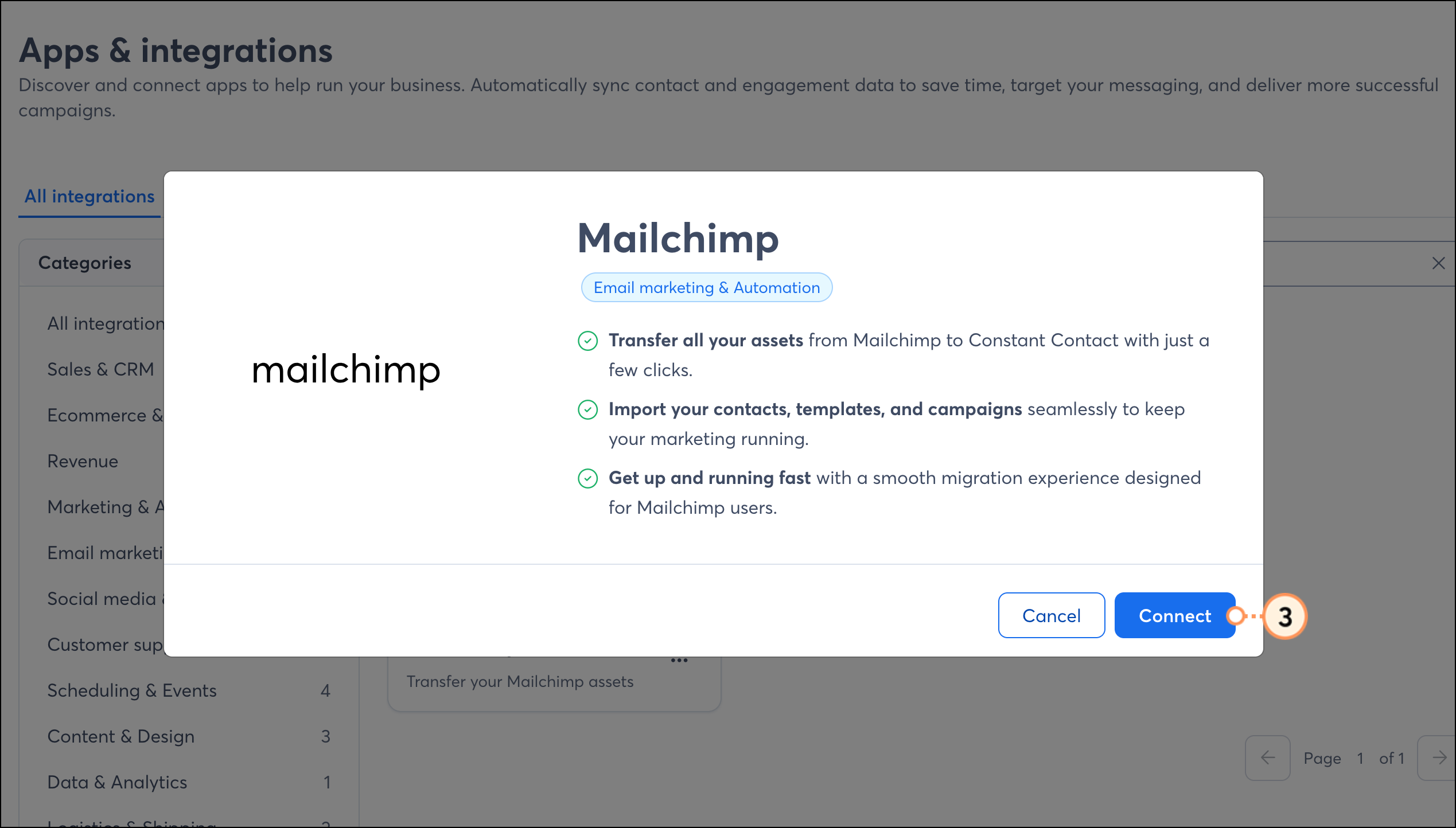
- Click Connect.
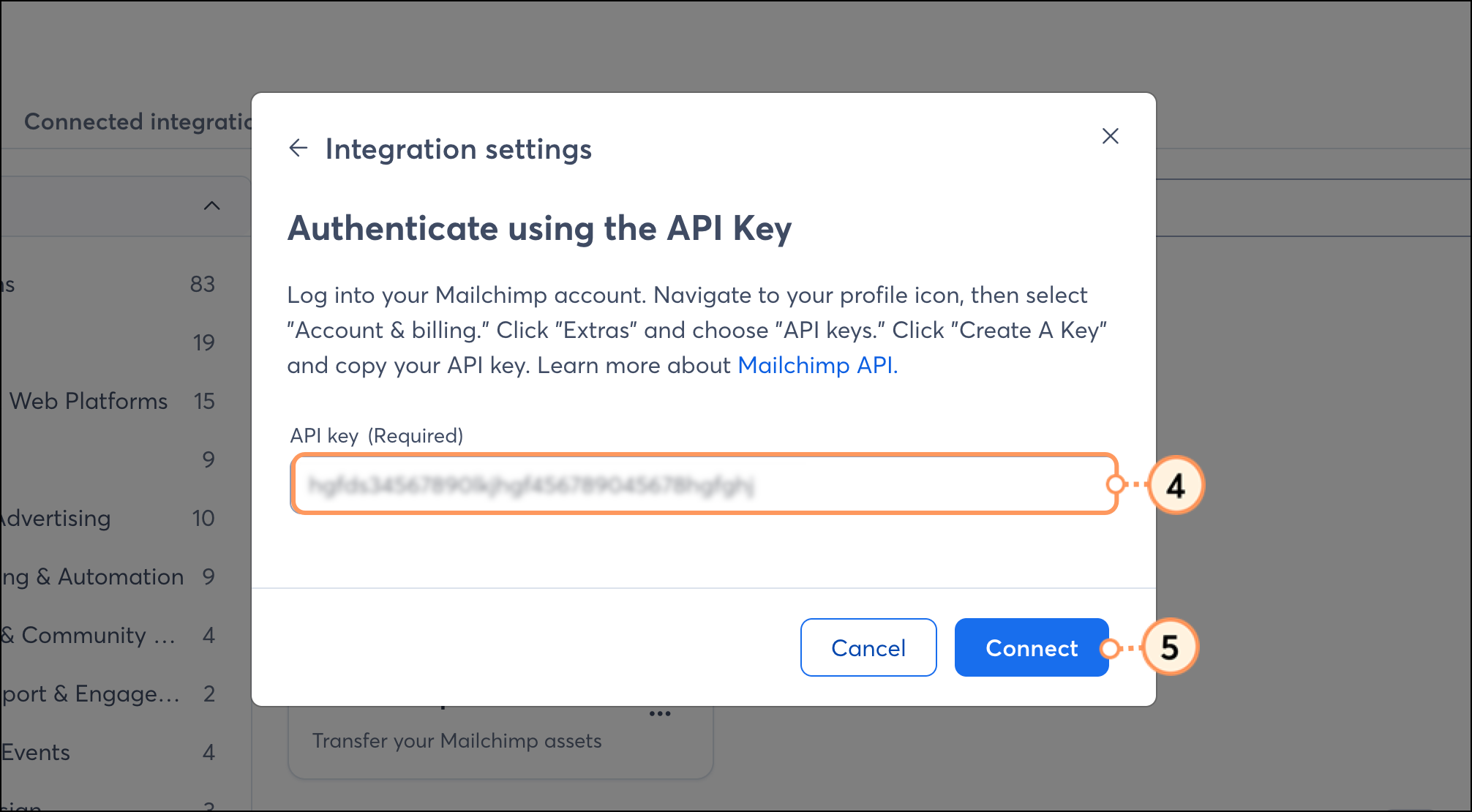
- Paste your API key into the API key field.
- Click Connect.
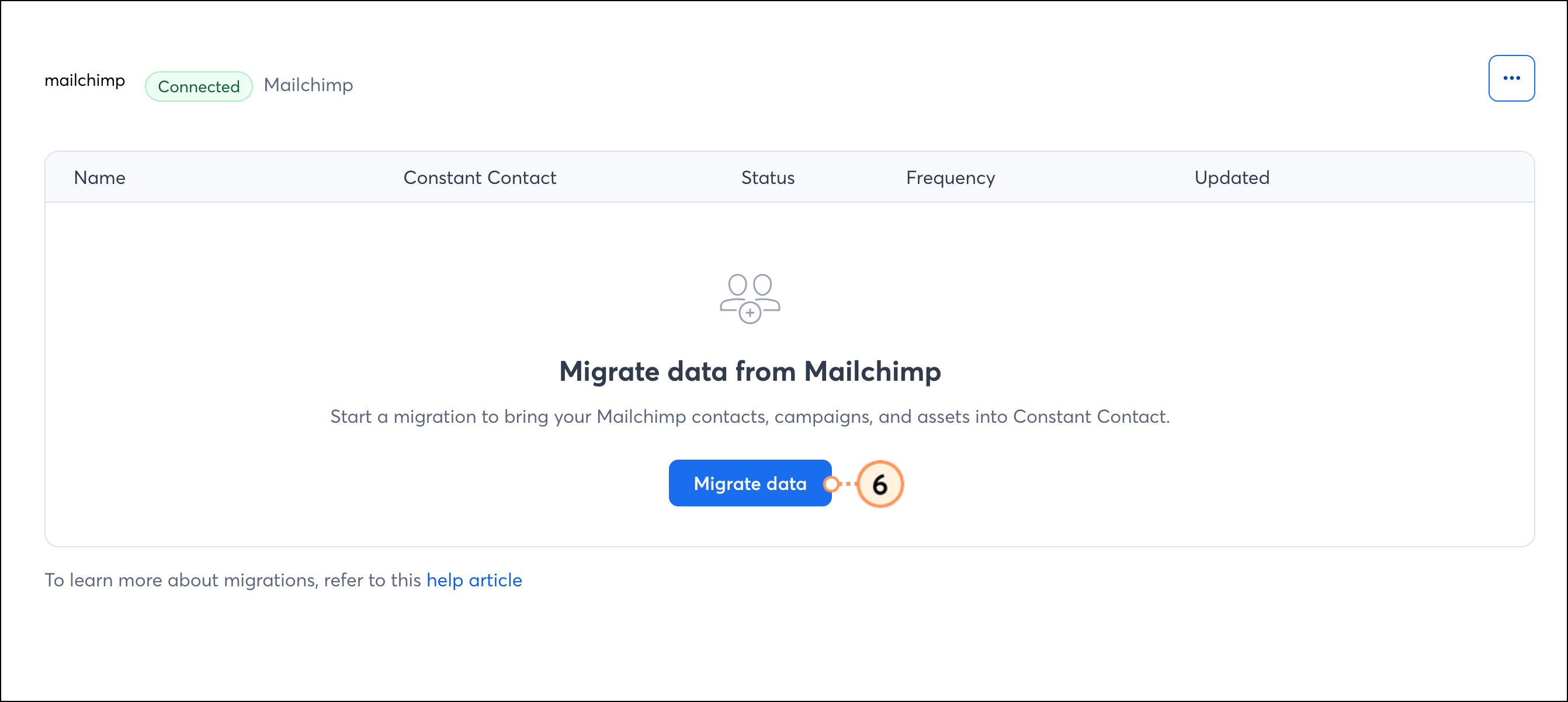
- Click Migrate data.
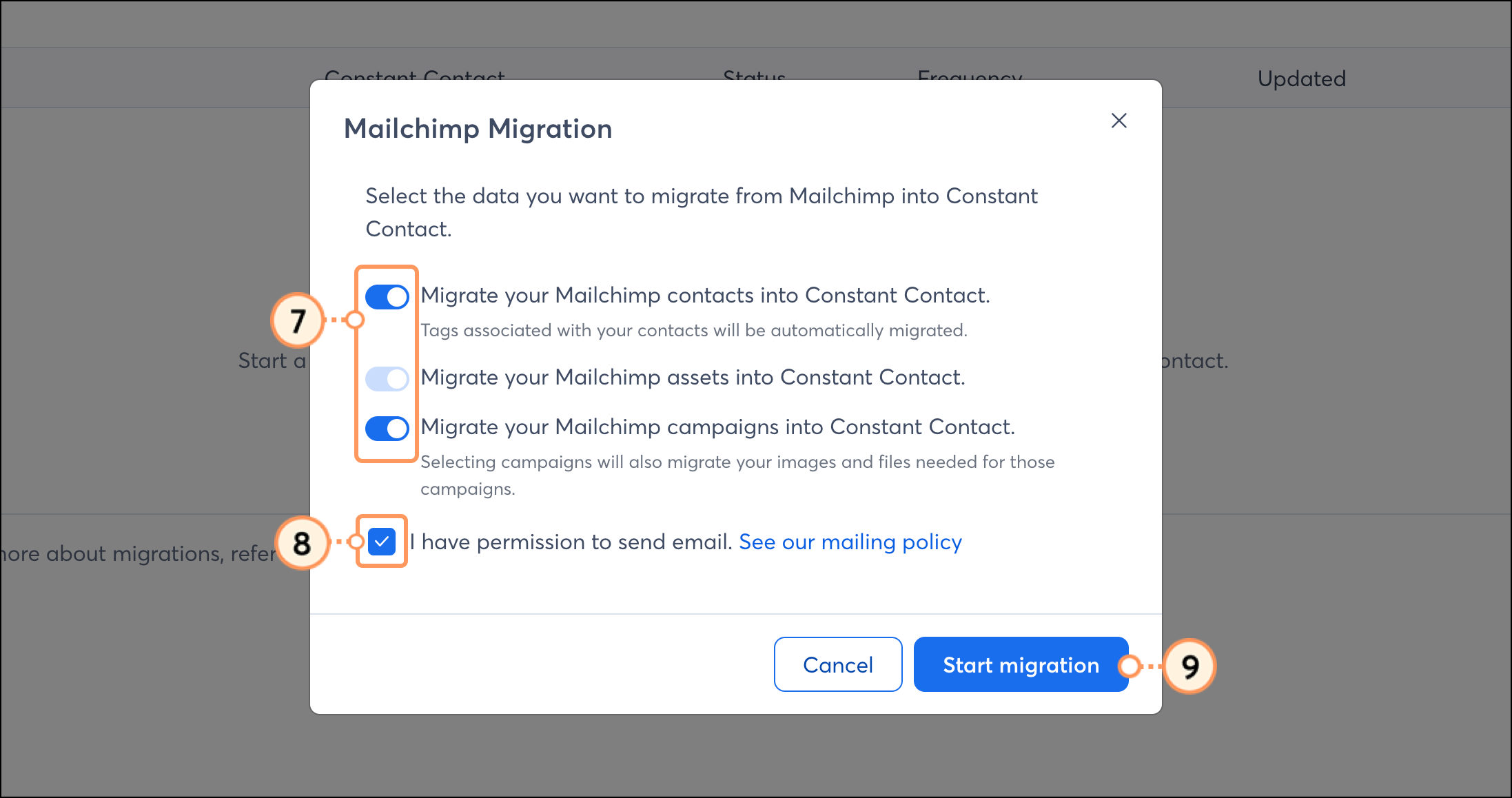
- Select which content to migrate into Constant Contact:
- Migrate your Mailchimp contacts – Enable this option to import subscribed contacts into your Constant Contact account.
- Migrate your Mailchimp assets – Enable this option to import images and documents into your Constant Contact account.
- Migrate your Mailchimp campaigns – Enable this option to migrate your Mailchimp Emails. Any assets in your email templates will be imported through this selection as well.
Note: You cannot import SMS messages, Automations, Landing Pages, Products, Sign-up forms, or other campaign types at this time.
- Check the box to verify that you have permission to send email to imported contacts.
- Click Start migration to begin the import.
Allow the process to complete. Your data will be imported into the relevant areas of your Constant Contact account.
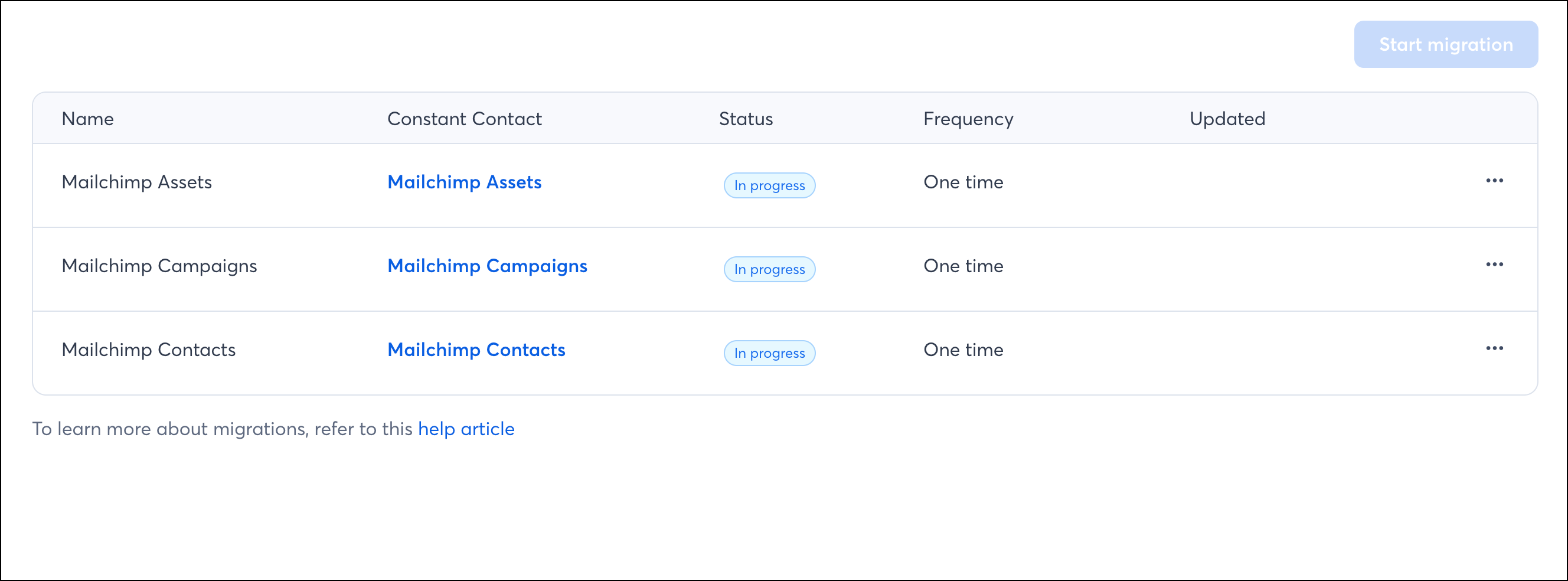
Note: You won’t be able to perform additional migrations for an import category you've already selected. If you've already completed an import for your Contacts, Assets, and Campaigns, the Start migration button will be unavailable.
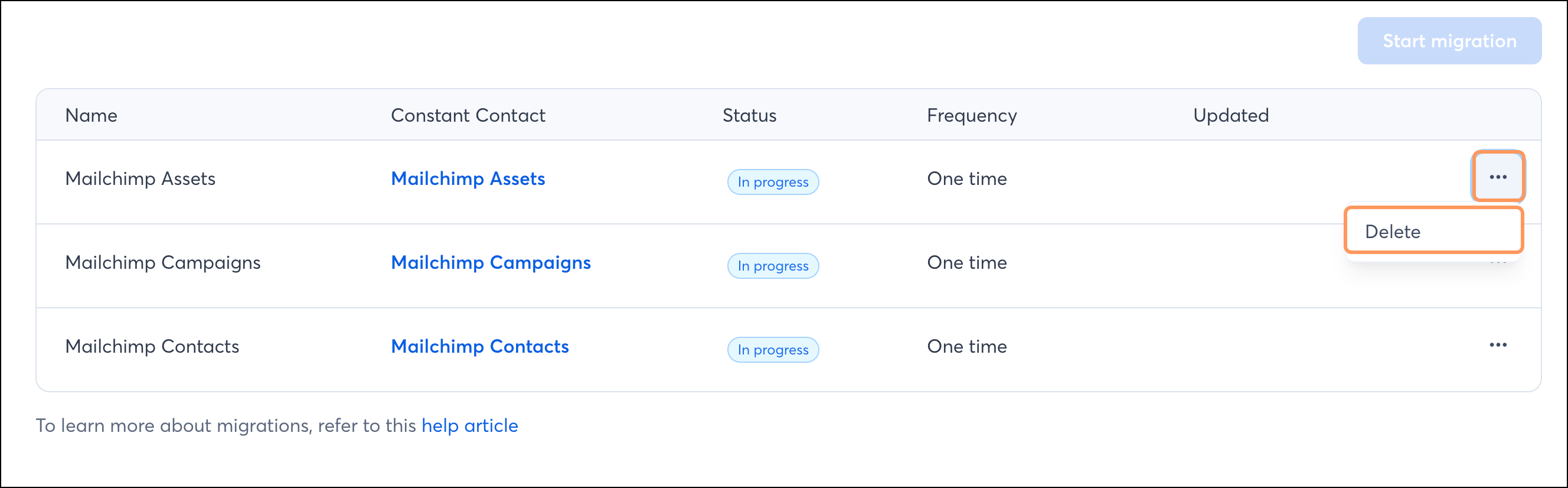
If you want to perform another import, you'll need to delete the previous import and start the process over again. Deleting a previous import will not delete any content or contacts already imported into Constant Contact.
To delete a previous import, click the three dots and then click Delete.
Where can I find my assets after importing?
- Contacts: After importing, your Mailchimp contacts can be found on the Contacts tab of your Constant Contact account. A list titled "Mailchimp Contacts" will be created, and your imported contacts will be added to it.
- Emails: Mailchimp emails can be found on the Campaigns tab. Imported Mailchimp email campaigns open in the Custom Code Editor. An easy way to see your imported Mailchimp emails is to sort by Date added to view the most recent ones.
Note: The importer strips out Mailchimp’s dynamic content placeholders (things wrapped in *||*). It also strips some content from the Mailchimp footer in each email campaign and replaces it with the Constant Contact footer.
- Images and Documents: Mailchimp image links will be replaced with Constant Contact image links and pulled into the Constant Contact Library. Under Folders, assets imported from your Mailchimp Content tab will be found in the Mailchimp Asset Import folder. Assets from your imported emails will be found in a folder labeled "Mailchimp Campaign Images."
Disconnecting the API connection
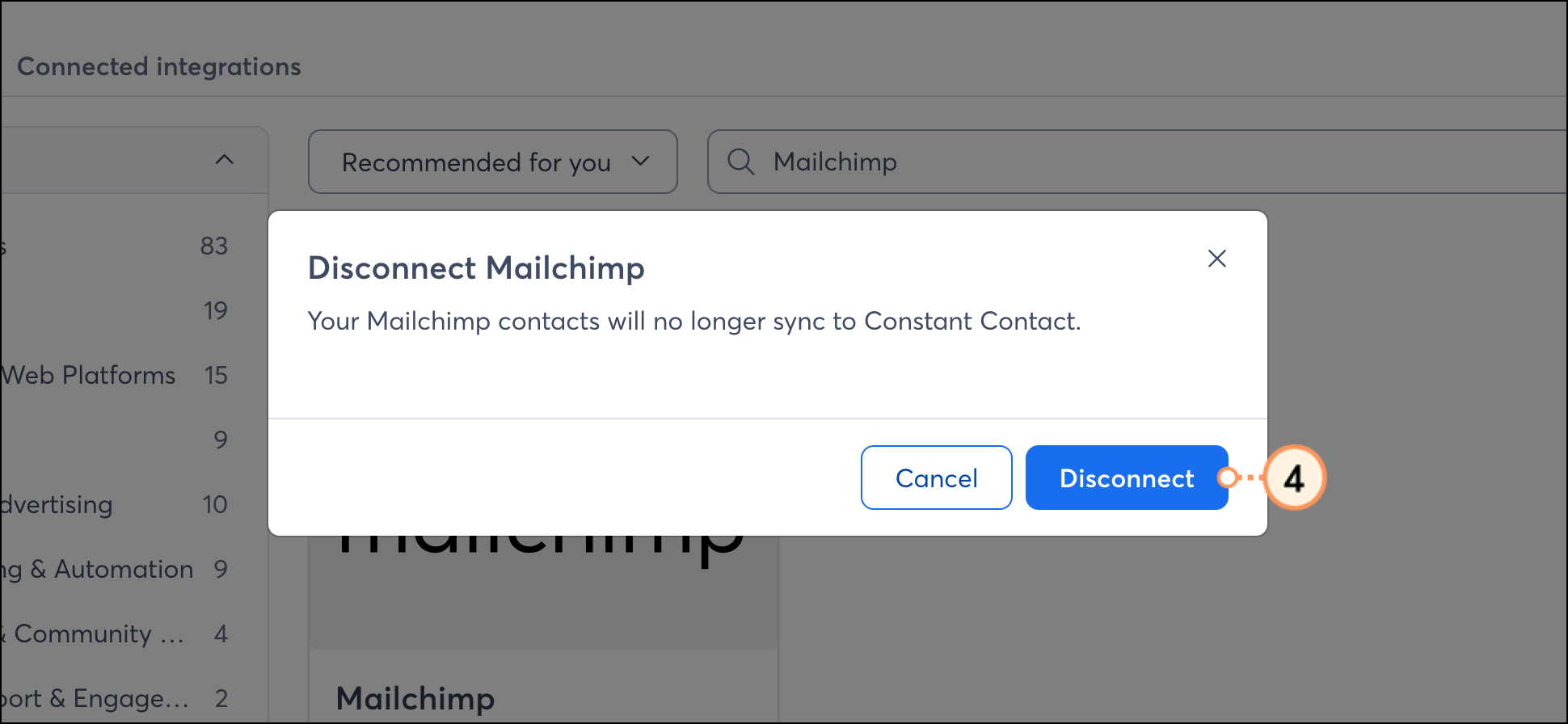
You can disconnect the Mailchimp connection from your Constant Contact account. This will not remove any data that has already been imported into Constant Contact, but you'll need to reconnect with the API key for future imports.
- Go to Integrations.
- Search for Mailchimp or scroll through the integrations to locate the Mailchimp card.
- Click the three dots and then click Disconnect.
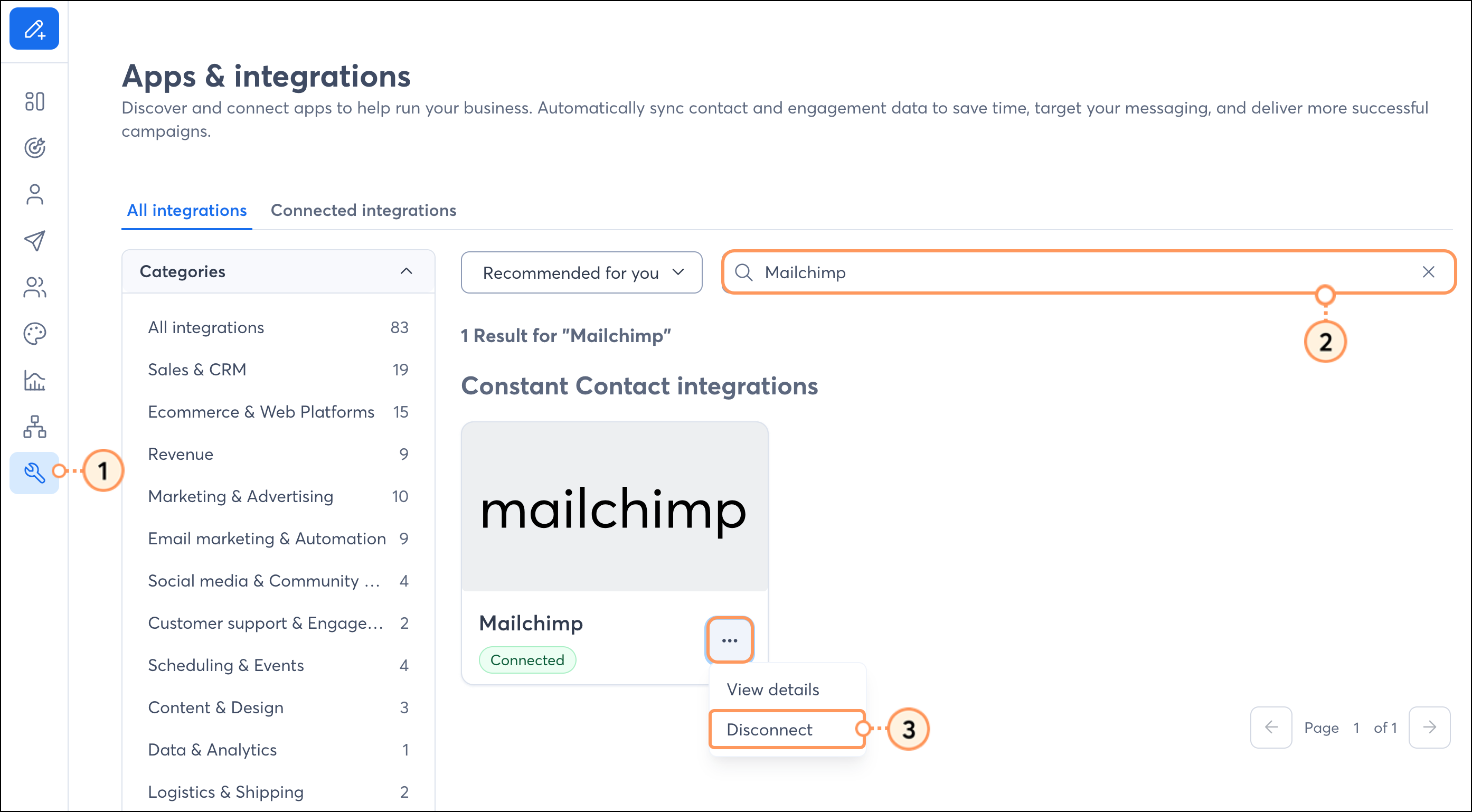
- Click Disconnect again.