Email and Digital Marketing
How can we help you?
Search our help articles, video tutorials, and quickstart guides

You've got this. You've got us. Search our Knowledge Base to quickly find answers to your questions.

Partners: Connect your KCM account to Constant Contact

Article: 000055203
Updated: April 27, 2026

Generate Constant Contact campaigns from within your KCM account

Connect your KCM account to Constant Contact and automatically generate campaigns in Constant Contact based on selected KCM content.
 

Connect KCM to your Constant Contact account
Generate campaigns based on KCM content
Review your generated campaigns within Constant Contact


Connect KCM to your Constant Contact account


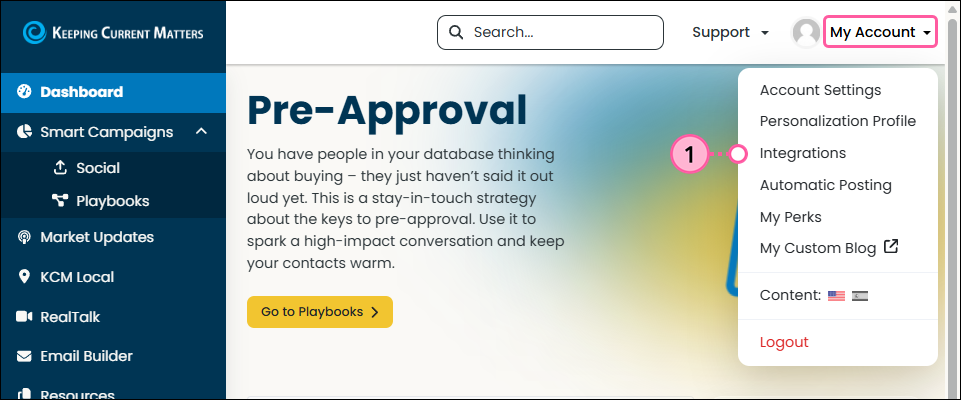
  1. Within your KCM account, click My Account > Integrations in the upper right corner.

    KCM Dashboard My Account dropdown Integrations option

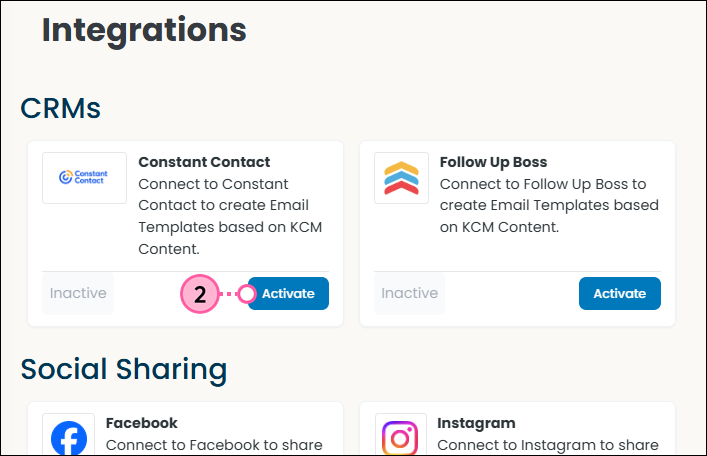
  2. In the CRMs section, click the Activate button within the Constant Contact block.

    Integrations page Activate Constant Contact

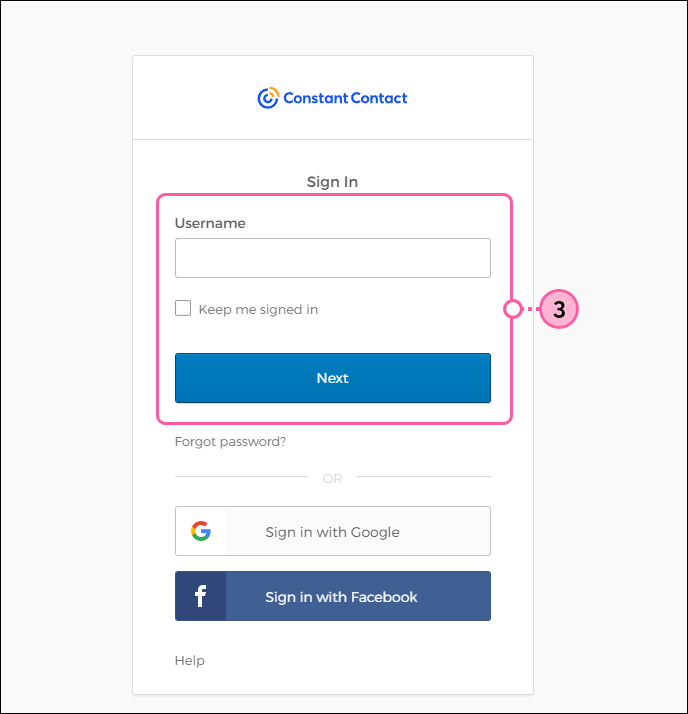
  3. Log into your Constant Contact account.

    Constant Contact login screen

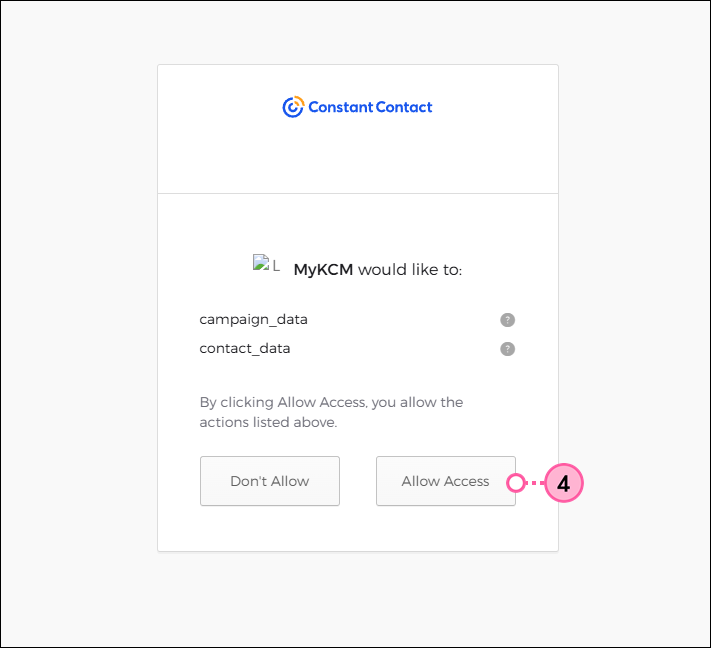
  4. Grant permission for KCM to create campaigns within Constant Contact.

    Allow Access for KCM and Constant Contact integration


Generate campaigns based on KCM content


There are two places you can use KCM content to generate a Constant Contact campaign: from within the Email Builder and within Playbooks.
Within the Email Builder


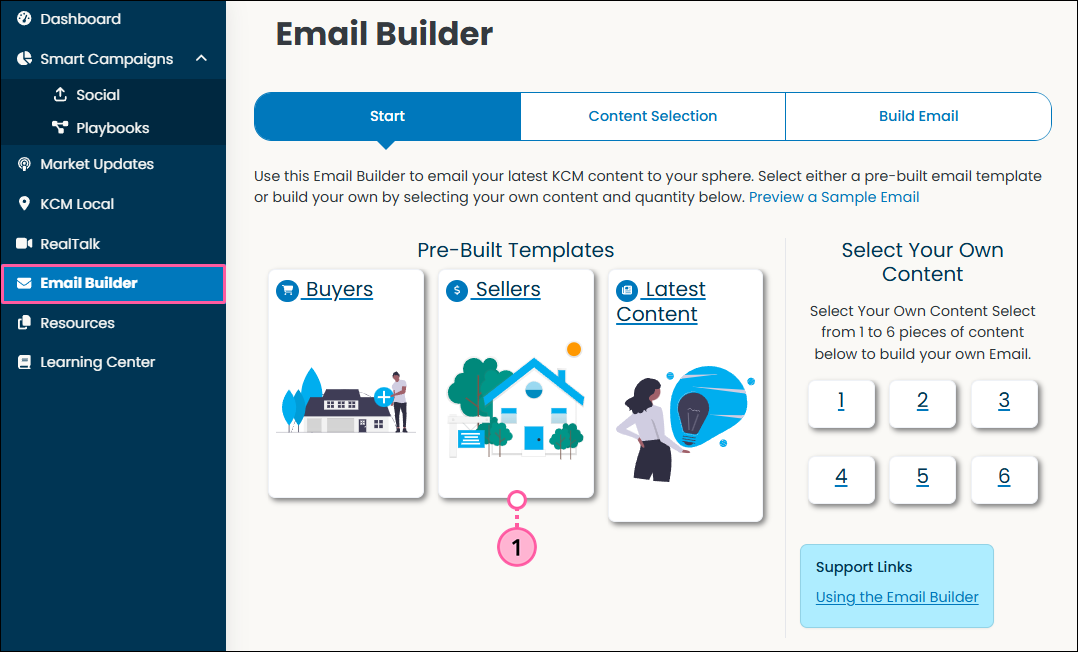
  1. Select a template.

    Email Builder page select a template

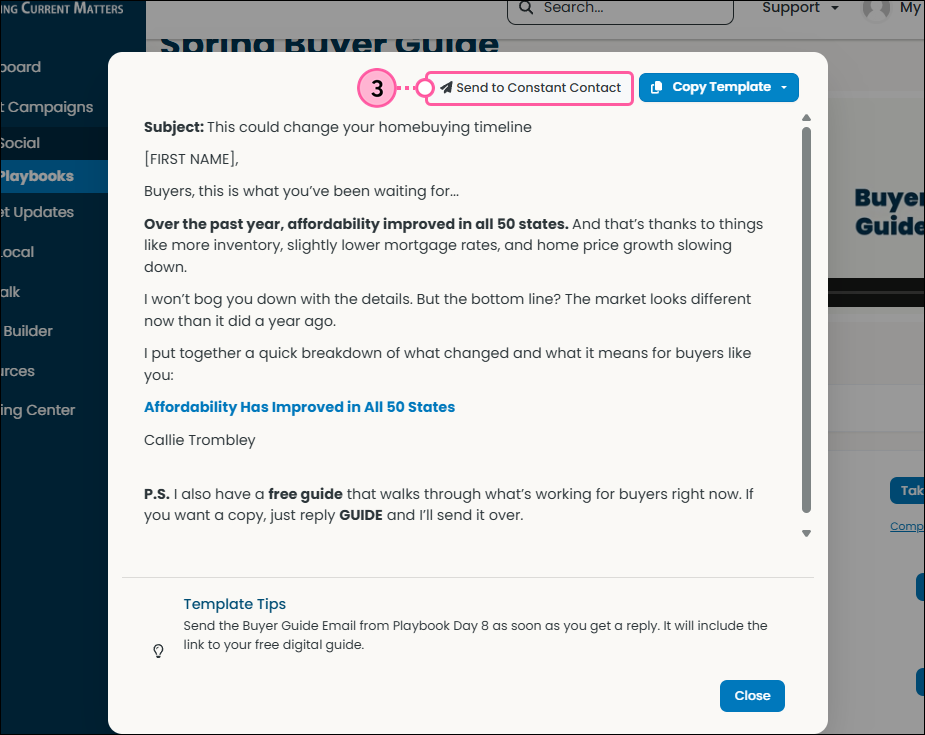
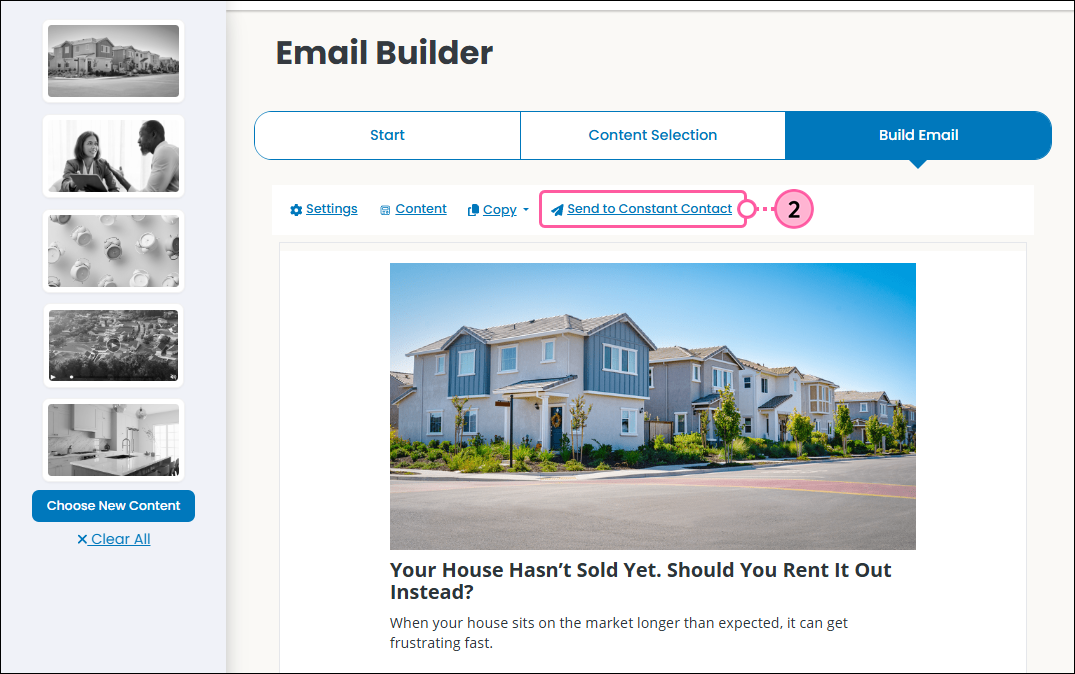
  2. Click Send to Constant Contact.

    Send email template to Constant Contact


Within Playbooks


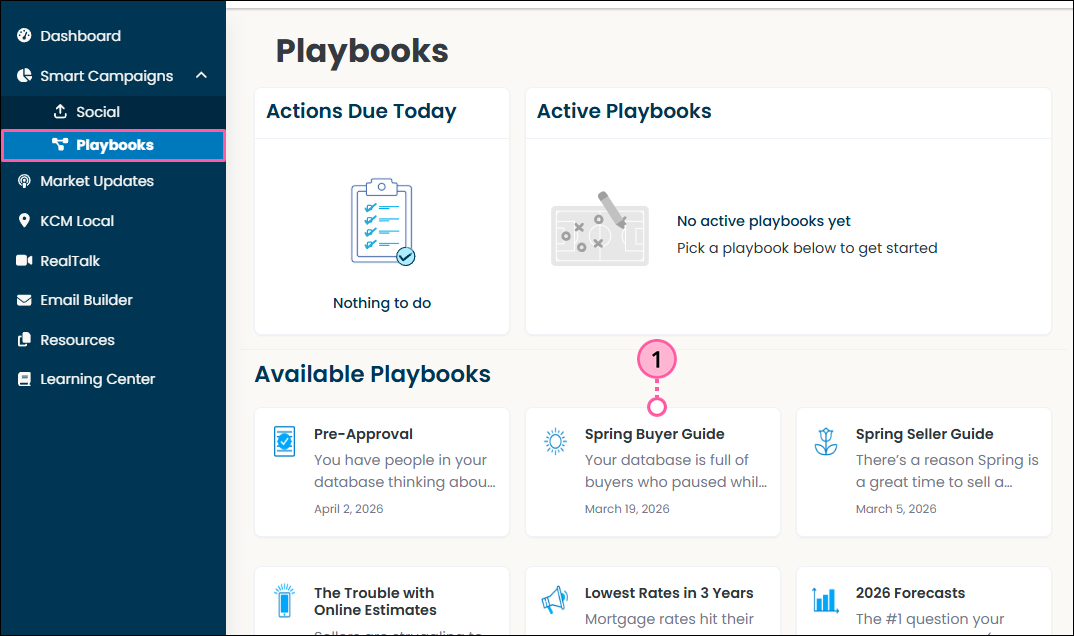
  1. Select a playbook.

    Playbooks page selecta playbook

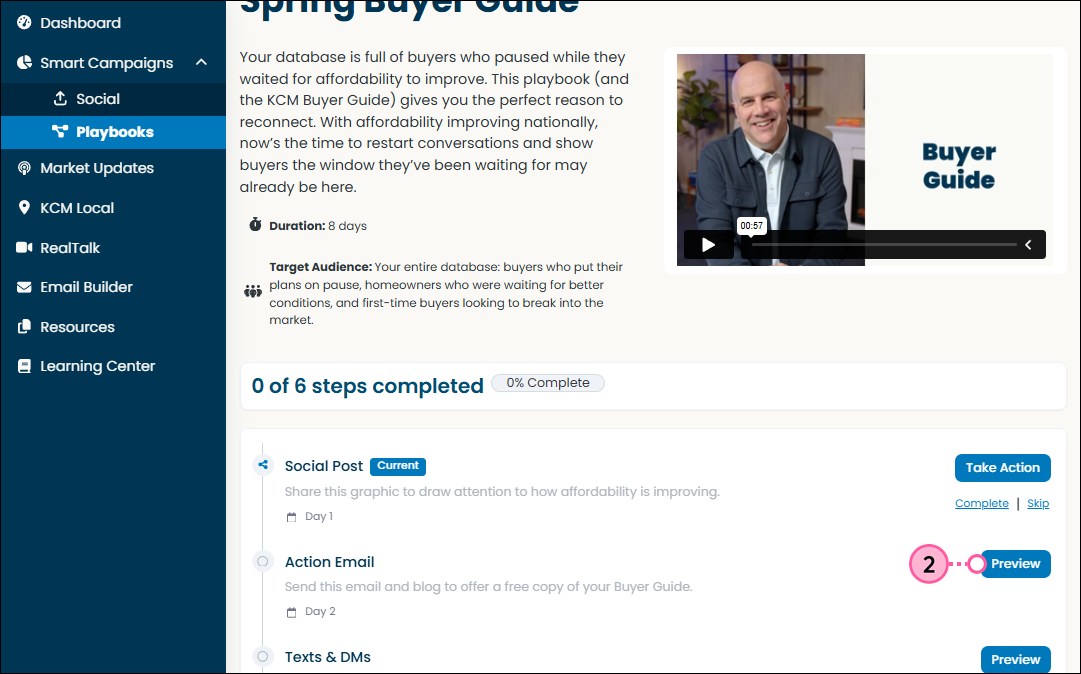
  2. Click the Preview button to preview the email portion of the playbook.

    Preview email step of playbook

  3. Click Send to CRM > Constant Contact.

    Send playbook email to Constant Contact


Review your generated campaigns within Constant Contact


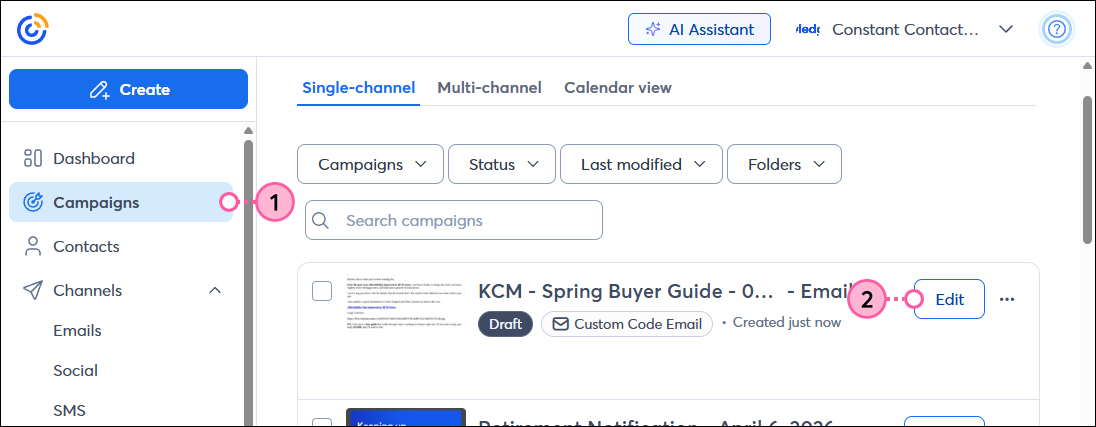
  1. Within your Constant Contact account, click Campaigns.
  2. Within the Campaigns list, you’ll see your KCM-generated custom code campaigns. Campaigns are titled beginning with “KCM”. Click a campaign to review it.

    Campaigns tab Select KCM campaign

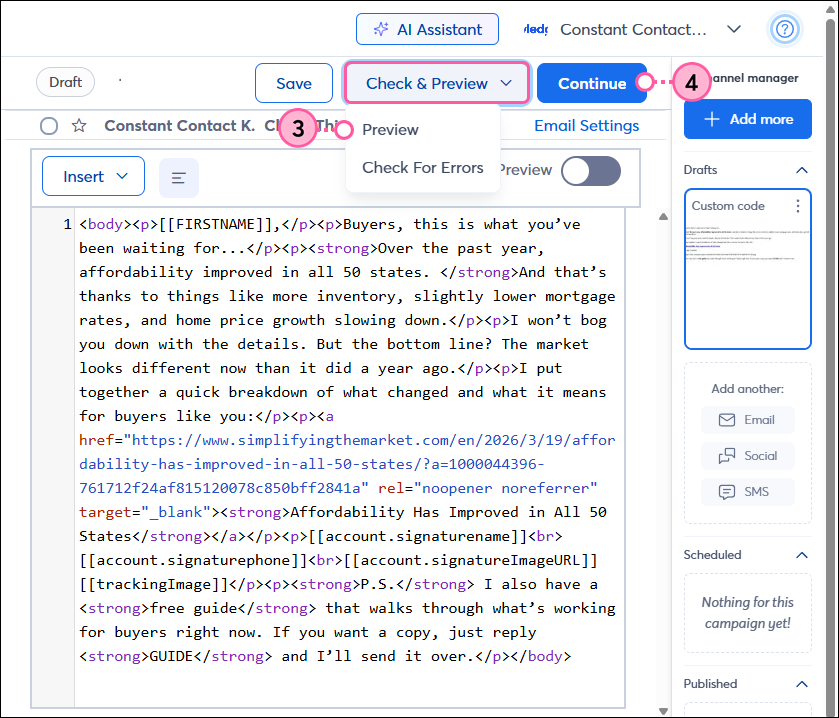
  3. Optionally, click Check & Preview > Preview to see what the campaign looks like.
  4. When ready, click Continue to schedule and send your campaign.

    Preview KCM generated campaign and schedule it


Questions?

Ask the Community

Did this article answer your question?


Constant Contact Logo

Copyright © 2026 · All Rights Reserved · Constant Contact · Privacy Center