Social Share blocks insert buttons into your email that make it easy for your contacts to share your email with others. Social Follow blocks insert icons into your email that allow your contacts to easily visit your social pages. Learn how to add, remove, and modify social blocks in your emails from the mobile app.
Modify emails on Android
On Android, complete the following steps to access your Campaigns.
- From the
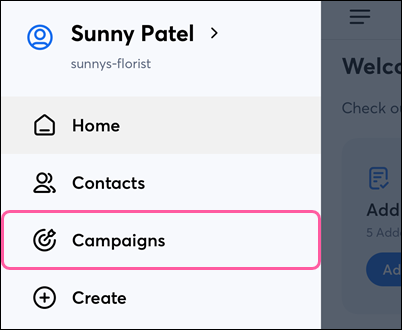
 menu, tap Campaigns.
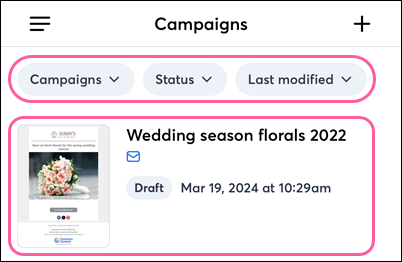
- (Optional) Use the filters at the top of the screen to narrow your campaign list.
- Tap on the campaign you want to edit.
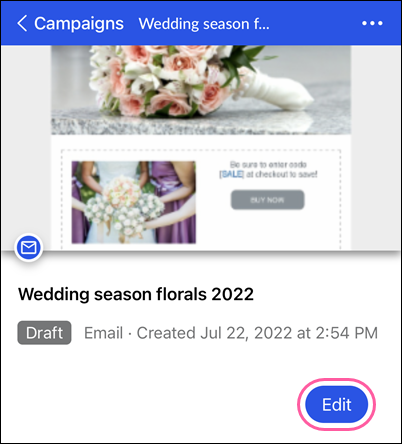
- Tap Edit.
Note: Only campaigns created in the mobile app or using the Cross Device Editor on a desktop can be edited.
Modify emails on iPhone
On iOS, complete the following steps to access your campaigns.
- Tap Campaigns in the navigation menu.
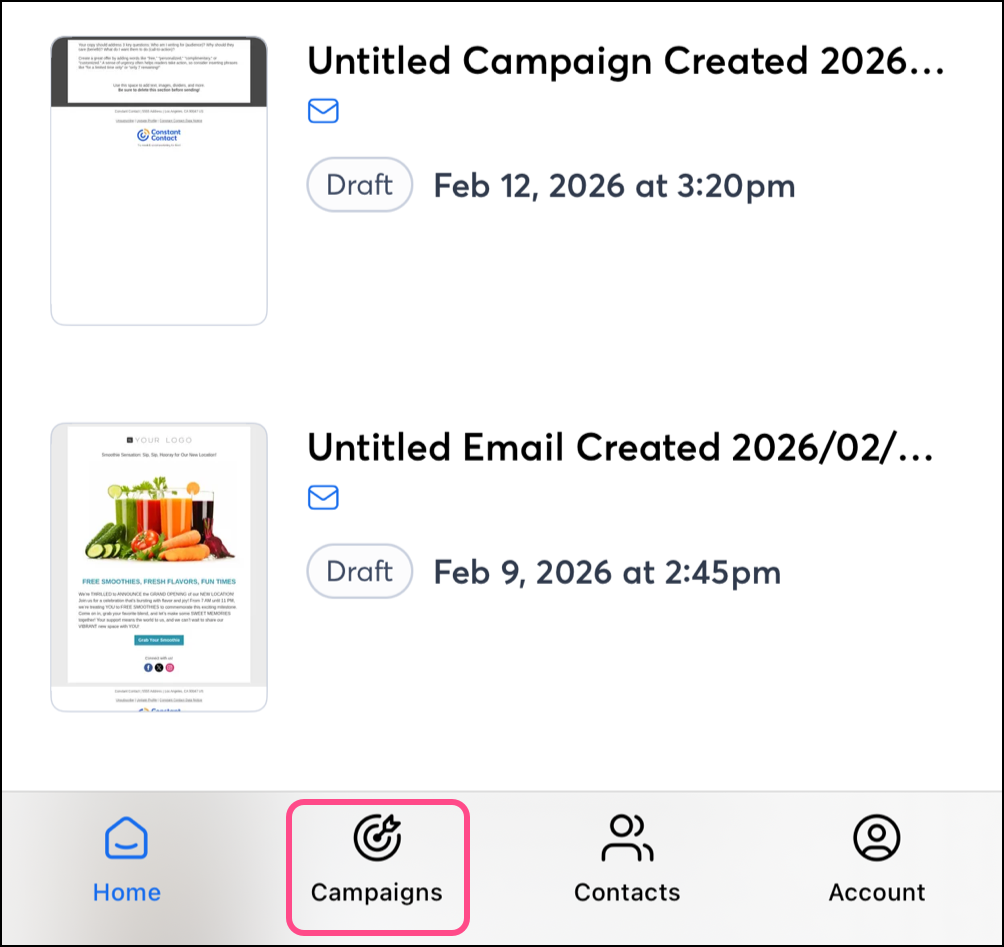
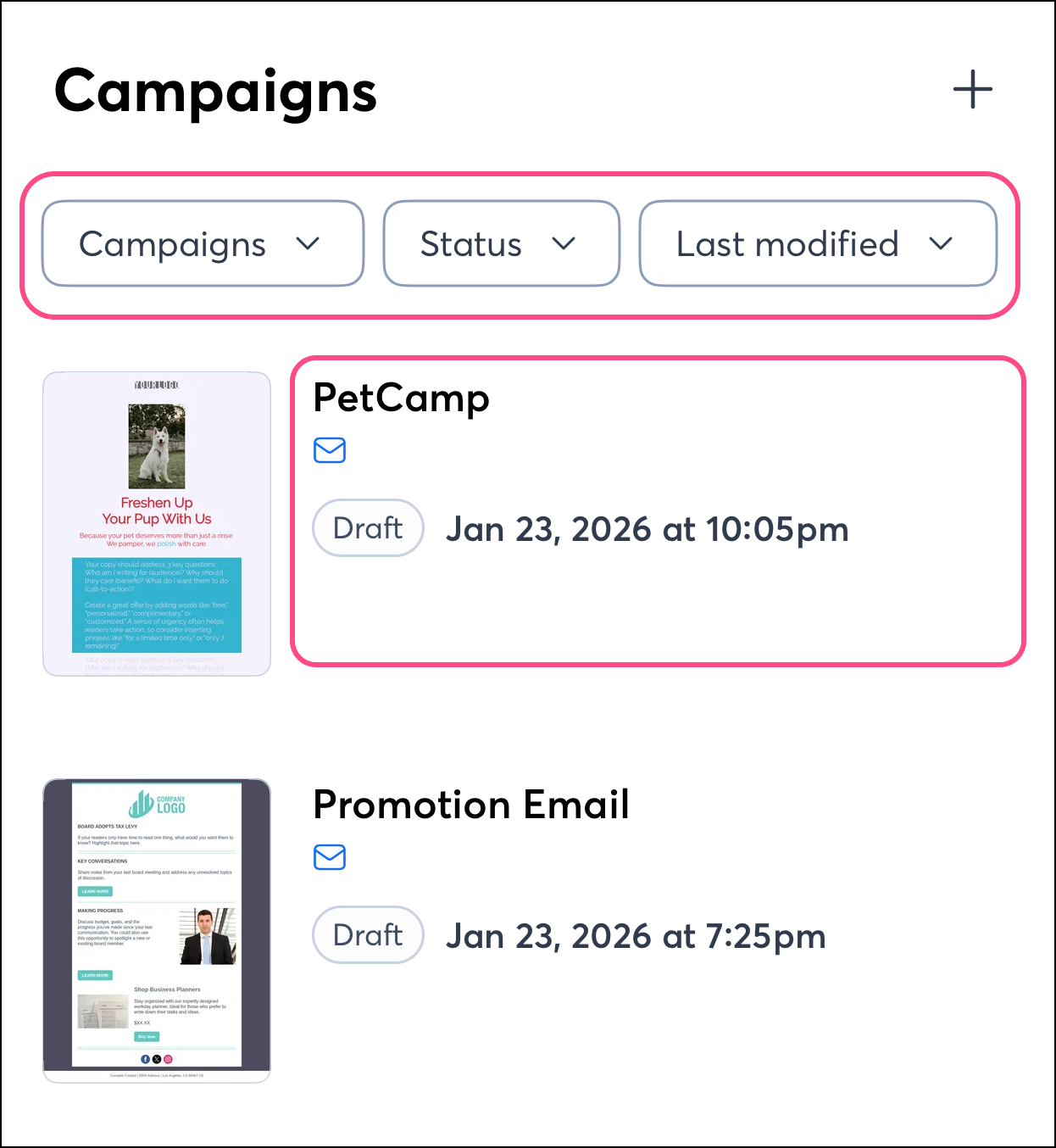
- (Optional) Use the filters at the top of the screen to narrow your campaign list.
- Tap on the campaign you want to edit.
Note: Only campaigns created in the mobile app or using the Cross Device Editor on a desktop can be edited.
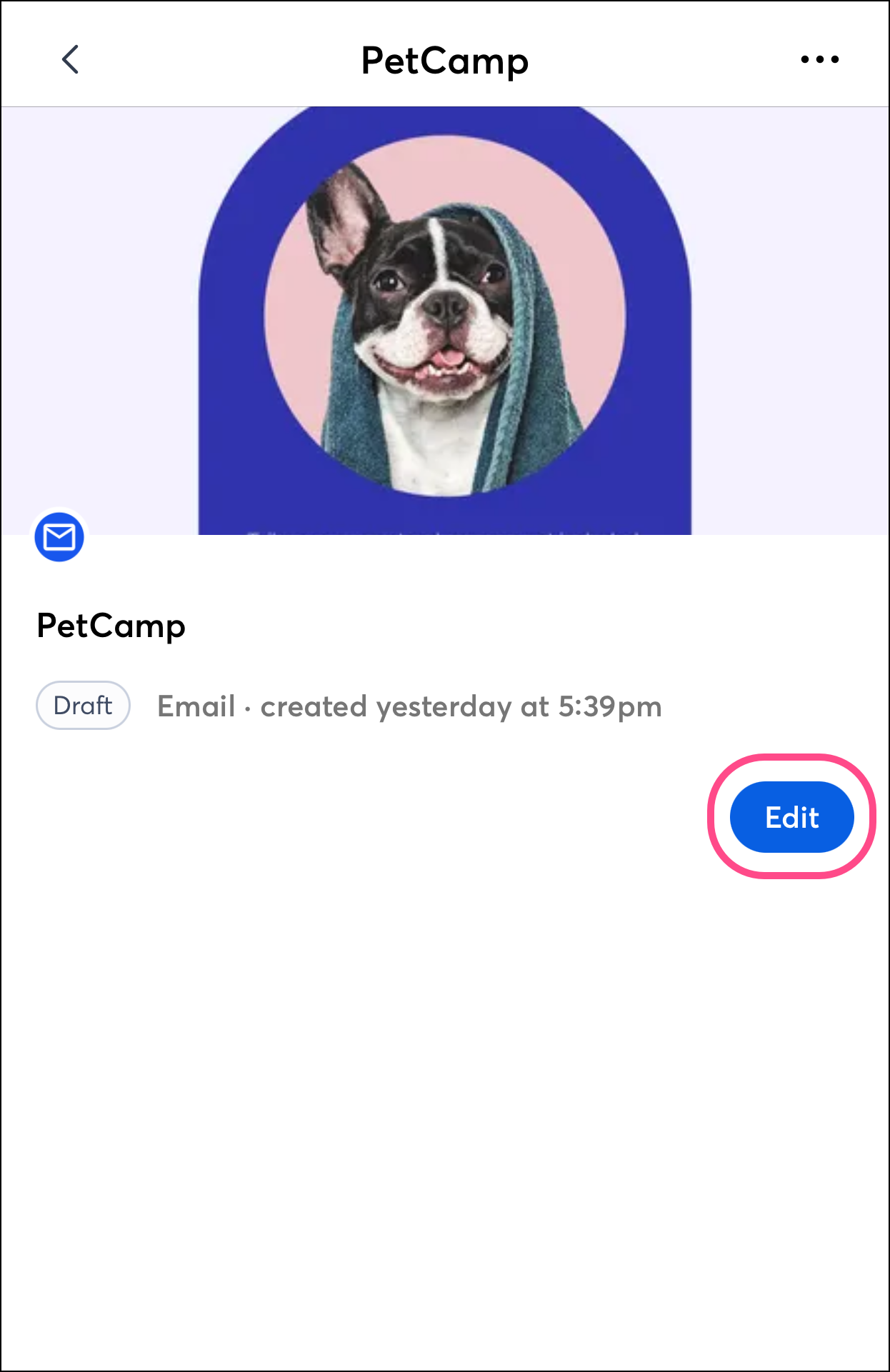
- Tap Edit.
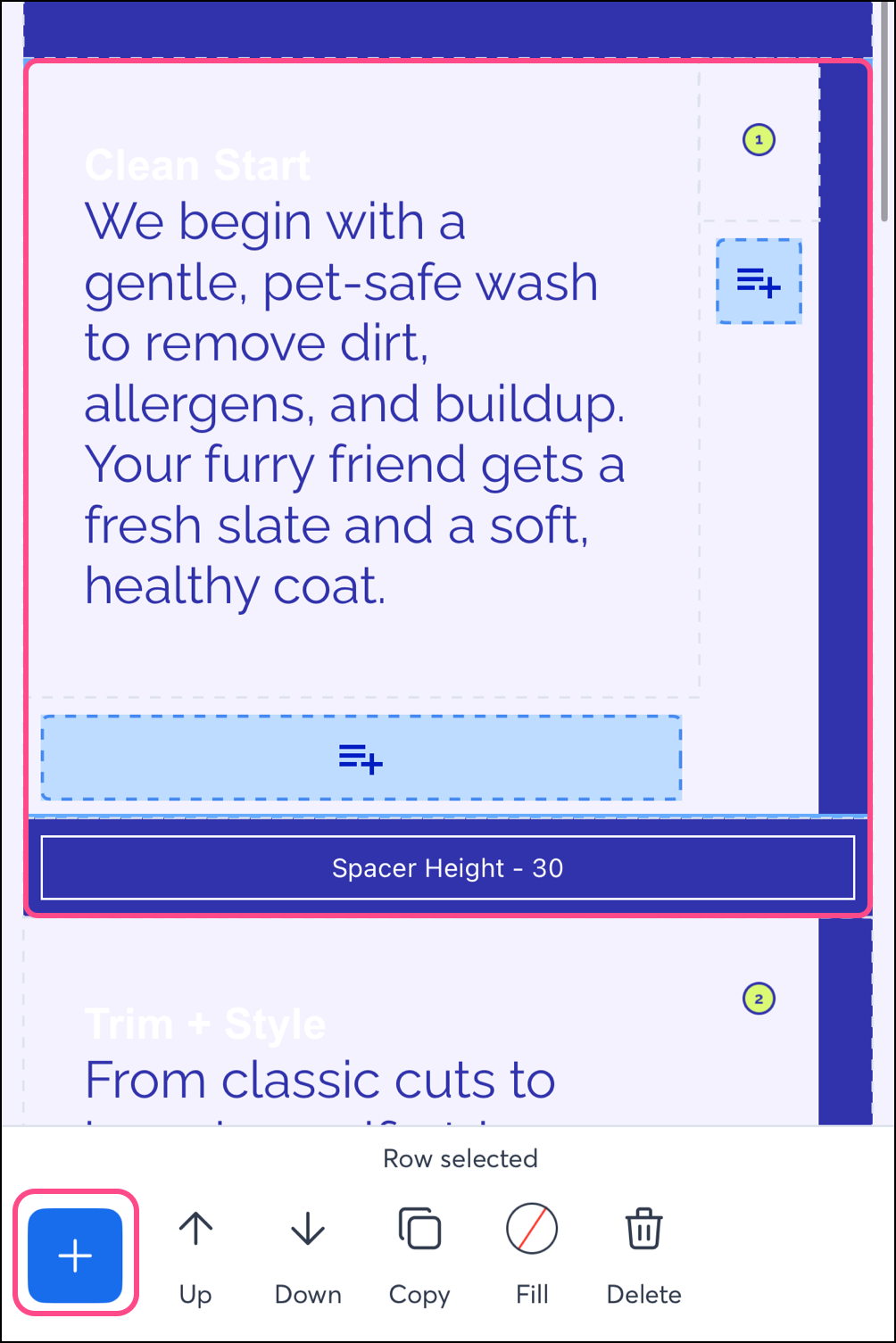
Once in edit mode, you can add different types of blocks, including images and text blocks. You can also edit, move, copy, and delete existing blocks.
Add a social block to your email
Complete the following steps on Android or on iPhone to add a social block to your email.
- Create a new email or open an existing email draft and Edit it.
- Tap a section of the email. The new block you add will be inserted underneath the selected section.
Note: If no section is selected, the inserted blocks will be inserted at the top of the email template. You can use the up or down arrows to move blocks around in your template.
- Tap the plus sign to add a block to your email.
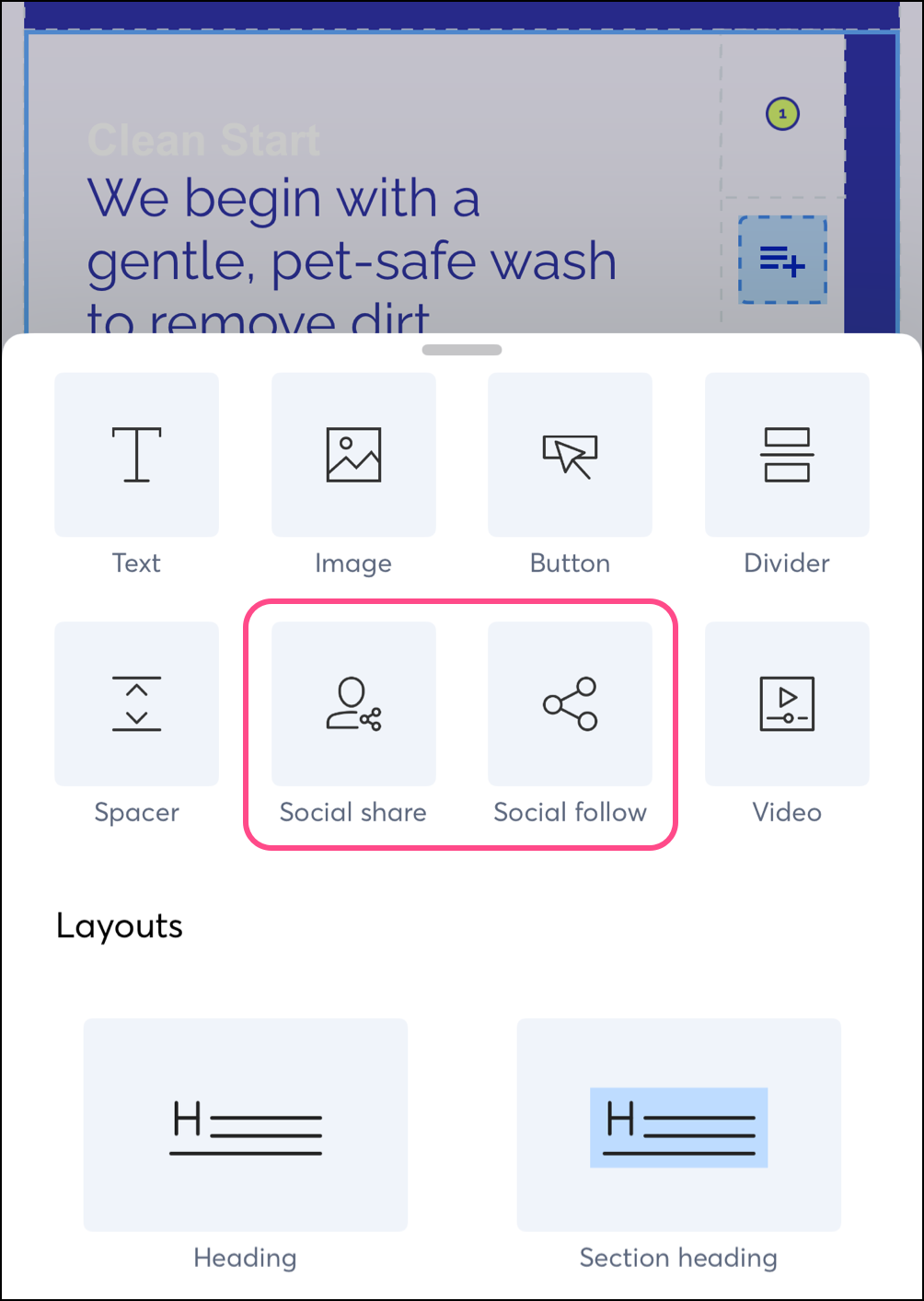
- Tap your preferred social block:
- Social share: When this block is selected, "Share This Email" buttons will be inserted into your email. By default, Facebook, X, and LinkedIn buttons are inserted, but you can edit them. Pinterest and generic Email buttons are also available. Add or remove buttons as needed.
- Social follow: When this block is selected, links to your social pages will be inserted into your email. By default, the colorized icons for Facebook, X, Instagram, and LinkedIn will be inserted, but you can edit them. YouTube, GMB, Email, LinkedIn, Bluesky, TikTok, Snapchat, Pinterest, and a generic Web button are also available. Add or remove buttons as needed. You can also select other icon styles.
Editing Social Share blocks
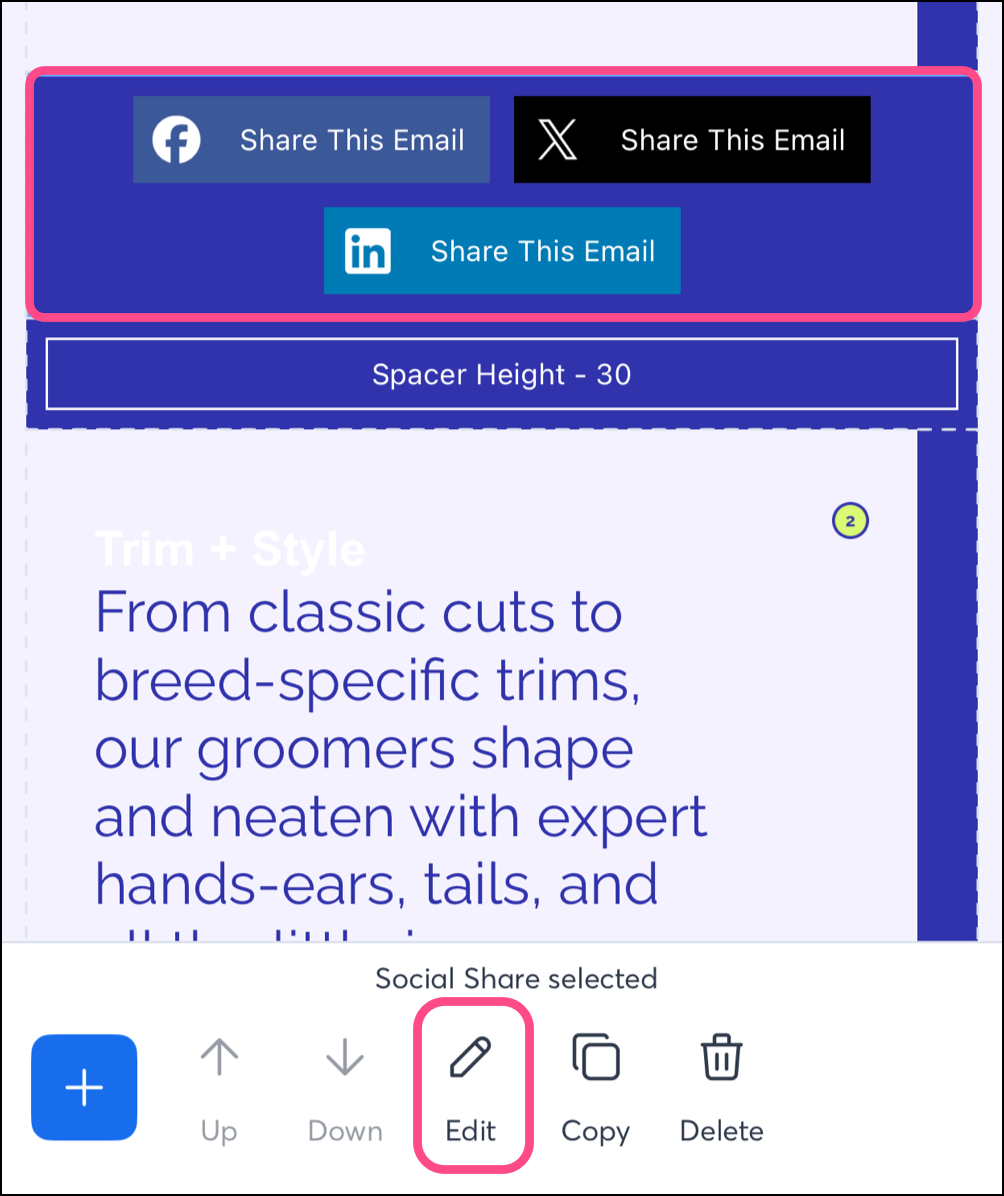
When you insert a Social Share block, "Share This Email" buttons will appear in your email. To edit the default buttons or add a different button, complete the following steps on Android or on iPhone.
- Tap Edit.
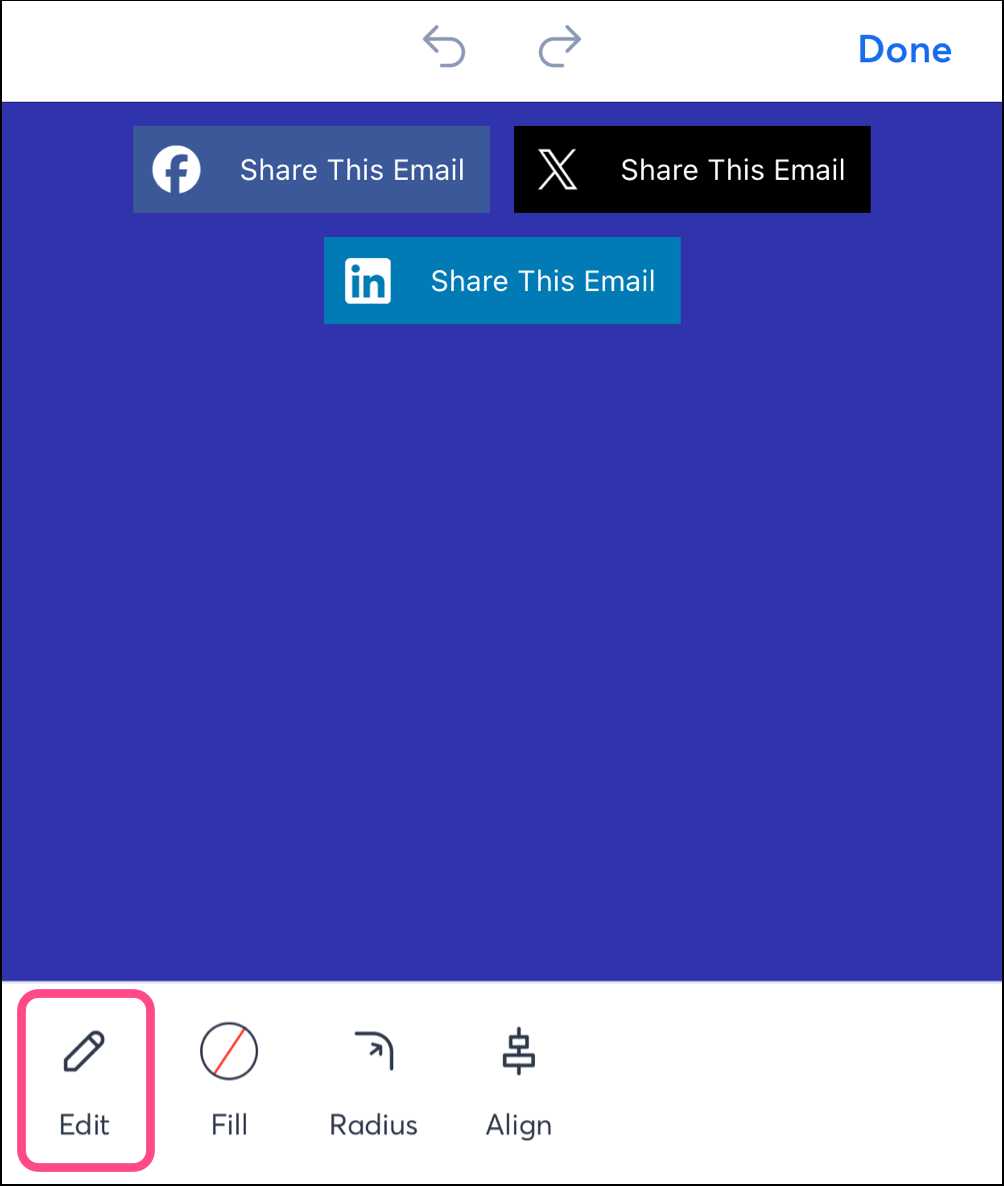
- Tap Edit again to modify your social share blocks.
- Optionally, use the dropdown arrow next to the social platform to change the social page being displayed.
- Optionally, change the button text from "Share This Email" to text of your choosing.
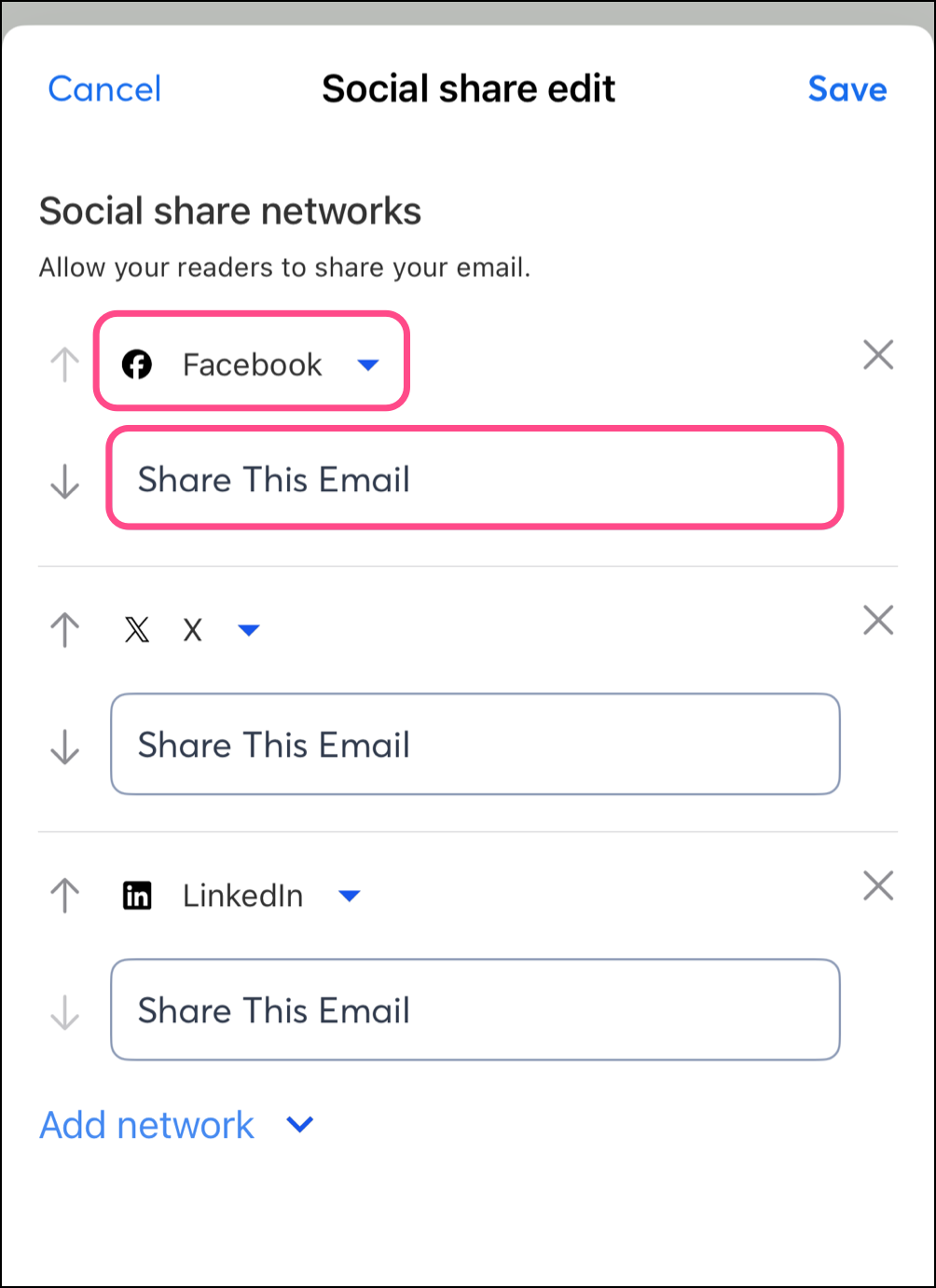
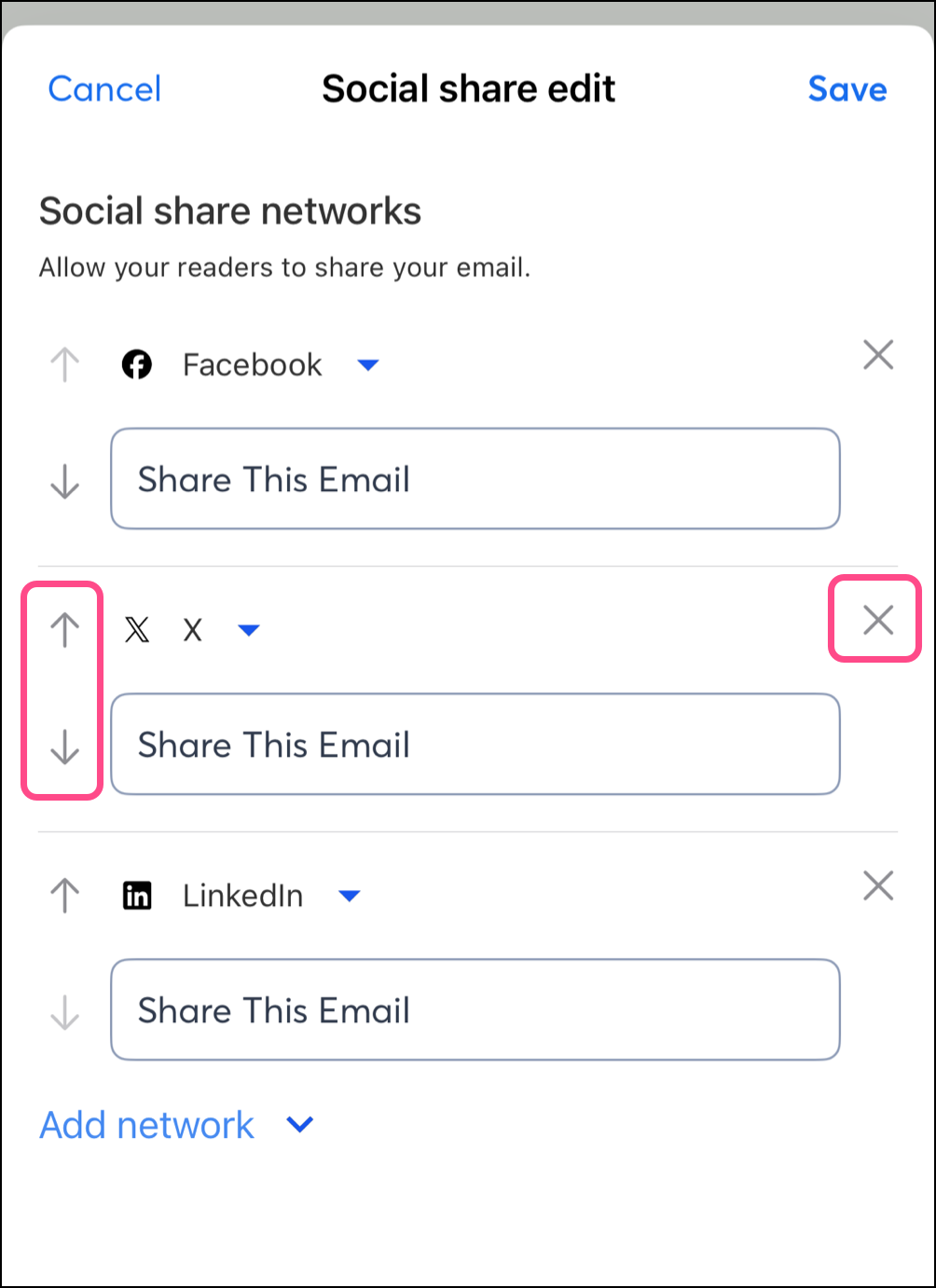
- Use the up or down arrows to the left of a social platform option to move the social share button up or down in the block.
- Use the X icon to remove a social platform from the block.
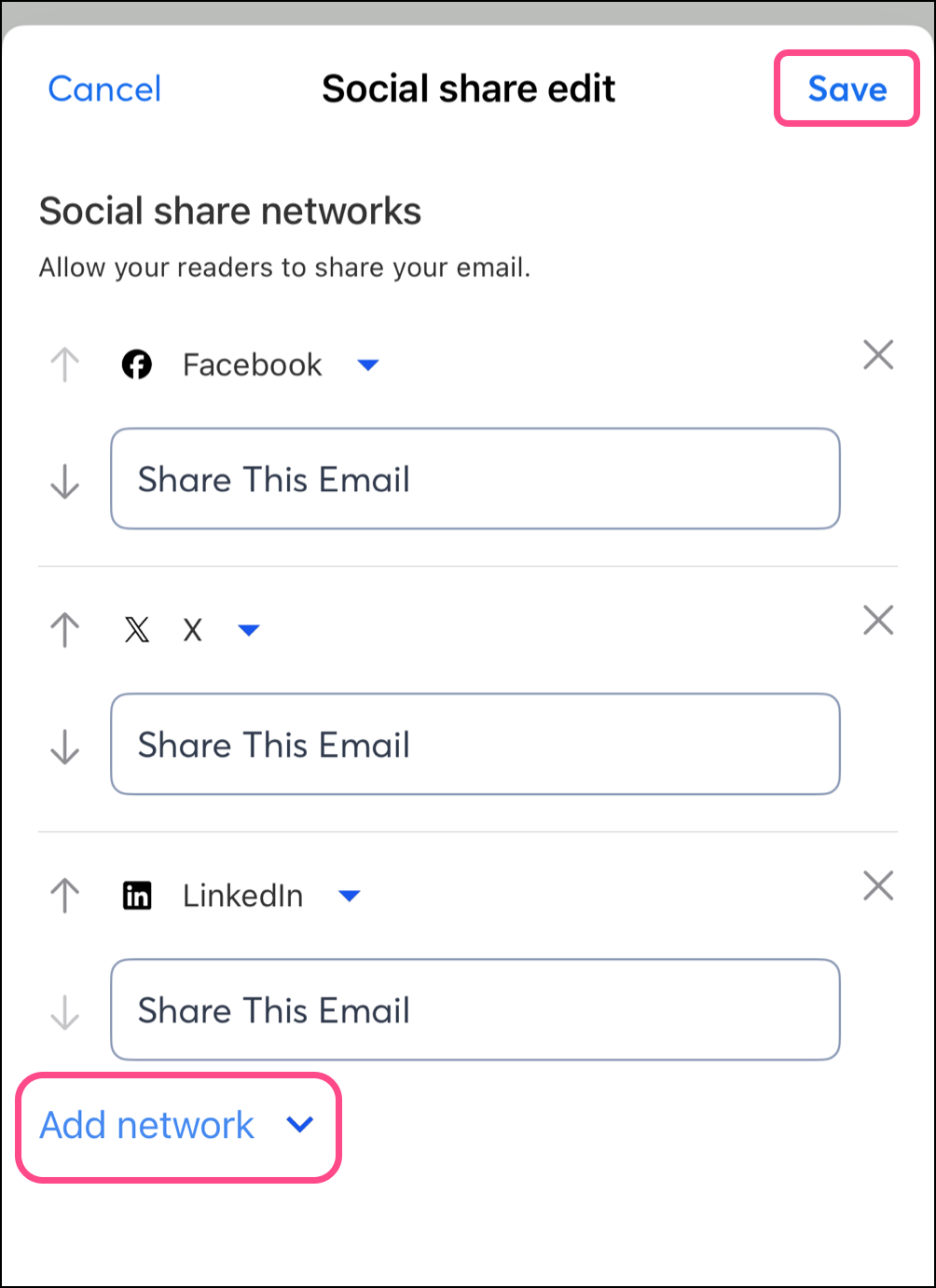
- Tap Add network as needed to include additional social platforms: Pinterest or a generic email button.
- Save changes.
Editing Social Follow blocks
When you insert a Social Follow block, links to your social pages will appear in your email. To edit the default icons or add additional icons, complete the following steps on Android or on iPhone:
- Tap on the block.
- Tap Edit.
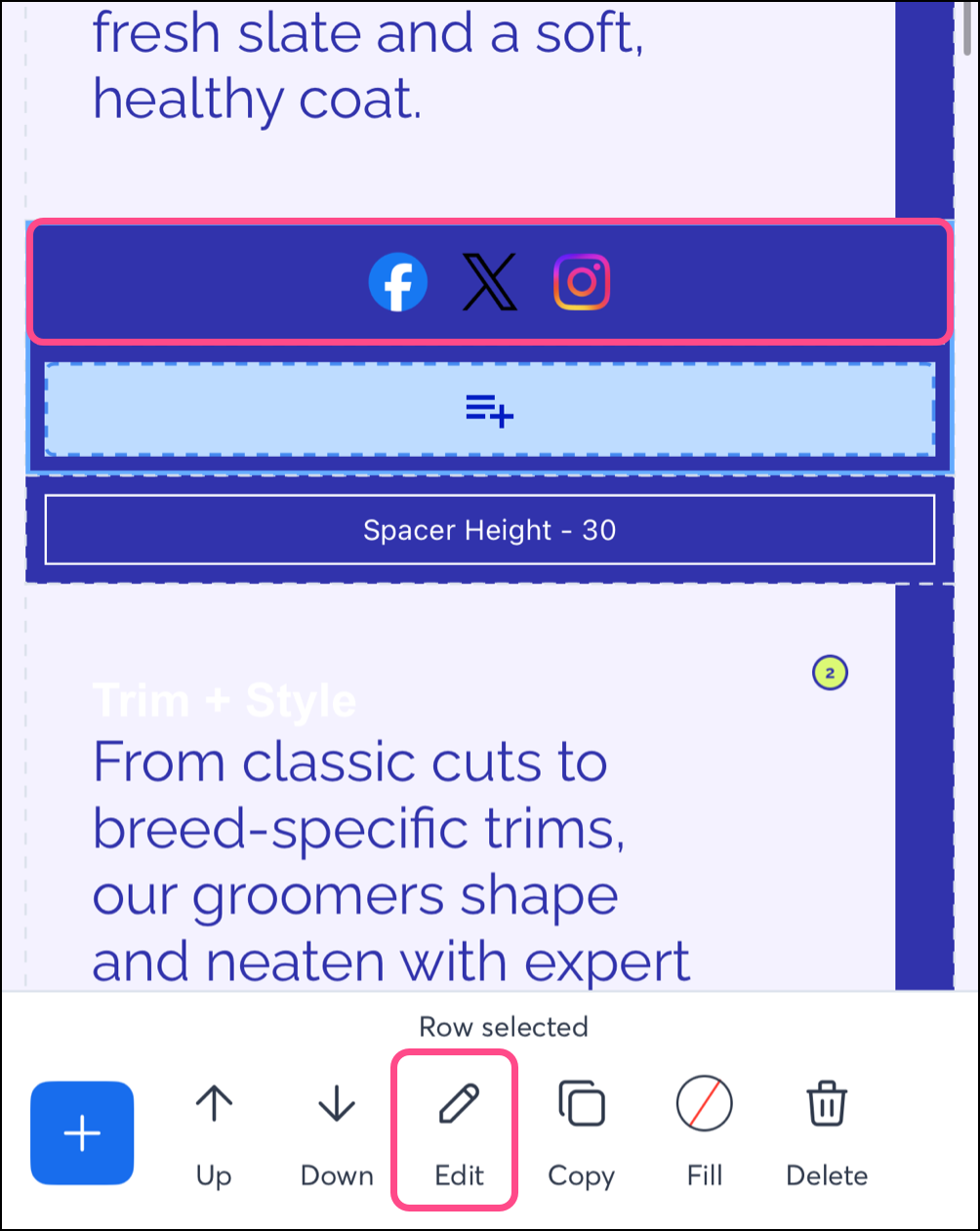
- Tap Edit again.
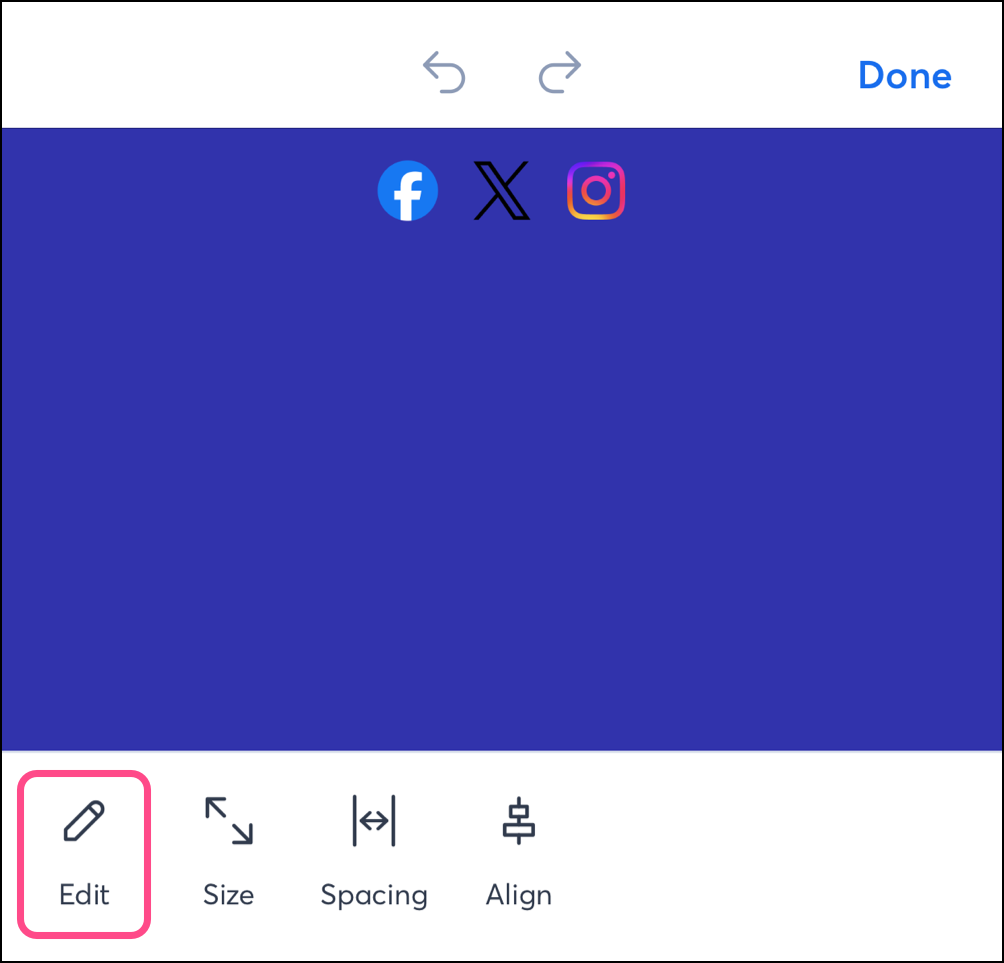
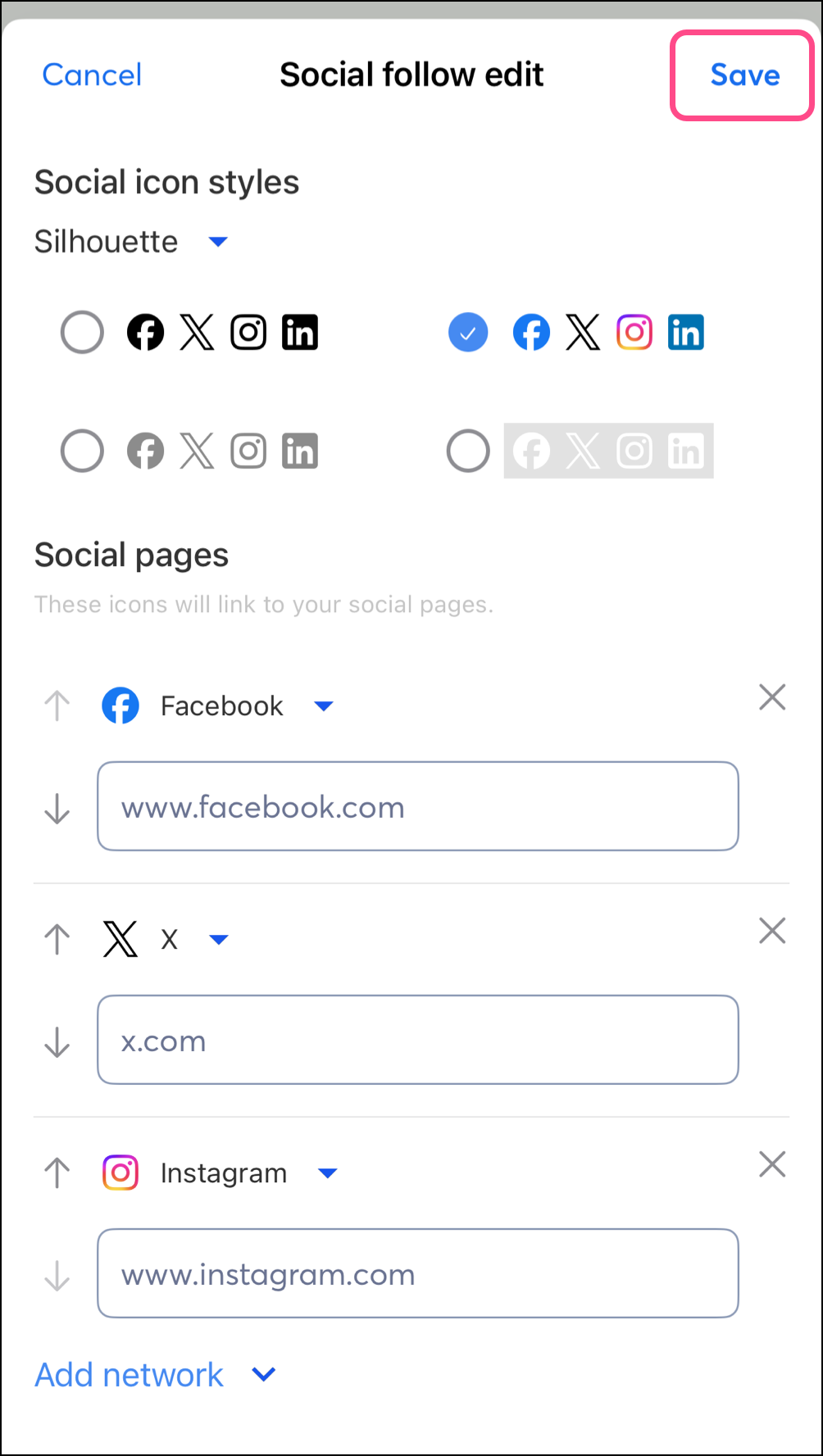
- Under Social Icon styles, tap the dropdown to choose between styles.
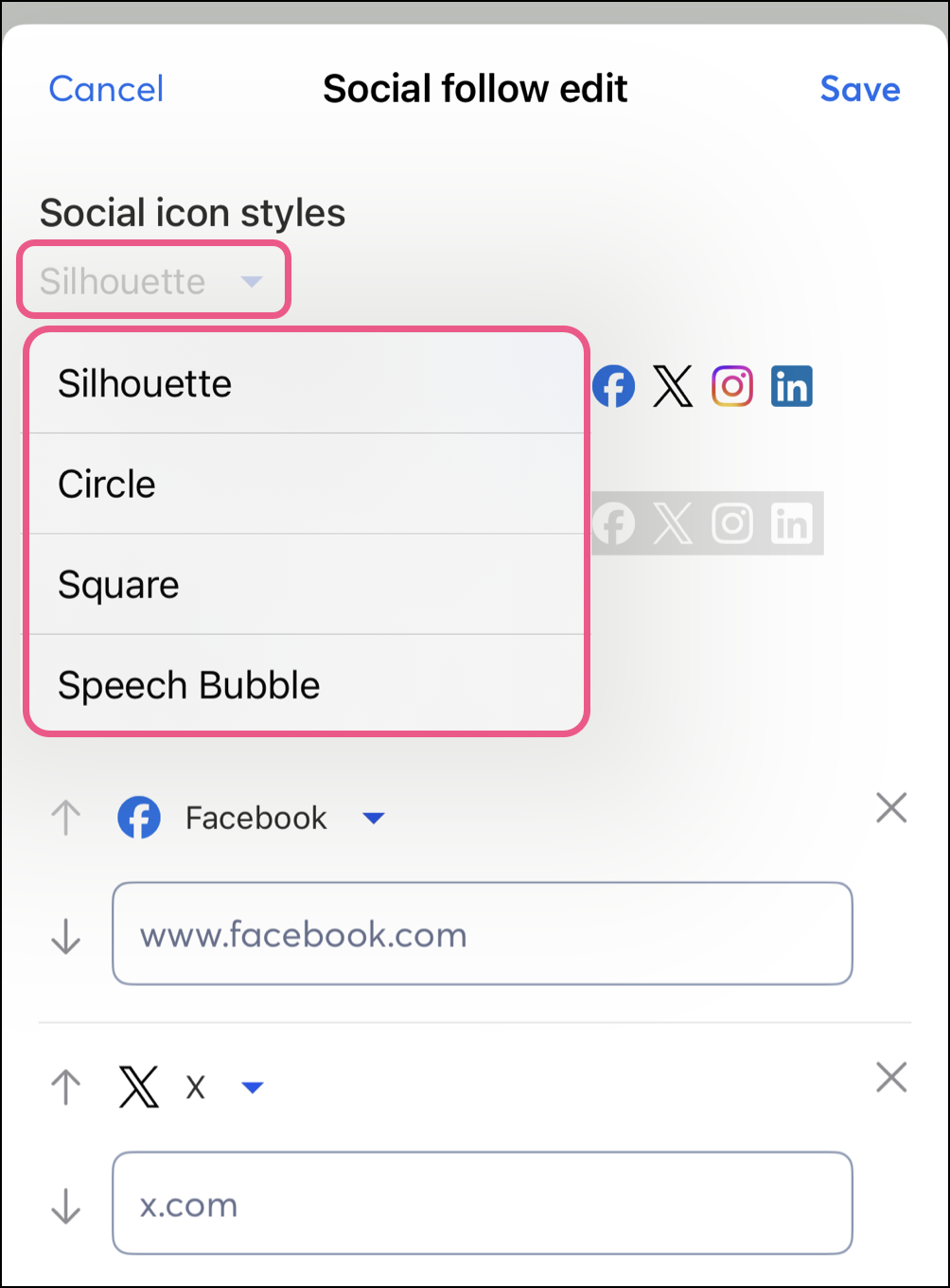
- Select the icon style you want to use.
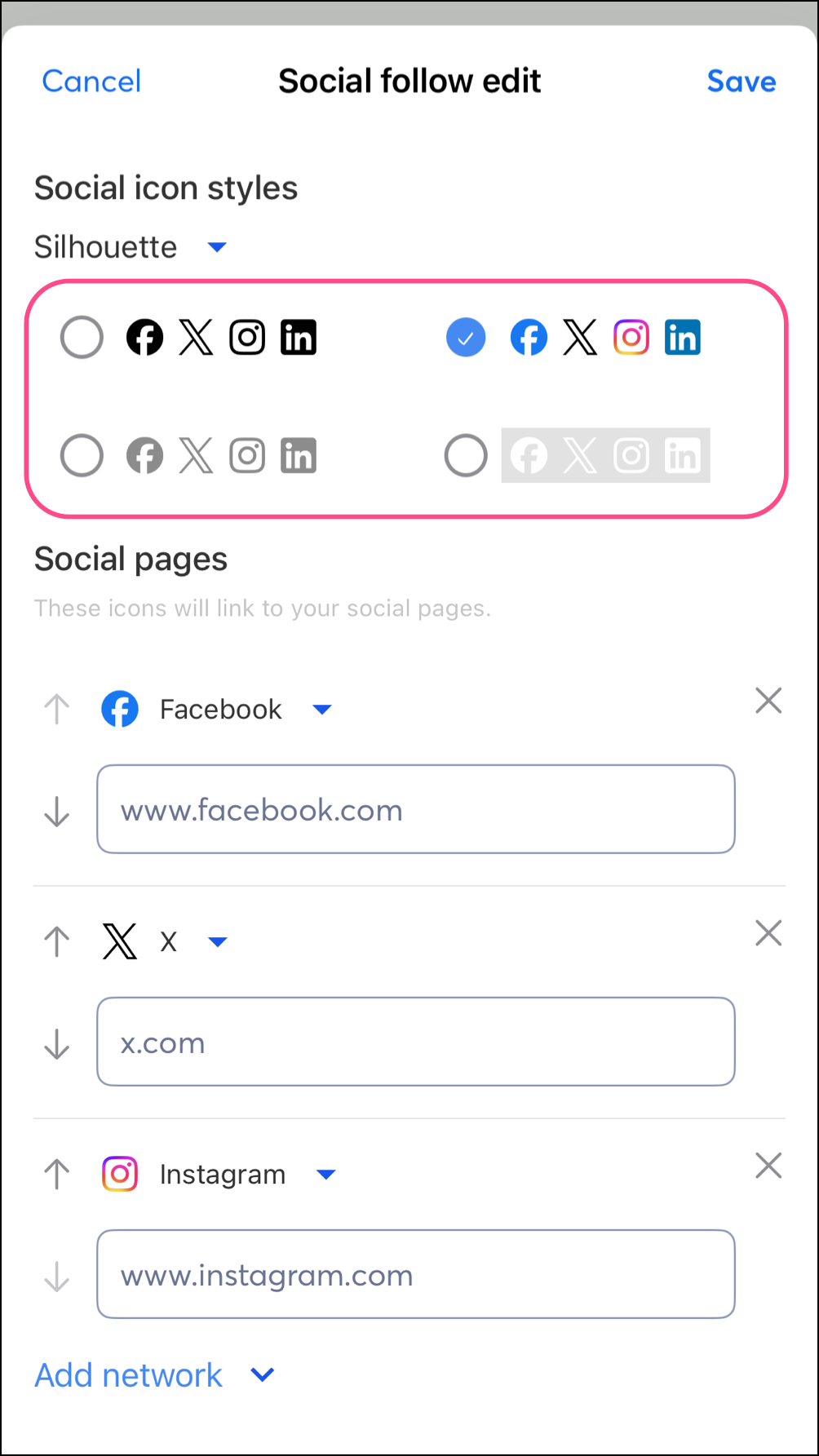
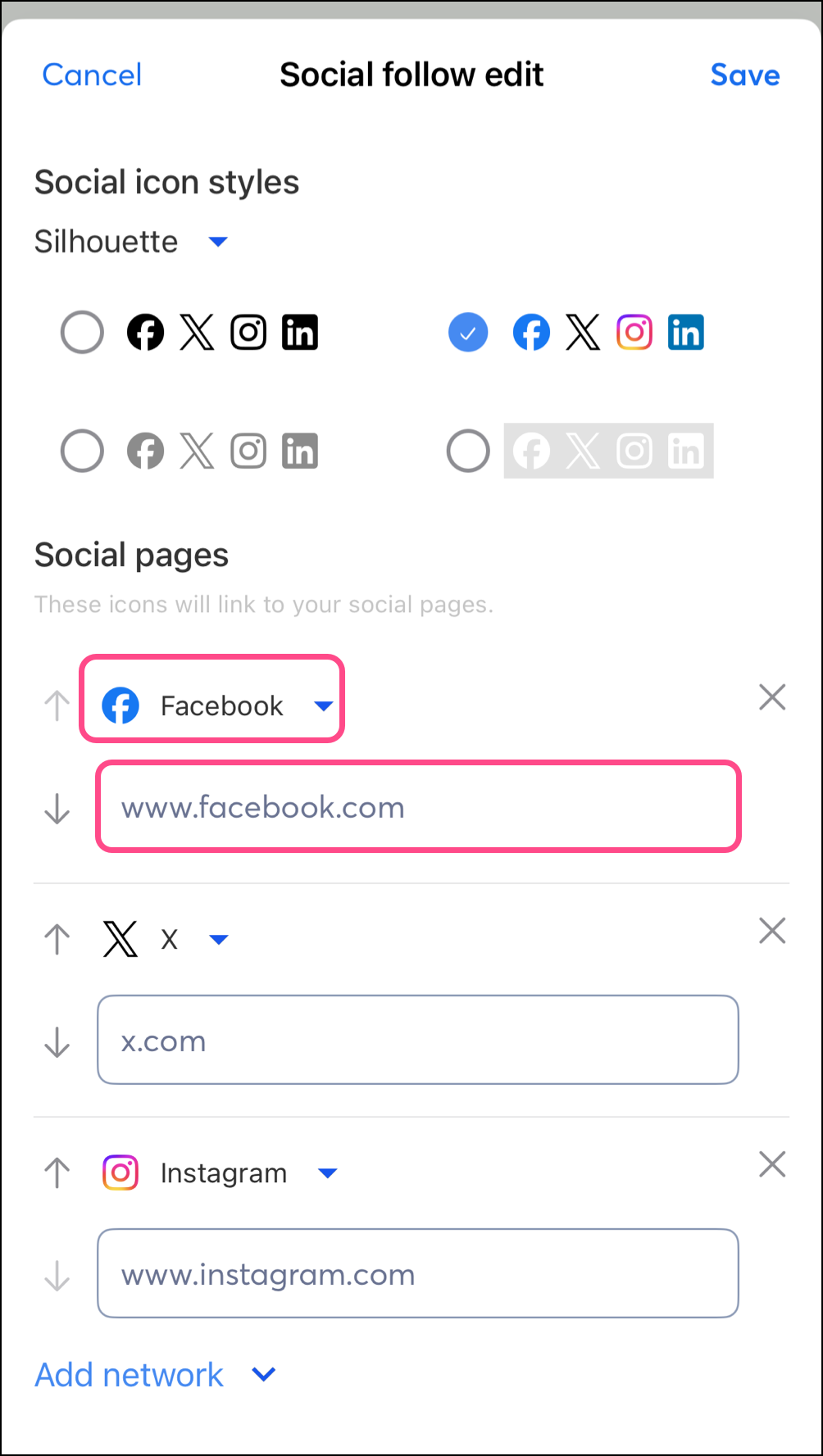
- Under Social Pages, tap the platform to change it, as needed.
- In the URL field below, enter your social page URL.
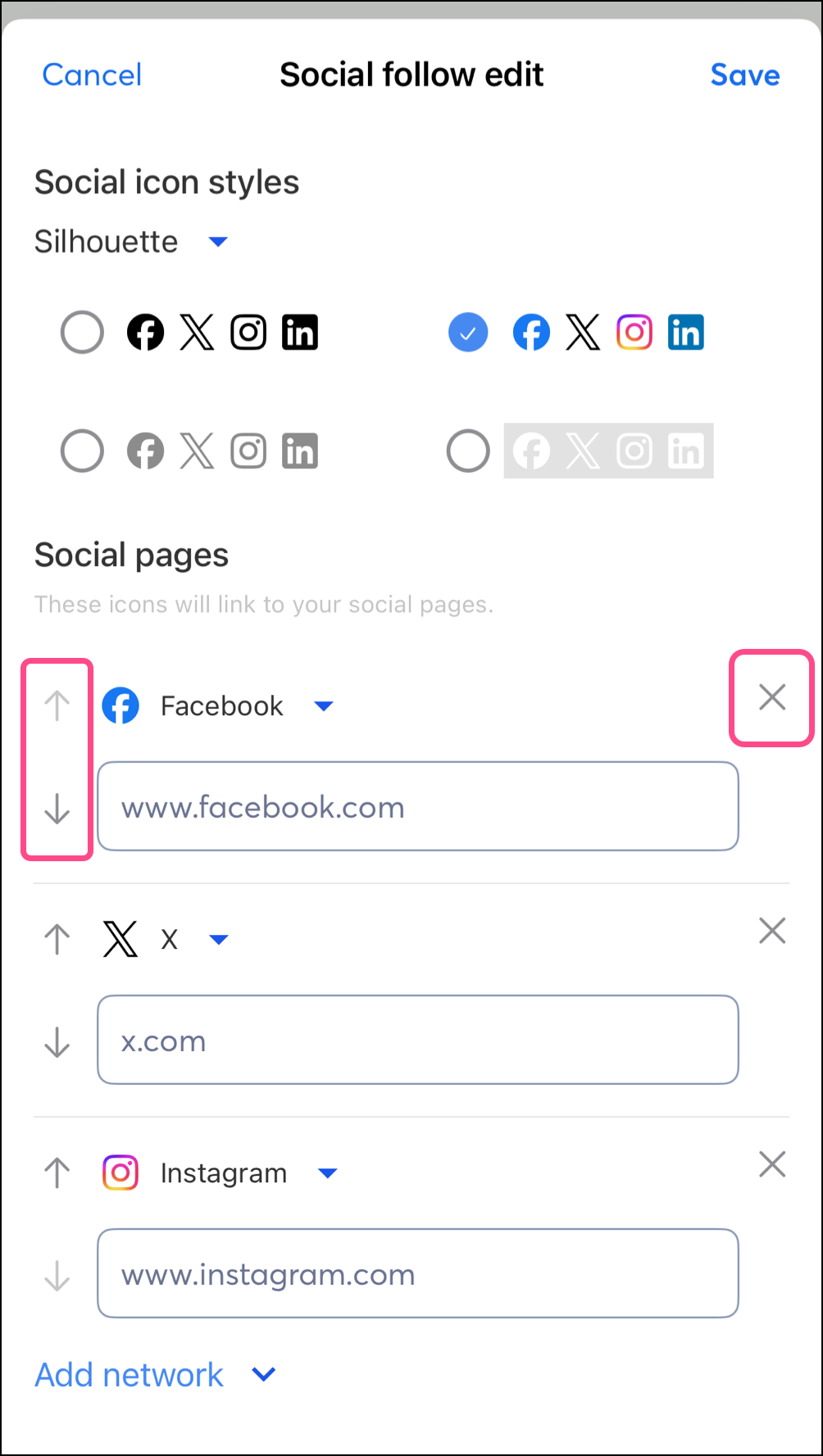
- Use the up or down arrows to the left of a social platform option to move the social share button up or down in the block.
- Use the X icon to remove a social platform from the block.
- Tap Add network as needed to include additional social platforms.
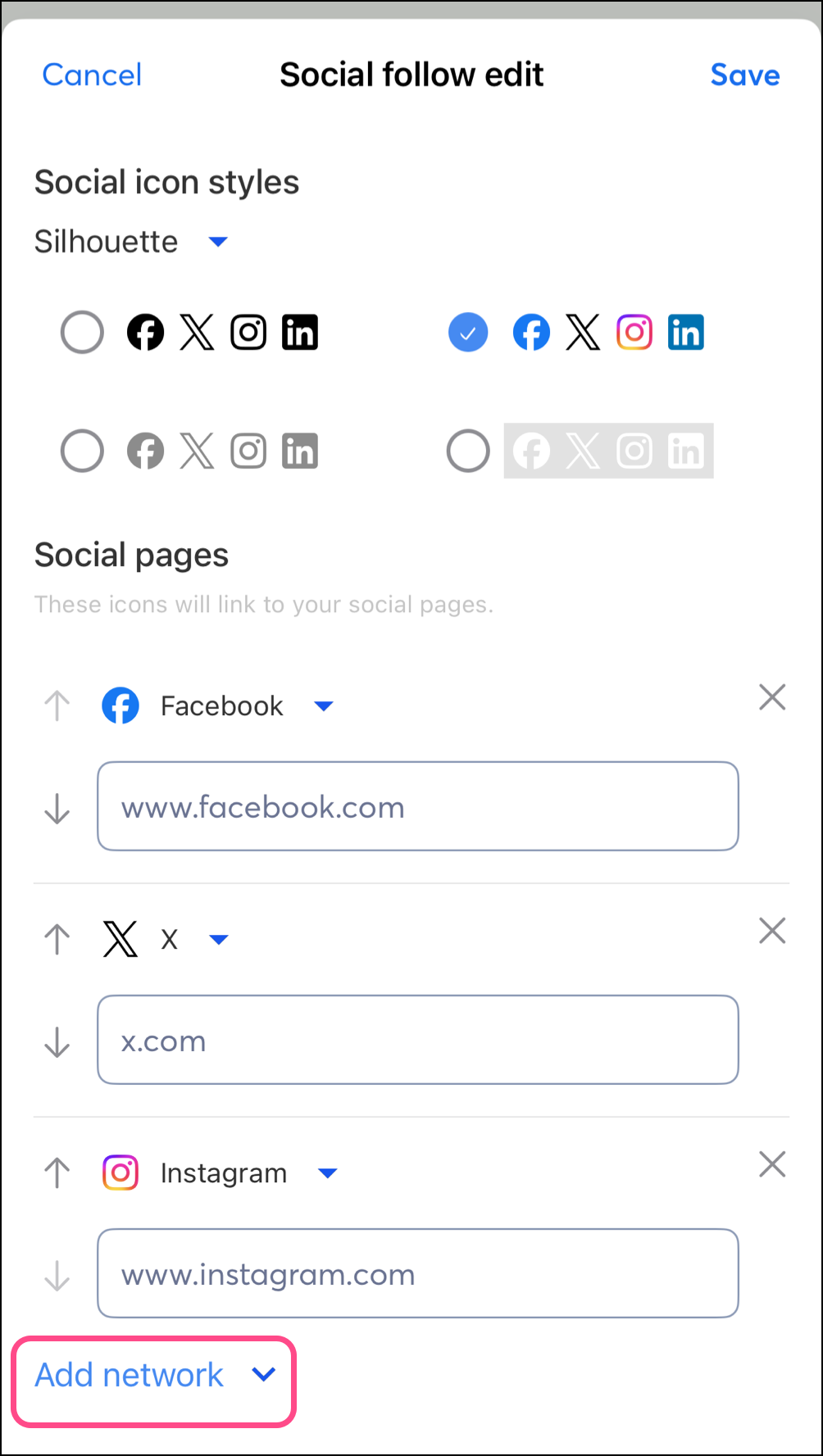
- Save your changes.