Email and Digital Marketing
How can we help you?
Search our help articles, video tutorials, and quickstart guides

You've got this. You've got us. Search our Knowledge Base to quickly find answers to your questions.

Save blocks of email content to reuse later

Article: 000054818
Updated: April 14, 2026

Save individual blocks of content or entire layouts to insert in future emails

Exclamation point iconNote: We are in the process of releasing this feature to customers, so you may not have access to it yet.


Are there pieces of information you include regularly in your emails, like branded headings, common promotional banners, or a “contact us” section? Save time and help keep your messaging consistent by saving individual blocks of content or entire layouts that you can easily access and insert in future emails! 


Save content

You can save as many content blocks and layouts as you want. While editing an email:
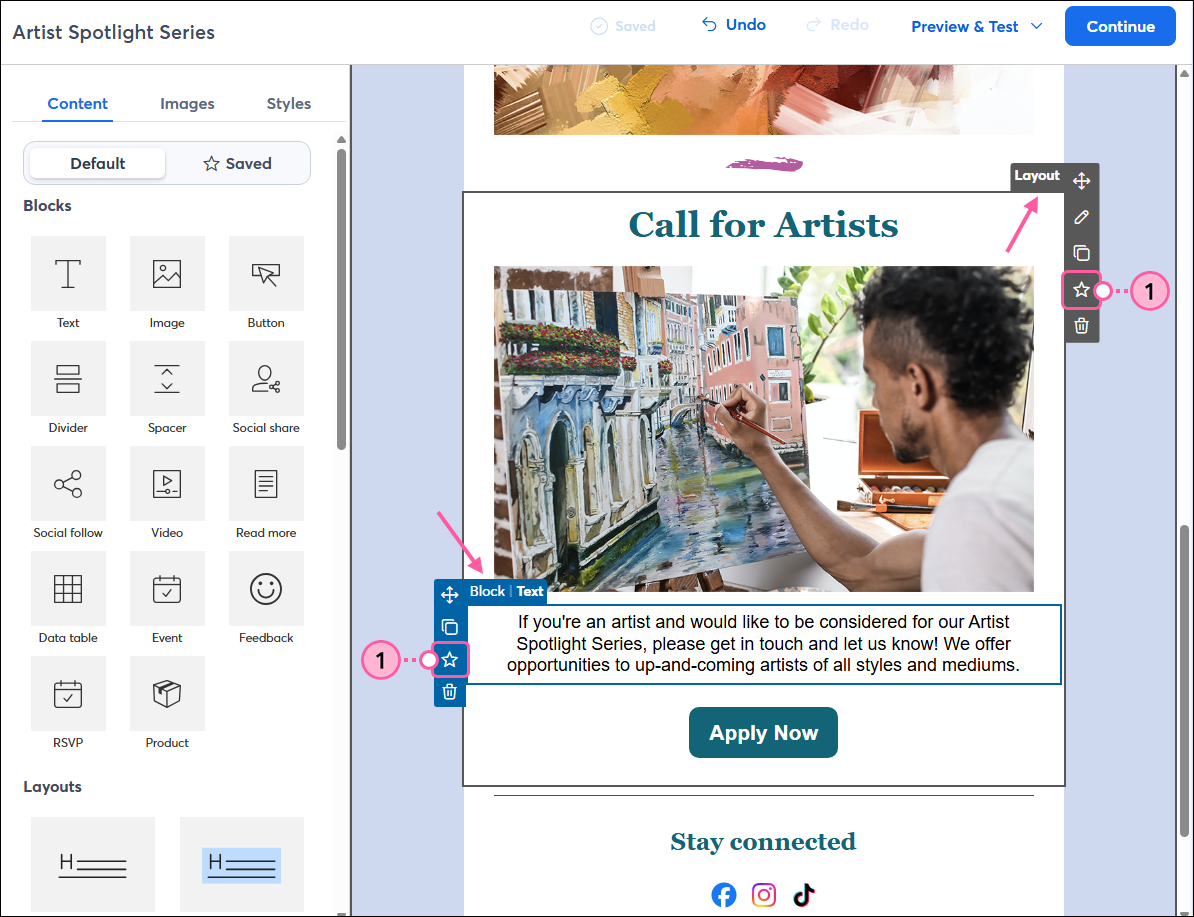
  1. Hover over a Block or Layout in your template and click the star icon. It’ll be on the left for Blocks and the right for Layouts.
    Note: To prevent compliance issues, you can’t save any of the blocks in the email footer.

    Email editor, Layout and Block highlighted, and Star icon selected

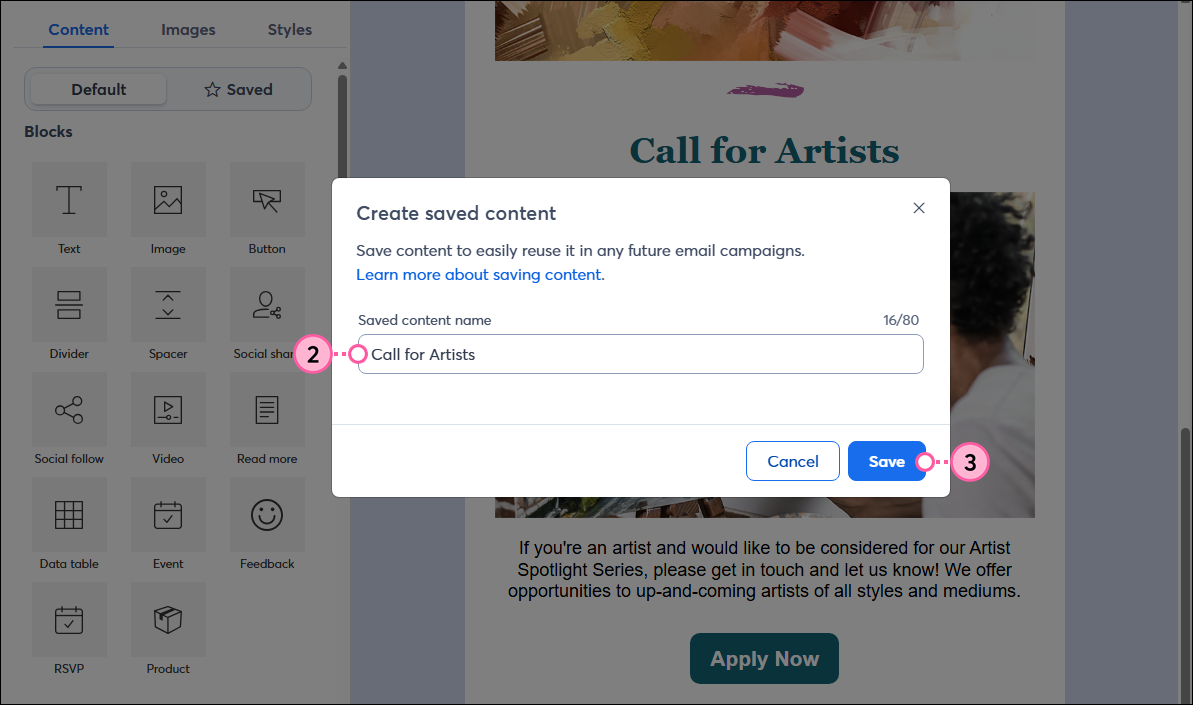
  2. Enter a name for your saved content that you’ll easily recognize later. 
  3. Click Save.

    Create Saved Content pop-up with Name field and Save button

Your content will be stored in your Saved Content library and easily accessible when editing any email!


How it works with Product, Event, Feedback, RSVP, and dynamic content blocks

Certain block types will behave differently when saved and inserted into another email: 

  • Product and Event blocks are saved with the current data and will automatically sync with the latest information from your ecommerce store or event when inserted into a new email.
  • RSVP and Feedback blocks are saved as is, but any existing response data is removed when the content is added to a new email, ensuring each campaign collects fresh responses. 
  • Saved dynamic content blocks will retain their dynamic settings when inserted into a new email.


Use saved content in another email

To use a saved content block or layout in another email:
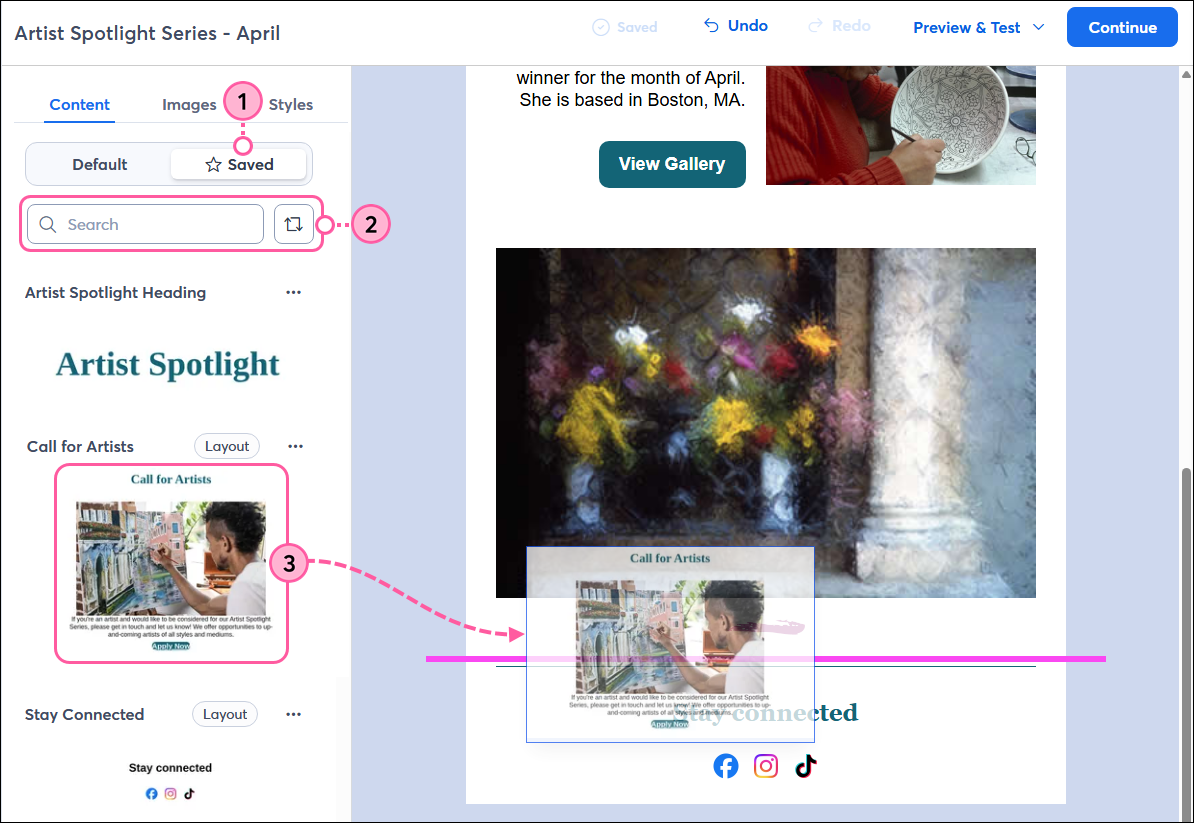
  1. From the Content tab, click Saved.
  2. (Optional) Search or sort your saved content to find the one you want to use.
  3. Drag and drop the desired saved content into your template.

    Email editor, Content panel, Saved tab, search and filter options, and saved content selected to insert

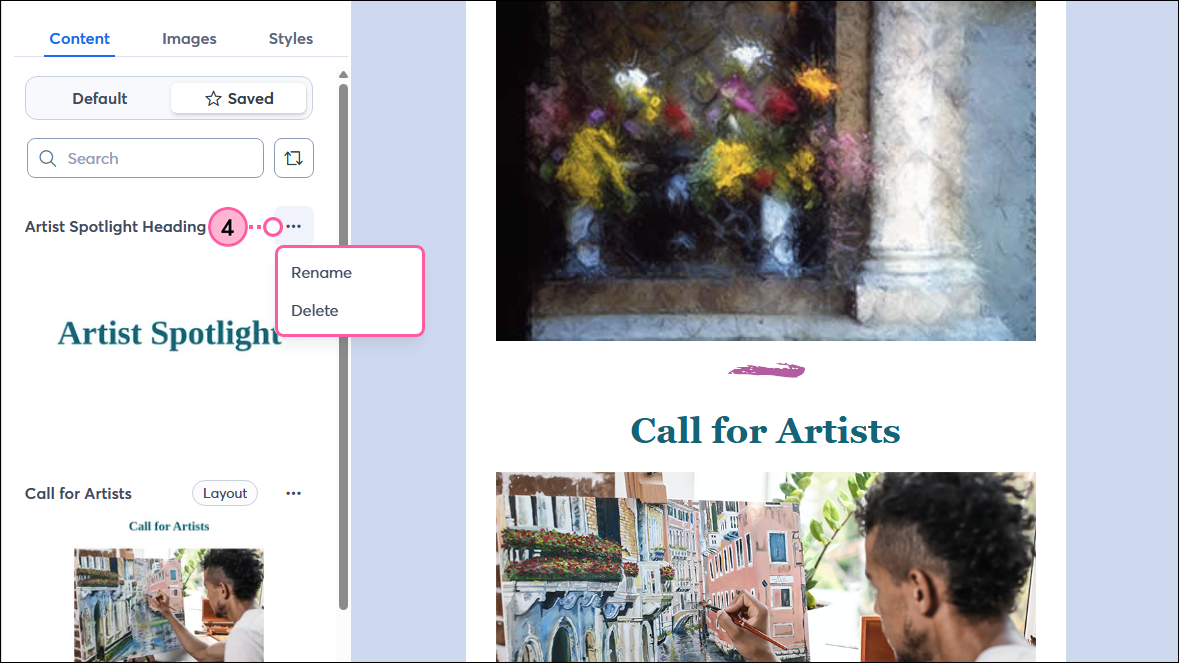
  4. (Optional) To rename or delete a piece of saved content, simply click the three dots and select the option from the drop-down.

    Email editor, Content panel, Saved tab, Saved content More drop-down with Rename and Delete options

Once inserted, you can edit the content as needed without affecting the content in your Saved library. If you want to make changes to the content saved in your library, you’ll need to save a new version of the content block or layout. You can then delete the original saved content to avoid any confusion.


Questions?

Ask the Community

Did this article answer your question?


Constant Contact Logo

Copyright © 2026 · All Rights Reserved · Constant Contact · Privacy Center