Have contacts stored on your device, in a third-party app, or in a vCard or VCF (Virtual Contact File) that you want to add to your Constant Contact account? You can easily import an entire contact list or individual contacts that are saved on your device, share contacts from a third-party messaging app, like Mail or WhatsApp, or import contacts from a .vcf file directly into the Constant Contact mobile app.
Import an individual phone contact
Steps on iOS:
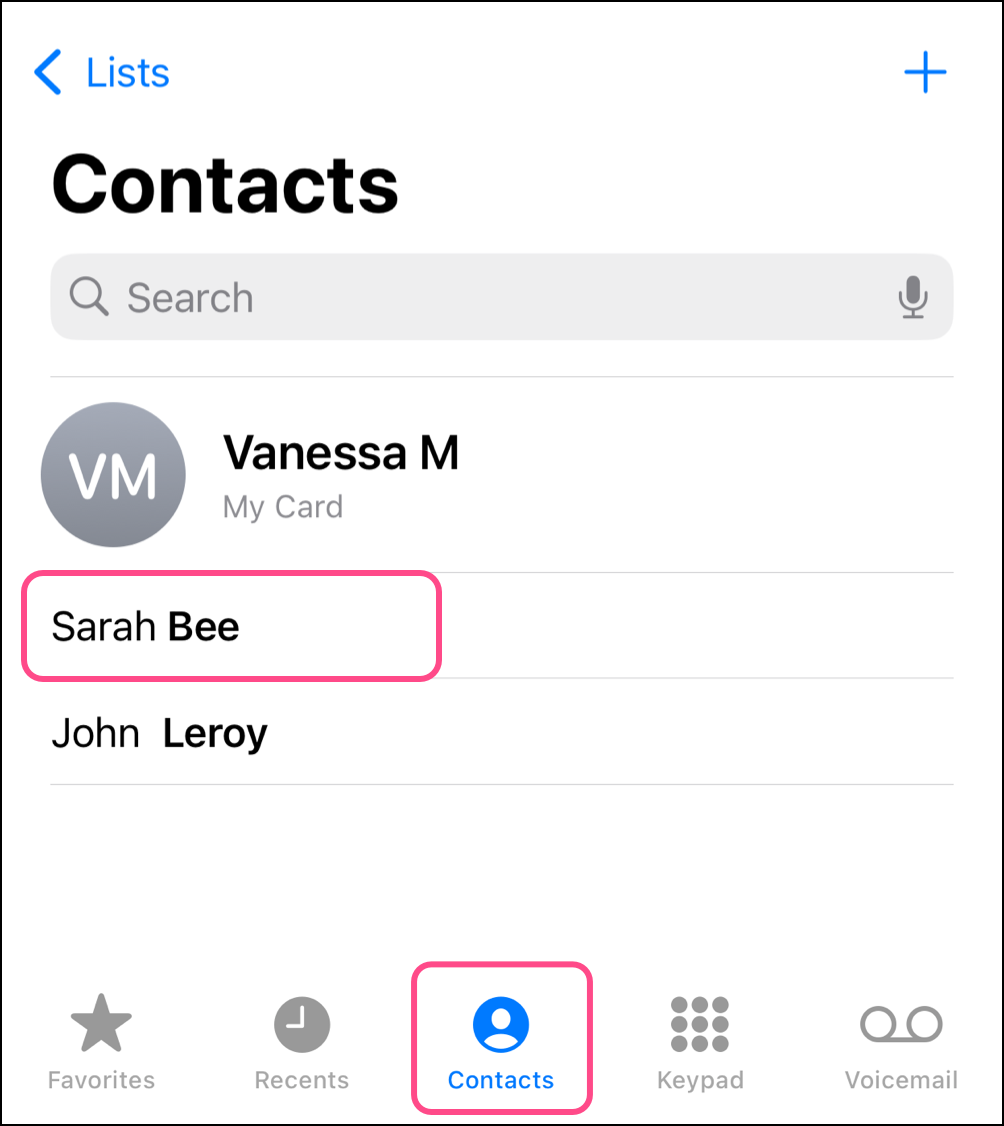
- Open your phone's dialing app and tap on Contacts.
- Long-press on the contact name you want to import contacts from.
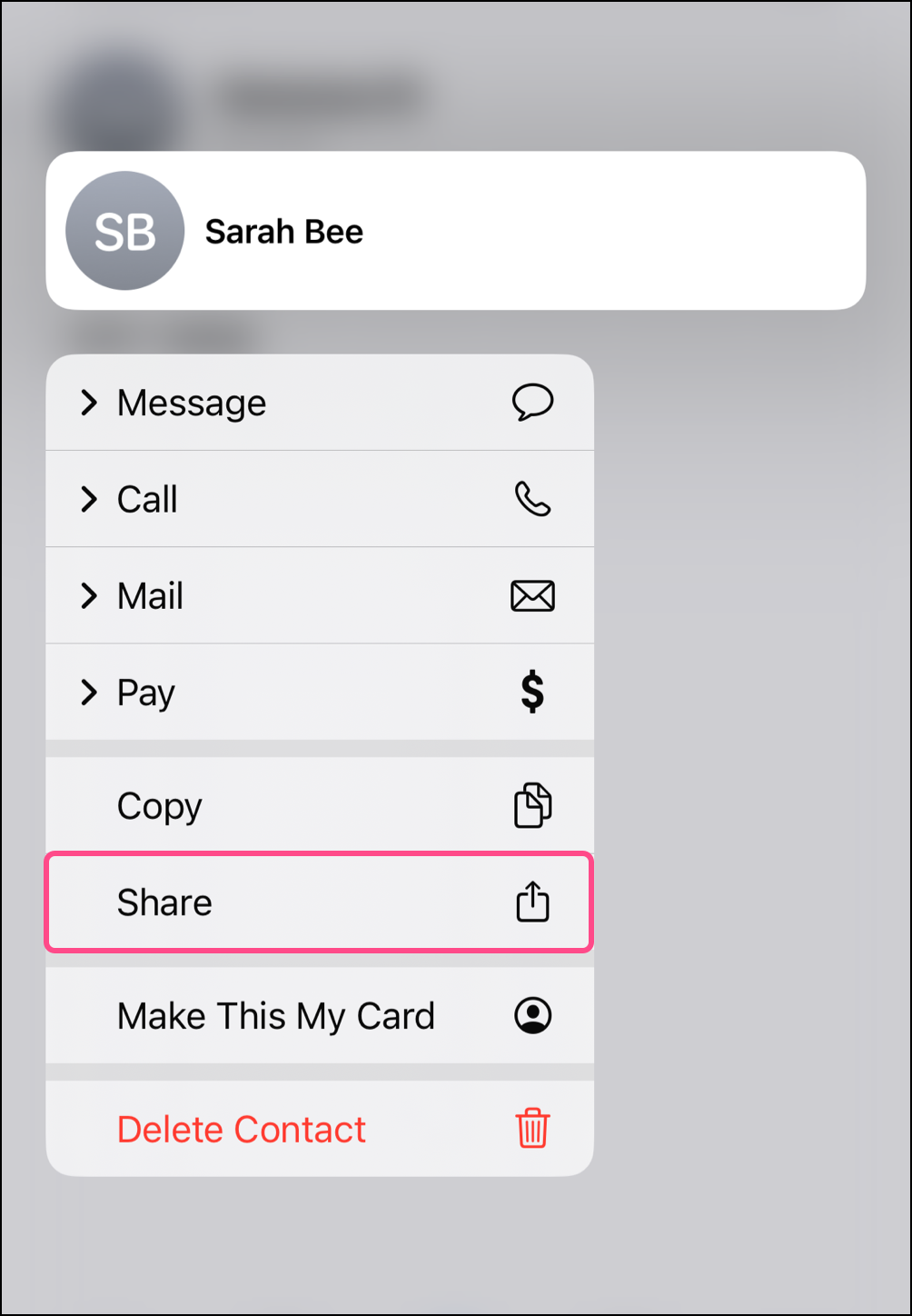
- Select Share.
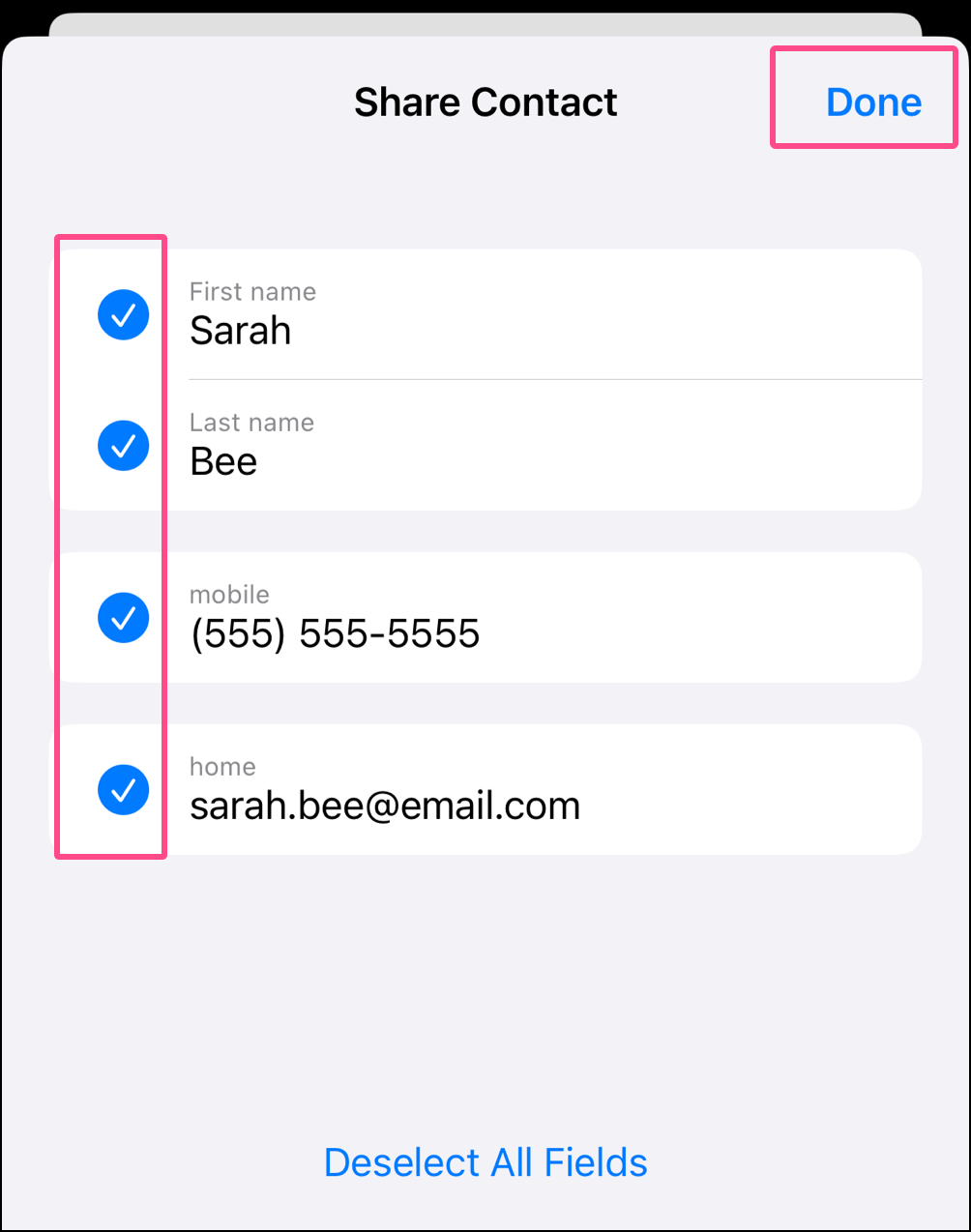
- Tap to select the contact details you want to include in your import, then tap Done.
- Tap on the Constant Contact app.
Note: If any contacts exist with the email address, you will be prompted to edit that existing contact.
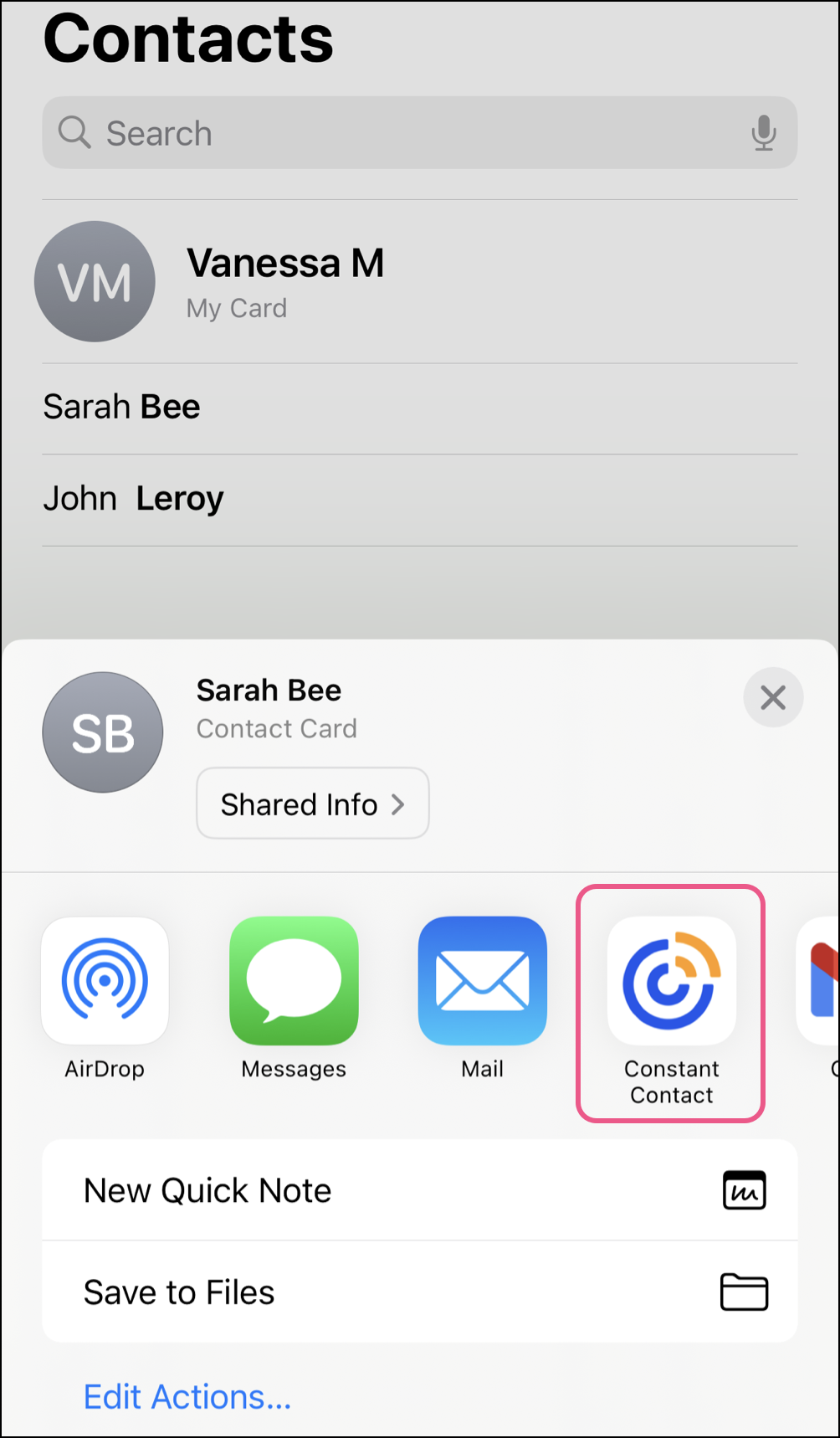
Note: If you do not see the Constant Contact app in the immediate list of shareable apps, tap More and look for it in the larger list of available applications. If you still cannot find it, you can import device contacts using the features in the Constant Contact app. Learn more.
Steps on Android
- Open your phone's Contacts list.
- Tap on the contact name you want to import.
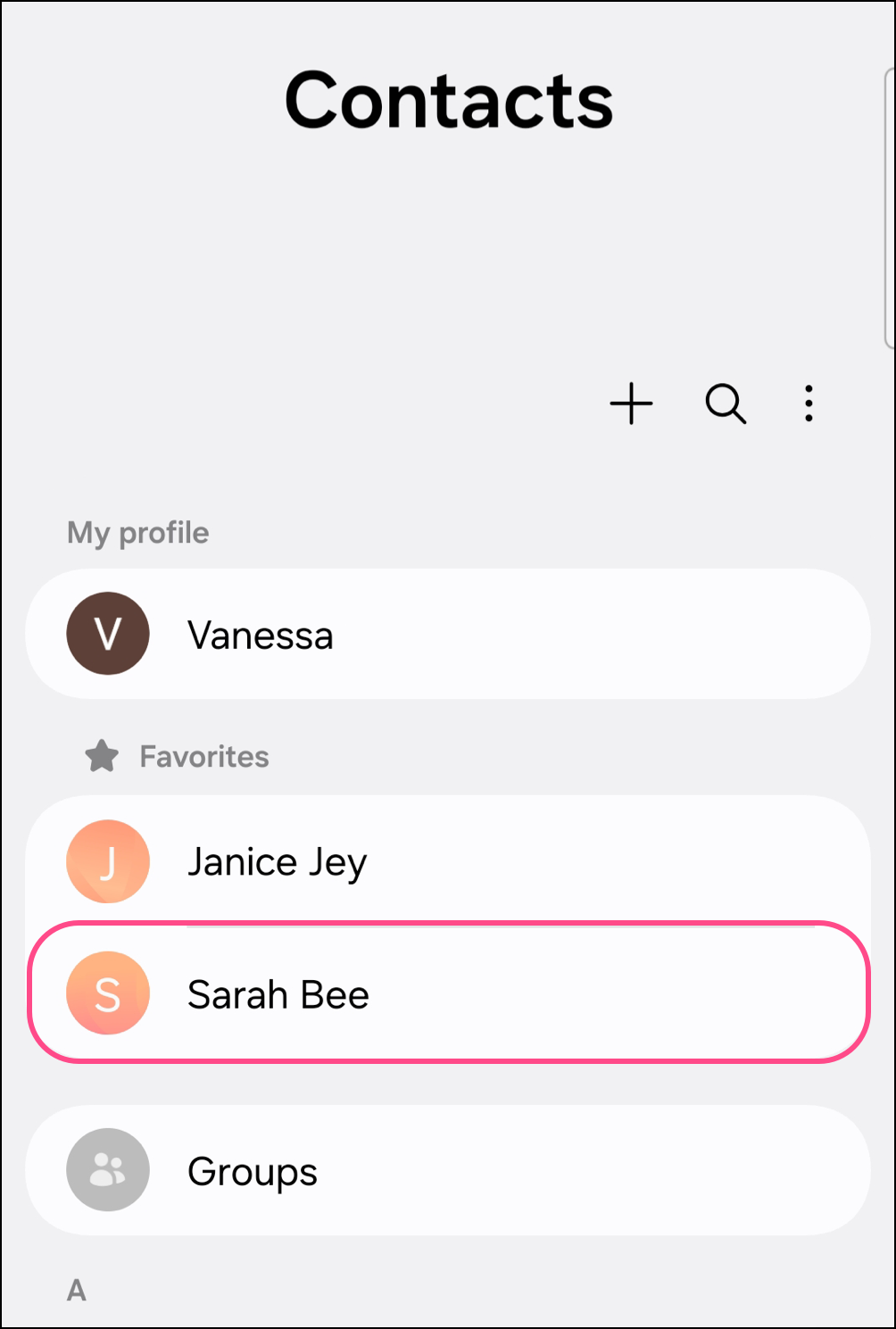
- Tap Share.
- Choose the method for importing:
- vCard file: A vCard (also known as a vcf file) contact is a specific file type dedicated to contact sharing and designed to automatically import important contact details (like name, phone number, email address, etc.) directly into a phone's address book.
- Text: A plain text contact simply displays information to be read or copied manually.
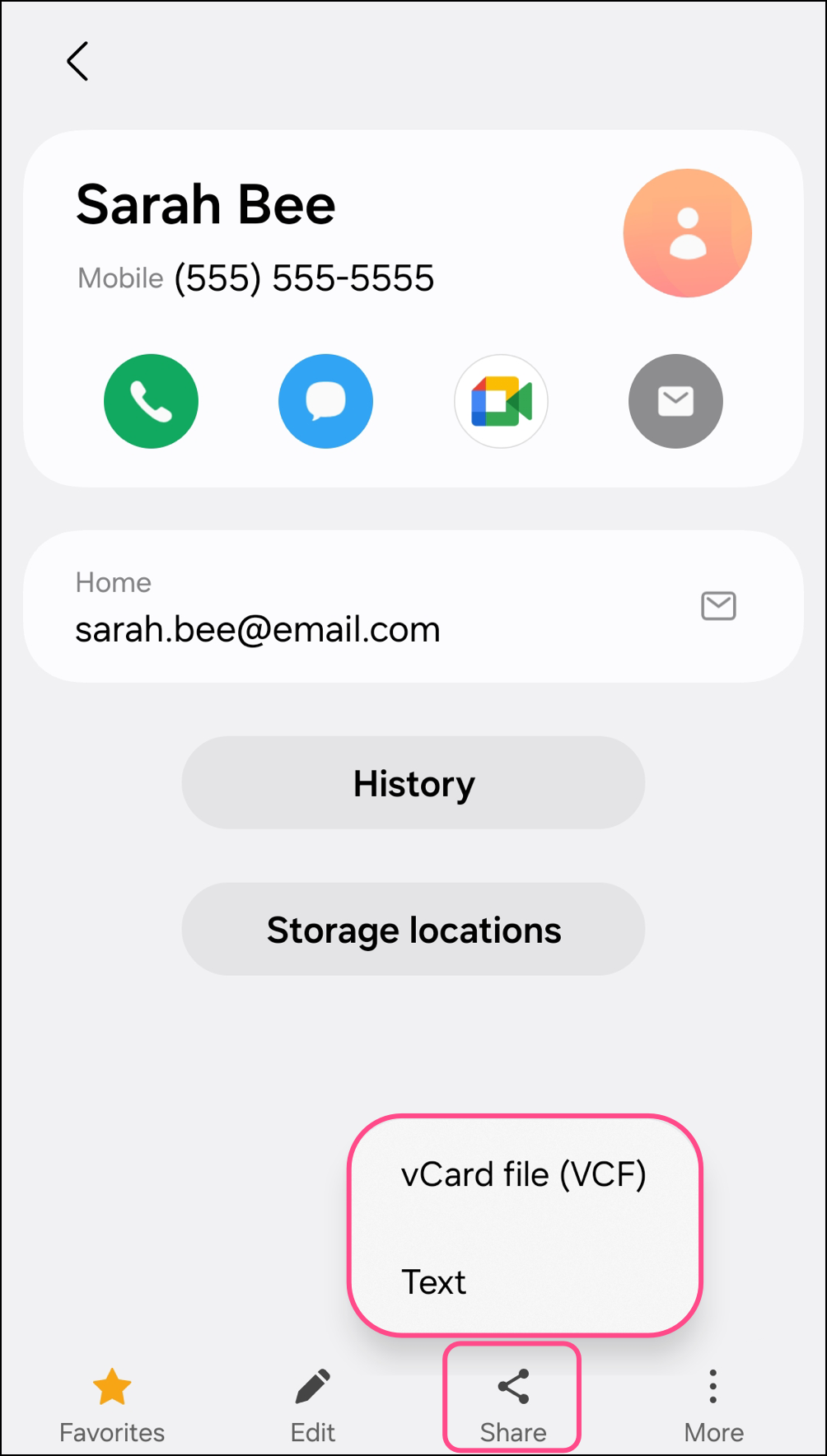
- Select contact information to import, and tap Done.
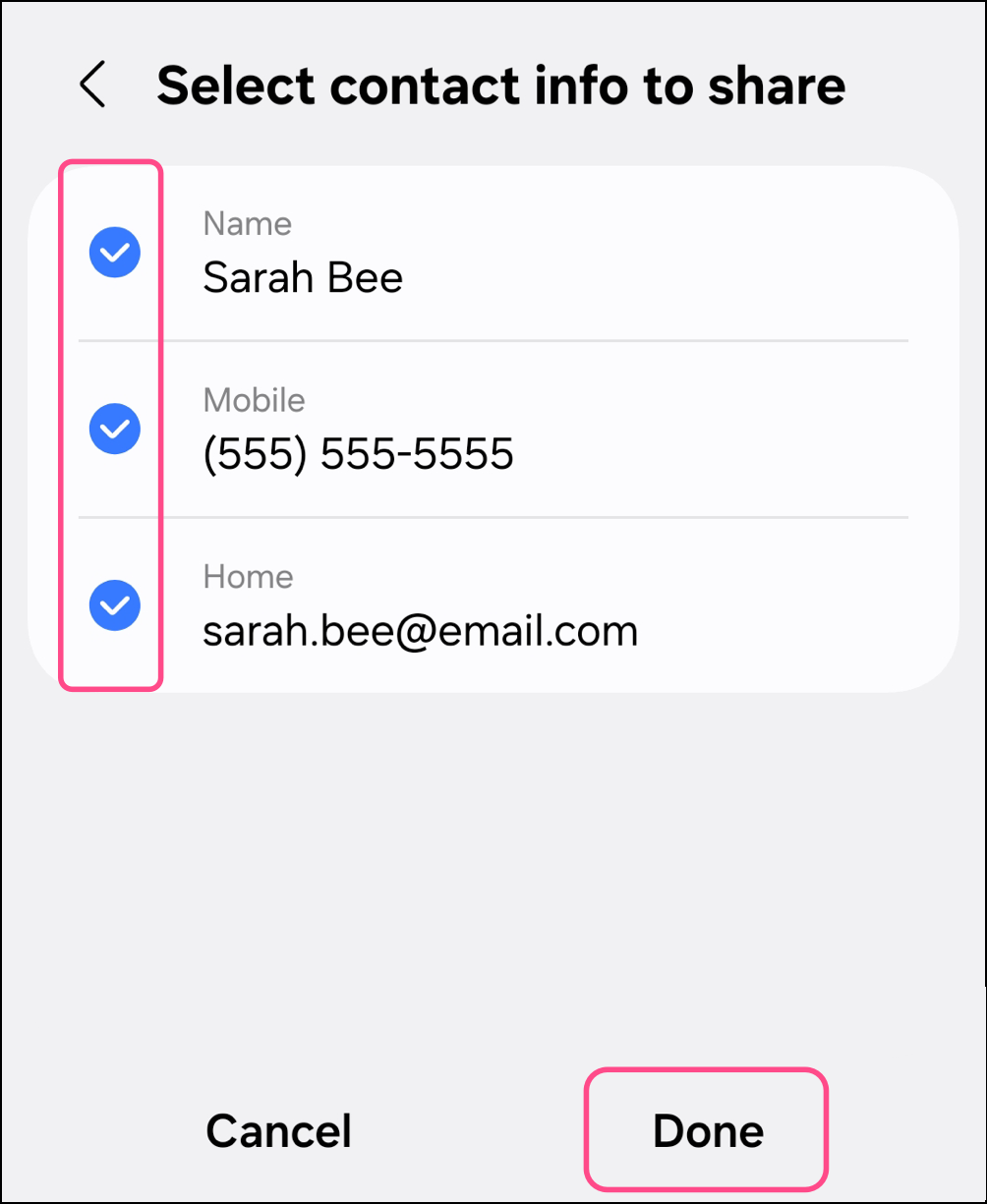
- Tap the Constant Contact app.
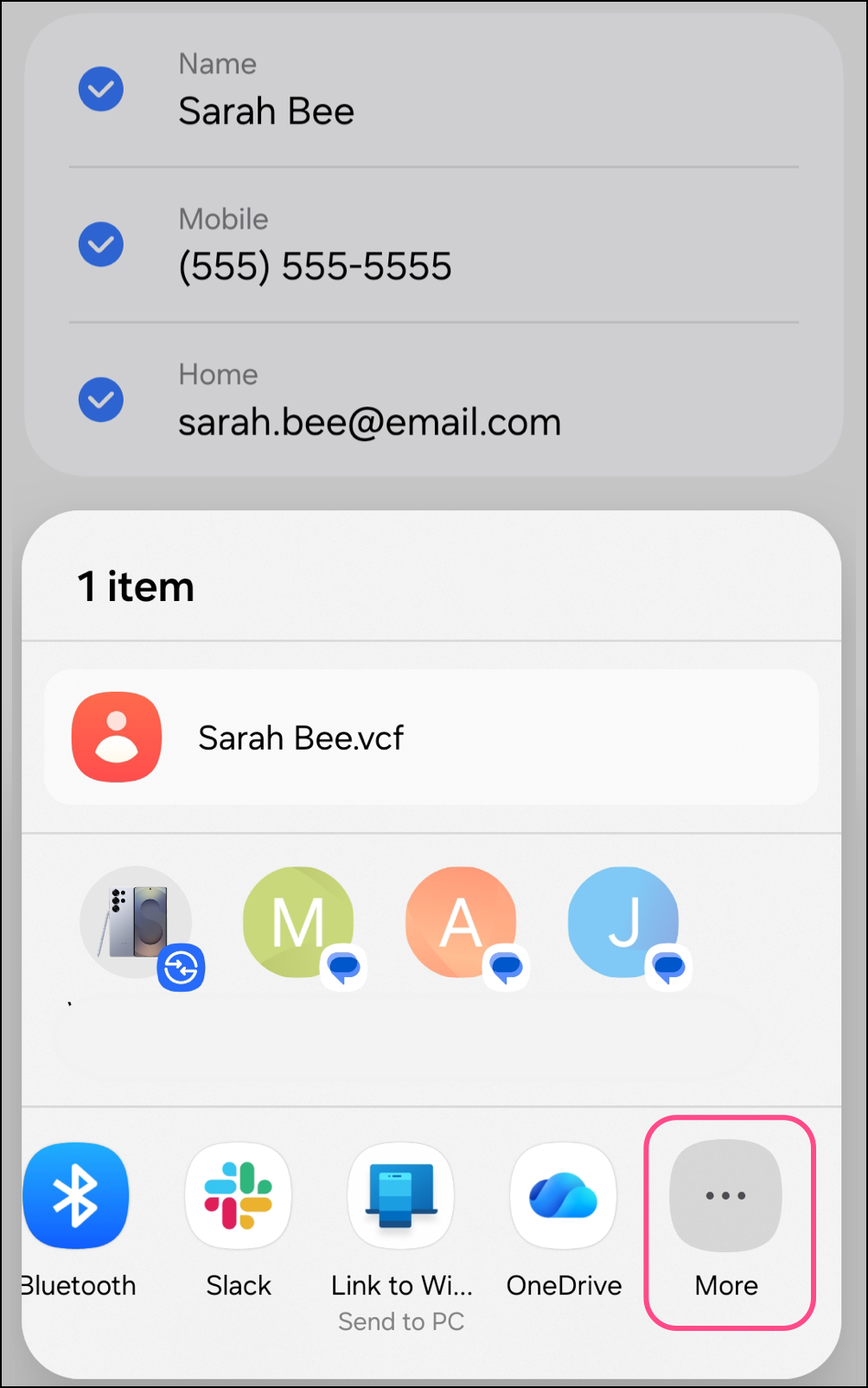
Note: If you do not see the Constant Contact app in the immediate list of shareable apps, tap More and look for it in the larger list of available applications. If you still cannot find it, you can import device contacts using the features in the Constant Contact app. Learn more.
Bulk Import using Contact Lists on your Phone
Steps on iOS
If you have existing contact lists on your phone or you want to bulk-select multiple individual phone contacts to import, you'll need to navigate to the Lists option on your iPhone.
- Open your phone's dialing app and tap on Contacts.
- Tap the "Lists" button in the top left corner of the page.
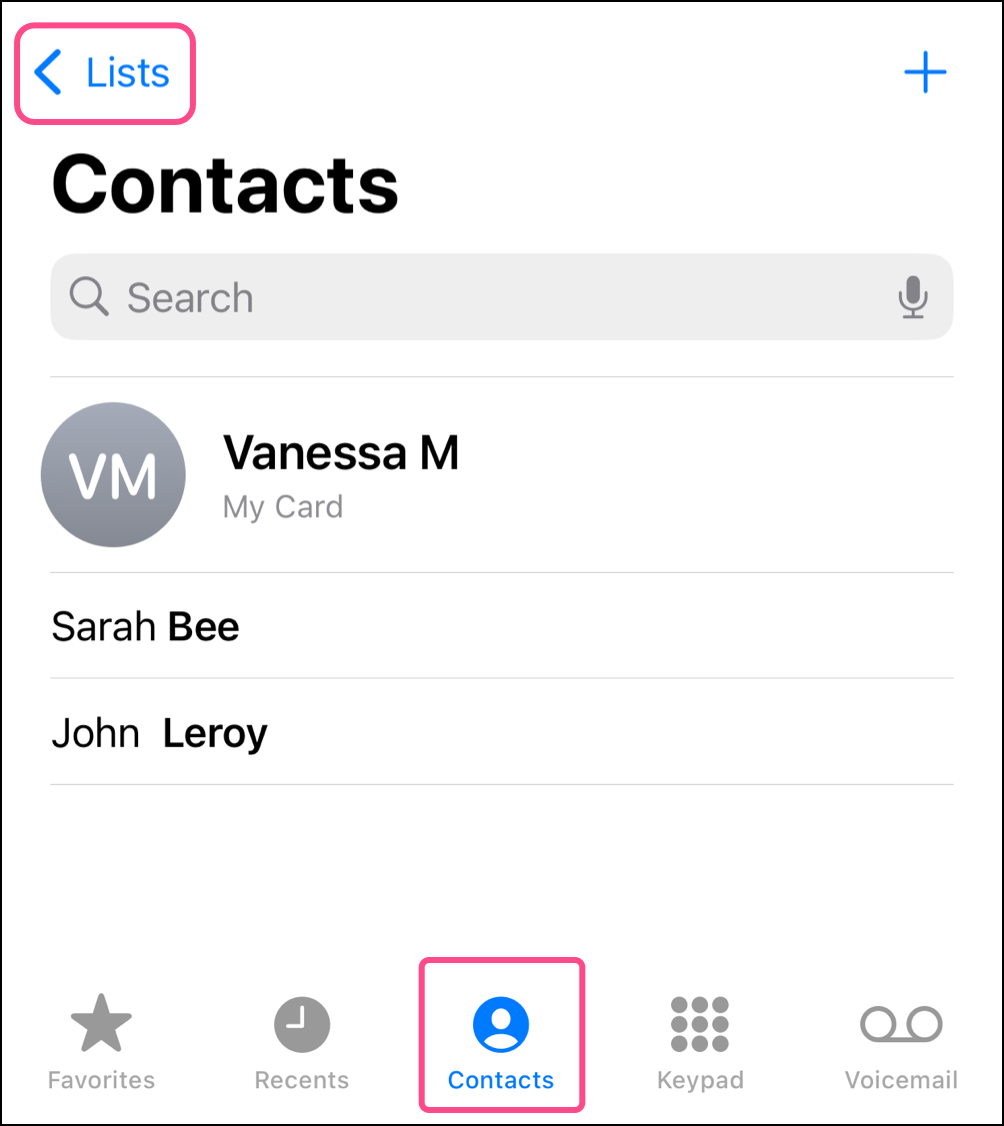
- Optionally, tap Add Lists to add lists.
- Long-press the list name you want to import.
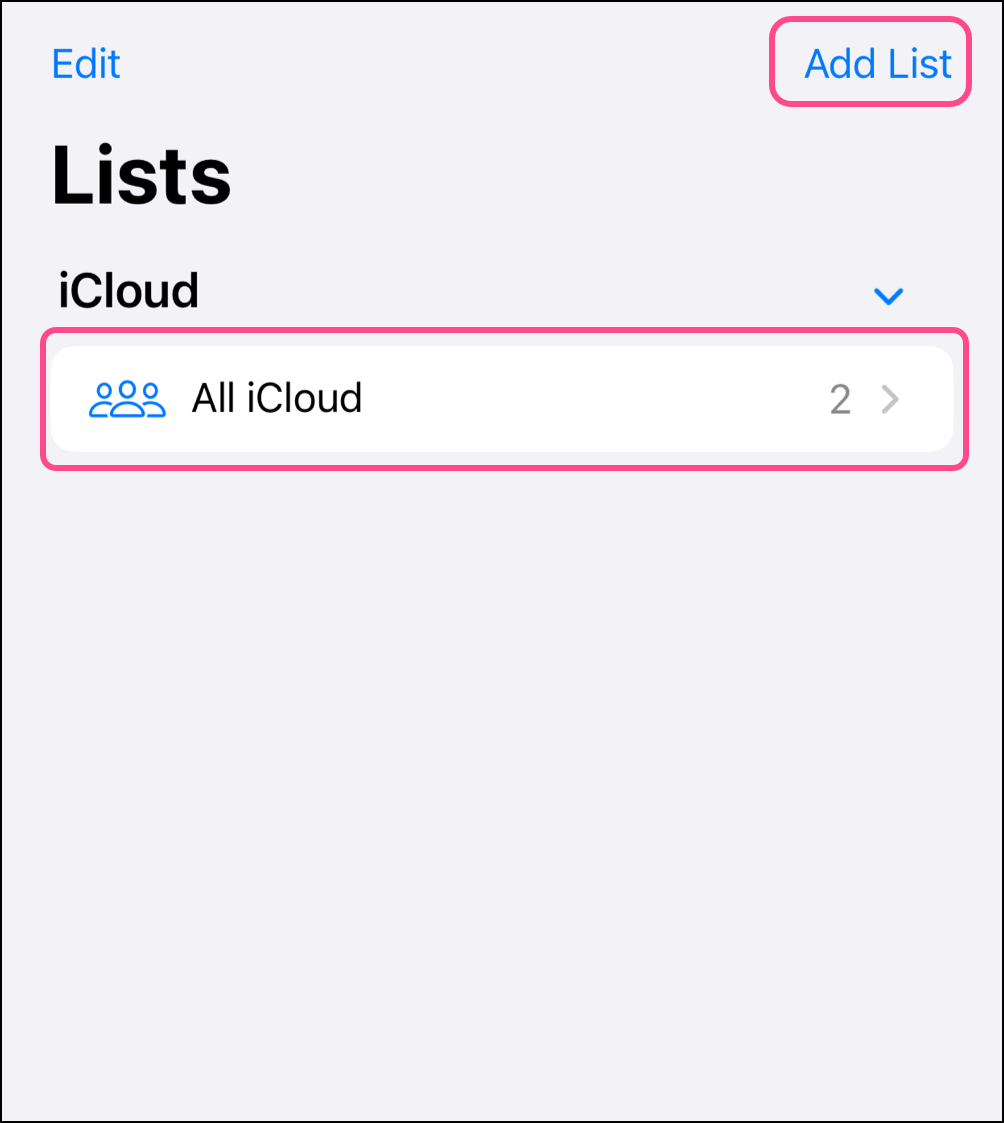
- Tap Export.
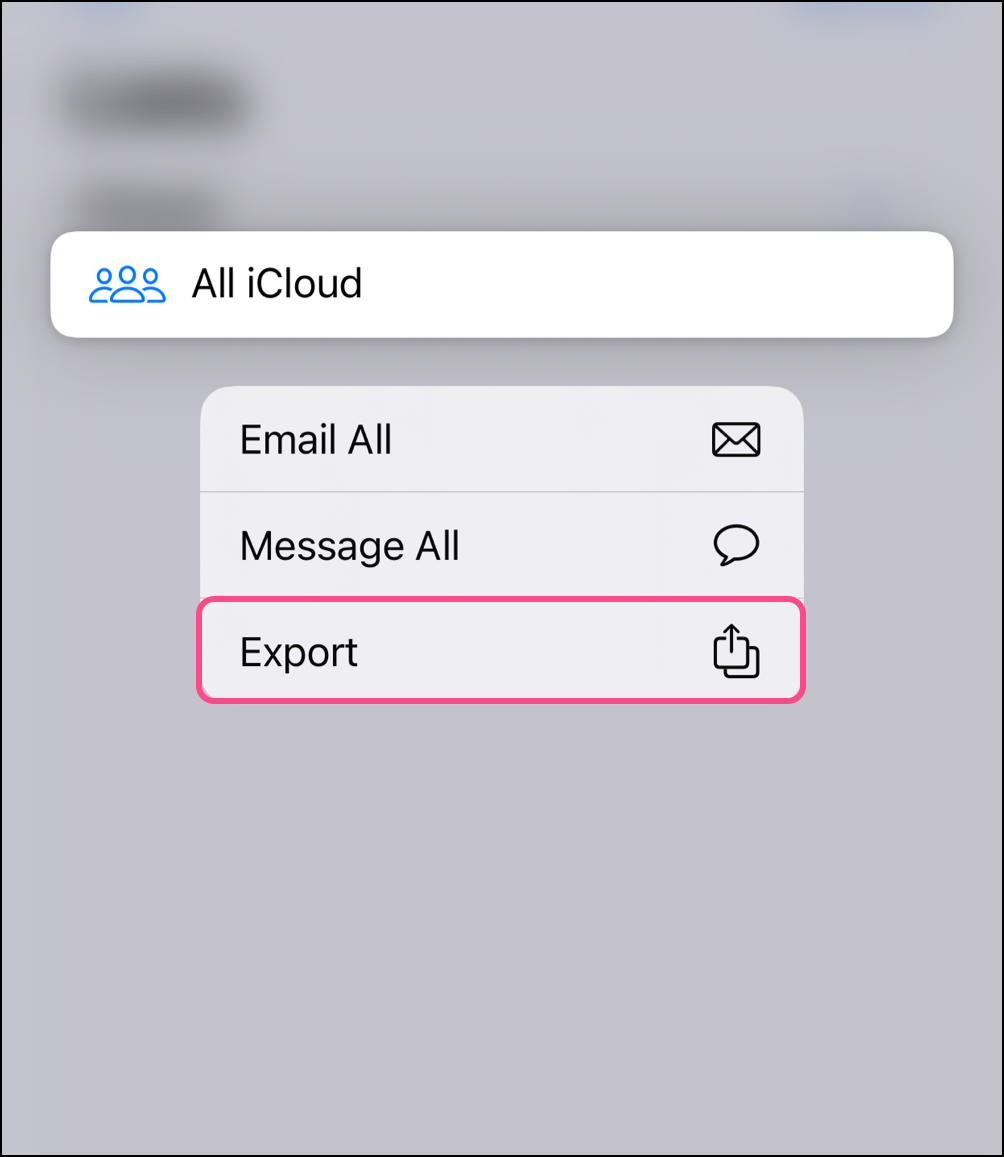
- Select the fields you want to import, then tap Done.
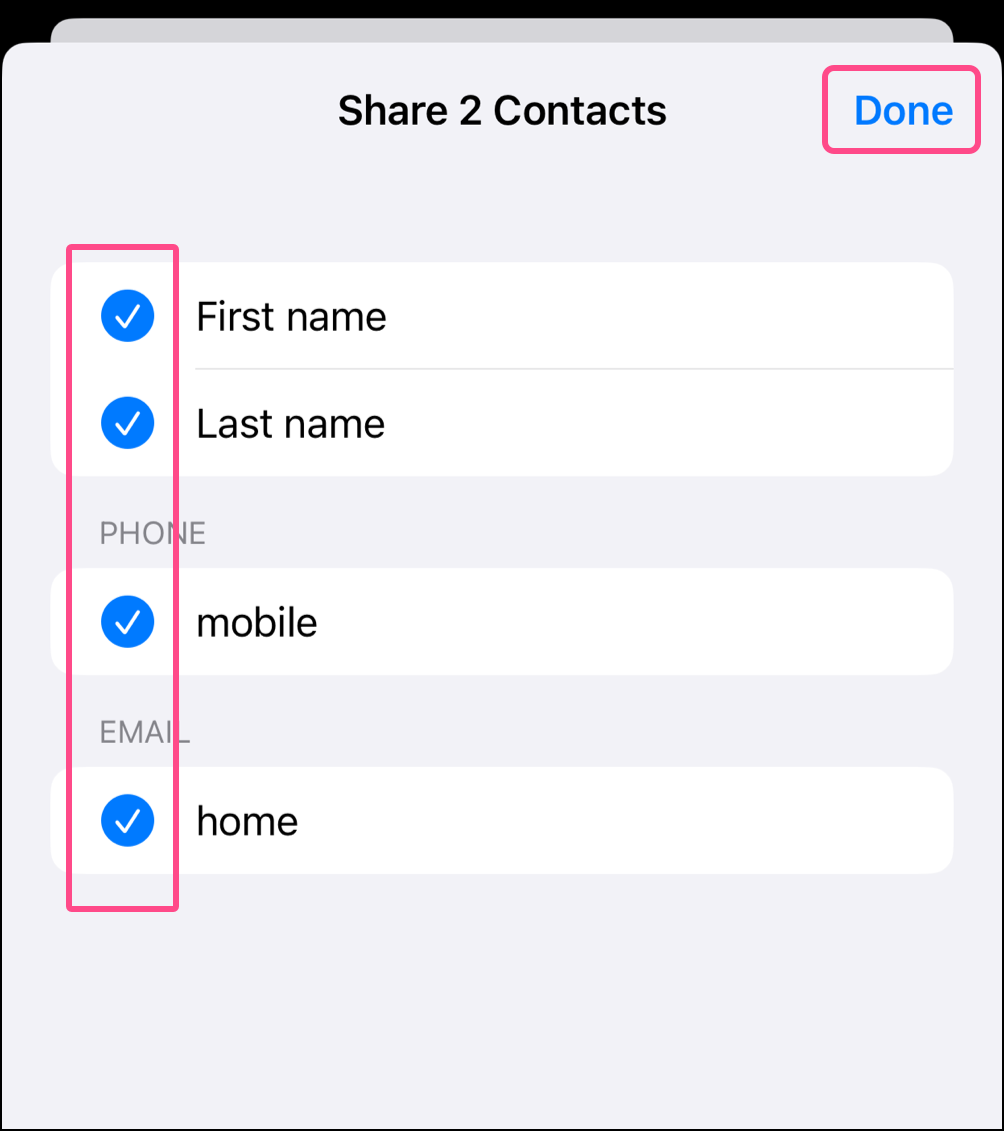
- Tap on the Constant Contact app.
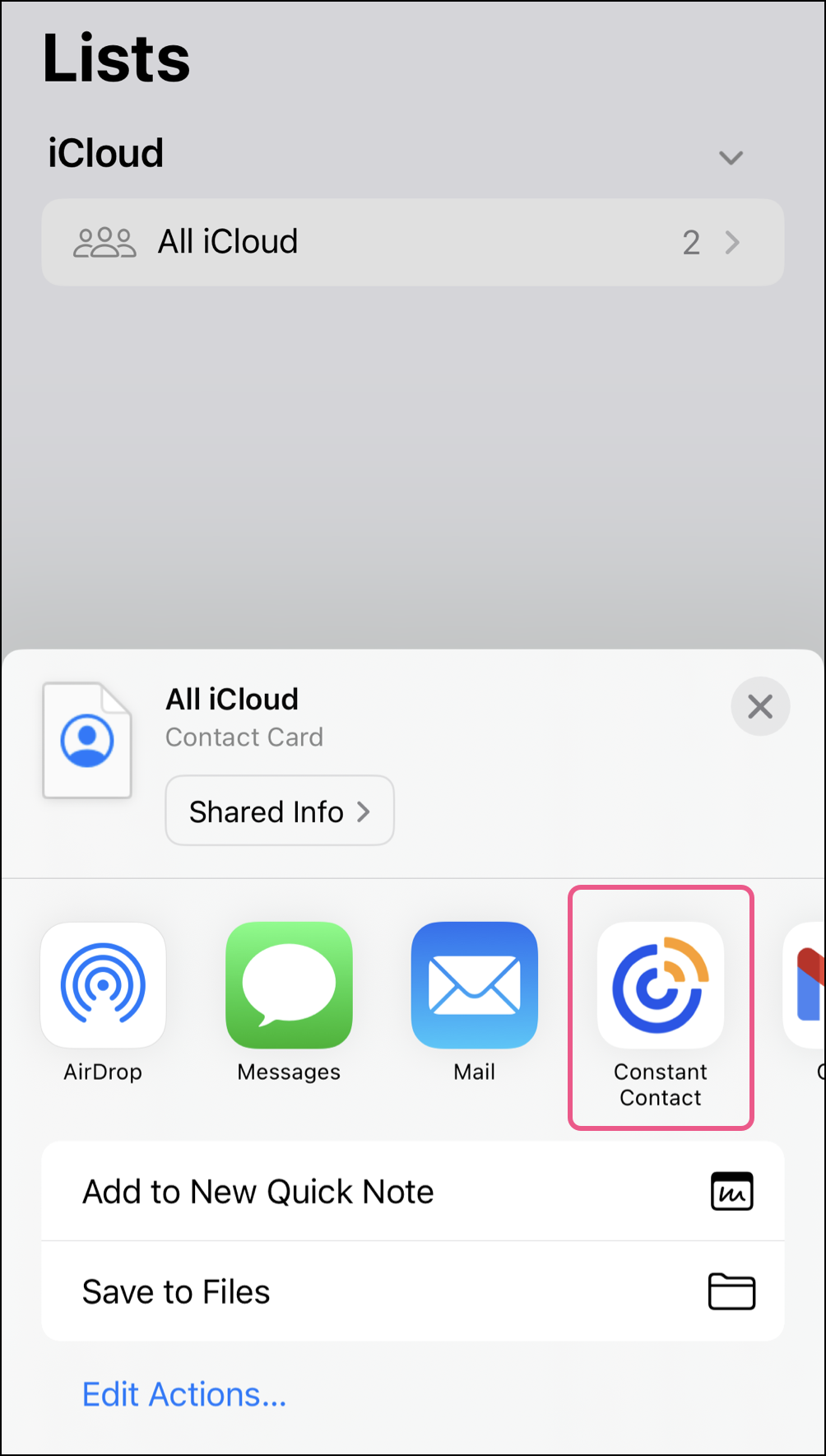
Note: If you do not see the Constant Contact app in the immediate list of shareable apps, tap More and look for it in the larger list of available applications. If you still cannot find it, you can import device contacts using the features in the Constant Contact app. Learn more.
Steps on Android
There are two ways to bulk select imports: import entire groups or check multiple individual contacts.
Check multiple individual contacts
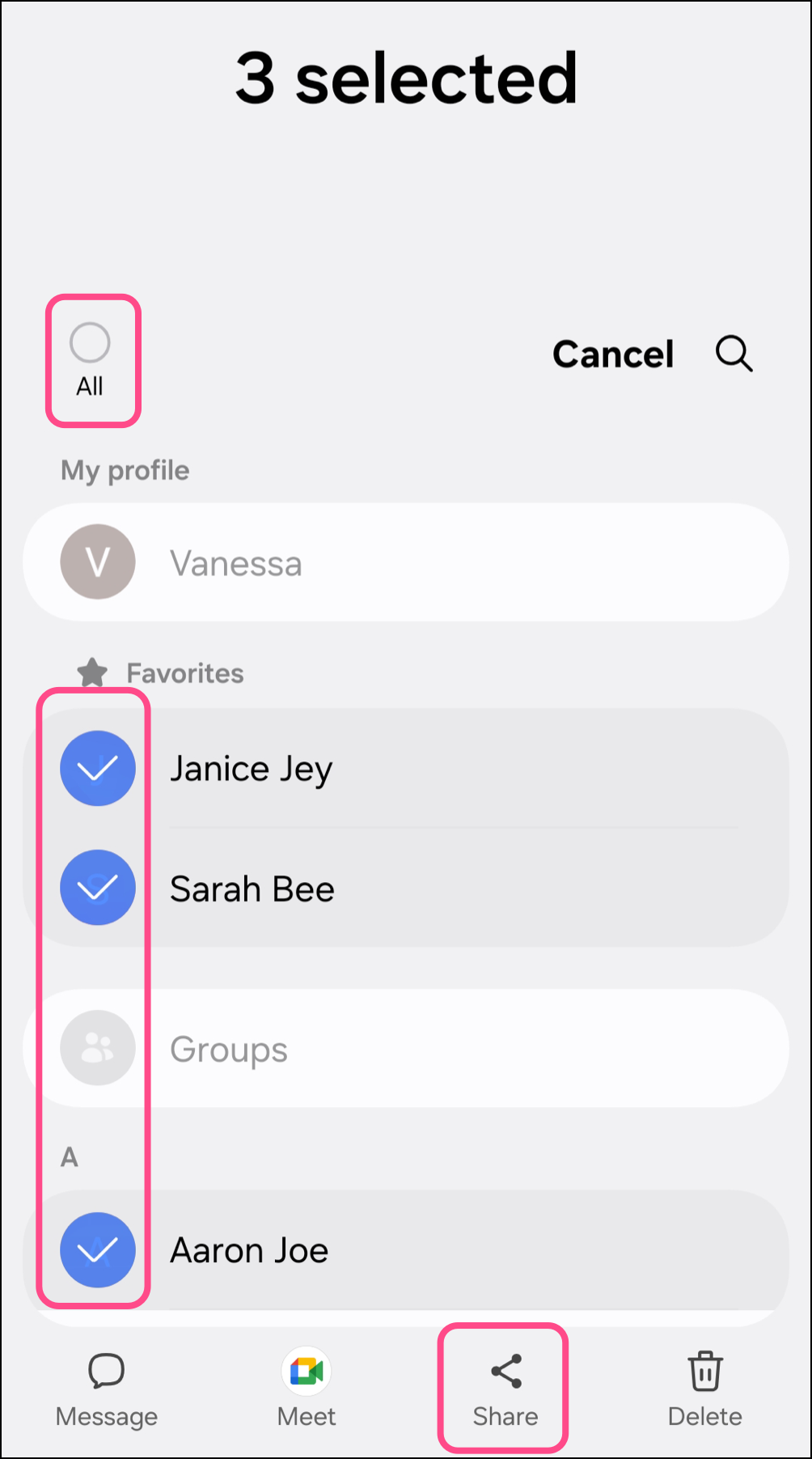
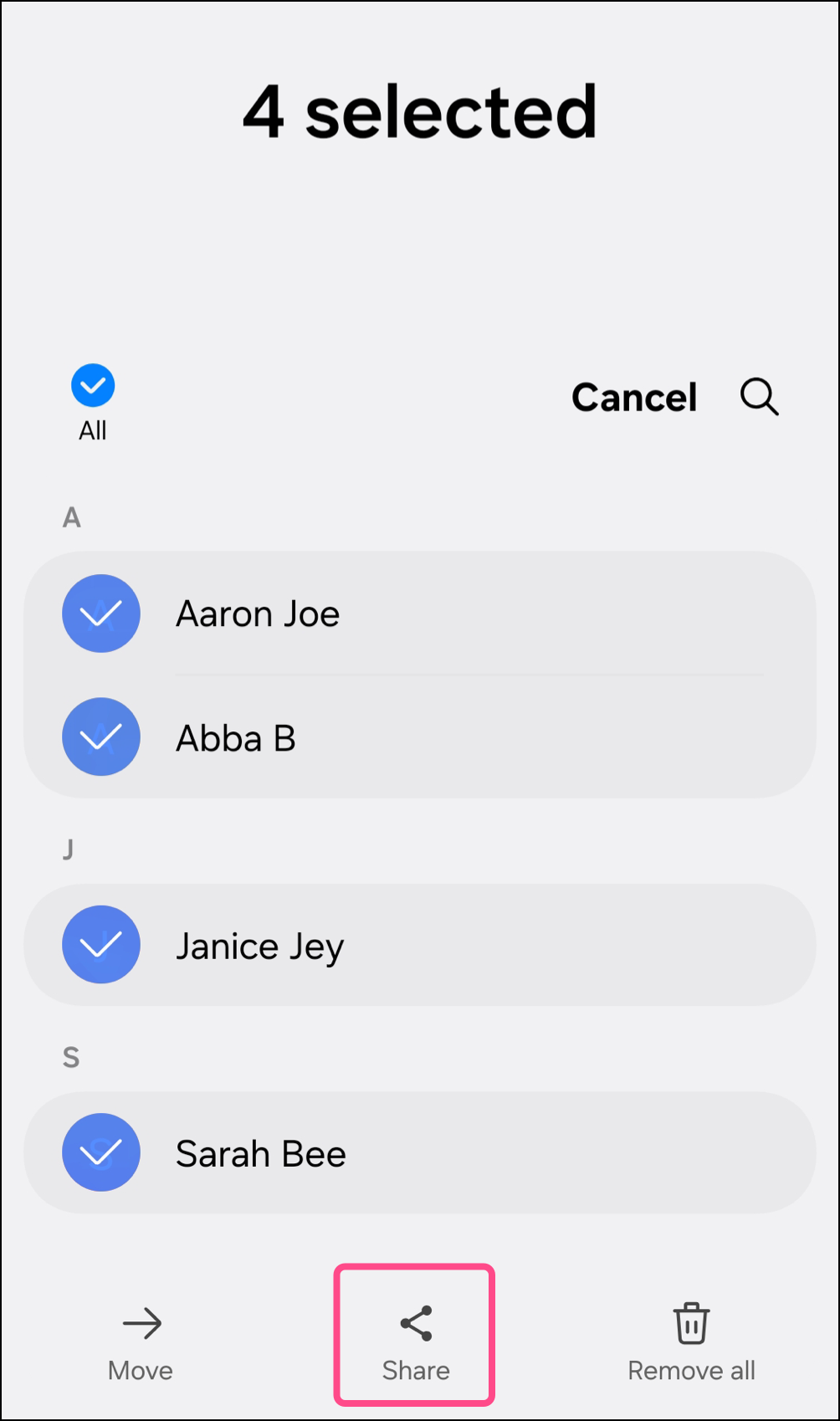
- To check multiple individual contacts, long-press on the first contact you want to import.
- When the checkmark appears, scroll through your list and continue tapping on the contacts you want to include.
- Optionally, tap All to select all contacts.
- Tap Share.
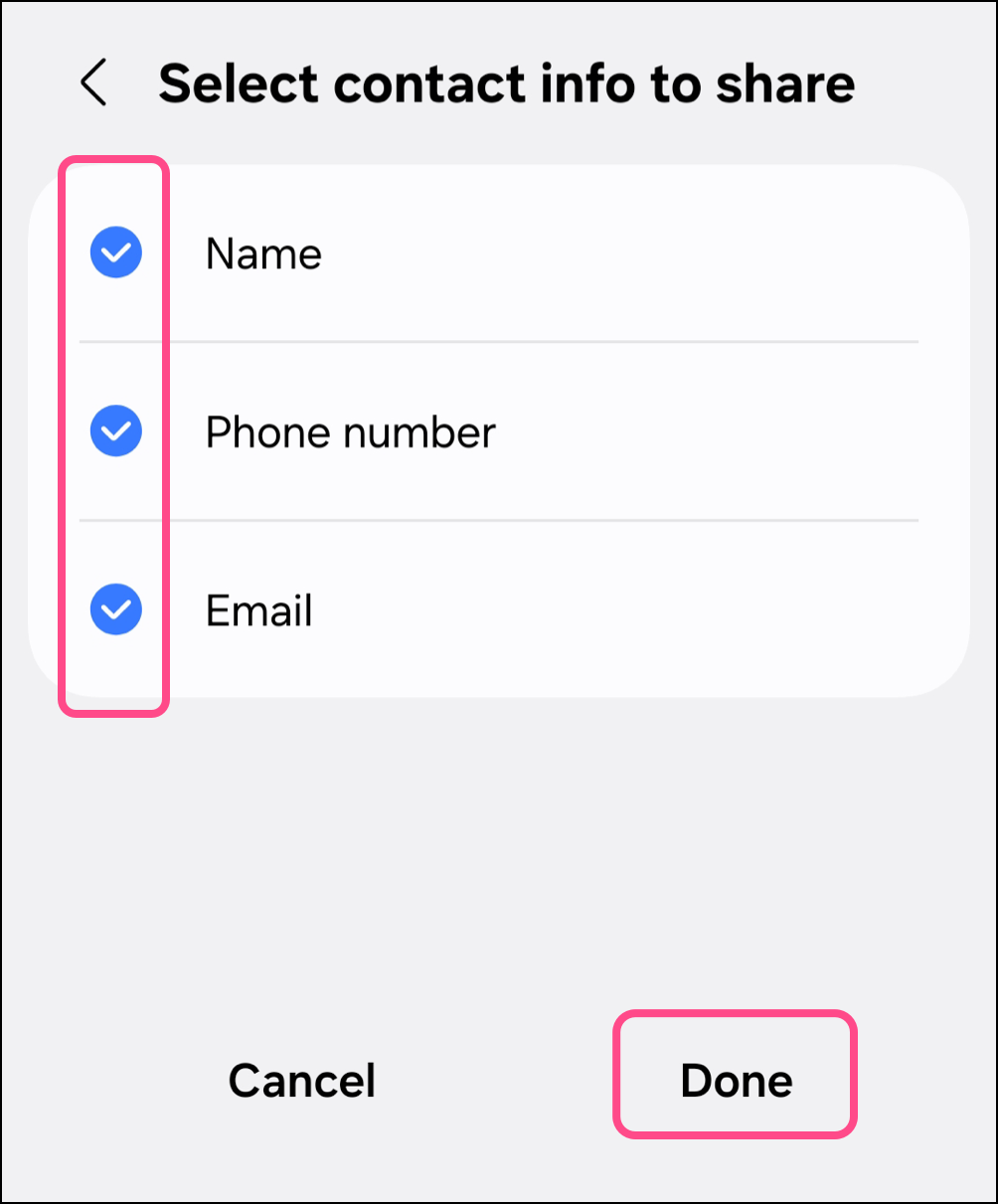
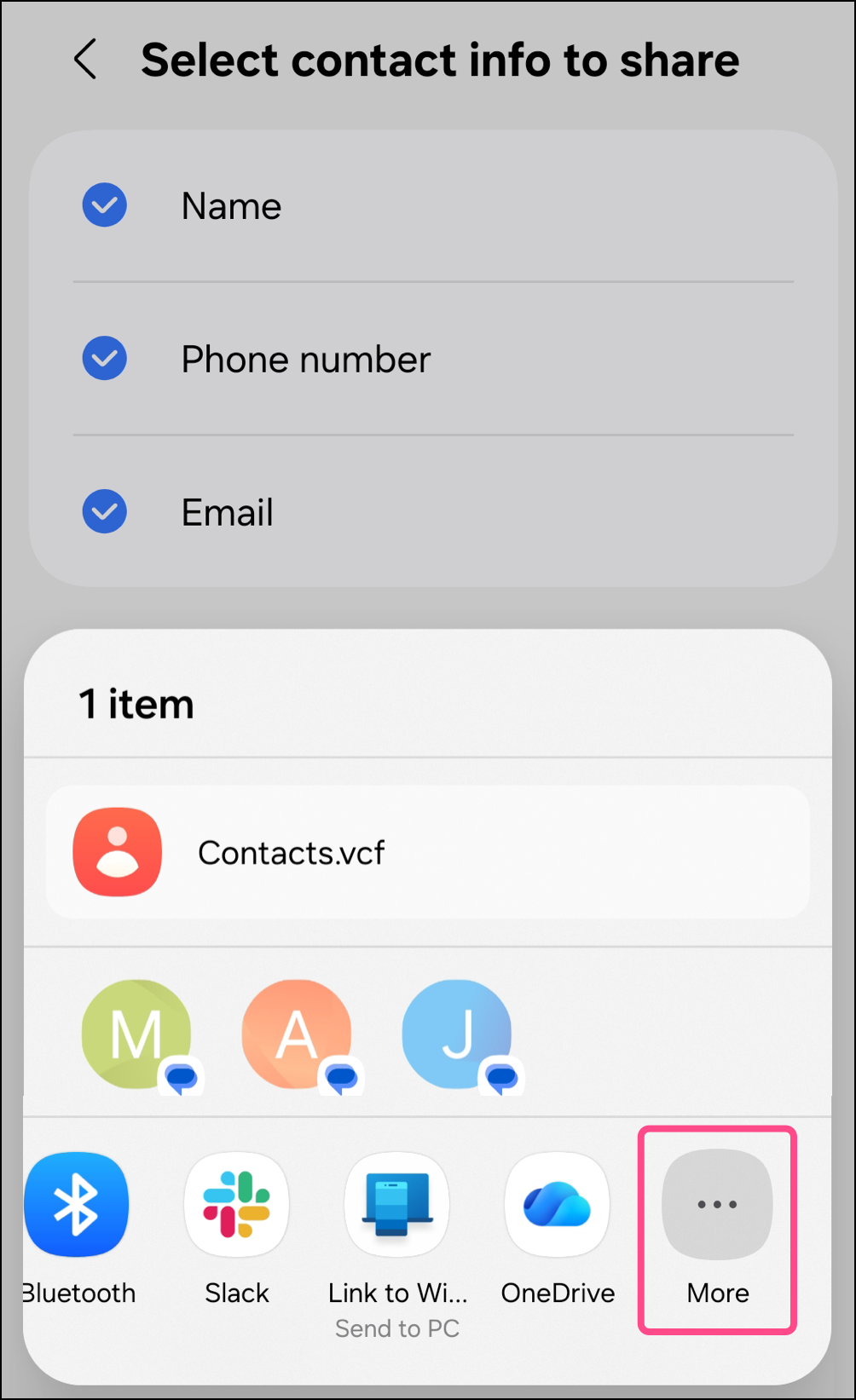
- Select the fields you want to include and tap Done.
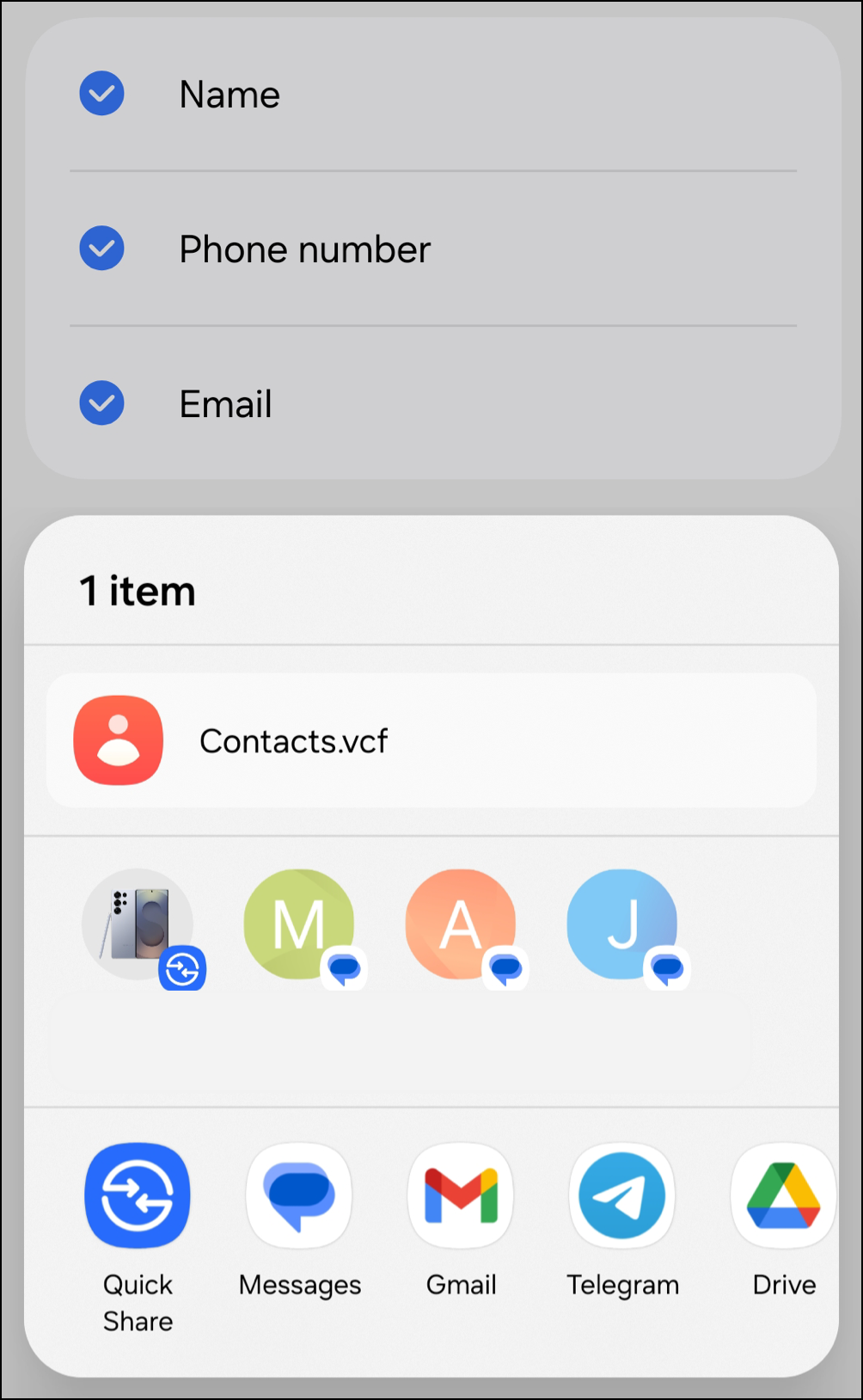
- Select the Constant Contact app.
Note: If you do not see the Constant Contact app in the immediate list of shareable apps, tap More and look for it in the larger list of available applications. If you still cannot find it, you can import device contacts using the features in the Constant Contact app. Learn more.
Import a group
- In the Contacts app, scroll through and tap on Groups.
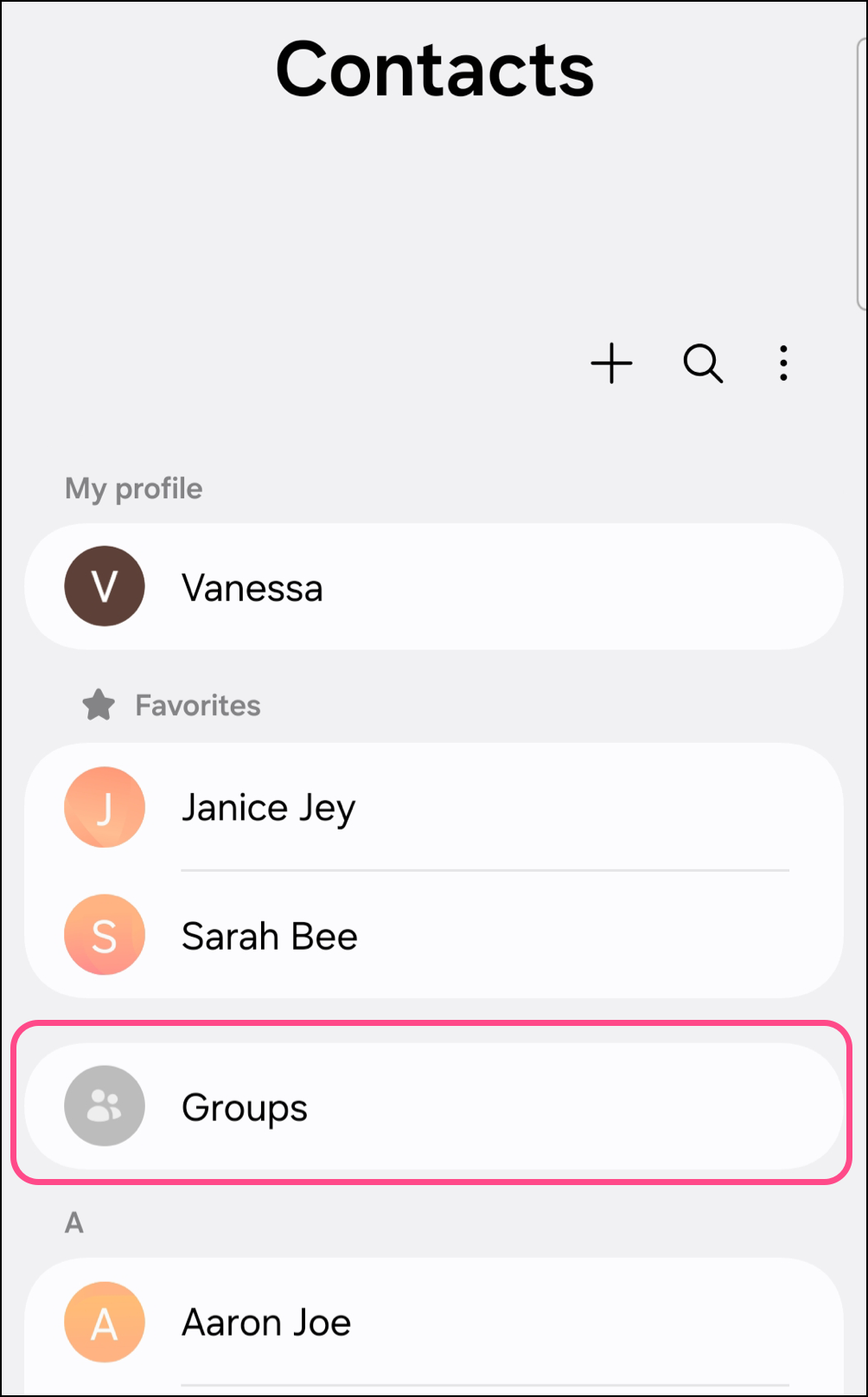
- Tap the Group you'd like to import.
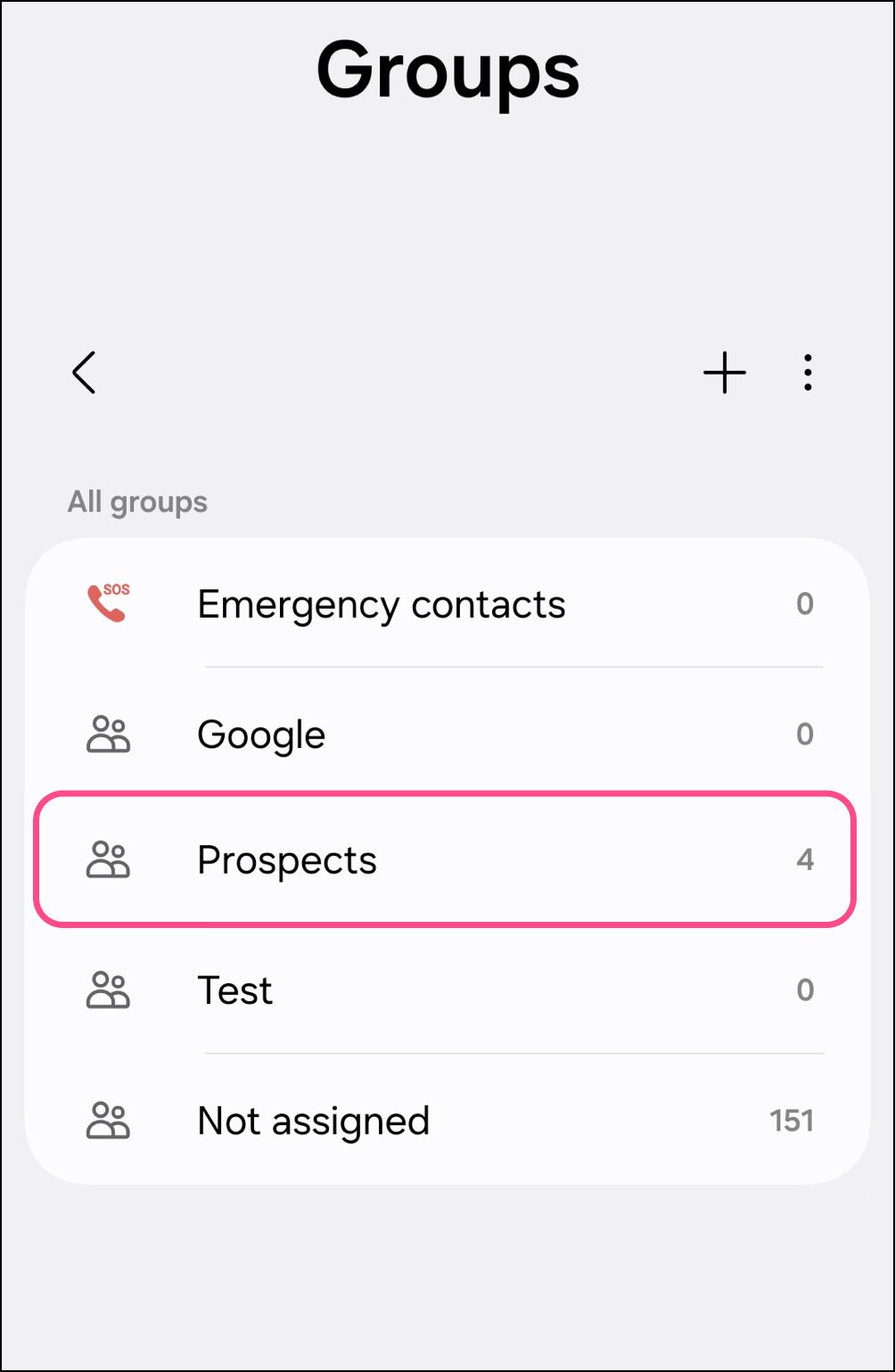
- Tap the three dots and choose "Select".
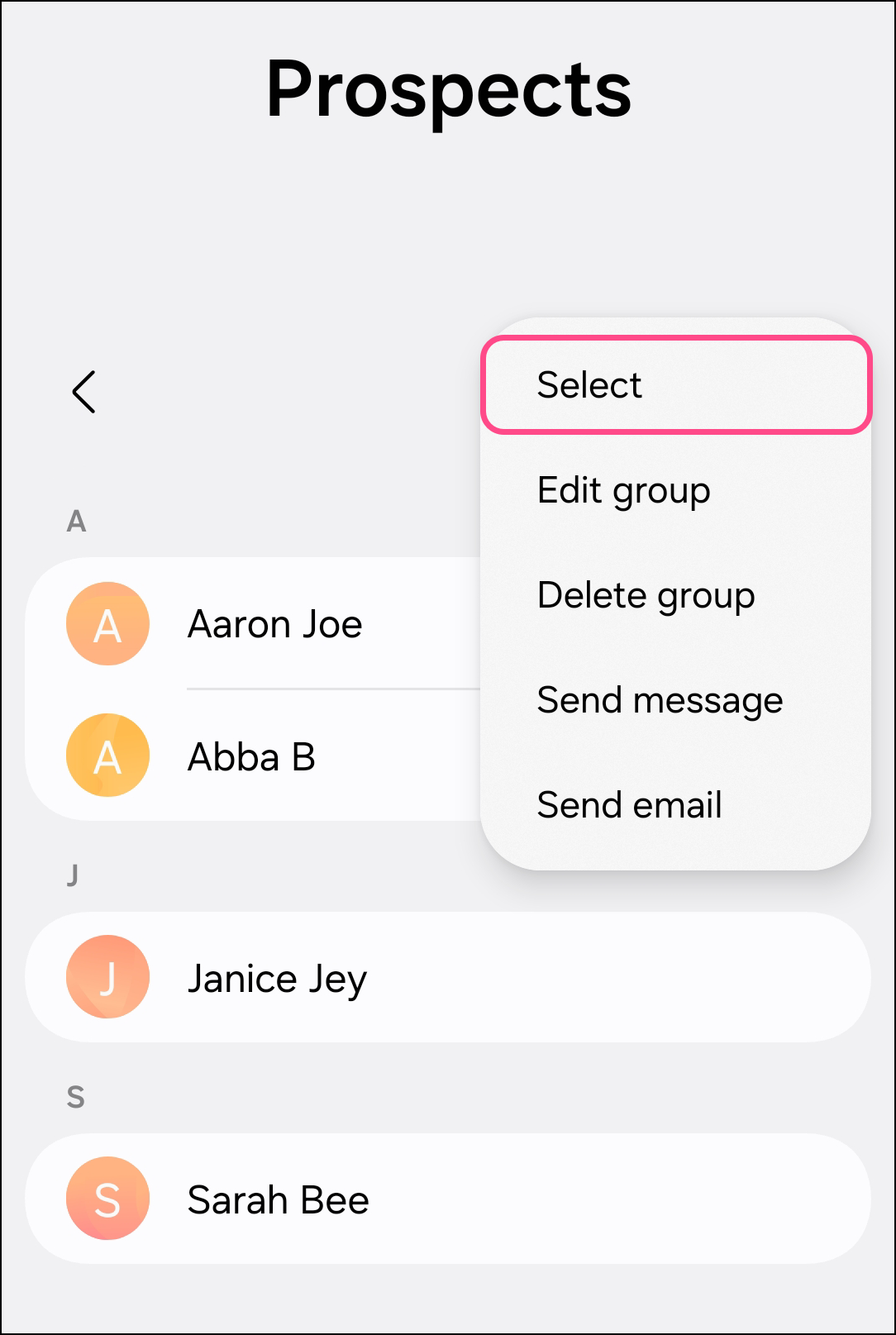
- Tap All to select all contacts in the group.
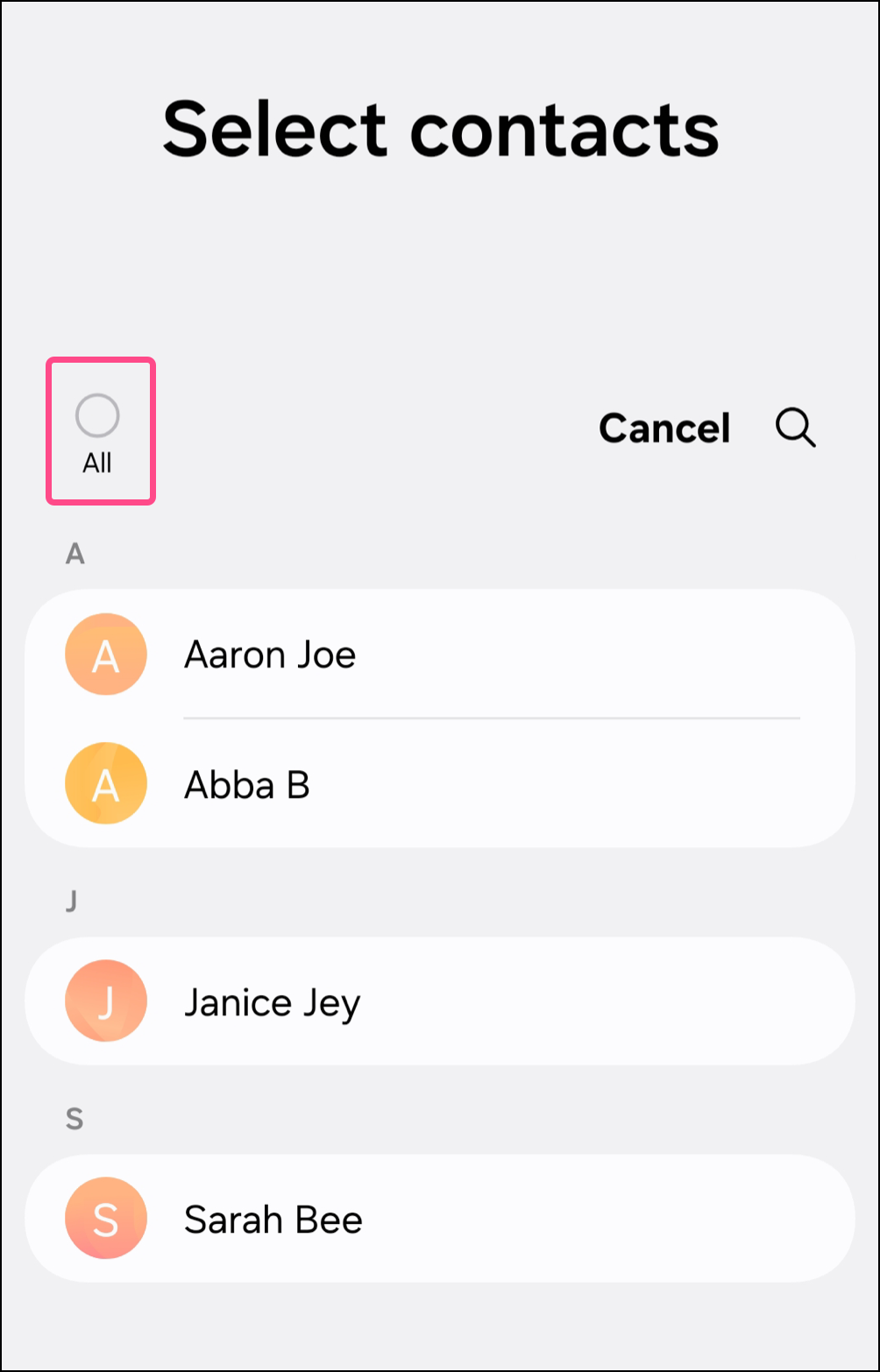
- Tap Share.
- Select the fields you want to include and then tap Done.
- Select the Constant Contact app.
Note: If you do not see the Constant Contact app in the immediate list of shareable apps, tap More and look for it in the larger list of available applications. If you still cannot find it, you can import device contacts using the features in the Constant Contact app. Learn more.
Set up Imported Contacts
Once you've selected your contacts, Groups, or Lists and sent them over to the Constant Contact app, you can complete the import process. Follow these steps on Android or iOS.
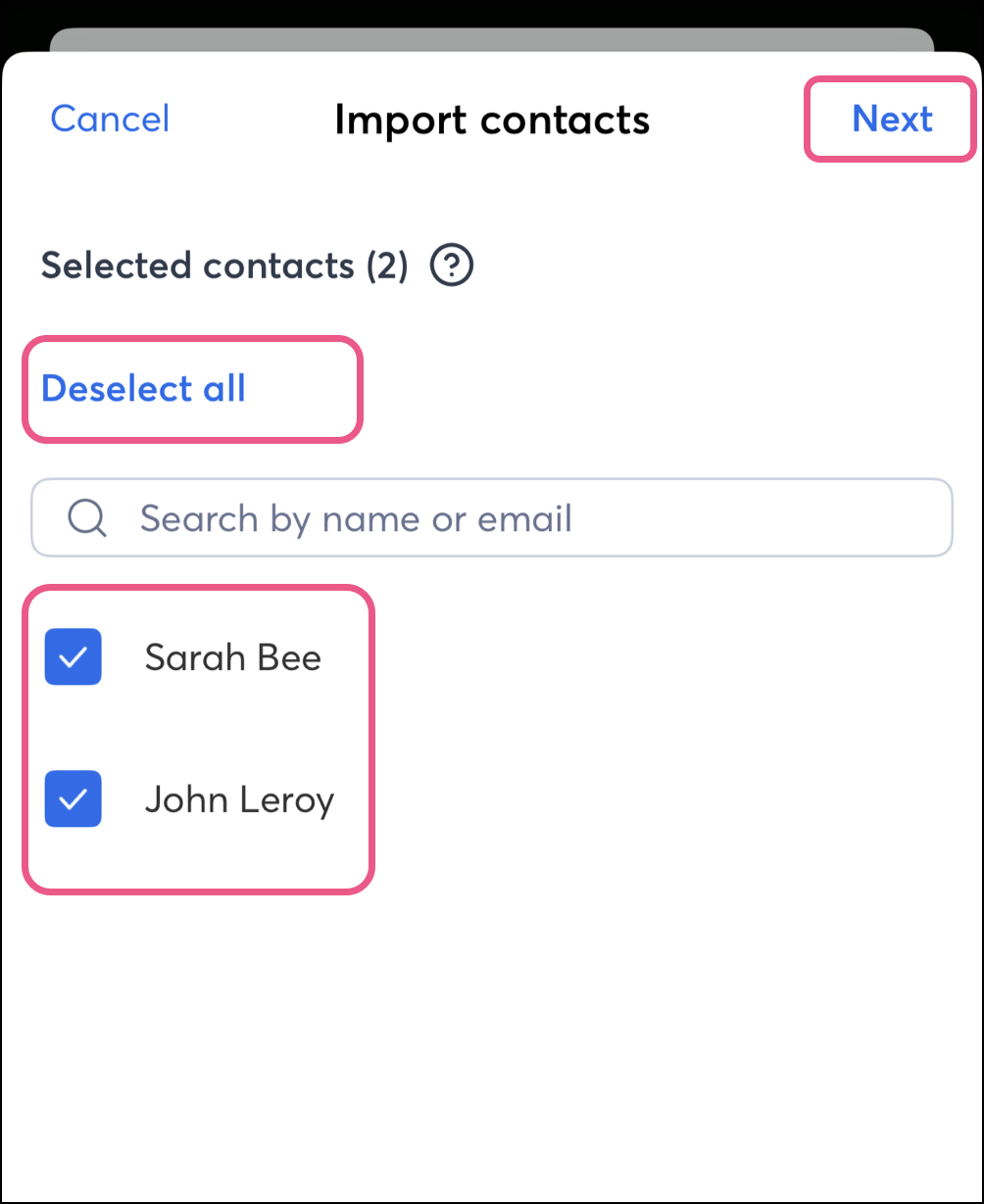
- Tap to deselect any contacts you don’t want to import. Then tap Next.
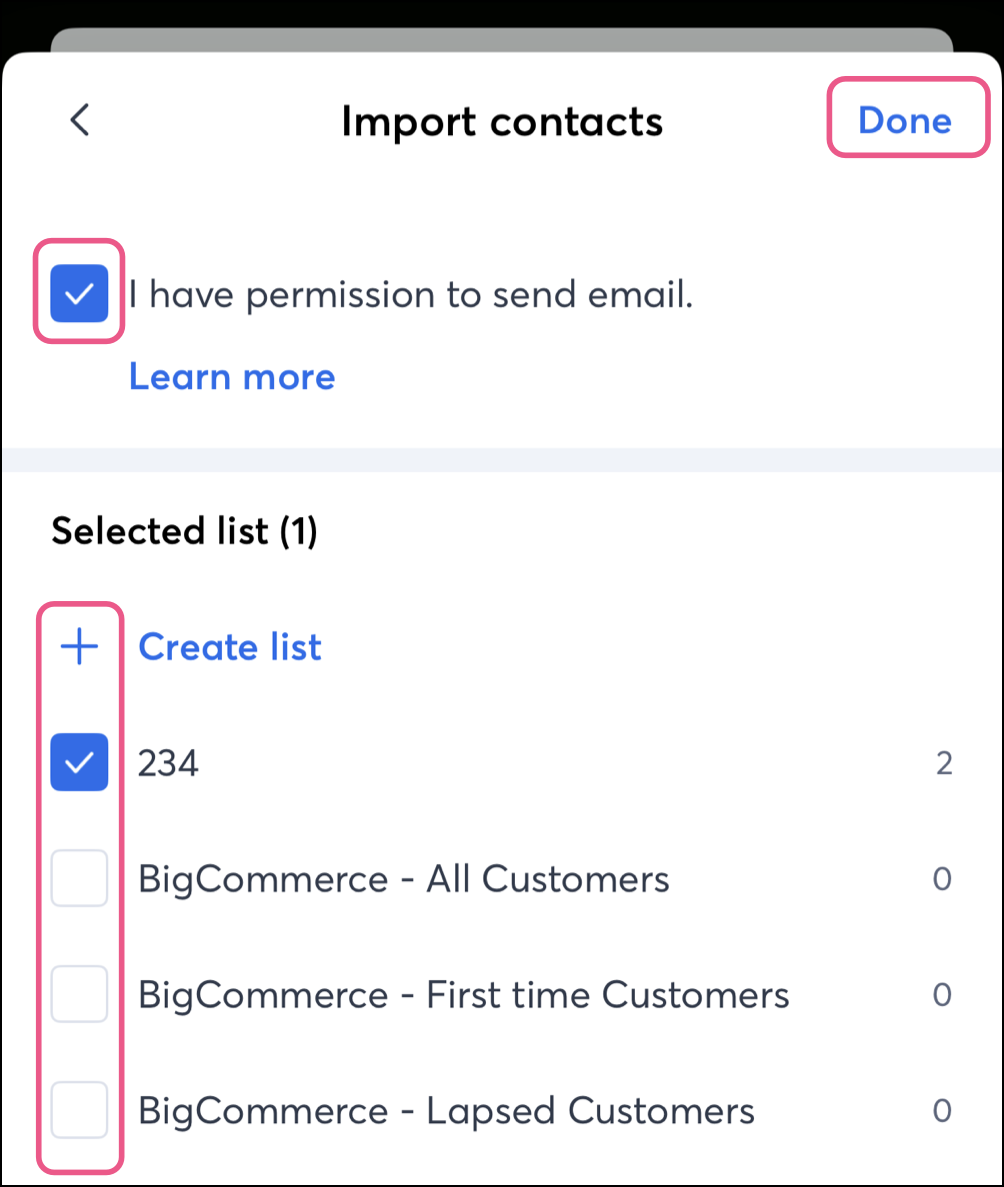
- Tap to select if you have implied or express permission to email these contacts.
- Choose the email lists you want to add the contacts to.
Note: To create a new list, tap + Create list. Enter a name for your list and tap Create.
- Tap Done.
Share a contact from a third-party app
There are many third-party applications that allow contact management. Most follow a typical navigation pattern for export: select your contacts, select Settings, and select the Export or Share button. Steps may vary based on the available settings in your third-party app.
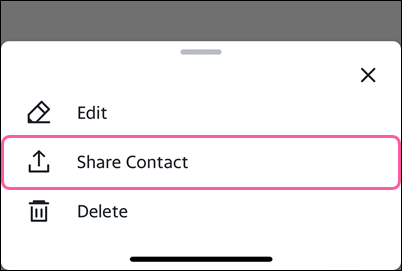
- Tap Share Contact.
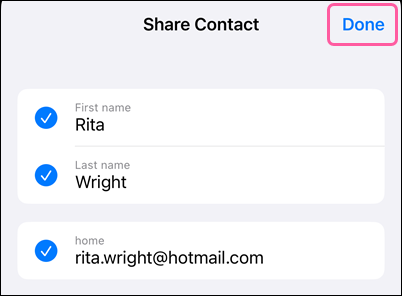
- Depending on the app, you may be prompted to select the contact details you want to import. Then tap Done.
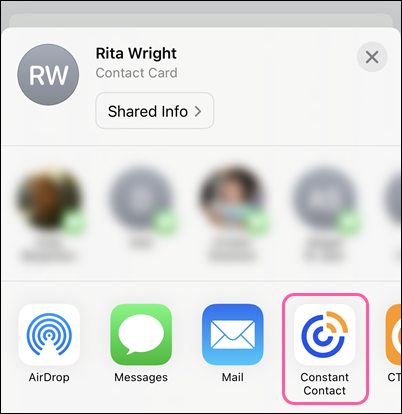
- Tap on the Constant Contact app.
Import contacts from a vCard or VCF file
Contacts added to your phone as a vCard (VCF) file will be integrated into your overall contact lists. Use one of the methods above to import your contacts (text or VCF) into Constant Contact.