Email and Digital Marketing
How can we help you?
Search our help articles, video tutorials, and quickstart guides

You've got this. You've got us. Search our Knowledge Base to quickly find answers to your questions.

Upload an image or document to your Library

Article: 000005317
Updated: May 19, 2026

Add images and documents to the Library by browsing for the file on your computer

Exclamation Point IconImportant: Before uploading your images, make sure they're optimized to reduce the risk of an upload error. If you're using animated GIFs, you may encounter size restrictions while importing into your Library.


Whether you're working with JPGs, PNGs, GIFs, Word documents, Excel spreadsheets, PowerPoint presentations, or PDFs, multiple files can be uploaded at a time from your computer and stored in your Library to add to your campaigns later.

When you upload a PDF into your Library, a PNG image of the first page is automatically created. The image can later be inserted into your email and linked to the full document. Word documents can be converted to PDFs before you upload them to auto-generate a thumbnail image.


Light bulb iconDid you know? You can create an email from a PDF, which automatically includes an image of the first page and a button that links to the full PDF, all in one step!

Desktop instructions

If you're working on a desktop computer:
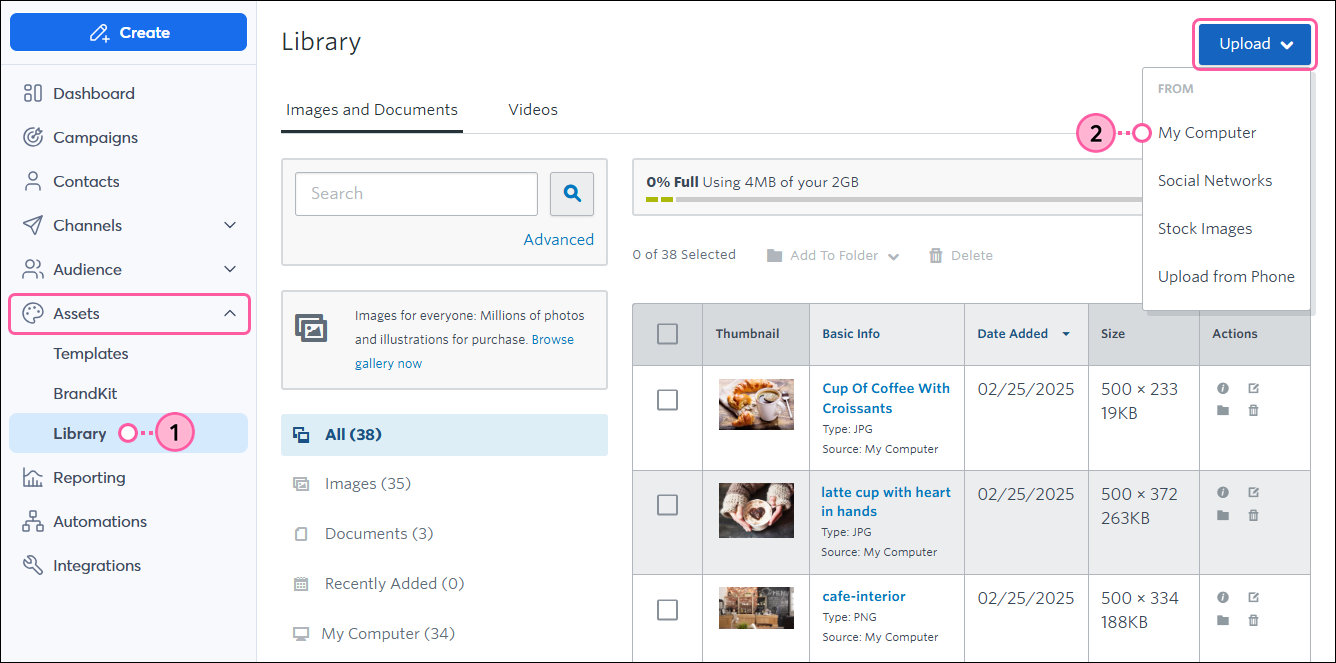
  1. Click Assets > Library.
  2. Click Upload > My Computer. In addition to uploading images from your computer, you can also choose from a variety of free and paid stock images and import photos from Facebook.

    Left navigation with Library tab, Upload button, and My Computer drop-down option

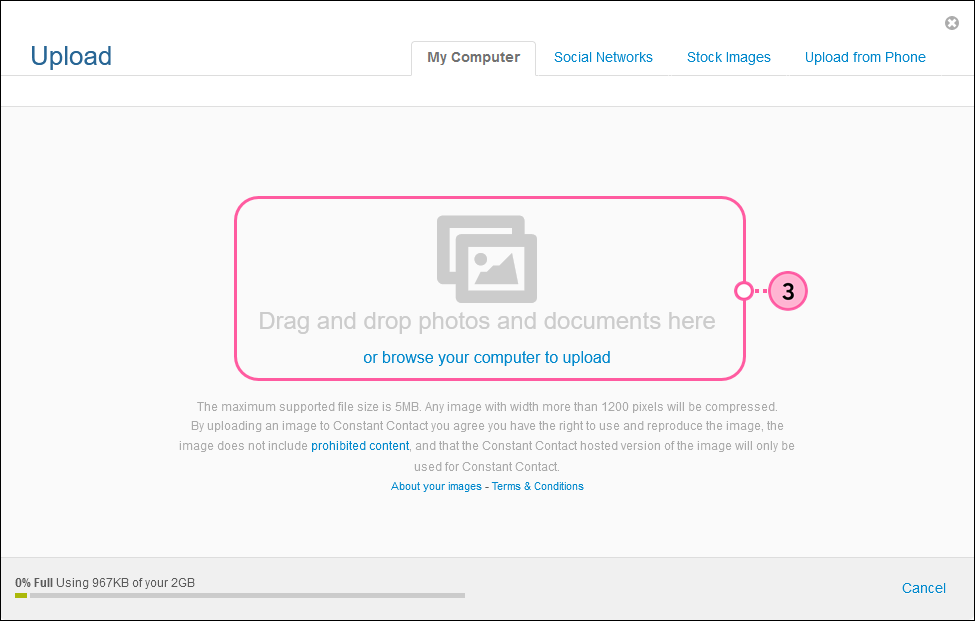
  3. Click and drag the photo or document from your computer, or click the "or browse your computer to upload" link.

    Image Upload Overlay
     
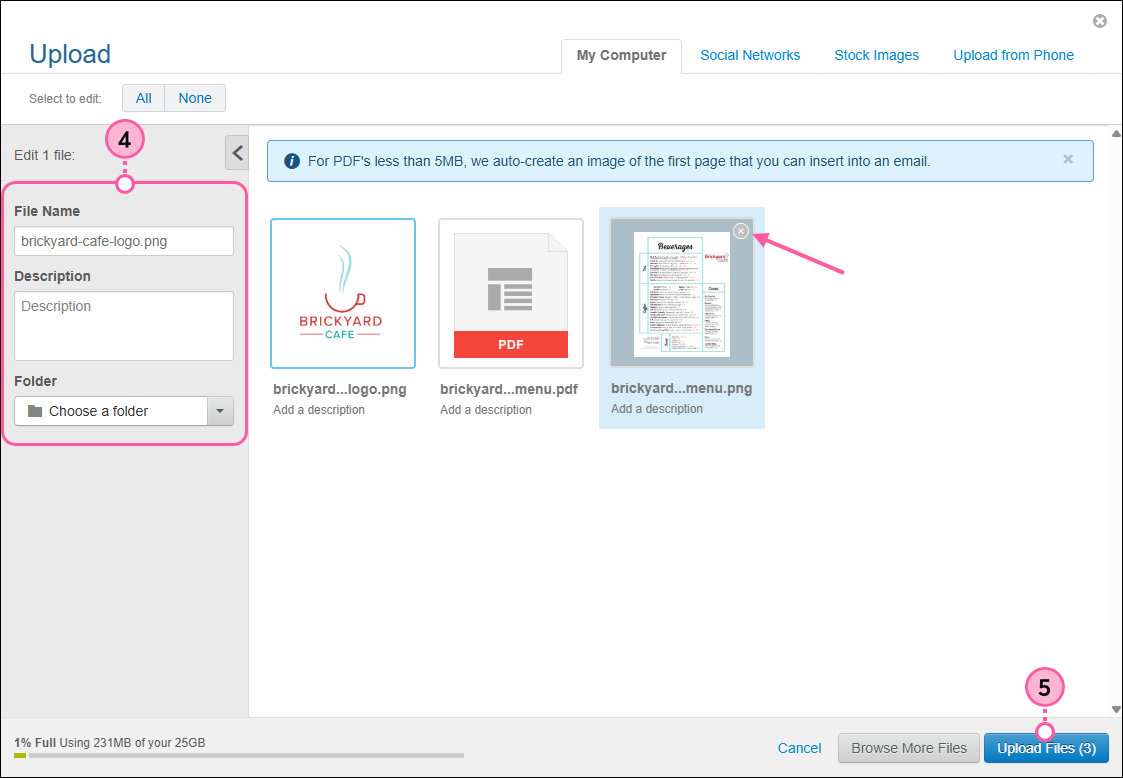
  4. (Optional) Click on an image or document to edit the file name, add a brief description, or add it to a folder to keep your Library organized. If you’re uploading a PDF and don’t want to upload the auto-generated image, place your mouse over the thumbnail and click the X in the upper-right corner.
  5. Click Upload Files.
    Light Bulb IconDid you know? The maximum supported file size is 20MB. If your file is too large to upload, there are third-party tools online you can use to resize it before uploading. You can also take a screenshot of the document's first page to upload as an image, then host the document on a third-party service, such as Google Drive or Dropbox, and link to it from your email.

    Image selected, file details, PDF image thumbnail with X to remove, and Upload Files button
     
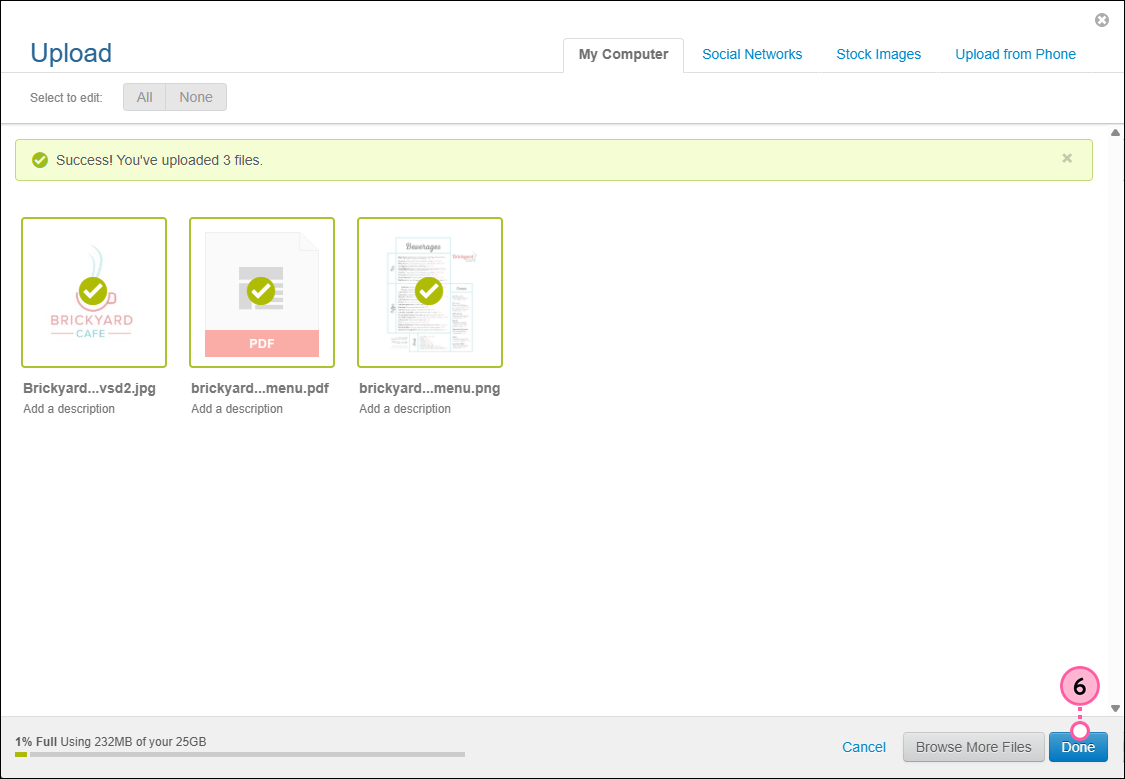
  6. When you're finished, click Done.

    Done Button
     

Once your files have been uploaded, you can use our image editor to enhance your images before adding them to your campaigns, insert a link to your document in a campaign, or turn a thumbnail of your document into a clickable image


Exclamation Point IconImportant: The URLs provided for images and documents hosted in the Library are intended for use within Constant Contact emails only. Any use outside of Constant Contact is a violation of our terms.


Mobile web instructions

If you’re using Constant Contact on your mobile device's web browser (versus your desktop computer or Constant Contact's mobile app), it’s easy to upload a file to your Library:
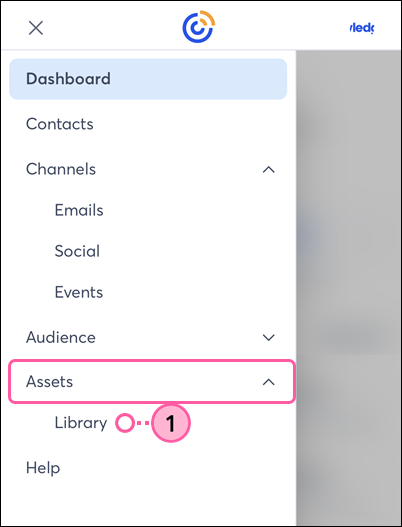
  1. From the menu, tap Assets > Library.

    Constant Contact on mobile web browser, menu expanded, Assets expanded, and Library option selected

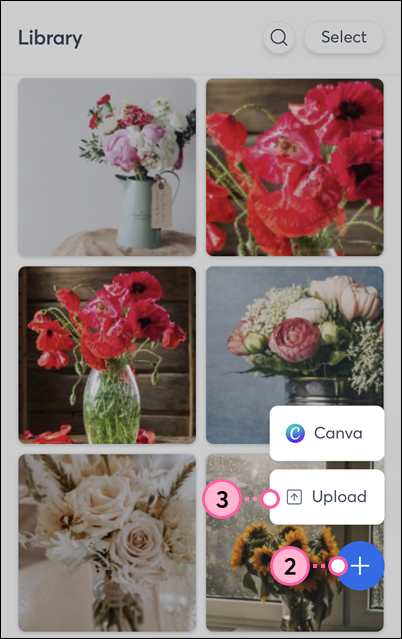
  2. Tap the plus symbol in the lower-right.
  3. Tap Upload.

    Library on mobile web browser, plus symbol in bottom right, and Upload option selected

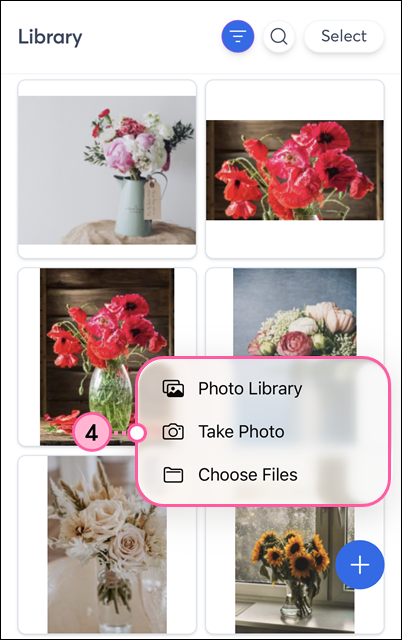
  4. Choose how you want to upload your image or document:
    • Photo Library - Select images from your device’s camera roll to import.
    • Take Photo - Use your device’s camera to take a new picture.
    • Choose Files - Select an image or file saved on your device.

      Library upload options on mobile web browser


Questions?

Ask the Community

Did this article answer your question?


Constant Contact Logo

Copyright © 2026 · All Rights Reserved · Constant Contact · Privacy Center