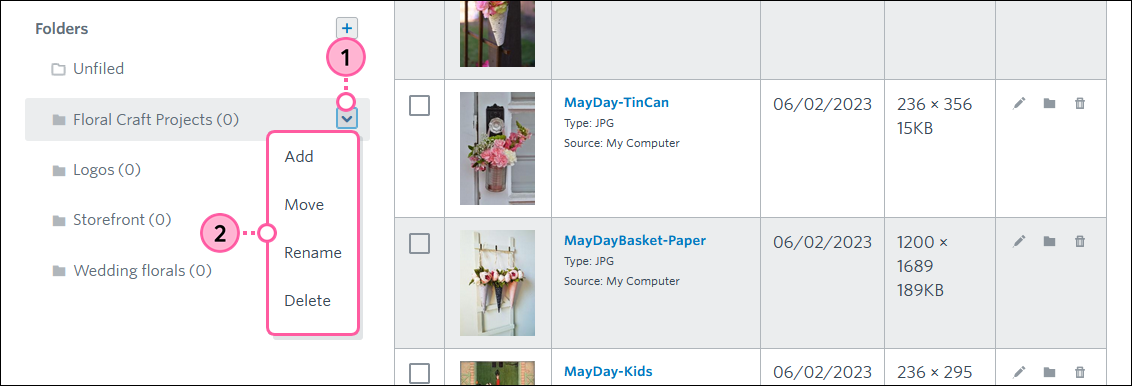
Keep your Library organized with folders so that it's easy to find your image and document files.
Add a folder
To create a new folder to store groups of related files:
- Click Assets > Library.
- Click the plus icon next to the Folders category.
- Enter the new folder name.
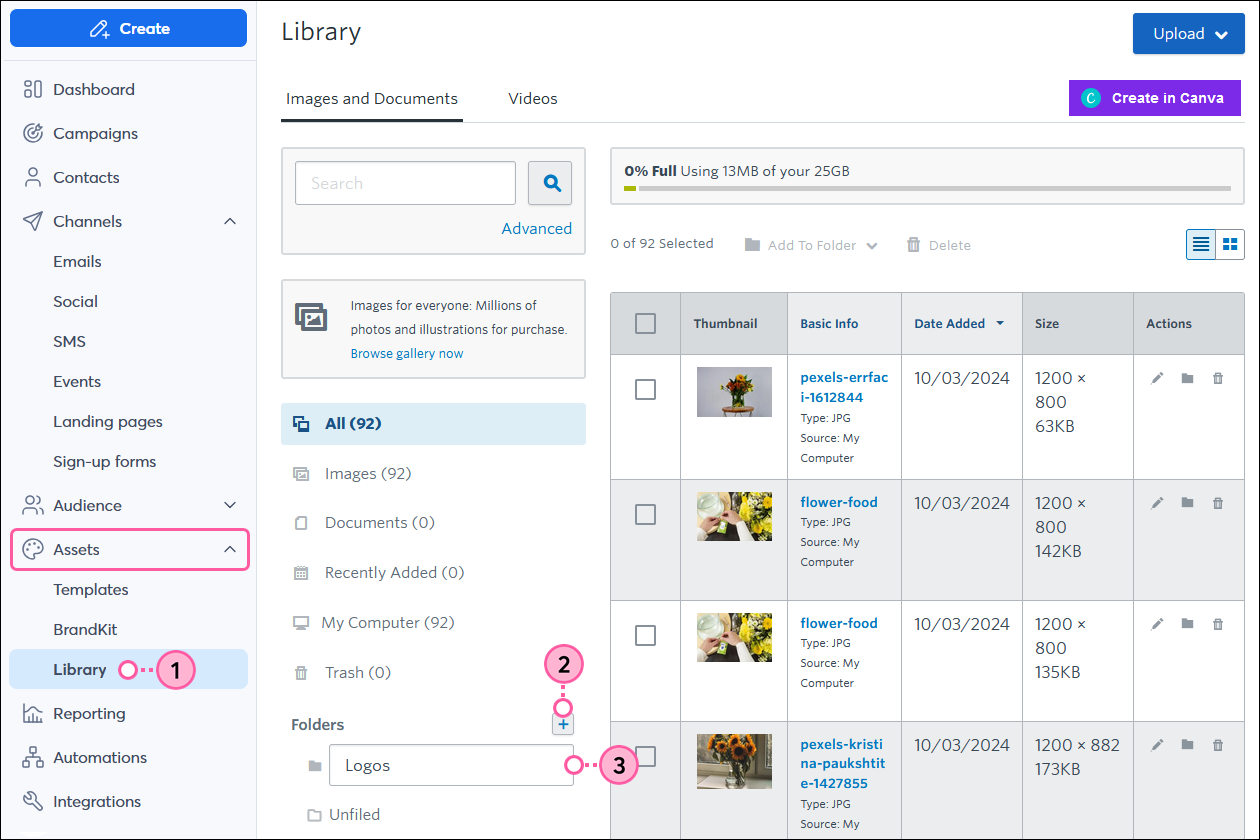
Now that you've created a folder, you can move images and documents into it or upload new files.
Move files into folders in list view
Storing images and document files in folders makes it easy to stay organized. The URL for your file is independent of the folder, so you can move it without worrying about breaking links in your emails.
- (Optional) Select a category to help narrow your search for the file you want to move.
- Use the checkboxes to select the images or documents you want to move.
- Click Add to Folder and select the folder where you want to move your files.
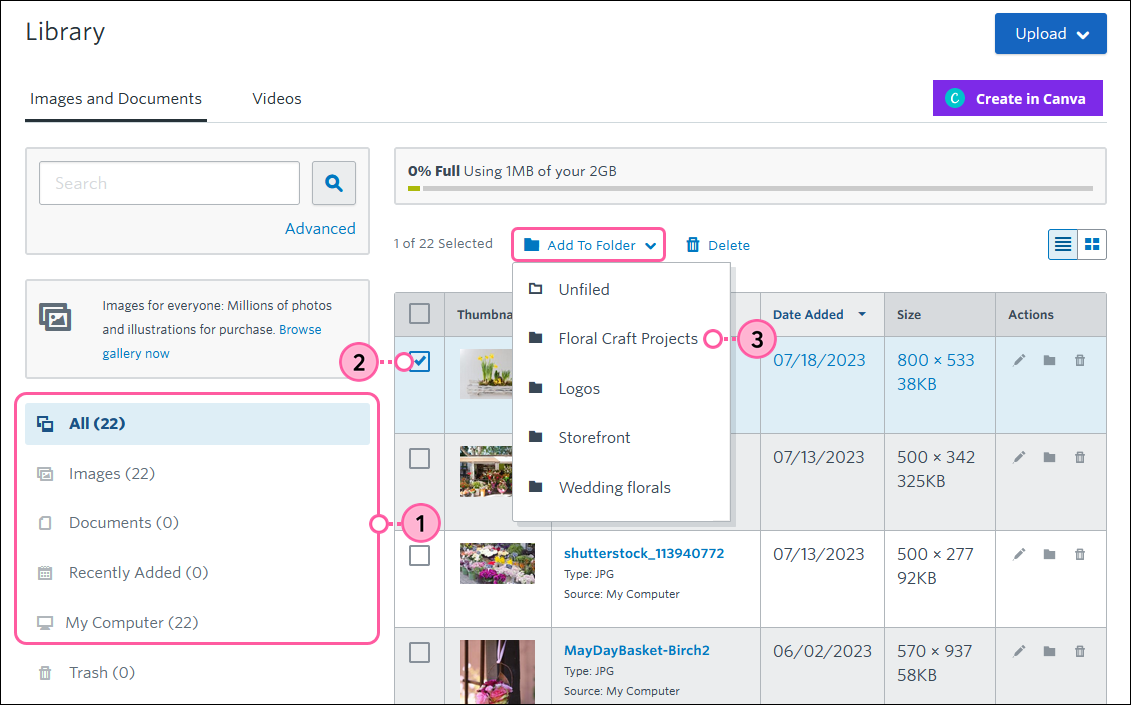
You can also drag and drop files into folders after selecting them.
Move files into folders in tile view
Storing images and document files in folders makes it easy to stay organized. The URL for your file is independent of the folder, so you can move it without worrying about breaking links in your emails.
To move files in tile view:
- (Optional) Select a category to help narrow your search for the file you want to move.
- To toggle from list view to tile view, tap the tile icon.
- Click the images or documents you want to move.
- Click Add to Folder and select the folder where you want to move your files.
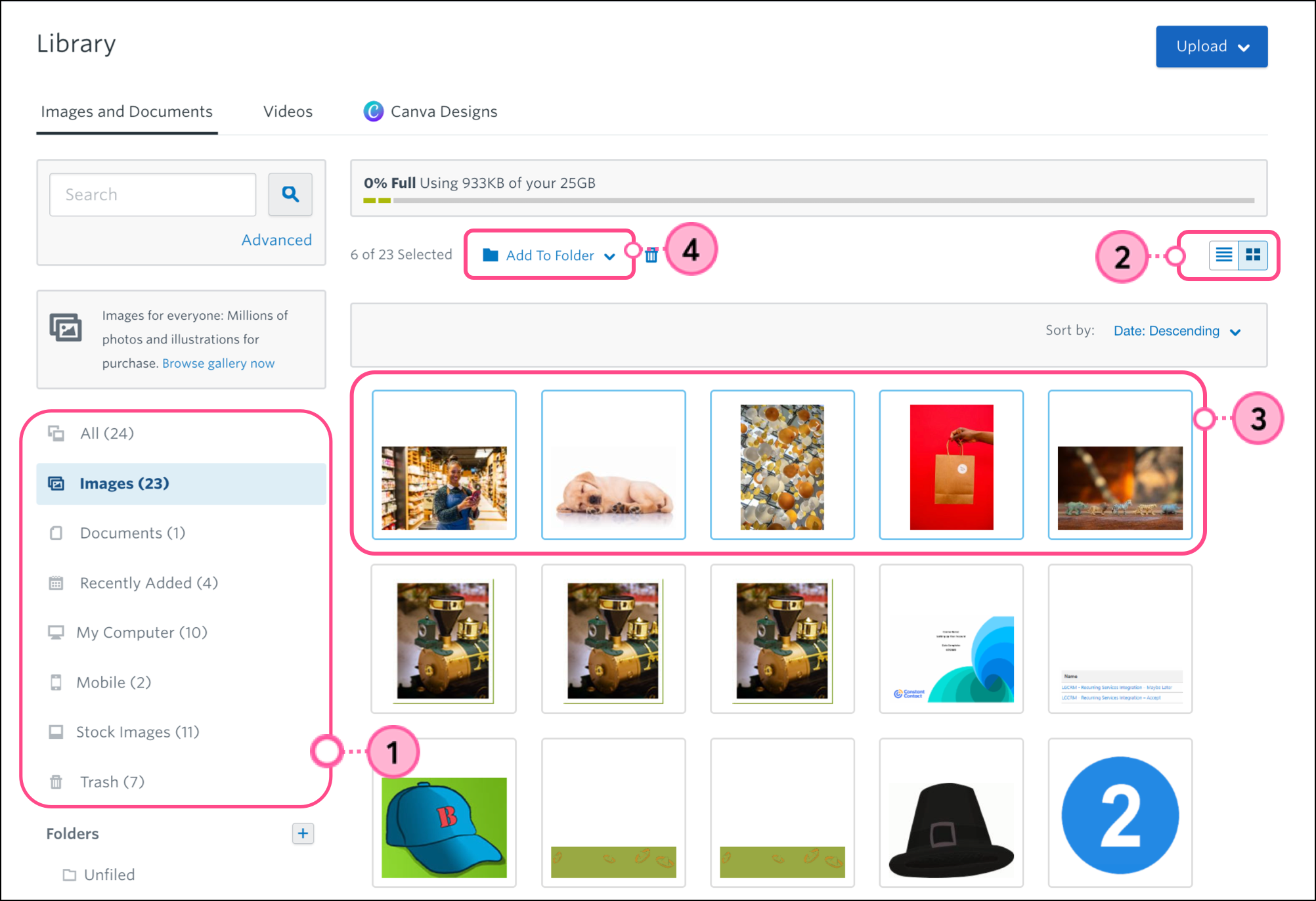
You can also drag and drop files into folders after selecting them.
Manage folders
Once a folder has been added, it can be renamed, moved into another folder to create a subfolder, or deleted.
- Place your cursor over the folder you want to edit and click on the drop-down arrow.
- Select one of the following options:
- Add - To add a sub-folder. There are 3 levels of folders, and an individual folder or sub-folder can have many sub-folders. If the "Add" option is grayed out, you've reached the level limit.
- Move - To move a folder into another folder (to create a sub-folder), or to move a sub-folder out of another folder (to create a main-level folder).
- Rename - To change the folder's label.
- Delete - To remove a folder. All images and documents in the folder will be marked as "Unfiled".