Email and Digital Marketing
How can we help you?
Search our help articles, video tutorials, and quickstart guides

You've got this. You've got us. Search our Knowledge Base to quickly find answers to your questions.

Save an email as a reusable template

Article: 000047259
Updated: November 13, 2026

Add a draft or sent email to the template picker to reuse the content and design when you create a new email


If you spent time designing a great email and want to use it for future emails, you can easily save it as a template—it can be an email you previously sent or one you have saved as a draft. The next time you create a new email, simply select it from the “Saved" section in the template picker, and then you can customize it as needed before sending it to your contacts.

Please note: Custom Code emails cannot be saved as a template.


Save an email as a template

Any draft or previously sent email can be saved to the template picker for future use. You can save as many emails as you want from the Emails page or while editing a draft.
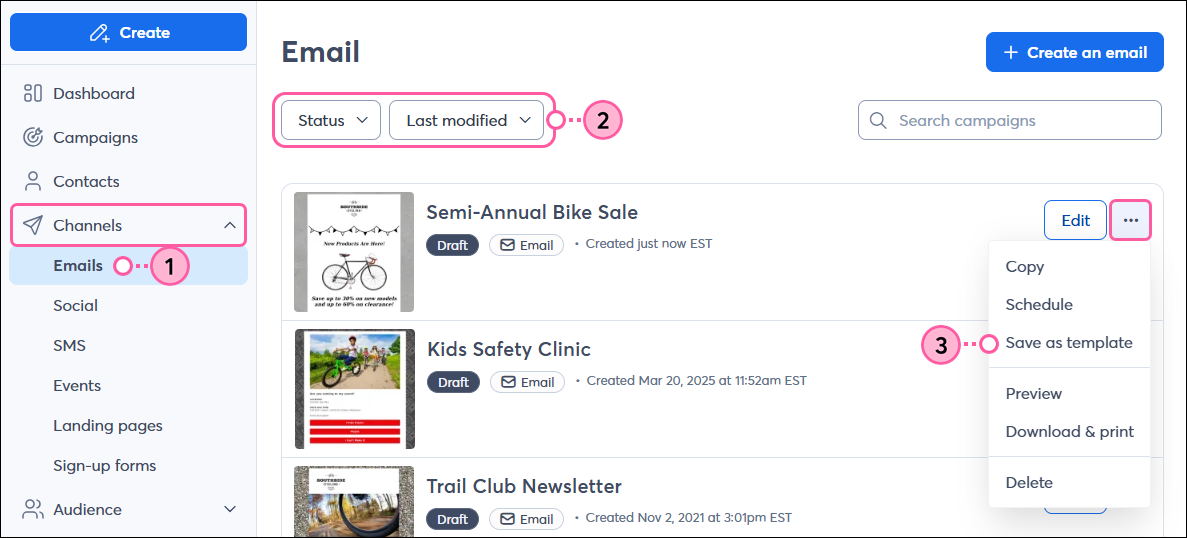
 

To save a draft or previously sent email from the Emails page:

  1. Click Channels > Emails.
  2. (Optional) Use the filters to help narrow your search.
  3. Next to the email you want to save as a reusable template, click the three dots to expand the menu, then select Save as template. 

    Marketing channels menu expanded with Email option selected, Status drop-down menu with Draft option selected and Sort by drop-down menu with Last modified option selected, and draft email with menu expanded and Save as template option selected 
     
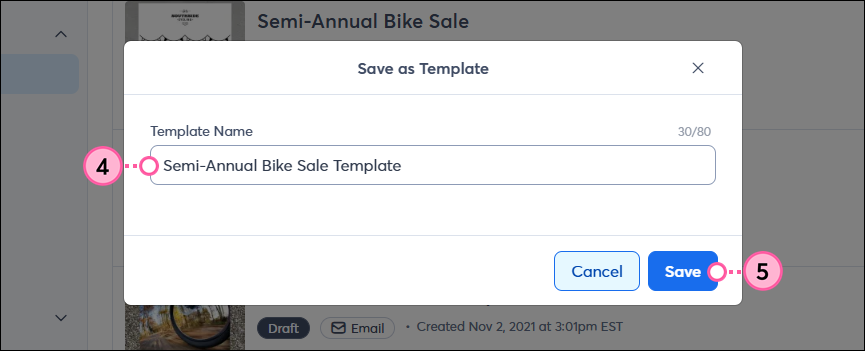
  4. Give your template a unique name that you'll easily recognize later. A template name can be up to 80 characters long.
  5. Click Save.

    Save as Template overlay with Template Name field and Save button 
     

Note: If you want to make changes to a saved template, you can do so by selecting it from the template picker, making your edits, and saving it as a new template. You can then delete the previous version to avoid confusion, if needed.


To save a draft email while editing it:

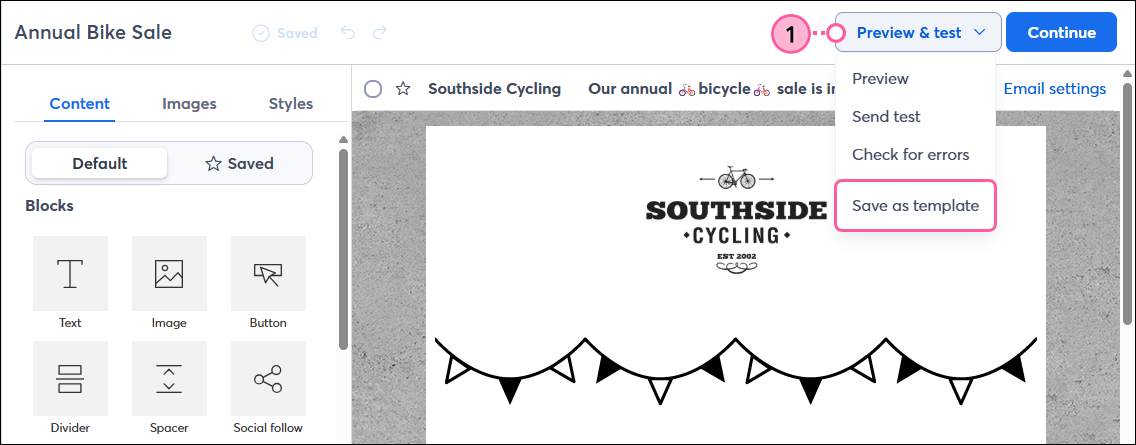
  1. When you’re finished designing your email, click Preview & test > Save as template from the top of the editor.
    Light bulb iconTip: Be sure to make all your desired edits to the draft before saving it as a template. If you want to make changes to the template after it’s been saved, you’ll need to make your edits and save it again as a new template. You can then delete the previous version if needed to avoid confusion.

    Email editor with Preview and Test drop-down and Save as Template option selected

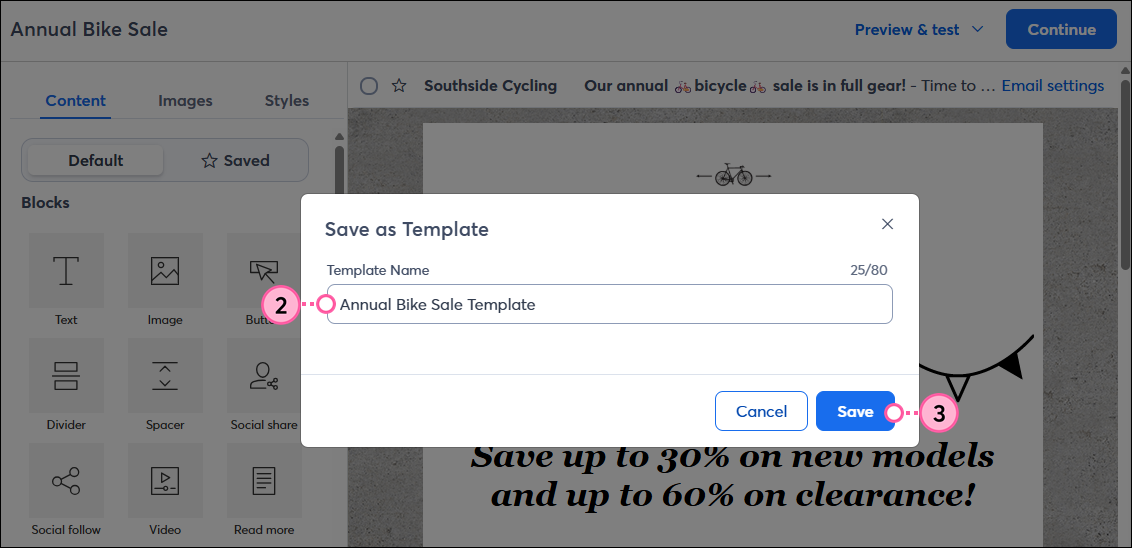
  2. Give your template a unique name that you'll easily recognize later. A template name can be up to 80 characters long.
  3. Click Save.

    Save as Template overlay with Template Name field and Save button 


Use a saved template

Whenever you create a new email, you can select your saved template from the "Saved" tab or category. 
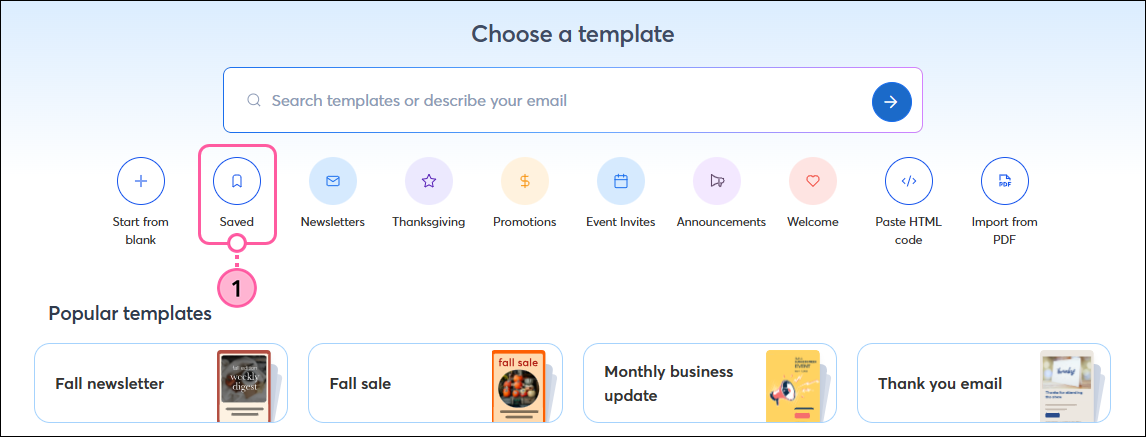
  1. From the template picker, either:
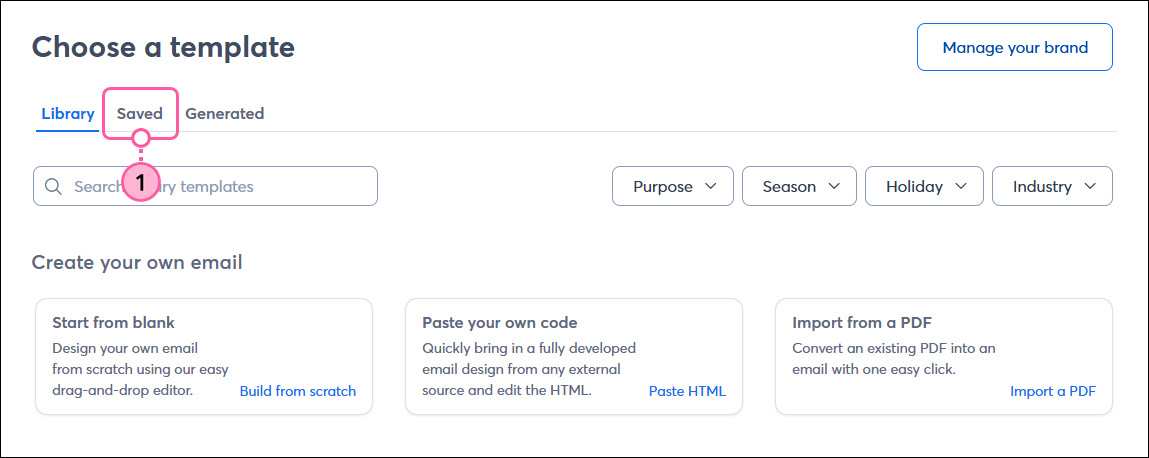
    • Click the Saved category under the search bar at the top of the page.

      Templates page with Saved category selected

    • Click the Saved tab at the top of the page.

      Templates page with Saved tab selected

  2. Depending on your account:
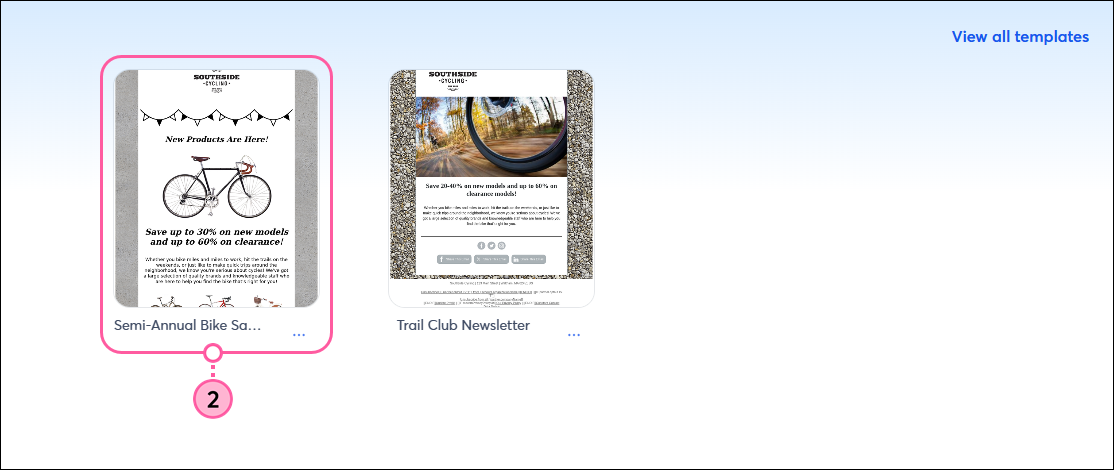
    • Click on the template to preview and select it.

      Saved templates with template selected

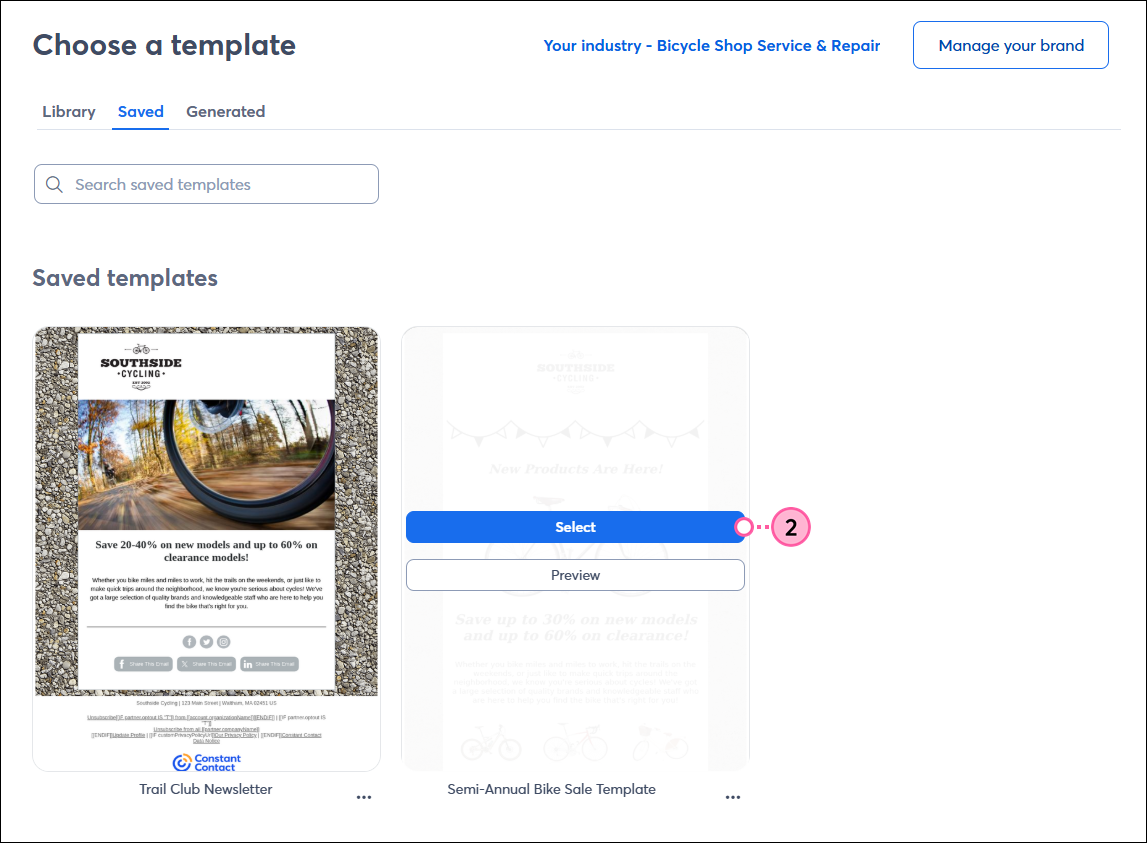
    • Place your cursor over the template thumbnail and click the Select button.

      Choose a template page with Saved tab selected, Saved templates with template thumbnail and template options with Select button


Your template opens in the email editor, and you can modify the content, branding, and layout as much as you like before sending it to your contacts.


Rename a saved template

If you want to rename any saved templates, you can do so from the "Saved" section in the template picker. The new name must be unique and have no more than 80 characters:
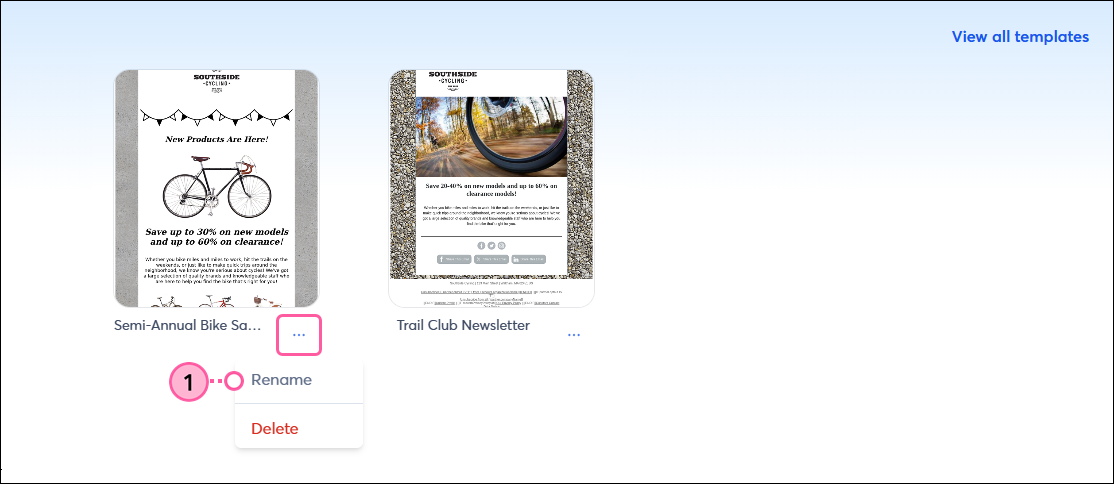
  1. From the Saved section of the template picker, click the three dots below the template thumbnail and select Rename.

    Saved section of template picker, template with menu expanded, and Rename option selected

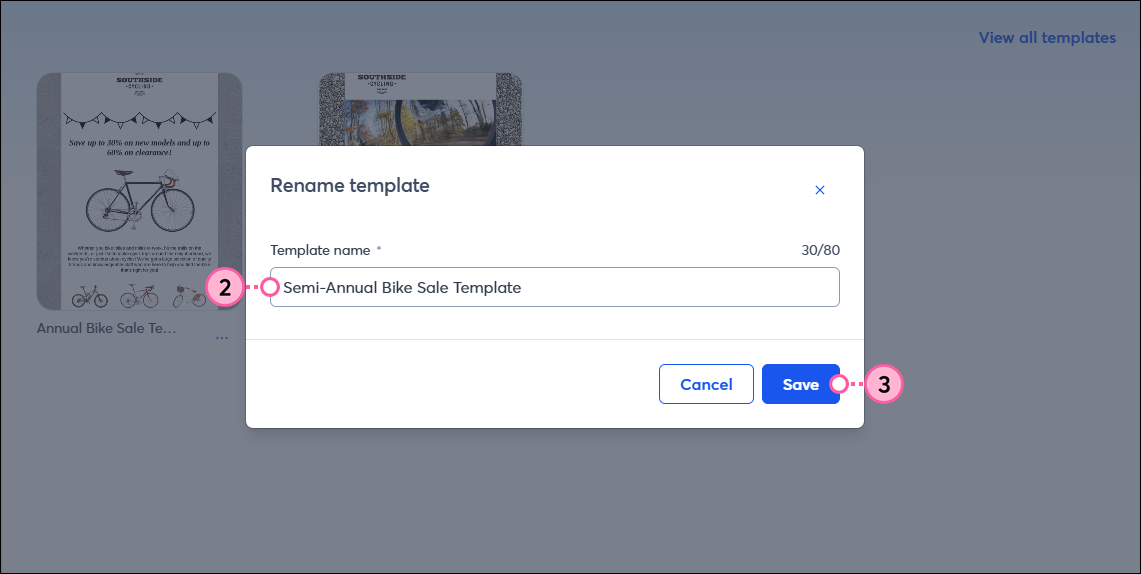
  2. Enter a new name for the template.
  3. Click Save.

    Rename template overlay with Template name field and Save button


Delete a saved template

When it's time to clean up old content, you can delete any of your saved templates from the "Saved" section in the template picker. This doesn't delete your email; it only removes it from the template picker.
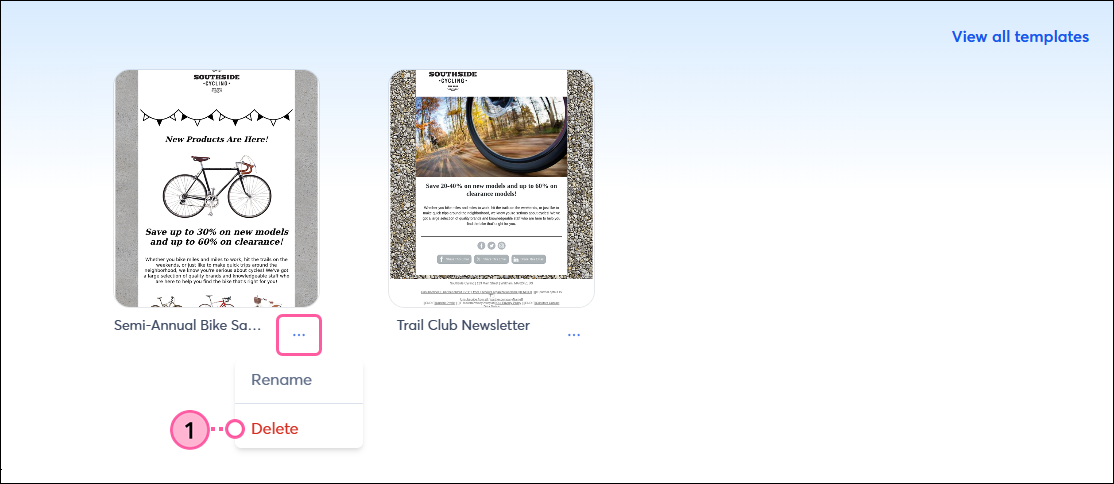
  1. From the Saved section of the template picker, click the three dots below the template thumbnail and select Delete.

    Saved section of template picker, template with menu expanded, and Delete option selected

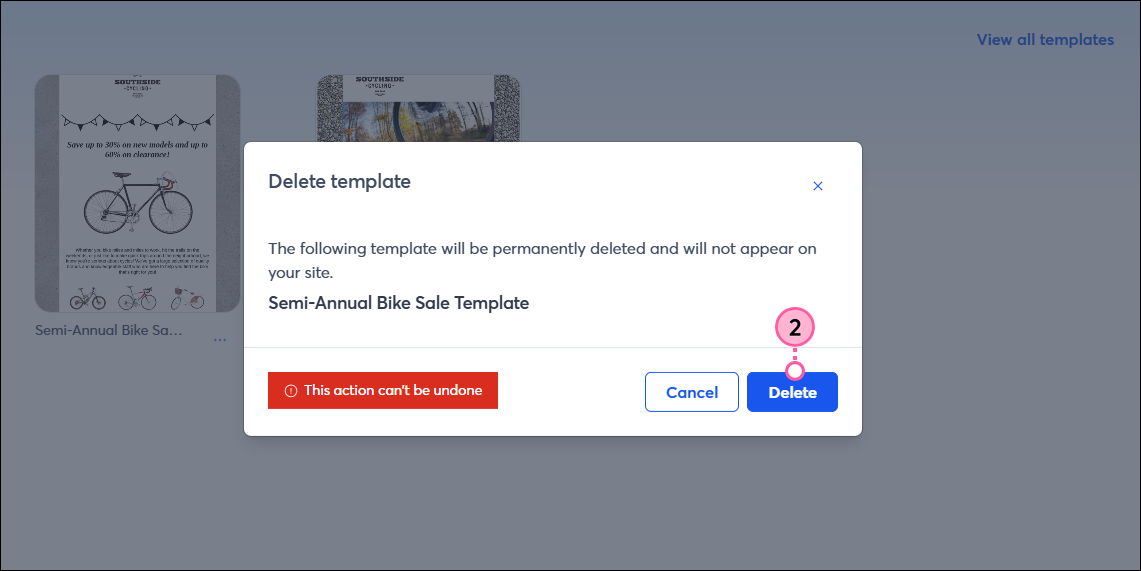
  2. Click Delete to confirm.

    Delete template overlay with confirmation message and Delete button
     

You can’t undo this action, but you can always save the email as a template again if you wish.


Questions?

Ask the Community

Did this article answer your question?


Constant Contact Logo

Copyright © 2026 · All Rights Reserved · Constant Contact · Privacy Center