Before you send your email out into the world, make sure that your content is correct and that you're following industry best practices that ensure higher email engagement. Spelling and grammatical errors are easily caught through a spell-checking program, and our Check for Errors tool helps ensure your email meets industry best practices that prevent it from ending up in a spam folder.
 | Design tip: It's best to proofread your email and send a test email to catch errors and design issues before sending the final version to your contacts. However, if an email is sent out with an error that needs to be corrected, you can always fix the error and resend the corrected version. |
Most web browsers have spell check functions built into them, or have extensions or add-ons, like Grammarly, Ginger Grammar Checker, or LanguageTool, that you can install. As long as your browser supports a spell check function, you can check the spelling in your email while you're editing it. Typically, a misspelled word is denoted with a red line, grammar suggestions are underlined in blue, and you can right-click on the word or phrase to see the suggested correction.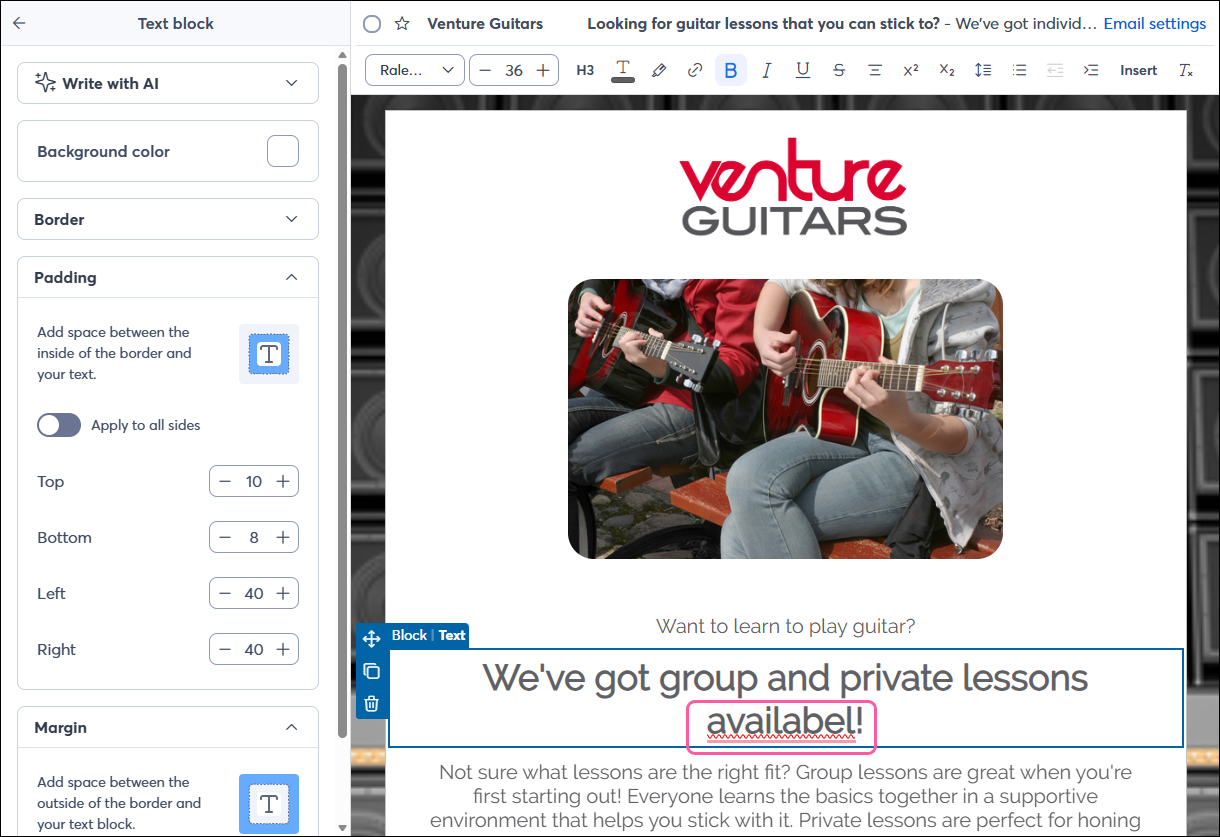
Note: When using extensions or add-ons, like Grammarly, you can sometimes see multiple warnings for the same error, depending on the browser. In the above image, you can see the squiggly spell check line from the browser and also a solid red line from Grammarly.
For more help using the spell-checking tool in your browser, please see Apple, Google, Microsoft, or Mozilla support.
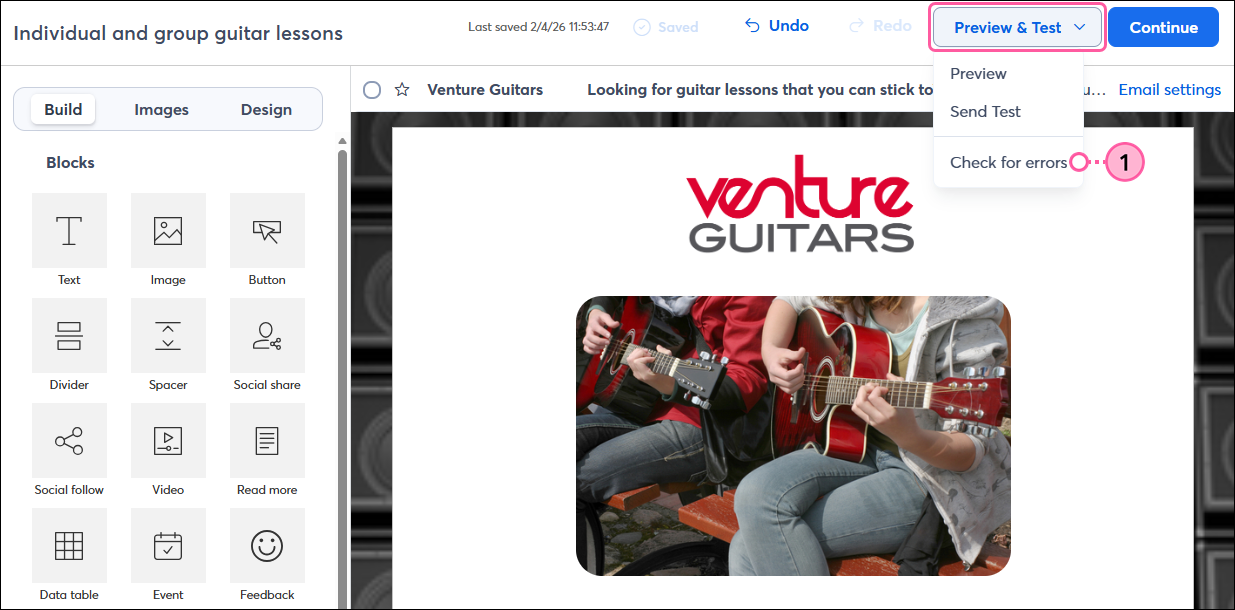
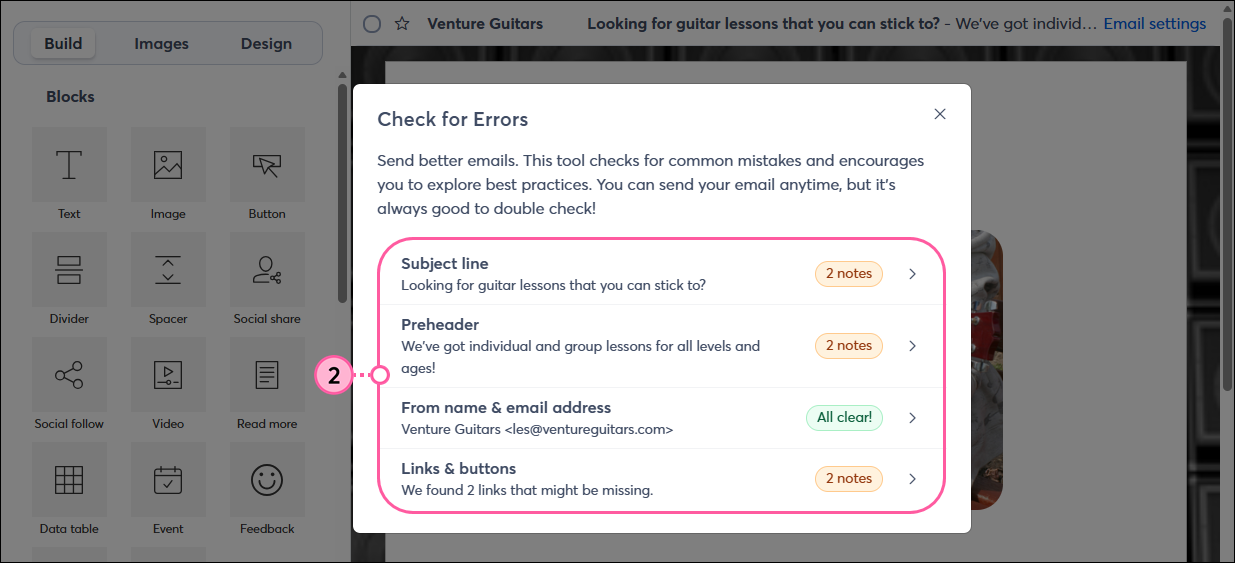
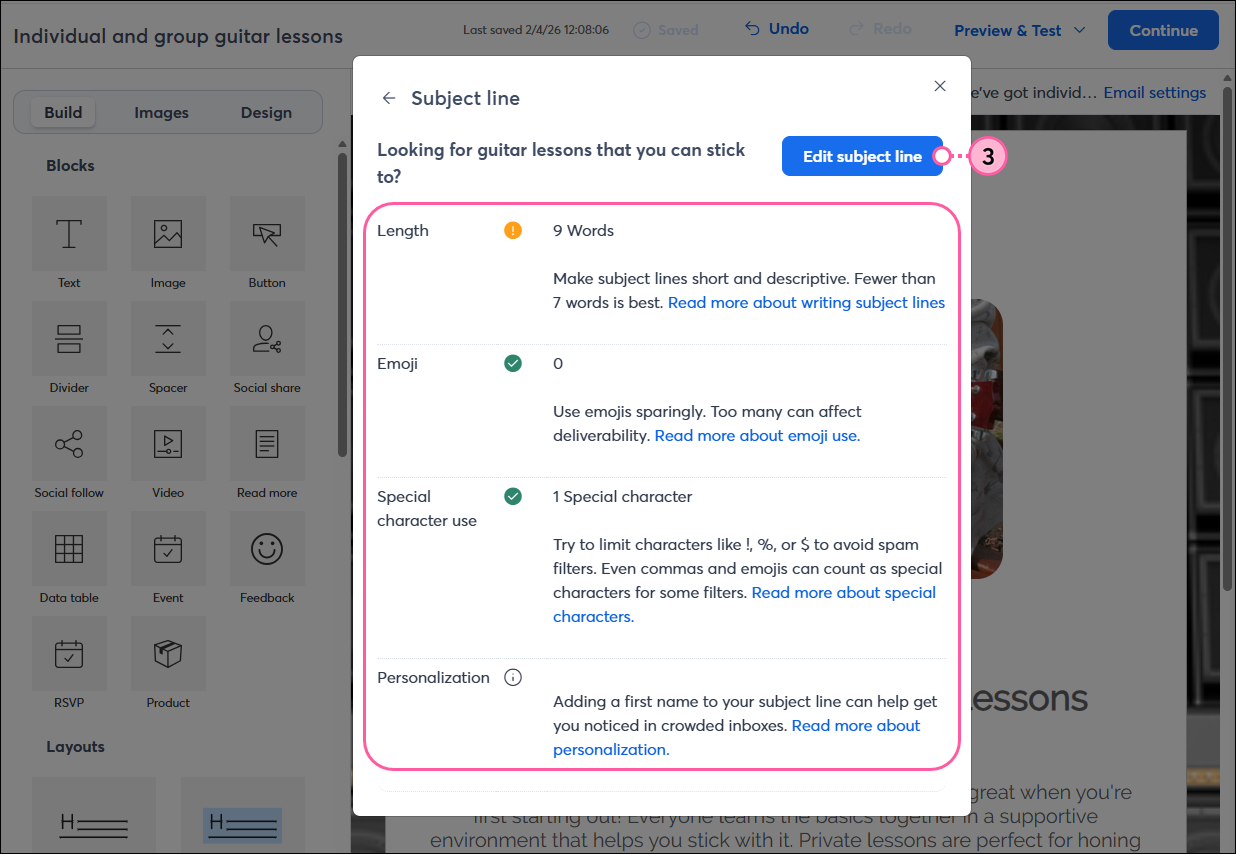
Want to improve your email deliverability, opens, and click rates? Our Check for Errors tool helps you send better emails by identifying common mistakes and encouraging you to follow industry best practices. We review your subject line, preheader, "From" email and "Reply-to" email addresses, and the links within your email template to ensure your message has the best chance of landing in your contacts’ inboxes and of them engaging with it. You can send your email at any point, but it’s a good idea to review these key factors before sending it to your contacts!
Any links we provide from non-Constant Contact sites or information about non-Constant Contact products or services are provided as a courtesy and should not be construed as an endorsement by Constant Contact.
Copyright © 2026 · All Rights Reserved · Constant Contact · Privacy Center