Email and Digital Marketing
How can we help you?
Search our help articles, video tutorials, and quickstart guides

You've got this. You've got us. Search our Knowledge Base to quickly find answers to your questions.

Insert a video into a custom code email

Article: 000039848
Updated: March 23, 2026

Add a video hosted on Vimeo to a custom HTML code email

If you host videos on Vimeo, you can easily connect your Vimeo account to Constant Contact and insert videos right into your custom code emails.
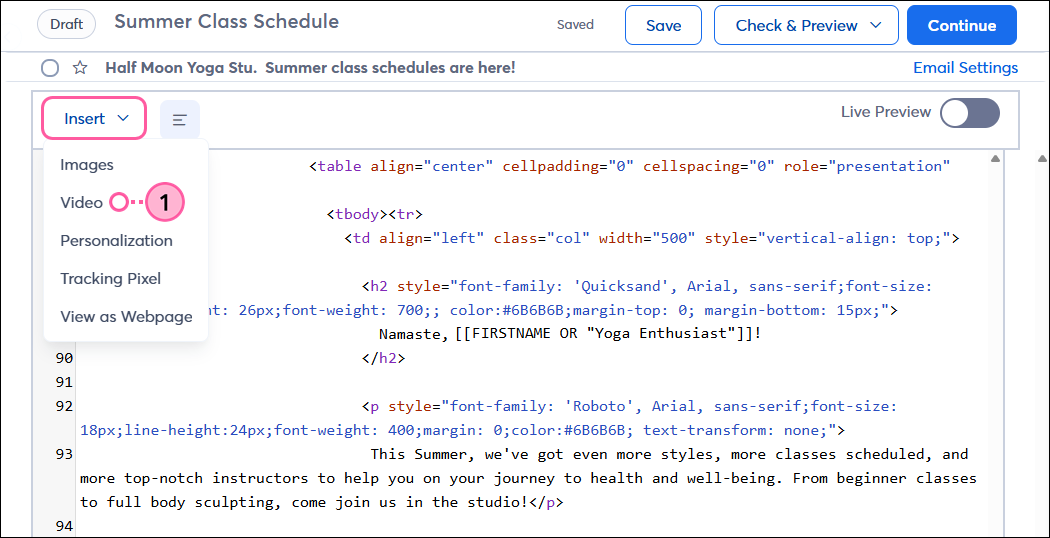
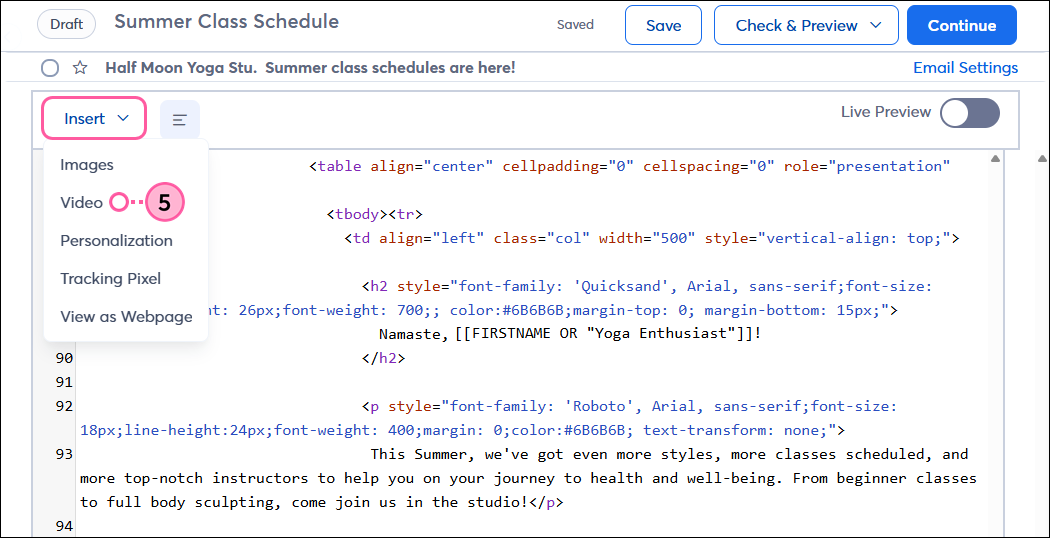
  1. Place your cursor where you want to add the video within the HTML and click Insert > Video.

    Custom Code email editor and Insert drop-down with Video option

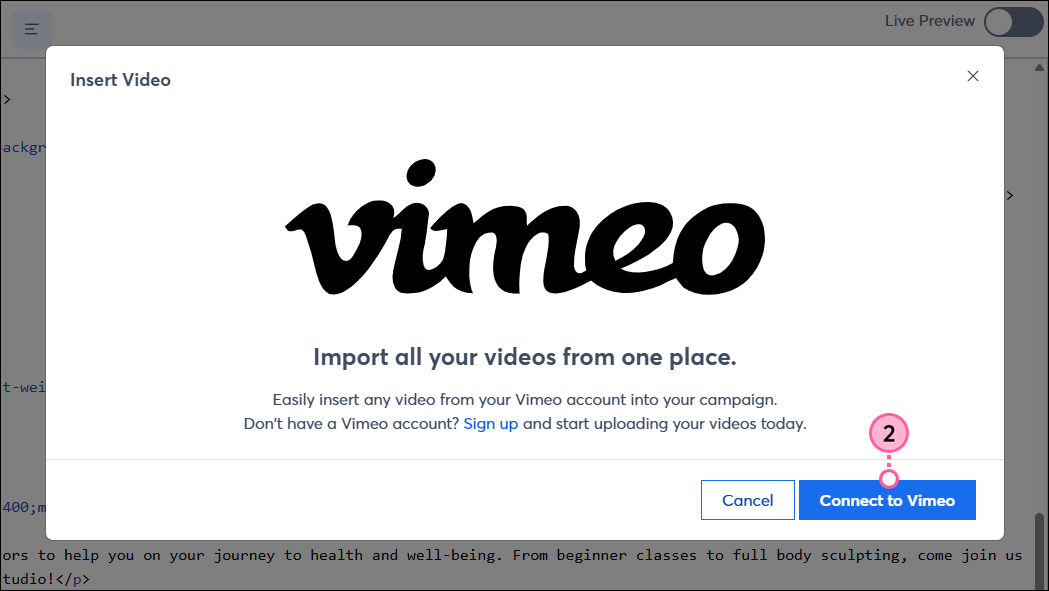
  2. Click Connect to Vimeo. If your account is already connected, skip to step 6.

    Connect Your Vimeo Account overlay and Connect button

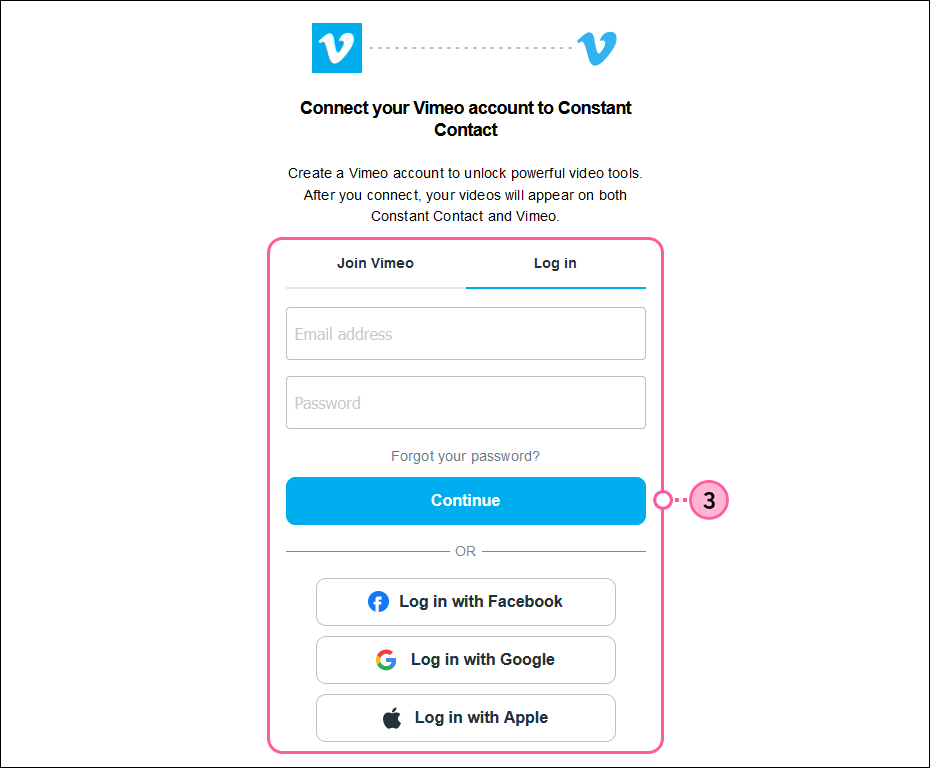
  3. Log in to your Vimeo account.

    Log in to Vimeo

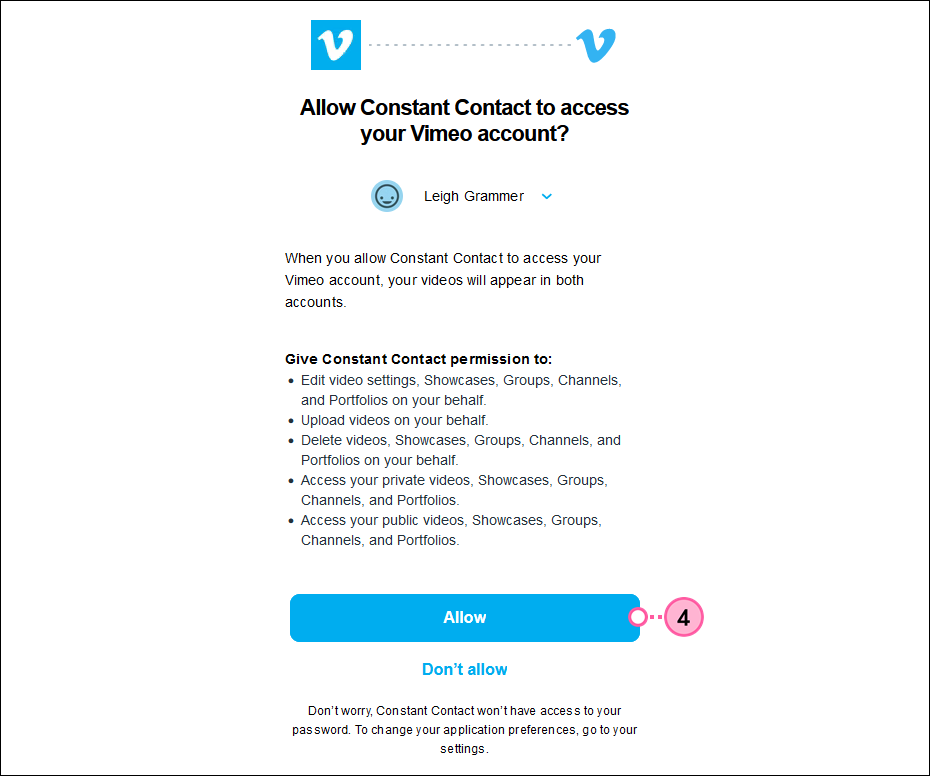
  4. Click Allow.

    Authorize Vimeo Integration and Allow button

  5. You’ll be brought back to the custom code email editor. Click Insert > Video again.

    Custom Code email editor and Insert drop-down with Video option

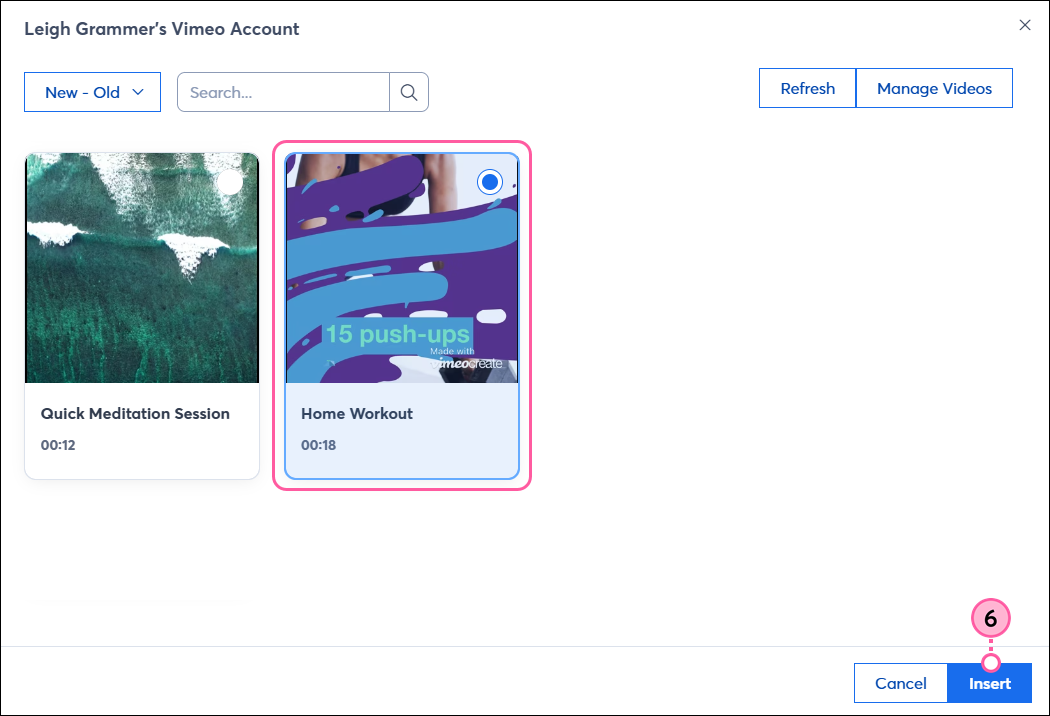
  6. Select a video and then click Insert
    Note: If you have videos set as “Private” in your Vimeo account, you won’t be able to select them to insert. Learn more about changing the privacy settings of your videos in Vimeo.

    Vimeo Account videos connected with video selected and Insert button


The video URL is automatically inserted into the code, and you can make edits to your HTML if needed.


Questions?

Ask the Community

Did this article answer your question?


Constant Contact Logo

Copyright © 2026 · All Rights Reserved · Constant Contact · Privacy Center