 | Important: This article requires you to use HTML code. |
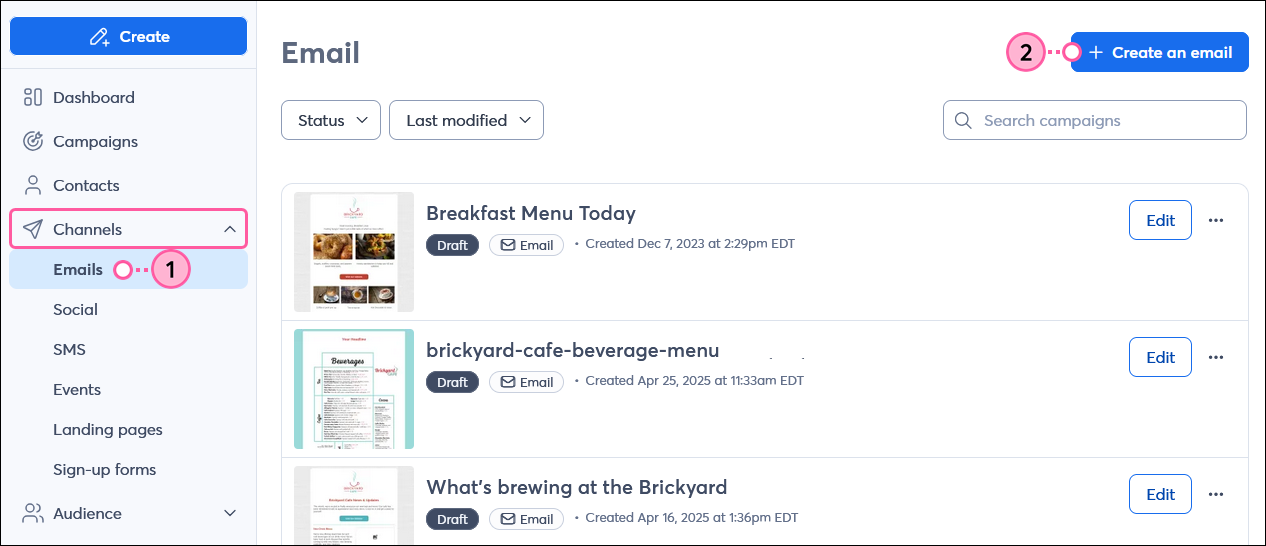
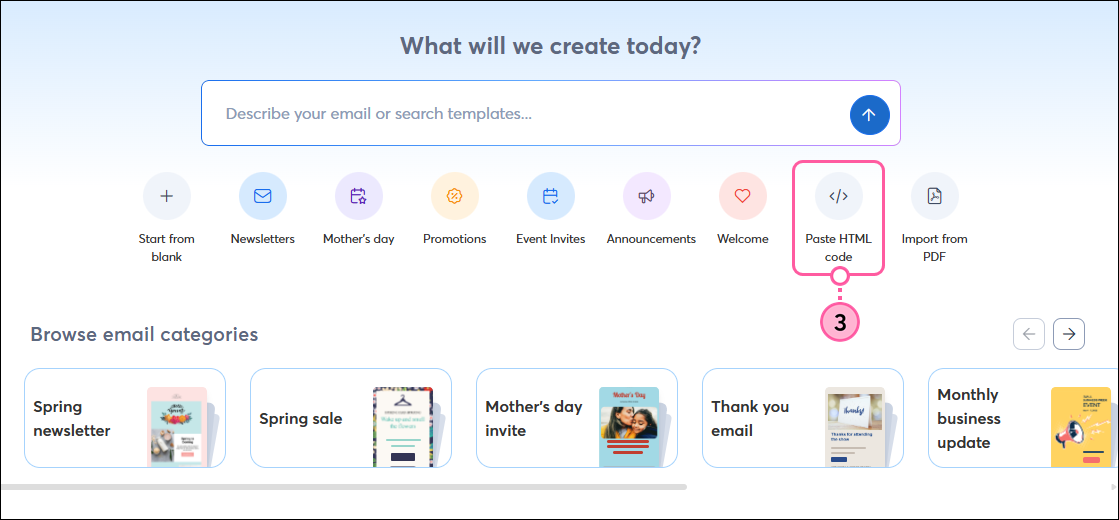
| Coming soon: We are in the process of releasing an update to this feature that will automatically convert your HTML code into an easily editable template, allowing you to use our standard email editor instead of our custom code editor! (See step 3) |
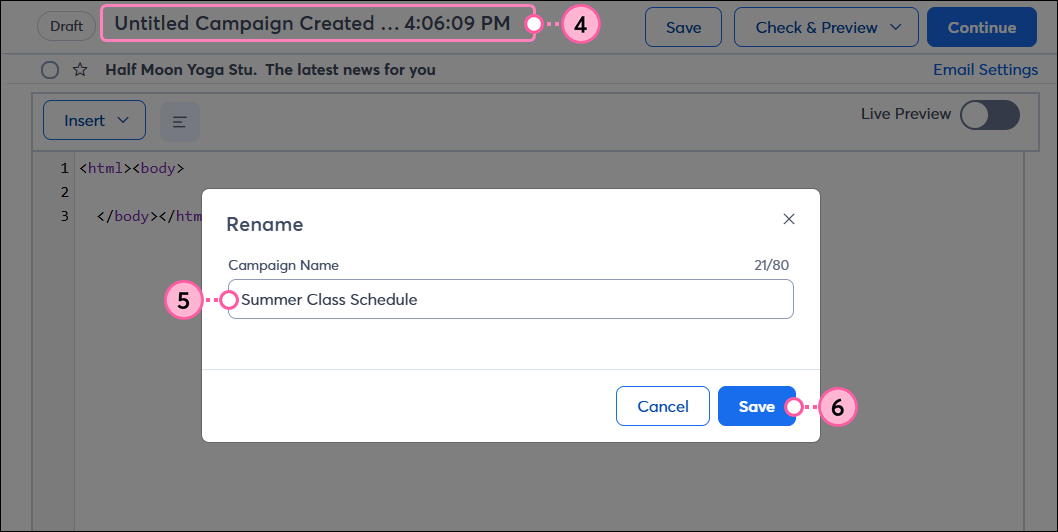
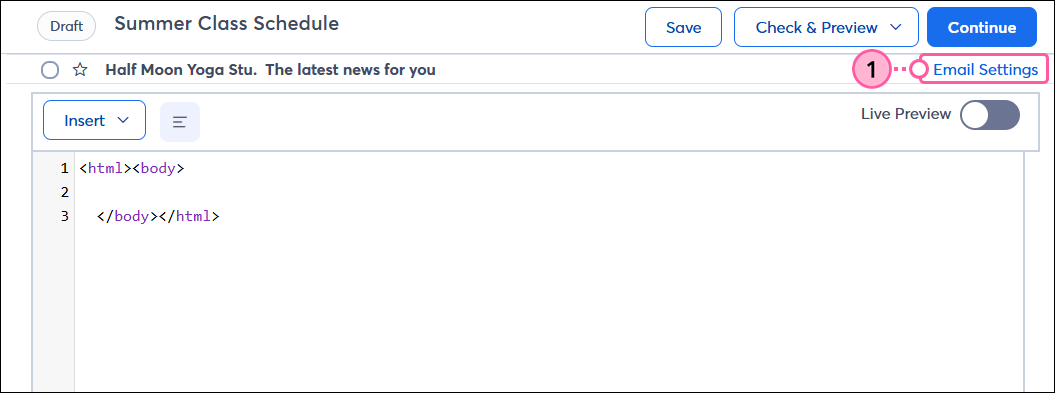
We have tons of professionally designed templates available in our drag-and-drop email editor, but if you have your own email design, you can use HTML in our Custom Code editor to create an email.
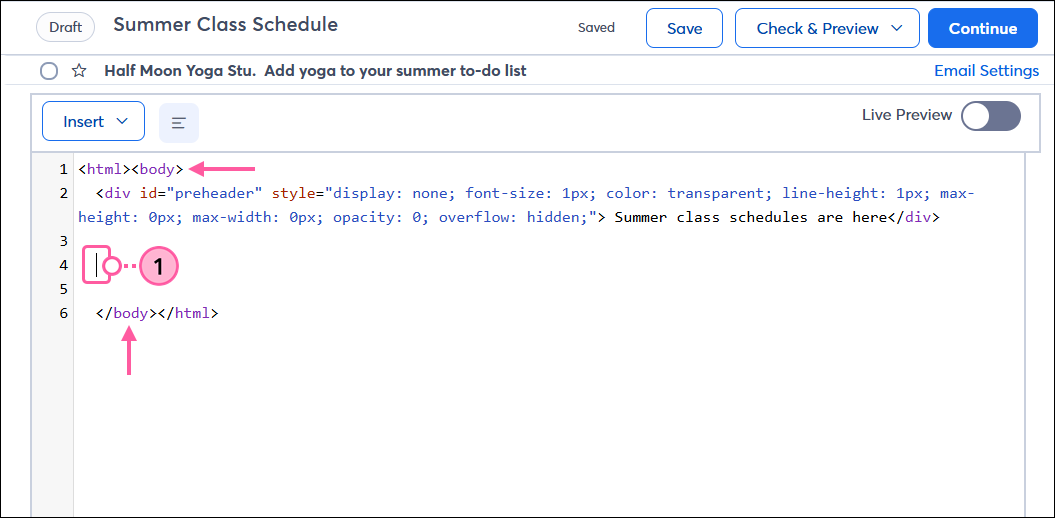
When creating your HTML, here are some things to keep in mind:
| Important: Even though your email includes a Tracking Pixel, there are a few instances when email opens aren’t trackable. |
 |  |
 | Did you know? Per the CAN-SPAM Act, a footer including your physical address is always added to the bottom of your email. You can change the physical address that appears in the footer when you schedule and send your email. |
<div id="preheader" style="display: none; font-size: 1px; color: transparent; line-height: 1px; max-height: 0px; max-width: 0px; opacity: 0; overflow: hidden;"> Preheader Text</div>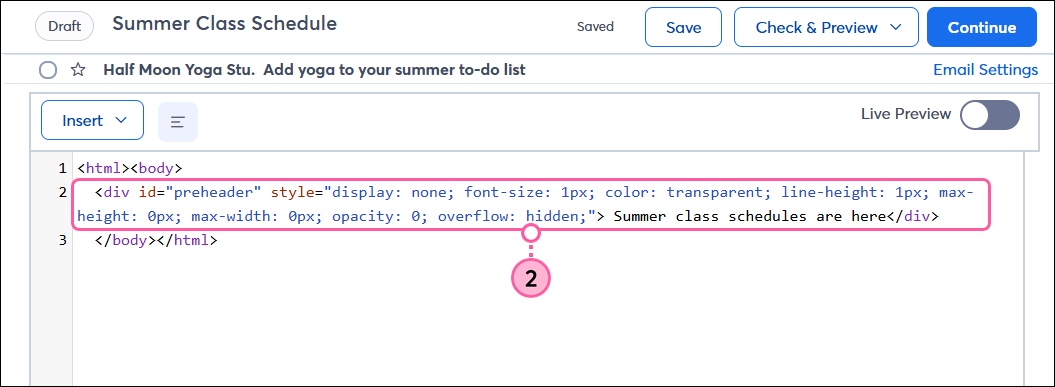
 | Design tip: To achieve the best results in the most email clients, design your code for an email, not for a webpage. |
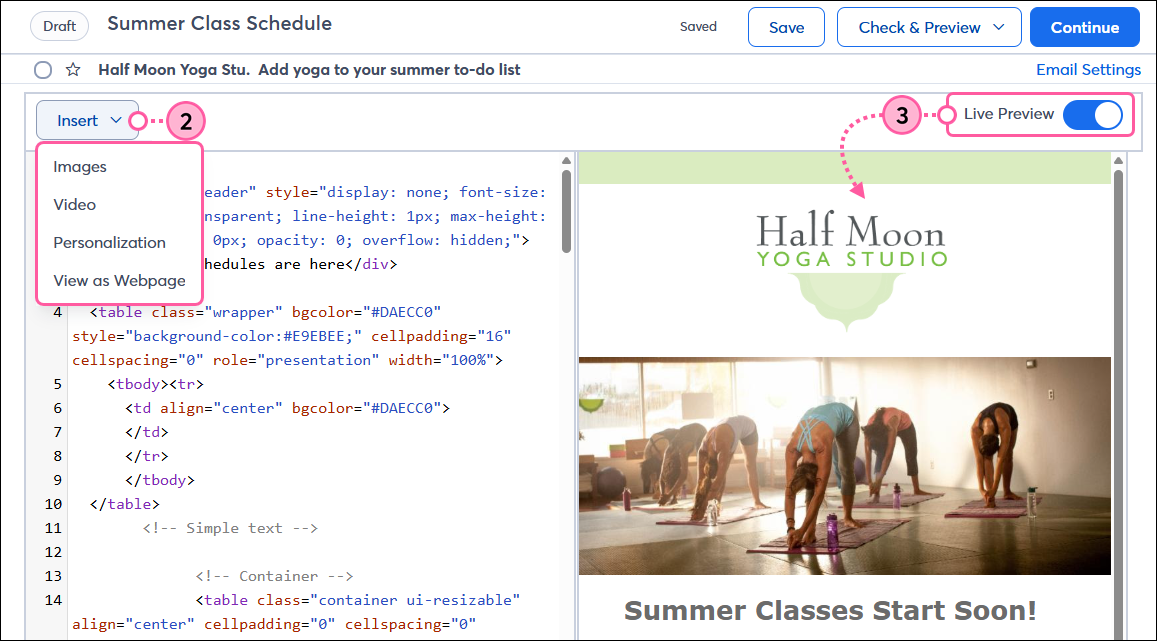
| Did you know? Span id tags with the value of a social platform, such as Facebook or LinkedIn, will convert the text into a link that allows recipients to share your email on their social media profiles. For example: <span id="Facebook"> Share on Facebook</span> |
To update the background image in your HTML email template, you can add the following code to the <BODY> tag.
style="background-image: url('IMAGE-URL');"Replace IMAGE-URL with the link to your image. By default, if your image is smaller than your email, it will repeat horizontally and vertically until it fills the entire background of your email. To avoid this, save your image at a larger size or add the "background-repeat: no-repeat" property to your HTML.
style="background-image: url('IMAGE-URL'); background-repeat: no-repeat;"Now that your image will appear only once, you can ensure it enlarges to span the full width of your email with the "background-size" property, "cover."
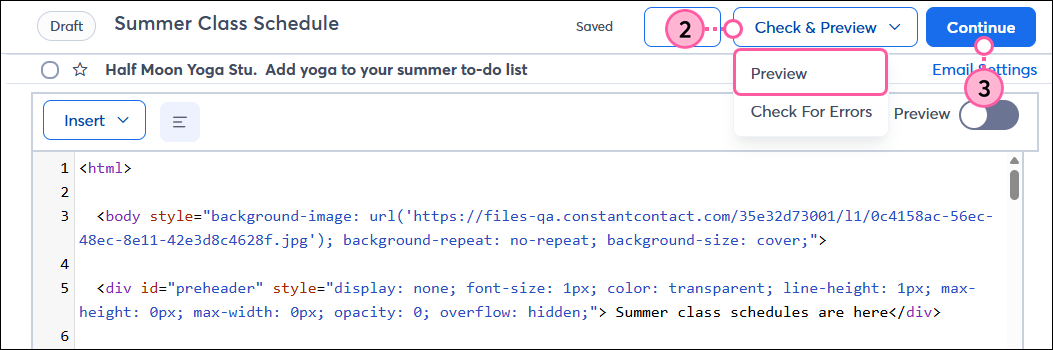
style="background-image: url('IMAGE-URL'); background-repeat: no-repeat; background-size: cover;"This is what the code looks like when added to the BODY element in your email.
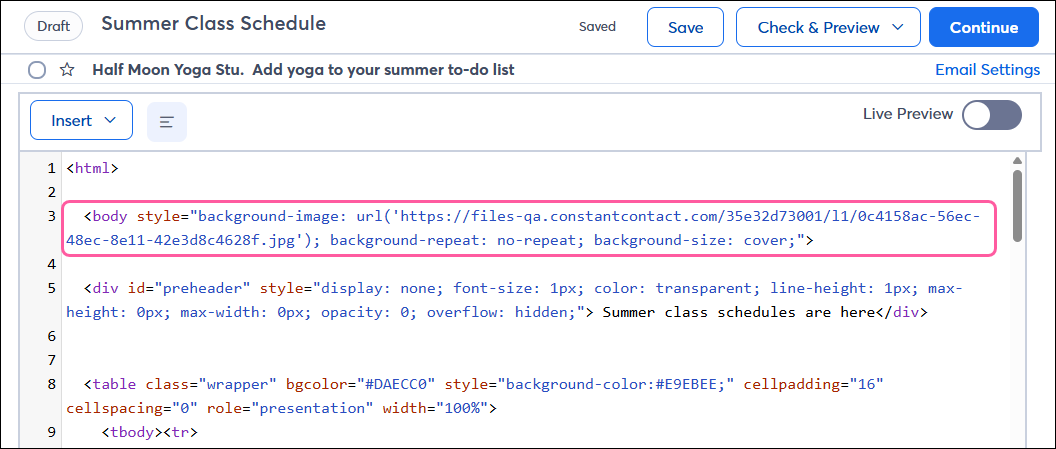
The Live Preview may not display the background image, but you can see the image when you "Check & Preview" it. The image will not cover the footer of your email without additional code.
| Important: We recommend previewing your email and sending a test version before sending it to your contacts so you can see exactly how it will appear to your recipients. |
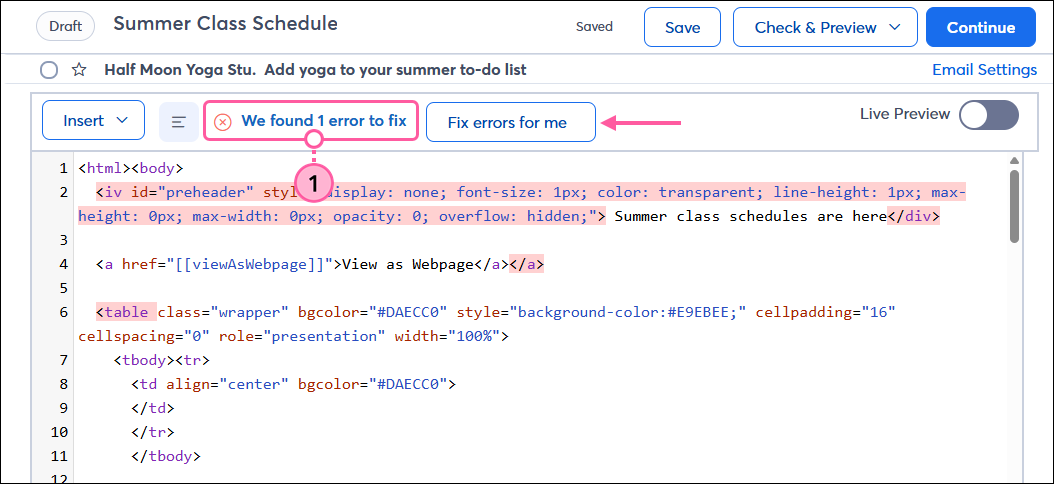
Our Custom Code editor automatically looks for errors in your code that could prevent your email from sending or from displaying the way you intended. As you work, visual indicators notify you. Each error is highlighted in the code to draw your attention, or you can see a detailed list of errors and suggestions to correct them by clicking the error banner at the top of the email editor.
Once the email is scheduled, you can share it on your social media pages to extend its reach. Give your contacts some time to open the email, and then check the results in your reporting to see how it performed.
Copyright © 2026 · All Rights Reserved · Constant Contact · Privacy Center