We're making it easier to get around Constant Contact with a brand new left navigation. Not all accounts have that change yet, so if your navigation looks different from our articles, that's why–but everything from the top can now be found on the left!

Email and Digital Marketing
How can we help you?
Search our help articles, video tutorials, and quickstart guides

You've got this. You've got us. Search our Knowledge Base to quickly find answers to your questions.

Add a filter to an image in your email

Article: 000029533
Updated: October 16, 2025

Change the color, texture, or tone of an image to make your email feel moody, edgy, dreamy, or nostalgic

If you've found the perfect image but still aren't getting the right feel from your email, try using an image filter! Image filters add warmth or coolness to enhance moodiness, make an image feel aged and nostalgic, tone down images so they don't compete with other content, or even make images look more cohesive. Even imperfect images can be enhanced with a filter that hides their flaws.


You can access our image editing tools while editing your email draft:
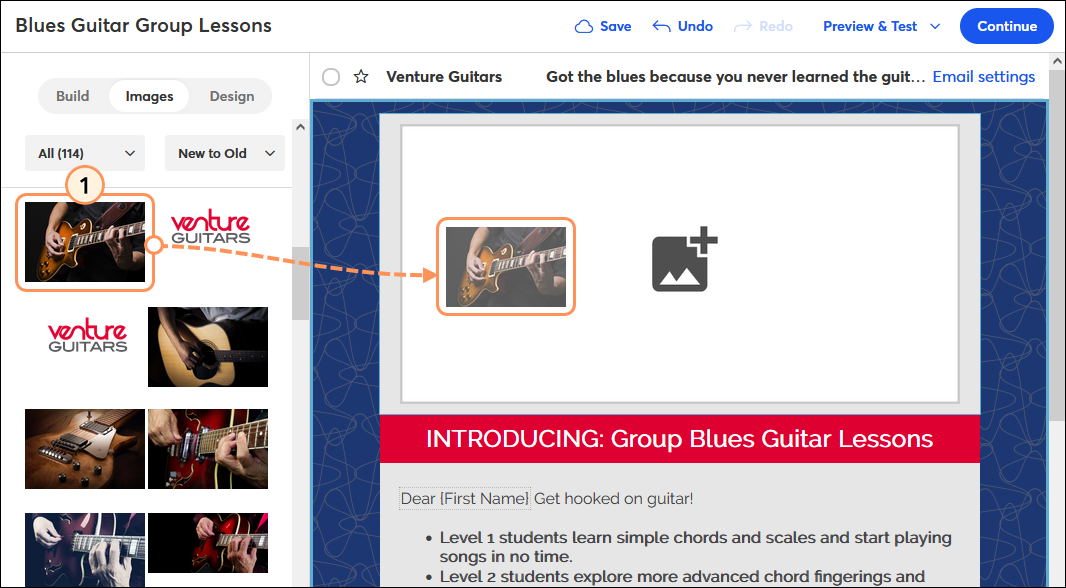
  1. If it isn't already, insert your image into your template.

    Email editor Images tab, drag-and-drop image into image placeholder in template
     
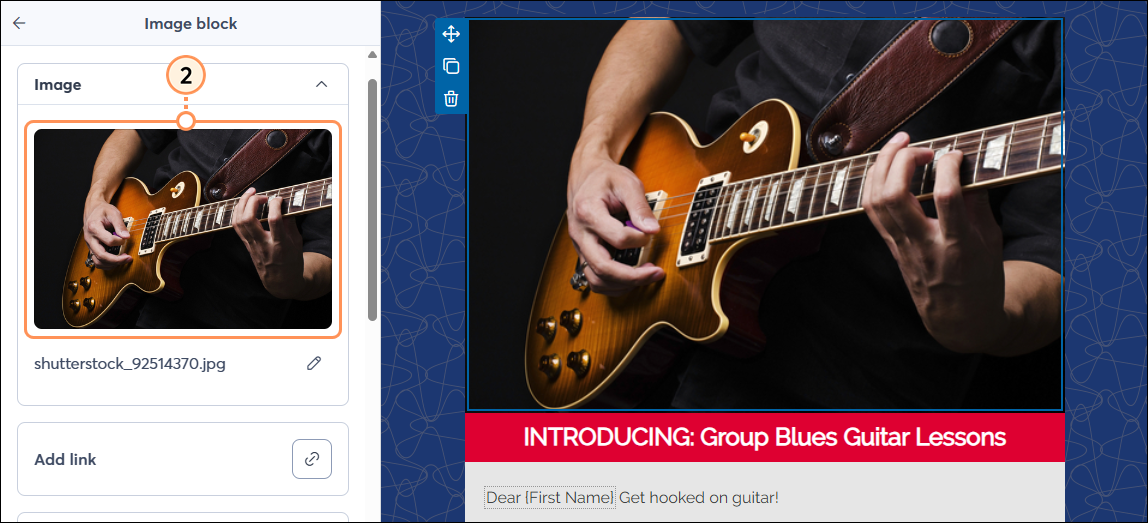
  2. Click on the image to open the left-hand panel and then click on the image to edit it.

    Email editor with Image block panel and image selected
     
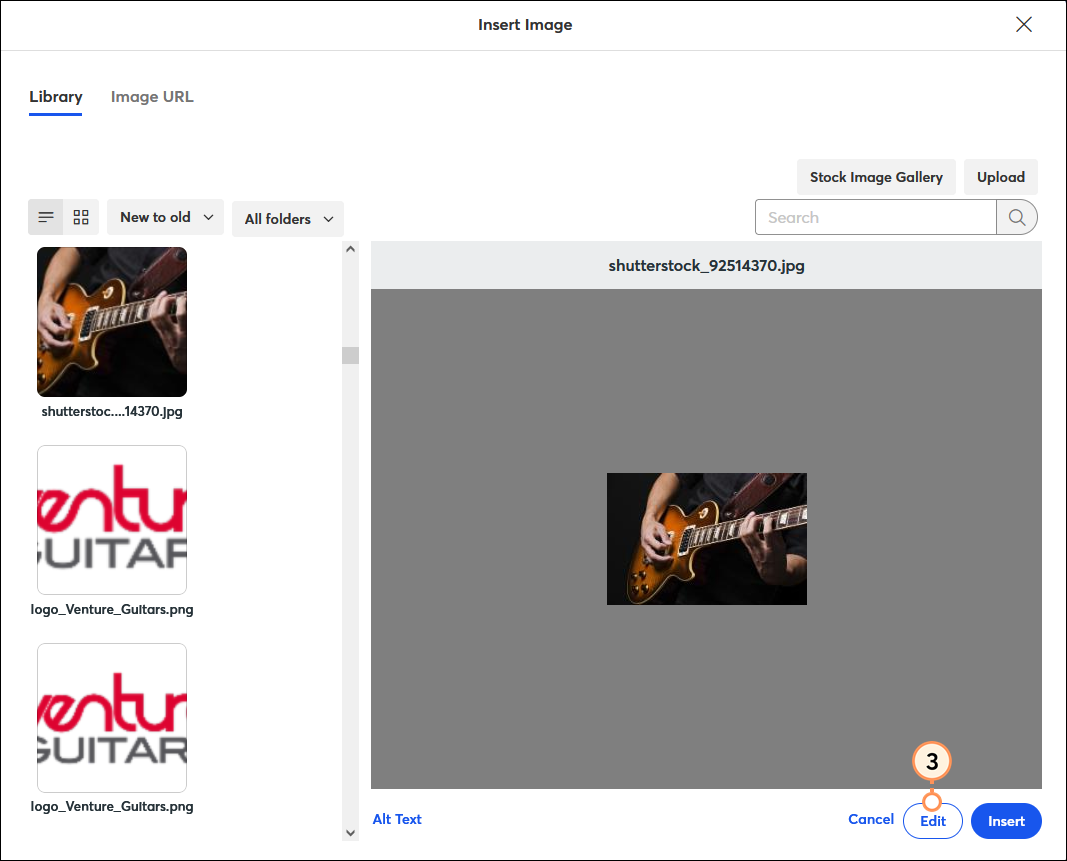
  3. Click Edit.

    Insert Image overlay with Library tab selected, preview of image without filter, and Edit button
     
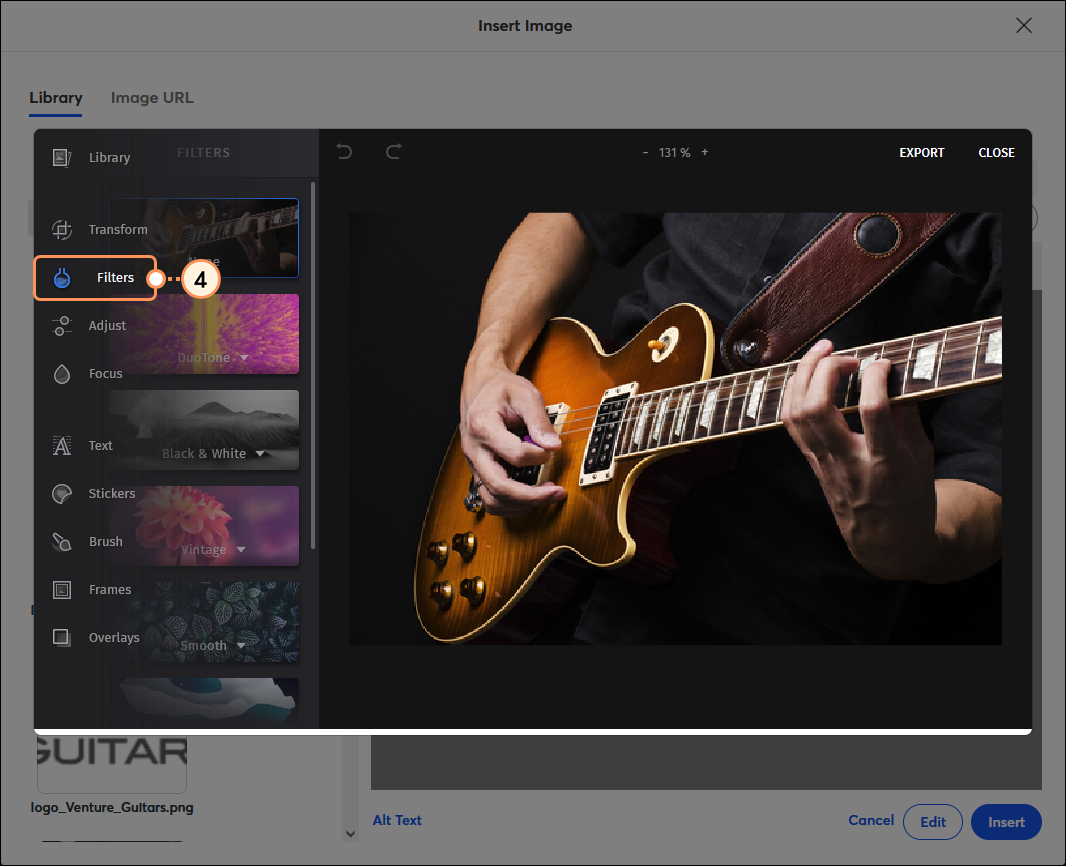
  4. In the image editor, select the Filters option.

    Insert Image overlay with image editor and Filters option selected
     
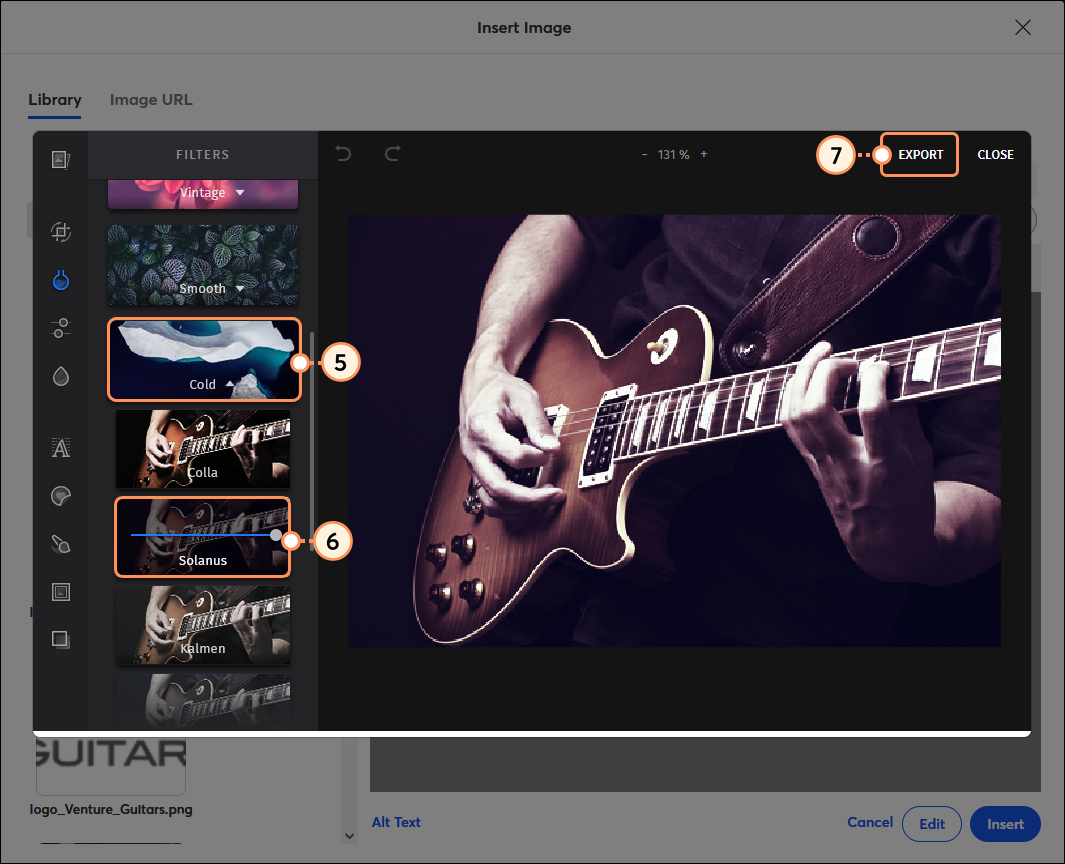
  5. Click on a filter type to see the options.
  6. Click on a filter to apply it to the image. Use the drag handle to adjust the effect, if available.
  7. When you're finished, click Export.

    Insert Image overlay with image editor, Filters menu and Cold option expanded, Solanus option selected, and Export button
     
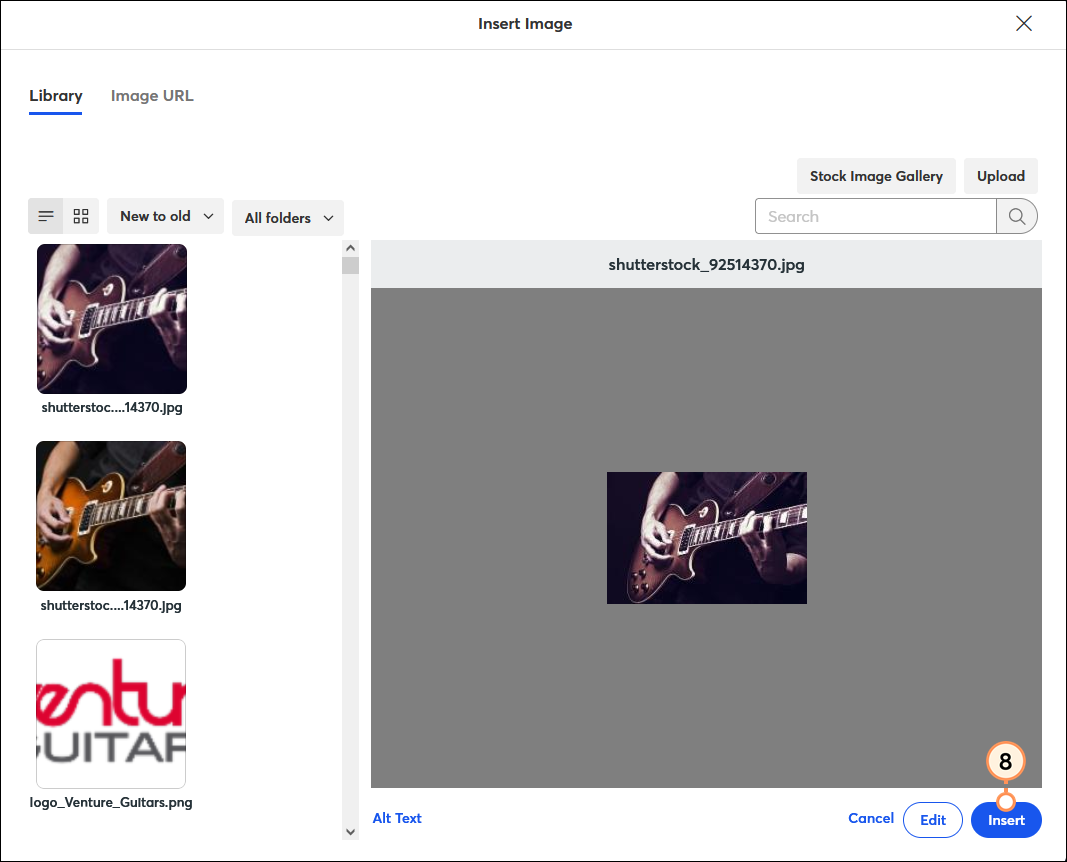
  8. Click Insert.

    Insert Image overlay with Library tab selected, preview of image with filter, and Insert button
     

There are several filters, so go ahead and experiment—once you've saved your filter and inserted the new image into your email, you can repeat the process for an even more dramatic effect. The original image stays in your Library unaltered, and every time you add a new filter, a new version is saved. You can delete the ones you don't like.


Light Bulb IconDesign tip: Want to get even more out of your email design? Check out our best practices for making your pictures pop!


Questions?

Ask the Community

Did this article answer your question?


Constant Contact Logo

Copyright © 2025 · All Rights Reserved · Constant Contact · Privacy Center