Email and Digital Marketing
How can we help you?
Search our help articles, video tutorials, and quickstart guides

You've got this. You've got us. Search our Knowledge Base to quickly find answers to your questions.

Share an email in the Constant Contact mobile app

Article: 000024813
Updated: February 27, 2026

Copy and share the URL for your sent email using the mobile app

If you want to share an email you created on social media or provide a link to your email directly to a contact, you can do so in the mobile application. The email will be shared as an HTML page. Only sent emails can be shared. 


Share an email on Android

Complete the following steps on Android to share your email.


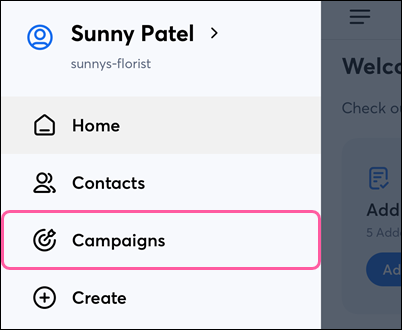
  1. From theMenu iconMenu, tap Campaigns.

     Menu with Campaigns option

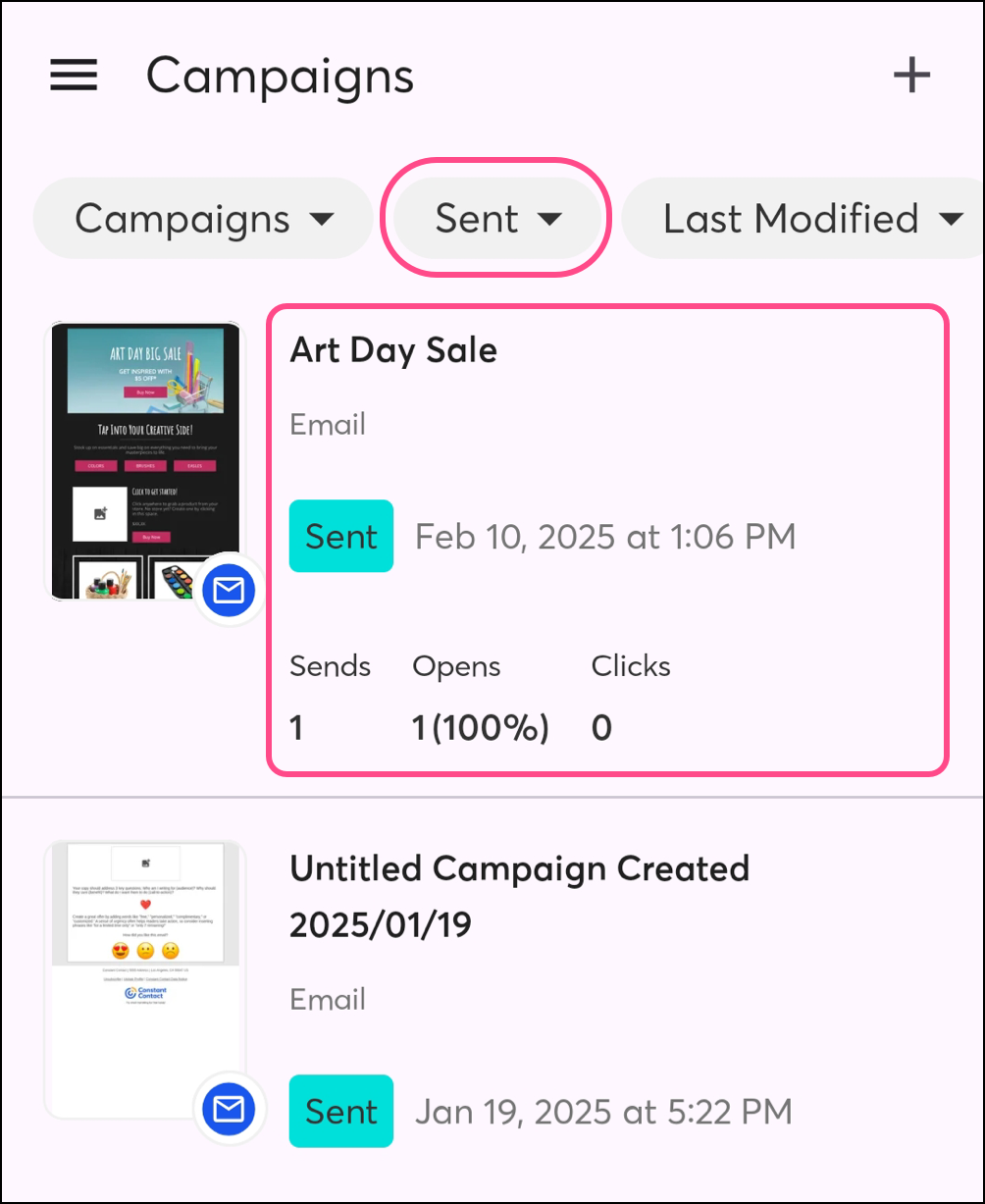
  2. Tap StatusSent at the top of the screen.
  3. Tap on the campaign you want to share.

    Sent email preview and reporting summary
     
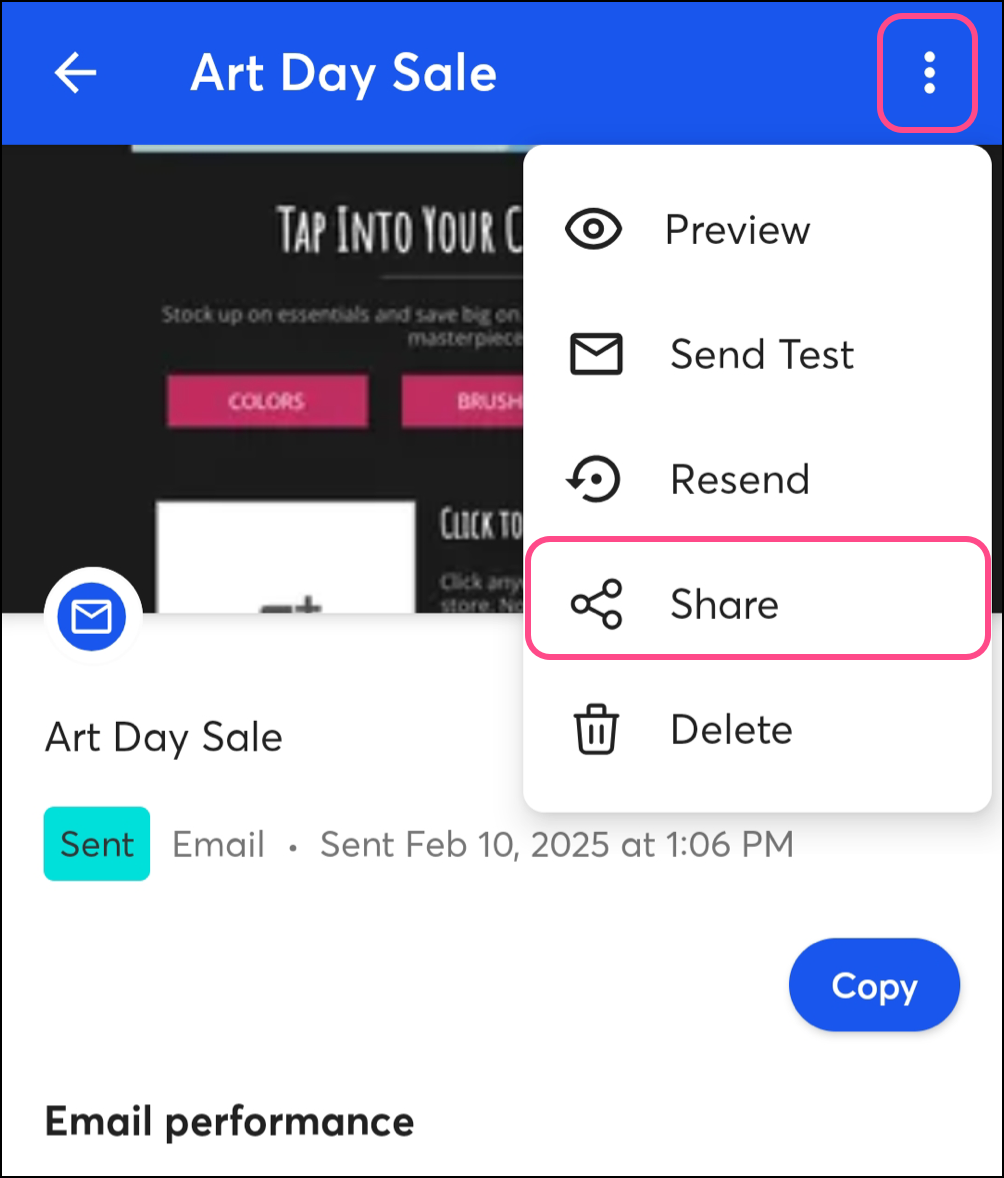
  4. Tap the three dots in the upper-right and tap Share

    Expanded email settings menu

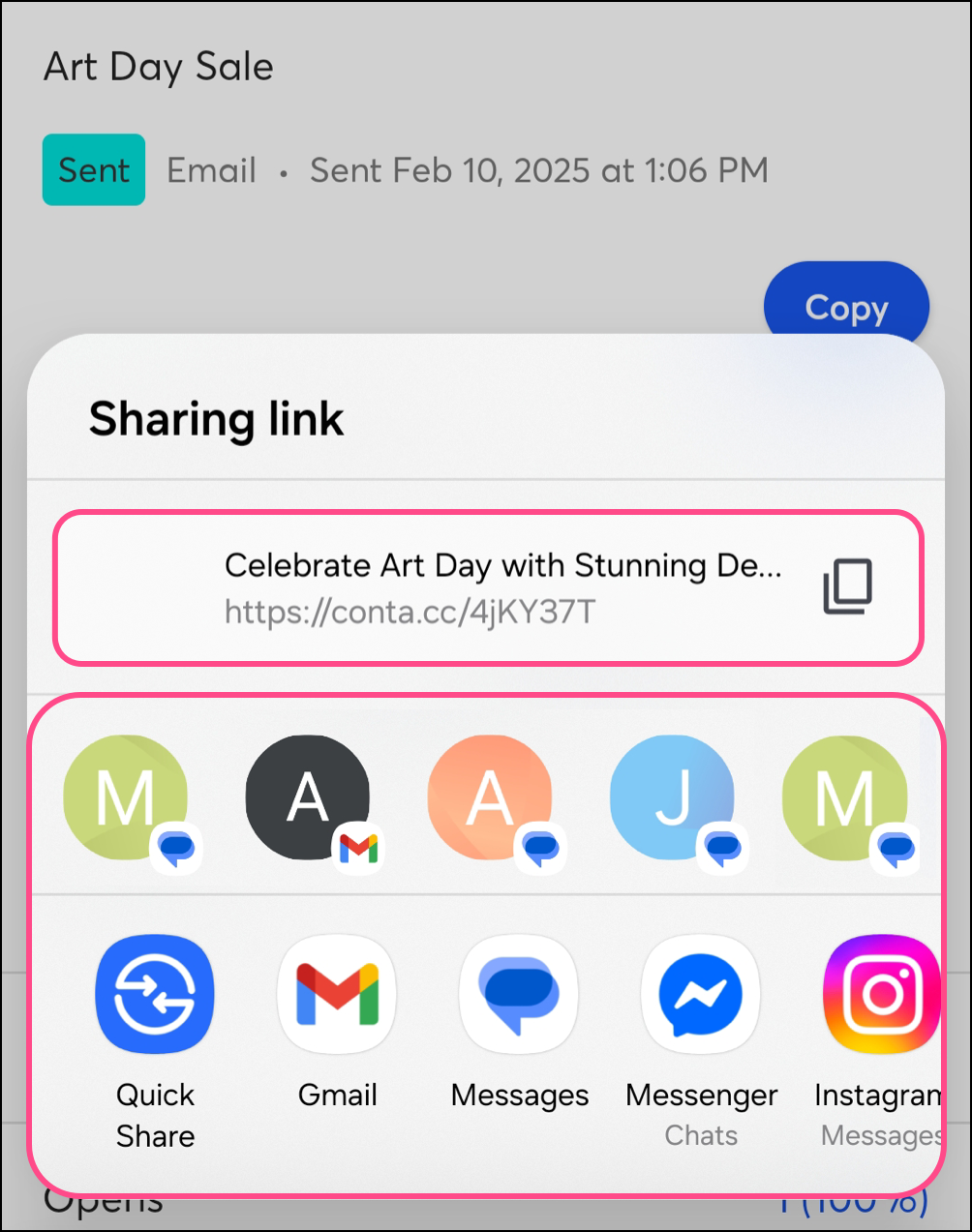
  5. Tap the copy icon to copy the email link to your phone's clipboard. You can then paste the link to share it.
  6. Alternatively, tap an app where you'd like to share the email URL—such as Gmail or Facebook Messenger. Compose the message and send.

    Send options, copy, social, email


Share an email on iPhone

Complete the following steps on iOS to share your email.
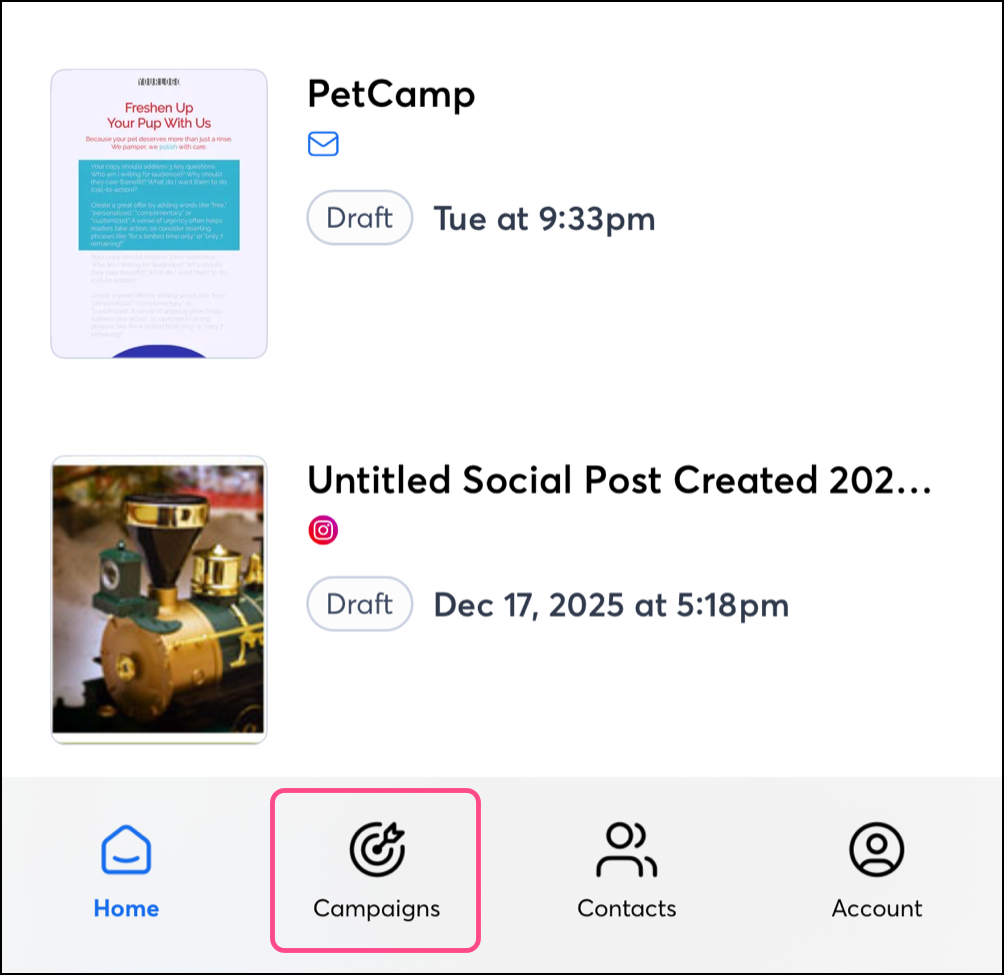
 

  1. Tap Campaigns from the bottom navigation menu.


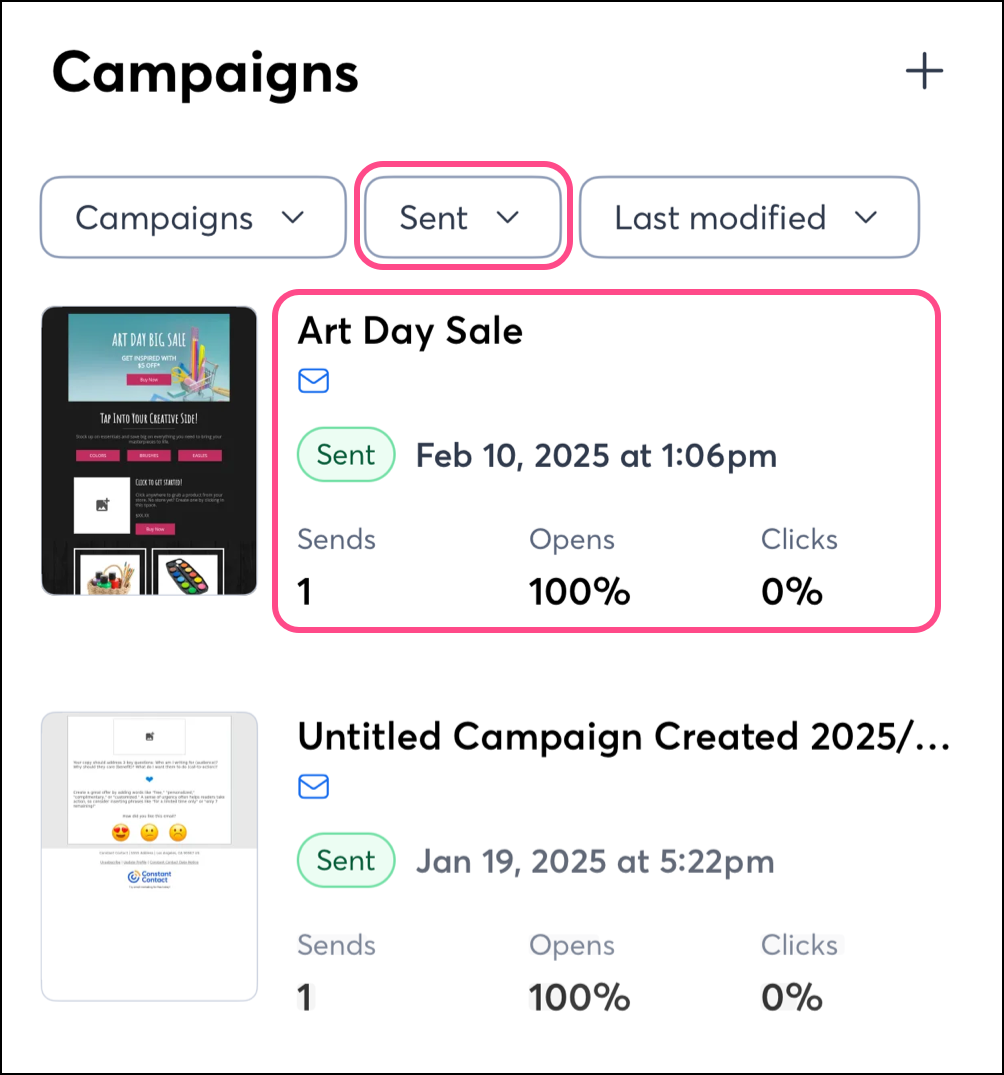
  2. Tap StatusSent at the top of the screen.
  3. Tap on the campaign you want to share.

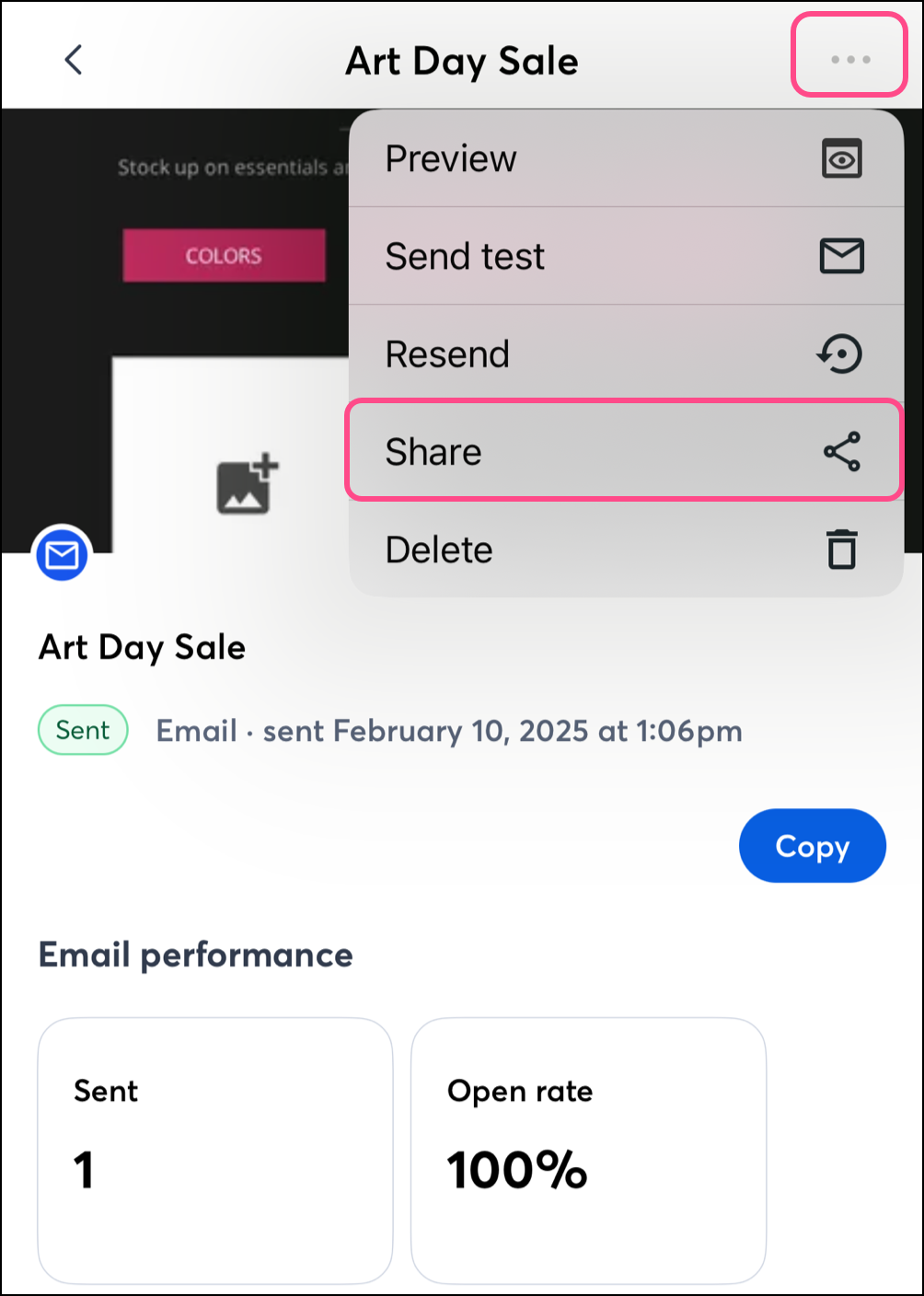
    Sent email preview and reporting summary

  4. Tap the three dots in the upper-right and tap Share

    Expanded settings menu

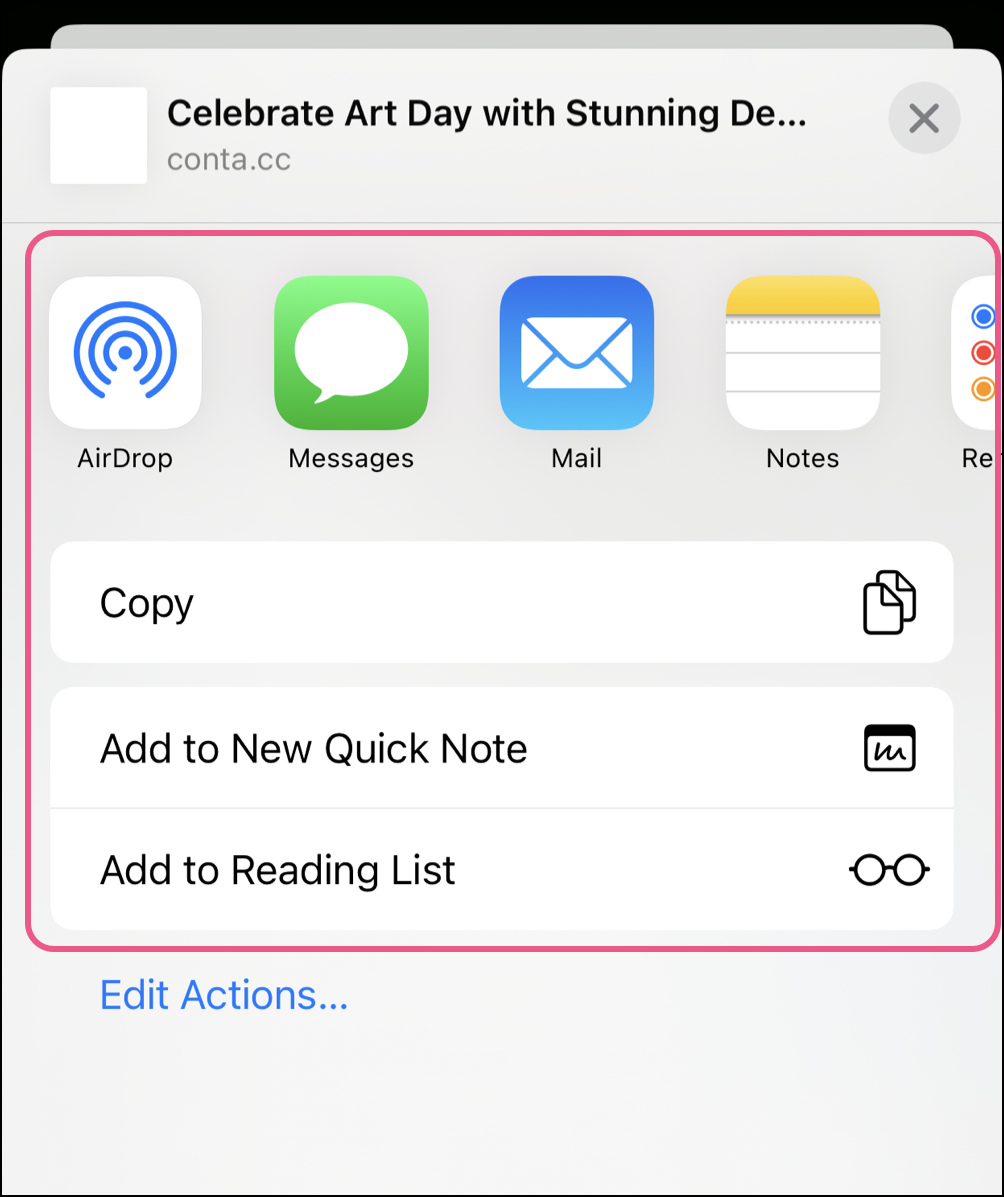
  5. Tap Copy to copy the email link to your phone's clipboard. You can then paste the link to share it.
  6. Alternatively, tap an app where you'd like to share the email URL—such as Mail or Messages. Compose the message and send. 

    Send options, copy, social, and email


Questions?

Ask the Community

Did this article answer your question?


Constant Contact Logo

Copyright © 2026 · All Rights Reserved · Constant Contact · Privacy Center