Email and Digital Marketing
How can we help you?
Search our help articles, video tutorials, and quickstart guides

You've got this. You've got us. Search our Knowledge Base to quickly find answers to your questions.

A/B test an email subject line

Article: 000022934
Updated: June 24, 2026

Send an email with two different subject lines to a portion of contacts, and automatically send the winning one to the rest

Email Plus IconReview your plan: This feature is not available in all Constant Contact plans. If you don’t have full access, you may need to upgrade your plan.


The easiest way to improve your open rate is with a great subject line; it's the first thing your contacts see when you send an email. Comparing two subject lines with an A/B test (a.k.a split test) ensures you're always sending the most effective subject line out to your audience.


How subject line A/B testing works

A/B testing is a way of comparing how version A of something, like your email subject line, performs compared to version B with an audience, like your contact list:

  1. An email with subject line A is sent to up to 50% of your selected contacts, while a second email with subject line B is sent to an equal portion.
  2. After a specified period, the subject line with the most opens is declared the winner.
  3. The winning subject line is automatically sent to the remaining contacts who weren't part of the A/B test population.

Note: Additional features, like filtering a list by tags or sending to a segment, may prevent you from achieving statistically significant results because they can reduce the number of contacts you're sending to. If your list is on the smaller side, we recommend saving those tools for another email independent of your A/B test.


line graph iconThe data shows: To achieve statistical significance, the recommended audience size for each subject line is at least 1,000 contacts. The more contacts on your selected lists, the more statistically significant your results will be. Feel free to send to fewer contacts, but keep in mind that the smaller the list size, the less certain we are that the higher open rate was due to the subject line.


Enable subject line A/B testing

While scheduling your email:

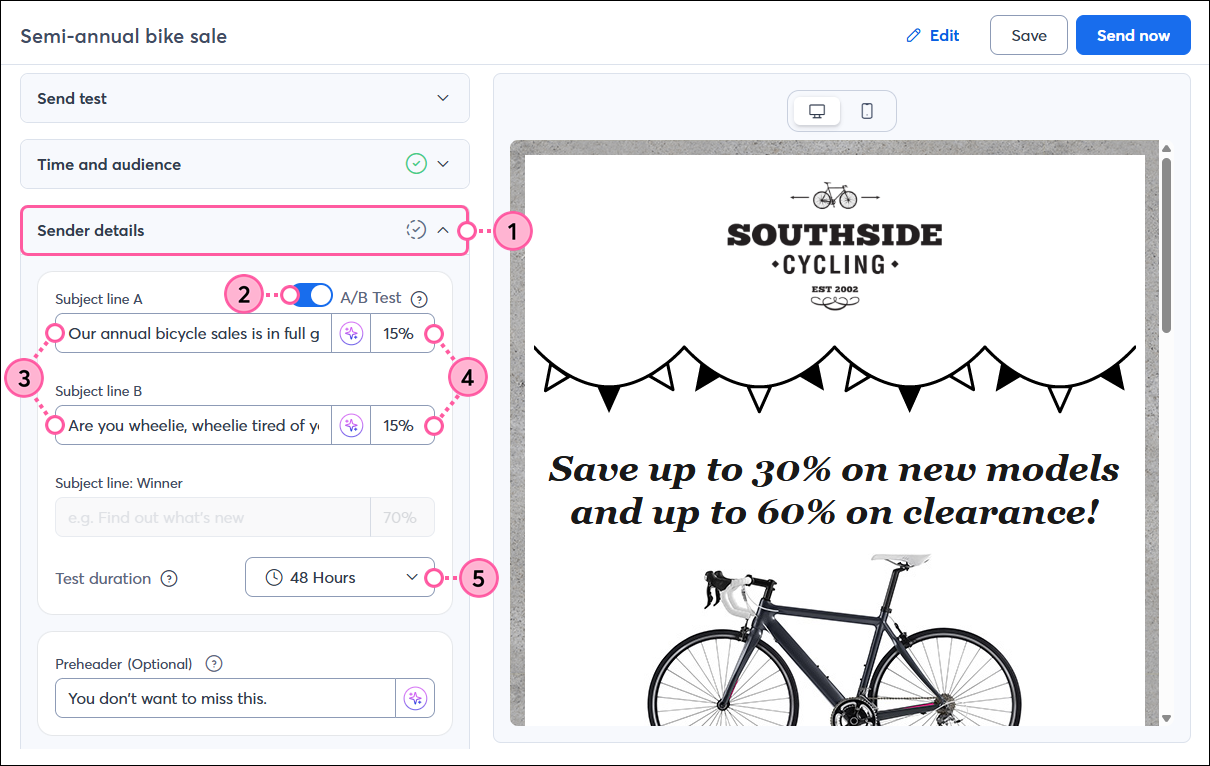
  1. Click to expand the Sender details section.
  2. Click the A/B Test toggle to enable the feature.
  3. Enter the two subject lines you want to test in the A and B subject line fields.
    Note: If you edited the email header from the email editor, that subject line will be added automatically as the "A" subject line. The subject line personalization option is disabled when A/B testing is enabled. However, you can create and copy two personalized subject lines before enabling A/B testing, then paste them into the A and B subject line fields. 
  4. Enter a percentage of your contacts to send the test to. The rest of your contacts receive the winning email after the test is complete.
  5. Select a period of time to wait before declaring a winner to give the contacts in your test population time to open your email. 

    Email schedule page with Sender Details section expanded, A/B Test toggle, Subject Line A and B Fields, and Test Duration drop-down


When you're ready to start your A/B test, click Send now or Schedule.


Once your chosen time period passes, an email with the winning subject line is sent to the remaining contacts who weren't part of the test population. The winning subject line is not resent to anyone who received the losing subject line during the A/B test. You can check your reporting to see your winner and use the results to improve the subject lines of future emails.


Questions?

Ask the Community

Did this article answer your question?


Constant Contact Logo

Copyright © 2026 · All Rights Reserved · Constant Contact · Privacy Center