Email and Digital Marketing
How can we help you?
Search our help articles, video tutorials, and quickstart guides

You've got this. You've got us. Search our Knowledge Base to quickly find answers to your questions.

Subject line A/B test results

Article: 000022449
Updated: July 10, 2026

View the send, open, and click information for each version of a subject line A/B test

When you send an email with a subject line A/B test, the content of your email doesn't change, but you're essentially sending two versions of it, each with a different subject line. The reporting for a subject line A/B test breaks your performance information down for each version of your email so you can easily compare the results and use the information to inform the subject lines of future emails.
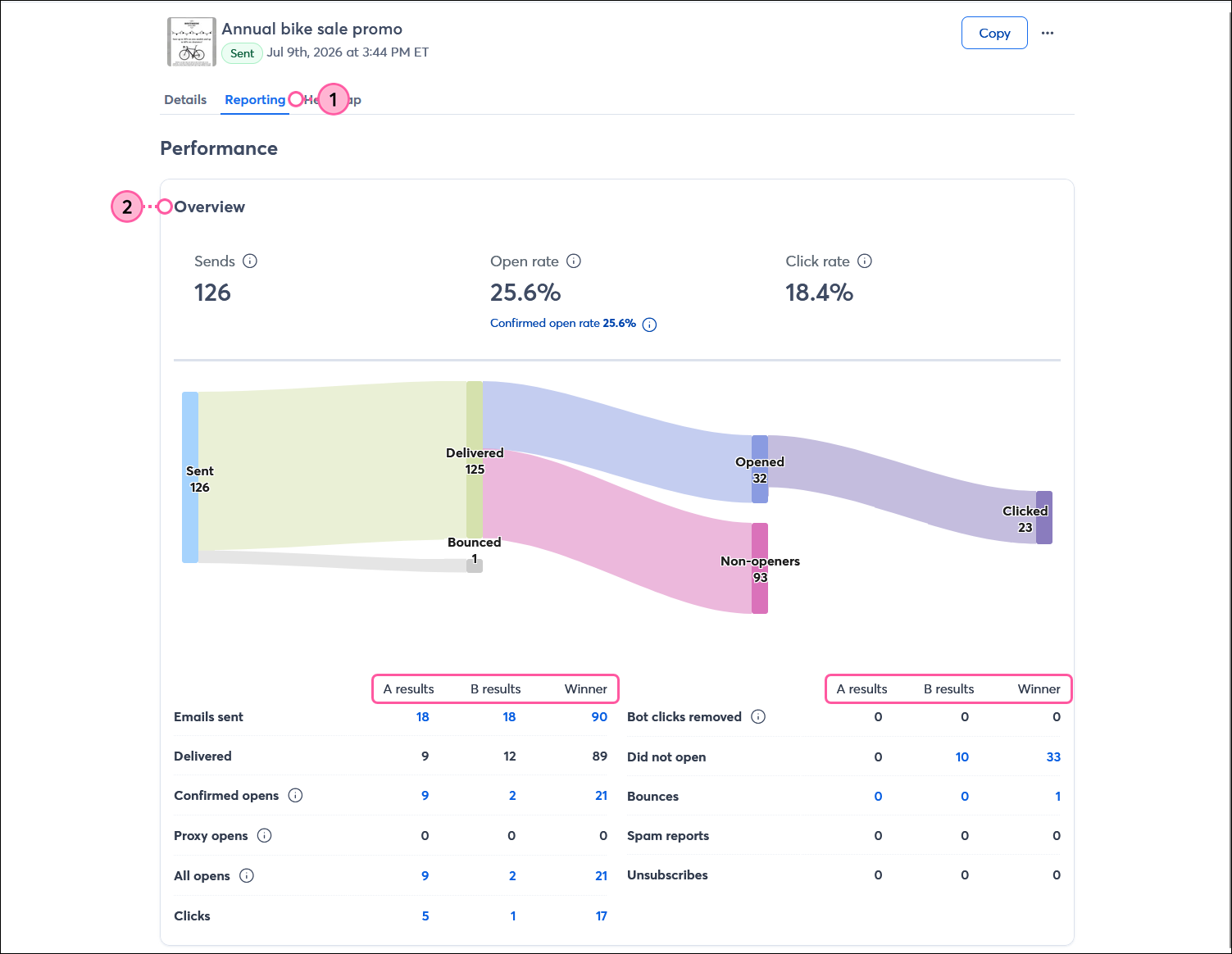
  1. Open the Email Details page for your email with the subject line A/B test and click the Reporting tab.
  2. In the Overview section, review the performance information for the A version, the B version, and the Winning version of your email.

    Email Details page with Reporting tab selected, Overview section with A results, B results, and Winner columns

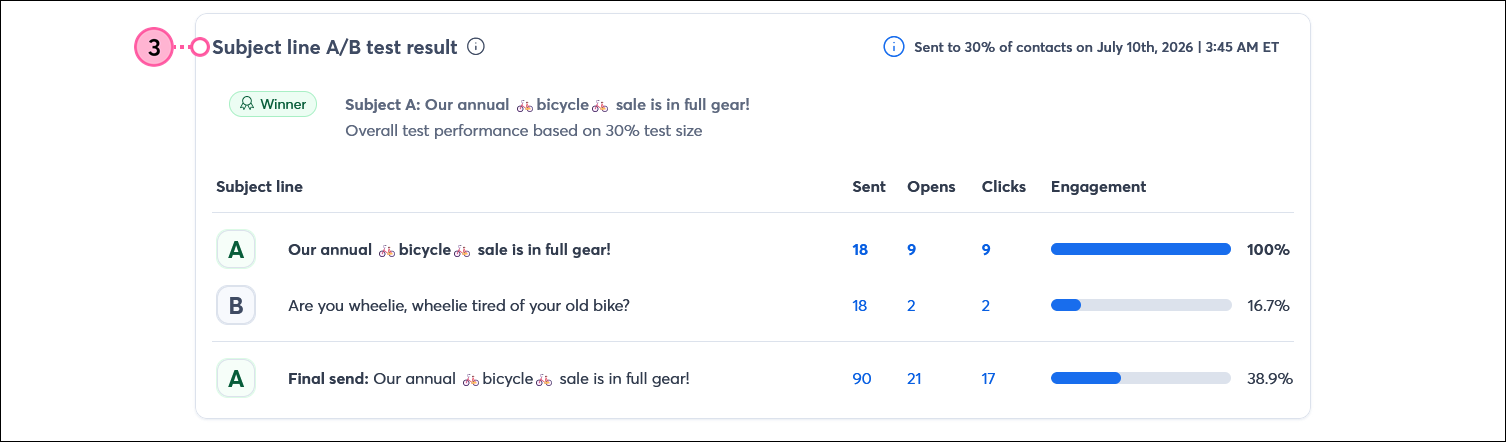
  3. Scroll down to the Subject line A/B test result section to see the subject line versions and the Sent, Opens, Clicks, and Engagement metrics for each subject line.

    Email Details page with Reporting tab selected, and Subject line A/B test result section showing different subject lines


lightbulb iconDid you know? You can extend the reach of your email by sharing it on Facebook and LinkedIn. When you create a post, the A version of your subject line is shared, so you don't have to wait for a winner to share on your social networks.


Questions?

Ask the Community

Did this article answer your question?


Constant Contact Logo

Copyright © 2026 · All Rights Reserved · Constant Contact · Privacy Center